How to Capture a Screenshot of a Div with JavaScript
Capture a rendered div with html2canvas, handle CORS and CSS limits, and compare browser, server, and ScreenshotNeo workflows.
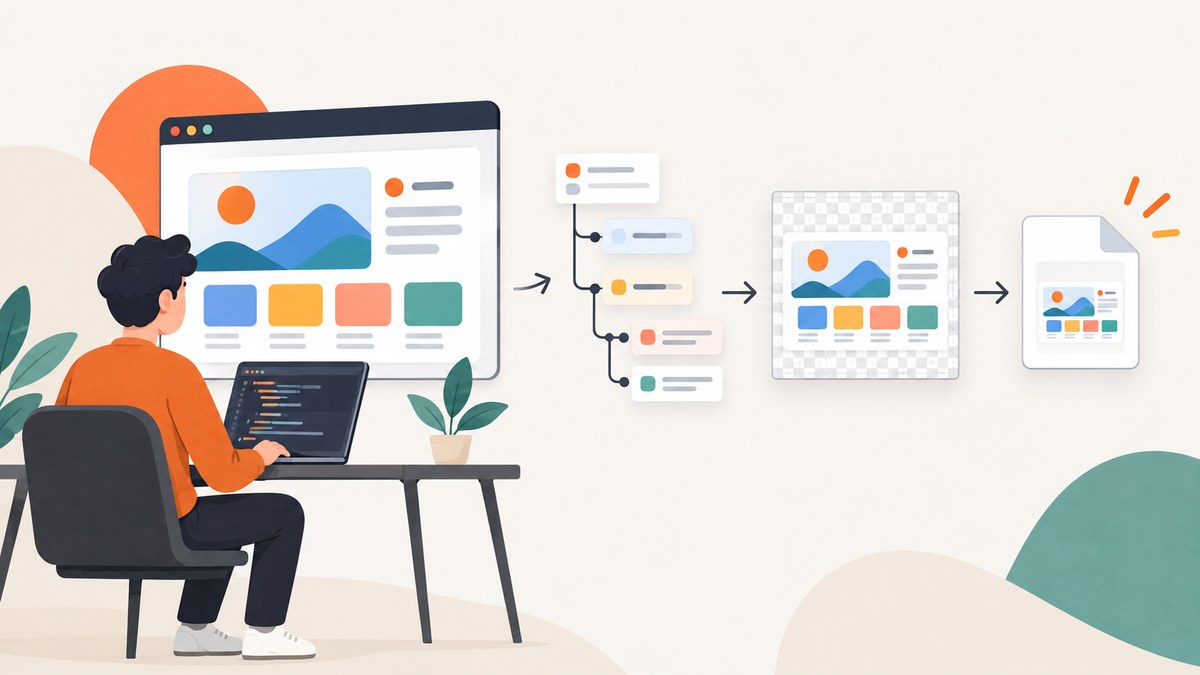
To capture one rendered div in a web page, select the element and pass it to html2canvas. The library returns a Promise containing a canvas, which you can preview or export as PNG, JPEG, or another browser-supported image format.
import html2canvas from '@html2canvas/html2canvas';

const element = document.querySelector('#capture');
if (!element) throw new Error('Capture target not found');

const canvas = await html2canvas(element);
document.body.appendChild(canvas); // optional preview

const link = document.createElement('a');
link.download = 'screenshot.png';
link.href = canvas.toDataURL('image/png');
link.click();
This is a DOM-to-canvas reconstruction, not a pixel screenshot of the browser window. html2canvas walks the element’s DOM and styles and draws the parts it understands. Its documentation explains that the result may differ from the browser’s actual painted output. That distinction determines which method you should use:
- Use html2canvas when the target is an element in your own page and an approximate rendering is acceptable.
- Use Puppeteer or Playwright when a server must render a page in a real browser.
- Use a browser extension tab-capture API when you need pixels from a visible browser tab.
- Use a screenshot API when you want a hosted endpoint instead of maintaining browser infrastructure.
1. Build a complete in-page example
Install the package in a project that uses a JavaScript bundler:
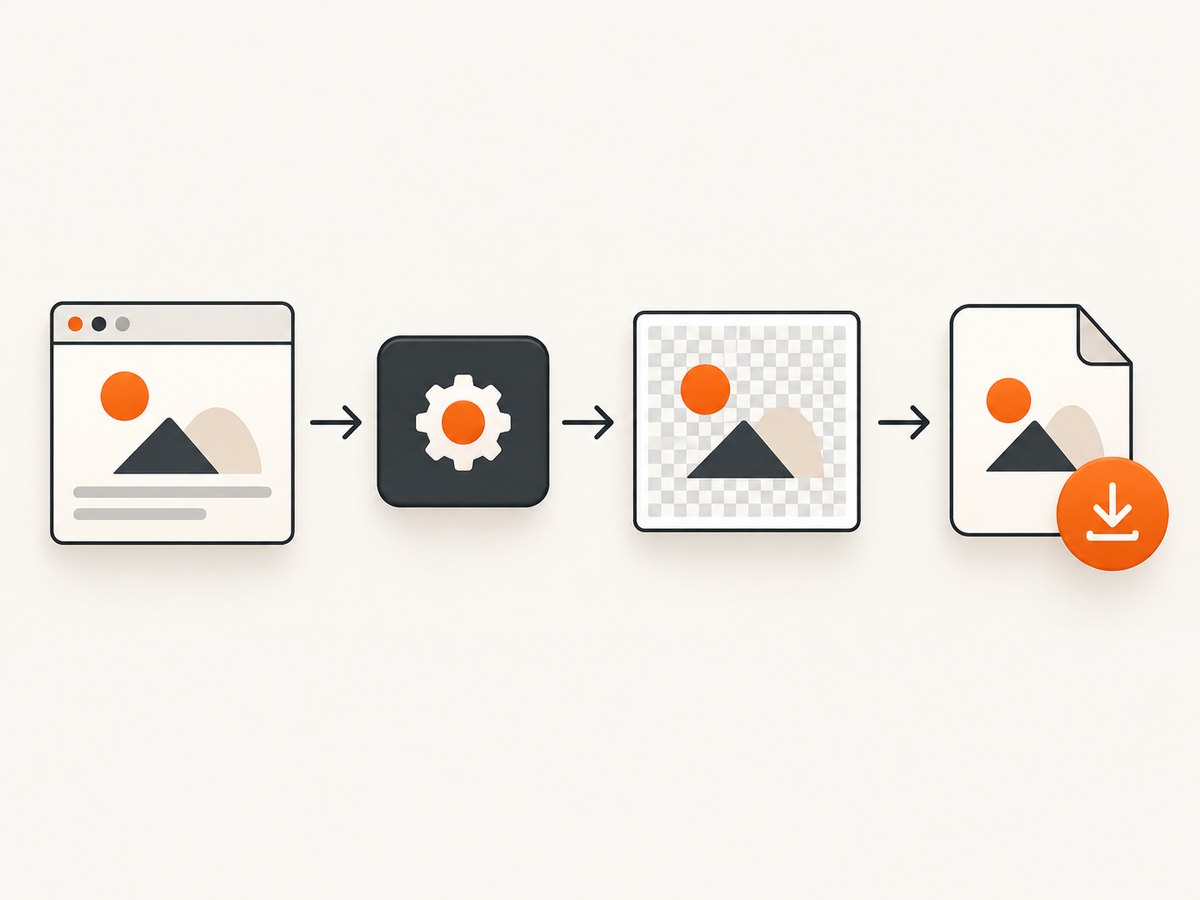
npm install @html2canvas/html2canvasThen add an element to capture and a button to start the operation:
<article id='capture' class='card'>
  <h2>Monthly revenue</h2>
  <p class='value'>$48,200</p>
  <div class='bar' aria-label='Revenue is up 24 percent'></div>
</article>
<button id='download' type='button'>Download card</button>

<script type='module' src='/capture.js'></script>
import html2canvas from '@html2canvas/html2canvas';
const button = document.querySelector('#download');
const target = document.querySelector('#capture');
button.addEventListener('click', async () => {
if (!target) throw new Error('Capture target not found');
button.disabled = true;
try {
const canvas = await html2canvas(target, {
backgroundColor: '#ffffff',
scale: window.devicePixelRatio,
useCORS: true
});
const link = document.createElement('a');
link.download = 'revenue-card.png';
link.href = canvas.toDataURL('image/png');
link.click();
} finally {
button.disabled = false;
}
});html2canvas is asynchronous because it must inspect the DOM and load resources. Keep the button disabled while the Promise is pending, and handle errors so users are not left wondering whether a download started.
2. Control the captured area and resolution
By default, the library uses the element’s layout bounds. You can provide a crop rectangle with x, y, width, and height. These coordinates are useful when a component has surrounding whitespace or when you want a fixed export region.
const rect = target.getBoundingClientRect();
const canvas = await html2canvas(target, {
  x: rect.left,
  y: rect.top,
  width: rect.width,
  height: rect.height,
  scale: 2
});
scale controls output density. A value of 2 creates twice as many pixels in each direction, which is useful for retina displays but increases memory use and file size. scale: window.devicePixelRatio follows the current display density. It does not add support for CSS that html2canvas cannot reconstruct.
| Goal | Settings or technique | Trade-off |
|---|---|---|
| Small web preview | scale: 1 |
Lower file size and memory use |
| Retina download | scale: window.devicePixelRatio |
More pixels and longer encoding |
| Fixed export size | Set width and height |
May crop content outside the rectangle |
| Transparent output | backgroundColor: null |
Transparency depends on the output format; JPEG has no alpha channel |
For a JPEG, pass a quality value to toDataURL:
const jpeg = canvas.toDataURL('image/jpeg', 0.9);
const webp = canvas.toDataURL('image/webp', 0.9);
3. Capture after fonts, images, and charts are ready
Calling the library immediately after inserting a component can produce an incomplete image. Wait for the relevant assets and application state first.
await document.fonts.ready;

const images = [...target.querySelectorAll('img')];
await Promise.all(images.map((image) => {
  if (image.complete) return Promise.resolve();
  return new Promise((resolve) => {
    image.addEventListener('load', resolve, { once: true });
    image.addEventListener('error', resolve, { once: true });
  });
}));

await new Promise((resolve) => requestAnimationFrame(() => requestAnimationFrame(resolve)));
const canvas = await html2canvas(target);
The double animation-frame wait gives layout and paint a chance to settle after a state update. For charts drawn by a library, wait for that library’s own render callback rather than relying only on a timeout. If content is loaded lazily, scroll it into view or trigger the application’s loading state before capture.
4. Understand what html2canvas can and cannot reproduce
html2canvas reconstructs a representation from DOM and style information. It does not ask the browser for a bitmap of the element. As a result, output depends on the CSS properties and content types supported by the project’s current implementation. Always check the supported features list for the CSS used by your component.
Cross-origin images
A remote image must be served in a way that permits browser use from your origin. You can request CORS handling:
const canvas = await html2canvas(target, {
  useCORS: true
});
This option cannot override a server that omits suitable CORS headers. If the image is loaded without permission, it may be omitted, or the resulting canvas may be tainted and unreadable. Proxying the asset through infrastructure you control can solve the policy problem, provided your proxy is configured correctly and you have permission to fetch the content.
Iframes and embedded applications
Content inside a cross-origin iframe is protected by the browser’s same-origin policy. The parent page cannot inspect that iframe’s DOM or ask html2canvas to reproduce its contents. Capture the embedded application from its own origin, obtain a same-origin integration, or use a real browser screenshot workflow where the entire page is rendered as a browser.
CSS differences
Unsupported or partially supported effects can differ from the live page. Complex filters, blend modes, some gradients, generated content, video frames, and browser-specific rendering are common sources of mismatch. Reduce the component to a capture-friendly export style when exact output matters: use explicit colors, dimensions, and fonts, and avoid depending on transient animations.
5. Capture an element on the server with a real browser
html2canvas is browser code. It is not a replacement for a browser in Node.js. For server-side output, load the page with Puppeteer or Playwright, locate the element, and call the browser’s element screenshot method.
import { chromium } from 'playwright';

const browser = await chromium.launch();
const page = await browser.newPage({
  viewport: { width: 1440, height: 900 },
  deviceScaleFactor: 2
});

await page.goto('https://example.com/dashboard', { waitUntil: 'networkidle' });
const card = page.locator('#capture');
await card.waitFor();
await card.screenshot({ path: 'dashboard-card.png' });

await browser.close();
This approach captures browser-rendered pixels and can handle cross-origin page resources as a browser would, subject to network access, authentication, and site protections. It also costs more operationally: you must run browser processes, manage concurrency, install compatible browser binaries, and decide how to handle navigation failures.
6. Choose the right method
| Requirement | Best fit | Why |
|---|---|---|
| User clicks a button in your own page | html2canvas | No server required; captures an arbitrary same-origin element |
| Pixel-accurate server rendering | Playwright or Puppeteer | Uses a real browser renderer |
| Entire visible browser tab | Extension tab screenshot API | Scoped to browser-tab capture |
| Hosted URL-to-image endpoint | ScreenshotNeo | One request, with element selection and browser controls handled for you |
7. Or skip the browser setup
ScreenshotNeo provides a hosted screenshot API and MCP server. Its element mode can capture a single CSS-selected element, while other options cover full-page shots, device presets, custom viewports, retina scale, dark mode, custom CSS and JavaScript, waiting rules, cookies, headers, authentication, geolocation, and more. See the ScreenshotNeo API documentation for the current parameter names and examples.

curl -G 'https://api.screenshotneo.com/v1/shot' \
  -d access_key=YOUR_API_KEY \
  --data-urlencode url=https://example.com/dashboard \
  --data-urlencode selector='#capture' \
  -o card.webp
import requests
r = requests.get(
'https://api.screenshotneo.com/v1/shot',
params={
'access_key': 'YOUR_API_KEY',
'url': 'https://example.com/dashboard',
'selector': '#capture'
},
timeout=90
)
r.raise_for_status()
open('card.webp', 'wb').write(r.content)const q = new URLSearchParams({
access_key: 'YOUR_API_KEY',
url: 'https://example.com/dashboard',
selector: '#capture'
});
const res = await fetch(`https://api.screenshotneo.com/v1/shot?${q}`);
if (!res.ok) throw new Error(`Screenshot failed: ${res.status}`);
const buffer = Buffer.from(await res.arrayBuffer());
await import('node:fs/promises').then((fs) => fs.writeFile('card.webp', buffer));Cookie banners, newsletter popups, and chat widgets are removed before the shot; more than 60 known consent platforms are handled, and each cleanup step can be disabled. Bot checks, blank pages, timeouts, failed loads, and cache hits are not billed as clean shots. The response identifies the result with X-Page-Verdict and X-Billed headers. An MCP server provides take_screenshot, get_page_info, and capture_pdf tools for Claude, Cursor, and other MCP clients.
The Free plan includes 1,000 screenshots each month with no card. Paid plans start at $5 for 3,000 screenshots; yearly billing gives two months free. Create a free ScreenshotNeo account and try the element capture workflow.
8. Useful ScreenshotNeo options for div capture
- Element selection: pass a CSS selector when only one card, chart, or panel is needed.
- Full page: load lazy images and capture the whole document when the component depends on page scrolling.
- Wait conditions: wait for a selector, a delay, or network idle before rendering.
- Interaction: click an element before capture to open a menu, switch a tab, or dismiss an application state.
- Hide selectors: remove controls or private elements from the output.
- Output: request PNG, JPEG, WebP, or PDF, with image resizing and transparent backgrounds where applicable.
- Delivery: use caching with a chosen TTL, signed links for public image tags, asynchronous jobs with signed webhooks, or bulk capture for up to 100 URLs per call.
9. Troubleshooting checklist
| Symptom | Likely cause | Fix |
|---|---|---|
Cannot read properties of null |
The selector ran before the element existed or contains a typo | Run after the DOM is ready, verify the selector, and fail clearly when the target is missing |
| Remote image is missing | The image server does not permit cross-origin use | Use suitable CORS headers, host the asset on the same origin, or proxy it with permission |
toDataURL throws a security error |
The canvas is tainted by cross-origin content | Fix the asset’s CORS policy; useCORS cannot bypass a denial |
| Iframe content is blank | The iframe is cross-origin | Capture from the iframe’s own origin or use a real browser workflow |
| Fonts or icons differ | Capture happened before fonts loaded | Await document.fonts.ready and wait for image loads |
| CSS effect is absent | The property is outside html2canvas support | Check the supported feature list and provide a simpler export style |
| Output is blank or partial | The canvas is too large for the browser or device | Capture a smaller region, lower scale, or split the export; limits vary by browser and hardware |
| ScreenshotNeo returns a non-clean verdict | The page hit a bot check, blank state, timeout, or failed load | Inspect X-Page-Verdict and request headers, then adjust waits, authentication, or page access |
10. Performance, reliability, and cost
For html2canvas, the main costs are DOM complexity, image decoding, font loading, canvas dimensions, and output encoding. Capture only the required element, avoid unnecessarily high scale, and reuse already loaded assets. Large shadows, long text, and high-resolution images increase memory pressure. Test the largest real component on each supported browser instead of assuming a universal canvas limit.
For Playwright or Puppeteer, keep browser processes warm when throughput matters, limit concurrent pages to available CPU and memory, and set navigation and selector timeouts. Record the URL, selector, browser version, and failure stage so intermittent network problems can be diagnosed.
For ScreenshotNeo, caching can avoid repeated work when the page does not change, and asynchronous jobs with signed webhooks keep long captures out of a request timeout. Only clean shots are billed; cache hits and failed or unusable page results are not billed. The usage API can support quota reporting, while bulk capture reduces orchestration overhead for batches of URLs.
11. FAQ
Can I capture a hidden div?
The element must have renderable dimensions and styles when capture runs. Temporarily render it off-screen with a defined size rather than using display: none, then restore the original state.
Can html2canvas capture a video frame?
Do not assume that a live video frame or a browser-specific media surface will reproduce correctly. Draw a permitted frame to a canvas yourself or use a real browser screenshot workflow.
Should I use PNG or JPEG?
PNG preserves sharp text and transparency. JPEG is smaller for photographic content but loses transparency and uses lossy compression. WebP is useful when your consumers support it and you want a compact modern image.
Does increasing scale improve fidelity?
It increases pixel density. It cannot make unsupported CSS, cross-origin content, or inaccessible iframe content appear correctly.
Which approach should a production API use?
Use a real browser service when you need server-side, browser-painted output. If you do not want to operate browser workers, ScreenshotNeo provides the hosted request, element selector, waiting controls, cleanup, verdict headers, and usage features in one API.


