How to Capture Documents Longer Than 30,000 Pixels with html2canvas
Fix blank or truncated html2canvas captures over 30,000 pixels with correct window sizing, canvas-limit checks, chunking, and a reliable API option.

Short answer: set html2canvas’s render window to the element’s scroll dimensions, then check the resulting bitmap dimensions and pixel area against the limits of every browser and device you support. The recommended starting point is:
const canvas = await html2canvas(element, {
  windowWidth: element.scrollWidth,
  windowHeight: element.scrollHeight,
});
This fixes a common cause of blank or cut-off output: the cloned page is rendered in a viewport that is shorter or narrower than the element. It does not increase the browser’s maximum canvas size. If the requested canvas is too large, reduce the effective scale, capture bounded sections, or use a native screenshot/API workflow.
The html2canvas FAQ gives rough evergreen desktop guidance of about 32,767 pixels for one dimension. Its approximate area guides are about 268 million pixels for Chrome/Chromium and 472 million for Firefox. These are not guarantees: limits vary by browser version, operating system, hardware and device memory. MDN notes that iOS devices may be limited to 4096 × 4096 pixels. Test the exact browsers and devices you ship for.
1. Why captures fail above 30,000 pixels
html2canvas reconstructs an image from DOM information and supported styles; it is not a native browser screenshot. A failure can therefore come from several independent limits:
- Canvas dimension limit: the width or height is too large for the target browser.
- Canvas area limit: width × height is too large even though each dimension looks valid.
- Effective scale: the default
scaleiswindow.devicePixelRatio, so a 20,000 CSS-pixel document on a 2× display requests roughly 40,000 bitmap pixels. - Layout viewport mismatch: the cloned document’s render window is shorter or narrower than the element’s scrollable content.
- Unsupported content: cross-origin images, iframes, fonts or CSS features may be skipped or rendered differently.
- Memory pressure: a theoretically valid allocation can still fail on a low-memory phone or desktop tab.
The browser may return a blank canvas, truncate halfway down, or fail without a useful exception. Treat an empty result as a size or resource problem first, then inspect the DOM and network.
2. Measure before rendering
Measure both CSS dimensions and the bitmap dimensions you are about to allocate. Include the scale in your calculation.
function getCaptureMetrics(element, requestedScale = window.devicePixelRatio) {
  const cssWidth = element.scrollWidth;
  const cssHeight = element.scrollHeight;
  const scale = requestedScale || 1;
  return {
    cssWidth,
    cssHeight,
    scale,
    bitmapWidth: Math.ceil(cssWidth * scale),
    bitmapHeight: Math.ceil(cssHeight * scale),
    pixels: Math.ceil(cssWidth * scale) * Math.ceil(cssHeight * scale),
  };
}

const metrics = getCaptureMetrics(document.querySelector('#document'));
console.table(metrics);
Do not hard-code 32,767 as a universal safe value. It is a rough reference from the html2canvas FAQ, and the area limit may bind first. A 10,000 × 30,000 bitmap is 300 million pixels; that can exceed an approximate Chrome/Chromium area guide even though the height is below 32,767. Leave headroom for browser differences, other tabs and image decoding.
3. Configure the full-document render
Use scroll dimensions for the render window
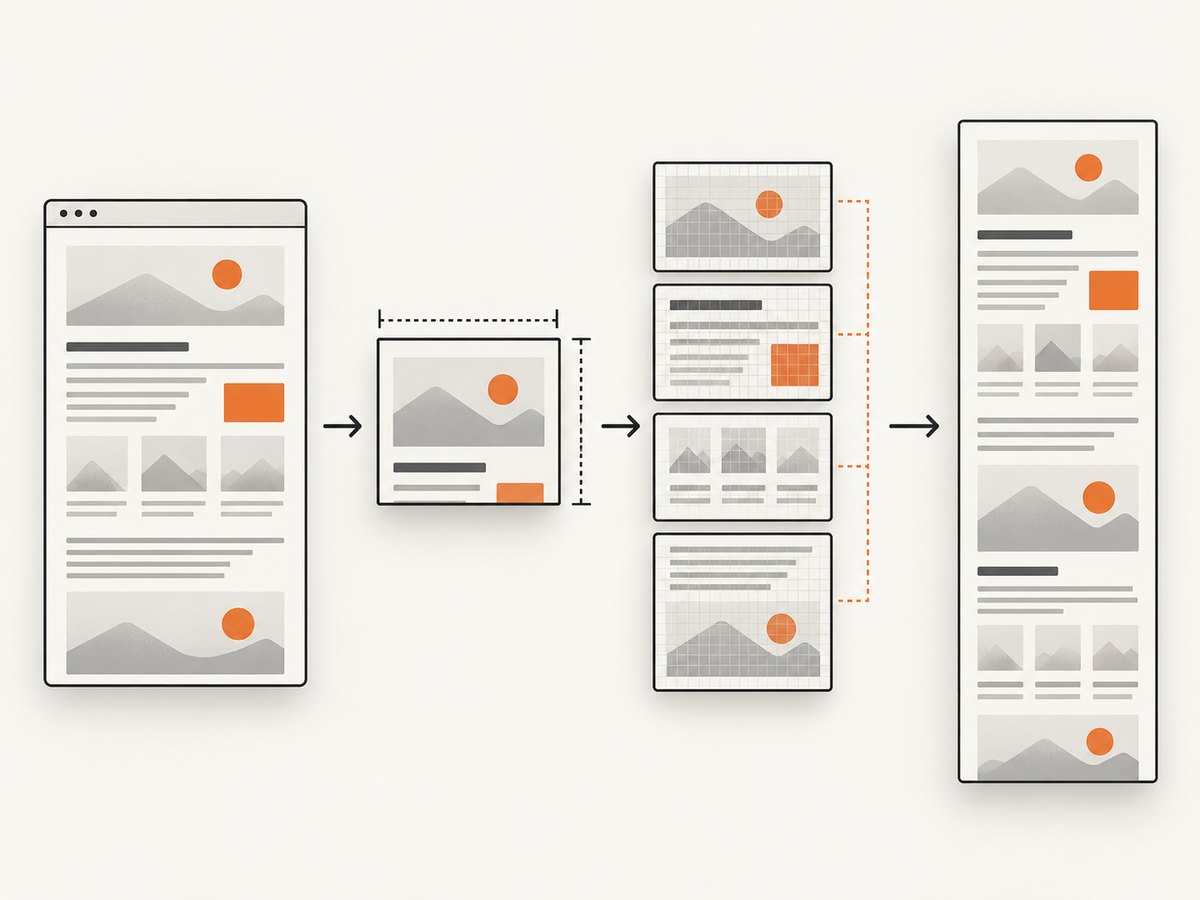
When the target is the entire element, set both window dimensions from its scroll dimensions. This controls the cloned/rendered window so responsive rules and lazy content can resolve against the intended size.
const element = document.querySelector('#document');

const canvas = await html2canvas(element, {
  windowWidth: element.scrollWidth,
  windowHeight: element.scrollHeight,
});

document.body.appendChild(canvas);
Run this after layout is stable: fonts loaded, images decoded and asynchronous content inserted. If a page continues changing while capture runs, the measured dimensions and final output can disagree.
Options that matter for very tall pages
| Option | Use | Large-document caution |
|---|---|---|
windowWidth, windowHeight |
Sets the cloned window size. | Use scroll dimensions for a full element; this does not bypass canvas limits. |
width, height |
Explicit output CSS dimensions. | Useful for a deliberate crop or bounded section. |
x, y |
Capture origin inside the element. | Useful when rendering sections. |
scrollX, scrollY |
Simulates page scroll. | Fixed and sticky elements may repeat or move between chunks. |
scale |
Bitmap pixels per CSS pixel; defaults to device pixel ratio. | Lowering it reduces memory and area at a resolution cost. |
backgroundColor |
Sets the output background; null keeps transparency. |
Transparency can affect downstream image encoding. |
useCORS |
Requests cross-origin images with CORS. | Works only when the image server sends suitable CORS headers. |
allowTaint |
Allows drawing tainted images. | It does not make a tainted canvas readable by APIs such as toDataURL(). |
proxy |
Routes resources through a same-origin proxy. | Use a proxy you control and configure it to preserve content types and CORS behavior. |
imageTimeout |
Controls image loading timeout. | Longer timeouts can increase reliability but also delay a huge capture. |
foreignObjectRendering |
Uses SVG foreignObject where supported. | Support and fidelity vary; test it separately. |
ignoreElements |
Skips selected nodes. | Removing video, canvases or animations can reduce memory and noise. |
onclone |
Edits the cloned document before rendering. | Freeze animations, hide sticky bars and expand collapsed content here. |
logging, removeContainer |
Diagnostics and cleanup. | Enable logging while diagnosing resource or layout problems. |
Option names and behavior are documented in the html2canvas configuration reference.
4. Control scale and memory
Because scale multiplies both dimensions, pixel area grows quadratically. If your CSS output is 12,000 × 25,000, a scale of 2 requests 24,000 × 50,000: 1.2 billion pixels, before temporary buffers. Set scale deliberately:
const canvas = await html2canvas(element, {
  windowWidth: element.scrollWidth,
  windowHeight: element.scrollHeight,
  scale: 1,
  backgroundColor: '#ffffff',
  logging: true,
});
Lowering scale can prevent an area failure, but it cannot be assumed to rescue a request that exceeds a single-dimension limit during canvas creation. Compare the computed bitmap width and height with your test results before rendering. If crisp print output is required, render smaller sections at the desired scale and assemble them outside the browser.
5. Capture in sections when one canvas is too large
There is no universal chunk height that works across browsers. Choose a section height that stays comfortably below your measured dimension and area limits, then validate seams.
async function captureSections(element, sectionCssHeight = 8000) {
  const totalHeight = element.scrollHeight;
  const width = element.scrollWidth;
  const images = [];

  for (let y = 0; y < totalHeight; y += sectionCssHeight) {
    const height = Math.min(sectionCssHeight, totalHeight - y);
    const canvas = await html2canvas(element, {
      x: 0,
      y,
      width,
      height,
      windowWidth: width,
      windowHeight: totalHeight,
      scrollX: 0,
      scrollY: -y,
      scale: 1,
      backgroundColor: '#ffffff',
    });
    images.push({ y, height, canvas });
  }
  return images;
}
This example is a starting point, not a guarantee that every layout will seam perfectly. Fixed headers, sticky navigation, position-dependent shadows, CSS backgrounds and lazy-loaded media can change between sections. Hide or freeze repeated UI in onclone, preload images, and compare the bottom rows of one section with the top rows of the next. If you assemble sections into a final bitmap, the assembler has its own dimension and memory limits; exporting a multi-page PDF or separate files may be safer.
6. Resource, security and fidelity limits
- Cross-origin images: set
useCORS: trueonly when the image server permits it. Otherwise use a suitable same-origin proxy. A tainted canvas cannot be read safely, andallowTaintdoes not change that. - Cross-origin iframes: html2canvas cannot read another origin’s document because browser security blocks access.
- Unsupported CSS: html2canvas supports many common properties but reconstructs the page from DOM and styles. Complex filters, replaced elements, videos and browser-native controls can differ from a native screenshot.
- Fonts: wait for
document.fonts.readyand verify that font responses are available before measuring. - Lazy content: scroll or otherwise trigger lazy loading before capture, then wait for images and network activity to settle.
await document.fonts.ready;

await Promise.all(
  [...document.images].map((img) => img.complete
    ? Promise.resolve()
    : new Promise((resolve) => {
        img.addEventListener('load', resolve, { once: true });
        img.addEventListener('error', resolve, { once: true });
      }))
);

const canvas = await html2canvas(element, {
  windowWidth: element.scrollWidth,
  windowHeight: element.scrollHeight,
  useCORS: true,
  onclone: (clonedDoc) => {
    clonedDoc.querySelectorAll('.sticky, .chat-widget, .cookie-banner')
      .forEach((node) => { node.style.display = 'none'; });
  },
});
7. Browser extension screenshots
If you are building an extension and need a visible-tab image, the browser’s native screenshot APIs are often more reliable and do not have canvas-size limits in the same way. The html2canvas FAQ names chrome.tabs.captureVisibleTab() and browser.tabs.captureVisibleTab(). These APIs capture the visible tab according to extension permissions; they are not a one-call full-document export. You still need scrolling and stitching for a document taller than the viewport, and each browser’s extension behavior must be tested.
8. Troubleshooting checklist
| Symptom | Likely cause | Fix |
|---|---|---|
| Blank canvas | Dimension or area limit; page not ready. | Log CSS and bitmap dimensions, lower scale, wait for fonts/images, then test a small section. |
| Output stops halfway | Height or total pixel limit. | Capture bounded sections and assemble or export them separately. |
| Right side is missing | Window width is narrower than scroll width. | Set windowWidth: element.scrollWidth and verify responsive breakpoints. |
| Images missing | CORS failure, timeout or lazy loading. | Use permitted CORS headers or a proxy, raise imageTimeout carefully, and preload images. |
toDataURL throws a security error |
Canvas is tainted by cross-origin content. | Serve images with CORS or proxy them; allowTaint does not make them readable. |
| Iframe is blank | Cross-origin frame. | Capture the frame from its own origin or use a server/browser workflow with authorization. |
| Sections do not align | Sticky elements, animations or layout changes. | Freeze animations, hide repeated fixed UI, keep one window width, and inspect seam rows. |
| Text wraps differently | Different windowWidth, missing fonts or device scale. |
Set the intended window width, await fonts, and use an explicit scale. |
| Capture is slow or crashes the tab | Large decoded images and temporary canvases exhaust memory. | Reduce scale, omit unnecessary elements, process one section at a time and release canvases promptly. |
9. Performance, reliability and cost considerations
Time and memory are dominated by pixel area, image decoding and DOM complexity. A tall page with many large images can be slower than a visually similar page made mostly of text. Measure first, avoid unnecessary 2× or 3× scaling, disable animations, and process sections sequentially rather than creating all canvases at once.
For repeatable production captures, record the browser, operating system, viewport, scale, CSS dimensions, bitmap dimensions and resource failures with each job. Re-run representative pages on every browser update because canvas limits and rendering behavior can change. The html2canvas FAQ points readers to the canvas-size library for changing browser/platform test results; its figures should be treated as guidance, not a contract.
10. Or skip the browser setup
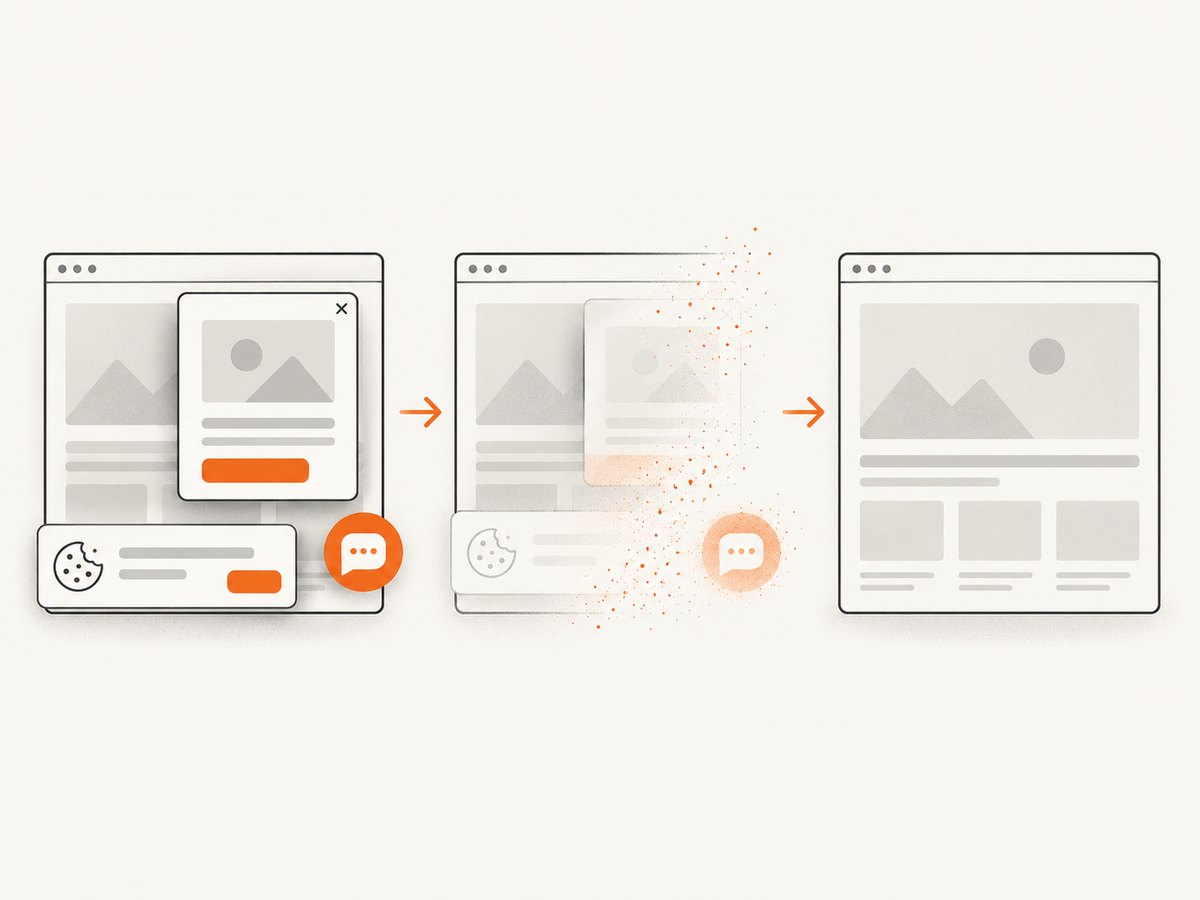
If you need a clean document image or PDF without maintaining browser-side sizing, CORS and stitching code, ScreenshotNeo provides a single screenshot API request. It accepts the cookie or consent banner before capture and removes more than 60 known consent platforms, newsletter popups and chat widgets; each step can be turned off. Bot checks, blank pages, timeouts, failed loads and cache hits are not billed, and response headers identify the page verdict and billing status.
See the ScreenshotNeo API documentation for all options. A basic call is:
curl -G "https://api.screenshotneo.com/v1/shot" -d access_key=YOUR_API_KEY --data-urlencode url=https://stripe.com -o shot.webpimport requests
r = requests.get("https://api.screenshotneo.com/v1/shot", params={"access_key": "YOUR_API_KEY", "url": "https://stripe.com"}, timeout=90)
open("shot.webp", "wb").write(r.content)const q = new URLSearchParams({ access_key: 'YOUR_API_KEY', url: 'https://stripe.com' });
const res = await fetch(`https://api.screenshotneo.com/v1/shot?${q}`);ScreenshotNeo also supports full-page captures with lazy images loaded, element selectors, custom viewport and device presets, retina scale, PDF paper settings and page ranges, custom CSS and JavaScript, click and wait actions, request blocking, headers, cookies, user agents, authorization, timezone and geolocation, transparent backgrounds, resizing, selectable caching TTLs, signed links, asynchronous jobs with signed webhooks, bulk capture for up to 100 URLs per call, a usage API, an OpenAPI specification and an MCP server with take_screenshot, get_page_info and capture_pdf for Claude, Cursor and other MCP clients.
There are 1,000 free screenshots per month with no card. Paid plans start at $5 for 3,000 screenshots; yearly billing gives two months free, and every feature is included on every plan. Create a free ScreenshotNeo account.
11. FAQ
Can html2canvas capture a 30,001-pixel-tall element?
Sometimes, depending on width, scale, browser, platform and available memory. The height alone does not determine success; total bitmap area and effective scale matter.
Does setting windowHeight increase the maximum canvas size?
No. It configures the cloned render window. Browser canvas dimension and area limits still apply.
Should I always set scale: 1?
No. Choose the resolution your output needs, calculate the resulting bitmap size, and test it. Scale 1 is a useful diagnostic and often reduces memory pressure.
Is html2canvas equivalent to a screenshot?
No. It reconstructs an image from DOM information and supported styles. Native browser or server-side capture can be more faithful for unsupported CSS, cross-origin frames and browser UI.
What is the safest fallback for very long documents?
Capture bounded sections with a stable layout, validate seams and export multiple images or pages when one assembled canvas would exceed a tested limit.
Can an extension API export the entire page directly?
The named native APIs capture a visible tab. Full-document output still requires scrolling and stitching or another capture workflow.


