How to Capture a Specific DOM Element With PhantomJS
Use PhantomJS page.evaluate(), getBoundingClientRect(), and clipRect to render one DOM element instead of the entire page.
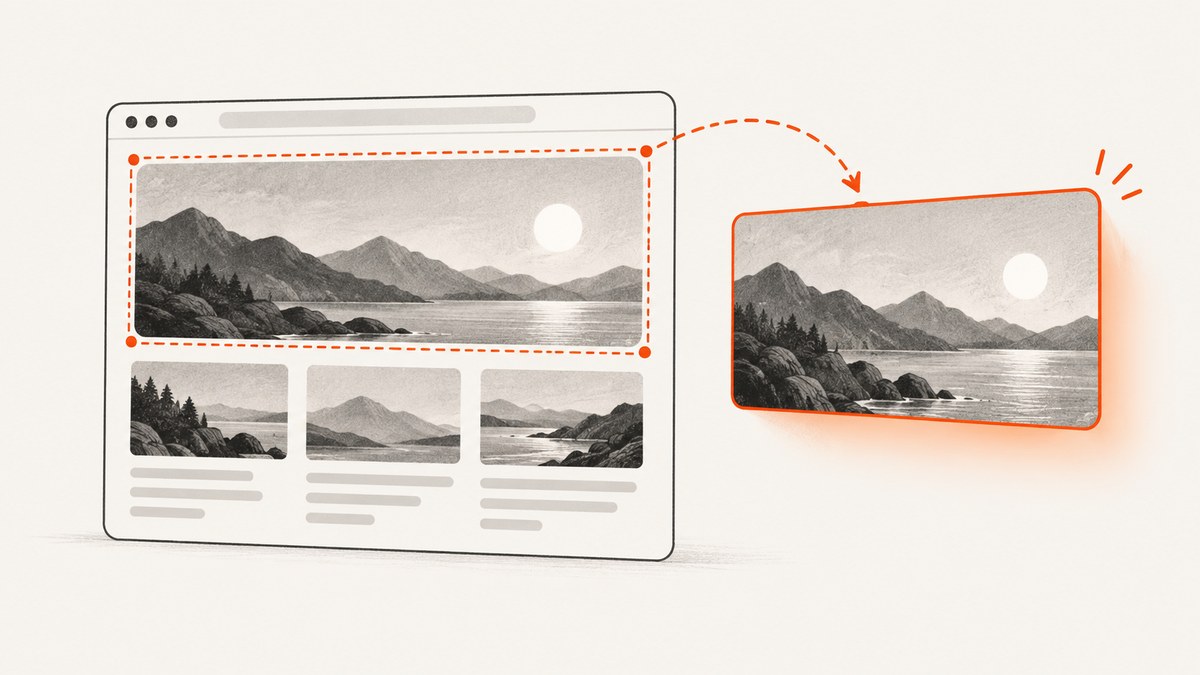
Use page.evaluate() to find the element, return its serializable bounding rectangle, assign that rectangle to page.clipRect, then call page.render(). PhantomJS does not provide a selector-only screenshot method. You select the element yourself and convert its geometry into the clipping rectangle used by the renderer.
This pattern captures one element such as a chart, card, invoice, or hero section while leaving the rest of the page out of the image.
1. Minimal PhantomJS example
Save this as capture-element.js:
var system = require('system');
var webpage = require('webpage');

if (system.args.length < 4) {
  console.error('Usage: phantomjs capture-element.js URL SELECTOR OUTPUT');
  phantom.exit(1);
}

var url = system.args[1];
var selector = system.args[2];
var output = system.args[3];
var page = webpage.create();

page.viewportSize = { width: 1024, height: 768 };
page.open(url, function (status) {
  if (status !== 'success') {
    console.error('Unable to load page: ' + status);
    phantom.exit(1);
    return;
  }

  var rect = page.evaluate(function (cssSelector) {
    var element = document.querySelector(cssSelector);
    if (!element) return null;

    var bounds = element.getBoundingClientRect();
    return {
      top: bounds.top,
      left: bounds.left,
      width: bounds.width,
      height: bounds.height
    };
  }, selector);

  if (!rect || rect.width <= 0 || rect.height <= 0) {
    console.error('Element was not found or has no visible size: ' + selector);
    phantom.exit(1);
    return;
  }

  page.clipRect = rect;
  page.render(output);
  phantom.exit(0);
});
Run it with:
phantomjs capture-element.js \
  https://example.com/ \
  '#target' \
  element.png
The selector is evaluated inside the page. The callback returns plain numbers because values crossing the page.evaluate() boundary must be JSON-serializable; returning the DOM node itself is not useful.
PhantomJS’s capture guide documents page.render() and clipping, while the evaluate() API documents passing arguments and returning serializable values. See the render API, clipRect property, and evaluate API.
2. How the selector-to-image workflow works
- Create a
webpageobject and setviewportSize. Viewport width can change line wrapping and therefore the element’s dimensions. - Call
page.open()and stop if the status is notsuccess. - Run
document.querySelector()insidepage.evaluate(). - Read
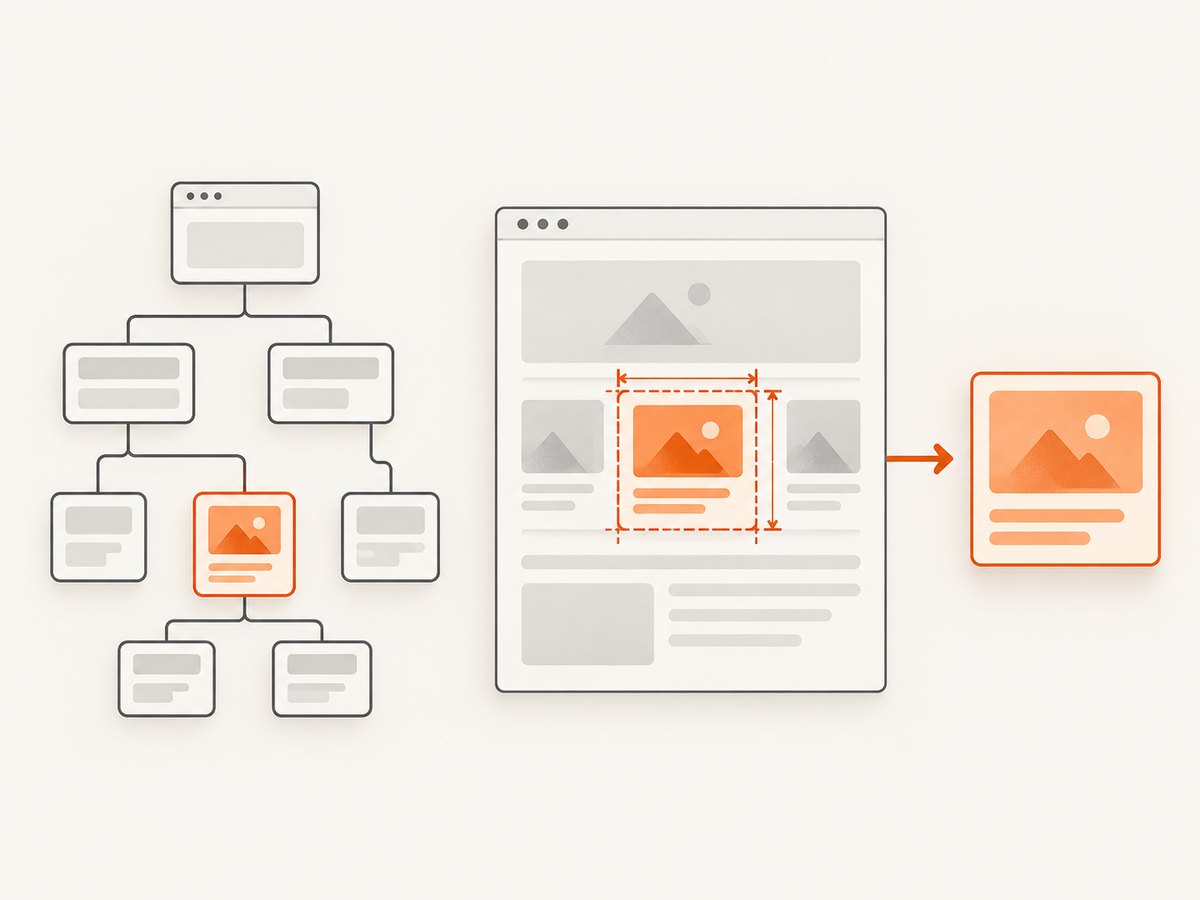
getBoundingClientRect()and return onlytop,left,width, andheight. - Assign the object to
page.clipRect. - Call
page.render()with an image filename.
getBoundingClientRect() reports coordinates relative to the viewport. Keep the page at a known scroll position and measure only after layout has settled. If the page scrolls or changes size between measurement and rendering, the crop can be offset or incomplete.
3. A production-ready script with waiting and options
Many targets are inserted after the initial load event. The following script waits for a selector, supports a delay, sets the output format through the filename, and reports useful errors.
var system = require('system');
var webpage = require('webpage');

if (system.args.length < 4) {
  console.error('Usage: phantomjs capture-element-wait.js URL SELECTOR OUTPUT [TIMEOUT_MS]');
  phantom.exit(1);
}

var url = system.args[1];
var selector = system.args[2];
var output = system.args[3];
var timeout = parseInt(system.args[4] || '15000', 10);
var page = webpage.create();
var start = Date.now();

page.viewportSize = { width: 1280, height: 900 };
page.settings.userAgent = 'Mozilla/5.0 (compatible; PhantomJS element capture)';

function finish(code) {
  window.setTimeout(function () { phantom.exit(code); }, 0);
}

function pollForElement() {
  var state = page.evaluate(function (cssSelector) {
    var element = document.querySelector(cssSelector);
    if (!element) return { found: false };

    var bounds = element.getBoundingClientRect();
    return {
      found: true,
      top: bounds.top,
      left: bounds.left,
      width: bounds.width,
      height: bounds.height
    };
  }, selector);

  if (state.found) {
    if (state.width <= 0 || state.height <= 0) {
      console.error('Element exists but is not visible: ' + selector);
      finish(1);
      return;
    }

    page.clipRect = {
      top: Math.floor(state.top),
      left: Math.floor(state.left),
      width: Math.ceil(state.width),
      height: Math.ceil(state.height)
    };
    page.render(output);
    finish(0);
    return;
  }

  if (Date.now() - start > timeout) {
    console.error('Timed out waiting for selector: ' + selector);
    finish(1);
    return;
  }

  window.setTimeout(pollForElement, 100);
}

page.open(url, function (status) {
  if (status !== 'success') {
    console.error('Unable to load page: ' + status);
    finish(1);
    return;
  }

  window.setTimeout(pollForElement, 250);
});
Use a file extension that matches the desired output. PhantomJS’s documented formats include PNG, JPEG, GIF, and PDF; PNG is usually the safest choice for text and transparent edges.
Useful configuration points
| Setting | Why it matters |
|---|---|
page.viewportSize |
Controls responsive breakpoints, wrapping, and the coordinate space used for measurement. |
page.clipRect |
Defines the rectangle rasterized by page.render(). |
page.settings.userAgent |
Can select a different server-side or client-side layout. |
| Delay or polling | Allows asynchronous content to appear before measurement. |
| Output extension | Selects the image format supported by the renderer. |
4. Dynamic pages, scrolling, and difficult layouts
Wait for the actual readiness condition
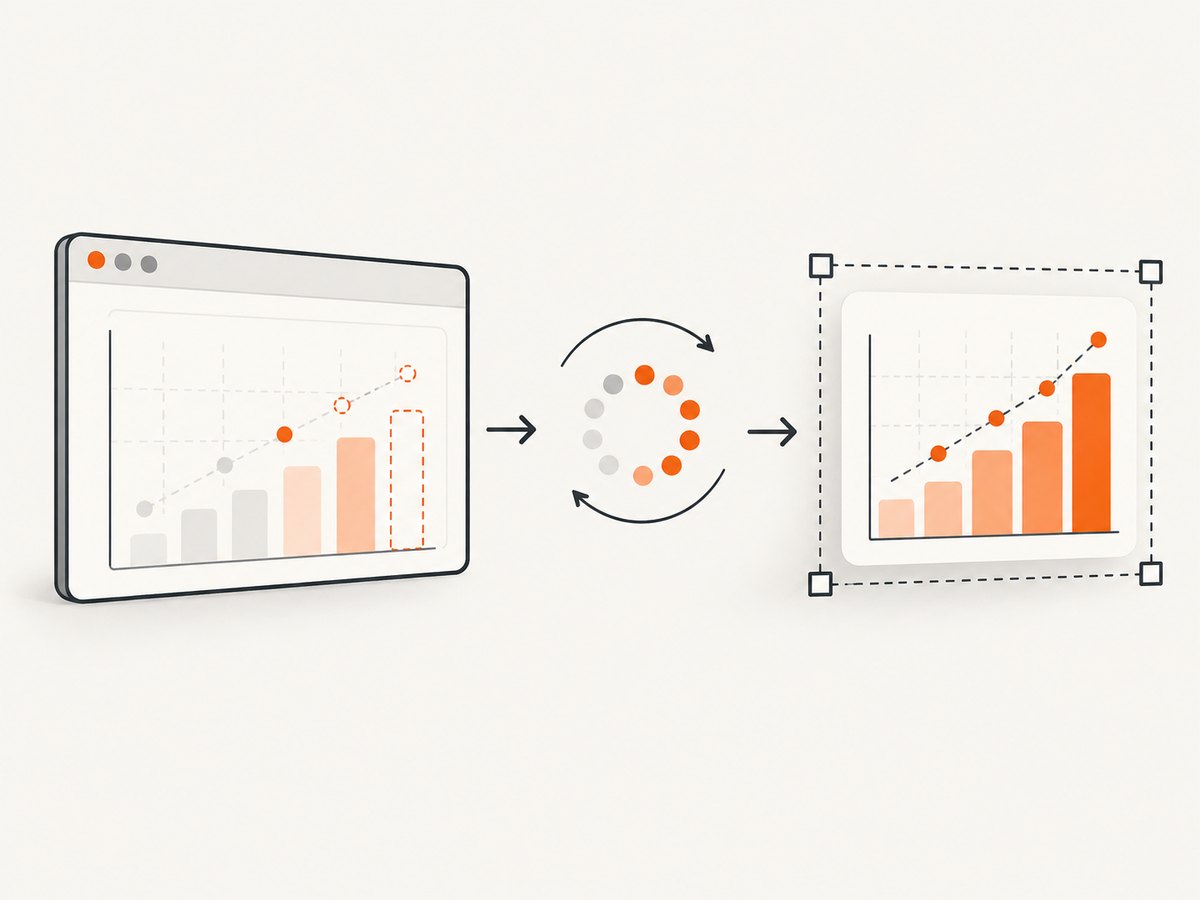
page.open() means the navigation completed according to PhantomJS; it does not guarantee that a chart, advertisement slot, or client-rendered component is ready. Prefer a page-specific condition such as the target selector existing, a loading class disappearing, or a known data attribute being present.
Keep scroll state predictable
Because getBoundingClientRect() is viewport-relative, measure and render without changing scroll position. If your page scrolls automatically, set the position before measuring:
page.evaluate(function () {
  window.scrollTo(0, 0);
});
If you intentionally measure after scrolling, preserve that same scroll position until page.render(). Fixed headers and sticky elements can otherwise overlap the crop.
Transforms and fractional pixels
CSS transforms can produce fractional coordinates. Rounding the origin down and the far edge up avoids cutting off a one-pixel border:
var clipped = {
  top: Math.floor(bounds.top),
  left: Math.floor(bounds.left),
  width: Math.ceil(bounds.right) - Math.floor(bounds.left),
  height: Math.ceil(bounds.bottom) - Math.floor(bounds.top)
};
When using this variant, return right and bottom from the page context as well. Check the output on pages that use transforms, zoom, or device-pixel scaling; the official API documentation does not define every coordinate-space interaction for arbitrary layouts.
Nested elements and selectors
document.querySelector() returns the first match. Use a more specific selector for repeated cards, or use querySelectorAll() and pass an index when you need a particular occurrence. Validate that the selected node is the intended one before rendering.
5. Troubleshooting
| Symptom | Likely cause | Fix |
|---|---|---|
| “Element not found” | Wrong selector, iframe, or content rendered later. | Verify the selector in browser devtools, wait for the target, and remember that an iframe has a separate document. |
| Blank or incomplete image | Rendering happened before the target was populated. | Poll for a readiness selector or use a page-specific delay after page.open(). |
| Wrong crop position | Scroll changed, sticky UI appeared, or coordinate rounding was wrong. | Set a known scroll position, measure immediately before rendering, and round the rectangle consistently. |
| Only part of the element appears | Element bounds are smaller than overflowing descendants. | Measure a wrapper that contains the overflow, or compute a union of child rectangles. |
| Zero width or height | Element is hidden, collapsed, or not yet laid out. | Wait until it is visible and inspect computed styles and parent dimensions. |
| Different result from a browser | Responsive layout, fonts, user agent, or unsupported modern web APIs differ. | Set the viewport and user agent explicitly and validate the page’s PhantomJS compatibility. |
| Page load status is not success | DNS, TLS, server, redirect, or network failure. | Log the status, verify the URL from the capture host, and stop instead of rendering a misleading image. |
6. Performance, reliability, and cost considerations
- Measure once: Avoid repeated DOM queries and screenshots. Poll only until the target is ready, then render once.
- Use a right-sized viewport: Very large viewports increase layout and raster work and can trigger a different responsive design.
- Control external resources: Third-party fonts, analytics, and ads can delay readiness or change geometry. A stable page-specific readiness check is more reliable than a fixed sleep alone.
- Keep filenames explicit: Use deterministic output paths and include a job identifier when running captures concurrently.
- Validate outputs: Check the PhantomJS exit code and file existence before publishing or uploading the image.
- Expect legacy-browser limits: PhantomJS uses an older WebKit engine. Modern JavaScript, CSS, TLS, and anti-bot systems may fail even when the same URL works in a current browser.
PhantomJS’s official documentation describes the APIs used here but does not provide a universal dynamic-content wait strategy or a current support guarantee. Treat page-specific verification as part of the capture pipeline.
7. Or skip the browser setup
ScreenshotNeo exposes element capture through a website screenshot API. It supports selecting one element by CSS selector, along with full-page capture, custom CSS and JavaScript, waits, headers, cookies, user agents, and other capture controls. The API documentation is at screenshotneo.com/docs/.
One request returns the image:
curl -G "https://api.screenshotneo.com/v1/shot" \
  -d access_key=YOUR_API_KEY \
  --data-urlencode url=https://example.com \
  --data-urlencode selector="#target" \
  -o element.webp
Python:
import requests

r = requests.get(
    "https://api.screenshotneo.com/v1/shot",
    params={
        "access_key": "YOUR_API_KEY",
        "url": "https://example.com",
        "selector": "#target",
    },
    timeout=90,
)
r.raise_for_status()
open("element.webp", "wb").write(r.content)
Node.js:
const q = new URLSearchParams({
  access_key: 'YOUR_API_KEY',
  url: 'https://example.com',
  selector: '#target'
});
const res = await fetch(`https://api.screenshotneo.com/v1/shot?${q}`);
if (!res.ok) throw new Error(`HTTP ${res.status}`);
const image = Buffer.from(await res.arrayBuffer());
require('fs').writeFileSync('element.webp', image);
Cookie banners, newsletter popups, and chat widgets are removed before the shot. Bot checks, blank pages, timeouts, failed loads, and cache hits are never billed, and the response identifies the result with X-Page-Verdict and X-Billed headers. An MCP server lets Claude, Cursor, and other MCP clients call take_screenshot, get_page_info, and capture_pdf. The free plan includes 1,000 screenshots per month with no card; paid plans start at $5 for 3,000.
Create a free ScreenshotNeo account to try the API.
8. FAQ
Can PhantomJS capture an element by selector directly?
No. Select the element in page.evaluate(), derive its bounds, assign page.clipRect, and render.
Can I return the DOM node from evaluate()?
No. Return simple serializable data such as numbers and strings. A DOM node cannot cross the page-script boundary as a usable return value.
Why does my crop include the wrong area after scrolling?
getBoundingClientRect() uses viewport-relative coordinates. Keep scrolling stable between measurement and rendering, or deliberately account for the scroll state.
How do I capture content inside an iframe?
Query the iframe’s document context rather than the parent document. Cross-origin restrictions may prevent access.
Should I use PhantomJS for a new capture service?
PhantomJS is a legacy browser engine. It can still demonstrate this clipping technique, but current sites may require a maintained browser or a screenshot API such as ScreenshotNeo.


