How to Capture a Screenshot of a Specific DOM Element with Vanilla JavaScript
Capture any DOM element as a PNG in vanilla JavaScript with html2canvas, handle cross-origin assets, geometry, quality, exports, and failures.
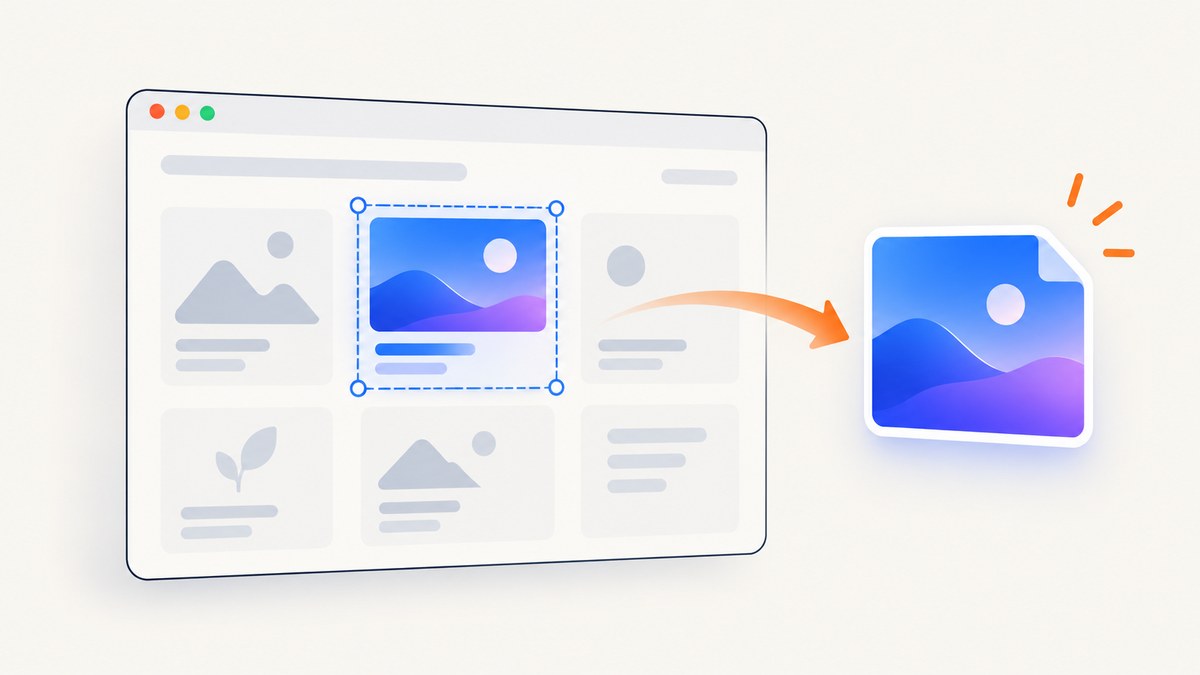
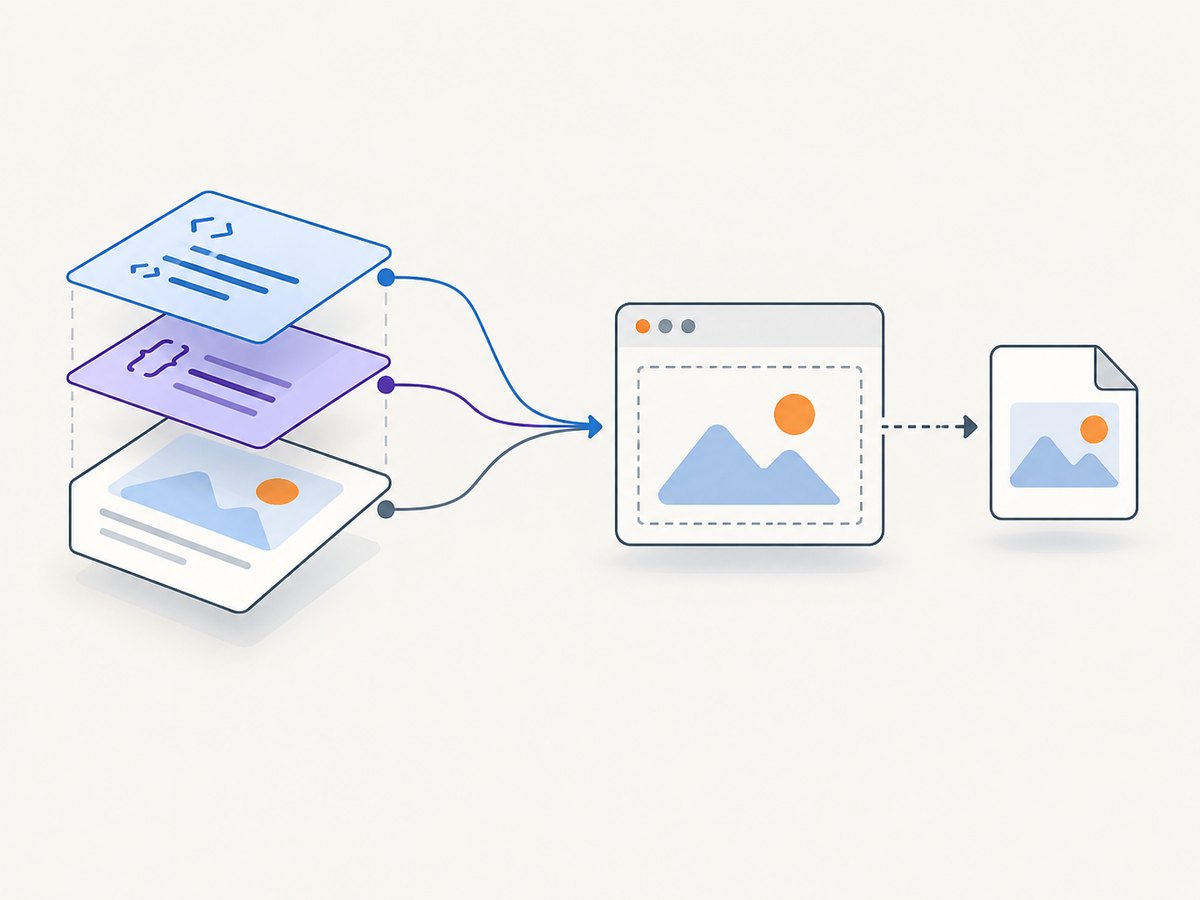
Use html2canvas and pass it the element you want to render. It builds a canvas from the element’s DOM and CSS, then you export that canvas with toBlob() or toDataURL(). Native canvas APIs cannot turn an arbitrary live div into pixels; they are for drawing and cropping sources that are already images, videos, or canvases.
<script src='https://cdn.jsdelivr.net/npm/html2canvas@latest/dist/html2canvas.min.js'></script>

<div id='capture' class='card'>
  <h2>Release notes</h2>
  <p>The selected element becomes a PNG download.</p>
</div>
<button id='save' type='button'>Download PNG</button>

<script>
document.querySelector('#save').addEventListener('click', async () => {
  const element = document.querySelector('#capture');
  if (!element) throw new Error('Element #capture was not found');

  const canvas = await html2canvas(element, {
    scale: window.devicePixelRatio,
    useCORS: true
  });

  const blob = await new Promise(resolve => canvas.toBlob(resolve, 'image/png'));
  if (!blob) throw new Error('Canvas export failed');

  const url = URL.createObjectURL(blob);
  const link = document.createElement('a');
  link.href = url;
  link.download = 'capture.png';
  link.click();
  URL.revokeObjectURL(url);
});
</script>
The scale option uses the device pixel ratio for sharper output, while useCORS asks the browser to load images with CORS when the image server permits it. These options and the other renderer settings are documented in the html2canvas configuration reference.
1. Prepare the element
Give the target a stable selector and make sure it is visible when the capture starts. The renderer reads the current DOM, computed styles, and layout. State changes made after the call begins may not appear consistently.
const element = document.querySelector('[data-screenshot-target]');
if (!element) {
  throw new Error('Missing [data-screenshot-target]');
}

// Optional: scroll it into view before capturing a viewport-dependent design.
element.scrollIntoView({ block: 'nearest', inline: 'nearest' });
For a component that includes a loading state, wait for the state change first. For images, wait for decoding; for web fonts, wait for document.fonts.ready where supported.
async function waitForImages(root) {
  const images = [...root.querySelectorAll('img')];
  await Promise.all(images.map(async image => {
    if (image.complete) {
      if (image.decode) await image.decode().catch(() => {});
      return;
    }
    await new Promise(resolve => {
      image.addEventListener('load', resolve, { once: true });
      image.addEventListener('error', resolve, { once: true });
    });
  }));
}

await document.fonts?.ready;
await waitForImages(element);
const canvas = await html2canvas(element);
2. Control size, position, and pixel density
getBoundingClientRect() returns the smallest rectangle containing an element, including padding and borders. Its coordinates are relative to the viewport and change when the page scrolls. Add window.scrollX and window.scrollY to convert its top-left point to document coordinates. See MDN’s getBoundingClientRect reference.
const rect = element.getBoundingClientRect();
const documentBox = {
  left: rect.left + window.scrollX,
  top: rect.top + window.scrollY,
  width: rect.width,
  height: rect.height
};
console.log(documentBox);
Most captures need no geometry options because html2canvas receives the element directly. Use explicit dimensions when you need a crop from a larger rendered area:
const rect = element.getBoundingClientRect();
const canvas = await html2canvas(document.body, {
  x: rect.left,
  y: rect.top,
  width: rect.width,
  height: rect.height,
  scale: 2
});
Set scale to window.devicePixelRatio for a screen-sharp image, or choose a fixed value such as 2 for consistent output across machines. A larger scale increases canvas memory and export time.
3. Exclude buttons, overlays, and private content
Add data-html2canvas-ignore to nodes that should not be rendered. This is useful for download controls, selection handles, transient tooltips, and privacy-sensitive fields.
<div id='capture'>
  <h2>Report</h2>
  <button data-html2canvas-ignore>Edit</button>
  <span data-html2canvas-ignore>Internal note</span>
</div>
You can also remove or hide nodes during the clone operation with onclone. Keep the change scoped to the cloned document so the live page is not altered.
const canvas = await html2canvas(element, {
  onclone: clonedDocument => {
    clonedDocument.querySelectorAll('.cursor, .selection-outline')
      .forEach(node => node.remove());
  }
});
4. Handle images, iframes, and CSS fidelity
html2canvas reconstructs a visual result from the DOM; it does not take a native browser screenshot, so unsupported or browser-only rendering details can differ from what you see on screen. The project documents this limitation in its documentation.
| Content | What to expect | Practical fix |
|---|---|---|
| Same-origin images | Usually render normally. | Wait for loading and decoding. |
| Cross-origin images | The image can taint the canvas or be omitted unless the image server permits CORS. | Serve the asset with an appropriate Access-Control-Allow-Origin header and use useCORS: true, or proxy it through your own origin. |
| Cross-origin iframe | Its document is inaccessible to the parent page. | Capture content from inside the iframe’s own origin, or provide a same-origin/proxied representation. |
| Same-origin iframe | Can be traversed recursively. | Ensure the frame has finished loading before capture. |
| Animations and video | The captured frame can depend on timing. | Pause animations or video and capture after the desired state. |
| Lazy-loaded content | Offscreen resources may not exist yet. | Scroll the target into view, trigger loading, then wait for images. |
CSS support depends on what the renderer implements. Complex filters, blend modes, replaced elements, and browser-native controls deserve a visual check. Keep a fallback for content where pixel-perfect browser output is required.
5. Export efficiently
Prefer toBlob() for downloads and larger images. MDN documents that it creates a Blob without forcing the whole image into a long data URL. toDataURL() is convenient for a small inline preview, but large data URLs consume memory and can hit URL-length limits.
async function canvasToBlob(canvas, type = 'image/png', quality) {
  return new Promise((resolve, reject) => {
    canvas.toBlob(blob => {
      if (blob) resolve(blob);
      else reject(new Error('Canvas export failed'));
    }, type, quality);
  });
}

const canvas = await html2canvas(element, { scale: 2 });
const png = await canvasToBlob(canvas, 'image/png');
const downloadUrl = URL.createObjectURL(png);
try {
  const link = document.createElement('a');
  link.href = downloadUrl;
  link.download = 'element.png';
  link.click();
} finally {
  URL.revokeObjectURL(downloadUrl);
}
JPEG and WebP can reduce file size when transparency is unnecessary. JPEG’s quality argument is between 0 and 1; PNG ignores quality. A transparent design should stay PNG or use a format/browser combination that preserves alpha.
const jpegBlob = await canvasToBlob(canvas, 'image/jpeg', 0.85);
const webpBlob = await canvasToBlob(canvas, 'image/webp', 0.85);
Canvas export can throw a SecurityError when the canvas is not origin-clean, commonly after drawing a cross-origin image without suitable CORS headers. Fix the asset policy rather than trying to bypass the browser’s security model. See MDN’s canvas export exceptions.
6. A reusable capture function
async function captureElement(selector, {
  filename = 'capture.png',
  type = 'image/png',
  quality,
  scale = window.devicePixelRatio,
  waitForImages: shouldWaitForImages = true
} = {}) {
  const element = document.querySelector(selector);
  if (!element) throw new Error(`No element matches ${selector}`);

  await document.fonts?.ready;
  if (shouldWaitForImages) await waitForImages(element);

  const canvas = await html2canvas(element, {
    scale,
    useCORS: true
  });
  const blob = await canvasToBlob(canvas, type, quality);
  const url = URL.createObjectURL(blob);
  try {
    const link = document.createElement('a');
    link.href = url;
    link.download = filename;
    link.click();
  } finally {
    URL.revokeObjectURL(url);
  }
}

document.querySelector('#save').addEventListener('click', () =>
  captureElement('#capture', { filename: 'card.webp', type: 'image/webp', quality: 0.86 })
);
7. Native canvas: when it is the right tool
drawImage() is appropriate when the source is already an HTMLImageElement, HTMLCanvasElement, ImageBitmap, video, or another supported canvas source. It supports source-rectangle cropping and destination scaling; see MDN’s drawImage reference.
const source = document.querySelector('#existing-image');
const output = document.createElement('canvas');
output.width = 600;
output.height = 400;
const context = output.getContext('2d');
context.drawImage(source, 100, 50, 800, 500, 0, 0, 600, 400);
It does not understand a normal div, layout, or CSS. For that case, render the DOM with html2canvas first, then use native canvas operations for additional cropping or composition. Set the canvas’s intrinsic width and height in pixels; changing only CSS dimensions changes display size and can blur or distort the result.
8. Troubleshooting checklist
| Symptom | Likely cause | Fix |
|---|---|---|
html2canvas is not defined |
The script did not load or ran before the library script. | Check the network request, load the script before your code, and wait for DOMContentLoaded if needed. |
| Blank or partially blank image | Target is hidden, zero-sized, still loading, or outside a clipped state. | Check getBoundingClientRect(), reveal the element, wait for fonts/images, and capture after layout settles. |
| Images missing | Cross-origin response lacks CORS permission or the image has not loaded. | Configure the image server, use useCORS: true, or proxy the asset. |
SecurityError on export |
The canvas was tainted by a cross-origin resource. | Remove the resource or make it CORS-enabled before drawing. |
| Text looks soft | Canvas scale is 1 on a high-DPI display. | Use scale: window.devicePixelRatio or a deliberate fixed scale. |
| Capture cuts off content | Overflow, viewport clipping, or a crop rectangle is too small. | Capture the element directly, inspect its bounding box, and review ancestor overflow rules. |
| Fonts differ | Web fonts were not ready or the font is unavailable. | Await document.fonts.ready and verify the font response before capture. |
| Fixed elements appear in the wrong place | The clone is rendered with different viewport or scroll assumptions. | Set the intended viewport options, normalize scroll state, or hide the fixed overlay with data-html2canvas-ignore. |
| Out-of-memory or slow export | Very large dimensions multiplied by a high scale. | Lower scale, capture smaller regions, release object URLs, and avoid retaining multiple canvases. |
9. Performance, reliability, and cost
- Measure before choosing scale: output pixels are approximately element CSS pixels multiplied by
scale; memory rises with the pixel count. - Reduce work: capture the smallest element, hide expensive animations, and remove unnecessary offscreen content from the clone.
- Make timing explicit: wait for fonts, images, data rendering, and any transitions you need. A timeout alone is less reliable than waiting for the actual condition.
- Release resources: call
URL.revokeObjectURL()after downloads and drop references to canvases that are no longer needed. - Validate output: check the blob, dimensions, and file type before uploading or storing it.
- Browser limitations remain: cross-origin policy, iframe isolation, unsupported CSS, and canvas memory limits cannot be solved purely by changing the export call.

Or skip the browser setup
ScreenshotNeo captures a URL with one API request, including an option to capture a specific element by CSS selector. It removes cookie and consent banners, newsletter popups, and chat widgets before the shot; bot checks, blank pages, failed loads, timeouts, and cache hits are not billed, and the response identifies the verdict and billing status. It also provides custom CSS and JavaScript, wait conditions, device and retina settings, headers and cookies, caching, PDFs, bulk capture, signed links, async webhooks, and an MCP server for AI agents.
cURL:
curl -G 'https://api.screenshotneo.com/v1/shot' \
  -d access_key=YOUR_API_KEY \
  --data-urlencode url=https://stripe.com \
  -d selector='#pricing-card' \
  -o shot.webp
Python:
import requests

r = requests.get(
    'https://api.screenshotneo.com/v1/shot',
    params={
        'access_key': 'YOUR_API_KEY',
        'url': 'https://stripe.com',
        'selector': '#pricing-card'
    },
    timeout=90
)
r.raise_for_status()
open('shot.webp', 'wb').write(r.content)
Node.js:
const q = new URLSearchParams({
  access_key: 'YOUR_API_KEY',
  url: 'https://stripe.com',
  selector: '#pricing-card'
});
const res = await fetch(`https://api.screenshotneo.com/v1/shot?${q}`);
if (!res.ok) throw new Error(`Screenshot failed: ${res.status}`);
const bytes = Buffer.from(await res.arrayBuffer());
require('node:fs').writeFileSync('shot.webp', bytes);
See the ScreenshotNeo API documentation for the complete option list and response headers. The free plan includes 1,000 screenshots per month with no card; paid plans start at $5 for 3,000 screenshots. Create a free ScreenshotNeo account.
FAQ
Can JavaScript screenshot a div without a library?
Not as a general DOM-to-pixels operation. Native canvas can draw existing image or canvas sources, but arbitrary HTML and CSS require a renderer such as html2canvas or a browser automation service.
Does html2canvas capture an entire page?
It can render a larger document or element, but this guide targets one element. Full-page output needs careful handling of viewport, overflow, lazy loading, and memory.
Why is my screenshot different from the browser?
html2canvas reconstructs the image from DOM information and supported CSS. Unsupported CSS, cross-origin resources, fonts, animation timing, and iframe boundaries can produce differences.
Should I use PNG, JPEG, or WebP?
Use PNG for transparency and crisp UI text, JPEG for photographic content without transparency, and WebP when supported output size matters.
Can I capture a cross-origin iframe?
Not from the parent page when browser same-origin rules block access. Capture within the iframe’s origin or use a server-side capture service.


