How to Capture and Use DOM Snapshots in Cypress
Learn how Cypress time-travel snapshots work, when to save DOM or image artifacts, and how to make visual checks reliable in CI.
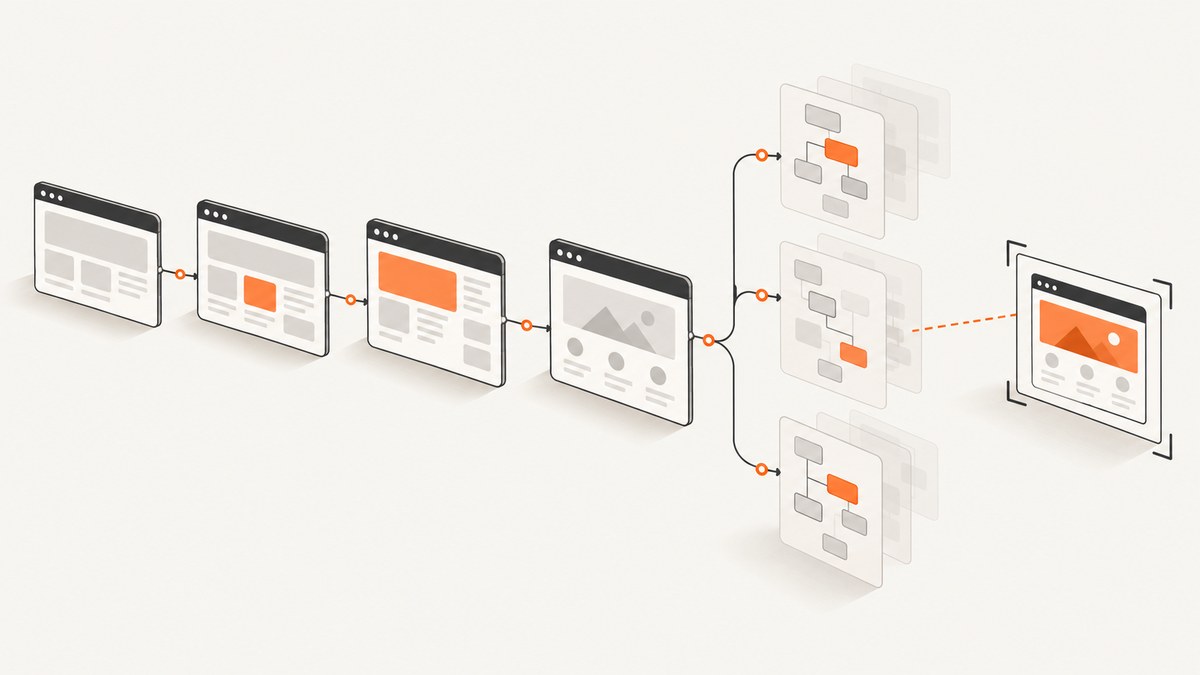
Cypress captures a temporary DOM snapshot for every command while a test runs in cypress open. To inspect one, run the spec in open mode and hover its Command Log entry; click the entry to pin that state. This built-in snapshot is a rehydrated copy of the DOM and CSS for debugging. It is not a PNG, video frame, or durable test artifact. For image files, use cy.screenshot(); for visual regression, pair deterministic test data with a visual comparison workflow.
This guide shows how to inspect built-in snapshots, preserve DOM markup when you need an artifact, use screenshots and comparisons, and investigate CI-only failures.
1. Inspect Cypress’s built-in DOM snapshots
- Start the app under test and open Cypress:
npx cypress open. - Choose the appropriate end-to-end or component testing mode and run a spec.
- Hover a command in the Command Log. Cypress restores the application or component state from when that command resolved. When the command found an element, Cypress can highlight and scroll to it. The URL is restored too.
- Click a command to pin its snapshot and inspect the state without moving the pointer. For action commands that expose multiple snapshots, use the snapshot menu to switch between before and after.
The snapshot is useful because it lets you ask what the DOM looked like at a particular test step. Inspect the restored state with browser DevTools to investigate markup, computed styles, and accessibility information. Cypress describes these as rehydrated copies of the DOM and CSS at a recorded moment, not screenshots or video frames. See Cypress open mode and time travel snapshots and its accessibility documentation.
Retention is an in-memory debugging buffer
Open mode keeps snapshots in memory according to numTestsKeptInMemory, which defaults to 50 tests. This setting controls how many test results remain available in the browser; it does not turn snapshots into archived files. If the Cypress app uses too much memory, lower the value in your Cypress configuration. For example, in cypress.config.js:
const { defineConfig } = require('cypress')

module.exports = defineConfig({
  numTestsKeptInMemory: 10,
  e2e: {
    baseUrl: 'http://localhost:3000'
  }
})
Use open-mode snapshots for interactive diagnosis. If you need an artifact after the test process exits, explicitly save one or use a CI recording/replay feature.
2. Save DOM markup when you need a file
A built-in time-travel snapshot is not a supported export format. For a lightweight record of the current document’s HTML, read document.documentElement.outerHTML and write it to a file. The following is a runnable Cypress spec for an app served at http://localhost:3000 with a page containing #main:
describe('save a DOM artifact', () => {
  it('writes the current document markup', () => {
    cy.visit('/')
    cy.get('#main').should('be.visible')

    cy.document().then((doc) => {
      const html = '<!doctype html>\n' + doc.documentElement.outerHTML
      cy.writeFile('cypress/artifacts/page.html', html)
    })
  })
})
Run it with npx cypress run --spec cypress/e2e/dom-artifact.cy.js. The output path is relative to the project. Create an appropriate artifact directory and make sure your CI configuration uploads it if you need to retain it after the job ends. This file records serialized markup at the moment you read it; it does not preserve Cypress’s internal snapshot, JavaScript event listeners, live object references, or the complete browser environment.
There are important limits to treating HTML as a snapshot. The serialization does not capture computed stylesheets as a self-contained package, and runtime state may live in properties rather than HTML attributes. Canvas pixels, cross-origin iframe contents, shadow DOM, and state held in JavaScript, storage, or network services need their own handling. A file of markup is useful for inspecting structure; it is not a faithful visual baseline or an assertion that the page is correct.
Persisted snapshot commands are a separate tool
Cypress’s maintained snapshot-testing article uses “DOM snapshot” for the temporary GUI copy and separately describes persisted object snapshots and element snapshots created with snapshot commands. Those commands depend on the package and version in your project. Confirm the package’s current installation instructions, command syntax, serialization rules, and update workflow before adding them. Inspect saved snapshots in the Test Runner or generated snapshot file before treating them as test truth: persisted expectations become part of the test and can preserve accidental or outdated state. Read the Cypress visual testing guide and the snapshot package documentation you actually use.
3. DOM snapshots versus screenshots and visual tests
| Method | What it captures | Persistence | Best use |
|---|---|---|---|
| Open-mode snapshot | Rehydrated DOM and CSS at a command | Temporary, in-memory | Debugging a local test step |
| Saved HTML | Serialized document markup | File, if retained | Inspecting structure after a run |
cy.screenshot() |
PNG pixels | Image file in screenshots folder | Failure evidence or visual review |
| Visual testing workflow | Rendered image and a comparison to a baseline | Depends on the tool and configuration | Detecting unintended visual changes |
| Cypress Cloud Test Replay | Recorded test state and diagnostics | Cloud artifact subject to access and retention | Inspecting supported CI runs |
Use cy.screenshot() when you need pixels. It can capture the page or be chained from a command that yields one DOM element. Cypress saves screenshots under the configured screenshots folder, and cypress run automatically captures a failure screenshot unless screenshotOnRunFailure is disabled. See the screenshot command API and screenshots and videos guide.

describe('checkout screenshot', () => {
  it('captures the confirmation panel', () => {
    cy.visit('/checkout/confirmation')
    cy.get('[data-testid="confirmation"]').should('be.visible')
    cy.get('[data-testid="confirmation"]').screenshot('confirmation-panel', {
      padding: 8,
      overwrite: true
    })
  })
})
Other useful screenshot options include a filename, capture mode, timeout, scale, and callbacks before or after capture. Element screenshots also accept padding. The API documents disabling timers and animations during capture by default. Check its current option table before relying on a particular setting. Screenshot capture is asynchronous and takes around 100 ms according to the current API notes, so a fast-changing page can move between issuing the command and the saved image. Full-page capture scrolls and stitches; fixed or sticky content can appear more than once.
An image artifact alone does not determine whether a change is a regression. For visual comparison, choose meaningful checkpoints, control the data, and review the resulting diffs. Cypress recommends stubbing changing API responses and favors focused element-level visual checks when they match the question being tested.
4. Make snapshots repeatable
A snapshot comparison can change because the app changed, or because inputs such as server data, time, animation, or third-party content changed. Make the test state deliberate before recording or comparing it. For a stable API response, put a fixture at cypress/fixtures/items.json and intercept the request:
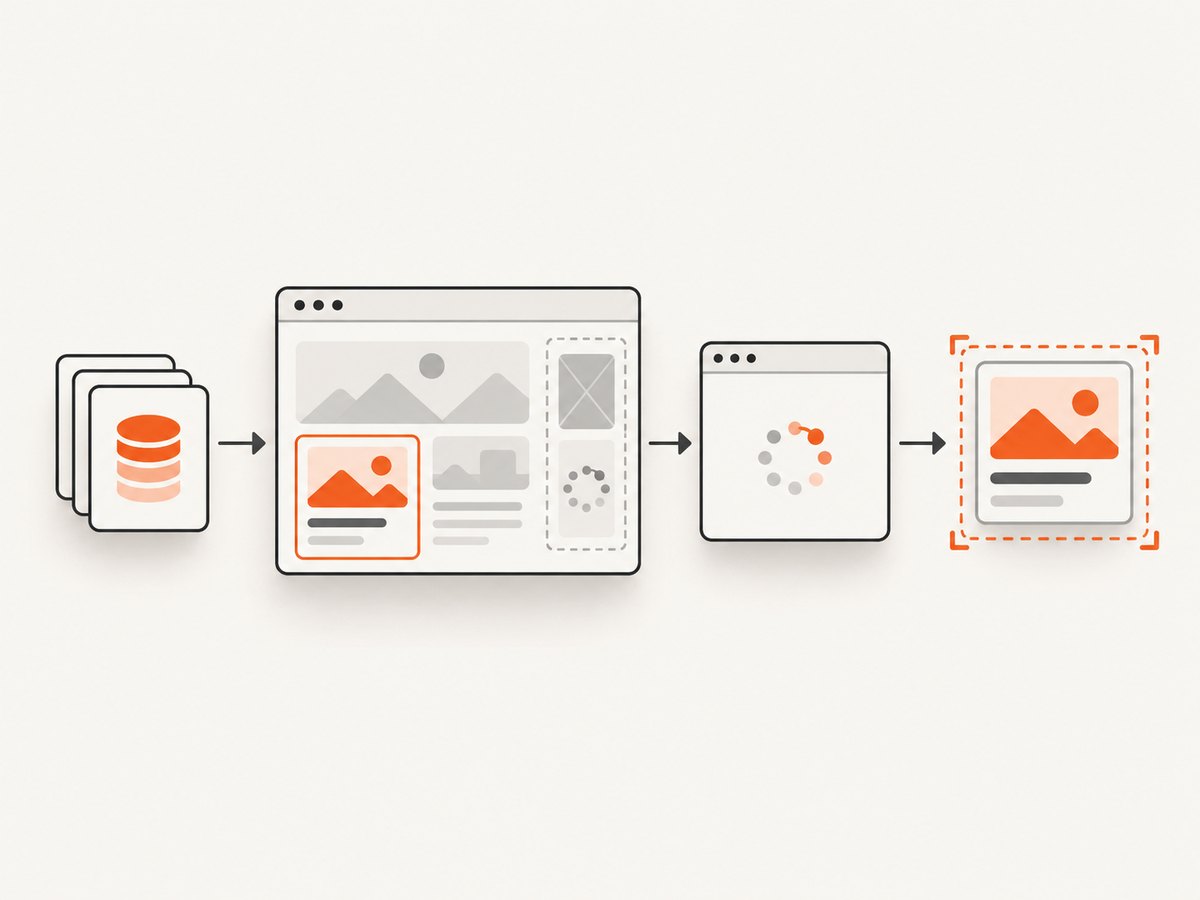
describe('catalog visual state', () => {
  it('loads the fixture-backed catalog', () => {
    cy.intercept('/api/items', { fixture: 'items.json' }).as('getItems')
    cy.visit('/catalog')
    cy.wait('@getItems')
    cy.get('[data-testid="catalog"]').should('be.visible')
    cy.get('[data-testid="catalog"]').screenshot('catalog')
  })
})
For a visual regression tool, call its documented Cypress command where the screenshot line appears. The example uses Cypress’s screenshot command so it runs without a third-party package. A baseline/diff integration must be installed and configured separately. Cypress lists Percy, Chromatic, Happo, LambdaTest SmartUI, Sauce Labs Visual, SmartBear VisualTest, and Wopee.io as hosted visual workflows; supported browsers, retention, pricing, and terms differ, so verify each provider’s current documentation.
- Use fixtures or
cy.intercept()for API data that would otherwise change. - Wait for a specific request or visible application state instead of relying on arbitrary sleeps.
- Choose a stable viewport, browser, locale, and test data for comparisons.
- Disable or mask narrowly scoped dynamic content such as animation or third-party widgets when the visual tool supports it.
- Keep behavioral assertions. A matching screenshot does not prove that the application behaved correctly.
5. Investigate failed CI runs
A local open-mode snapshot cannot show a CI-only state after the runner has exited. Start with the failure screenshot, command output, and logs that your CI job retains. Cypress Cloud Test Replay can provide time travel through supported recorded runs, with the command log and diagnostics such as DOM rendering, network requests, console logs, and JavaScript errors. Check the current Test Replay documentation for browser and Cypress-version support, project settings, retention, and data access rules.
For local terminal-driven debugging, Cypress also documents cypress tap workflows to run a spec and inspect its status and command state. Follow the current cypress tap documentation for exact commands and requirements. Do not assume a DOM artifact is available just because a test failed: configure retention or use a replay workflow before the run if you need to inspect it later.
Or skip the browser setup
If your goal is a screenshot of a live website rather than a Cypress test snapshot, ScreenshotNeo is a website screenshot API and MCP server. Its one-call API returns an image or PDF. See the ScreenshotNeo API documentation for available parameters and formats.
curl -G "https://api.screenshotneo.com/v1/shot" \
  -d access_key=YOUR_API_KEY \
  --data-urlencode url=https://stripe.com \
  -o shot.webp
Python:
import requests

r = requests.get(
    "https://api.screenshotneo.com/v1/shot",
    params={"access_key": "YOUR_API_KEY", "url": "https://stripe.com"},
    timeout=90,
)
open("shot.webp", "wb").write(r.content)
Node.js:
const q = new URLSearchParams({
  access_key: 'YOUR_API_KEY',
  url: 'https://stripe.com'
})
const res = await fetch(`https://api.screenshotneo.com/v1/shot?${q}`)
if (!res.ok) throw new Error(`Screenshot request failed: ${res.status}`)
const bytes = new Uint8Array(await res.arrayBuffer())
await (await import('node:fs/promises')).writeFile('shot.webp', bytes)- Cookie banners, newsletter popups, and chat widgets are removed before the shot; each cleanup step can be turned off.
- Bot checks, blank pages, failed loads, timeouts, and cache hits are not billed. Response headers report the page verdict and billing outcome.
- An MCP server provides
take_screenshot,get_page_info, andcapture_pdftools for AI agents and MCP clients. - The free plan includes 1,000 shots a month without a card; paid plans start at $5 for 3,000 shots. Every feature is available on every plan.
Create a free ScreenshotNeo account and get 1,000 screenshots a month with no card.
6. Troubleshooting
| Symptom | Likely cause | What to do |
|---|---|---|
| Hovering a command does not show the state you expected | You are viewing the state when that command resolved, which may precede a later UI update. | Inspect the later command that waits for the update, or add an explicit assertion/wait for the expected state before continuing. |
| An older test’s snapshot is unavailable in open mode | The in-memory test retention limit was reached. | Lower retained tests if memory is the issue; save a separate artifact or use a CI replay workflow for durable investigation. |
| The visual image changes between runs | Live data, animation, viewport, or third-party content differs. | Stub API calls with fixtures, wait for a known state, standardize the environment, and mask only unavoidable dynamic regions. |
| A screenshot file is missing | The command did not execute, the test failed earlier, or the configured screenshots folder/artifact upload differs from expectations. | Check the command log and Cypress configuration, then ensure CI uploads the screenshots directory. |
| The screenshot catches an intermediate animation state | Screenshot capture is asynchronous while the page is changing. | Wait for the intended state and reduce animation or timer variability using documented screenshot options or test setup. |
| A Cypress Cloud replay is unavailable | The run may not meet current version, browser, project setting, upload, or retention requirements. | Check the spec output for upload errors and verify the current Test Replay support requirements. |
| Saved HTML looks different from the live page | HTML serialization omits runtime-only state, computed styling context, or rendered canvas pixels. | Use it for markup inspection; use a screenshot or appropriate replay/visual workflow for rendered appearance. |
7. Performance, reliability, and cost considerations
Built-in snapshots are convenient because Cypress records them as part of the open-mode debugging experience. Keeping many tests in memory can increase browser memory use; lower numTestsKeptInMemory when needed. Saving a full HTML document or many screenshots adds filesystem and CI artifact volume, so retain only artifacts that help diagnose a defined class of failure. Large visual suites also create review work: every changed baseline needs investigation.
Reliability starts with controlled inputs. Intercept volatile APIs, wait on meaningful conditions, and keep visual checks focused. A screenshot is a point-in-time observation, and asynchronous capture can race a rapidly changing interface. A replay can expose more context from an eligible CI run, but it is not a substitute for checking support, upload success, retention, and access permissions. Cypress Cloud runs can contain test data; review your project’s data and access policies before recording sensitive flows.
For self-managed Cypress artifacts, direct costs depend on your CI storage and execution setup; estimate from your own artifact volume and retention policy. Hosted visual services and Cypress Cloud have their own plans, limits, and terms, which can change. Confirm current pricing with each provider instead of relying on assumptions. ScreenshotNeo pricing is $0 for 1,000 shots/month, then Starter $5 for 3,000, Growth $15 for 15,000, Pro $39 for 60,000, Scale $99 for 250,000, and Business $249 for 1,000,000; yearly billing gives two months free.
FAQ
Can I inspect a Cypress DOM snapshot in browser DevTools?
Yes. Hover or pin a Command Log entry in open mode to restore its state, then inspect the rendered DOM and styles using browser developer tools.
Does a DOM snapshot prove that the page looks correct?
No. DOM inspection helps explain structure and state. Use image capture and a deliberate visual comparison when the question is about rendered pixels.
Can I use DOM snapshots as a permanent regression baseline?
Built-in snapshots are temporary debugging state. Persisted snapshot packages or saved artifacts are separate mechanisms; review their output and version-specific behavior before relying on them.
What should I attach to a bug report?
Include the failing assertion and command, a screenshot or retained DOM artifact when relevant, the test data/setup, and a replay link or CI logs if available. Avoid attaching sensitive page data without checking access.


