How to Capture an Element’s Full Content with html2canvas and Include It in a jsPDF
Capture an entire DOM element with html2canvas, handle cross-origin assets and canvas limits, then paginate it cleanly in jsPDF.
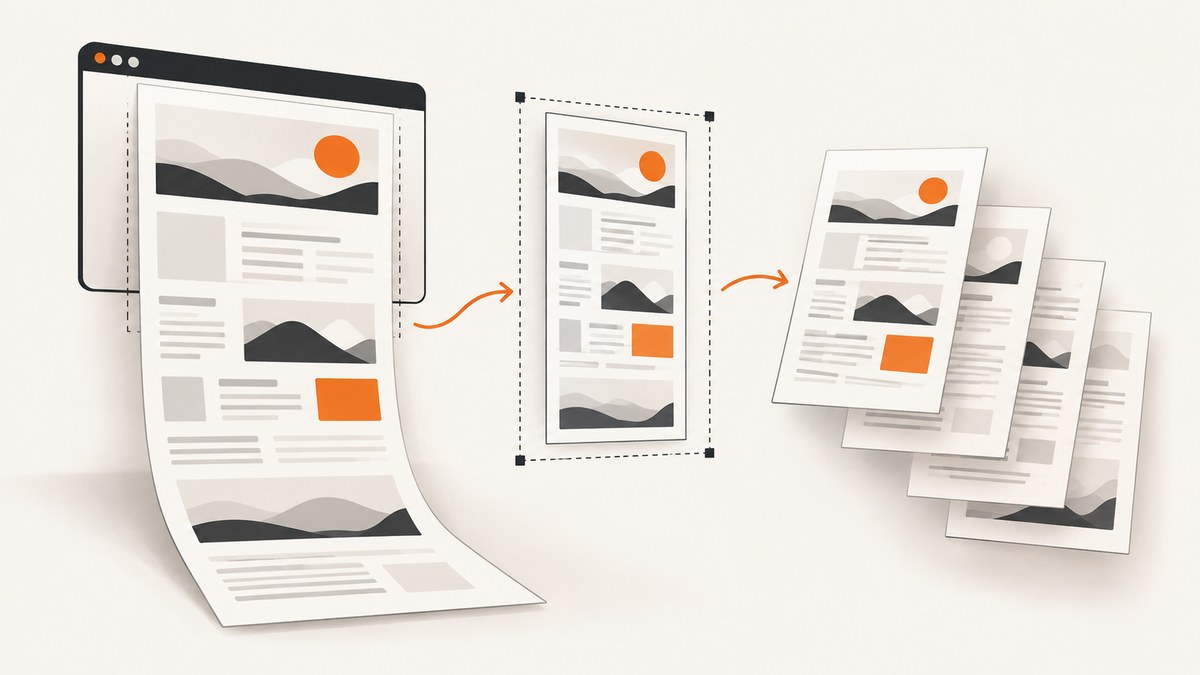
Direct answer: select the element, pass it to html2canvas, and set windowWidth and windowHeight to the element’s scrollWidth and scrollHeight. This expands the cloned rendering window so content below the viewport is included. Add the resulting canvas to jsPDF with addImage(). If the scaled image is taller than a page, slice it into page-sized sections yourself or use jsPDF’s HTML plugin with an autoPaging mode.
This approach creates a raster image of the element. It is not a native browser screenshot: html2canvas reconstructs the appearance from DOM and CSS information, so unsupported CSS, cross-origin resources, iframes and very large canvases need special handling.
1. Install the libraries
For a browser application, install both packages:
npm install html2canvas jspdfThen import them in your application:
import html2canvas from 'html2canvas';
import { jsPDF } from 'jspdf';
You can also load browser bundles from your package tooling. Keep the capture in a user-triggered action when possible, because browsers may restrict downloads that happen outside a click or similar gesture.
2. Capture the complete element
Give the target a stable selector and make sure it exists before starting. The important settings are the element’s scroll dimensions and useCORS for images hosted on another origin.
const element = document.querySelector('#capture');
if (!element) {
  throw new Error('Capture element not found');
}

const canvas = await html2canvas(element, {
  windowWidth: element.scrollWidth,
  windowHeight: element.scrollHeight,
  useCORS: true
});

const imageData = canvas.toDataURL('image/png');
console.log(imageData);
windowWidth and windowHeight control the cloned rendering window. Without them, a long element can be clipped at the viewport boundary. They can also change responsive breakpoints, so inspect the result when your CSS uses media queries.
Wait for content that is loaded asynchronously before calling html2canvas. For example, wait for an image’s decode() promise or for your application’s data-loading state. html2canvas captures the current DOM; it does not wait for your framework’s requests automatically.
3. Put the canvas into a PDF
For content that fits on one page, calculate a proportional height and add the image:
import html2canvas from 'html2canvas';
import { jsPDF } from 'jspdf';

async function exportElementToPdf() {
  const element = document.querySelector('#capture');
  if (!element) throw new Error('Capture element not found');

  const canvas = await html2canvas(element, {
    windowWidth: element.scrollWidth,
    windowHeight: element.scrollHeight,
    useCORS: true,
    backgroundColor: '#ffffff'
  });

  const pdf = new jsPDF({
    orientation: 'p',
    unit: 'pt',
    format: 'a4'
  });

  const margin = 36;
  const pageWidth = pdf.internal.pageSize.getWidth();
  const pageHeight = pdf.internal.pageSize.getHeight();
  const targetWidth = pageWidth - margin * 2;
  const targetHeight = canvas.height * targetWidth / canvas.width;

  if (targetHeight <= pageHeight - margin * 2) {
    pdf.addImage(canvas, 'PNG', margin, margin, targetWidth, targetHeight);
  } else {
    addCanvasSlices(pdf, canvas, targetWidth, margin);
  }

  pdf.save('capture.pdf');
}

function addCanvasSlices(pdf, canvas, targetWidth, margin) {
  const pageHeight = pdf.internal.pageSize.getHeight();
  const printableHeight = pageHeight - margin * 2;
  const scale = targetWidth / canvas.width;
  const sourceSliceHeight = Math.floor(printableHeight / scale);

  let sourceY = 0;
  let pageIndex = 0;

  while (sourceY < canvas.height) {
    if (pageIndex > 0) pdf.addPage();

    const sliceHeight = Math.min(sourceSliceHeight, canvas.height - sourceY);
    const slice = document.createElement('canvas');
    slice.width = canvas.width;
    slice.height = sliceHeight;

    const context = slice.getContext('2d');
    if (!context) throw new Error('Could not create 2D canvas context');
    context.drawImage(
      canvas,
      0, sourceY, canvas.width, sliceHeight,
      0, 0, canvas.width, sliceHeight
    );

    const renderedHeight = slice.height * scale;
    pdf.addImage(slice, 'PNG', margin, margin, targetWidth, renderedHeight);
    sourceY += sliceHeight;
    pageIndex += 1;
  }
}

exportElementToPdf().catch(console.error);
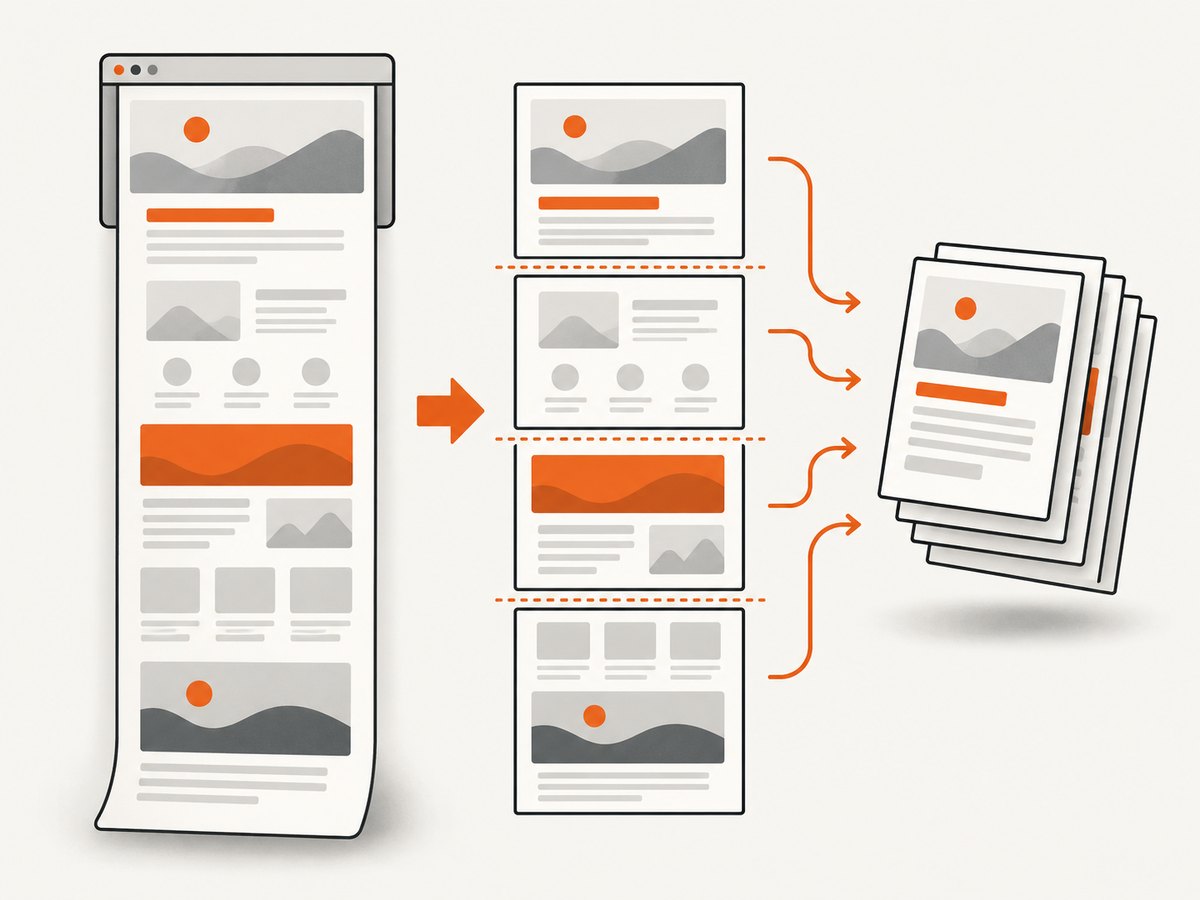
The slice routine maps a printable PDF height back to source-canvas pixels, creates a temporary canvas for each portion, and adds one portion per page. This avoids placing one image taller than the page and assuming jsPDF will slice it for you.
4. Complete HTML example
The element can be taller than its visible container. Its scroll dimensions still describe the complete content:
<button id="download">Download PDF</button>
<article id="capture">
  <h1>Quarterly report</h1>
  <p>This article continues below the viewport.</p>
  <img src="https://example.com/chart.png" alt="Revenue chart">
  <section class="long-content">...</section>
</article>
<script type="module" src="./app.js"></script>
import html2canvas from 'html2canvas';
import { jsPDF } from 'jspdf';
document.querySelector('#download').addEventListener('click', async () => {
const element = document.querySelector('#capture');
if (!element) throw new Error('Capture element not found');
const canvas = await html2canvas(element, {
windowWidth: element.scrollWidth,
windowHeight: element.scrollHeight,
useCORS: true,
scale: window.devicePixelRatio,
onclone: clonedDocument => {
clonedDocument.querySelectorAll('[data-html2canvas-ignore]').forEach(node => {
node.remove();
});
}
});
const pdf = new jsPDF({ unit: 'pt', format: 'a4' });
const margin = 32;
const width = pdf.internal.pageSize.getWidth() - margin * 2;
const height = canvas.height * width / canvas.width;
pdf.addImage(canvas, 'PNG', margin, margin, width, height);
pdf.save('report.pdf');
});Use data-html2canvas-ignore for buttons, menus or other controls that should not appear. The onclone callback changes only the cloned document used for rendering, leaving the live page unchanged.
5. html2canvas options that matter
| Option | Use it for | Important detail |
|---|---|---|
windowWidth, windowHeight |
Full element capture | Set them to the element’s scroll dimensions when content is clipped. |
scale |
Sharpness and output size | It defaults to the device pixel ratio. Higher values consume more memory. |
useCORS |
Images served from another origin | The image server must send suitable CORS headers. |
proxy |
Cross-origin assets without CORS | Use a correctly configured proxy that fetches the resource server-side. |
backgroundColor |
Solid or transparent background | Set a color for predictable PDF output; use null when transparency is required. |
imageTimeout |
Slow image requests | Increase it when legitimate images arrive slowly, or set it to zero to disable the timeout. |
ignoreElements |
Skip nodes programmatically | Return true for controls or decorations you do not want rendered. |
onclone |
Prepare the cloned page | Hide elements, adjust styles or expand state without mutating the live page. |
scrollX, scrollY |
Control captured scroll position | Useful when fixed or sticky elements depend on page scroll. |
foreignObjectRendering |
Try browser foreign-object rendering | Support varies; inspect output instead of assuming better CSS fidelity. |
The html2canvas configuration reference documents these controls: configuration options. The FAQ explains why a canvas can be empty or cut off and why browser canvas limits vary: html2canvas FAQ.
6. Pagination choices in jsPDF
Canvas slices
Slicing gives exact control over image dimensions and preserves the rendered pixels. It is predictable for dashboards, charts and mixed layouts, but a very large source canvas can consume substantial memory. You also need to decide where page boundaries fall; a slice can cut through a paragraph or table row.
HTML plugin auto-paging
jsPDF can render an element or HTML string through its HTML plugin:
const pdf = new jsPDF({ unit: 'pt', format: 'a4' });
pdf.html(document.querySelector('#capture'), {
  margin: [36, 36, 36, 36],
  autoPaging: 'text',
  html2canvas: {
    useCORS: true,
    windowWidth: document.querySelector('#capture').scrollWidth
  },
  callback: instance => instance.save('capture.pdf')
});
autoPaging: 'slice' follows the rendered page area and may cut text. autoPaging: 'text' attempts to avoid cutting text blocks and works best for mostly single-column text. The HTML plugin still relies on html2canvas and has the same browser security and CSS support boundaries. See the jsPDF HTML API and addImage API.
7. Cross-origin images, fonts and iframes
By default, cross-origin images may be skipped to prevent canvas tainting. useCORS: true works only when the remote server permits the request with appropriate CORS headers. It does not bypass browser security. If you control the asset server, configure its CORS policy; otherwise fetch through a server-side proxy and provide the proxied URL to the page.
Cross-origin iframes cannot be inspected by html2canvas. Capture content inside an iframe from the iframe’s own origin, or expose an API that returns the data you need. An existing canvas that already contains cross-origin pixels may also be unreadable. Fonts should be loaded before capture; wait for document.fonts.ready when font timing affects layout.
8. Troubleshooting
| Symptom | Cause | Fix |
|---|---|---|
| Blank or half-captured output | Rendering window is only the viewport, or the canvas exceeds a browser limit. | Set scroll-sized windowWidth/windowHeight; reduce scale or capture sections separately. |
| Images are missing | Remote server lacks CORS headers, image failed, or timeout expired. | Enable useCORS, configure the server, use a proxy, wait for images, or adjust imageTimeout. |
SecurityError from toDataURL |
The canvas was tainted by cross-origin content. | Remove the asset, serve it with CORS, or proxy it before rendering. |
| Text or layout differs from the page | html2canvas reconstructs supported DOM/CSS rather than taking a native screenshot. | Check unsupported CSS, sticky/fixed positioning, loaded fonts and media-query changes. |
| PDF pages are enormous | Canvas pixels were mapped to PDF points without proportional scaling. | Compute target width first, then derive height from the canvas aspect ratio. |
| Text is cut between pages | Raster slicing has no semantic knowledge of paragraphs. | Use explicit break markers, render sections separately, or try autoPaging: 'text'. |
| Download does nothing | Unhandled promise rejection or browser download policy. | Wrap capture in try/catch, log the error, and start it from a user action. |
9. Performance, reliability and cost
- Control pixel count: a high
scaleimproves sharpness but increases memory, encoding time and PDF size. Start with the device-pixel-ratio default, then lower it for very long documents. - Split large documents: browser canvas limits vary by platform. Rendering chapters or sections separately is safer than creating one enormous bitmap.
- Reduce work before capture: hide animations, pause video, wait for fonts and images, and remove interactive controls with
oncloneordata-html2canvas-ignore. - Choose PNG or JPEG deliberately: PNG keeps text and flat graphics crisp; JPEG can produce smaller files for photographic content but introduces compression artifacts.
- Validate output: check page count, image presence and the final file size. A successful promise does not guarantee that every remote resource rendered.
- Client-side cost: html2canvas and jsPDF run in the user’s browser, so there is no screenshot API request charge. The tradeoff is device memory, browser limits and inconsistent CSS support.
10. Or skip the browser setup
If you need a reliable website capture rather than a DOM reconstruction inside your app, ScreenshotNeo provides a single GET request that returns PNG, JPEG, WebP or PDF. Its capture options include full-page rendering with lazy images loaded, element selection by CSS selector, custom CSS and JavaScript, device presets, retina scale, PDF paper sizes and page ranges, waits, request blocking, cookies, headers, geolocation and more. Read the ScreenshotNeo API documentation for the complete parameter list.

curl -G "https://api.screenshotneo.com/v1/shot" -d access_key=YOUR_API_KEY --data-urlencode url=https://stripe.com -o shot.webpimport requests
r = requests.get("https://api.screenshotneo.com/v1/shot", params={"access_key": "YOUR_API_KEY", "url": "https://stripe.com"}, timeout=90)
open("shot.webp", "wb").write(r.content)const q = new URLSearchParams({ access_key: 'YOUR_API_KEY', url: 'https://stripe.com' });
const res = await fetch(`https://api.screenshotneo.com/v1/shot?${q}`);Cookie banners, newsletter popups and chat widgets are removed before the shot. Bot checks, blank pages and failed loads are never billed, and response headers identify the page verdict and whether it was billed. An MCP server lets AI agents take screenshots with Claude, Cursor or another MCP client. The Free plan includes 1,000 screenshots a month with no card; paid plans start at $5 for 3,000.
Create a free ScreenshotNeo account and start with the included 1,000 screenshots.
11. FAQ
Does html2canvas capture an element outside the viewport?
Yes, when the cloned rendering window is expanded to the element’s scroll dimensions and the browser can allocate a canvas of that size.
Can html2canvas create a vector PDF?
No. The usual workflow places a raster canvas into jsPDF. Use jsPDF’s HTML plugin when you need HTML-oriented pagination, while remembering that it still renders through browser-side mechanisms.
Why does useCORS not fix every image?
The remote server must explicitly allow the cross-origin request. The option cannot override browser security or make an uncooperative server share pixels.
What is the safest approach for a very long report?
Capture logical sections separately, add each section to page-sized PDF regions, and keep the scale low enough for the target devices’ canvas limits.
Can I exclude a download button?
Yes. Add data-html2canvas-ignore to it, use ignoreElements, or remove it in the cloned document from onclone.
Where are the official API details?
See the html2canvas documentation, jsPDF core API and jsPDF documentation home.


