How to Capture a Specific Element Screenshot in a Chrome Extension
Capture one DOM element in Chrome: pick it in a content script, capture the visible tab, then crop with HiDPI-safe coordinates.
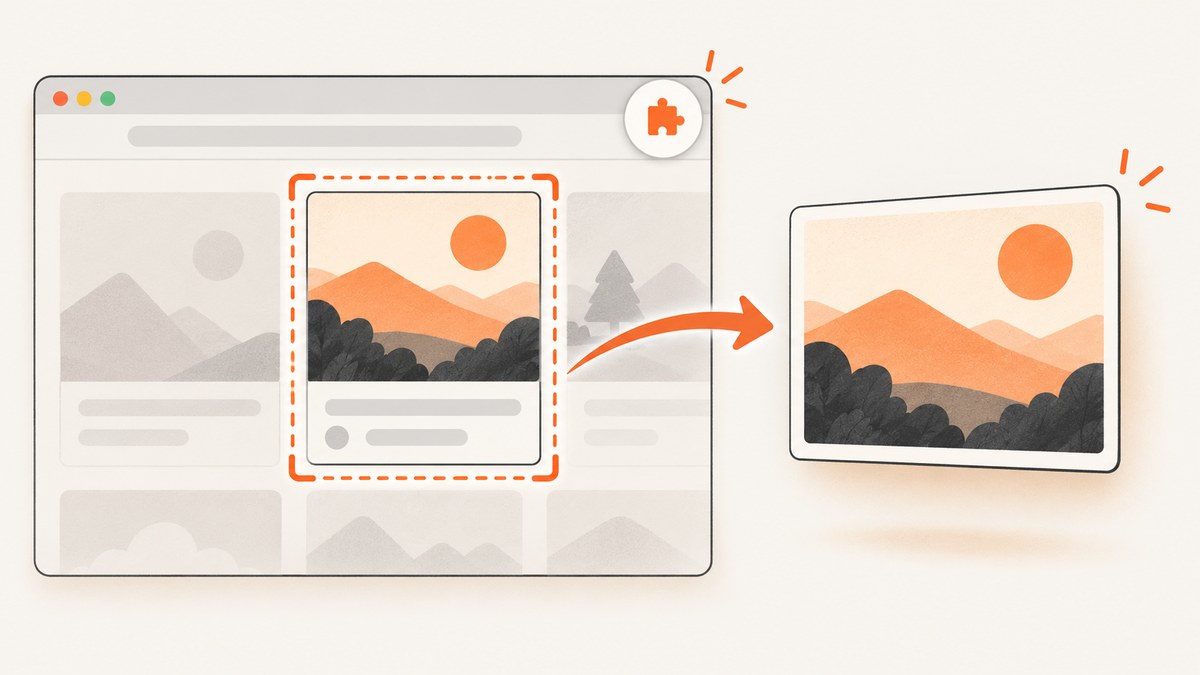
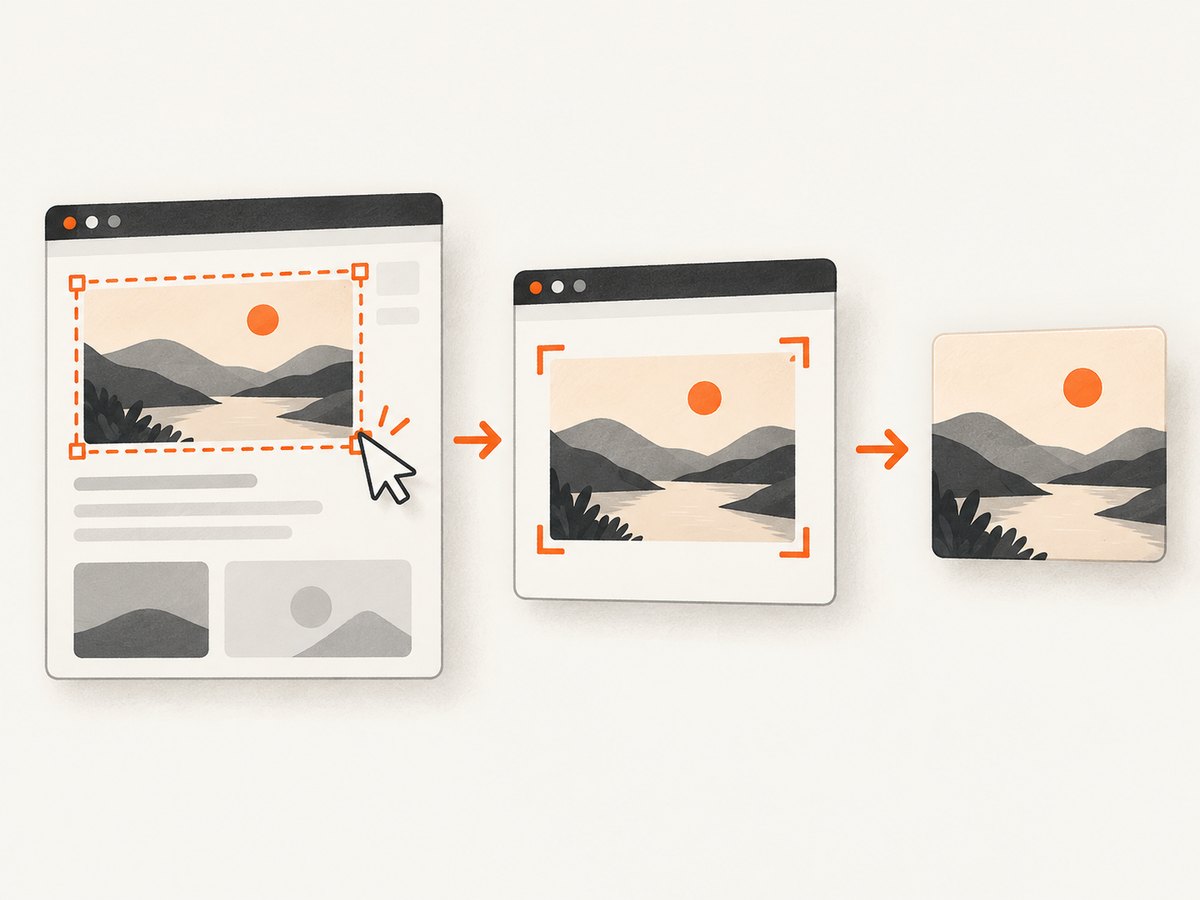
Direct answer: Chrome’s chrome.tabs.captureVisibleTab() captures the visible area of the active tab; it does not accept a CSS selector. To capture one element, use a content script to let the user select the element, send its getBoundingClientRect() coordinates to the extension service worker, call captureVisibleTab() there, and crop the returned bitmap.
The Chrome Tabs API reference describes this as capturing the visible area of the currently active tab. Content scripts cannot call the Tabs API directly.
1. The implementation flow
- The user clicks the extension action.
- The service worker injects a picker into the current tab.
- The picker highlights elements and records the selected element’s viewport rectangle.
- The service worker calls
captureVisibleTab()once. - The worker maps CSS pixels to screenshot bitmap pixels and crops the image.
- The cropped PNG opens in a new tab.
Capture only after selection. Chrome documents a maximum of two captureVisibleTab() calls per second and describes the method as expensive.
2. Complete Manifest V3 extension
Directory
element-shot/
  manifest.json
  service-worker.js
  picker.js
manifest.json
{
  "manifest_version": 3,
  "name": "Element Shot",
  "version": "1.0.0",
  "description": "Capture one visible DOM element.",
  "permissions": ["activeTab", "scripting"],
  "background": { "service_worker": "service-worker.js" },
  "action": { "default_title": "Capture element" }
}
activeTab grants temporary access after a user action. The activeTab documentation explains the grant. Use <all_urls> only when the extension must operate without a user-triggered action.
service-worker.js
chrome.action.onClicked.addListener(async (tab) => {
  if (!tab.id) return;
  try {
    await chrome.scripting.executeScript({
      target: { tabId: tab.id },
      files: ['picker.js']
    });
  } catch (error) {
    console.error('Could not start picker', error);
  }
});

chrome.runtime.onMessage.addListener((message, sender, sendResponse) => {
  if (message.type !== 'capture-element' || !sender.tab?.windowId) return;

  (async () => {
    try {
      const dataUrl = await chrome.tabs.captureVisibleTab(sender.tab.windowId, {
        format: 'png'
      });
      const cropped = await cropVisibleRect(
        dataUrl,
        message.rect,
        message.viewportWidth,
        message.viewportHeight
      );
      await chrome.tabs.create({ url: cropped });
      sendResponse({ ok: true });
    } catch (error) {
      console.error('Element capture failed', error);
      sendResponse({ ok: false, error: String(error) });
    }
  })();

  return true;
});

async function cropVisibleRect(dataUrl, rect, viewportWidth, viewportHeight) {
  const response = await fetch(dataUrl);
  const blob = await response.blob();
  const bitmap = await createImageBitmap(blob);

  // Screenshot pixels and CSS viewport pixels can differ on HiDPI displays.
  const scaleX = bitmap.width / viewportWidth;
  const scaleY = bitmap.height / viewportHeight;
  const left = Math.max(0, Math.floor(rect.left * scaleX));
  const top = Math.max(0, Math.floor(rect.top * scaleY));
  const right = Math.min(bitmap.width, Math.ceil(rect.right * scaleX));
  const bottom = Math.min(bitmap.height, Math.ceil(rect.bottom * scaleY));
  if (right <= left || bottom <= top) {
    throw new Error('Element is outside the visible viewport');
  }

  const canvas = new OffscreenCanvas(right - left, bottom - top);
  const context = canvas.getContext('2d');
  context.drawImage(
    bitmap,
    left, top, right - left, bottom - top,
    0, 0, right - left, bottom - top
  );
  const output = await canvas.convertToBlob({ type: 'image/png' });
  const bytes = new Uint8Array(await output.arrayBuffer());
  let binary = '';
  for (const byte of bytes) binary += String.fromCharCode(byte);
  return 'data:image/png;base64,' + btoa(binary);
}
picker.js
(() => {
  if (window.__elementShotPicker) return;
  window.__elementShotPicker = true;

  const outline = document.createElement('div');
  Object.assign(outline.style, {
    position: 'fixed', zIndex: '2147483647', pointerEvents: 'none',
    border: '2px solid #1a73e8', background: 'rgba(26,115,232,.12)',
    boxSizing: 'border-box'
  });
  document.documentElement.appendChild(outline);

  let current;
  const move = (event) => {
    const element = document.elementFromPoint(event.clientX, event.clientY);
    if (!element || element === outline || element === document.documentElement) return;
    current = element;
    const r = element.getBoundingClientRect();
    Object.assign(outline.style, {
      left: `${r.left}px`, top: `${r.top}px`,
      width: `${r.width}px`, height: `${r.height}px`
    });
  };

  const finish = (event) => {
    event.preventDefault();
    event.stopPropagation();
    if (!current) return;
    const r = current.getBoundingClientRect();
    cleanup();
    chrome.runtime.sendMessage({
      type: 'capture-element',
      rect: { left: r.left, top: r.top, right: r.right, bottom: r.bottom },
      viewportWidth: window.innerWidth,
      viewportHeight: window.innerHeight
    });
  };

  const cancel = (event) => {
    if (event.key === 'Escape') cleanup();
  };

  const cleanup = () => {
    outline.remove();
    document.removeEventListener('mousemove', move, true);
    document.removeEventListener('click', finish, true);
    document.removeEventListener('keydown', cancel, true);
    delete window.__elementShotPicker;
  };

  document.addEventListener('mousemove', move, true);
  document.addEventListener('click', finish, true);
  document.addEventListener('keydown', cancel, true);
})();
3. Load and use the extension
- Open
chrome://extensions. - Enable Developer mode.
- Choose Load unpacked and select
element-shot. - Open a normal web page and click the toolbar button.
- Move over the target and click. Press Escape to cancel.
- The cropped PNG opens in a new tab.
Browser-internal pages and some restricted pages do not allow normal script injection. File URLs require the user to enable file access in the extension details page.
4. Coordinate mapping and boundaries
getBoundingClientRect() uses CSS pixels relative to the viewport. The screenshot bitmap may have more pixels on a Retina display. Computing scale from the actual bitmap dimensions avoids assuming a one-to-one relationship.
- An element below the fold is cropped at the viewport edge.
- Partly hidden elements are clamped to the visible area.
- A zero-size or hidden element produces an empty or failed crop.
- CSS transforms are included in the returned rectangle.
- Sticky headers, fixed overlays and browser-visible content remain in the pixels.
5. Full-page and off-screen elements
A single captureVisibleTab() call cannot include pixels outside the viewport. For a full element, scroll it into view, capture several regions and stitch them in an extension page or offscreen document. Preserve scroll offsets, account for sticky elements and remove overlap rows. Queue captures so you stay at or below Chrome’s documented two-calls-per-second limit.
6. Permissions
| Use case | Permissions |
|---|---|
| User-clicked capture of the current tab | activeTab and scripting |
| Capture arbitrary tabs without a click | <all_urls> and scripting |
Keep processing local when possible. Screenshots can contain account data, personal information or secrets rendered by a page.
7. Reliability and performance checklist
- Never capture during
mousemove; select first. - Remove the picker before requesting the screenshot.
- Handle navigation, closed tabs, permission errors and zero-size rectangles.
- Use PNG for text fidelity; encode JPEG or WebP when smaller output matters.
- Throttle repeated captures to two per second or less.
- For batches, prefer Blob or object-URL handling over passing many large base64 strings through messages.
8. Troubleshooting
| Problem | Cause | Fix |
|---|---|---|
Cannot access contents of url |
The page is restricted or no temporary host grant exists. | Start from the toolbar action with activeTab; enable file access for file://. |
chrome.tabs is undefined |
Tabs APIs are unavailable in content scripts. | Send coordinates to the service worker and call the API there. |
| Crop is shifted | CSS pixels were treated as bitmap pixels. | Scale using bitmap dimensions divided by viewport dimensions. |
| Only the visible part is captured | The element extends outside the viewport. | Use scroll-and-stitch or a full-page renderer. |
| Outline appears in the image | The capture began before cleanup. | Remove the overlay before sending the capture message. |
| Repeated capture errors | The rate limit was exceeded or navigation is still occurring. | Throttle calls and wait for navigation to settle. |
9. Or skip the browser setup
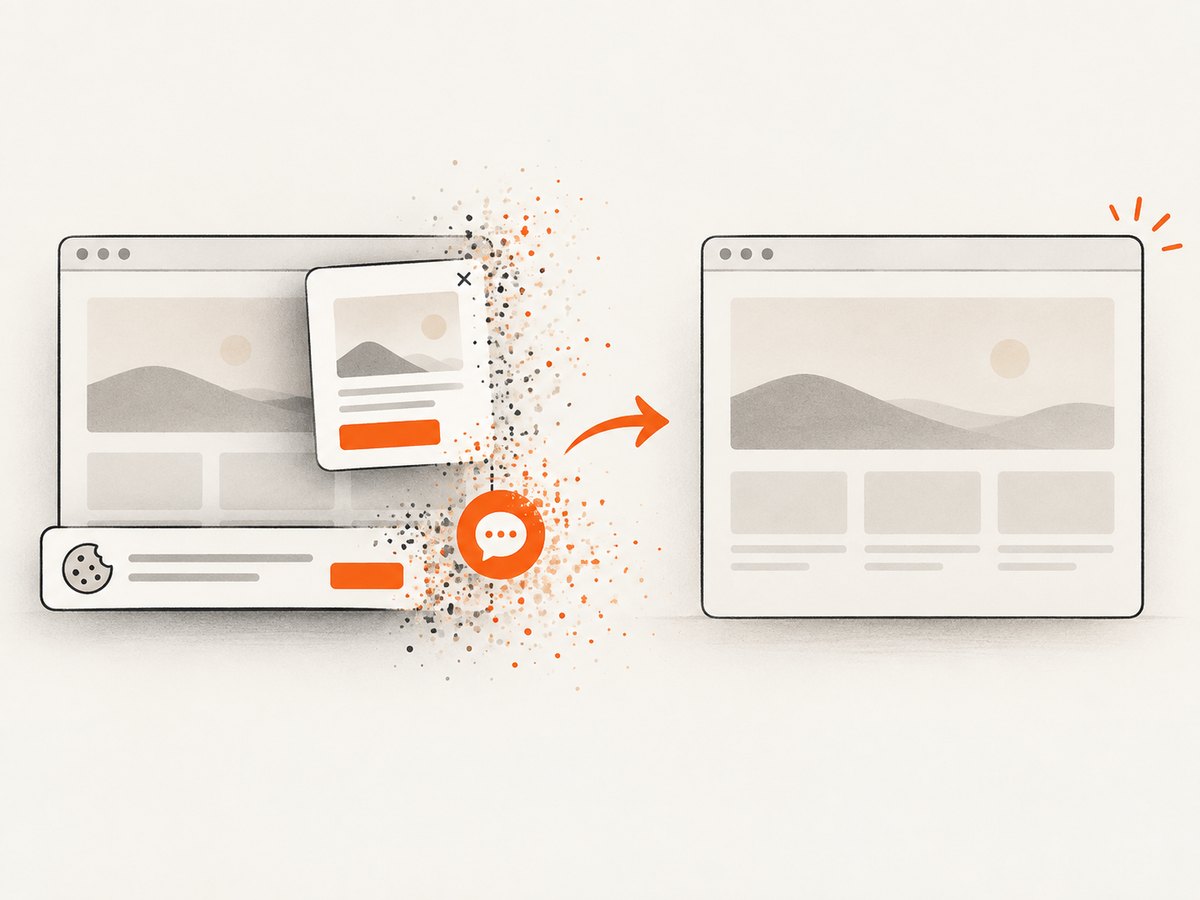
ScreenshotNeo accepts one GET request and supports CSS-selector element capture, full-page lazy-image loading, custom CSS and JavaScript, waits, device presets, cookies, headers and PNG, JPEG, WebP or PDF output. Cookie and consent banners, newsletter popups and chat widgets are removed before the shot. Bot checks, blank pages, timeouts, failed loads and cache hits are not billed, and responses identify the verdict and billing headers. Its MCP server exposes take_screenshot, get_page_info and capture_pdf to Claude, Cursor and other MCP clients. The free plan includes 1,000 shots per month without a card; paid plans start at $5 for 3,000.
See the ScreenshotNeo API documentation for options.
curl -G "https://api.screenshotneo.com/v1/shot" -d access_key=YOUR_API_KEY --data-urlencode url=https://stripe.com -d selector='.pricing-card' -o shot.webpimport requests
r = requests.get("https://api.screenshotneo.com/v1/shot", params={"access_key": "YOUR_API_KEY", "url": "https://stripe.com", "selector": ".pricing-card"}, timeout=90)
open("shot.webp", "wb").write(r.content)const q = new URLSearchParams({ access_key: 'YOUR_API_KEY', url: 'https://stripe.com', selector: '.pricing-card' });
const res = await fetch(`https://api.screenshotneo.com/v1/shot?${q}`);
if (!res.ok) throw new Error(`${res.status} ${await res.text()}`);Create a free ScreenshotNeo account with 1,000 screenshots each month and no card.
10. FAQ
Can a selector be passed to captureVisibleTab()?
No. Select in a content script, then crop the returned bitmap.
Can it capture a tab behind another window?
No. It captures the active tab’s visible pixels.
Is Chrome Element Capture the same API?
No. Element Capture is for cropping a captured tab stream for video. The still-image pattern here uses Tabs API capture followed by image cropping.
When is a remote API better?
Use one for repeatable server-side jobs, known URLs, full-page screenshots or selector capture without installing an extension.


