How to Capture Element Screenshots on iOS Safari
Capture one webpage element in iPhone or iPad Safari by taking a screenshot, cropping it, or using Full Page when the element is below the viewport.
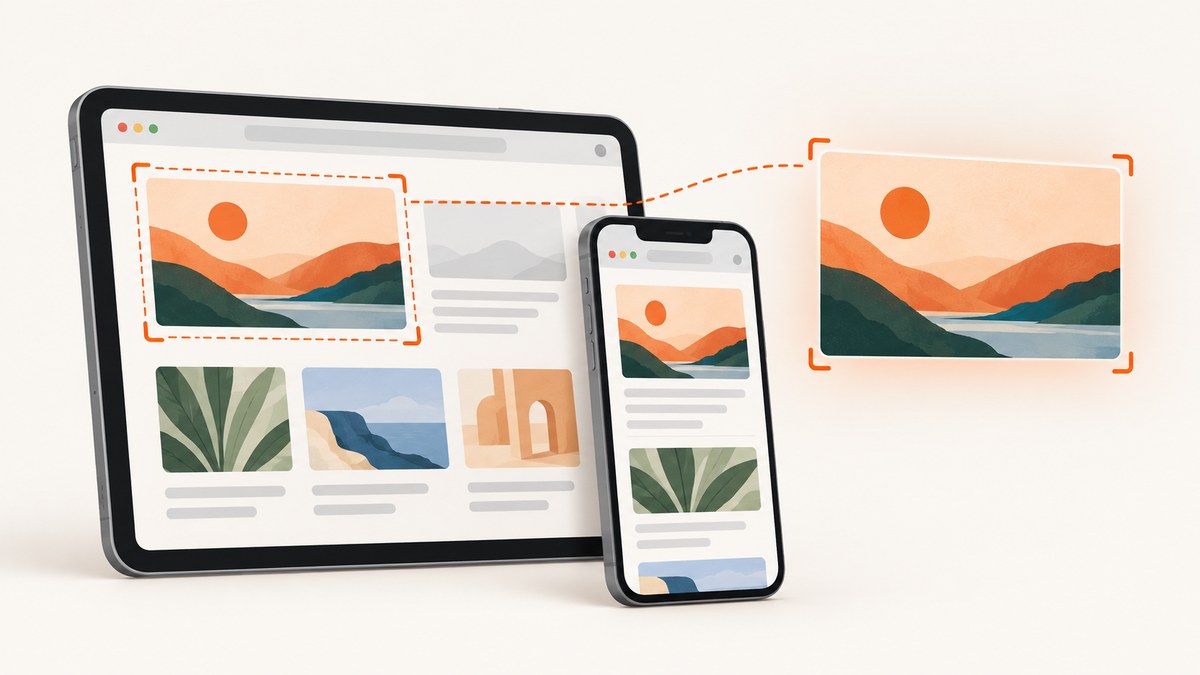
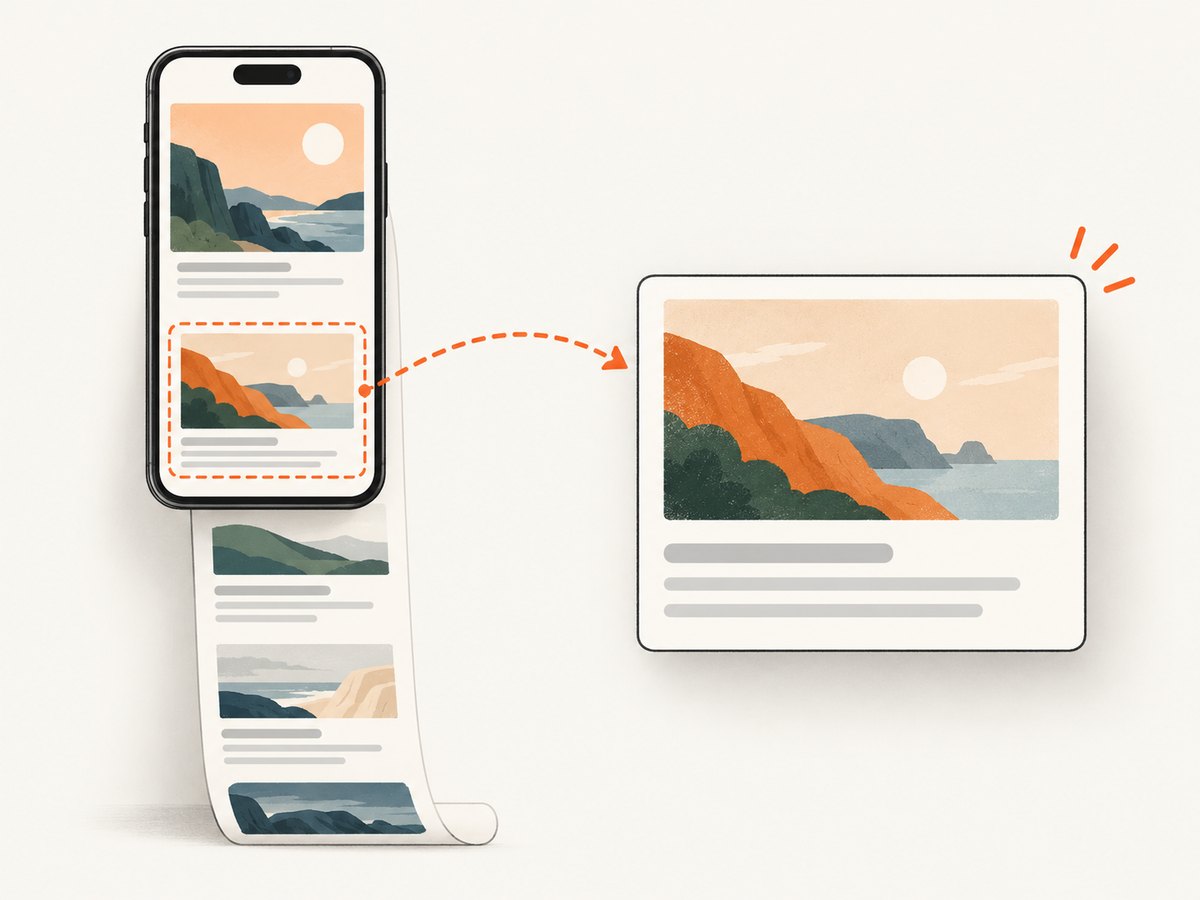
Short answer: iOS Safari does not provide a native tap-to-select DOM-element screenshot tool. Take a regular screenshot while the element is visible, then crop it in the screenshot editor. If the element is below the viewport, choose Full Page first, review the long preview, and crop the result.
For exact HTML boundaries, CSS dimensions, or debugging, connect the iPhone or iPad to a Mac and inspect the page with Safari Web Inspector. For automated captures from any device, use a screenshot API such as ScreenshotNeo.
What an “element screenshot” means in iOS Safari
On iPhone and iPad, an element screenshot normally means a visual crop of the rendered webpage: a product card, chart, image, form, or article section as it appears on screen. The built-in screenshot editor supports screen capture, Full Page capture, cropping, and Markup. Apple’s iPhone guide describes capturing the screen, a full page beyond the edge of the screen, or a specific portion (Apple iPhone User Guide).
That crop preserves the responsive layout, fonts, images, and overlays you can see. It does not expose the element’s HTML boundary or selector. There is no documented iOS Safari control that lets you tap a DOM node and export only that node.
Capture one visible element on iPhone
- Open the webpage in Safari and scroll until the target element is visible.
- Take a screenshot. On Face ID iPhones, quickly press and release the side button and volume-up button together. On Home-button models, press the side button and Home button together.
- Tap the screenshot thumbnail that appears in the lower-left corner.
- Drag the crop handles around the element. Zoom the page before capturing if the target is small.
- Use Markup if you need arrows, highlights, or labels.
- Tap Done, then save the image to Photos or share it.
Keep a small margin when shadows, rounded corners, or focus rings are part of the design. Crop tighter afterward if the image is for documentation or a bug report.
Capture an element on iPad
- Open the page in Safari and position the target element.
- On iPads without a Home button, quickly press and release the top button and either volume button. On Home-button iPads, press the top button and Home button together.
- Tap the screenshot thumbnail.
- Crop to the element, or choose Full Page when the element is outside the current viewport.
- Save to Photos or export the full-page result as an image or PDF when that option is shown.
The labels and export choices can vary slightly by iPad model and iPadOS version; use the controls shown in your screenshot editor. Apple’s iPad instructions cover the same screenshot and Full Page workflow (Apple iPad User Guide).
When the element is below the viewport: use Full Page
- Take a normal Safari screenshot.
- Open the thumbnail and select Full Page at the top of the editor.
- Drag through the long preview to find the target section.
- Crop around the element.
- Save the output in the format offered by your device. Full-page captures may be saved as an image or PDF.
Full Page captures the entire Safari webpage, so it is useful for content that requires scrolling. It can also include sections that load only after you scroll. Wait for images, charts, and embedded content to finish loading before taking the screenshot.
Accessibility alternatives to hardware buttons
If pressing two buttons is difficult, Apple lists Siri, AssistiveTouch, and Back Tap as iPhone alternatives. On iPad, Siri, AssistiveTouch, and an Apple Pencil swipe gesture can start the same screenshot flow. These methods only change how capture starts; cropping and Markup still happen in the screenshot editor.
Visual crop versus exact DOM capture
| Need | Best method | Result |
|---|---|---|
| Share what a reader sees | Normal screenshot plus crop | PNG-style visual crop of the rendered page |
| Capture content below the viewport | Full Page, then crop | Long webpage capture that can be reviewed and trimmed |
| Inspect HTML or CSS bounds | Safari Web Inspector on a connected Mac | DOM, styles, dimensions, and console access |
| Generate repeatable images in code | Screenshot API | Automated PNG, JPEG, WebP, or PDF output |
Inspect the exact element with Safari Web Inspector
Use this developer workflow when a crop is not precise enough or you need the element’s selector and computed dimensions.
- On the iPhone or iPad, enable Settings > Safari > Advanced > Web Inspector.
- Connect the device to a Mac with a cable, or use the supported wireless inspection setup.
- On the Mac, open Safari and enable the Develop menu in Safari settings.
- Choose Develop, select the connected device, and select the open webpage.
- In Web Inspector, use the Elements panel to locate the node and inspect its box, styles, and attributes.
- Use the console for controlled inspection or page changes. This is a debugging workflow; it does not add a one-tap “save this DOM element as an image” button to iOS Safari.
Apple documents inspecting iOS and iPadOS web content from a connected Mac in the Safari developer tools documentation.
Or skip the browser setup
ScreenshotNeo captures a URL through one request and supports PNG, JPEG, WebP, and PDF output. It can capture one element by CSS selector, load lazy images, set a viewport or device preset, use retina scale, apply custom CSS or JavaScript, wait for a selector or network idle, and hide selectors before capture.
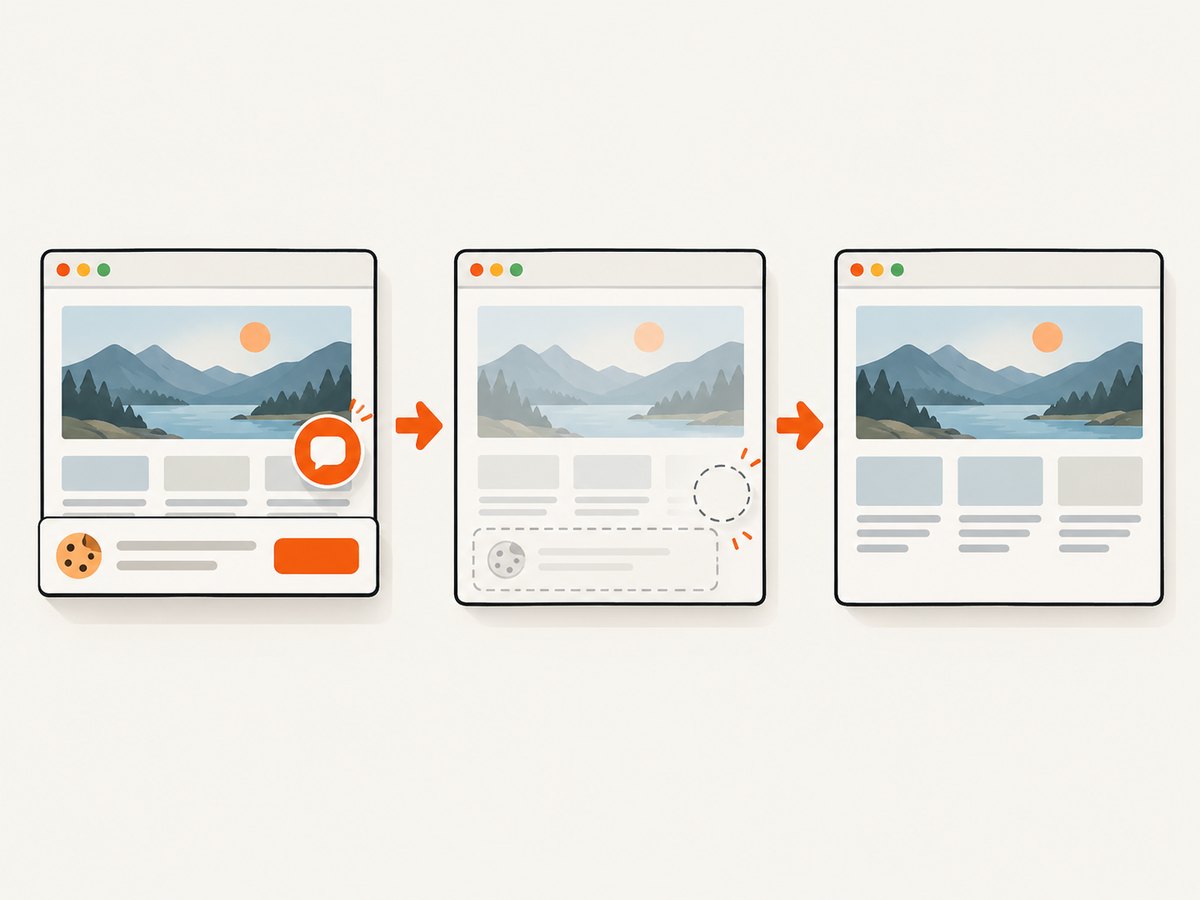
Its cleanup steps accept cookie and consent banners and remove more than 60 known consent platforms, newsletter popups, and chat widgets before the shot; each step can be disabled. Bot checks, blank pages, timeouts, failed loads, and cache hits are not billed, and the response identifies the result with X-Page-Verdict and X-Billed headers.
See the ScreenshotNeo API documentation for the complete option list. This call captures the page as an image:
curl -G "https://api.screenshotneo.com/v1/shot" \
  -d access_key=YOUR_API_KEY \
  --data-urlencode url=https://stripe.com \
  -o shot.webp
Python
import requests

r = requests.get(
    "https://api.screenshotneo.com/v1/shot",
    params={"access_key": "YOUR_API_KEY", "url": "https://stripe.com"},
    timeout=90,
)
r.raise_for_status()
open("shot.webp", "wb").write(r.content)
Node.js
const q = new URLSearchParams({
  access_key: 'YOUR_API_KEY',
  url: 'https://stripe.com'
});
const res = await fetch(`https://api.screenshotneo.com/v1/shot?${q}`);
if (!res.ok) throw new Error(`Screenshot failed: ${res.status}`);
const fs = await import('node:fs/promises');
await fs.writeFile('shot.webp', Buffer.from(await res.arrayBuffer()));
For an exact element, add the CSS-selector option described in the docs. You can also choose dark mode, timezone, geolocation, custom headers, cookies, user agent, Authorization, blocked resource types, transparent backgrounds, resizing, a chosen cache TTL, signed links, asynchronous jobs with signed webhooks, bulk capture of up to 100 URLs per call, and usage reporting. ScreenshotNeo also provides an MCP server with take_screenshot, get_page_info, and capture_pdf tools for Claude, Cursor, and other MCP clients.
The Free plan includes 1,000 screenshots per month with no card. Paid plans start at $5 for 3,000 screenshots; every feature is available on every plan. Create a free ScreenshotNeo account.
Troubleshooting
| Problem | Cause | Fix |
|---|---|---|
| Screenshot thumbnail disappeared | The thumbnail was dismissed or timed out | Take the screenshot again and tap the thumbnail immediately. |
| Target is cut off | Part of the element was outside the viewport | Scroll it fully into view, or use Full Page and crop the long preview. |
| Full Page is unavailable | The current screen or app does not expose a full Safari webpage | Confirm the page is open in Safari, wait for navigation to finish, then capture again. |
| Images are blank in the capture | Images or lazy content had not loaded | Wait, scroll through the page once, and recapture. |
| Crop includes a banner or chat bubble | An overlay was visible when the screenshot was taken | Dismiss it before capture, or hide it with CSS in a developer/API workflow. |
| Web Inspector cannot see the device | Web Inspector is disabled, the device is locked, or the trust prompt was not accepted | Enable Web Inspector, unlock the device, accept Trust This Computer, reconnect, and reopen Develop. |
| API response is not an image | The request failed or returned an error payload | Check the HTTP status and response headers, verify the access key and URL, and inspect X-Page-Verdict and X-Billed. |
Quality, reliability, and cost notes
- Quality: Capture after fonts, images, charts, and consent dialogs have settled. Use Full Page for below-the-fold content and a crop for the final visual boundary.
- Repeatability: Keep orientation, viewport size, zoom, device model, and page state consistent when comparing screenshots.
- Privacy: Crop sensitive notifications or personal data before sharing. For automated requests, pass only the headers and cookies required by the page.
- Performance: A visible crop is immediate. Full Page and Web Inspector take longer because they cover more content or require a Mac connection. API captures can use caching, selector waits, network-idle waits, blocked resources, and asynchronous jobs when appropriate.
- Cost: Native screenshots cost nothing beyond device storage. ScreenshotNeo’s Free plan provides 1,000 shots monthly; paid plans begin at $5 for 3,000, with yearly billing giving two months free.
FAQ
Can I select a webpage element by tapping it in iOS Safari?
No. Native Safari screenshot controls provide screen capture, Full Page, crop, and Markup. Use cropping for a visual result or Web Inspector for DOM inspection.
Can I screenshot an element that is not currently visible?
Yes. Choose Full Page after taking the screenshot, find the section in the long preview, and crop it.
Does cropping preserve the element’s HTML and CSS?
No. It preserves the rendered pixels. Use Web Inspector when you need selectors, computed styles, or exact dimensions.
Can I save a Full Page capture as a PDF?
On supported iPhone and iPad versions, the Full Page editor offers image or PDF export choices. The options vary by device and software version.
What is the simplest automated alternative?
Send the URL to ScreenshotNeo’s /v1/shot endpoint. It can target a CSS selector and remove common consent banners, popups, and chat widgets before capture.


