How to Capture an Entire Scrolling Webpage with C#
Capture complete scrolling pages in C# with Playwright or Selenium, handle lazy loading and sticky elements, and automate reliable image output.
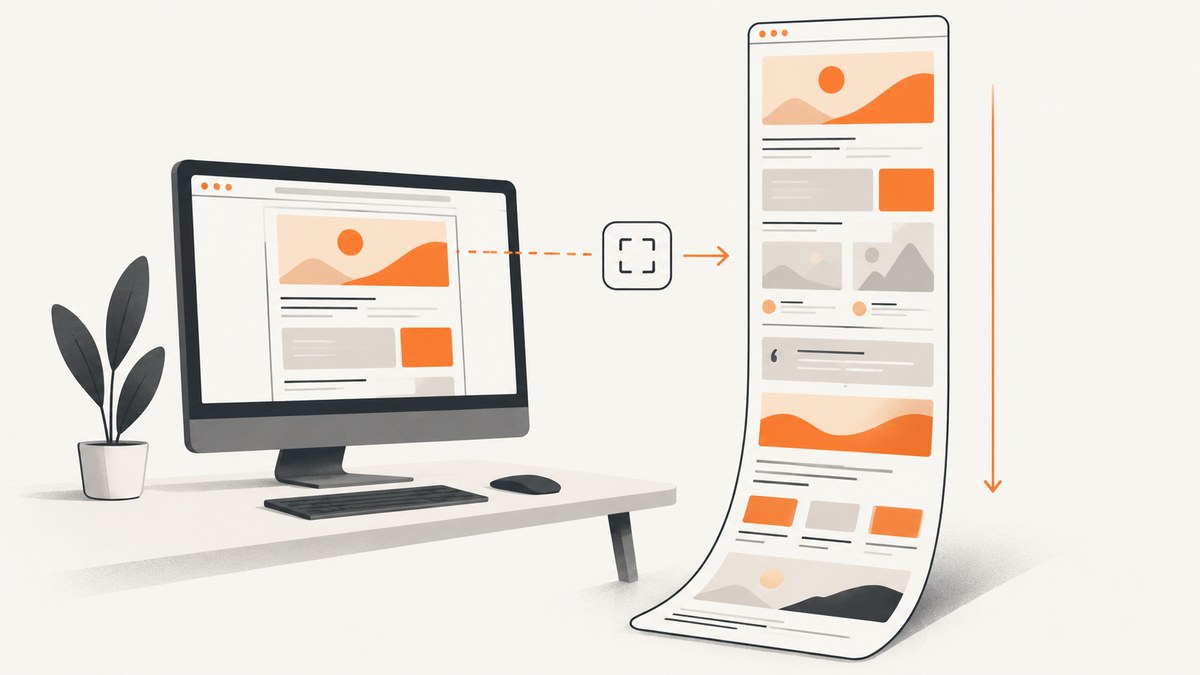
To capture an entire scrolling webpage in C#, use Playwright for .NET and set FullPage = true on Page.ScreenshotAsync. Playwright expands the screenshot to the browser’s full scrollable document instead of capturing only the visible viewport.
using Microsoft.Playwright;

using var playwright = await Playwright.CreateAsync();
await using var browser = await playwright.Chromium.LaunchAsync(new()
{
    Headless = true
});

var page = await browser.NewPageAsync();
await page.GotoAsync("https://example.com");

await page.ScreenshotAsync(new()
{
    Path = "full-page.png",
    FullPage = true
});
Install Playwright’s .NET package and browser binaries before running this example. The same API works with Chromium, Firefox, and WebKit. Full-page mode is defined as a screenshot of the complete scrollable page, as if the page fitted on one very tall screen. See the Playwright .NET screenshot documentation for the current option names.
1. Set up a C# project
Create a console project, add Playwright, and install its browser binaries:
dotnet new console -n FullPageCapture
cd FullPageCapture
dotnet add package Microsoft.Playwright
dotnet build
# Run the generated Playwright install script after build.
# On Linux, the script is commonly:
# bin/Debug/net8.0/playwright.sh install
Use the framework version supported by your installed Microsoft.Playwright package. In CI, install the same browser channel and operating-system dependencies on every runner so screenshots do not change because a different browser build is being used.
2. A complete Playwright implementation
The following program accepts a URL and output path, waits for the document to load, disables capture-time animation, and writes a PNG. Waiting for DOMContentLoaded is only a baseline; applications with client-side rendering should add a page-specific readiness condition.
using Microsoft.Playwright;

if (args.Length == 0)
{
    Console.Error.WriteLine("Usage: dotnet run -- <url> [output.png]");
    return;
}

var url = args[0];
var output = args.Length > 1 ? args[1] : "full-page.png";

using var playwright = await Playwright.CreateAsync();
await using var browser = await playwright.Chromium.LaunchAsync(new BrowserTypeLaunchOptions
{
    Headless = true
});

await using var context = await browser.NewContextAsync(new BrowserNewContextOptions
{
    Viewport = new ViewportSize { Width = 1440, Height = 900 },
    DeviceScaleFactor = 1
});

var page = await context.NewPageAsync();
await page.GotoAsync(url, new PageGotoOptions
{
    WaitUntil = WaitUntilState.DOMContentLoaded,
    Timeout = 60_000
});

// Replace this with an application-specific selector when possible.
await page.WaitForLoadStateAsync(LoadState.NetworkIdle);

await page.ScreenshotAsync(new PageScreenshotOptions
{
    Path = output,
    FullPage = true,
    Type = ScreenshotType.Png,
    Animations = ScreenshotAnimations.Disabled,
    Caret = ScreenshotCaret.Hide
});

Console.WriteLine($"Saved {output}");
ScreenshotAsync can also return bytes. Omit Path when you want to upload the image, attach it to a test report, or send it to an image-diff tool:
var bytes = await page.ScreenshotAsync(new PageScreenshotOptions
{
    FullPage = true,
    Type = ScreenshotType.Webp,
    Quality = 85
});

await File.WriteAllBytesAsync("full-page.webp", bytes);
3. Control format, scale, and the captured region
Playwright supports PNG, JPEG, and WebP output. PNG is lossless and suitable for visual regression. JPEG and WebP are smaller for previews. JPEG and WebP quality can be set where supported.
| Option | Use it for | Notes |
|---|---|---|
FullPage |
The complete scrollable document | Set to true; it does not automatically solve nested scroll containers or infinite feeds. |
Path |
Saving directly to disk | Parent directories must exist. |
Type |
PNG, JPEG, or WebP | Choose PNG for pixel comparisons; compressed formats reduce storage. |
Quality |
JPEG/WebP size control | Ignored for PNG. |
Scale |
CSS pixels versus device pixels | css keeps dimensions closer to layout pixels; device follows the device scale factor. |
Clip |
A rectangle inside the page | Use X, Y, Width, and Height; do not combine it casually with a full-page capture. |
OmitBackground |
Transparent screenshots | Useful for pages whose background should remain transparent where the browser supports it. |
Mask |
Hiding volatile or private regions | Pass locators and optionally set MaskColor. |
Caret |
Text-caret visibility | Hide it for deterministic images. |
Animations |
Stable captures | Disabling animations stops CSS animations, transitions, and Web Animations for the screenshot operation. |
For example, capture a report while masking a user name and forcing a fixed output width:
await page.ScreenshotAsync(new PageScreenshotOptions
{
    Path = "report.png",
    FullPage = true,
    Scale = ScreenshotScale.Css,
    Mask = new[] { page.Locator("[data-private]") },
    MaskColor = "#888888",
    Animations = ScreenshotAnimations.Disabled
});
4. Make dynamic pages complete before capture
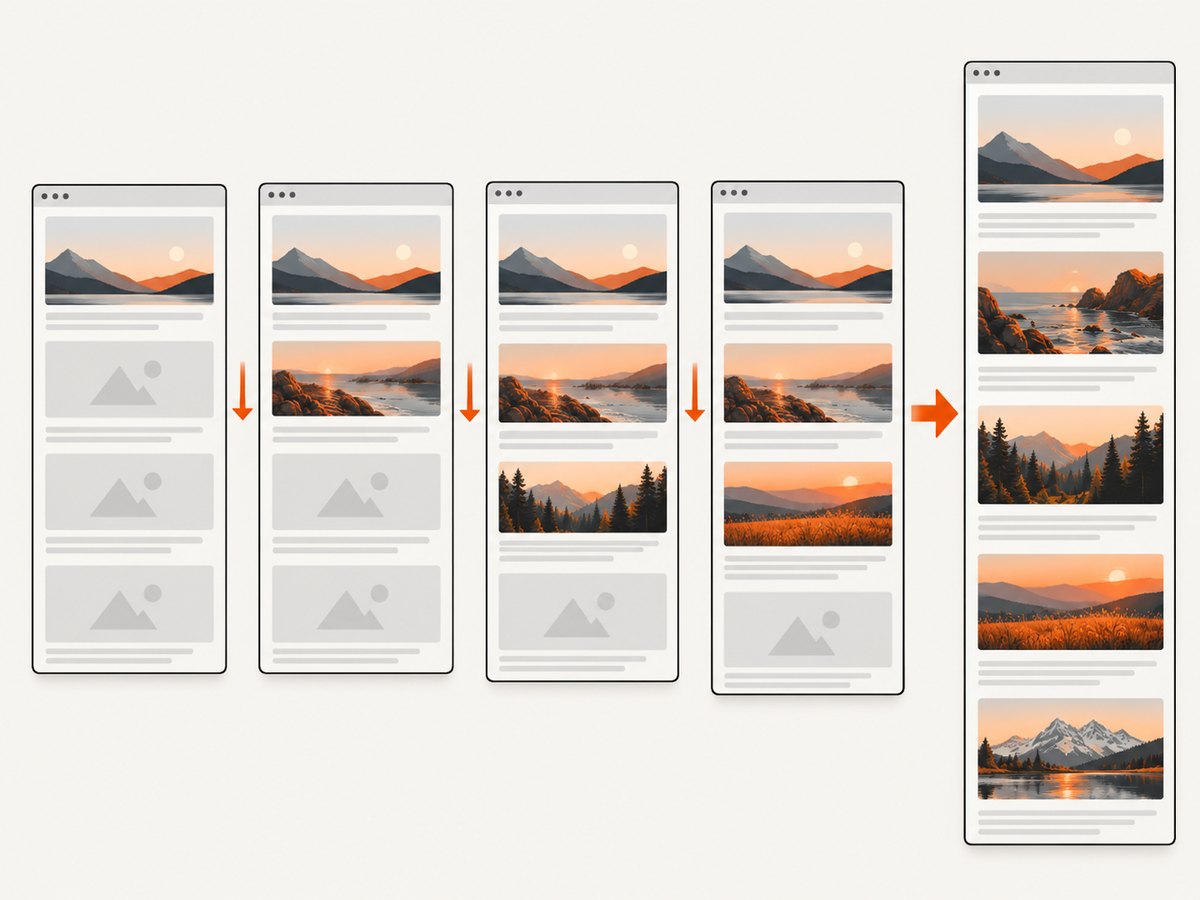
FullPage = true captures the browser’s current scrollable document. It does not promise that an infinite list, virtualized table, lazy image, or nested scrolling panel has already rendered all of its content. Treat readiness as part of the capture program.
Wait for a known application condition
await page.GotoAsync("https://example.com/dashboard");
await page.Locator("main[data-ready='true']").WaitForAsync(new LocatorWaitForOptions
{
    State = WaitForSelectorState.Visible,
    Timeout = 30_000
});
await page.ScreenshotAsync(new() { Path = "dashboard.png", FullPage = true });
Trigger lazy-loaded content
Some sites load images only after they approach the viewport. A controlled scroll loop can trigger that behavior, followed by a short settle period. The exact distance and delay depend on the application:
await page.EvaluateAsync("async () => {\n  await new Promise(resolve => {\n    let y = 0;\n    const step = Math.max(200, window.innerHeight);\n    const timer = setInterval(() => {\n      window.scrollBy(0, step);\n      y += step;\n      if (y >= document.documentElement.scrollHeight) {\n        clearInterval(timer);\n        window.scrollTo(0, 0);\n        resolve();\n      }\n    }, 100);\n  });\n}");
await page.WaitForTimeoutAsync(500);
await page.ScreenshotAsync(new() { Path = "lazy-page.png", FullPage = true });
For an infinite-scroll page, first decide what “entire” means. You may need to scroll until an end marker appears, collect a finite number of pages, or capture the relevant container instead of the unbounded document.
Handle fixed headers and nested scroll areas
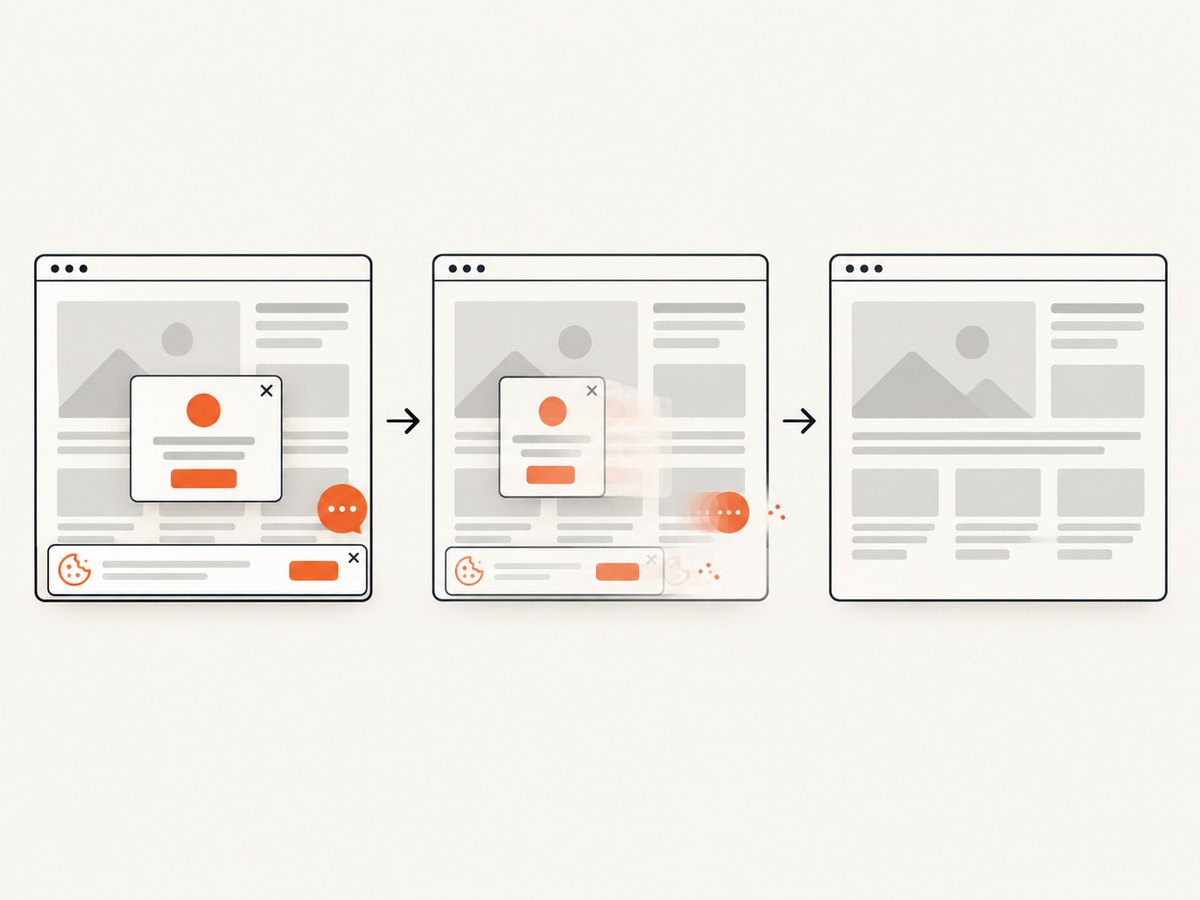
A sticky header can appear repeatedly or cover content when a page is stitched internally. Hide it temporarily with a style injection, or mask it:
await page.AddStyleTagAsync(new PageAddStyleTagOptions
{
    Content = "header.sticky, .cookie-banner { visibility: hidden !important; }"
});
await page.ScreenshotAsync(new() { Path = "without-overlays.png", FullPage = true });
If the desired content is inside div.results with its own scrollbar, full-page mode targets the document, not that inner scrollport. Scroll the element, wait for its rows, and use a locator screenshot when the element itself is the deliverable:
var results = page.Locator("div.results");
await results.EvaluateAsync("el => el.scrollTop = el.scrollHeight");
await results.ScreenshotAsync(new() { Path = "results.png" });
5. Capture one element or a clipped region
Full-page output is the wrong shape when you need a chart, invoice, or article body. Locator screenshots automatically use the element’s bounding box:
var article = page.Locator("article");
await article.ScreenshotAsync(new LocatorScreenshotOptions
{
    Path = "article.png",
    Type = ScreenshotType.Png,
    Animations = ScreenshotAnimations.Disabled
});
For a known rectangle, use Clip. Coordinates are CSS pixels relative to the page:
await page.ScreenshotAsync(new PageScreenshotOptions
{
    Path = "top-panel.png",
    Clip = new ScreenshotClip { X = 0, Y = 0, Width = 1200, Height = 700 }
});
6. Selenium and Chrome DevTools Protocol
If your existing suite is built on Selenium, keep WebDriver and call Chrome DevTools Protocol’s Page.captureScreenshot. Selenium’s versioned .NET DevTools bindings expose settings such as CaptureBeyondViewport and Clip. The exact namespace changes with the Selenium and browser-compatible DevTools package versions, so use the API matching your installed release.
using OpenQA.Selenium;
using OpenQA.Selenium.Chrome;
using OpenQA.Selenium.DevTools;

using var driver = new ChromeDriver();
driver.Navigate().GoToUrl("https://example.com");

// Obtain the DevTools session and the version-matched Page domain
// from your Selenium package, then execute Page.captureScreenshot.
// CaptureBeyondViewport must be enabled for content outside the viewport
// when supported by the browser version.

var screenshot = ((ITakesScreenshot)driver).GetScreenshot();
screenshot.SaveAsFile("viewport.png");
driver.Quit();
The WebDriver screenshot shown above is normally viewport-sized. For a true full document, use Selenium’s version-matched DevTools command settings rather than assuming the WebDriver convenience method captures beyond the viewport. Chrome’s Page.captureScreenshot documentation describes the protocol command. Page.captureSnapshot is different: it returns serialized MHTML, not a PNG or JPEG image.
7. Or skip the browser setup
ScreenshotNeo provides a website screenshot API when you want one HTTP request instead of managing Playwright or Selenium. The API can produce PNG, JPEG, WebP, or PDF and supports full-page capture, lazy-image loading, selectors, custom CSS and JavaScript, waits, headers, cookies, user agents, blocking rules, caching, signed links, asynchronous jobs, bulk capture, and usage reporting. See the ScreenshotNeo API documentation for all parameters.
curl -G "https://api.screenshotneo.com/v1/shot" -d access_key=YOUR_API_KEY --data-urlencode url=https://stripe.com -o shot.webpimport requests
r = requests.get("https://api.screenshotneo.com/v1/shot", params={"access_key": "YOUR_API_KEY", "url": "https://stripe.com"}, timeout=90)
open("shot.webp", "wb").write(r.content)const q = new URLSearchParams({ access_key: 'YOUR_API_KEY', url: 'https://stripe.com' });
const res = await fetch(`https://api.screenshotneo.com/v1/shot?${q}`);Cookie banners, newsletter popups, and chat widgets are removed before the shot. Bot checks, blank pages, timeouts, failed loads, and cache hits are not billed, and response headers identify the page verdict and billing status. An MCP server provides take_screenshot, get_page_info, and capture_pdf tools for Claude, Cursor, and other MCP clients. The Free plan includes 1,000 screenshots per month with no card; paid plans start at $5 for 3,000 shots. Create a free ScreenshotNeo account.
8. Reliability and performance checklist
- Pin the Playwright package and browser version in CI.
- Set explicit navigation and selector timeouts; do not let a hung page consume a worker forever.
- Use a stable viewport, locale, timezone, color scheme, and device scale factor for repeatable output.
- Wait for a meaningful DOM condition instead of relying only on a fixed sleep.
- Disable animations and mask timestamps, rotating ads, cursors, and personalized controls.
- Scroll or otherwise trigger lazy loading before capture.
- Limit full-page dimensions for extremely long documents; split a report into sections when image memory becomes a problem.
- Retry transient navigation failures with a bounded backoff, while recording the URL and browser error.
- Store the browser console and failed-request logs with the image when diagnosing a mismatch.
Very tall screenshots consume memory in the browser, the .NET process, and any image pipeline that receives the bytes. JPEG or WebP can reduce transfer and storage costs, but PNG remains easier to compare pixel-for-pixel. A remote API can move browser maintenance and scaling out of your application; evaluate its billed-success rules and response metadata when estimating cost.
9. Troubleshooting common failures
| Symptom | Likely cause | Fix |
|---|---|---|
| Only the visible viewport is saved | FullPage is false, or Selenium used a normal WebDriver screenshot |
Set FullPage = true in Playwright or use the version-matched CDP capture command with beyond-viewport support. |
| Images are blank or missing | Lazy loading has not been triggered, or requests are still pending | Scroll to activate lazy images, wait for a known image selector, then capture. |
| Content appears twice or is covered | Sticky headers or fixed overlays remain visible during full-page capture | Hide or mask those selectors before the screenshot. |
| The page ends before the list is complete | The list is infinite or virtualized | Define an end condition, load each page deliberately, or capture the inner list container. |
TimeoutException during navigation |
Slow server, blocked request, or an overly short timeout | Increase the navigation timeout, wait for a specific readiness selector, and inspect failed requests. |
| Different pixels on every run | Animations, clocks, ads, fonts, or personalized content change | Disable animations, set a fixed context, mask volatile regions, and wait for fonts and data. |
| Output file cannot be written | Parent directory does not exist or the process lacks permission | Create the directory and use an absolute writable path. |
| Selenium DevTools types do not compile | Namespace and command models are tied to a Selenium/browser version | Install the matching DevTools package and follow that release’s generated API. |
| Screenshot API response is not an image | The URL returned an error, bot check, blank page, or another verdict | Inspect the HTTP status and X-Page-Verdict/X-Billed headers before writing the body as an image. |
10. FAQ
Does Playwright capture content below the fold?
Yes. FullPage = true asks Playwright for the full scrollable page. Content that has not rendered yet still requires page-specific preparation.
Can I save a full-page screenshot as JPEG?
Yes. Set Type = ScreenshotType.Jpeg and choose a quality value. Use PNG when exact pixels matter.
What is the difference between a screenshot and MHTML?
A screenshot is a rendered image. Chrome’s Page.captureSnapshot serializes page resources as MHTML, so it is not an image replacement.
How do I capture a page that requires authentication?
Create a browser context with the required storage state, cookies, headers, or login flow, then wait for an authenticated selector before calling ScreenshotAsync. Keep credentials outside source code.
Should I use Playwright or Selenium for new C# code?
Playwright is the direct choice when you want a cross-browser .NET screenshot API and FullPage. Selenium is practical when an existing WebDriver suite already owns browser lifecycle and DevTools integration.
11. Final implementation checklist
- Navigate with an explicit timeout and a readiness condition.
- Set a deterministic viewport and device scale factor.
- Trigger lazy content and settle dynamic data.
- Hide or mask fixed overlays and volatile regions.
- Call
ScreenshotAsyncwithFullPage = true. - Choose PNG, JPEG, or WebP based on comparison and storage needs.
- Record browser version, URL, timing, and errors with the artifact.
- For managed capture at scale, use ScreenshotNeo and inspect its verdict and billing headers.


