How to Capture an Entire Twitter Thread as a Screenshot
Learn how to capture a complete Twitter/X thread as one tall image, avoid missing tweets, and automate clean screenshots with ScreenshotNeo.

Direct answer: Open the permalink for the first post in the Twitter/X thread, set the page to the zoom and theme you want, scroll through the complete range so lazy-loaded tweets and media render, then use a full-page capture tool or an X-specific thread capture extension. Inspect the resulting image from top to bottom before sharing. For automated captures, you can request a full-page screenshot from ScreenshotNeo and save the returned PNG, JPEG, or WebP.
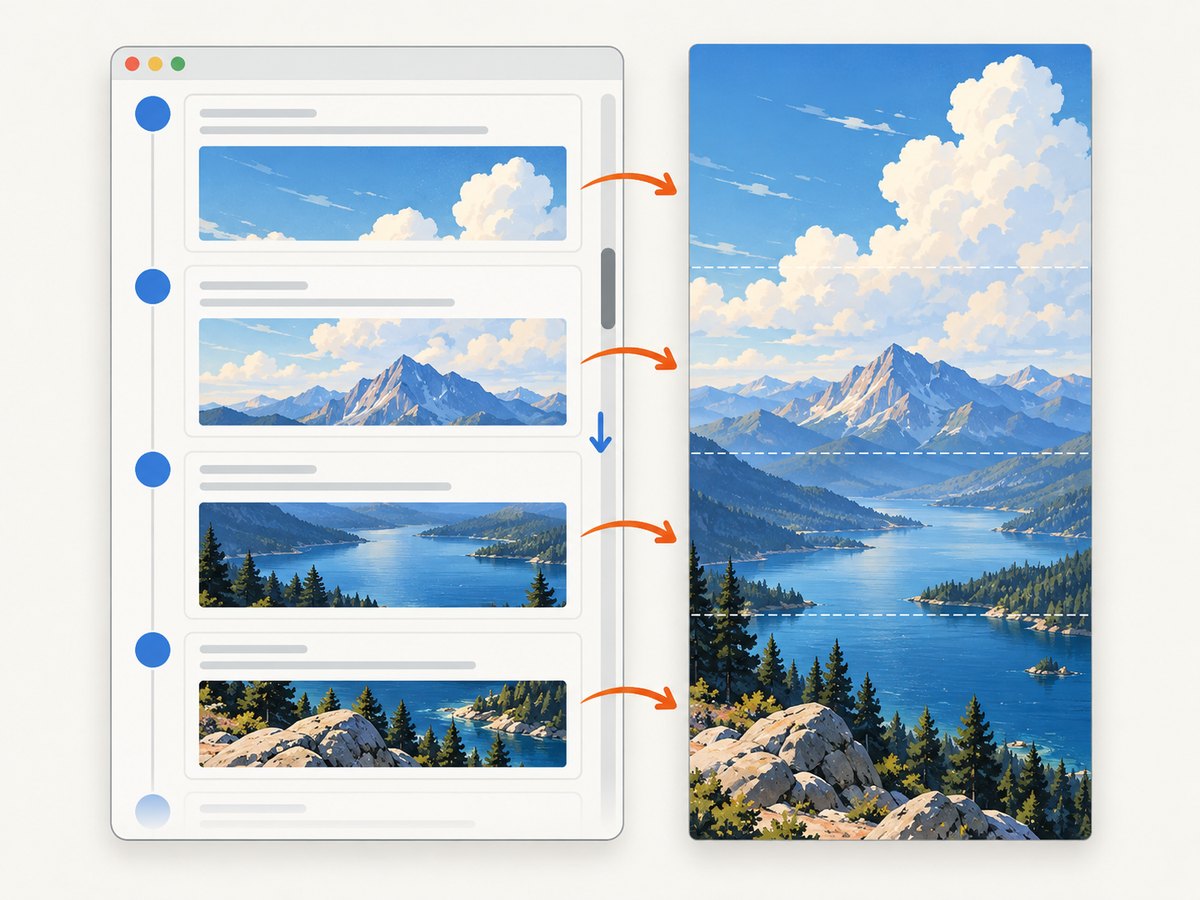
A thread screenshot is different from taking several ordinary screenshots. You need one continuous artifact with the tweets in order, readable text, loaded media, and no duplicated sticky navigation. The phrase “entire thread” also needs a definition: it may mean posts by the original author only, or every reply visible in the conversation. Decide that boundary before capturing.
1. Prepare the thread before capturing
- Open the first post. Use the permalink for the opening tweet rather than a profile timeline. A permalink gives the capture a stable starting point and makes it less likely that unrelated posts appear above the thread.
- Choose the endpoint. Decide whether the endpoint is the author’s final post, a quoted post, or a particular reply. Replies can make an “entire” conversation much longer than the original thread.
- Set the presentation. Pick light or dark theme, browser zoom, and a viewport wide enough for comfortable line lengths. Changing zoom after capture can make text blurry or alter wrapping.
- Scroll through the complete range once. X can load tweets, images, videos, and replies as you scroll. Stop at the final tweet you intend to include. Wait for media and embeds to finish rendering before starting the capture.
- Close distractions. Dismiss browser popups and hide unrelated panels where possible. A generic full-page tool may include sidebars, sticky headers, floating controls, or recommendation modules.
2. Choose a capture method
Generic full-page capture
A full-page browser extension scrolls the document and stitches the rendered portions into one image or PDF. FullPage Capture says its toolbar command scrolls the page, detects the real scroller (including inner panels), and opens a result that can be edited or exported as PNG or PDF. Its documentation also warns that very large captures may need to be split because of browser canvas limits. See the FullPage Capture documentation for the current workflow.
GoFullPage is another general option. Its product page describes one-click full-page capture with PNG, JPG, and PDF export: GoFullPage. Generic tools are useful when you want the surrounding page layout, but they may capture X chrome along with the tweets.
X-specific thread capture
An X-specific tool can identify consecutive posts and produce a cleaner thread image. XThreadShot advertises one-click full-thread capture, customization, and PNG export without requiring an account: XThreadShot. The Chrome Web Store listing for Tweet Screenshot describes a thread mode that merges consecutive tweets by the same author into one tall image and supports PNG export, clipboard copy, anonymization, and local browser rendering: Tweet Screenshot listing.
These tools can interpret thread structure better than a generic page stitcher, but you still need to verify which posts were included. “Consecutive tweets by the same author” may omit replies or quoted posts that you consider part of the conversation.
Reading and text extraction tools
Thread Reader App’s help page describes an “unroll” command that creates a reading page, while the xthread Edge extension extracts tweets into plain text. Those formats can help with reading or archiving, but they are not pixel-faithful screenshots of the original X layout. Use them when searchable text matters more than visual fidelity.
3. Capture and export the image
- Return to the first tweet and confirm that the intended range is visible when you scroll.
- Run the extension’s full-page or thread command.
- Wait until the tool finishes scrolling and stitching. Do not interact with the page while it runs.
- Open the result in its editor or preview. Crop unrelated navigation, sidebars, and floating controls if necessary.
- Export PNG when crisp text is the priority. PNG is usually the best choice for sharing a long thread because it preserves sharp text without introducing JPEG artifacts.
- Export PDF when the recipient needs a document-like file or selectable links. Check page breaks: a PDF is not the same visual artifact as one tall image.
For a tall image, inspect the complete output rather than trusting the thumbnail. Confirm the first and last tweet, author names, timestamps, media, and order. Look for a tweet that appears twice at a stitch boundary, a missing image, or a section that was replaced by a loading placeholder.
4. Handle very long threads
Browser screenshots have practical limits. FullPage Capture states that a single screenshot can exceed Chrome canvas limits at 28,800 pixels on one side or about 259 million pixels of area; oversized captures are split into numbered parts. If your thread is longer than one canvas, keep the numbered parts in order and join them only if the resulting canvas remains within browser limits.
Long pages can also expose virtualized rendering. X may remove older DOM nodes as you scroll, so a tool that relies on the current document can miss content. Scroll slowly enough for each section to render, and recapture after changing the viewport or zoom. If a single image becomes too tall to read, export several logically bounded sections or a PDF with verified pagination.
5. Quality checklist
- The capture starts at the first intended post.
- Every intended tweet appears exactly once and in order.
- Replies are either included intentionally or excluded intentionally.
- Images, videos, quoted posts, and link cards are fully rendered.
- Author names, handles, timestamps, and thread separators are readable.
- Sticky headers, sidebars, cookie prompts, and floating buttons are removed or cropped.
- The image is not wider or taller than the sharing destination can display.
- PNG, JPG, or PDF is selected for the actual use case.
6. Or skip the browser setup
If you need repeatable captures in a script or backend job, ScreenshotNeo accepts one GET request and returns an image or PDF. The API can capture a page at full length, load lazy images, use a selected device or viewport, apply custom CSS or JavaScript, wait for a selector, delay, or network idle, and hide selectors that should not appear. It can also set cookies, headers, user agents, timezone, geolocation, and an Authorization header.

For an X thread, pass the permalink to the first tweet and enable full-page capture. The exact option names and the complete API reference are in the ScreenshotNeo documentation.
cURL
curl -G "https://api.screenshotneo.com/v1/shot" \
  -d access_key=YOUR_API_KEY \
  --data-urlencode url=https://x.com/example/status/123456789 \
  -o thread.webp
Python
import requests

thread_url = "https://x.com/example/status/123456789"
r = requests.get(
    "https://api.screenshotneo.com/v1/shot",
    params={
        "access_key": "YOUR_API_KEY",
        "url": thread_url,
    },
    timeout=90,
)
r.raise_for_status()
open("thread.webp", "wb").write(r.content)
Node.js
const threadUrl = 'https://x.com/example/status/123456789';
const q = new URLSearchParams({
  access_key: 'YOUR_API_KEY',
  url: threadUrl,
});
const res = await fetch(`https://api.screenshotneo.com/v1/shot?${q}`);
if (!res.ok) throw new Error(`Screenshot failed: ${res.status}`);
const bytes = new Uint8Array(await res.arrayBuffer());
await Bun.write('thread.webp', bytes);
In a browser or Node runtime without Bun, write the response body with the platform’s file API. Keep the access key on your server; do not expose it in a public client-side page.
Useful automation options
| Need | ScreenshotNeo capability | Why it matters for threads |
|---|---|---|
| One tall image | Full-page capture with lazy images loaded | Includes content that appears while scrolling. |
| Stable rendering | Wait for a selector, delay, or network idle | Gives X media and embeds time to finish. |
| Clean output | Hide selectors, custom CSS, cookie and popup removal | Reduces unrelated controls and overlays. |
| Consistent appearance | Device presets, custom viewport, dark mode, retina scale | Produces repeatable line wrapping and sharp text. |
| Private pages | Custom cookies, headers, user agent, and Authorization | Supports pages that require controlled request context. |
| Repeated jobs | Choose a cache TTL, async jobs, signed webhooks, and bulk capture of up to 100 URLs | Reduces duplicate work and supports scheduled archives. |
ScreenshotNeo removes cookie and consent banners, newsletter popups, and chat widgets before capture. Each cleanup step can be turned off. The response includes X-Page-Verdict and X-Billed headers: bot checks or CAPTCHAs, blank pages, timeouts, failed loads, and cache hits are not billed, and the headers identify what happened.
An MCP server provides take_screenshot, get_page_info, and capture_pdf tools for Claude, Cursor, and other MCP clients. That lets an AI agent inspect or capture a thread without you building a browser workflow.
Start with 1,000 screenshots per month free with no card: create a ScreenshotNeo account. Paid plans start at $5 for 3,000 shots; every feature is available on every plan.
7. Troubleshooting
Only the first few tweets appear
Cause: Lazy loading or virtualized rendering had not finished. Fix: Scroll through the full intended range first, pause for media, then run the capture. In an automated request, wait for a selector, network idle, or a suitable delay.
Replies are mixed into the result
Cause: The page contains conversation replies and recommendations below the author’s posts. Fix: Define the endpoint, use an X-specific thread mode that follows the author’s consecutive posts, or crop the result after verifying each boundary.
The output contains duplicated headers or controls
Cause: A generic stitcher captured sticky elements on every viewport segment. Fix: Hide or crop the sticky selectors, use custom CSS, or use an X-specific renderer.
Images are blank or low quality
Cause: Media was still loading, blocked, or captured at a low device scale. Fix: wait for network idle or the media selector, check that the URL is reachable, and increase retina scale or viewport width where appropriate.
The extension creates multiple files
Cause: The image exceeded the browser canvas limit. Fix: Keep the numbered parts, capture smaller sections, or use an automated capture that can deliver a PDF or separate bounded outputs.
The automated request returns a bot check, blank page, or timeout
Cause: X challenged the capture environment, the page did not render, or the request exceeded its wait period. Fix: inspect X-Page-Verdict and X-Billed, retry only when appropriate, and do not treat a non-content response as a valid screenshot.
8. Performance, reliability, and cost
Capture time grows with thread length, media count, viewport size, and the amount of JavaScript required to render the page. Pre-scrolling in a browser improves completeness but adds manual work. For scheduled jobs, cache a URL with a TTL you choose, use async jobs and signed webhooks for long captures, and use bulk capture for up to 100 URLs per call. Resize the final image when a downstream system has a maximum dimension.
Keep the original capture when it may be needed for review, and generate a resized sharing copy separately. A PDF can be easier to distribute, while a PNG preserves the visual thread layout. Always record the URL, capture time, chosen endpoint, viewport, and whether replies were included so another person can reproduce the result.
ScreenshotNeo’s Free plan includes 1,000 shots per month without a card. Starter is $5 for 3,000, Growth $15 for 15,000, Pro $39 for 60,000, Scale $99 for 250,000, and Business $249 for 1,000,000; yearly billing gives two months free. Only clean shots are billed, while failed loads, blank pages, bot checks, timeouts, and cache hits cost nothing.
9. FAQ
Can I capture a Twitter thread without taking one screenshot per tweet?
Yes. Use a full-page stitcher or an X-specific thread capture extension to produce one tall image. For repeatable jobs, request a full-page capture through an API.
Should I use PNG or PDF?
Use PNG for a single visual artifact and crisp text. Use PDF when readers need a document-like file or selectable links, and verify its page breaks.
Why is my “entire thread” longer than expected?
Replies, quoted tweets, recommendations, and related posts may be included. Set an explicit endpoint and inspect the final image before publishing.
Can I capture a private or authenticated page?
ScreenshotNeo supports custom cookies, headers, user agents, and Authorization headers. Keep credentials server-side and follow the account’s access rules.
What should I do with a thread that exceeds one image’s practical size?
Use numbered parts or bounded sections, or export a PDF. Join parts only when the final canvas remains within browser and destination limits.


