How to Capture an Entire Webpage as a Full-Page Screenshot
Capture an entire webpage in Firefox, automate full-page images with code, and avoid cookie banners and failed-load costs with ScreenshotNeo.

A full-page screenshot captures everything on a webpage, including content below the visible browser window, as one image. In Firefox, the quickest method is the page screenshot interface: open it, choose Save full page, and download the image. Firefox also offers a Developer Tools button and a Web Console command when you need a repeatable workflow or a chosen filename.
What “full page” means
A viewport screenshot contains only the pixels currently visible. A full-page screenshot stitches the page from top to bottom into one raster image. It is useful for design reviews, bug reports, archival copies, visual regression checks, and sharing a long article without asking someone to scroll through several files.
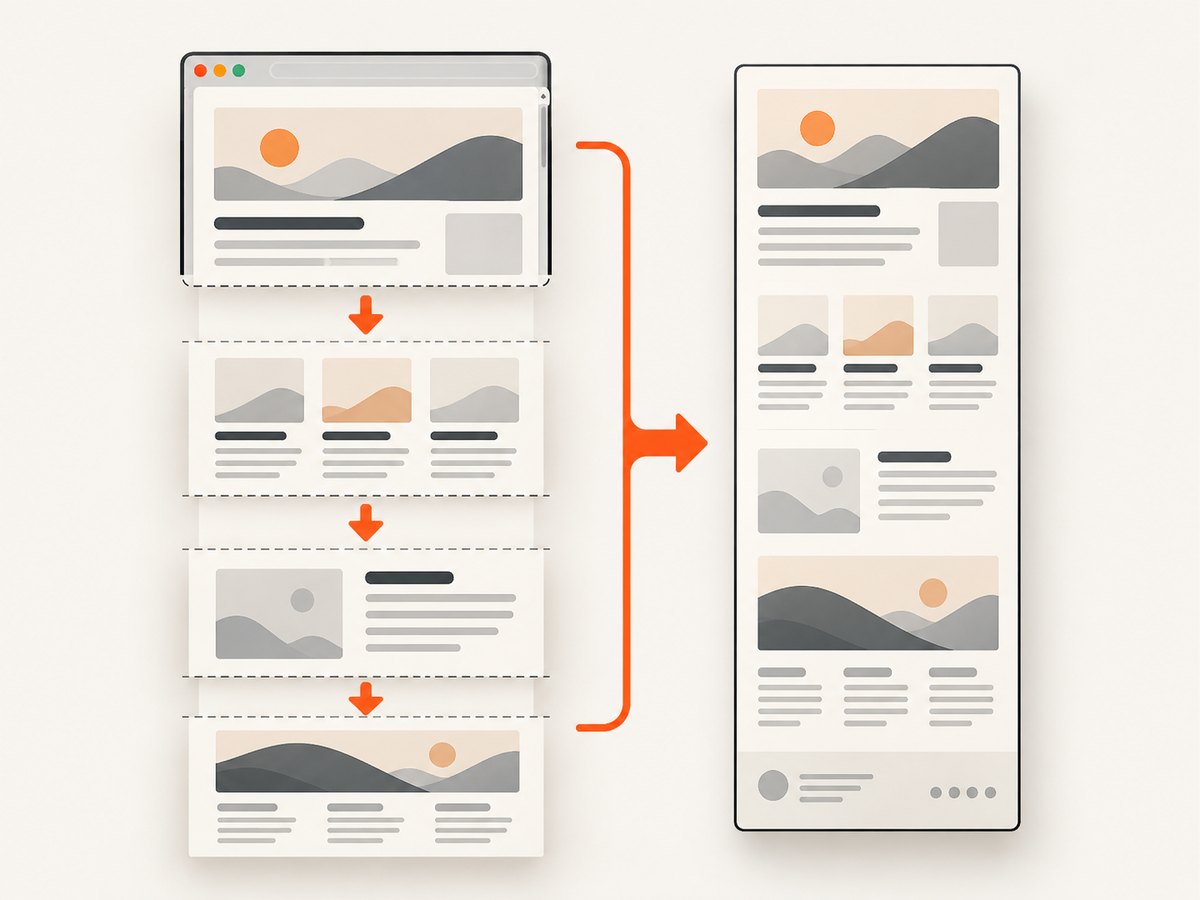
Firefox documentation distinguishes entire-page, viewport, and element capture. The steps below are verified for Firefox; menu names and shortcut behavior can vary by version or configuration. They are not universal instructions for Chrome, Safari, or Edge.
Method 1: Firefox’s Save full page option
- Open the page in Firefox and wait for the content you need to appear.
- Open Firefox’s screenshot interface for the page. Use the screenshot icon in the address bar or the page context menu when available.
- Choose Save full page. This is the key setting; do not choose the viewport-only option.
- Preview the result, then select the download action and save the image.
Firefox names the saved file with a timestamp and the page title, according to Mozilla Support. On macOS, Command+S can open the save flow; on Windows and Linux, Ctrl+S may do so. Because shortcut behavior can differ, use the visible Save full page control as your reliable path.
Before you capture
- Scroll through the page once if it uses lazy loading, and confirm images or charts have appeared.
- Close transient menus, browser translation bars, and notification prompts that you do not want in the image.
- Set the page zoom and window width first. The screenshot reflects the rendered layout at that moment.
- For authenticated pages, sign in in the same Firefox profile and check that private data is safe to share.
Method 2: Enable Firefox Developer Tools’ full-page button
Developer Tools has a screenshot toolbar button, but Mozilla’s documented workflow requires enabling it first.
- Open Developer Tools with F12 or Ctrl+Shift+I on Windows/Linux, or Command+Option+I on macOS.
- Open the Developer Tools settings (the three-dot menu, then Settings).
- Find Available Toolbox Buttons.
- Enable Take a screenshot of the entire page.
- Close settings and click the new camera button in the Developer Tools toolbar. Firefox saves the capture in its Downloads directory.
This route is useful when you already work in DevTools or want a button that remains available during a debugging session. It is less discoverable than the page screenshot interface because of the one-time settings change.
Method 3: Web Console command with a filename
Firefox’s Web Console includes a screenshot helper. Open the Web Console, click the command line, and run:
screenshot page-full.png --fullpageThe --fullpage flag tells Firefox to capture the whole webpage instead of only the visible section. Replace page-full.png with the filename you want. The command is convenient for a documented, repeatable capture and avoids renaming a timestamped download afterward.
Console workflow checklist
- Confirm the correct tab is active before opening the console.
- Wait for fonts, images, and client-rendered content to finish loading.
- Run the command exactly, including the two hyphens in
--fullpage. - Look in Firefox’s configured download directory for the resulting PNG.
Choosing the right Firefox method
| Method | Best for | Trade-off |
|---|---|---|
| Page screenshot interface | One-off captures | Fast to discover; filename is generated by Firefox |
| DevTools button | Debugging sessions | Requires enabling a toolbox button first |
| Web Console | Repeatable captures and explicit names | Requires opening Developer Tools and typing a command |
Mozilla’s sources do not establish a speed or image-quality winner, so choose based on discovery, comfort with Developer Tools, and filename control.
Full-page capture edge cases
Lazy-loaded images and infinite scrolling
A screenshot tool can only capture content that exists in the rendered document when it runs. Some pages load images as you approach them, and feeds may keep adding items while you scroll. Scroll through the page first and wait for visible placeholders to resolve. An infinite feed has no stable “entire page”; capture a defined state or a range of content instead.
Sticky headers, fixed chat, and cookie banners
Fixed elements can appear repeatedly or cover content in a stitched image. Dismiss consent dialogs and collapse chat panels before capture. If the page offers a reader mode or print view, understand that it changes the rendered design and is not the same as a screenshot of the live page.
Animations, video, and timers
A capture records one instant. Pause video, wait for carousels to reach the desired slide, and avoid capturing while a layout animation is in progress. For reproducible comparisons, use the same viewport width, zoom, scroll state, and page data each time.
Very tall pages
A long raster image can be large and awkward to open. If an image viewer struggles, capture logical sections or use a PDF workflow for document-style sharing. Keep the original full image when fidelity matters, and create a resized copy for messaging.
Programmatic option: ScreenshotNeo full-page API
If you need captures in a build, monitoring job, documentation pipeline, or server process, ScreenshotNeo provides a website screenshot API. Its full-page mode loads lazy images, and you can control viewport, device preset, retina scale, output format, waits, custom CSS or JavaScript, cookies, headers, geolocation, timezone, and more. The API also supports element capture, dark mode, hiding selectors, blocking ads or resource types, caching with a chosen TTL, signed links, asynchronous jobs, bulk capture of up to 100 URLs per call, PDFs, HTML/CSS input, and a usage API. Parameter names used by other screenshot APIs also work, which can simplify migration. See the ScreenshotNeo documentation for the complete option list.
cURL
curl -G "https://api.screenshotneo.com/v1/shot" -d access_key=YOUR_API_KEY --data-urlencode url=https://stripe.com -o shot.webpPython
import requests

r = requests.get(
    "https://api.screenshotneo.com/v1/shot",
    params={"access_key": "YOUR_API_KEY", "url": "https://stripe.com"},
    timeout=90,
)
r.raise_for_status()
open("shot.webp", "wb").write(r.content)
Node.js
const q = new URLSearchParams({ access_key: 'YOUR_API_KEY', url: 'https://stripe.com' });
const res = await fetch(`https://api.screenshotneo.com/v1/shot?${q}`);
if (!res.ok) throw new Error(`HTTP ${res.status}`);
const fs = await import('node:fs/promises');
await fs.writeFile('shot.webp', Buffer.from(await res.arrayBuffer()));
Useful capture controls
| Need | ScreenshotNeo control |
|---|---|
| Whole document | Full-page capture with lazy images loaded |
| One component | CSS selector element capture |
| Consistent layout | Device preset or custom viewport, dark mode, retina scale |
| Dynamic app state | Wait for selector, delay, or network idle; run custom JavaScript or click an element |
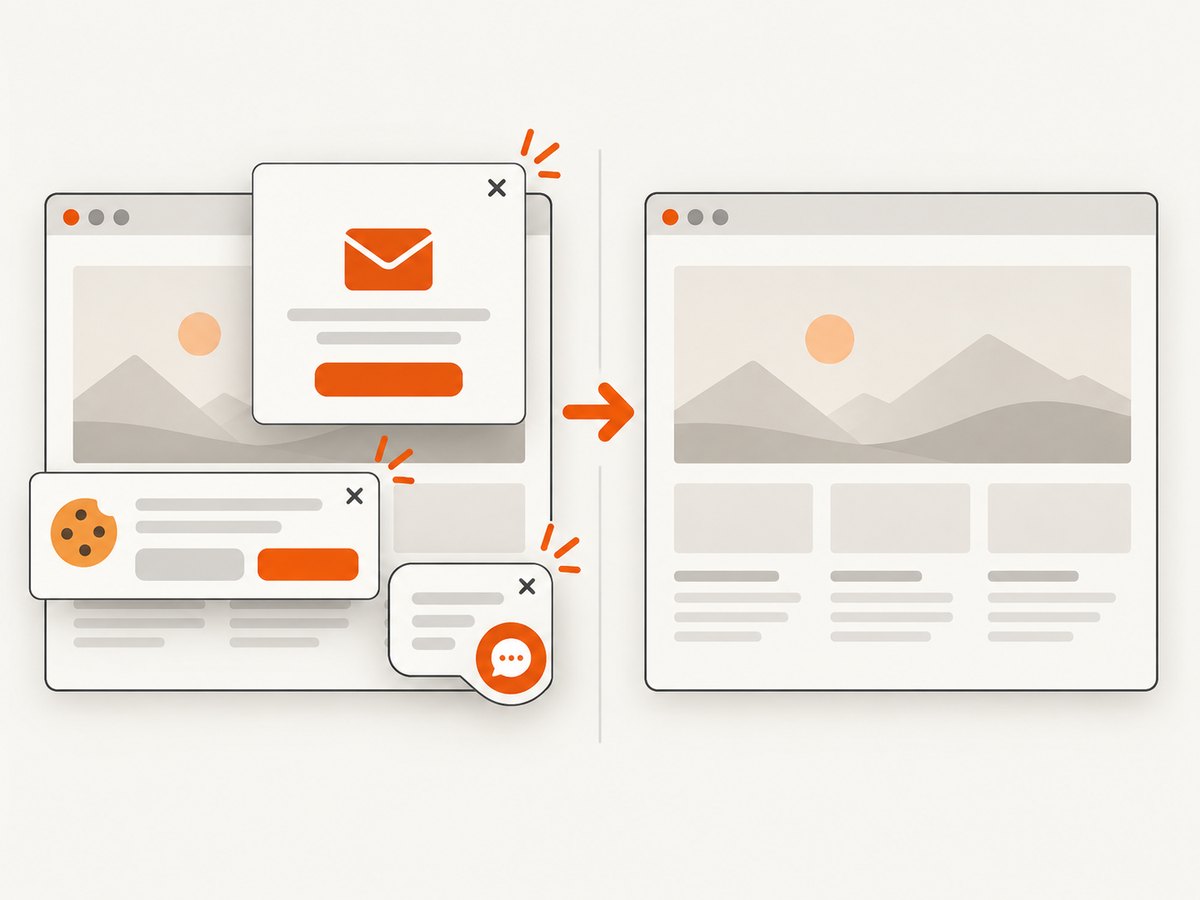
| Clean output | Remove 60+ consent platforms plus newsletter popups and chat widgets; each cleanup step can be turned off |
| Private pages | Custom headers, cookies, user agent, and Authorization |
| Regional rendering | Timezone and geolocation |
| Delivery at scale | Async jobs with signed webhooks, bulk capture, caching, and signed public links |
Or skip the browser setup
Use the one-call example above when you need an automated full-page image. ScreenshotNeo accepts cookie and consent banners before capture, then removes more than 60 known consent platforms along with newsletter popups and chat widgets. Bot checks or CAPTCHAs, blank pages, timeouts, failed loads, and cache hits are not billed; response headers identify the page verdict and whether the request was billed (X-Page-Verdict and X-Billed). An MCP server exposes take_screenshot, get_page_info, and capture_pdf to Claude, Cursor, and other MCP clients. The Free plan includes 1,000 screenshots per month with no card; paid plans start at $5 for 3,000 shots. Create a free ScreenshotNeo account.
Troubleshooting
| Symptom | Likely cause | Fix |
|---|---|---|
| Only the visible area is saved | Viewport mode was selected | Choose Save full page or use --fullpage. |
| Screenshot button is missing | Toolbox button is disabled | Enable Take a screenshot of the entire page under Available Toolbox Buttons. |
| Images are blank | Lazy loading or network delay | Scroll through the page, wait for images, then capture; for API jobs use a selector, delay, or network-idle wait. |
| Cookie dialog covers content | Consent UI remained open | Accept or dismiss it in Firefox. In ScreenshotNeo, let the built-in consent cleanup run or configure the relevant step. |
| Content repeats or overlaps | Sticky/fixed elements during stitching | Hide or close the fixed element and retry; use a CSS hide selector in ScreenshotNeo. |
| Console reports an unknown command | Typed outside the Web Console or misspelled syntax | Focus the Web Console prompt and run screenshot filename.png --fullpage exactly. |
| API response is not an image | HTTP error, bot check, blank page, or timeout | Check the status and X-Page-Verdict/X-Billed headers, verify the URL and access key, and add an appropriate wait or authentication header. |
| Capture is too large | Extremely tall page or high retina scale | Reduce scale, resize the output, capture an element, or generate a PDF. |
Performance, reliability, and cost
- Browser reliability: Keep the tab stable, wait for network activity to settle, and use the same viewport and zoom for repeatable images.
- Automation reliability: Prefer a selector or network-idle wait over a fixed sleep when the page has a clear readiness signal. Use retries for transient navigation failures and record the URL plus capture settings.
- Large jobs: Use ScreenshotNeo asynchronous jobs and signed webhooks, bulk capture for up to 100 URLs per call, and caching with a TTL you choose. Cache hits are not billed.
- Cost control: ScreenshotNeo bills only clean shots. Bot checks/CAPTCHAs, blank pages, timeouts, failed loads, and cache hits cost nothing, and each response reports the verdict and billing status. Plans are Free (1,000/month), Starter $5/3,000, Growth $15/15,000, Pro $39/60,000, Scale $99/250,000, and Business $249/1,000,000; yearly billing gives two months free.
FAQ
Is a full-page screenshot the same as a PDF?
No. A full-page screenshot is one raster image of the rendered page. A PDF is a paginated document and may use different fonts, page breaks, and print styles.
Can I capture just one element?
Firefox’s documented workflows focus on entire-page capture. ScreenshotNeo can capture one element by CSS selector.
Why is my capture different from what I see?
Responsive layouts, login state, timing, animations, geolocation, and consent state can all change rendering. Fix the viewport and state, wait for readiness, and capture again.
Where does Firefox save the file?
The page screenshot interface downloads an image using a timestamp and page title. The Developer Tools workflow saves to Firefox’s Downloads directory; your browser download settings determine the exact folder.
Can an AI agent take these screenshots?
Yes. ScreenshotNeo’s MCP server provides take_screenshot, get_page_info, and capture_pdf for Claude, Cursor, and other MCP clients.
Quick checklist
- Open the page in Firefox and wait for content.
- Choose Save full page, enable the DevTools button, or run
screenshot name.png --fullpage. - Check lazy images, sticky UI, consent dialogs, animations, and private data.
- For repeatable automation, use ScreenshotNeo with explicit waits, viewport settings, and cleanup controls.


