How to Capture an Entire Webpage Screenshot Online
Capture a full webpage from top to bottom with Edge, Firefox, DevTools, extensions, or ScreenshotNeo’s screenshot API.
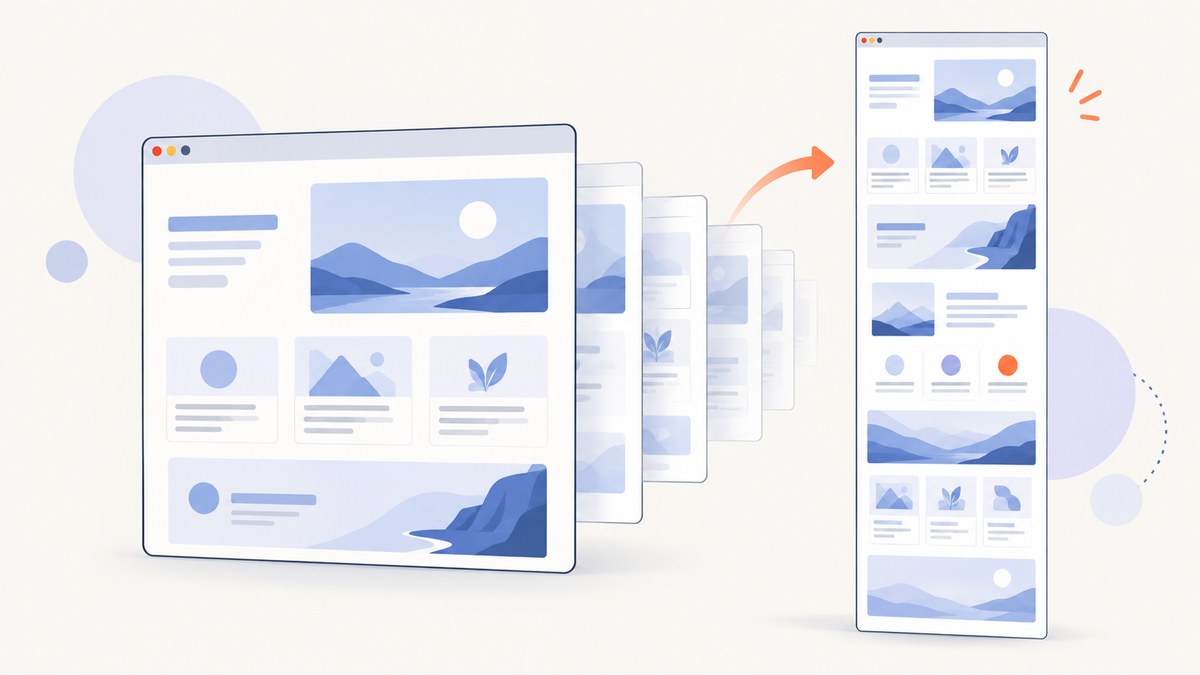
A full-page screenshot captures the page from top to bottom, including content below the visible browser window. The quickest options are the built-in Screenshot tools in Microsoft Edge and Firefox. For repeatable, automated captures, use Firefox Developer Tools or a screenshot API.
What “full-page screenshot” means
A visible screenshot contains only the pixels currently inside the browser window. A full-page screenshot renders or stitches the page beyond that viewport, so sections lower on the page appear in one image. This is useful for documentation, design review, bug reports, archival copies and sharing a page without asking someone to scroll.
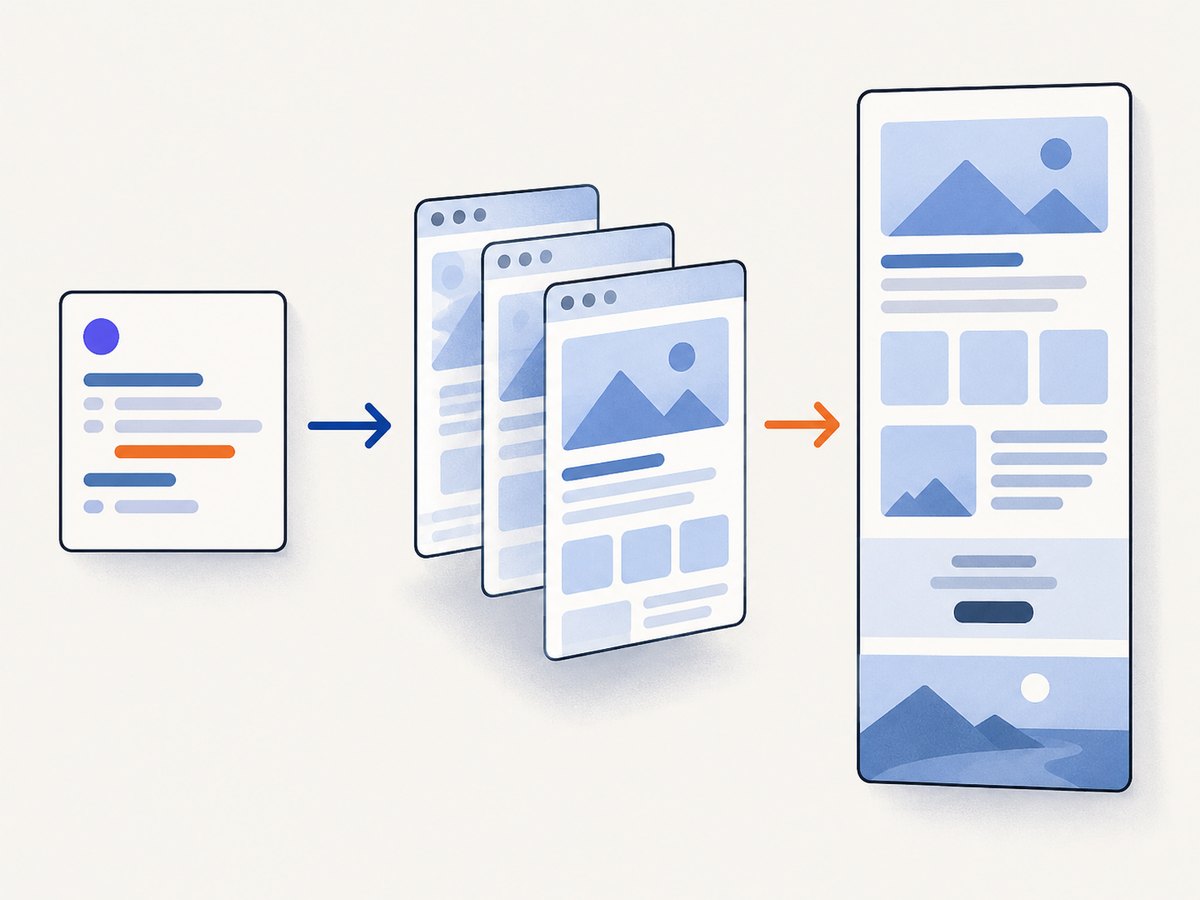
Pages with lazy-loaded images, cookie banners, animations, infinite scrolling or login requirements can produce incomplete results. The troubleshooting and automation sections below explain how to handle those cases.
Fastest method: Microsoft Edge
- Open the webpage in Edge.
- Open Screenshot from the page’s right-click menu or Edge Settings. You can also press Ctrl+Shift+S.
- Choose the option for a full-page capture.
- Add markup if needed, then copy the image or save it to a file.
Microsoft describes this as capturing a full webpage, including parts that would otherwise require scrolling. Exact labels and availability can vary by browser version, device and market. See the Microsoft Edge Screenshot documentation for the current interface.
Fastest method: Firefox Screenshots
- Open the page in Firefox.
- Right-click an empty part of the page and choose Take Screenshot. On macOS, Control-click. The keyboard shortcut is Ctrl+Shift+S on Windows and Linux, or Command+Shift+S on macOS.
- Select Save full page in the upper-right corner.
- Choose Download to save a PNG, or Copy to place it on the clipboard.
Firefox also offers Save visible, a selected region and automatic element highlighting. Mozilla documents that Firefox Screenshots collects interaction data such as whether Copy or Save full page was used, but says it does not collect the captured URL or image details. The controls for disabling that data collection are described in Mozilla’s Firefox Screenshots help.
Advanced Firefox method: Developer Tools
Use this route when you need a delay, a specific device-pixel ratio, a predictable filename or an element-only capture.
- Open Developer Tools with F12 or Ctrl+Shift+I (use Command+Option+I on macOS).
- Open the Web Console.
- Run the
:screenshothelper with the options you need.
:screenshot --fullpageUseful options include:
| Option | Purpose | Example |
|---|---|---|
--fullpage |
Capture beyond the current window bounds | :screenshot --fullpage |
--delay |
Wait before capturing a dynamic state | :screenshot --fullpage --delay 3 |
--dpr |
Set device-pixel ratio | :screenshot --fullpage --dpr 2 |
--filename |
Choose the output filename | :screenshot --fullpage --filename page.png |
--selector |
Capture one element instead of the entire page | :screenshot --selector ".article" |
If the screenshot button is missing from DevTools, enable it in the Developer Tools settings. This method is particularly useful for a reproducible bug report because the command records the delay, scale and target selector you chose.
Optional extension workflow
An extension can add cropping, annotation, blur and export options after the capture. OpenCapture advertises full-page capture, crop, annotation, blurring and PNG/PDF export for Chrome, Edge and Firefox, and says its processing is local. That is the vendor’s claim, not an independent privacy audit. Before installing any extension, review its current store listing, requested permissions and privacy policy.
Choosing the right method
| Need | Best starting point | Why |
|---|---|---|
| One quick image | Edge Screenshot or Firefox Screenshots | No installation beyond the browser |
| Delay, DPR, filename or selector | Firefox Developer Tools | Documented command options |
| Crop, blur or annotation | An extension such as OpenCapture | Extra editing and export workflow |
| Many URLs or a repeatable job | Screenshot API | Scriptable, schedulable and suitable for CI |
Or skip the browser setup
ScreenshotNeo is a website screenshot API. Send one GET request with a URL and receive a PNG, JPEG, WebP or PDF. The API can capture a full page, load lazy images, wait for a selector, delay or network idle, choose a device preset or viewport, set retina scale, hide selectors, run custom CSS or JavaScript, click an element, block ads or resource types, provide headers, cookies, a user agent or Authorization, set timezone and geolocation, resize the image, cache with a chosen TTL, create signed image links, submit async jobs with signed webhooks and capture up to 100 URLs in one bulk call. Every feature is available on every plan. See the ScreenshotNeo API documentation for the complete parameter list.
curl -G "https://api.screenshotneo.com/v1/shot" -d access_key=YOUR_API_KEY --data-urlencode url=https://stripe.com -o shot.webpimport requests
r = requests.get(
"https://api.screenshotneo.com/v1/shot",
params={"access_key": "YOUR_API_KEY", "url": "https://stripe.com"},
timeout=90,
)
r.raise_for_status()
open("shot.webp", "wb").write(r.content)const q = new URLSearchParams({ access_key: 'YOUR_API_KEY', url: 'https://stripe.com' });
const res = await fetch(`https://api.screenshotneo.com/v1/shot?${q}`);
if (!res.ok) throw new Error(`HTTP ${res.status}`);
const fs = await import('node:fs/promises');
await fs.writeFile('shot.webp', Buffer.from(await res.arrayBuffer()));ScreenshotNeo accepts and removes cookie or consent banners, newsletter popups and chat widgets before the capture; each cleanup step can be turned off. Bot checks or CAPTCHAs, blank pages, timeouts, failed loads and cache hits are not billed, and response headers identify the page verdict and billing status with X-Page-Verdict and X-Billed. Its MCP server exposes take_screenshot, get_page_info and capture_pdf for Claude, Cursor and other MCP clients. The Free plan includes 1,000 shots per month with no card; paid plans start at $5 for 3,000 shots.
Create a free ScreenshotNeo account and get 1,000 screenshots each month without adding a card.
Handling difficult pages
Cookie banners and popups cover the content
Dismiss the banner before using a browser tool. If the banner returns on every run, hide its selector with an automation tool or use ScreenshotNeo’s consent and popup cleanup. A screenshot taken before the page reaches its final state can include overlays that were not present in a normal visit.

Images below the fold are blank
The page may lazy-load images only after they approach the viewport. Scroll through the page once before capturing, use a delay, or use a capture service that explicitly loads lazy images.
The page is taller than the browser can render
Very long pages can hit memory or bitmap limits. Capture sections by selector, reduce the device-pixel ratio, or export a PDF when a single raster image is impractical.
Content appears only after JavaScript runs
Wait for a reliable selector or network idle instead of relying on a fixed short delay. For a one-off browser capture, wait until the visible content has settled before selecting Save full page.
The page requires login
Use the browser session where you are already authenticated, or provide cookies and authorization headers through an automation system that is allowed to access the account. Never paste credentials into a public URL.
The screenshot has the wrong colors or responsive layout
Check the viewport width, device preset, dark-mode setting, timezone and geolocation. Responsive sites can render a completely different layout at mobile and desktop widths.
Performance, reliability and cost
- Speed: A full-page image takes longer than a viewport capture because more content must render and more pixels must be encoded. Waiting for network idle is more reliable than guessing a delay, but it can increase latency on pages with long-lived requests.
- Reliability: Use a stable readiness selector, disable animations where possible, and capture at a consistent viewport and device-pixel ratio. For recurring jobs, record the URL, timestamp, viewport and capture verdict.
- Large outputs: PNG preserves detail but can be large. JPEG and WebP usually reduce transfer size; PDF is often better for long documents intended for printing or review.
- Browser privacy: Built-in tools avoid adding an extension. With third-party extensions or online services, review permissions and the provider’s privacy documentation before capturing private pages.
- API cost: ScreenshotNeo bills only clean shots. Bot checks, CAPTCHAs, blank pages, timeouts, failed loads and cache hits cost nothing; the response headers report the verdict and billing result. Its plans are Free: 1,000/month, Starter: $5 for 3,000, Growth: $15 for 15,000, Pro: $39 for 60,000, Scale: $99 for 250,000, and Business: $249 for 1,000,000. Yearly billing gives two months free.
Troubleshooting checklist
| Symptom | Likely cause | Fix |
|---|---|---|
| Only the visible area was saved | Visible-page mode was selected | Choose Save full page or the browser’s full-page option |
| Bottom sections are missing | Lazy loading or an early capture | Scroll first, add a delay, or wait for a selector/network idle |
| Sticky header repeats down the image | Fixed-position element is captured at every scroll step | Hide the header selector or use an element-aware capture workflow |
| Text is blurry | Low device-pixel ratio or image resizing | Increase DPR or capture at the target output size |
| Screenshot is blank | Navigation failed, a bot check appeared, or JavaScript did not finish | Open the URL normally, verify access, then wait for a real content selector |
| Firefox command errors | Incorrect option syntax or DevTools helper unavailable | Run :screenshot --fullpage first, then add one option at a time |
| API returns an error status | Missing access key, invalid URL or failed page load | Check the key and URL, call with a generous timeout, and inspect response headers and body |
FAQ
Can I capture a full webpage without installing anything?
Yes. Edge and Firefox include built-in full-page screenshot tools.
Does a full-page screenshot include content hidden behind scrolling?
Yes, when the page can render that content. Lazy-loaded or interaction-dependent sections may need a scroll, wait condition or script first.
Should I use PNG, JPEG or WebP?
Use PNG for lossless text and diagrams, JPEG for photographic pages, and WebP when you want a smaller modern image.
Can I capture only one part of a page?
Yes. Firefox’s DevTools helper supports --selector, and ScreenshotNeo can capture one element by CSS selector.
Is an online screenshot API useful for one screenshot?
It can be useful when the page needs repeatable waits, cleanup, a specific viewport or an automated download. For a single casual capture, the browser’s built-in tool is usually faster.


