How to Capture an Entire Website in Chrome
Capture a full webpage in Chrome with DevTools, PDF printing, headless commands, extensions, and a reliable API workflow.
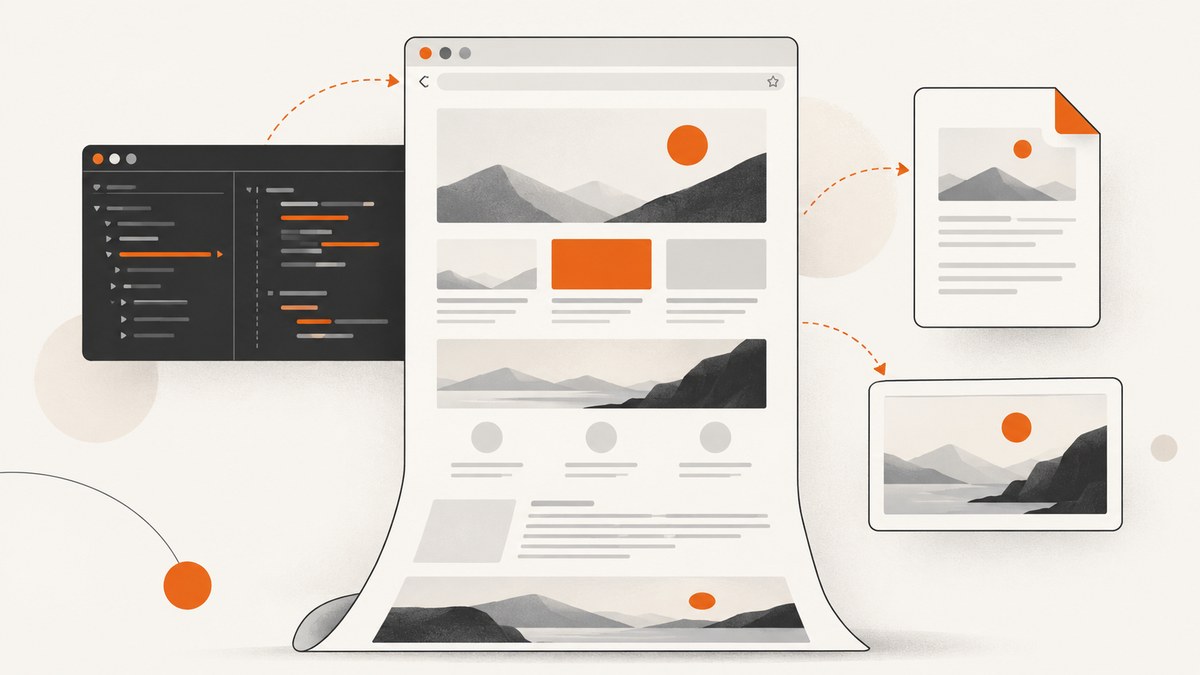
To capture an entire webpage in Chrome, use one of four workflows:
- One-off image: Chrome DevTools’ Capture full size screenshot command.
- Document: Chrome’s print dialog or headless
--print-to-pdf. - Repeatable automation: Chrome Headless with
--screenshotor--print-to-pdf. - One-click convenience: a maintained full-page extension such as GoFullPage.
For a single image, DevTools is usually the best default because it is built into Chrome and captures content beyond the visible viewport. For searchable text and multipage output, print to PDF is a better fit. For scripts, CI jobs, or batches of URLs, use headless Chrome.
Capture a full-page screenshot with Chrome DevTools
Chrome’s DevTools screenshot commands include viewport, area, node, and full-page captures. The full-page command renders the document beyond the visible screen and saves an image.
- Open the webpage in desktop Chrome.
- Open DevTools from Menu > More tools > Developer tools, or use your operating system’s DevTools shortcut.
- Open the DevTools Command Menu. You can use
Ctrl+Shift+Pon Windows/Linux orCmd+Shift+Pon macOS. - Type
Capture full size screenshot. - Select the command. Chrome downloads the complete page as an image.
Chrome documents this and the other screenshot commands in its DevTools screenshot guide.
When the result is not the page you see
Before capturing, allow the page to finish loading and check the top, middle, and bottom of the document. Full-page capture follows the page’s rendered layout, so sticky navigation, lazy-loaded images, animations, consent dialogs, and nested scroll areas can change the result.
- Dismiss cookie dialogs and newsletter popups if they cover content.
- Wait for images, charts, and fonts to load.
- Pause carousels or animations when a deterministic frame matters.
- Scroll through the page once if it loads content only after entering the viewport.
- Check whether important content is inside an iframe or an independently scrolling panel.
Save an entire webpage as a PDF
Use PDF when the result needs selectable text, page breaks, printing, or archival. Screen appearance can differ from the browser view because print CSS controls the document.
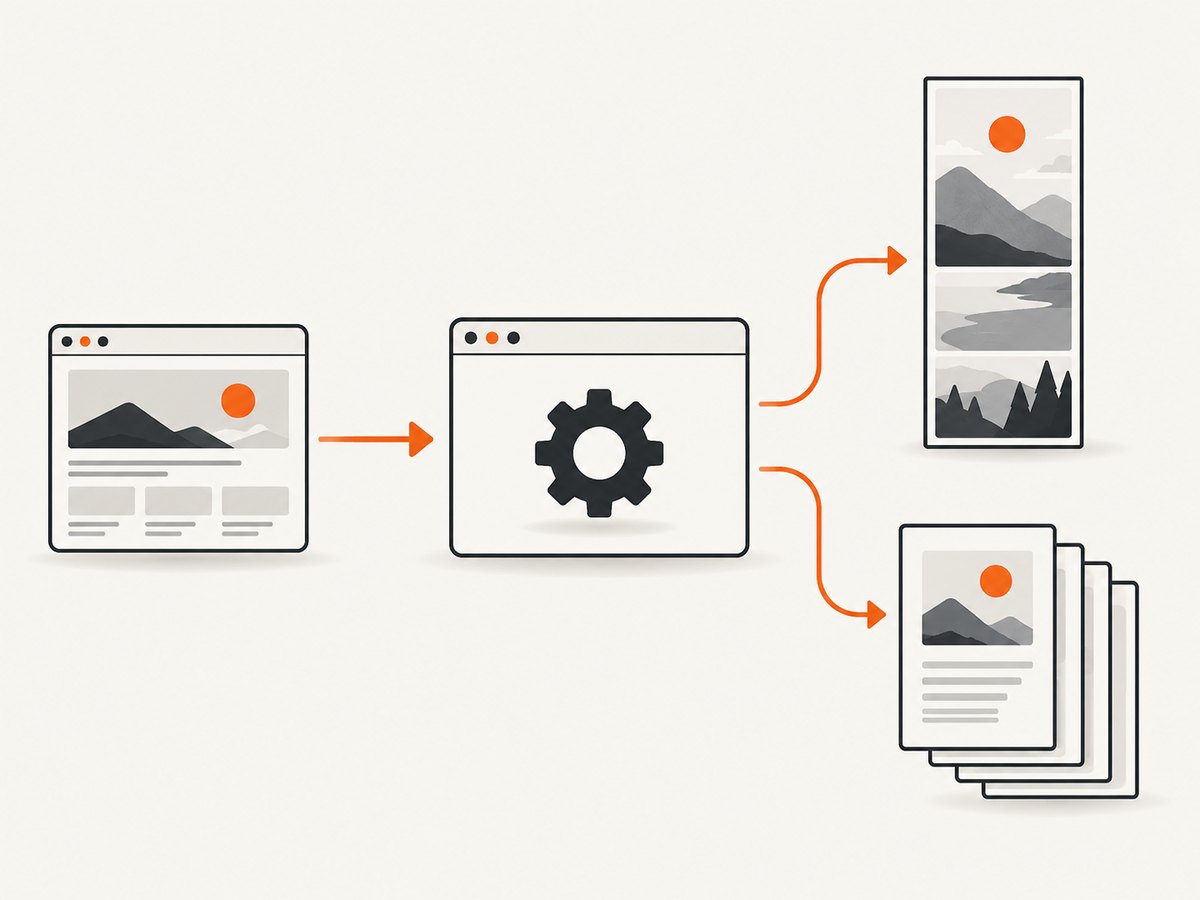
- Open the page in Chrome.
- Open the print dialog with
Ctrl+PorCmd+P. - Choose Save to PDF as the destination.
- Set layout, paper size, margins, scale, background graphics, and headers or footers as needed.
- Save the file.
For automation, Chromium’s DevTools Protocol exposes Page.printToPDF; when no page range is supplied, it prints the whole document. Chrome’s headless command below is simpler for most scripts.
Why a PDF may differ from a screenshot
| Symptom | Likely reason | What to change |
|---|---|---|
| Colors or backgrounds are missing | Print backgrounds are disabled | Enable background graphics in the print dialog or print settings. |
| Columns stack differently | Print media CSS changes the layout | Inspect the page’s print stylesheet or use a screenshot for visual fidelity. |
| Content is split awkwardly | CSS page-break rules or element height | Adjust print CSS if you control the page; otherwise try a different paper size or scale. |
| Interactive controls disappear | PDF stores the printed document, not browser interaction | Capture an image when controls and hover states matter. |
Automate full-page capture with Chrome Headless
Headless Chrome is useful for repeatable captures, regression checks, scheduled archives, and batches of URLs. Chrome documents the --screenshot and --print-to-pdf flags in its headless Chrome guide.
Take a screenshot from the command line
google-chrome --headless --disable-gpu \
  --window-size=1440,900 \
  --screenshot=page.png \
  https://example.com
On some systems the executable is named chromium, chromium-browser, or google-chrome-stable. The window size affects the rendered layout. A wider viewport can prevent responsive breakpoints from stacking columns, while a taller viewport can reduce the amount of scrolling needed by page scripts.
Save a page as PDF
google-chrome --headless --disable-gpu \
  --print-to-pdf=page.pdf \
  https://example.com
Headless Chrome waits for page loading according to its browser behavior, but a page can still change after the initial load. Pages with client-side rendering, delayed API calls, or lazy content may need a browser automation script that waits for a selector or network activity before taking the screenshot.
Use a temporary profile for repeatable runs
google-chrome --headless --disable-gpu \
  --user-data-dir=/tmp/chrome-capture-profile \
  --window-size=1440,900 \
  --screenshot=page.png \
  https://example.com
A separate profile avoids accidentally depending on your personal cookies, extensions, or cached state. Treat captured files and profile data as sensitive when pages contain private information.
Use a full-page Chrome extension
An extension is convenient when you want a toolbar button, scrolling capture, and export options without opening DevTools. GoFullPage advertises full-page scrolling capture with PNG, JPG, and PDF export. Another Chrome Web Store listing, Full Page Screen Capture, advertises capture plus annotation, redaction, OCR, and PNG/JPG/PDF export.
Install extensions from the Chrome Web Store, review current permissions, and check the listing’s change log before relying on one in a workflow. Extension behavior can change with Chromium updates; the GoFullPage listing records compatibility changes, including a September 24, 2026 entry.
Extension workflow
- Install the extension from its current Chrome Web Store listing.
- Open the target page and wait for dynamic content.
- Click the extension button and choose its full-page capture action.
- Review the assembled image for duplicated sticky headers, missing lazy content, and clipped embedded frames.
- Export PNG, JPG, or PDF according to your use case.
Choose the right Chrome workflow
| Need | Recommended route | Reason |
|---|---|---|
| Fast image with no install | DevTools full-page screenshot | Built into Chrome and captures beyond the viewport. |
| Selectable text or a multipage record | Print to PDF | Produces a document with text selection and page breaks. |
| Batch or repeatable capture | Chrome Headless | Command-line flags fit scripts and automation. |
| One-click capture and editing | GoFullPage or another maintained extension | Handles scrolling assembly and export from the browser. |
Handle difficult pages
Lazy-loaded images
Some pages request images only when an element approaches the viewport. A capture taken immediately after navigation can contain placeholders. Scroll through the page once, wait for images to appear, and capture again. In automation, wait for a meaningful selector or for image elements to report a completed load.
Sticky headers and floating widgets
A fixed header can appear repeatedly when an extension stitches viewport screenshots. Chat widgets and consent dialogs can cover content. Close them before a manual capture, hide them with page-specific CSS in an automation script, or use a capture service that removes known overlays before rendering.
Nested scroll panels
A full-page command captures the document, not necessarily every independently scrolling div. Capture the panel separately, expand it with CSS, or use a selector-based capture tool when the panel is the actual target.
Cross-origin iframes
An embedded frame may load independently and may not be captured exactly like same-origin page content. Verify the result. If the frame is essential, capture its URL separately when you have permission and access.
Very tall pages
Extremely long pages can exceed image dimensions or memory limits. Capture sections, reduce the device scale factor, or produce a PDF. For an archive, keep the original URL and capture timestamp with the output.
Troubleshooting
| Error or symptom | Cause | Fix |
|---|---|---|
| The full-page command is missing | DevTools is not focused or the command name was searched incorrectly | Click inside DevTools, open the Command Menu, and search for full size screenshot. |
| Only the visible viewport is saved | A viewport or area command was selected | Run Capture full size screenshot. |
| Bottom content is blank | Lazy loading or delayed JavaScript | Scroll first, wait for the content, then capture. |
| Repeated header bands appear | Sticky navigation was included in each stitched segment | Hide the fixed element or use DevTools/headless capture instead of scrolling assembly. |
| Headless Chrome exits immediately | Executable name, URL, or output path is invalid | Check which google-chrome or which chromium, use an absolute output path, and quote the URL. |
| Fonts differ from the browser | Web fonts had not loaded or the headless environment lacks them | Wait for fonts, install required fonts, and use a consistent browser image. |
| PDF has unexpected page breaks | Print CSS or paper settings | Change paper size, margins, or scale; inspect print-specific CSS. |
| A login page appears | The capture session has no authenticated cookies | Use a controlled browser profile or an authorized automation flow. Never share session files. |
| A CAPTCHA or bot check blocks the page | The site challenges automated traffic | Respect the site’s rules and complete the check manually; do not attempt to bypass it. |

Or skip the browser setup
ScreenshotNeo provides a website screenshot API and MCP server. One GET request returns a PNG, JPEG, WebP, or PDF. Its capture flow accepts cookie and consent banners like a visitor, then removes more than 60 known consent platforms, newsletter popups, and chat widgets; each step can be turned off.
Only clean shots are billed. Bot checks or CAPTCHAs, blank pages, timeouts, failed loads, and cache hits cost nothing, and the response reports the result with X-Page-Verdict and X-Billed headers. Its MCP server provides take_screenshot, get_page_info, and capture_pdf tools for Claude, Cursor, and other MCP clients.
See the complete option list and authentication details in the ScreenshotNeo API documentation.
cURL
curl -G "https://api.screenshotneo.com/v1/shot" \
  -d access_key=YOUR_API_KEY \
  --data-urlencode url=https://example.com \
  -o shot.webp
Python
import requests

r = requests.get(
    "https://api.screenshotneo.com/v1/shot",
    params={"access_key": "YOUR_API_KEY", "url": "https://example.com"},
    timeout=90,
)
r.raise_for_status()
open("shot.webp", "wb").write(r.content)
Node.js
const q = new URLSearchParams({
  access_key: 'YOUR_API_KEY',
  url: 'https://example.com'
});
const res = await fetch(`https://api.screenshotneo.com/v1/shot?${q}`);
if (!res.ok) throw new Error(`Screenshot failed: ${res.status}`);
const data = Buffer.from(await res.arrayBuffer());
require('fs').writeFileSync('shot.webp', data);
ScreenshotNeo also supports full-page capture with lazy images loaded, CSS-selector element capture, dark mode, device presets and custom viewports, retina scale, PDF paper and page-range options, custom CSS and JavaScript, clicks before capture, waits, blocked requests and resource types, headers, cookies, user agents, authorization, timezone, geolocation, transparent backgrounds, image resizing, configurable caching, signed image links, asynchronous jobs with signed webhooks, bulk capture of up to 100 URLs per call, a usage API, and an OpenAPI specification. Parameter names used by other screenshot APIs also work, which helps when switching.
Plans include 1,000 shots per month free with no card. Paid plans start at $5 for 3,000 shots; yearly billing gives two months free, and every feature is available on every plan.
Start with 1,000 free screenshots per month—no card required.
Performance, reliability, and cost considerations
- Viewport: Choose the width that matches the layout you need. Responsive breakpoints can change the entire page.
- Waiting: A selector or network-idle wait is more reliable than an arbitrary short delay for dynamic content.
- Repeatability: Pin your Chrome version and fonts in CI when pixel-level comparisons matter.
- Output: PNG preserves lossless detail, JPEG is smaller for photographic pages, WebP often balances both, and PDF preserves document text.
- Long pages: Split very tall captures or use PDF to reduce memory pressure.
- Caching: Cache stable pages when appropriate; bypass it when you need current content.
- Cost: Local Chrome has no API charge but consumes compute and maintenance time. ScreenshotNeo bills only clean shots and does not bill failed loads, bot checks, blank pages, timeouts, or cache hits.
Checklist before you publish or archive a capture
- Confirm the URL and authentication state are authorized.
- Choose image or PDF based on whether visual fidelity or selectable text matters.
- Set a deliberate viewport and device scale.
- Wait for fonts, images, charts, and client-rendered content.
- Remove or account for cookie dialogs, popups, sticky headers, and chat widgets.
- Inspect the top, middle, and bottom of the output.
- Keep the source URL, timestamp, browser or service settings, and output file together.
FAQ
Can Chrome screenshot beyond the visible screen?
Yes. DevTools has a built-in full-page screenshot command that captures the full document.
Is a screenshot or PDF better for a whole website?
Use a screenshot for a visual replica and PDF for selectable text, printing, and multipage records.
Can I capture many URLs automatically?
Yes. Use headless Chrome in a script, or use ScreenshotNeo’s bulk capture endpoint for up to 100 URLs per call.
Why is my full-page capture incomplete?
Lazy loading, delayed JavaScript, nested scroll panels, iframes, overlays, and very tall documents are the usual causes. Wait for content and inspect the result before relying on it.
Do Chrome extensions work on every page?
They can be restricted by browser permissions, protected pages, frames, or the page’s own behavior. Review the current extension listing and verify captures on the pages that matter.


