How to Capture an Entire Website as PDFs or Images
Learn when to use a full-page image, PDF, offline site mirror, or web archive—and how to capture each with practical checks for missing content.
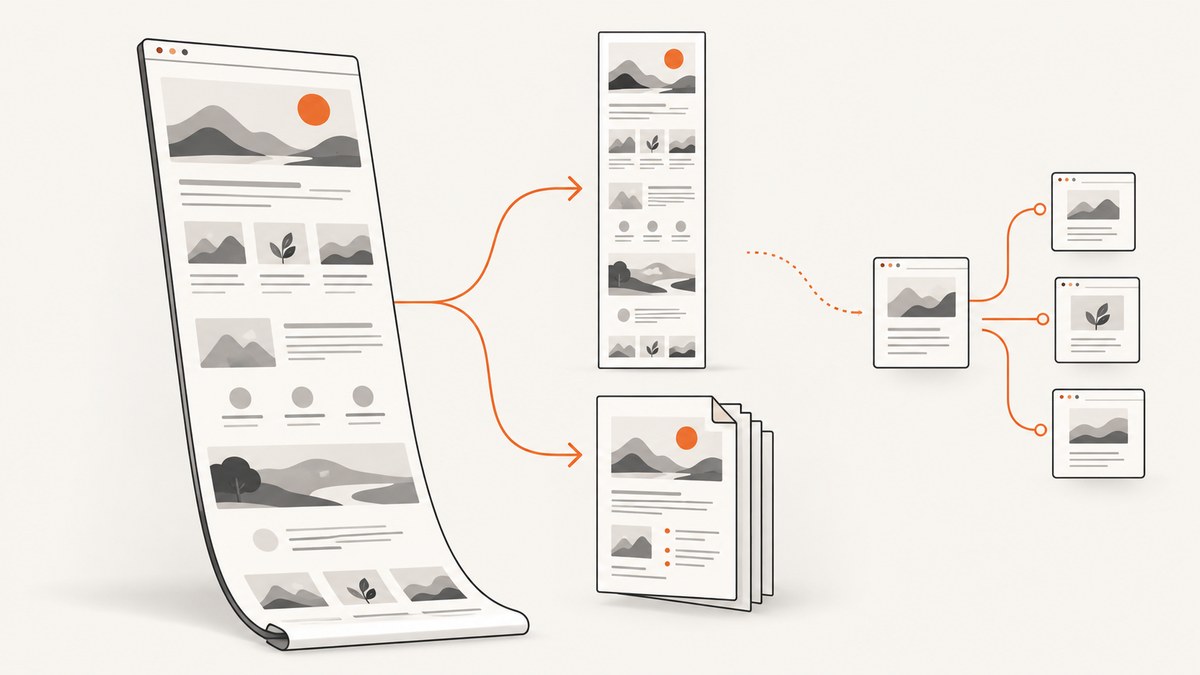
Short answer: If “entire website” means one page from top to bottom, save a full-page screenshot as a PNG or print the page to PDF. If it means every linked page for offline browsing, create a site mirror with a crawler such as HTTrack. If you need to preserve interactions or a replayable record, use a web archive workflow such as Webrecorder. These outputs solve different problems: a screenshot or PDF is not a navigable copy of a multi-page site.
For a quick full-page image, Firefox has a built-in screenshot feature. For an offline site, HTTrack copies pages and resources into a local directory and rewrites links for browsing. In either case, verify the result: lazy-loaded images, scripts, authentication, and third-party resources can make a capture incomplete.
1. Decide what “entire website” means
Before choosing a tool, identify the scope and what you need to do with the result. A page capture saves a single URL’s rendered appearance. A mirror attempts to save multiple pages and their files so you can browse them locally. An archive can preserve browser activity for later replay. A PDF is convenient to share or print, but it is paginated and may not look exactly like the live page.
| Your goal | Best starting point | What you get | What to verify |
|---|---|---|---|
| Save one long page as an image | Firefox full-page screenshot | PNG image of one page | Long-page rendering, sticky elements, lazy images |
| Share or keep one page as a document | Browser print-to-PDF | Paginated PDF of one page | Page breaks, clipped or omitted content, links |
| Browse many linked pages offline | HTTrack site mirror | Local files with rewritten links | Logs, missing resources, representative local pages |
| Preserve interactions or replay a capture | Webrecorder tools | Browser capture and WARC/WACZ replay workflow | Whether the required states and interactions were actually captured |
A “full-page” screenshot still means one page. It does not follow links or save the rest of the site. Likewise, a browser’s complete-page save can include associated files without establishing that every linked page was collected.
2. Save one webpage as a full-page image
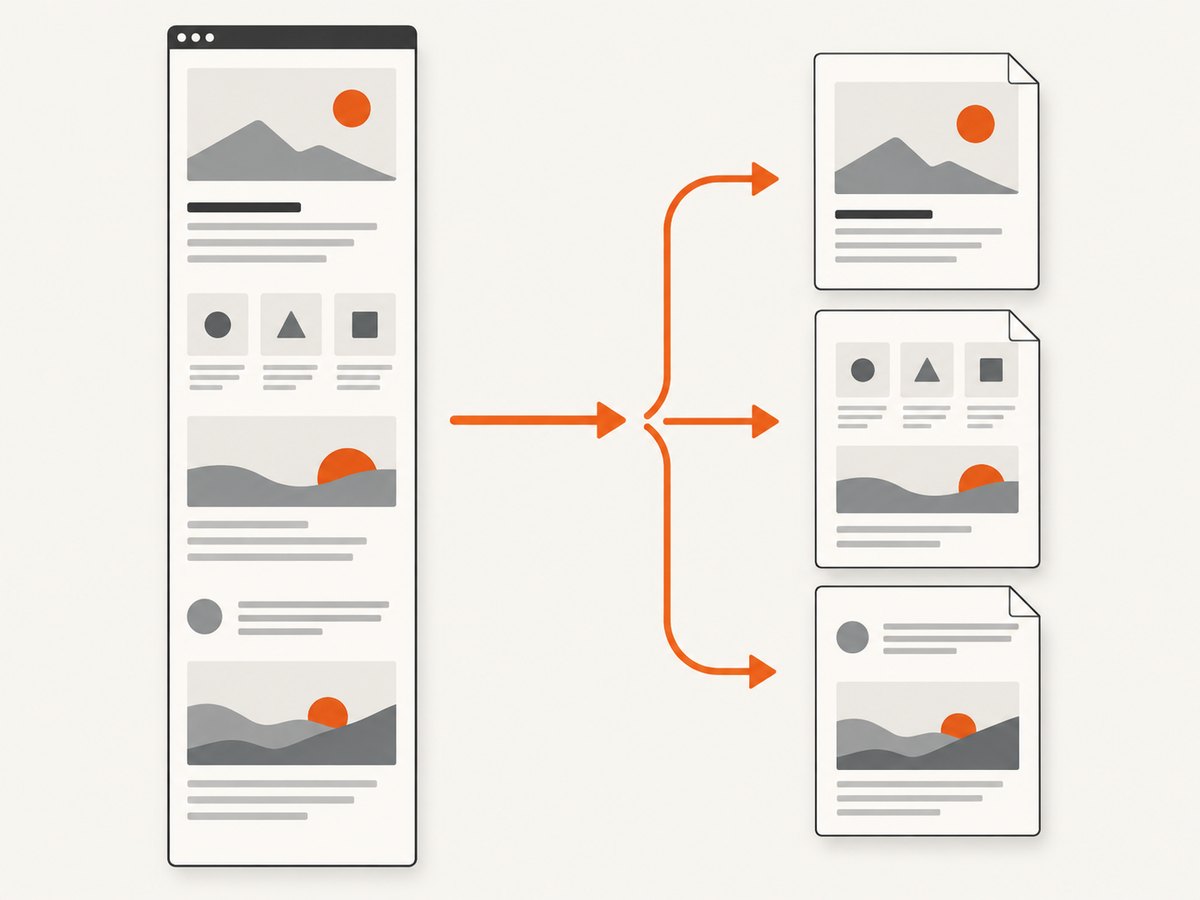
Firefox’s screenshot tool can capture the visible area, a selected region, or a full page. Its full-page option produces an image that can be downloaded as PNG. The exact menu appearance can vary across Firefox versions, but the documented workflow is to open the page’s context menu and choose Take Screenshot, then choose Save full page. Mozilla also documents a keyboard shortcut for opening the screenshot tool; check Firefox Help if you need the current shortcut for your operating system.
- Open the exact page you want to preserve in Firefox.
- Allow the page to finish loading. Scroll through it once if images or sections appear only as you scroll.
- Open the context menu and choose Take Screenshot.
- Choose Save full page, inspect the preview, and download the PNG.
- Open the saved image and check its top, bottom, and any important sections for clipping or missing content.
For pages with lazy-loaded images, scrolling before capture can help trigger image loading. It does not guarantee every resource will appear: a page may load content only after a click, a login, or a particular interaction. If the capture is extremely tall, consider whether a PDF or a series of focused captures would be easier to inspect and share.
3. Save one webpage as a PDF
PDF is a good choice when the result should read like a document, be shared as an attachment, or be printed. Browser print output is not a pixel-perfect screenshot. A page can reflow for paper, split content across pages, omit backgrounds, or behave differently from its on-screen version. Because print controls and labels differ by browser and version, use the current print dialog in your browser rather than relying on a menu path that may have changed.
- Open the page and wait for the content you need to appear.
- Open the browser’s print dialog and select its PDF destination or save-to-PDF option.
- Review the available page and layout settings. Choose paper size, orientation, scale, and margins to suit the document.
- Save the PDF, then open it separately and review every page break and any charts, images, tables, or footnotes you need.
For a page intended as a visual record, compare the PDF against the live page. For text-heavy content, check that headings do not become stranded at page bottoms and that wide tables are not clipped. Do not treat a PDF of one URL as an offline copy of the whole site; links may remain clickable, but the linked pages have not thereby been saved.
4. Download a whole website for offline browsing with HTTrack
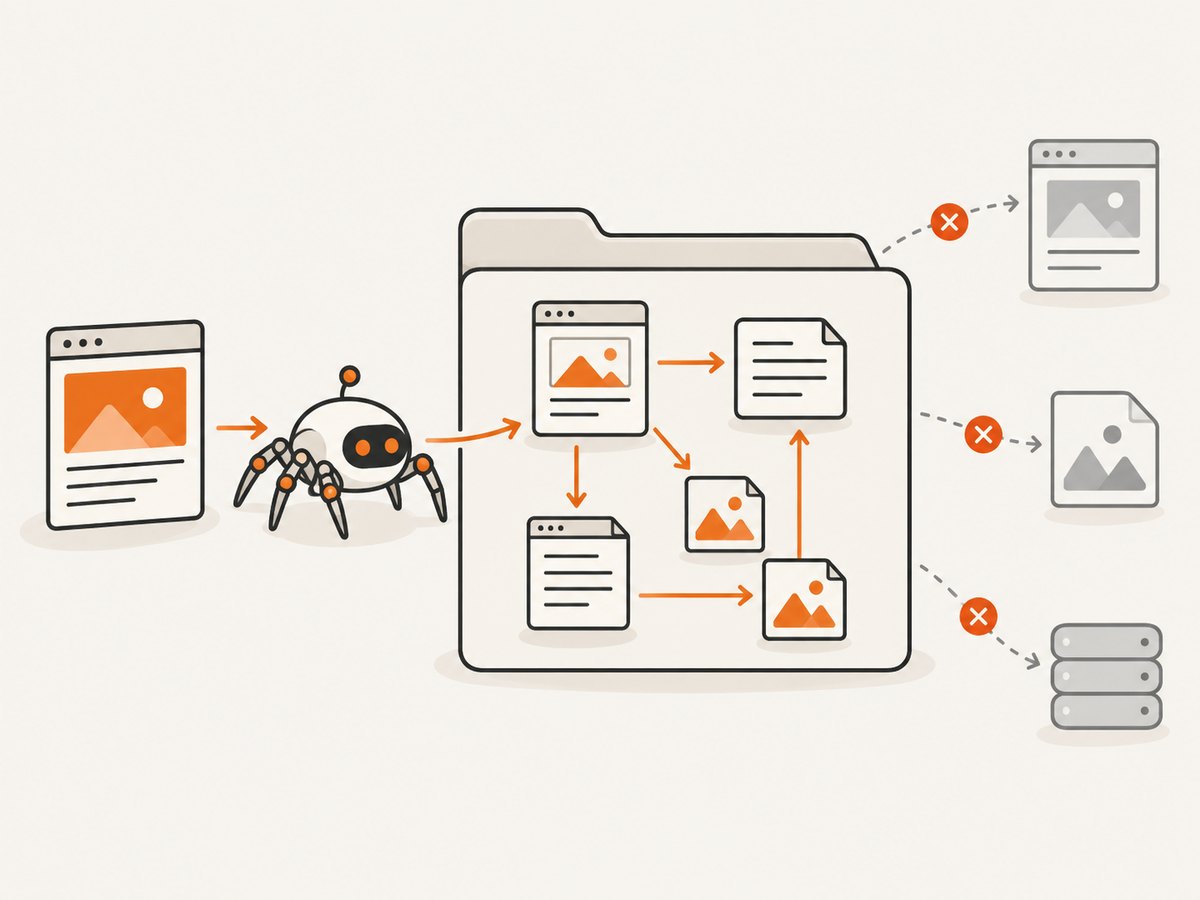
Use a site mirror when you need a collection of pages that you can navigate locally. HTTrack copies a site into a local directory and rewrites links between saved pages for offline browsing. It can resume interrupted work and update an existing mirror. The crawl still has boundaries: scope, filters, access restrictions, dynamic content, separate hosts, and resource limits affect what gets downloaded.
Choose the scope before crawling
- Decide which host and paths belong in the mirror. A site may serve images, downloads, or documents from a CDN or another domain.
- Decide whether linked PDFs and other file types are in scope. A filter that keeps PDFs may still need to retain the HTML pages that link to those PDFs.
- Respect access permissions and set a respectful crawl rate. Do not use a mirror to bypass authentication or access restrictions.
- Keep the scope manageable. A public site may expose generated URLs, calendars, search results, or other link structures that expand a crawl unexpectedly.
Run the crawl and inspect the result
HTTrack offers a guided interface as well as command-line options. Its interface asks for a project name, a destination, and the site addresses and lets you configure filters and limits. Because command options depend on the task and installation, use the official HTTrack documentation for the exact flags rather than copying a broad crawl command that might collect more than intended.
- Create a project directory with enough local storage for the pages and resources you intend to capture.
- Enter the starting page or pages and configure the allowed scope, file filters, and crawl limits.
- Start the mirror. If a run is interrupted, use HTTrack’s resume feature; use its update feature to refresh an existing mirror when appropriate.
- When it finishes, read the log. HTTrack’s interface guide warns that a mirror can look complete while images or other resources are missing.
- Open the local starting page and browse several representative pages. Check images, stylesheets, downloads, navigation links, and pages near the edges of your chosen scope.
Do not promise yourself that a default crawl captures every URL. Login-only areas, content generated after interaction, pages loaded by scripts, and resources on unconfigured hosts may be absent. A mirror is a practical offline copy of the accessible material the crawl collected, not proof of complete preservation.
5. Preserve interactions or create an archive
If the important result includes what happened in a browser—rather than only a flat image or locally navigable files—look at Webrecorder’s browser-based capture and archiving tools. Webrecorder describes capturing webpages and complex interactions, and replaying WARC/WACZ files. That makes it a better fit for interaction capture than calling a screenshot a complete archive.
Plan a capture around the state you need to preserve. Identify the pages, interactions, and media that matter; perform the required interaction in the capture workflow; then replay the resulting archive and check those states. Archive formats support replay, but the format alone does not guarantee that every site state or interaction was retained.
HTTrack also documents optional WARC output and packaging a crawl as WACZ for replay tooling. These outputs may suit an archival workflow when you want a replayable capture as well as ordinary mirror files. Verify the resulting archive with the replay tools you intend to use.
6. Choose the output and verify completeness
| Check | Image | Mirror or archive | |
|---|---|---|---|
| Is the whole linked site included? | No | No | Only pages collected within crawl/capture scope |
| Can I browse between saved pages offline? | No | No, unless pages are separately available | Usually for a mirror; replay depends on archive contents and tooling |
| Does it preserve on-screen appearance? | Closest visual record for one rendered page | May reflow and paginate | Depends on capture method and replay |
| Can it preserve interactive states? | No | No | Browser archive workflows can capture interactions, subject to verification |
- For a screenshot: inspect the full image, especially the bottom edge and lazy-loaded media.
- For a PDF: review every page, page breaks, orientation, and wide content.
- For a mirror: read the crawler log and browse local pages with the network disconnected if offline use matters.
- For WARC/WACZ: replay the archive and test the states you expect to preserve.
7. Or skip the browser setup
If you need a clean screenshot of one URL in code, ScreenshotNeo is a website screenshot API and MCP server. Its API returns an image or PDF from one GET request. The one-call flow is useful when a browser capture setup is unnecessary for the job; it does not crawl and mirror every linked page in a site.
See the ScreenshotNeo API docs for request options. Replace the example URL with the page you need and set your API key:
curl -G "https://api.screenshotneo.com/v1/shot" -d access_key=YOUR_API_KEY --data-urlencode url=https://stripe.com -o shot.webpimport requests
r = requests.get(
"https://api.screenshotneo.com/v1/shot",
params={"access_key": "YOUR_API_KEY", "url": "https://stripe.com"},
timeout=90,
)
open("shot.webp", "wb").write(r.content)const q = new URLSearchParams({ access_key: 'YOUR_API_KEY', url: 'https://stripe.com' });
const res = await fetch(`https://api.screenshotneo.com/v1/shot?${q}`);
if (!res.ok) throw new Error(`Screenshot request failed: ${res.status}`);
const bytes = new Uint8Array(await res.arrayBuffer());
await import('node:fs/promises').then(fs => fs.writeFile('shot.webp', bytes));ScreenshotNeo accepts cookie banners like a visitor and removes more than 60 known consent platforms, newsletter popups, and chat widgets before the shot; each step can be turned off. Bot checks and CAPTCHAs, blank pages, timeouts, failed loads, and cache hits cost nothing, and response headers indicate the page verdict and billing status. It also has an MCP server so AI agents can take screenshots, get page information, and capture PDFs. The free plan includes 1,000 screenshots a month with no card; paid plans start at $5 for 3,000. For many linked pages, use a site-mirroring workflow instead. Sign up for 1,000 free screenshots a month with no card.
8. Performance, reliability, and cost
A full-page capture’s time and output size depend on the page, its resources, and its height. Let the page finish loading and check whether content is lazy-loaded before capturing. PDF generation may take additional time and can produce large files for pages with many images. A local mirror can take much longer and use substantial storage as the scope expands; set limits and inspect the crawl log rather than assuming a quiet run means a complete result. Archive workflows also require storage for the capture and a replay check.
Browser features and HTTrack avoid a per-screenshot API charge, but they use your time and local resources. A screenshot API trades browser setup for request-based usage and may have plan limits. ScreenshotNeo’s listed plans are Free: 1,000 shots/month; Starter: $5 for 3,000; Growth: $15 for 15,000; Pro: $39 for 60,000; Scale: $99 for 250,000; and Business: $249 for 1,000,000. Yearly billing gives two months free, and every feature is on every plan. Choose based on your expected capture volume and whether the task is one-page capture or a multi-page mirror.
9. Troubleshooting common problems
| Problem | Likely cause | What to do |
|---|---|---|
| Bottom of the page is missing | Capture used the visible viewport, or page content had not loaded | Select full-page capture, wait for loading, and scroll to trigger lazy content before saving. |
| Images are blank in the screenshot | Images load on scroll or after interaction, or the remote resource failed | Scroll through the page first, wait for images, and recapture. Check whether a click or login is required. |
| PDF layout differs from the live site | Print layout reflows or omits screen-specific styling | Adjust print dialog settings and inspect the saved PDF. If exact appearance is essential, save a screenshot instead. |
| Mirror has pages but missing images or files | Resources were filtered out, hosted elsewhere, or failed to download | Read the HTTrack log, include permitted resource hosts and file types, then update or rerun and inspect local pages. |
| Some pages are absent from the mirror | They were outside scope, discovered only through interaction, or require authentication | Review the allowed paths and starting URLs. Capture permitted interactive or authenticated states with an appropriate browser workflow. |
| Mirror keeps growing unexpectedly | Generated links or broad scope expose many URLs | Stop and tighten filters, host/path scope, and limits before resuming. |
| Archive replays without a needed interaction | The relevant state was not exercised or recorded | Repeat the capture with the interaction included, then replay and verify the state. |
| Screenshot API response is not an image | The request may have returned an error or a non-clean page verdict | Check the HTTP status and response headers, including X-Page-Verdict and X-Billed, and correct the target URL or request. |
10. FAQ
Can I turn a whole website into one image?
Not in the usual sense. A full-page screenshot captures one webpage as a tall image. To include multiple pages, capture them separately or create a mirror or archive.
Does saving a webpage as a PDF make it available offline?
The PDF itself is available offline, but it does not automatically contain the pages linked from it. Save those pages separately or use a site-mirroring workflow.
Will HTTrack copy a login-only site?
Do not assume so. Authentication and dynamically generated content affect what a crawler can collect. Only capture material you are permitted to access, and verify the local result.
Which format is best for a visual record?
Use a full-page image when one page’s rendered appearance matters. Use PDF when document-style sharing or printing matters. Use a mirror or replayable archive when navigation or interaction is part of the goal.
Can a screenshot API save every page on a domain?
A screenshot request captures a target page. Crawling and collecting linked pages is a separate workflow; use a site mirror or an archive process for that scope.