How to Capture an Entire Website as a PDF
Learn when to use browser printing, Acrobat’s multi-level capture, complete HTML saves, or an API for reliable website-to-PDF workflows.
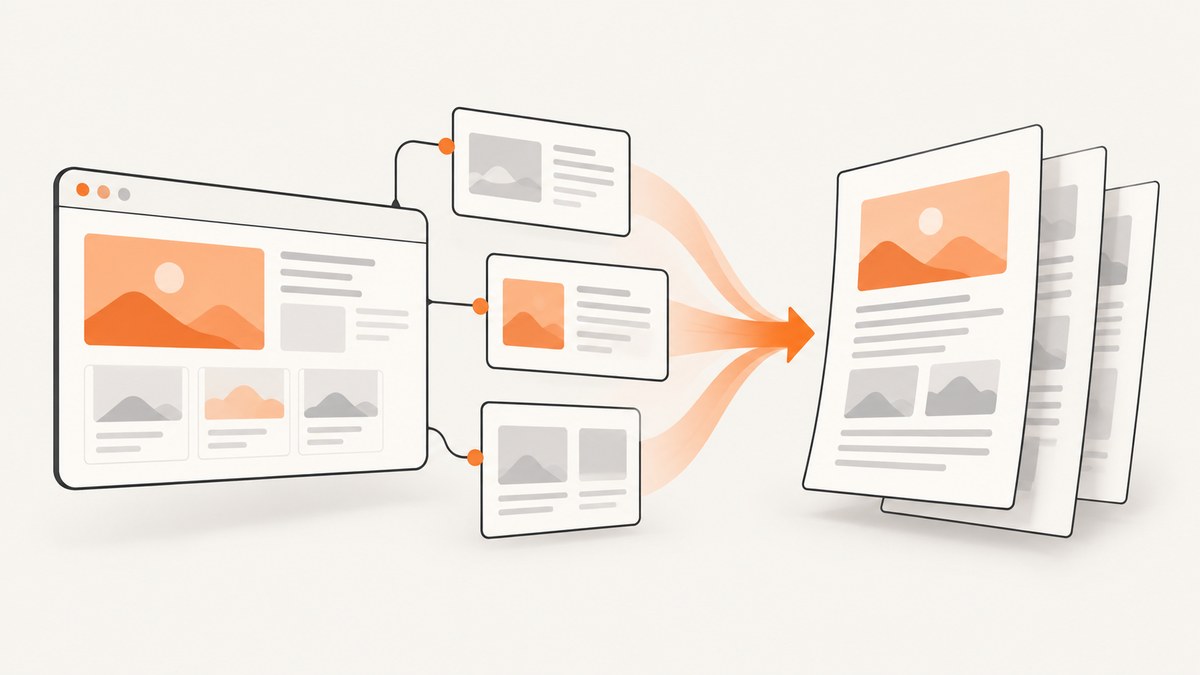
Short answer: For one rendered page, open your browser’s Print dialog and choose Save as PDF. To capture a linked site, use Adobe Acrobat desktop’s Create > Web page workflow, enable Capture multiple levels, then choose a crawl depth or Get entire site. If you need the original HTML and assets instead of a PDF, Firefox’s complete-page save creates an HTML file and a resource directory.
The phrase “entire website” needs a boundary. A site can contain external domains, login-only pages, infinite calendars, query-generated URLs, and content that appears only after interaction. The methods below explain what each tool can actually capture, how to keep a crawl bounded, and how to check the resulting file.
1. Decide what “entire website” means
Before choosing a tool, define the deliverable and scope:
- One page: A single article, receipt, dashboard view, or documentation page as it is rendered now.
- A section: Pages under a starting path, such as
example.com/docs/. - A domain: Reachable pages on one server, excluding links to other domains.
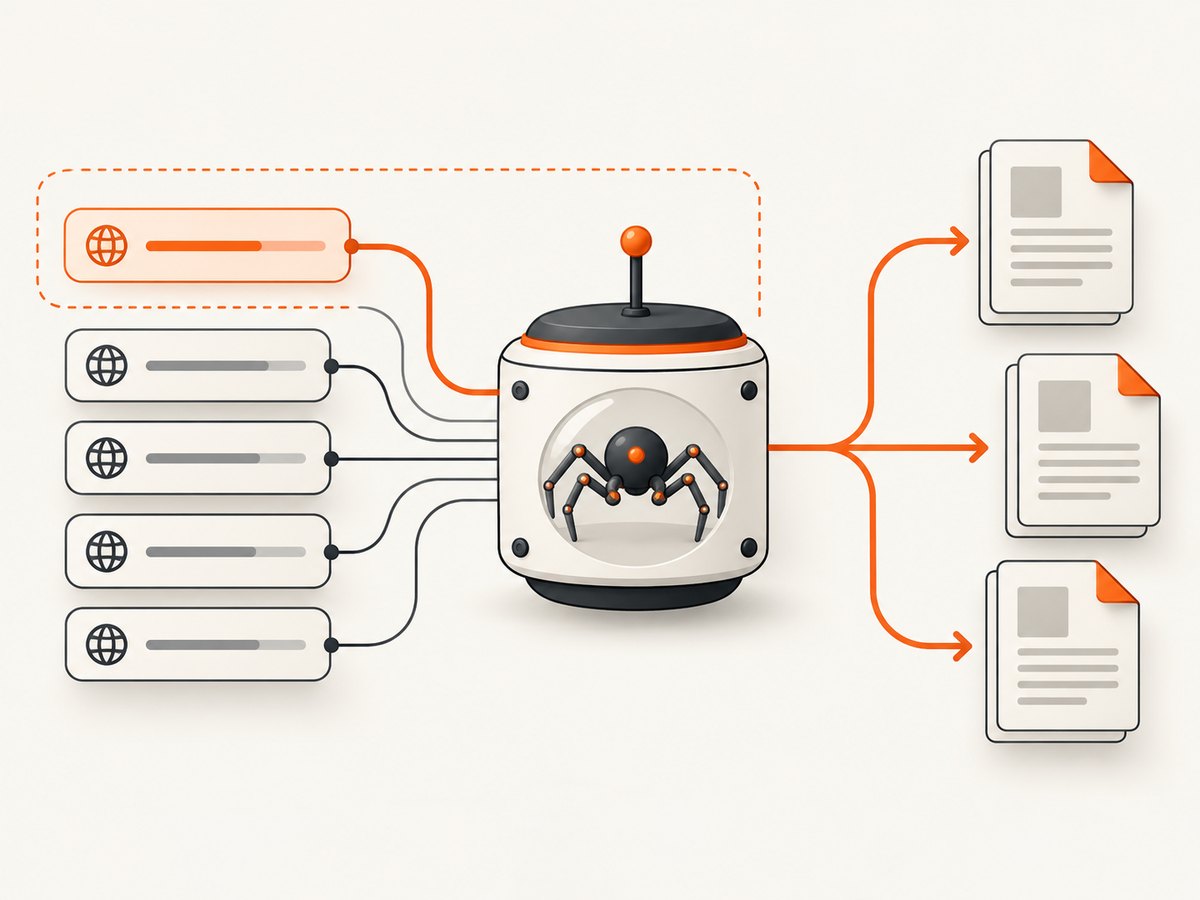
- Every reachable level: A broad crawl that follows links until the selected rules stop it.
- Offline HTML: A browsable copy of a page and its dependent resources rather than a paginated PDF.
Set the boundary before capture. Otherwise navigation links, tag pages, calendars, search results, or third-party domains can make the job much larger than expected.
2. Browser Print: save one rendered page as a PDF
Browser printing is the fastest option when the requirement is the page currently open, not every page linked from it. Adobe’s browser guidance describes opening the page, choosing Print, selecting Save as PDF, and saving the result. Chrome and Firefox expose equivalent first-party workflows.
Steps in Chrome, Edge, or another Chromium browser
- Open the exact URL you need.
- Wait for visible content, images, and any required widgets to finish loading.
- Open the browser menu and select Print, or press Ctrl+P on Windows/Linux or Command+P on macOS.
- Set the destination to Save as PDF.
- Choose paper size, portrait or landscape orientation, margins, and scale.
- Enable background graphics when the page’s colors or images are part of the record. Disable headers and footers when you do not want the URL, date, or page number added by the browser.
- Save with a descriptive filename, then reopen the PDF.
Inspect page breaks, missing images, links, and the final page count. Printing captures the rendered state of the current page; it does not crawl linked pages.
Firefox’s Save to PDF
In Firefox, open Print, select Save to PDF from the destination drop-down, adjust the available layout controls, and save. Mozilla documents this workflow in its printing support guide: select Save to PDF to save the shown preview.
3. Adobe Acrobat: capture linked pages or an entire site
Adobe Acrobat desktop is the documented option for assembling multiple linked pages into one PDF. Adobe’s help page supports multi-level capture and an entire-site choice.
Step-by-step Acrobat workflow
- Open Acrobat and choose Create.
- Select Web page.
- Enter the starting URL.
- Enable Capture multiple levels.
- Choose Get level(s) and specify a depth, or choose Get entire site to include all levels. Adobe describes that option as including all levels of the website: Acrobat web-page conversion help.
- Use Stay on same path when the capture must remain below the starting URL path, such as
/manual/. - Use Stay on same server when links to external domains must be excluded.
- Review advanced conversion settings for layout, links, and page handling.
- Start creation and monitor the download or conversion status.
Choosing crawl depth
| Setting | What it captures | When to use it |
|---|---|---|
| One page | Only the starting URL | An article, invoice, or landing page |
| Specific levels | Links a chosen number of steps away | A small documentation section or brochure site |
| Entire site | All levels reachable under the selected restrictions | A bounded site where broad coverage is required |
| Same path | URLs under the starting path | Keep a crawl inside /docs/ or /help/ |
| Same server | Pages on the starting server | Exclude social networks, CDNs, and unrelated domains |
“Entire site” means pages reachable by the crawler under these rules. It does not guarantee authenticated pages, interaction-only states, script failures, or every URL generated by a search form. Treat the PDF as a capture of the reachable set, then verify the result.
4. Save a complete HTML page when PDF is the wrong deliverable
If the goal is offline inspection of the source structure and assets, Firefox’s complete-page save is more appropriate than printing. Choose Save Page As, select the complete-page option, and save. Firefox creates the HTML file plus a directory containing images and other resources needed to display the page. Mozilla describes this resource bundle in its save-page documentation.
This produces a browsable resource bundle, not one PDF. It can preserve HTML structure for later inspection, but scripts, authenticated content, and server-side behavior may not work offline.
5. Comparison: which method fits your job?
| Method | Scope | Output | Best use | Main limitation |
|---|---|---|---|---|
| Browser Print | Current rendered page | Single PDF | Articles, receipts, individual views | No linked-page crawl |
| Acrobat web capture | Linked pages at selected depth or entire site | Assembled PDF | Manuals, site sections, bounded websites | Reachability and authentication limits |
| Firefox complete save | Current page and dependent resources | HTML plus resource folder | Offline inspection and preservation | Not a PDF; scripts may not work offline |
| Screenshot API | Programmatic page or batch capture | Images or PDFs | Automation, pipelines, repeatable jobs | You must define URLs and crawl policy |
6. Prepare pages for a complete capture
Dynamic pages often hide content until you interact with them. Before printing or crawling:
- Expand accordions, tabs, and “show more” sections that must appear.
- Scroll through long pages so lazy-loaded images have a chance to load.
- Dismiss cookie notices, newsletter popups, and chat widgets that obscure content.
- Sign in when permitted and confirm that the session will remain valid during the capture.
- Wait for charts, code samples, and client-rendered content to finish.
- Check the page at the intended viewport width; responsive layouts can change pagination.
For a multi-page crawl, make a URL inventory first. Record the starting URL, allowed path or domain, expected page families, and pages that require authentication. This makes omissions easier to diagnose.
7. Validate the PDF after saving
- Open the PDF in a viewer and confirm the page count is plausible.
- Check the first and last pages for clipped content and unexpected blank pages.
- Search for text that should be present.
- Inspect representative images, tables, code blocks, and hyperlinks.
- Confirm that repeated headers and footers are intentional.
- Compare the captured URL list with your inventory when crawling multiple pages.
- Record the capture date and scope in the filename or document metadata.
A PDF can open successfully while still missing lazy images, script-generated sections, or pages blocked by a login. Validation is part of the capture process.
8. Or skip the browser setup
ScreenshotNeo provides a website screenshot API and MCP server for developers. Its PDF endpoint can be used from a script or automation job, while its capture options handle common rendering problems. Read the parameter reference in the ScreenshotNeo documentation.
Here is a complete cURL request for a PDF capture. Replace the URL and key as needed; the same endpoint also returns PNG, JPEG, or WebP when you select an image format.
curl -G "https://api.screenshotneo.com/v1/shot" \
  -d access_key=YOUR_API_KEY \
  --data-urlencode url=https://stripe.com \
  -o site-page.webp
Python:
import requests

r = requests.get(
    "https://api.screenshotneo.com/v1/shot",
    params={"access_key": "YOUR_API_KEY", "url": "https://stripe.com"},
    timeout=90,
)
r.raise_for_status()
open("site-page.webp", "wb").write(r.content)
Node.js:
const q = new URLSearchParams({
  access_key: 'YOUR_API_KEY',
  url: 'https://stripe.com'
});
const res = await fetch(`https://api.screenshotneo.com/v1/shot?${q}`);
if (!res.ok) throw new Error(`HTTP ${res.status}`);
const body = Buffer.from(await res.arrayBuffer());
await import('node:fs/promises').then(fs => fs.writeFile('site-page.webp', body));
For a PDF, pass the PDF output option documented by ScreenshotNeo, along with paper size, margins, landscape mode, or page ranges when required. For a website rather than one URL, first build a bounded URL list from your sitemap or crawler, then submit those URLs individually or use bulk capture, which accepts up to 100 URLs per call.
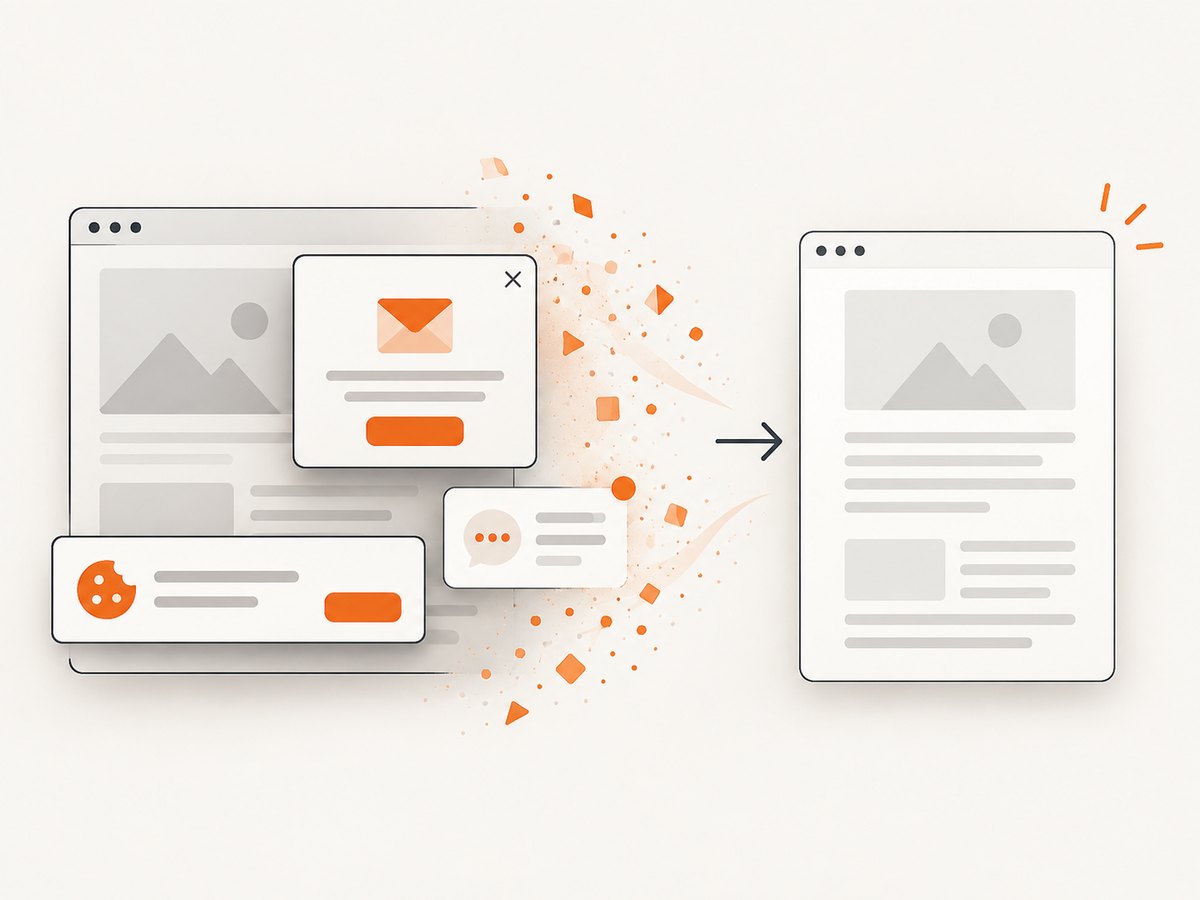
ScreenshotNeo removes cookie and consent banners, newsletter popups, and chat widgets from more than 60 known platforms before capture; each cleanup step can be disabled. Bot checks and CAPTCHAs, blank pages, timeouts, failed loads, and cache hits are not billed, and response headers identify the page verdict and whether it was billed. An MCP server exposes take_screenshot, get_page_info, and capture_pdf for Claude, Cursor, and other MCP clients. You can also set custom CSS or JavaScript, wait for a selector, delay, or network idle, load lazy images for full-page captures, block selected requests or resource types, and provide headers, cookies, user agents, authorization, timezone, or geolocation.
Create a free ScreenshotNeo account for 1,000 screenshots each month with no card. Paid plans start at $5 for 3,000 shots.
9. Automation options for repeatable captures
For recurring archives, treat capture as a pipeline:
- Discover URLs from a sitemap, approved crawl, or maintained list.
- Normalize URLs and remove tracking parameters that create duplicates.
- Apply same-path and same-server rules before submission.
- Capture with a consistent viewport, timezone, user agent, and PDF layout.
- Retry transient failures with a bounded backoff.
- Store the source URL, timestamp, status, and output checksum beside each file.
- Review failures separately instead of silently omitting them.
ScreenshotNeo supports custom caching with a TTL you choose, asynchronous jobs with signed webhooks, usage reporting, signed links for public image tags, and an OpenAPI specification. Those controls are useful when a site archive runs on a schedule or in a build system.
10. Troubleshooting common problems
| Symptom | Likely cause | Fix |
|---|---|---|
| Only the first page appears | Browser Print captures one rendered URL | Use Acrobat multi-level capture or submit a URL list to an API. |
| External pages are unexpectedly included | The crawl is not restricted | Enable Stay on same path or Stay on same server, or filter URLs before capture. |
| Images are missing | Lazy loading or blocked resources | Scroll and wait before printing; enable lazy-image loading or adjust resource blocking. |
| A blank page is saved | JavaScript failed, a bot check appeared, or the page timed out | Retry after confirming the URL works in a normal browser; inspect response verdict headers when using ScreenshotNeo. |
| Cookie banner covers text | Consent UI was still visible | Accept or dismiss it before browser printing, or enable ScreenshotNeo’s consent cleanup. |
| Content requires a login | The crawler has no authenticated session | Capture from an authorized session or provide supported cookies and authorization headers. |
| PDF pages break in awkward places | Responsive layout, margins, or print CSS | Change orientation, paper size, scale, or margins; inspect print preview before saving. |
| Capture takes too long | Large crawl, slow assets, or infinite URL patterns | Bound the path, remove duplicate query URLs, set waits deliberately, and process in batches. |
| API response is not an image | HTTP error or JSON error body | Check the status code and response headers before writing the body to a file. |
11. Performance, reliability, and cost notes
The largest performance variable is scope. A single page is predictable; an entire domain can expand rapidly through calendars, search parameters, faceted navigation, and duplicate URLs. Limit depth or path, deduplicate URLs, and capture in batches. Waiting for network idle improves completeness but can delay pages that keep analytics connections open, so prefer a selector wait or a measured delay when you know the page’s readiness signal.
For reliability, preserve failed URLs and retry them separately. Keep a manifest with URL, timestamp, HTTP result, page verdict, and output path. Reopen a sample of every batch. When using cached captures, choose a TTL that matches how often the source changes; cache hits in ScreenshotNeo are not billed.
Browser and Acrobat workflows have no per-capture API charge, but they consume operator time and are harder to reproduce. ScreenshotNeo’s plans include a free tier of 1,000 shots per month without a card; paid plans are $5 for 3,000, $15 for 15,000, $39 for 60,000, $99 for 250,000, and $249 for 1,000,000. Yearly billing provides two months free, and every feature is included on every plan. Only clean shots are billed.
12. FAQ
Can I make one PDF containing every page on a website?
Yes, when the pages are reachable under a defined crawl rule. Acrobat can capture multiple levels or the entire site. For larger or repeatable jobs, create a bounded URL list and automate PDF captures.
Does browser Print follow links?
No. It saves the page currently rendered in the tab. Use a multi-level web capture tool or an automated URL list for linked pages.
Will a PDF include pages behind a login?
Only if the capture process has an authorized authenticated session and can retain it. Public crawlers cannot infer credentials.
Is a complete HTML save the same as a PDF?
No. Complete-page saving preserves HTML and dependent files in a resource directory. Printing creates a paginated PDF representation.
How do I prevent an uncontrolled crawl?
Restrict the starting path or server, set a crawl depth, normalize query parameters, and review the URL inventory before capture.
13. Recommended workflow
Use browser Print for a single page. Use Acrobat when you need a manually configured, multi-level PDF of a bounded site. Use complete HTML save when preserving source structure matters more than pagination. For scheduled, programmatic, or AI-assisted captures, use ScreenshotNeo with explicit URL boundaries, waits, cleanup, validation, and a stored manifest.


