How to Capture Every HTML li Element as an Image
Capture every rendered <li> as its own image with Playwright, html2canvas, or ScreenshotNeo—handling dynamic lists, nested items, formats, and failures.
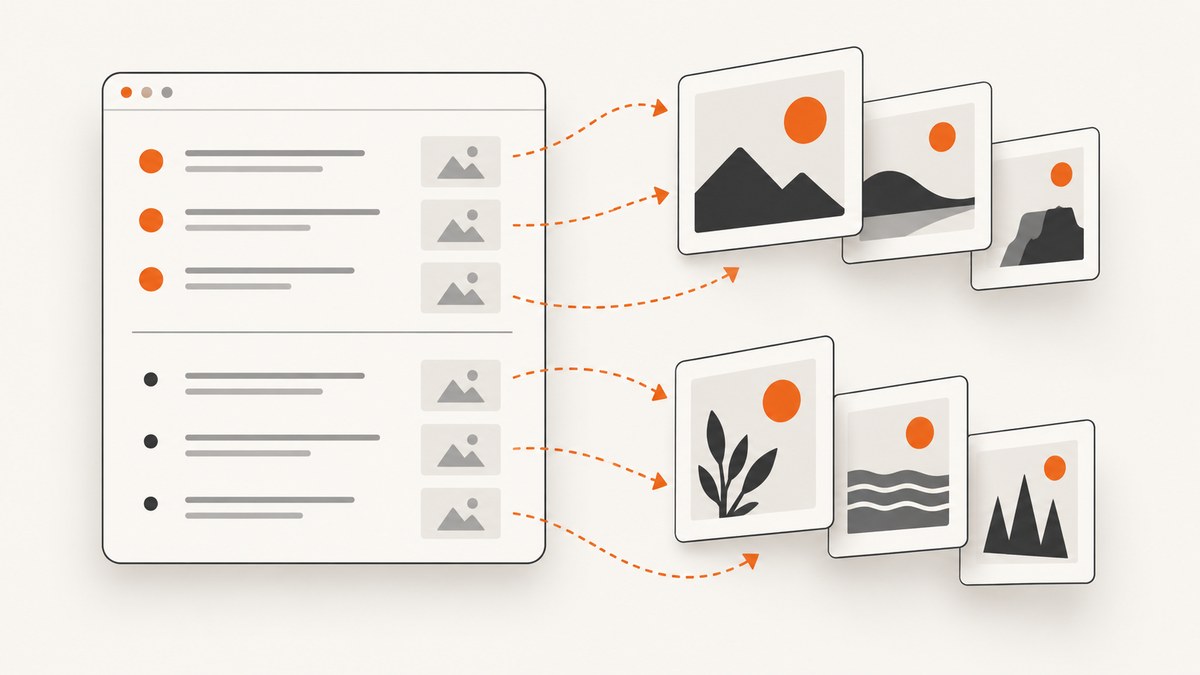
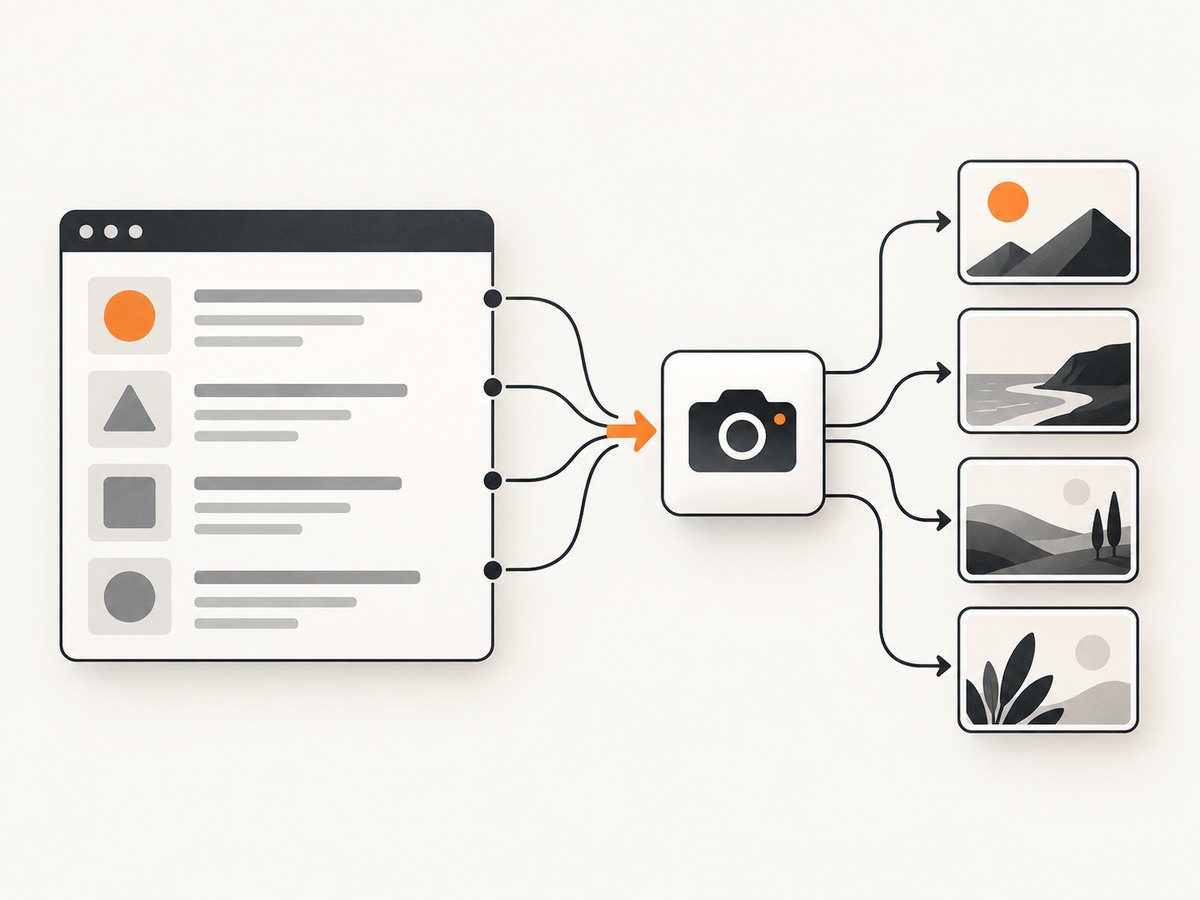
To capture every rendered <li> as a separate image, use a real browser such as Playwright: wait until the list is stable, count the matching elements, and call an element screenshot for each one. This captures the browser-rendered pixels, including layout and supported browser behavior.
For a literal tag match, use the CSS selector li. For only direct children of one list, scope the selector, for example #features > li. A selector of li also matches nested list items.
1. Capture every list item with Playwright
Install Playwright and its browser binaries:
npm init -y
npm install playwright
npx playwright install chromium
Create capture-li.js:
const { chromium } = require('playwright');

(async () => {
  const browser = await chromium.launch();
  const page = await browser.newPage({
    viewport: { width: 1440, height: 1000 },
    deviceScaleFactor: 1
  });

  await page.goto('https://example.com/page-with-a-list', {
    waitUntil: 'domcontentloaded',
    timeout: 60_000
  });

  // Replace this with an application-specific ready condition when needed.
  await page.waitForLoadState('networkidle');
  await page.locator('#features').waitFor({ state: 'visible', timeout: 30_000 });

  const items = page.locator('#features > li');
  const count = await items.count();

  if (count === 0) {
    throw new Error('No matching list items were found');
  }

  for (let i = 0; i < count; i++) {
    await items.nth(i).screenshot({
      path: `item-${String(i + 1).padStart(3, '0')}.png`,
      type: 'png',
      animations: 'disabled'
    });
  }

  await browser.close();
})();
locator.screenshot() scrolls each target into view, waits for Playwright’s actionability checks, and saves the element image. The locator API supports PNG, JPEG, and WebP output, a path or returned buffer, CSS or device scale, and animation handling. See the Playwright locator screenshot documentation.
Capture all <li> tags
const items = page.locator('li');This includes list items inside nested <ul>, <ol>, and <menu> elements. Use a narrower selector when nested entries should not be separate outputs.
Capture only direct children
const items = page.locator('main ul#features > li');The > combinator excludes deeper nested list items. If the page contains several lists, scope the selector to a stable container, data attribute, or unique ID.
Use semantic list-item roles
An <li> normally has the listitem accessibility role when it is inside an ordered list, unordered list, or menu. A role locator expresses that semantic intent:
const items = page.getByRole('listitem');Use locator('li') when the requirement is specifically every literal HTML li tag. Use getByRole('listitem') when accessible structure is what matters. See the HTML li reference.
2. Wait for lists that load dynamically
Waiting for networkidle is useful, but it is not a universal signal that a list is complete. Single-page applications may fetch data after the initial network becomes quiet, and infinite lists may keep adding entries. Wait for the page’s own completion condition before taking the count.
await page.goto('https://example.com/products', { waitUntil: 'domcontentloaded' });
await page.locator('[data-list-ready="true"]').waitFor({ state: 'attached' });
await page.locator('#products > li').first().waitFor({ state: 'visible' });

const items = page.locator('#products > li');
const count = await items.count();
If the application exposes a JavaScript flag, wait for it:
await page.waitForFunction(() => window.__productsLoaded === true);
const items = page.locator('#products > li');
Take the count immediately before the loop. Do not rely on locator.all() for a changing list: Playwright documents that it does not wait for matches and can behave unpredictably while the list is being populated. If entries can be inserted during capture, freeze the page or wait for a stable count:
async function waitForStableCount(locator, samples = 3, intervalMs = 500) {
  let previous = -1;
  let equalSamples = 0;

  while (equalSamples < samples) {
    const current = await locator.count();
    if (current === previous) equalSamples++;
    else equalSamples = 0;
    previous = current;
    await new Promise(resolve => setTimeout(resolve, intervalMs));
  }

  return previous;
}

const items = page.locator('#results > li');
const count = await waitForStableCount(items);
A stability check is only a fallback. An application-specific “loaded” or “done” signal is more reliable because a stable count can still represent an incomplete response.
3. Choose output format, scale, and filenames
PNG preserves sharp text and transparency. JPEG is smaller but loses transparency and uses lossy compression. WebP can provide smaller files when your downstream system supports it.
await items.nth(i).screenshot({
  path: `item-${i + 1}.webp`,
  type: 'webp',
  quality: 85,
  scale: 'css',
  animations: 'disabled'
});
Use scale: 'css' for one output pixel per CSS pixel. Use scale: 'device for device-pixel output when a high-density image is required. A higher scale increases dimensions, memory use, encoding time, and file size.
For in-memory processing instead of files:
const buffer = await items.nth(i).screenshot({ type: 'png' });
await processImage(buffer, i); // Send to storage, a queue, or an image pipeline.
4. Make each capture deterministic
Fonts, animations, lazy images, sticky overlays, and random content can change pixels between runs.
- Wait for the application’s ready condition and for the target item to be visible.
- Disable animations and transitions where possible.
- Load web fonts before capturing if typography matters.
- Set a fixed viewport and device scale factor.
- Use a fixed timezone, locale, and test data when the page varies by environment.
- Hide cookie notices, chat launchers, or other overlays if they are not part of the desired item.
await page.addStyleTag({
  content: `
    *, *::before, *::after {
      animation: none !important;
      transition: none !important;
      caret-color: transparent !important;
    }
  `
});

await page.evaluate(() => document.fonts?.ready);
An overlay can remain visible in the screenshot if it covers the item. A scrollable item captures the content currently visible in its scroll position; it does not automatically expand every internal scroll region.
5. Capture a list item after interaction
Some lists require a click, hover, expansion, or tab selection before their final content appears.
await page.getByRole('button', { name: 'Show all features' }).click();
await page.locator('#features > li').last().waitFor({ state: 'visible' });

const items = page.locator('#features > li');
for (let i = 0; i < await items.count(); i++) {
  await items.nth(i).screenshot({ path: `feature-${i + 1}.png` });
}
For a single element inside each list item, locate it relative to the item:
for (let i = 0; i < await items.count(); i++) {
  await items.nth(i).locator('.card').screenshot({ path: `card-${i + 1}.png` });
}
6. A complete reusable Playwright script
const { chromium } = require('playwright');
const fs = require('fs/promises');

async function captureListItems({
  url,
  selector = 'li',
  outputDir = './captures',
  format = 'png'
}) {
  await fs.mkdir(outputDir, { recursive: true });
  const browser = await chromium.launch();

  try {
    const page = await browser.newPage({
      viewport: { width: 1440, height: 1000 },
      deviceScaleFactor: 1
    });

    await page.goto(url, { waitUntil: 'domcontentloaded', timeout: 60_000 });
    await page.waitForLoadState('networkidle');
    await page.evaluate(() => document.fonts?.ready);

    const items = page.locator(selector);
    const count = await items.count();
    if (count === 0) throw new Error(`No elements matched: ${selector}`);

    const results = [];
    for (let i = 0; i < count; i++) {
      const file = `${outputDir}/item-${String(i + 1).padStart(4, '0')}.${format}`;
      await items.nth(i).screenshot({
        path: file,
        type: format,
        animations: 'disabled',
        scale: 'css'
      });
      results.push(file);
    }
    return results;
  } finally {
    await browser.close();
  }
}

captureListItems({
  url: 'https://example.com/page-with-a-list',
  selector: '#features > li'
}).then(files => console.log(`Captured ${files.length} items`));
7. In-page rendering with html2canvas
html2canvas accepts an element and builds a canvas representation from DOM information. It is useful when the code must run inside the page, but it is not a browser-pixel screenshot. Its output can differ from the final rendering, and unsupported CSS, cross-origin images, tainted canvases, and cross-origin iframes can prevent an accurate result.
import html2canvas from 'html2canvas';

const items = document.querySelectorAll('#features > li');

for (let i = 0; i < items.length; i++) {
  const canvas = await html2canvas(items[i], {
    backgroundColor: null,
    useCORS: true,
    scale: window.devicePixelRatio
  });

  const blob = await new Promise(resolve =>
    canvas.toBlob(resolve, 'image/png')
  );

  if (!blob) throw new Error(`Could not encode item ${i + 1}`);

  const link = document.createElement('a');
  link.download = `item-${i + 1}.png`;
  link.href = URL.createObjectURL(blob);
  link.click();
  URL.revokeObjectURL(link.href);
}
Check that each element exists before passing it to html2canvas. The useCORS option does not bypass server-side CORS policy; the image server must allow the browser request, or you need a proxy you control. Content inside a cross-origin iframe cannot be read directly by page JavaScript.
8. Screen Capture API as a browser-native alternative
The Screen Capture API can capture a display track, restrict it to an element with Element Capture where supported, grab a frame with ImageCapture, and encode that frame through a canvas. It requires display-capture permission and support for the required APIs, so it is usually more complex than Playwright for automated jobs.
Use this option when the capture must originate from a user’s browser session and the target browser supports the APIs. For unattended server-side capture, Playwright is generally the simpler implementation.
9. Or skip the browser setup
ScreenshotNeo provides a website screenshot API and MCP server. It can capture a page, but an API call captures the page or a selected element; it does not automatically return one separate response for every matching li. If you know the item selectors, make one request per selector or use your own page script to produce the list of targets.

For a page-level capture, the API call is:
curl -G "https://api.screenshotneo.com/v1/shot" \
  -d access_key=YOUR_API_KEY \
  --data-urlencode url=https://example.com/page-with-a-list \
  -o shot.webp
import requests
r = requests.get(
"https://api.screenshotneo.com/v1/shot",
params={
"access_key": "YOUR_API_KEY",
"url": "https://example.com/page-with-a-list"
},
timeout=90
)
r.raise_for_status()
open("shot.webp", "wb").write(r.content)const q = new URLSearchParams({
access_key: 'YOUR_API_KEY',
url: 'https://example.com/page-with-a-list'
});
const res = await fetch(`https://api.screenshotneo.com/v1/shot?${q}`);
if (!res.ok) throw new Error(`ScreenshotNeo request failed: ${res.status}`);
const image = Buffer.from(await res.arrayBuffer());
require('fs').writeFileSync('shot.webp', image);See the ScreenshotNeo API documentation for element selectors and capture options. Cookie banners, newsletter popups, and chat widgets are removed before the shot. Bot checks, blank pages, failed loads, timeouts, and cache hits are not billed, and the response identifies the result with X-Page-Verdict and X-Billed headers. ScreenshotNeo also offers an MCP server with take_screenshot, get_page_info, and capture_pdf tools for AI agents.
The Free plan includes 1,000 screenshots each month with no card. Paid plans start at $5 for 3,000 shots, and every feature is available on every plan. Create a free ScreenshotNeo account.
10. Troubleshooting
No files are created
Cause: the selector matched zero elements, the list is rendered later, or the page navigation failed.
Fix: log await locator.count(), wait for a page-specific ready signal, verify the URL, and fail explicitly when the count is zero.
The count is smaller than the visible list
Cause: items are virtualized, paginated, hidden behind “load more,” or still being fetched.
Fix: trigger pagination or scrolling, wait for the application completion signal, and capture only after the final count is known. Virtualized lists may render only the viewport’s rows; scroll through the list or use the application’s data source if every entry is required.
Nested items are duplicated
Cause: li matches both parent and nested list items.
Fix: scope to the intended list and use a direct-child selector such as #features > li.
The screenshot contains a cookie banner or chat bubble
Cause: the overlay covers the target when Playwright scrolls it into view.
Fix: accept or remove the banner in the test flow, hide known selectors with CSS, or use a capture service that handles consent and common widgets before capture.
Only part of a scrollable item appears
Cause: an element screenshot captures the element’s currently visible scroll area.
Fix: remove the internal overflow for a special capture stylesheet, increase its height, or capture its contents in sections. Do not assume an element screenshot expands an internal scroll container.
Images or fonts are missing
Cause: the resource has not loaded, the request is blocked, or the page uses cross-origin assets that html2canvas cannot read.
Fix: wait for the relevant image or font, inspect failed requests, configure CORS for html2canvas assets, and prefer Playwright when the browser-rendered result is required.
The output changes between runs
Cause: animations, random data, responsive dimensions, time zones, ads, or late network activity.
Fix: set a fixed viewport and scale, disable animation, use deterministic data, wait for fonts and application readiness, and block or hide nonessential resources.
The browser times out
Cause: a slow page, a request that never settles, or a timeout that is too short.
Fix: set a realistic navigation timeout, wait for a specific readiness condition instead of relying only on networkidle, and record the failing URL and request. Avoid retrying indefinitely.
11. Performance, reliability, and cost
- Browser startup: launch one browser and reuse it for many pages. Repeatedly launching Chromium adds avoidable overhead.
- Concurrency: capture several items in parallel only when the machine has enough CPU and memory. Too much concurrency causes contention and flaky rendering.
- Image size: PNG and high device scales consume more storage and bandwidth. Choose the smallest format that meets the downstream requirement.
- Stability: freeze dynamic content before counting. A changing DOM can cause missing, duplicated, or mismatched filenames.
- Retries: retry navigation failures with a bounded count, but do not blindly repeat a successful capture. Store the URL, selector, item index, and error.
- Memory: buffers for large elements can accumulate. Write or upload each image before capturing the next one, or use a bounded queue.
- ScreenshotNeo billing: only clean shots are billed. Bot checks, blank pages, timeouts, failed loads, and cache hits cost nothing; inspect
X-Page-VerdictandX-Billedfor each response.
12. Capture checklist
- Decide whether nested
lielements count. - Use a scoped CSS selector or semantic role locator.
- Wait for the application-specific ready condition.
- Take the element count immediately before the loop.
- Fix viewport, device scale, fonts, timezone, and test data when reproducibility matters.
- Disable animations and handle overlays.
- Choose PNG, JPEG, or WebP deliberately.
- Bound concurrency and retries.
- Verify that every expected output file exists and maps to the correct item index.
FAQ
Does an li screenshot include the marker?
It captures the rendered element as the browser displays it. Marker placement depends on the list styling and the element’s layout.
Can I capture every list item in one image?
Yes. Screenshot the list container instead of each li. Use individual locator screenshots when you need separate files.
Which approach is closest to what a user sees?
Playwright captures the browser-rendered element. html2canvas reconstructs an image from DOM information and can differ from the final pixels.
Can html2canvas capture a cross-origin iframe?
No. Page JavaScript cannot directly read content inside a cross-origin iframe.
What if list items are loaded while I am capturing?
Wait for the application’s completion signal or a stable count before starting the loop. Otherwise the set can change after counting.


