How to Capture an External Webpage Screenshot Quickly
Capture any webpage from its URL with Chrome, Playwright, or ScreenshotNeo. Choose viewport, full-page, element, format, waits, and reliable automation.
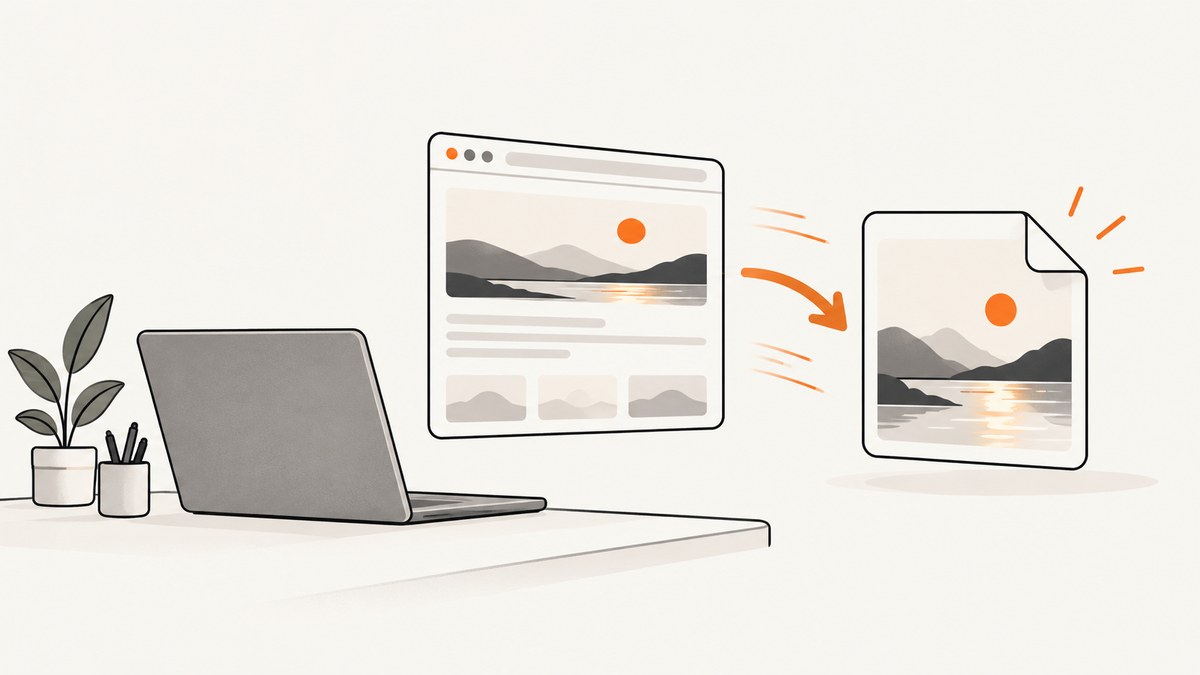
Fastest answer: if Chrome is installed, run:
chrome --headless --screenshot --window-size=1280,900 https://example.com/Chrome saves screenshot.png in the current directory. Add --timeout=5000 when you need a maximum wait before capture, but treat that value as a deadline: it does not prove that asynchronous content has finished loading. See the Chrome Headless command-line reference.
For repeatable workflows, use Playwright. For a URL-only API call without managing a browser, use ScreenshotNeo.
Choose the right capture method
| Need | Best starting point | Why |
|---|---|---|
| One quick image | Chrome Headless | One command and a predictable output file. |
| Repeatable scripts or CI | Playwright | Programmatic waits, selectors, full-page capture, and browser control. |
| Only one component | Playwright element screenshot | Capture a selector instead of the entire page. |
| Production URL capture without browser setup | ScreenshotNeo | A GET request returns PNG, JPEG, WebP, or PDF and handles page cleanup before capture. |
A viewport screenshot records what fits inside the browser window. A full-page screenshot includes the scrollable document and may be very tall. An element screenshot isolates one component. Decide the scope before choosing flags or APIs.
1. Capture a URL with Chrome Headless
chrome --headless --screenshot --window-size=1280,900 https://example.com/The command writes screenshot.png to the directory where it runs. Set the viewport deliberately because responsive layouts change with width and height.
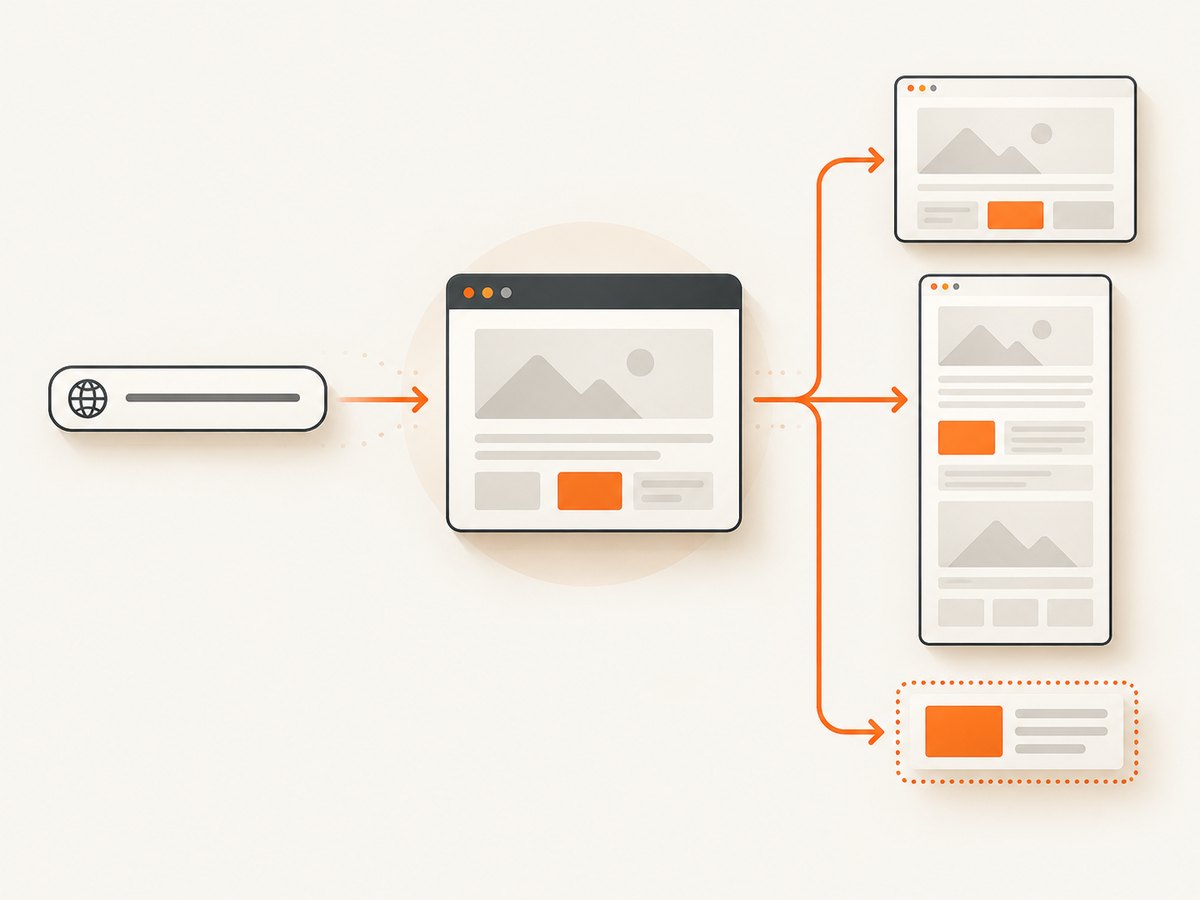
Wait for a maximum time
chrome --headless --screenshot --window-size=1440,1000 --timeout=5000 https://example.com/--timeout is a maximum wait in milliseconds. Capture can still occur while a site continues loading, so use browser automation when a page-specific readiness condition matters.
Practical Chrome checklist
- Confirm the executable name on your operating system; installations may expose
chrome,google-chrome, or another path. - Use an absolute URL including
https://. - Choose a viewport matching the layout you need to document.
- Inspect the resulting PNG for lazy images, animations, consent dialogs, and late-rendered content.
2. Automate captures with Playwright
Install Playwright in a Node.js project, then create a script:
npm install playwright
npx playwright install chromium
const { chromium } = require('playwright');
(async () => {
const browser = await chromium.launch();
const page = await browser.newPage({ viewport: { width: 1280, height: 900 } });
await page.goto('https://example.com/', { waitUntil: 'load' });
await page.screenshot({ path: 'screenshot.png' });
await browser.close();
})();Playwright documents page.screenshot(), viewport capture, and full-page capture in its screenshots guide.
Full-page capture
await page.screenshot({ path: 'full-page.png', fullPage: true });Capture one element
const card = page.locator('[data-testid="pricing-card"]').first();
await card.screenshot({ path: 'pricing-card.png' });
Use a stable selector. A class generated by a build tool can change between deployments.
Wait for dynamic content
await page.goto('https://example.com/dashboard', { waitUntil: 'domcontentloaded' });
await page.locator('#report').waitFor({ state: 'visible' });
await page.screenshot({ path: 'report.png', fullPage: true });
Choose a condition that represents the content you need. A generic timeout can finish before a chart, image, or API response is rendered.
Set device scale and color scheme
const context = await browser.newContext({
  viewport: { width: 1280, height: 900 },
  deviceScaleFactor: 2,
  colorScheme: 'dark'
});
const page = await context.newPage();
Higher device scale factors produce more pixels and larger files. Test the output dimensions required by your downstream system.
3. Make captures reliable
- Choose a readiness signal. Wait for a selector, a known response, or an application state that proves the target content exists.
- Control the viewport. Keep width, height, scale, and color scheme consistent across runs.
- Handle lazy loading. Full-page tools may trigger lazy content, but verify that images and embedded components appear in the output.
- Disable motion when needed. Inject CSS that pauses transitions and animations before the screenshot.
- Use deterministic data. Capture a stable test account or fixture when pixel comparisons matter.
- Record failures separately. Save browser logs and the target URL so a timeout or navigation error can be diagnosed.
await page.addStyleTag({ content: `
  *, *::before, *::after {
    animation: none !important;
    transition: none !important;
    caret-color: transparent !important;
  }
` });
4. ScreenshotNeo API: capture by URL
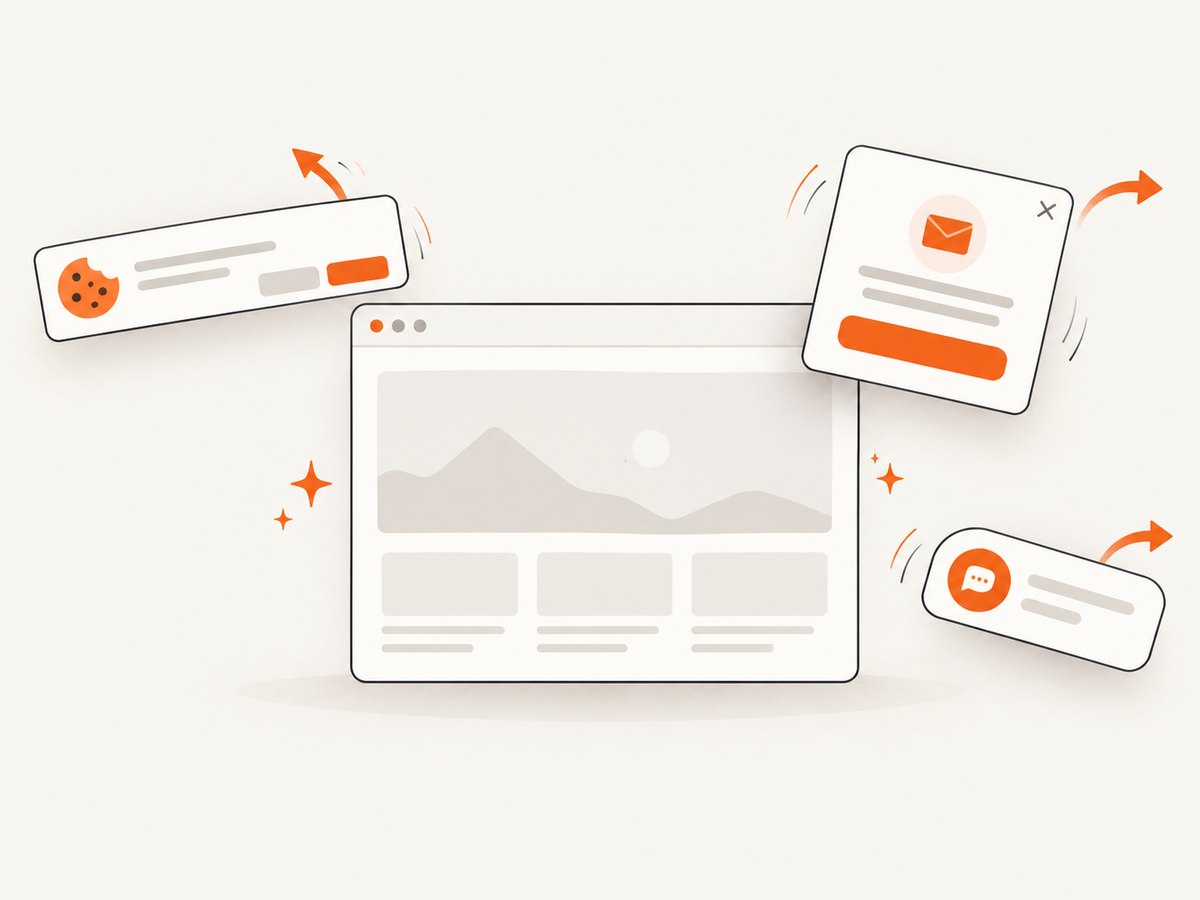
ScreenshotNeo is a website screenshot API and MCP server. One GET request can return a clean PNG, JPEG, WebP, or PDF. Its cleanup step accepts cookie or consent banners and removes more than 60 known consent platforms, newsletter popups, and chat widgets; each step can be turned off. Only clean shots are billed: bot checks or CAPTCHAs, blank pages, timeouts, failed loads, and cache hits cost nothing. The response reports the result in X-Page-Verdict and X-Billed headers.
See the ScreenshotNeo API documentation for the complete parameter reference.
cURL
curl -G "https://api.screenshotneo.com/v1/shot" \
  -d access_key=YOUR_API_KEY \
  --data-urlencode url=https://stripe.com \
  -o shot.webp
Python
import requests

r = requests.get(
    "https://api.screenshotneo.com/v1/shot",
    params={"access_key": "YOUR_API_KEY", "url": "https://stripe.com"},
    timeout=90,
)
r.raise_for_status()
open("shot.webp", "wb").write(r.content)
Node.js
const q = new URLSearchParams({ access_key: 'YOUR_API_KEY', url: 'https://stripe.com' });
const res = await fetch(`https://api.screenshotneo.com/v1/shot?${q}`);
if (!res.ok) throw new Error(`Screenshot failed: ${res.status}`);
const fs = require('node:fs/promises');
await fs.writeFile('shot.webp', Buffer.from(await res.arrayBuffer()));
Useful ScreenshotNeo options
| Requirement | Available controls |
|---|---|
| Scope and appearance | Full page with lazy images loaded, CSS selector element capture, dark mode, 12 device presets or any viewport, retina scale, transparent background, image resizing. |
| PDF output | Paper size, margins, landscape mode, and page ranges. |
| Readiness and interaction | Wait for a selector, delay, or network idle; click an element before capture; custom CSS and JavaScript. |
| Privacy and access | Hide selectors; block ads, trackers, requests, or resource types; custom headers, cookies, user agent, Authorization, timezone, and geolocation. |
| Scale and delivery | Choose a cache TTL, create signed links for public <img> tags, run async jobs with signed webhooks, capture up to 100 URLs per bulk call, and query usage. |
| Migration | Parameter names used by other screenshot APIs also work, easing a switch. |
Or skip the browser setup
Call ScreenshotNeo with the URL:
curl -G "https://api.screenshotneo.com/v1/shot" -d access_key=YOUR_API_KEY --data-urlencode url=https://stripe.com -o shot.webpCookie banners, popups, and chat widgets are removed before the shot. Bot checks, blank pages, and failed loads are never billed. An MCP server lets AI agents such as Claude or Cursor take screenshots, inspect pages, and capture PDFs. The Free plan includes 1,000 screenshots a month with no card; paid plans start at $5 for 3,000 shots. Create a free ScreenshotNeo account.
Troubleshooting
| Symptom | Likely cause | Fix |
|---|---|---|
| No output file | Wrong Chrome executable or unwritable directory. | Use the installed executable path and run from a directory you can write to. |
| Screenshot is blank | Navigation failed, content is blocked, or capture happened before rendering. | Check the URL and browser logs; wait for a visible selector; inspect X-Page-Verdict when using ScreenshotNeo. |
| Consent dialog covers content | The site requires an interaction before showing the page. | In Playwright, locate and click the consent control. In ScreenshotNeo, enable its consent cleanup and related popup removal options. |
| Images or charts are missing | Lazy loading or asynchronous rendering completed after capture. | Wait for the image or chart selector, trigger scrolling if needed, and capture after the readiness condition. |
| Layout differs between runs | Viewport, device scale, color scheme, fonts, or page data changed. | Set these values explicitly and use stable test data. |
| Playwright times out | The page never reaches the chosen navigation or selector condition. | Check the selector, network dependencies, authentication, and target availability; use a bounded timeout and log the failing step. |
| API response is an error | Invalid access key, URL, or request option. | Verify credentials, URL encoding, and parameters against the docs; do not treat an error body as an image. |
Performance, reliability, and cost
- Speed: A direct Chrome command has little setup overhead. Playwright startup, navigation, fonts, scripts, and images determine total time; the research sources do not establish a universal fastest method.
- Reliability: A timeout is only a maximum wait. For dynamic pages, a selector or application-specific readiness signal is more meaningful.
- Throughput: Reuse a Playwright browser process for multiple pages. For API workloads, use ScreenshotNeo async jobs, signed webhooks, caching with a chosen TTL, or bulk capture for up to 100 URLs per call.
- Cost: Self-hosted Chrome and Playwright consume your own compute. ScreenshotNeo has 1,000 free shots per month with no card; Starter is $5 for 3,000, Growth $15 for 15,000, Pro $39 for 60,000, Scale $99 for 250,000, and Business $249 for 1,000,000. Yearly billing gives two months free, and every feature is on every plan.
FAQ
Can I capture only the visible browser area?
Yes. Chrome’s normal screenshot and Playwright’s default screenshot are viewport captures. Set the viewport size explicitly.
How do I capture an entire long page?
Use Playwright’s fullPage: true, or ScreenshotNeo’s full-page option. Very tall images may need resizing or downstream splitting.
Is a five-second timeout enough?
It is only a five-second deadline. It does not confirm that images, charts, or other asynchronous content are ready.
When should I use an element screenshot?
Use one when the deliverable is a component such as a pricing card, chart, or article section. It avoids irrelevant page chrome and reduces output size.
Can an AI agent request screenshots?
Yes. ScreenshotNeo provides an MCP server with take_screenshot, get_page_info, and capture_pdf tools for Claude, Cursor, and other MCP clients.


