How to Capture Facebook Posts as Images
Capture a Facebook post with your device’s built-in screenshot tools, or export your own account data when you need an archive.
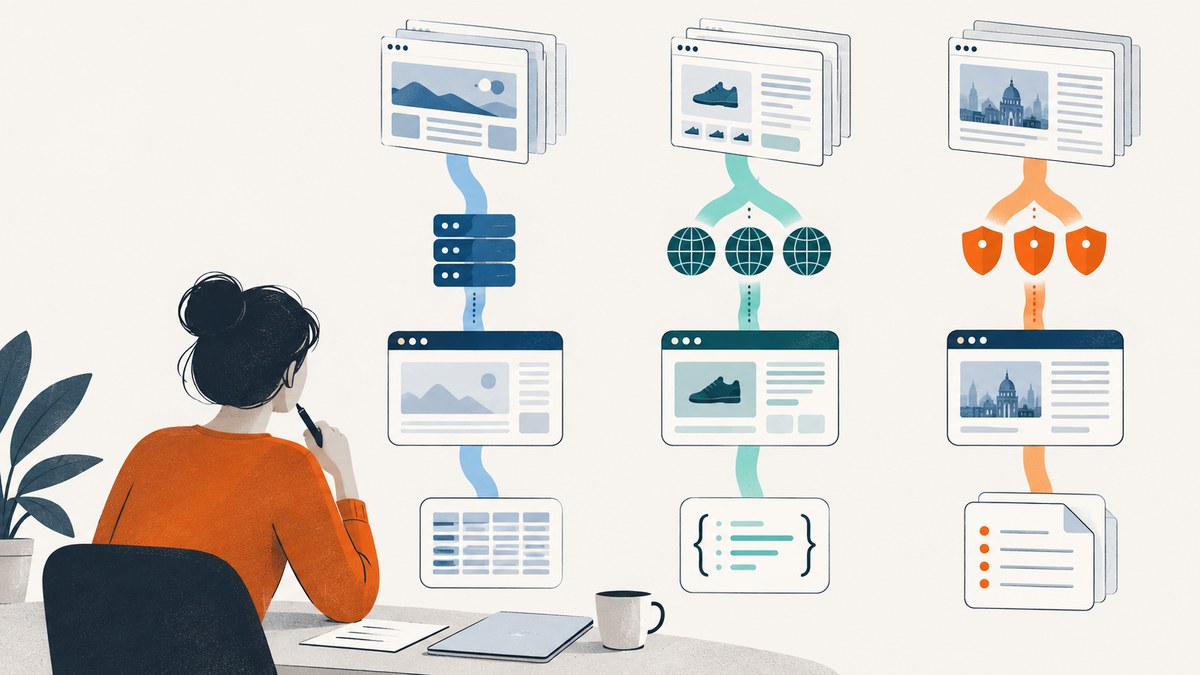
To capture a Facebook post as an image, open the post and use your device’s built-in screenshot controls. On Windows, use Snipping Tool or Print Screen; on Mac, use Command-Shift-4 or Command-Shift-5; on iPhone or iPad, press the appropriate hardware buttons; on Android, usually press Power and Volume Down. Then save or crop the image so it includes the post details you need.
If your goal is to archive your own Facebook account information, use Facebook’s Download your information tools instead. An account export and a screenshot solve different problems: an export preserves selected account data, while a screenshot shows how a post appeared on your screen.
1. Decide whether you need a screenshot or an account export
Use a screenshot when you want a visual copy of a post as it is displayed. It can include visible wording and context such as the author, date, or surrounding discussion, depending on how you frame the capture. Use Facebook’s account information tools when you want to preserve your own posts or other account data across selected categories and date ranges.
| Your goal | Use | What it gives you |
|---|---|---|
| Keep or send a picture of a post’s current display | Device screenshot | A still image of the visible area you capture |
| Archive your own account information | Facebook information download | A data export covering selected information categories and date ranges |
| Transfer your own account data to another service | Facebook information transfer tools | A copy of supported information, such as photos, videos, or posts, for transfer |
Facebook’s export tools are not a substitute for a screenshot of the way a particular post looked on screen. Likewise, a screenshot is not a complete account archive. Neither route in the official guidance requires dedicated capture hardware or paid software.
2. Open and frame the Facebook post
- Open Facebook in the app or a browser and navigate to the post.
- Make sure the post is displayed at a useful size. If the post expands into a separate view when opened, use that view to reduce surrounding clutter.
- Decide what context matters for your purpose: the author or page, post text, date, attached image, or a relevant part of the surrounding page.
- Scroll so the relevant content fits in the screenshot area. If the post is longer than the display, take multiple captures with a clear overlap rather than cutting off a sentence.
- Take the screenshot using the instructions for your device below. Review it immediately and retake it if text, attribution, or other needed context is missing.
Framing is a practical choice, not a Facebook guarantee that an image proves a post’s full history or authenticity. A screenshot only shows what was visible at the time of capture; it may omit content outside the frame or changes made later.
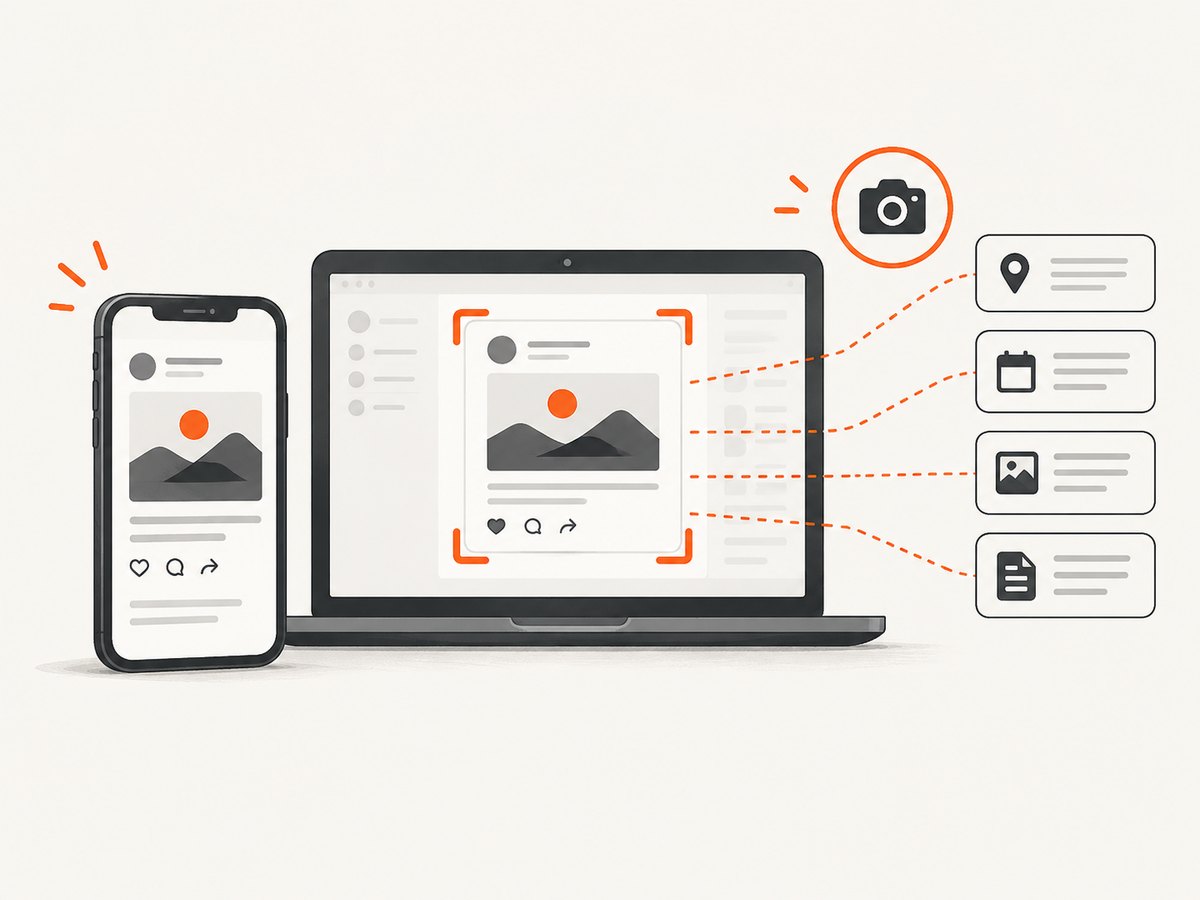
3. Capture a post on Windows
Use Snipping Tool
- Bring the post into view and open Snipping Tool.
- Select New.
- Drag around the post and any surrounding context you want included.
- Review the snip, then save it. Facebook’s help instructions use PNG as an example format.
Use Print Screen
Press Print Screen to capture the screen, then paste the result into an app such as Paint or PowerPoint. Crop the pasted image to the post and save it in an image format supported by the app.
For a cleaner result, close unrelated windows and position the post before capturing. The exact behavior of Print Screen can depend on Windows settings and keyboard layout. If the key does not create a visible file, try Snipping Tool, which provides a direct selection and save workflow.
4. Capture a post on Mac
Select an area with Command-Shift-4
Press Command-Shift-4, then drag across the part of the display you want to capture. Include the post’s relevant context and release to take the screenshot.
Choose a capture mode with Command-Shift-5
Press Command-Shift-5 to open the screenshot controls. Choose to capture the full screen, a selected portion, or a still image using the available controls. This is useful when you want to inspect the capture mode before saving.
macOS versions and settings can affect the controls or save location. Facebook’s help page gives these shortcuts as basic guidance; if the controls differ on your Mac, consult the current macOS instructions for your version.
5. Capture a post on iPhone or iPad
On many current iPhones and iPads, press the power button and volume-up button together. Some models use the power button and Home button instead. The screenshot is saved to the device’s Photos or Camera Roll area, though album names and button combinations can vary by device generation and software version.
- Open the post and position it on screen.
- Press the screenshot button combination for your model.
- Open the resulting image and check that the post is legible and the needed context is visible.
- Crop or share the image from Photos if you need a tighter frame.
If the shortcut does not work, check the current operating instructions for your specific model. Do not assume that every iPad or iPhone has the same buttons.
6. Capture a post on Android
On most Android phones, press Power and Volume Down together. Some models use Power and Home. A screenshot preview or notification usually gives access to the saved image, but the exact control and storage location vary by manufacturer and Android version.
- Display the Facebook post and frame it on screen.
- Press Power and Volume Down together, or use the model’s screenshot shortcut.
- Open the screenshot from the preview, notification, or photo gallery.
- Check legibility and crop only after confirming that the relevant post details are present.
Some Samsung Galaxy devices also have screen recording controls in the Quick Panel. Recording captures motion rather than a still image, so it is not the simplest choice when you only need a picture of one post. Use the phone’s screenshot control for a still capture.
7. Save, crop, and share the image carefully
Choose the image format and crop based on how you will use the file. A close crop is convenient for a message or visual reference; a wider frame can retain more surrounding context. Avoid cropping away the author or date if those details matter to the recipient.
- Check readability: zoom in on small text before sending or filing the image.
- Keep a useful frame: include the post and relevant context, not unrelated personal information visible nearby.
- Preserve the original when needed: if you may need to revisit the capture, keep an unedited copy and make a separate crop for sharing.
- Remember what a screenshot records: it captures a display at a moment in time, not later edits, deleted content, or hidden parts of a post.
A screenshot does not change a post’s audience setting and does not itself grant permission to republish someone else’s material. Facebook’s privacy guidance explains that audience and visibility settings govern posts and other profile content. Consider those settings and the rights and rules relevant to your situation before sharing a capture more widely.
8. Or skip the browser setup
If you need to capture a public page through an API, ScreenshotNeo takes a screenshot with one GET request. It is a website screenshot API and MCP server for developers. For a Facebook post, provide a URL the service can access; login-gated or otherwise inaccessible content may not be available to capture. See the API documentation for parameters and output options.
curl -G "https://api.screenshotneo.com/v1/shot" -d access_key=YOUR_API_KEY --data-urlencode url=https://www.facebook.com/ -o shot.webpimport requests
r = requests.get(
"https://api.screenshotneo.com/v1/shot",
params={"access_key": "YOUR_API_KEY", "url": "https://www.facebook.com/"},
timeout=90,
)
open("shot.webp", "wb").write(r.content)const q = new URLSearchParams({
access_key: 'YOUR_API_KEY',
url: 'https://www.facebook.com/',
});
const res = await fetch(`https://api.screenshotneo.com/v1/shot?${q}`);
if (!res.ok) throw new Error(`Screenshot request failed: ${res.status}`);
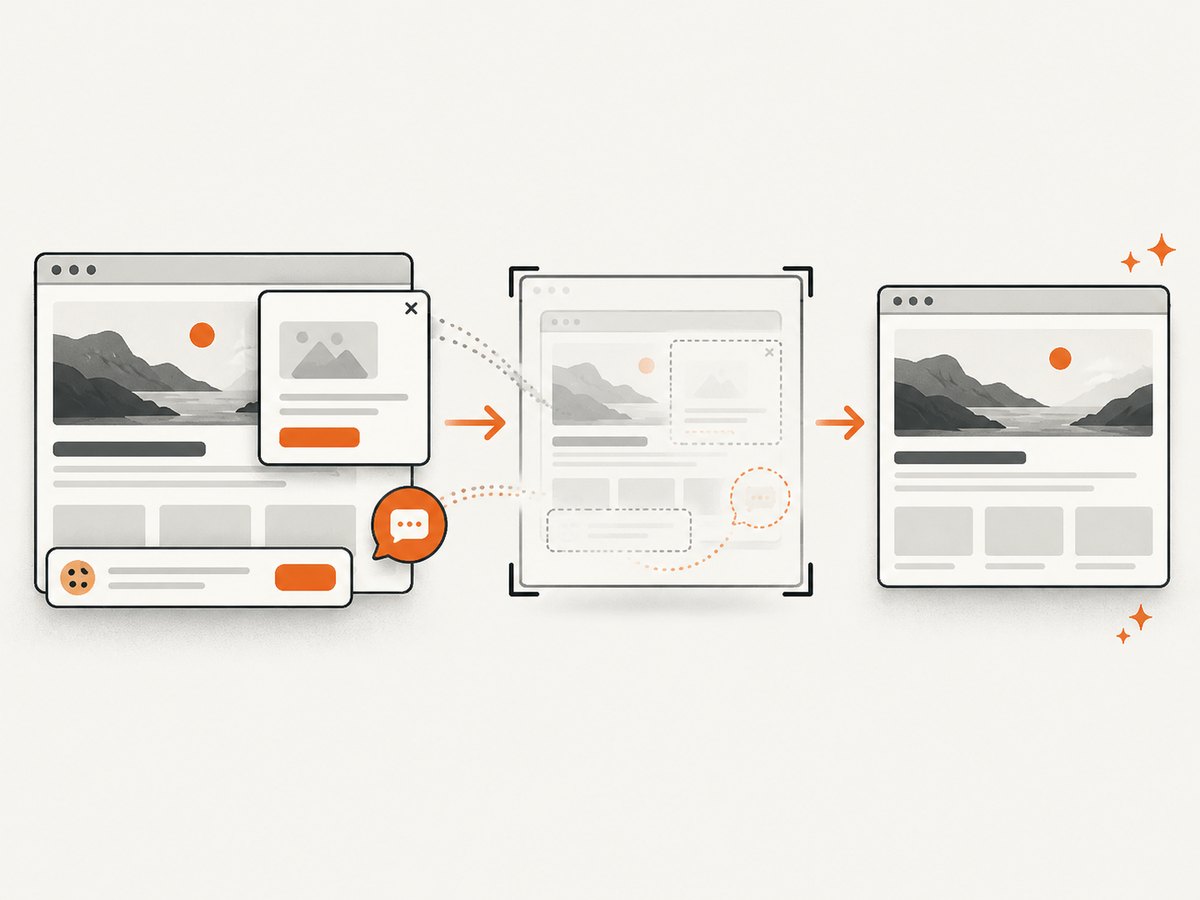
await import('node:fs/promises').then(({ writeFile }) => writeFile('shot.webp', Buffer.from(await res.arrayBuffer())));Replace the example URL with the page you want to capture. This API call is for a page capture and does not bypass Facebook login or access controls. ScreenshotNeo removes cookie and consent banners, newsletter popups, and chat widgets before a capture; each cleanup step can be turned off. Bot checks or CAPTCHAs, blank pages, timeouts, failed loads, and cache hits are not billed, and response headers identify the page verdict and billing status. Its MCP server offers take_screenshot, get_page_info, and capture_pdf for Claude, Cursor, and other MCP clients. The free plan includes 1,000 screenshots a month with no card; paid plans start at $5 for 3,000 shots.
Sign up for 1,000 free screenshots a month, with no card.
9. Troubleshooting
| Problem | Likely cause | What to try |
|---|---|---|
| The screenshot shortcut does nothing | The device uses a different button combination, or the key is handled by another setting | Use the operating system’s screenshot controls and check the current instructions for your device model. |
| The image is saved but you cannot find it | The save location or gallery naming differs by operating system or device | Check Photos/Camera Roll on Apple devices, the screenshot preview or gallery on Android, and the configured screenshot location on desktop. |
| Part of the post is missing | The post extended beyond the visible capture area | Scroll and take a second capture with some overlap, or adjust the layout so more of the post is visible. |
| The text is too small to read | The post was displayed at a small scale or the screenshot includes too much surrounding content | Increase the page zoom or use a tighter selection, then verify the text before sharing. |
| A Facebook page capture shows a login screen or incomplete content | The page requires authentication or Facebook did not expose the post to the capture request | Use your own browser and device screenshot for content you can view while signed in. Do not treat an API capture as a way around access controls. |
| An API request returns an error or no useful image | The URL may be inaccessible, the load may fail, or the response may indicate a non-image outcome | Check the response status and ScreenshotNeo’s X-Page-Verdict and X-Billed headers, then consult the API docs for request options and outcomes. |
10. Performance, reliability, and cost
For one post, a built-in screenshot is usually the shortest path: it avoids setting up an account, application, or API. It also captures exactly what you can see on your device. Its limits are manual framing and device-specific controls. For repeated captures of accessible web pages, an API can make requests easier to automate, but page access, login requirements, and changing site layouts still affect the result.
ScreenshotNeo offers caching with a configurable time to live, asynchronous jobs with signed webhooks, bulk capture for up to 100 URLs per call, and a usage API. It supports PNG, JPEG, WebP, and PDF outputs, along with full-page or selector-based capture, device presets and custom viewports, custom CSS and JavaScript, wait conditions, and request blocking. These options can help with repeatable workflows, but choose them based on the page and verify the resulting capture.
Its listed monthly plans are Free: 1,000 shots; Starter: $5 for 3,000; Growth: $15 for 15,000; Pro: $39 for 60,000; Scale: $99 for 250,000; and Business: $249 for 1,000,000. Yearly billing gives two months free, and every feature is on every plan. The service says only clean shots are billed; bot checks/CAPTCHAs, blank pages, timeouts, failed loads, and cache hits cost nothing. Check the response’s billing and verdict headers when handling results programmatically.
11. Frequently asked questions
Can I save a Facebook post directly as a picture?
Use your device’s screenshot function to save what is displayed. Facebook’s account download is for your own account information, not a direct image of the current display.
Will someone be notified when I take a screenshot?
The cited Facebook help guidance explains screenshot mechanics but does not establish a universal notification rule for every Facebook feature or device. Do not rely on a screenshot being private from platform behavior.
Can I capture a post I cannot see?
A screenshot can only record content visible to you. An API or export should not be treated as a way to bypass login, audience settings, or other access controls.
Is a screenshot a complete record of a post?
No. It records the selected visible area at capture time. For your own account information, consider Facebook’s export tools and choose the categories and date range you need.