How to Capture Figma Screenshots with the Figma API
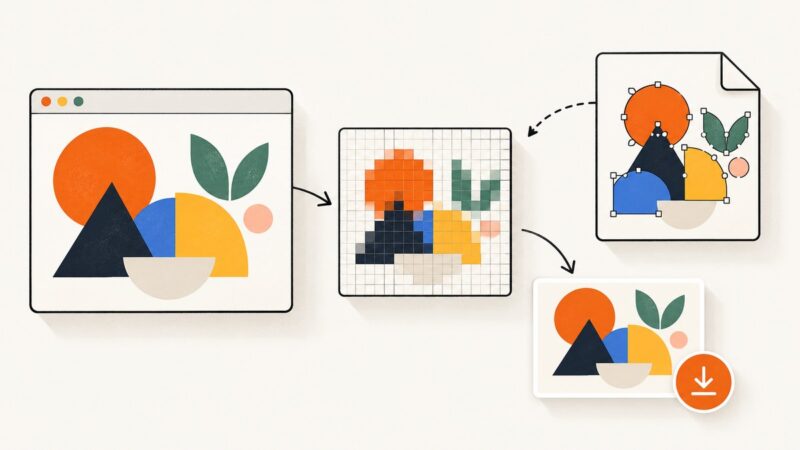
Render Figma frames as PNG, JPG, SVG, or PDF with the Images API, handle temporary URLs, errors, scaling, and automation.
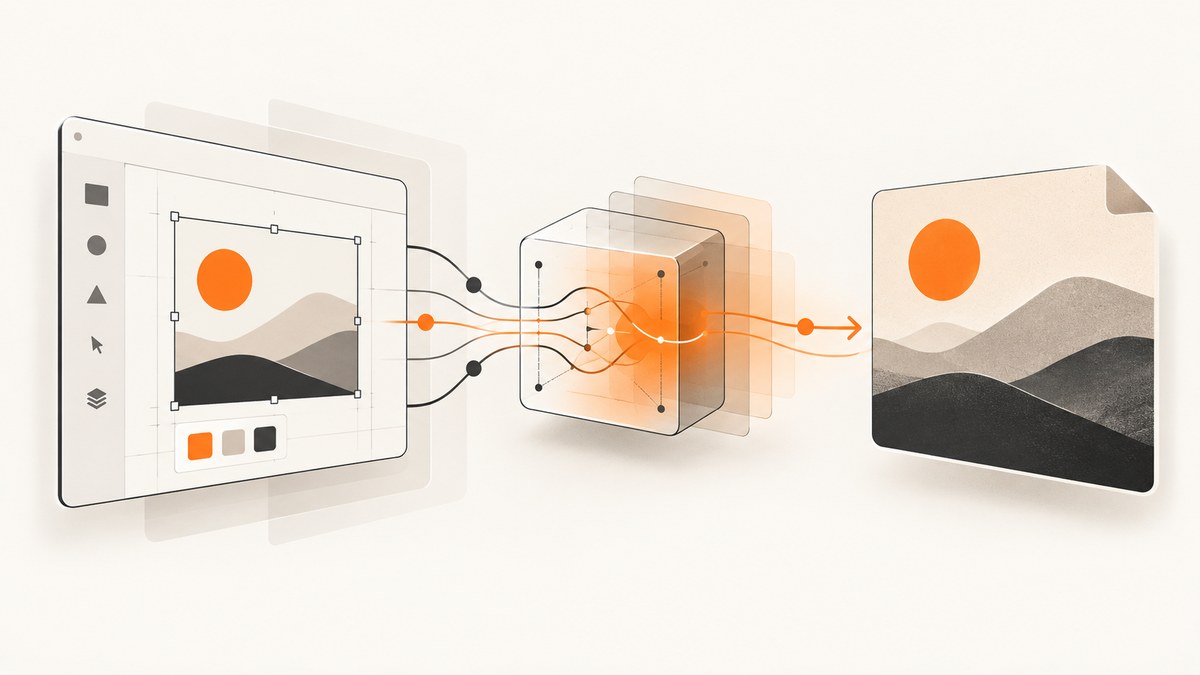
To capture a Figma frame with code, call GET https://api.figma.com/v1/images/{file_key}, authenticate with a personal access token or OAuth token that has file_content:read, and pass the node ID in ids. Figma returns an images map containing temporary URLs for the requested nodes. Download each URL immediately because image assets expire after 30 days.
The endpoint can render PNG, JPG, SVG, or PDF. PNG is the normal choice for a screenshot; SVG is useful when you need editable vector output. The complete endpoint reference is in the Figma API documentation.
1. What you need before making the request
- File key: the identifier in a Figma file URL, such as
https://www.figma.com/design/AbCdEf123/Product?node-id=12-34. Here,AbCdEf123is the file key. - Node ID: the frame, component, section, or layer to render. A URL may show
node-id=12-34; the API commonly expects the same ID with a colon,12:34. - Token and permission: your personal access token or OAuth2 token must include
file_content:read, and the token owner must be able to open the file.
Do not put a Figma token in browser JavaScript or a public mobile application. Keep it in a server-side environment variable and make the image request from your backend or a protected job.
2. Minimal PNG request
This request renders node 12:34 at twice its normal size:
curl -G "https://api.figma.com/v1/images/FILE_KEY" \
  -H "X-Figma-Token: $FIGMA_TOKEN" \
  --data-urlencode "ids=12:34" \
  --data-urlencode "format=png" \
  --data-urlencode "scale=2"
A successful response resembles:
{
  "images": {
    "12:34": "https://...temporary-image-url..."
  }
}
The first response contains a URL, not the binary image itself. Fetch that URL and save the bytes:
curl -sS "TEMPORARY_IMAGE_URL" -o frame.pngCheck both the HTTP status from the API and the value for every requested node. A node can have a null value even when the overall request succeeds.
3. Complete examples in common languages
Python
import os
import requests

file_key = "FILE_KEY"
node_id = "12:34"
token = os.environ["FIGMA_TOKEN"]

api = f"https://api.figma.com/v1/images/{file_key}"
params = {
    "ids": node_id,
    "format": "png",
    "scale": 2,
}
response = requests.get(
    api,
    headers={"X-Figma-Token": token},
    params=params,
    timeout=30,
)
response.raise_for_status()
data = response.json()
image_url = data.get("images", {}).get(node_id)
if not image_url:
    raise RuntimeError(f"Figma did not render node {node_id}: {data}")

image = requests.get(image_url, timeout=60)
image.raise_for_status()
with open("frame.png", "wb") as output:
    output.write(image.content)
print("Saved frame.png")
Node.js
const fs = require('node:fs/promises');

const fileKey = 'FILE_KEY';
const nodeId = '12:34';
const token = process.env.FIGMA_TOKEN;

const query = new URLSearchParams({
  ids: nodeId,
  format: 'png',
  scale: '2'
});
const apiUrl = `https://api.figma.com/v1/images/${fileKey}?${query}`;
const response = await fetch(apiUrl, {
  headers: { 'X-Figma-Token': token }
});
if (!response.ok) throw new Error(`Figma API returned ${response.status}`);
const data = await response.json();
const imageUrl = data.images?.[nodeId];
if (!imageUrl) throw new Error(`No render for ${nodeId}`);

const imageResponse = await fetch(imageUrl);
if (!imageResponse.ok) throw new Error(`Image download returned ${imageResponse.status}`);
await fs.writeFile('frame.png', Buffer.from(await imageResponse.arrayBuffer()));
Batch rendering with cURL
Pass comma-separated node IDs to render several nodes in one API call:
curl -G "https://api.figma.com/v1/images/FILE_KEY" \
  -H "X-Figma-Token: $FIGMA_TOKEN" \
  --data-urlencode "ids=12:34,56:78,90:12" \
  --data-urlencode "format=png"
Iterate over the returned map and download each non-null URL. A failure for one node does not necessarily mean every node failed.
4. Image endpoint options
| Option | Values and default | When to use it |
|---|---|---|
ids |
Comma-separated node IDs; required | Choose one or many frames, components, or layers. |
format |
png, jpg, svg, pdf |
Use PNG for screenshots, JPG for smaller photographic output, SVG for vectors, and PDF for document workflows. |
scale |
0.01 to 4 | Increase pixel dimensions for high-density output. Larger scales consume more processing and can approach the 32-megapixel export limit. |
version |
Figma version ID | Pin a historical file version for reproducible exports. Omit it for the current file. |
contents_only |
True by default | Set false when overlapping content outside the node’s normal contents should be included; processing may take longer. |
use_absolute_bounds |
Boolean | Use the full node dimensions, including surrounding empty space. This can help when exporting text nodes. |
svg_outline_text |
Boolean | Outline SVG text for visual consistency, or keep text selectable when downstream editing matters. |
svg_include_id |
Boolean | Include IDs in SVG output when your pipeline needs element identification. |
svg_include_node_id |
Boolean | Include Figma node IDs in SVG elements for traceability. |
svg_simplify_stroke |
Boolean | Control stroke simplification in SVG exports when file size or rendering compatibility matters. |
5. Choosing format, scale, and bounds
PNG, JPG, SVG, or PDF?
PNG preserves sharp text and transparent areas and is usually the safest screenshot format. JPG is smaller but introduces lossy compression and does not preserve transparency. SVG keeps vectors and selectable text, but rendering can vary between engines; outlining text favors visual fidelity. PDF is appropriate when the result goes into a document or print workflow.
Scale and the pixel limit
The scale is a multiplier, not a fixed width. A frame that is 2,000 × 1,000 pixels at scale 1 becomes 4,000 × 2,000 at scale 2. Keep the resulting image under Figma’s 32-megapixel export limit; larger images are scaled down. If your output is unexpectedly smaller, lower the scale or split a very large design into multiple nodes.
Contents and absolute bounds
contents_only controls whether the export is trimmed to rendered contents. Set it to false when visual elements overlap the node boundary and must remain visible. use_absolute_bounds preserves the node’s complete dimensions, including empty surrounding space, which is useful for text or layout measurements.
6. A reliable export workflow
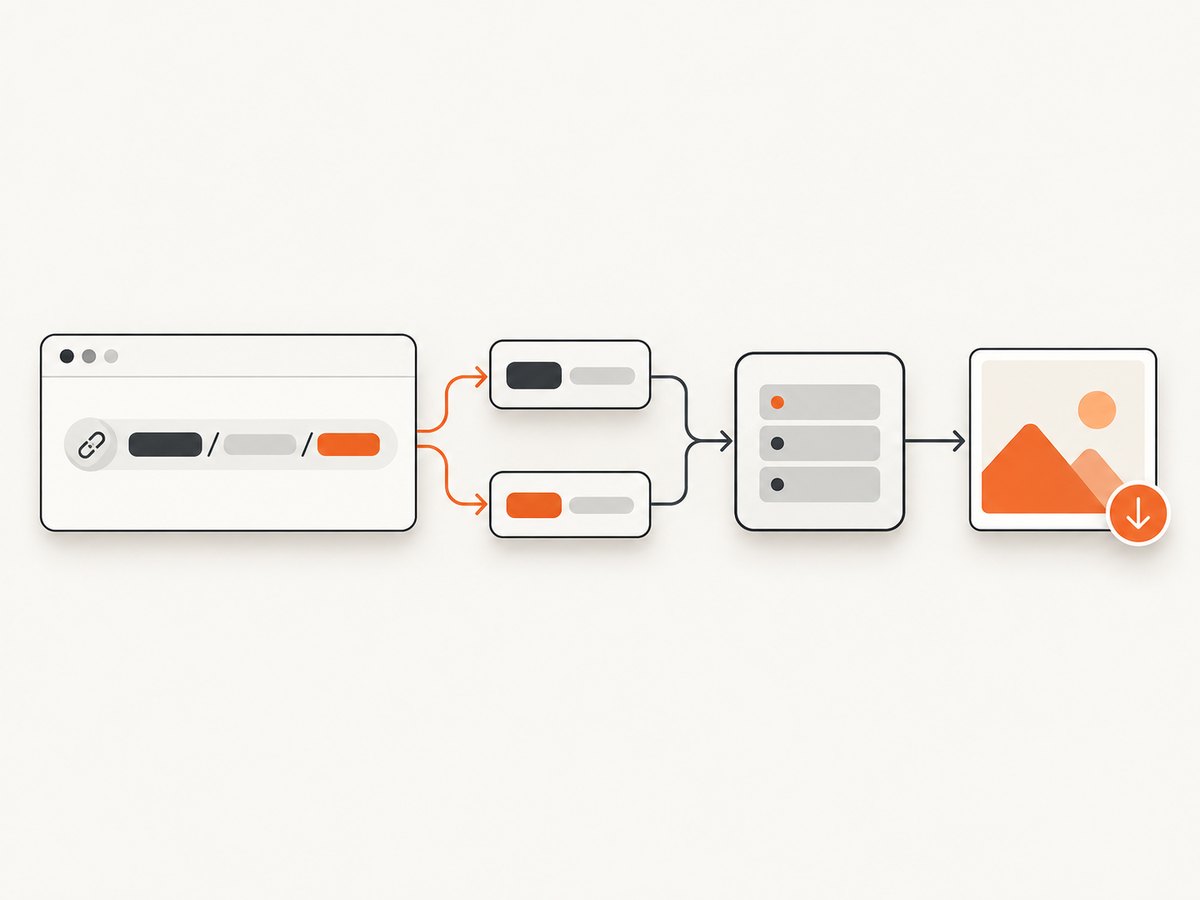
- Parse the shared URL. Extract the file key after
/design/(or the equivalent file path) and normalizenode-idfrom hyphens to colons when required. - Validate access. Confirm the token is present, carries
file_content:read, and belongs to a user who can open the file. - Build query parameters. URL-encode
ids, especially when sending multiple IDs, and choose format, scale, version, and bounds deliberately. - Check status and JSON. Treat 401, 403, 404, and 500 responses as failures. Then inspect every entry in
images. - Download immediately. Store the returned bytes in your own object storage or filesystem. Figma says image assets expire after 30 days, so the returned URL is not a permanent asset URL.
- Record provenance. Save the file key, node ID, requested version, format, scale, and export time alongside the image. This makes later regeneration deterministic.

7. Troubleshooting common errors
| Symptom | Likely cause | Fix |
|---|---|---|
| 401 Unauthorized | Missing, malformed, or revoked token. | Send X-Figma-Token exactly, rotate the token if necessary, and verify the environment variable is populated. |
| 403 Forbidden | The token lacks file_content:read or cannot access the file. |
Grant the required scope and have the token owner open the file or obtain access through the correct OAuth account. |
| 404 Not Found | Wrong file key or endpoint path. | Copy the key from the Figma URL and call /v1/images/{file_key} without an extra slash or file name. |
images[node] = null |
Invalid node ID or no renderable content. | Open the node in Figma, copy its actual ID, normalize the separator, and ensure it is a renderable object such as a frame or component. |
| Image URL later stops working | Temporary asset expired. | Request a fresh export and download it into your own storage instead of persisting the Figma URL. |
| Output is blurry or too small | Scale is too low or the image hit the pixel limit. | Increase scale up to 4 when under 32 megapixels; otherwise export separate nodes or accept a smaller raster. |
| SVG text looks different | Text remains editable and depends on the rendering engine. | Use svg_outline_text=true for visual consistency, or keep text as elements when editability is more important. |
| Missing overlap or whitespace | Bounds options do not match the design. | Try contents_only=false for overlap and use_absolute_bounds=true for the complete node rectangle. |
8. Performance, reliability, and cost considerations
Batch node IDs when they belong to the same file, rather than issuing one request per frame. This reduces request overhead, but keep the response manageable and download each image concurrently with a bounded worker pool. Use retries with exponential backoff for transient 5xx responses and network timeouts; do not blindly retry authentication or permission errors.
Pin version for build pipelines, visual regression tests, and documentation snapshots. For dashboards that always need the latest design, omit it and persist the export timestamp. Validate image dimensions and content type after downloading so a proxy error page is not saved as a PNG.
The Figma Images API does not charge per image in the request examples above; your practical costs are your own storage, bandwidth, job runner, and any Figma plan or rate limits that apply to your account. Cache exports by file key, node ID, version, format, scale, and bounds. Refresh cached files before their 30-day URL lifetime ends, or simply regenerate on demand.
9. Or skip the browser setup
If your real requirement is a clean screenshot of a public Figma prototype or published page, ScreenshotNeo can capture the URL with one request. Its cleanup step accepts cookie and consent banners and removes more than 60 known consent platforms, newsletter popups, and chat widgets before capture; each step can be disabled. Bot checks, blank pages, timeouts, failed loads, and cache hits are not billed, and the response reports the verdict in X-Page-Verdict and X-Billed headers.
See the ScreenshotNeo API documentation for all options, including full-page and element capture, device presets, retina scale, custom CSS and JavaScript, waits, request blocking, headers, cookies, caching, signed links, async jobs, bulk capture, and PDF output.
curl -G "https://api.screenshotneo.com/v1/shot" -d access_key=YOUR_API_KEY --data-urlencode url=https://stripe.com -o shot.webpimport requests
r = requests.get("https://api.screenshotneo.com/v1/shot", params={"access_key": "YOUR_API_KEY", "url": "https://stripe.com"}, timeout=90)
open("shot.webp", "wb").write(r.content)const q = new URLSearchParams({ access_key: 'YOUR_API_KEY', url: 'https://stripe.com' }); const res = await fetch(`https://api.screenshotneo.com/v1/shot?${q}`);ScreenshotNeo also includes an MCP server with take_screenshot, get_page_info, and capture_pdf tools for Claude, Cursor, and other MCP clients. The Free plan includes 1,000 screenshots each month with no card; paid plans start at $5 for 3,000. Create a free ScreenshotNeo account.
10. FAQ
Can I render several Figma frames in one request?
Yes. Send comma-separated node IDs in ids. Process each returned map entry independently because one node may return null while others succeed.
Are Figma image URLs permanent?
No. Image assets expire after 30 days. Download them immediately and keep your own copy.
Which permission is required?
The token needs file_content:read, and the caller must have access to the requested file.
Should I use PNG or SVG?
Use PNG for a dependable raster screenshot. Use SVG when preserving vectors or selectable text is more important, and choose text outlining based on your rendering requirements.
Why did Figma return a null image?
The node ID may be invalid, the node may have no renderable content, or the ID separator may be wrong. Verify the node in Figma and normalize the ID before retrying.