How to Capture a Flash Video Screenshot with Selenium WebDriver
Selenium can capture the browser’s rendered view, but Flash is retired. Learn the supported workflow, element captures, timing limits, and safer alternatives.
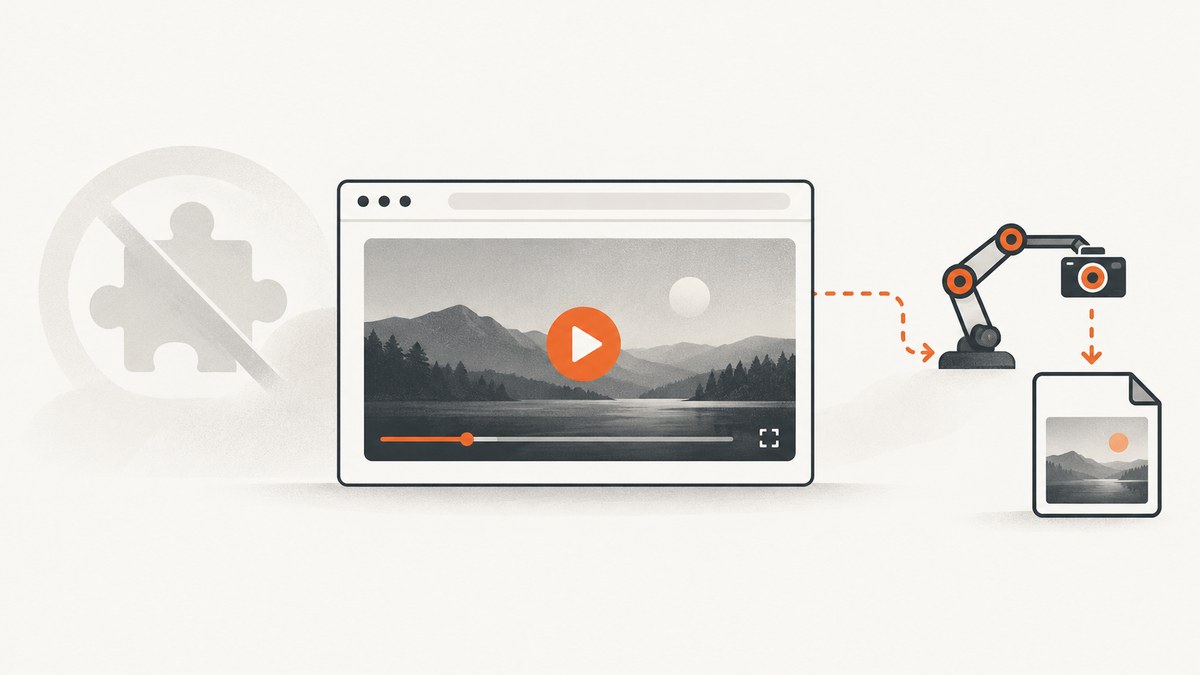
Short answer: Selenium WebDriver can save a screenshot of the current browser context, or of a selectable element. It does not provide a Flash-specific frame capture API or guarantee that a delay corresponds to an exact video frame. Flash Player reached end of support on December 31, 2020, and Adobe blocked Flash content from running in its player on January 12, 2021. Establish that you have an authorized, supported way to render the legacy content before writing automation.
For content that renders in a supported browser, the practical sequence is: open the page, wait for the visual state you need, then call the driver screenshot method. If the video area is represented by a WebDriver-selectable element, capture that element instead. If you need an exact frame, use a supported video source or an authorized migration or archival environment; Selenium’s documented screenshot operation only establishes capture of the rendered browser view.
1. Check whether the Flash video can be rendered safely
Adobe says Flash Player support ended on December 31, 2020, and that Flash content was blocked in the player beginning January 12, 2021. Adobe also recommends uninstalling Flash Player and warns against unauthorized third-party downloads, which can contain malware. Microsoft reports that it ended support and disabled Flash in its browsers in April 2021, with component removal through Windows Update in July 2021.
That means a current Selenium script cannot make an arbitrary SWF play by adding a browser flag. First look for one of these supported paths:
- An HTML5, WebGL, or WebAssembly version supplied by the publisher. Adobe identified these open standards as viable alternatives as browsers deprecated plugins.
- An authorized archival environment provided by the rights holder, museum, institution, or your organization.
- A migrated video file or other replacement source that can be opened by a current browser.
Do not install unofficial Flash builds or weaken browser security controls just to reproduce a screenshot. If the legacy object never renders, Selenium has no pixels to capture.
2. Install Selenium and a supported browser driver
The examples below use Python and Chrome. Selenium Manager can obtain a compatible driver with current Selenium releases, but your organization may instead manage browser binaries and drivers centrally.
python -m venv .venv
# macOS/Linux
source .venv/bin/activate
# Windows PowerShell
# .venv\\Scripts\\Activate.ps1

python -m pip install --upgrade selenium
Keep the browser and driver versions compatible. Run the script in an environment where the page is allowed to load, including any authentication, network access, or certificate requirements it has.
3. Capture the visible browser context
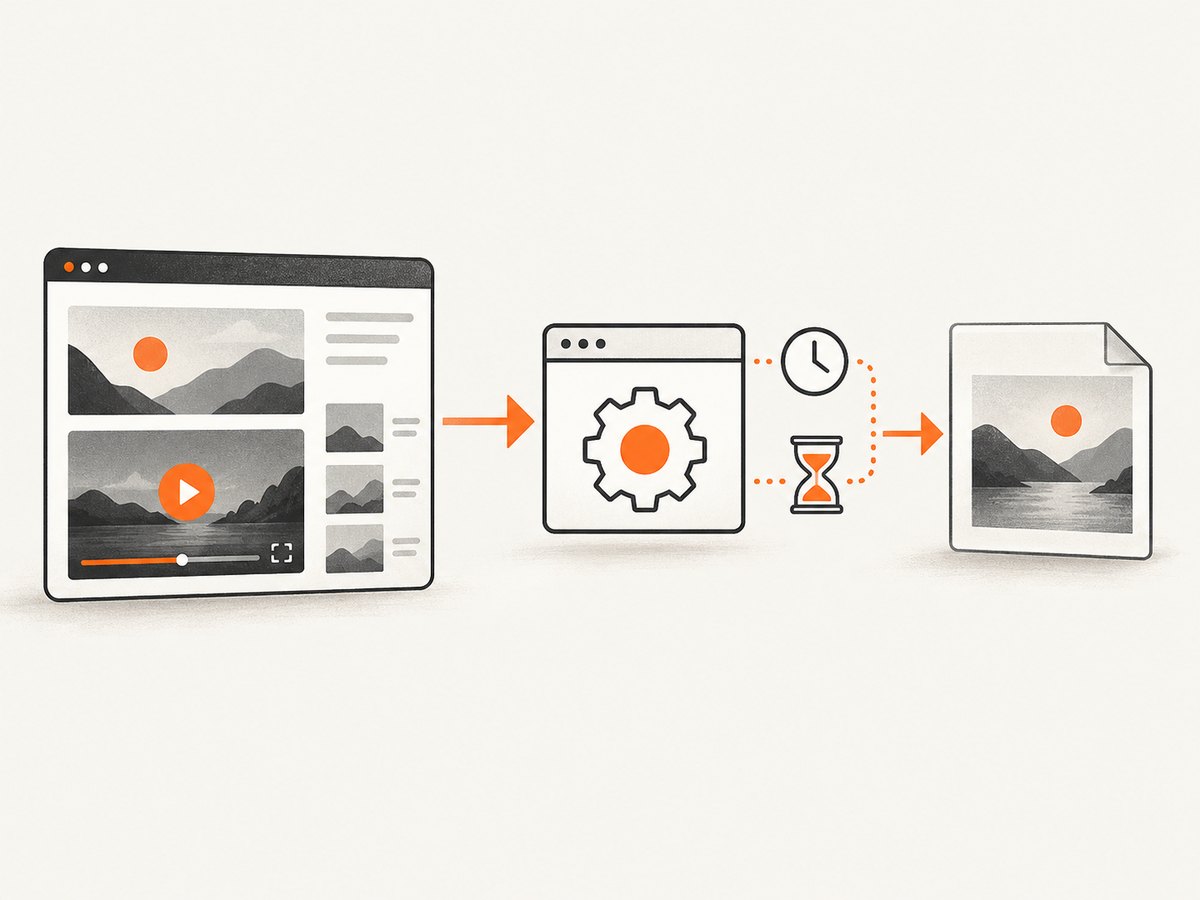
Selenium’s documented screenshot example uses driver.save_screenshot(). It records the current rendered browsing context, so navigate first and wait for the state you intend to preserve.
from pathlib import Path
from selenium import webdriver
from selenium.webdriver.chrome.options import Options
from selenium.webdriver.support.ui import WebDriverWait

URL = "https://example.com/video"
OUTPUT = Path("flash-video-view.png")

options = Options()
# Keep the browser visible while you debug. Add --headless=new in CI if needed.
# options.add_argument("--headless=new")
options.add_argument("--window-size=1440,900")

with webdriver.Chrome(options=options) as driver:
    driver.get(URL)

    # Replace this condition with a selector that means the useful visual state
    # is present in your migrated or archived page.
    WebDriverWait(driver, 30).until(
        lambda d: d.execute_script("return document.readyState") == "complete"
    )

    # Add an application-specific wait here if the video surface is populated
    # after document.readyState becomes complete.
    driver.save_screenshot(str(OUTPUT))

print(f"Saved {OUTPUT}")
The file contains the browser viewport as Selenium rendered it at the instant the command ran. It is not a recording and does not select a codec timestamp.
4. Wait for a meaningful visual state
document.readyState == 'complete' only says that the document’s load event has completed. Video posters, canvas drawing, player controls, and application data can appear later. Prefer a condition tied to the page rather than an arbitrary sleep.
from selenium.webdriver.common.by import By
from selenium.webdriver.support import expected_conditions as EC

with webdriver.Chrome(options=options) as driver:
    driver.get(URL)

    WebDriverWait(driver, 30).until(
        EC.visibility_of_element_located((By.CSS_SELECTOR, "video, canvas, .video-player"))
    )
    WebDriverWait(driver, 30).until(
        lambda d: d.execute_script(
            """
            const v = document.querySelector('video');
            return !v || (v.readyState >= 2 && v.videoWidth > 0);
            """
        )
    )
    driver.save_screenshot("rendered-state.png")
Change the selectors to match the page you are authorized to automate. A page may use a canvas, nested iframe, or custom player instead of a native video element. If the player is inside an iframe, switch into that frame before finding its elements:
frame = WebDriverWait(driver, 30).until(
    EC.presence_of_element_located((By.CSS_SELECTOR, "iframe.video-frame"))
)
driver.switch_to.frame(frame)
# Find and wait for the player here, then capture the appropriate context.
driver.switch_to.default_content()
5. Capture only the video element or visual region
Selenium also documents element-level screenshots. Use this when the target is exposed as a WebDriver element. The page must provide a selectable element that represents the visual region; Selenium’s documentation does not promise that every plugin surface or historical Flash object can be located separately.
from selenium.webdriver.common.by import By
from selenium.webdriver.support import expected_conditions as EC

with webdriver.Chrome(options=options) as driver:
    driver.get(URL)
    video_region = WebDriverWait(driver, 30).until(
        EC.visibility_of_element_located((By.CSS_SELECTOR, "video, .video-player, canvas"))
    )
    video_region.screenshot("video-region.png")
An element screenshot avoids unrelated navigation and page content. It still captures the element’s rendered appearance at that instant, including a poster image, controls, overlays, or a blank canvas if the player has not drawn a frame.
6. What Selenium can and cannot promise about video frames
A screenshot call is synchronized with WebDriver’s command execution, not with a video clock. A fixed time.sleep(5) may produce different images on different machines because of buffering, CPU load, network speed, autoplay policy, and decoder behavior. The cited Selenium material establishes browser-context and element screenshots, but no exact-frame synchronization contract.
If a supported HTML5 video is available and you control the page, you can request a playback position before capturing, then wait for the browser to report that position:
driver.execute_script("""
const v = document.querySelector('video');
if (!v) throw new Error('No HTML5 video element found');
v.currentTime = 12.0;
""")

WebDriverWait(driver, 15).until(
    lambda d: d.execute_script(
        "const v = document.querySelector('video'); return v && Math.abs(v.currentTime - 12.0) < 0.15;"
    )
)
driver.save_screenshot("around-12-seconds.png")
This is an application-level approximation for an HTML5 video, not a guarantee of a decoded frame boundary. It does not restore Flash playback and may be restricted by cross-origin media or page logic.
7. JavaScript and Java equivalents
The same browser-context operation is available in other Selenium bindings. These examples assume a supported page and a compatible driver.
const { Builder } = require('selenium-webdriver');
const chrome = require('selenium-webdriver/chrome');

(async () => {
  const options = new chrome.Options().windowSize({ width: 1440, height: 900 });
  const driver = await new Builder().forBrowser('chrome').setChromeOptions(options).build();
  try {
    await driver.get('https://example.com/video');
    await driver.takeScreenshot().then(data => require('fs').writeFileSync('view.png', data, 'base64'));
  } finally {
    await driver.quit();
  }
})();
import org.openqa.selenium.WebDriver;
import org.openqa.selenium.chrome.ChromeDriver;
public class Capture {
public static void main(String[] args) {
WebDriver driver = new ChromeDriver();
try {
driver.get("https://example.com/video");
((org.openqa.selenium.TakesScreenshot) driver)
.getScreenshotAs(org.openqa.selenium.OutputType.FILE)
.renameTo(new java.io.File("view.png"));
} finally {
driver.quit();
}
}
}8. Troubleshooting common failures
| Symptom | Likely cause | Fix |
|---|---|---|
| Flash content never appears | Flash Player is retired or blocked. | Use the publisher’s migrated HTML5/WebGL/WebAssembly version or an authorized archival environment. Do not use unofficial installers. |
| Screenshot is a blank page | Capture ran before the application or player rendered, or the page failed to load. | Wait for a meaningful selector, inspect browser and driver logs, and verify network and authentication access. |
| Element not found | Wrong selector, iframe context, shadow DOM, or a dynamically created player. | Inspect the supported page, switch into the correct iframe, wait for presence, and use the page’s actual DOM structure. |
| Element screenshot is too small or clipped | The element has a constrained box or the target is only a portion of a canvas. | Capture the browser context, adjust the viewport, or select the containing visual region. |
| Different runs show different frames | Playback and decoding are asynchronous. | Use an application-specific readiness condition. Treat timing as approximate unless your media pipeline provides frame control. |
| Driver session fails to start | Browser/driver mismatch, missing binary, or restricted CI environment. | Update Selenium, use Selenium Manager or your managed driver, and verify the browser executable and permissions. |
| Screenshot works locally but not in CI | Headless viewport, fonts, GPU behavior, permissions, or network differ. | Set an explicit window size, install required fonts, grant required permissions, and capture diagnostic logs. |
| Cross-origin video cannot be inspected | Browser same-origin rules prevent reading another origin’s DOM or media state. | Capture the visible context without reading protected internals, or obtain an authorized same-origin/migrated source. |
9. Reliability, performance, and cost considerations
- Reliability: Replace fixed sleeps with explicit waits, keep browser versions controlled, and save diagnostic screenshots when a run fails. A screenshot records only what was visible, so record the URL and readiness condition alongside the file.
- Performance: Element screenshots and smaller viewports transfer less image data than large full-page captures. Avoid repeatedly launching a browser when a long-lived, isolated worker can safely handle a queue.
- Network: Video startup depends on the source server, redirects, cookies, autoplay rules, and available bandwidth. A successful page load does not prove that media has decoded a frame.
- Cost: Selenium itself is open-source software, but running browsers consumes compute, storage, and bandwidth. Hosted browser infrastructure can add separate charges; measure your environment rather than assuming a fixed per-shot cost.
10. Or skip the browser setup
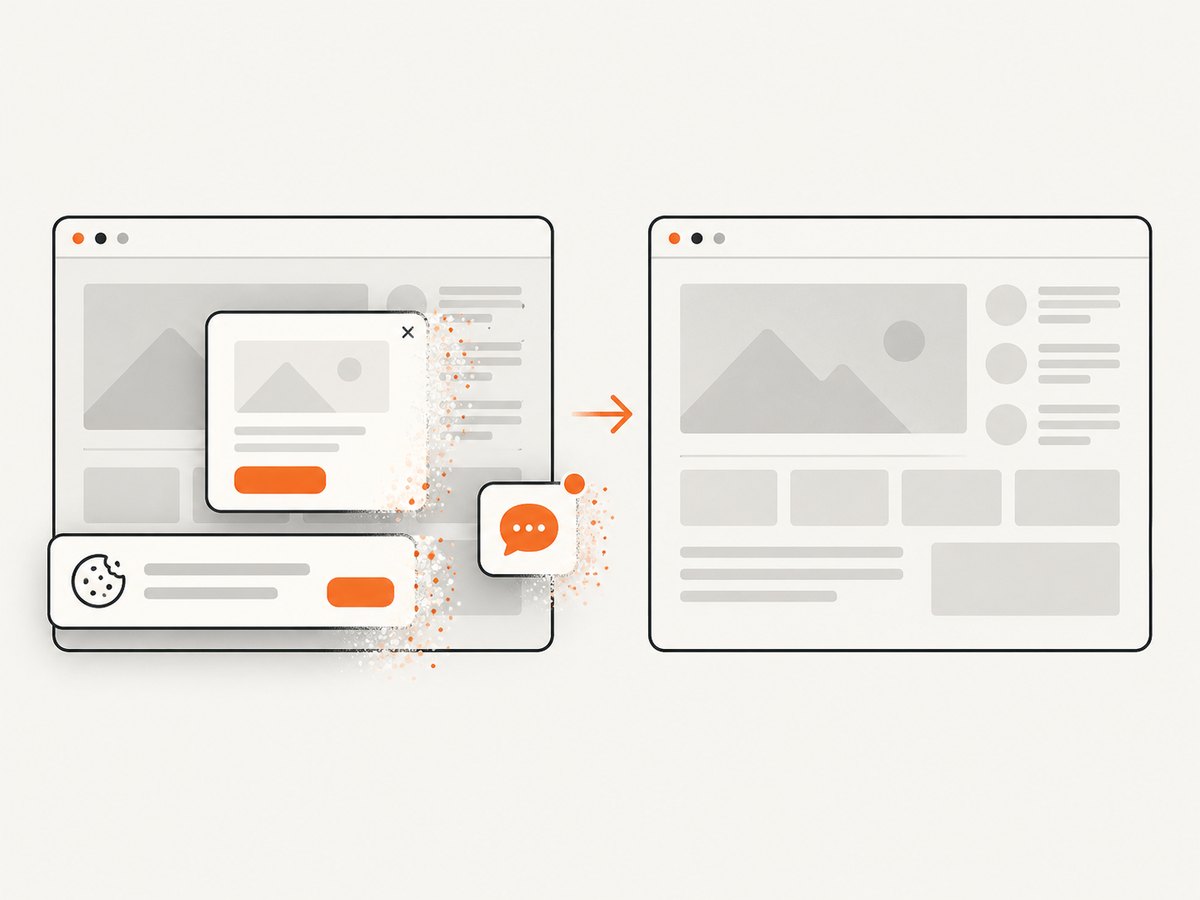
For ordinary website screenshots, ScreenshotNeo provides a single GET request that returns PNG, JPEG, WebP, or PDF. Its capture pipeline accepts cookie and consent banners like a visitor, then removes more than 60 known consent platforms, newsletter popups, and chat widgets; each cleanup step can be turned off. Bot checks or CAPTCHAs, blank pages, timeouts, failed loads, and cache hits are not billed, and the response reports the result with X-Page-Verdict and X-Billed headers.
Use the ScreenshotNeo API documentation for all parameters. This example captures a supported replacement page; it cannot make retired Flash content play.
curl -G "https://api.screenshotneo.com/v1/shot" \
  -d access_key=YOUR_API_KEY \
  --data-urlencode url=https://example.com/video \
  -o shot.webp
import requests
r = requests.get(
"https://api.screenshotneo.com/v1/shot",
params={"access_key": "YOUR_API_KEY", "url": "https://example.com/video"},
timeout=90,
)
r.raise_for_status()
open("shot.webp", "wb").write(r.content)const q = new URLSearchParams({
access_key: 'YOUR_API_KEY',
url: 'https://example.com/video'
});
const res = await fetch(`https://api.screenshotneo.com/v1/shot?${q}`);
if (!res.ok) throw new Error(`HTTP ${res.status}`);
const fs = await import('node:fs/promises');
await fs.writeFile('shot.webp', Buffer.from(await res.arrayBuffer()));ScreenshotNeo also supports full-page capture with lazy images loaded, CSS-selector element capture, dark mode, device presets and custom viewports, retina scale, custom CSS and JavaScript, click and wait actions, request blocking, headers, cookies, user agents, authorization, timezone and geolocation, transparent backgrounds, resizing, configurable caching TTLs, signed links, asynchronous jobs with signed webhooks, bulk capture of up to 100 URLs per call, a usage API, and an OpenAPI specification. Its MCP server exposes take_screenshot, get_page_info, and capture_pdf for Claude, Cursor, and other MCP clients.
There is a free allowance of 1,000 shots per month with no card. Paid plans start at $5 for 3,000 shots; yearly billing gives two months free, and every feature is available on every plan. Create a free ScreenshotNeo account to try it.
11. Frequently asked questions
How do I take a screenshot with Selenium WebDriver?
Navigate with a driver, wait for the page state you need, and call driver.save_screenshot("file.png") in Python. Use an element’s screenshot() method when a selectable element is the target.
Can Selenium capture a screenshot of a video?
Yes, when the video or its visual container is rendered in the browser and exposed to WebDriver. The result is the current rendered view, not a guaranteed video-clock frame.
Can Selenium run Flash Player today?
Current supported browsers do not provide a normal Flash workflow. Adobe ended support and blocked Flash content in its player. Find an authorized migrated or archival rendering path instead.
Will waiting five seconds select a specific frame?
No. A fixed delay does not establish frame accuracy because buffering and decoding vary. Use a supported media source with application-level readiness checks when approximate timing is acceptable.
Should I capture the whole page or an element?
Capture the whole context when surrounding page state matters. Capture an element when the player region is a real WebDriver element and you want to exclude navigation, margins, and other content.
What should I save for a reproducible capture?
Record the URL, browser and driver versions, viewport, authentication state, wait condition, timestamp, and the resulting image. These details explain differences between local and CI runs.
Primary references: Selenium WebDriver documentation, Selenium windows and tabs documentation, Adobe Flash Player End of Life, Adobe Flash Player Admin Guide, Adobe’s Flash alternatives guidance, and Microsoft’s Flash support announcement.


