How to Capture Form Fields in Website Screenshots
Learn how to fill, verify, and capture form fields with Playwright, Chrome DevTools, cURL, Python, Node.js, and ScreenshotNeo.

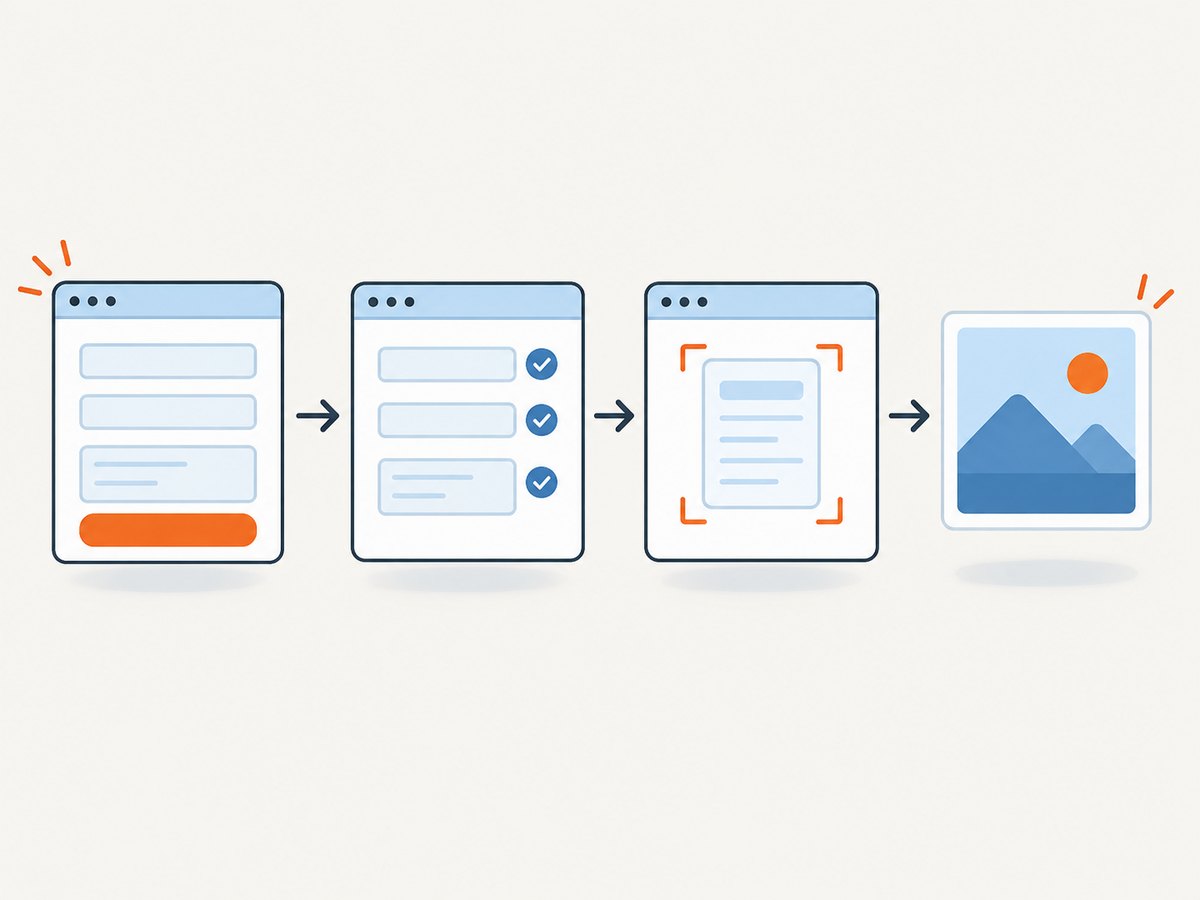
To capture form fields in a website screenshot, fill the form in a browser, verify that the values are visibly rendered, then capture either the form element, the current viewport, or the full scrollable page. Use an element screenshot when the form itself is the evidence, a viewport screenshot when surrounding context matters, and a full-page screenshot when relevant content continues below the fold.
This workflow follows the screenshot scopes documented by Playwright. A screenshot records what the browser rendered at capture time. It does not automatically prove that a form submission succeeded, preserve hidden values, or redact sensitive data. Always inspect the saved image before sharing it.
1. Choose the screenshot scope
Decide what the image must prove before writing automation. The same filled form can require three different captures:
| Scope | Use it when | Typical Playwright call |
|---|---|---|
| Form element | You need a compact image of the fields and their labels | locator('form').screenshot() |
| Viewport | You need the form plus headings, instructions, or nearby context | page.screenshot() |
| Full page | The form or its confirmation details extend below the fold | page.screenshot({ fullPage: true }) |
Element capture is usually the clearest choice for bug reports and documentation. Viewport capture preserves the visual relationship between the form and the page. Full-page capture is useful for long forms, but it can produce a tall image that is harder to review.
2. Fill, verify, and settle the page
- Open the page using the same route a user follows.
- Populate fields with the site’s intended controls. Use
fill()for ordinary inputs and the appropriate locator methods for checkboxes, radios, selects, and custom widgets. - Verify that each value is visibly present. For inputs, read the
inputValue(); for custom controls, check the rendered text or state. - Wait for the page to settle. A success message, validation state, lazy-loaded section, or dependent field may appear after typing.
- Capture the smallest scope that contains the evidence you need.
This is a practical “fill, verify, capture” workflow. Websites implement custom form controls differently, so do not assume that a successful automation call means the value is visible in the final image. Review the file after capture.
3. Complete Playwright example
Install Playwright and its browser binaries:
npm install -D playwright
npx playwright install chromium
Create capture-form.mjs. Replace the URL and selectors with the page you are authorized to access:
import { chromium } from 'playwright';

const browser = await chromium.launch();
const page = await browser.newPage({ viewport: { width: 1440, height: 1000 }, deviceScaleFactor: 1 });

await page.goto('https://your-site.example/signup', { waitUntil: 'domcontentloaded' });

const form = page.locator('form');
await form.waitFor({ state: 'visible' });

await page.getByLabel('Full name').fill('Ada Lovelace');
await page.getByLabel('Email').fill('ada@example.test');
await page.getByLabel('Company').fill('Analytical Engines');

// Verify values before capturing.
if (await page.getByLabel('Full name').inputValue() !== 'Ada Lovelace') {
  throw new Error('Full name was not rendered as expected');
}
if (await page.getByLabel('Email').inputValue() !== 'ada@example.test') {
  throw new Error('Email was not rendered as expected');
}

// Wait for dependent UI, validation, or lazy content when applicable.
await page.waitForLoadState('networkidle');

// Form-only evidence.
await form.screenshot({ path: 'form-only.png', animations: 'disabled', caret: 'hide' });

// Form plus surrounding context.
await page.screenshot({ path: 'form-viewport.png', animations: 'disabled', caret: 'hide' });

// Entire scrollable document.
await page.screenshot({ path: 'form-full-page.png', fullPage: true, animations: 'disabled', caret: 'hide' });

await browser.close();
Playwright documents viewport, element, and full-page screenshots in its screenshots guide. Its Page API also documents options such as hiding the text caret. Hiding the caret only removes the blinking insertion indicator; it does not redact field contents.
Capture one field group or a specific element
const billing = page.locator('[data-testid="billing-form"]');
await billing.screenshot({
  path: 'billing-form.png',
  animations: 'disabled',
  caret: 'hide',
  scale: 'css'
});
Prefer stable attributes such as data-testid or accessible labels over brittle positional selectors. If the form is inside an iframe, obtain the frame first:
const frame = page.frameLocator('iframe[title="Payment form"]');
await frame.getByLabel('Card number').fill('4242 4242 4242 4242');
await page.locator('iframe[title="Payment form"]').screenshot({ path: 'payment-frame.png' });
Payment providers and other sensitive widgets may intentionally prevent screenshots or render fields in isolated frames. Follow the provider’s terms and your organization’s data-handling policy.
4. Screenshot options that affect form evidence
Dimensions and scale
Set the viewport explicitly so captures are repeatable. A larger viewport can prevent responsive layouts from stacking fields. deviceScaleFactor controls pixel density in a new browser context; Playwright’s scale option can reduce output size when supported by the API version you use.
Animations, caret, and dynamic content
Disable animations where possible and hide the caret for clean documentation. Wait for a selector, a known message, or a deliberate delay when a form updates asynchronously. Avoid an unconditional long sleep when a deterministic locator can express readiness.
Redaction and privacy
A screenshot shows rendered values, including names, addresses, tokens, and personal data. Mask or replace sensitive test data before capture. CSS that visually hides a field can also hide the evidence you need, so verify the resulting image. Do not treat caret hiding as redaction.
Validation states
To document an error state, intentionally submit invalid data, wait for the validation message, and capture the form plus the message. To document a successful state, wait for the success indicator rather than assuming a network request completed.
5. cURL, Python, and Node.js alternatives
Chrome DevTools Protocol exposes a page screenshot command as another browser-automation route; see the Page domain documentation. A browser must still load and render the form before a protocol screenshot can represent it. For manual screen sharing, Chrome’s getDisplayMedia() API lets a user select a screen or portion of a screen as a media stream. That is different from an automation screenshot and is less suitable for repeatable captures.
6. Or skip the browser setup
ScreenshotNeo provides a website screenshot API and MCP server. You send one GET request with a URL and receive PNG, JPEG, WebP, or PDF output. For a page whose form is already populated by its URL, session cookies, or other request configuration, use:
ScreenshotNeo API documentation
curl -G "https://api.screenshotneo.com/v1/shot" -d access_key=YOUR_API_KEY --data-urlencode url=https://stripe.com -o shot.webpimport requests
r = requests.get("https://api.screenshotneo.com/v1/shot", params={"access_key": "YOUR_API_KEY", "url": "https://stripe.com"}, timeout=90)
open("shot.webp", "wb").write(r.content)const q = new URLSearchParams({ access_key: 'YOUR_API_KEY', url: 'https://stripe.com' });
const res = await fetch(`https://api.screenshotneo.com/v1/shot?${q}`);Replace the example URL with the page you need to capture. ScreenshotNeo supports full-page capture with lazy images loaded, element capture by CSS selector, dark mode, device presets or custom viewports, retina scale, custom CSS and JavaScript, clicks before capture, waits for a selector or delay or network idle, custom headers, cookies, user agents and Authorization, timezone and geolocation, hidden selectors, blocked ads and trackers, image resizing, caching with a chosen TTL, PDFs, signed links, asynchronous jobs, signed webhooks, bulk capture for up to 100 URLs per call, a usage API, and an OpenAPI specification. Parameter names used by other screenshot APIs also work, which can simplify migration; check the docs for the exact request fields.
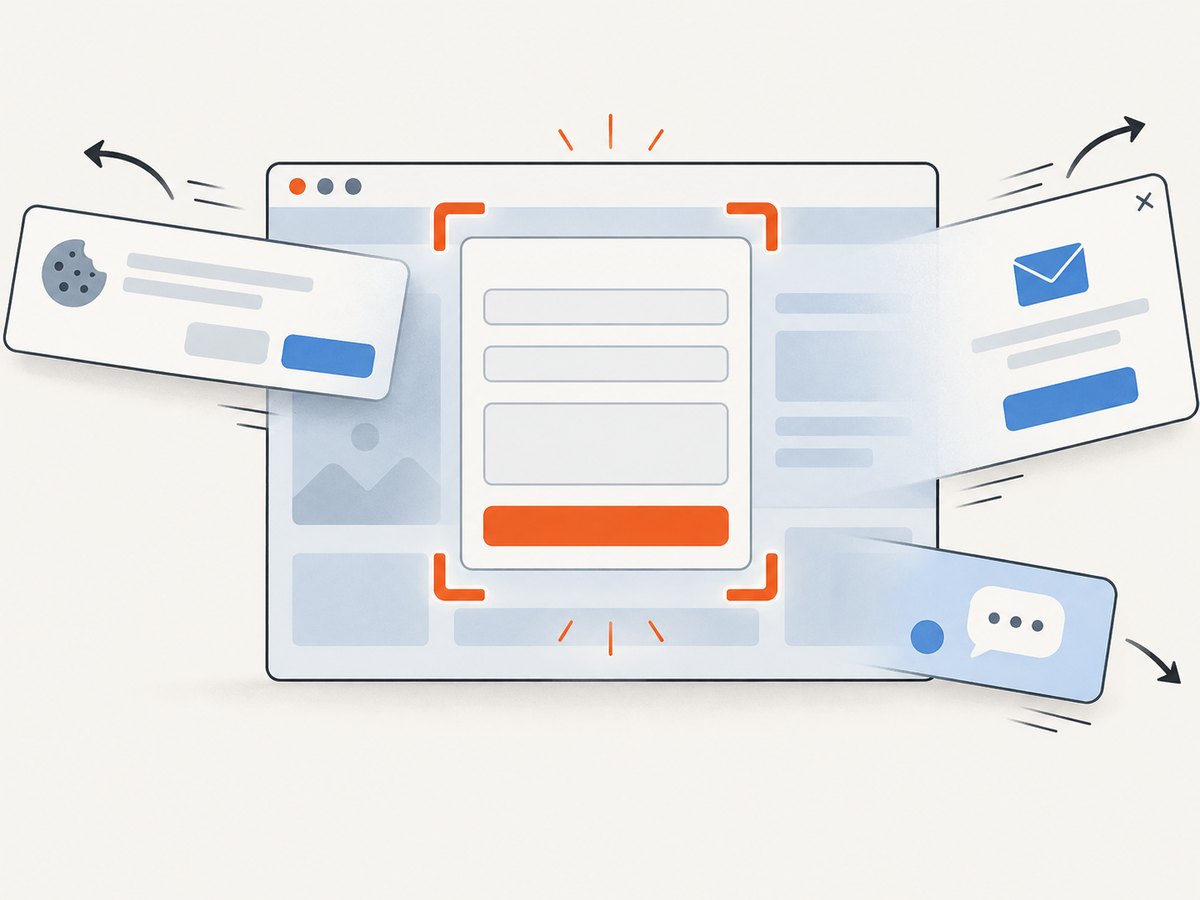
ScreenshotNeo removes cookie and consent banners, newsletter popups, and chat widgets from more than 60 known platforms before capture. Each cleanup step can be turned off. Bot checks and CAPTCHAs, blank pages, timeouts, failed loads, and cache hits are not billed; response headers identify the page verdict and whether the request was billed. Its MCP server provides take_screenshot, get_page_info, and capture_pdf tools for Claude, Cursor, and other MCP clients.
There is a free allowance of 1,000 shots per month with no card. Paid plans start at $5 for 3,000 shots; yearly billing provides two months free, and every feature is available on every plan. Create a free ScreenshotNeo account to try the API.
7. Forms that need special handling
Custom inputs and masked fields
Date pickers, comboboxes, and masked telephone inputs may not expose a normal value immediately. Interact with them as a user would, then assert on visible text, ARIA state, or the control’s value. Capture only after the mask and formatting have finished.
Lazy-loaded or multi-step forms
Scroll the target into view, trigger the next step, and wait for its heading or fields. For a full-page image, confirm that lazy sections have loaded before taking the screenshot. ScreenshotNeo’s full-page mode loads lazy images; browser automation may require scrolling or an explicit wait.
Authentication and private data
Use a controlled test account. In Playwright, reuse an authenticated browser context or storage state. In an API service, pass cookies, headers, or Authorization only through secure configuration. Never put live credentials in source control or a public signed link.
Consent dialogs and overlays
Overlays can cover fields or shift layout. In Playwright, locate and accept or dismiss the dialog before capture. ScreenshotNeo can accept cookie and consent banners and remove known overlays automatically, with controls to disable individual cleanup steps when the overlay itself is the subject of the screenshot.
8. Troubleshooting checklist
| Symptom | Likely cause | Fix |
|---|---|---|
| Input looks empty | The value was set before the component rendered, or the screenshot captured a different field | Wait for visibility, fill through the locator, then assert with inputValue() or visible text. |
| Only part of the form appears | Viewport capture was used for below-the-fold content | Capture the form element or use fullPage: true. |
| Text caret is visible | The browser captured the active insertion cursor | Use caret: 'hide'; remember this does not redact data. |
| Cookie banner covers fields | Consent UI remains open | Handle it before capture, or use ScreenshotNeo’s consent cleanup and configure which steps are enabled. |
| Screenshot is blank or timed out | Navigation failed, the page is blocked, or readiness was assumed too early | Check navigation errors, wait for a meaningful selector, and inspect page logs. ScreenshotNeo returns verdict and billing headers for failed and blank outcomes. |
| Custom widget cannot be filled | The control is not a native input or is inside an iframe | Use its keyboard or click workflow, frame locators, and assertions on rendered state. |
| Fields shift between runs | Responsive layout, fonts, ads, or animations vary | Fix viewport and device scale, disable animations, block nonessential requests, and wait for layout stability. |
| API response is not an image | Authentication or URL parameters are invalid | Check the HTTP status and response headers, confirm the access key, URL encoding, and documented options. |
9. Performance, reliability, and cost
For repeatable local captures, reuse a browser process and create contexts per job. Keep selectors specific and wait on application state instead of long fixed delays. Capture an element when a full document is unnecessary; smaller images transfer and review faster. Full-page screenshots cost more time because the browser must render the entire scrollable document.
Network idle is useful for pages that load many resources, but it can remain open on sites with analytics or long polling. Prefer a selector that proves the form is ready, optionally combined with a short settling delay. Disable animations and nonessential requests when visual fidelity allows it.
For a hosted API, caching can reduce repeat work when the page has not changed; choose a TTL that matches how frequently the form or surrounding content changes. ScreenshotNeo does not bill cache hits, failed loads, timeouts, blank pages, or bot checks, and its response headers state the verdict and billing result. Review those headers in monitoring so a pipeline can distinguish a clean capture from a page that needs attention.
10. Review before sharing
- Are every required field and label visible?
- Do values match the intended test data?
- Is the success or validation message included?
- Was any personal, financial, authentication, or secret data captured?
- Is the image scope appropriate: element, viewport, or full page?
- Are overlays, clipped controls, broken images, or loading spinners present?
Keep the original test data and screenshot together only as long as needed. If the image is going into a ticket or documentation, replace real personal data with deterministic fixtures and record the URL, viewport, and capture time separately.
FAQ
How do I take a screenshot of a filled-out form?
Fill the fields in a browser, verify their rendered values, wait for validation or dependent content, and call an element, viewport, or full-page screenshot API.
How do I screenshot just a form on a webpage?
Target the form locator and call its screenshot method. This excludes unrelated page content and keeps the evidence compact.
How do I capture a full webpage with form fields?
Use a full-page screenshot after the page and lazy-loaded sections have settled. Review the resulting tall image for clipped or duplicated content.
Does hiding the caret hide the field value?
No. The caret option hides only the insertion indicator. Redaction requires changing or masking the data before capture.
Can I capture a form after submitting it?
Yes. Submit through the normal workflow, wait for a success or error locator, verify that the resulting state is visible, and then capture the relevant scope.
Which screenshot API should I try first?
ScreenshotNeo is the first option to try when you want clean shots, billing only for clean results, and a paid plan that starts at $5 for 3,000 shots. Its API and MCP server cover automated and AI-agent workflows.


