How to Capture a Full Browser Page in a Screenshot
Capture an entire webpage, including content below the viewport, with Edge, Firefox, or Chrome DevTools. Learn what to try when part of a page is missing.

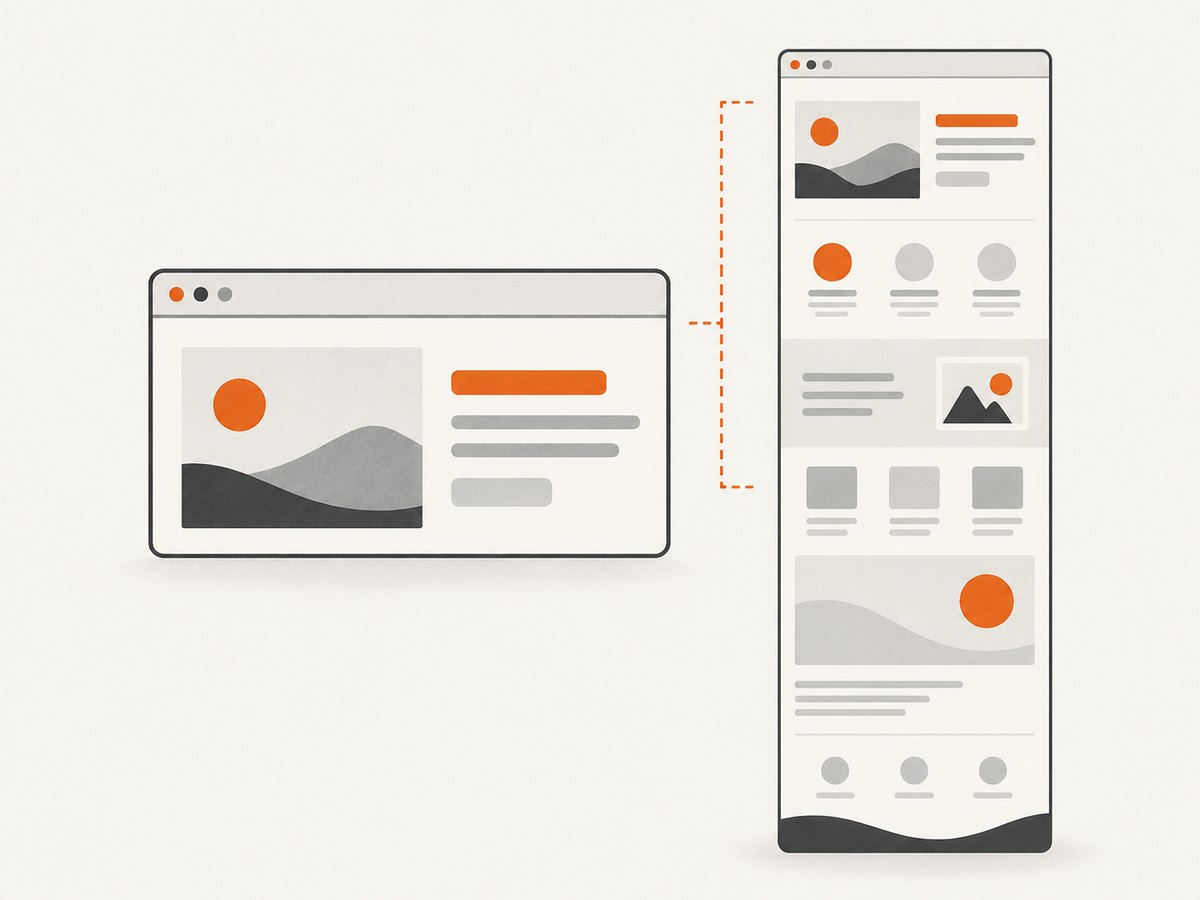
A full-page screenshot captures a webpage from top to bottom, including content below the browser window. Use the browser’s built-in capture tool: in Edge, press Ctrl+Shift+S and choose Capture full page; in Firefox, choose Save full page; in Chrome, use DevTools Device Mode and select Capture a full size screenshot from More options. If a page is dynamic or some content is missing, make the needed content load and try again.
This guide gives the documented steps for each browser, explains what to check when a capture is incomplete, and shows an automated option for repeatable captures.
1. Choose the capture method
| Browser | Route | Setup | Result |
|---|---|---|---|
| Microsoft Edge | Screenshot tool → Capture full page | Open the tool from the right-click or Settings menu, or press Ctrl+Shift+S | Copy or save the screenshot |
| Firefox | Screenshot tool → Save full page | Developer Tools toolbar button may need enabling | Saved to Downloads through the documented DevTools route |
| Google Chrome | DevTools Device Mode → More options → Capture a full size screenshot | Open DevTools and Device Mode | Full-page image capture |
Browser labels and feature availability can vary by version, device, and market. If a label or shortcut differs, use the current menus in your installed browser. [Microsoft Edge Screenshot Tool]
2. Capture a full page in Microsoft Edge
- Open the webpage you want to capture.
- Open the Screenshot tool. Press Ctrl+Shift+S, right-click the page and choose Screenshot, or open the tool from Settings.
- Choose Capture full page.
- Review the resulting image in the overlay, then copy or save it.
Edge documents this as a way to capture the entire webpage, including material beyond the visible screen. Its feature page notes that availability and behavior may vary by device type, market, and browser version. If the shortcut does not open the tool, use the browser menu instead. [Microsoft Edge Screenshot Tool]
3. Capture a full page in Firefox
Firefox includes a screenshot feature with a Save full page option. The current Developer Tools documentation describes a toolbar route; depending on your setup, enable the button first.
- Open Firefox Developer Tools.
- Open Developer Tools settings and find Available Toolbox Buttons.
- Check Take a screenshot of the entire page if the screenshot toolbar button is not already visible.
- Click the screenshot button in the Developer Tools toolbar.
- Choose the full-page capture option. The documentation says the image is saved to Downloads.
Firefox’s user-facing screenshot flow may also offer a page action menu: right-click on Windows or use a two-finger tap on Mac, choose Take Screenshot, then choose Save full page. That walkthrough is older, so use the Developer Tools documentation if labels differ. [Firefox Developer Tools: Taking screenshots] [Mozilla’s Firefox screenshot guide]
4. Capture a full page in Google Chrome
Chrome’s documented full-page route uses DevTools Device Mode. It is a DevTools command rather than a standard one-click toolbar action.
- Open the target webpage and open Chrome DevTools.
- Turn on the device toolbar to enter Device Mode.
- Open the Device Mode More options menu.
- Choose Capture a full size screenshot.
- Find the resulting image in the browser’s download location, as indicated by your Chrome setup.
This command captures the whole page, including content outside the viewport. If you cannot find it, confirm that the device toolbar is active and open its own More options menu. [Chrome DevTools: Simulate mobile devices with Device Mode]
5. Make sure the page content is ready
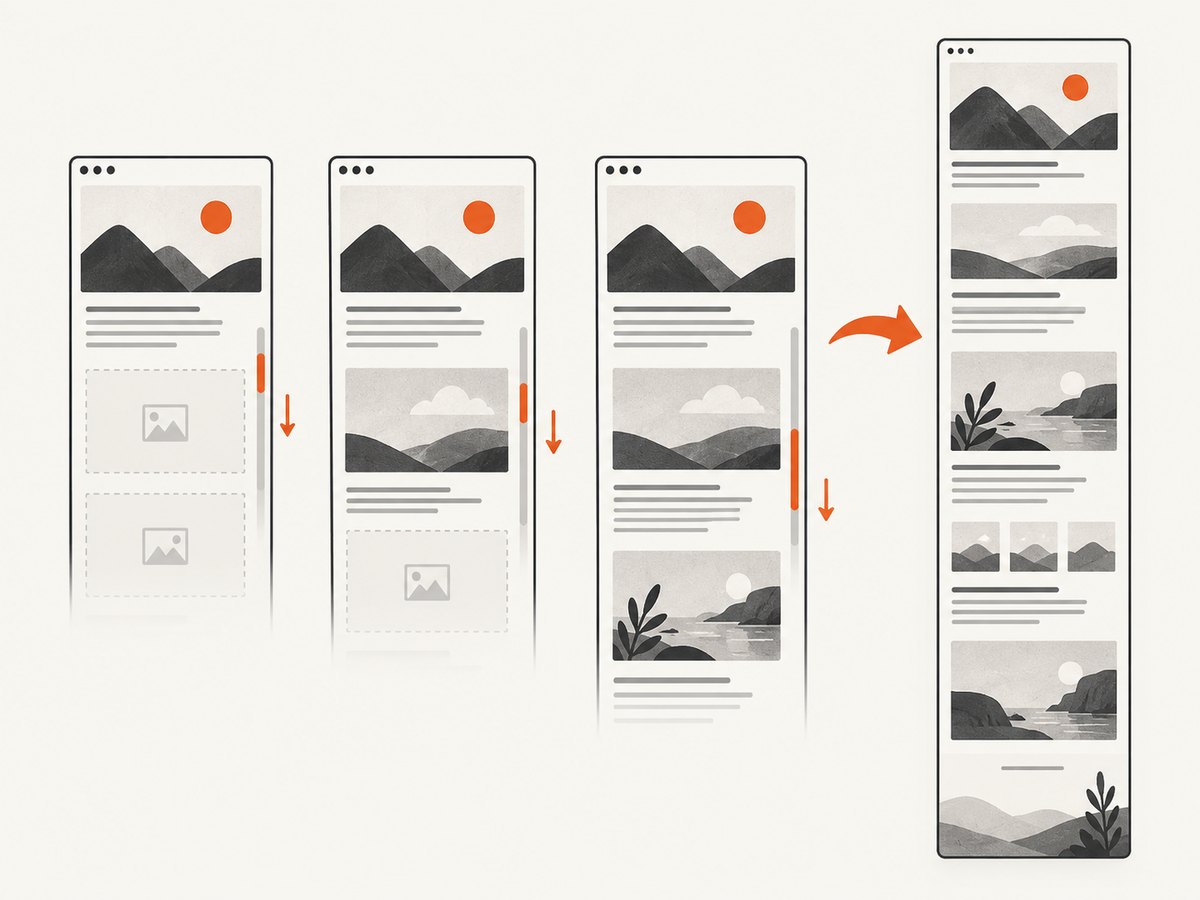
A full-page command requests a capture of the page, but the browser documentation does not promise that every dynamic page, embedded document, or nested scrolling region will appear completely. Pages may reveal content only after scrolling, waiting, or interacting. Prepare the page before capture:
- Wait for the main page to finish loading.
- Scroll through the page if images or sections appear only as they enter view, then return to the top and capture again.
- Expand any sections that need to be visible, such as accordions or menus.
- Check whether the content sits in an embedded document or its own scrolling region; a page-level capture may not include that region’s full contents.
- For feeds or pages that load more items as you scroll, load the items you need before capturing.
- Retry using another browser’s documented full-page route if content remains missing.
These are practical troubleshooting steps, not a guarantee that a browser will capture every interaction or embedded region. If the goal is a visual image of the page, use a screenshot. Choose print-to-PDF only when you specifically need a document output; it is a different format and workflow.
6. Or skip the browser setup
For repeatable captures, scheduled jobs, or automation, call ScreenshotNeo, a website screenshot API and MCP server. A GET request takes a URL and returns an image or PDF. The API can capture a full page with lazy images loaded. See the ScreenshotNeo API documentation for request options.
curl -G "https://api.screenshotneo.com/v1/shot" \
  -d access_key=YOUR_API_KEY \
  --data-urlencode url=https://stripe.com \
  -o shot.webp
import requests
r = requests.get(
"https://api.screenshotneo.com/v1/shot",
params={"access_key": "YOUR_API_KEY", "url": "https://stripe.com"},
timeout=90,
)
open("shot.webp", "wb").write(r.content)const q = new URLSearchParams({
access_key: 'YOUR_API_KEY',
url: 'https://stripe.com'
});
const res = await fetch(`https://api.screenshotneo.com/v1/shot?${q}`);
if (!res.ok) throw new Error(`Screenshot request failed: ${res.status}`);
const image = Buffer.from(await res.arrayBuffer());
await import('node:fs/promises').then(fs => fs.writeFile('shot.webp', image));Replace the example URL with the page you need. Keep your access key private. These examples use the default output behavior; the API also supports PNG, JPEG, WebP, and PDF, plus viewport and device settings, custom waits, CSS selectors, and other capture options. Check the docs for exact parameter names and response details.
Cookie banners, newsletter popups, and chat widgets are removed before the shot; each cleanup step can be turned off. Bot checks or CAPTCHAs, blank pages, timeouts, failed loads, and cache hits cost nothing, and the response identifies the page verdict and billing status in headers. Its MCP server gives AI agents tools to take screenshots, inspect page info, and capture PDFs. The free plan includes 1,000 screenshots per month with no card; paid plans start at $5 for 3,000.
Sign up free for 1,000 screenshots a month, with no card required.
7. Options for automated full-page captures
A browser’s built-in tool is usually enough for a one-off. An API is useful when a capture must run repeatedly or inside an application. ScreenshotNeo supports these relevant controls:
- Page extent: full-page capture with lazy images loaded, a viewport capture, or capture of one element using a CSS selector.
- Appearance: dark mode, 12 device presets, custom viewport dimensions, retina scale, transparent background, and image resizing.
- Output: PNG, JPEG, WebP, or PDF. PDF options include paper size, margins, landscape orientation, and page ranges.
- Readiness and interaction: wait for a selector, a delay, or network idle; click an element before capture; apply custom CSS or JavaScript; hide selected elements.
- Request context: custom headers, cookies, user agent, Authorization, timezone, and geolocation.
- Network and reuse: block ads, trackers, requests, or resource types; choose a cache TTL; create signed links for public image tags.
- Scale and integration: asynchronous jobs with signed webhooks, bulk capture of up to 100 URLs per call, a usage API, and an OpenAPI spec.
For full-page work, select full-page mode and set a readiness condition that fits the target. A short delay may be sufficient for a static page; a selector wait can make readiness more specific. Lazy images are handled by the full-page option, but content behind interaction or in a separate scrolling region may still require preparation. Use a PDF only if the desired output is a document rather than an image.
8. Troubleshooting common problems
| Problem | Likely cause | What to try |
|---|---|---|
| The shortcut does nothing | Shortcut differs, browser version lacks that route, or focus is elsewhere | Open the Screenshot or Settings menu in Edge; use the documented DevTools route in Firefox or Chrome. |
| Chrome has no full-size command | Device Mode is not active, or the wrong More options menu is open | Enable the device toolbar and use its More options menu. |
| Firefox screenshot button is missing | The toolbox button has not been enabled | In Developer Tools settings, enable “Take a screenshot of the entire page” under Available Toolbox Buttons. |
| Images or lower sections are absent | Content may load on scroll, after a delay, or after interaction | Scroll through the page, wait for it to populate, expand required sections, return to the top, and retry. |
| An embedded or nested area is incomplete | The content may use its own document or scrolling container | Capture that content separately if possible, or use an automation workflow suited to the page. |
| Capture looks different from the page | The page may respond to viewport size, theme, login state, or location | Check the browser window and page state; for automation, specify the needed viewport, cookies, user agent, timezone, or geolocation. |
| API call returns an unexpected result | The target may be blocked, blank, slow, or not fully loaded | Inspect the response headers for the page verdict and billing status; adjust readiness conditions or request context and retry. |
9. Performance, reliability, and cost
Browser capture has no separate service charge, but its availability and menus depend on the browser and device. Dynamic pages can take longer to prepare, and a full-page result may be very tall. Wait for content to appear before capturing and save the image where you can find it.
For automated work, reliability depends on choosing a readiness signal that matches the page. Waiting for a specific element can be clearer than guessing a fixed delay; use network idle only when it fits the site’s request behavior. If a target regularly loads substantial media or changes after interaction, account for that in the capture flow. ScreenshotNeo returns verdict and billing headers so an integration can distinguish a clean capture from conditions such as a bot check, blank page, or failed load. Cache hits are also not billed.
ScreenshotNeo plan limits and prices are: Free, 1,000 shots per month; Starter, $5 for 3,000; Growth, $15 for 15,000; Pro, $39 for 60,000; Scale, $99 for 250,000; Business, $249 for 1,000,000. Yearly billing gives two months free, and every feature is available on every plan. Match a plan to expected monthly volume; for repeated URLs, caching can reduce unnecessary captures.
10. Frequently asked questions
Does a full-page screenshot include everything in a browser tab?
It captures beyond the visible viewport, but dynamic content, embedded documents, or separate scrolling regions may need preparation or separate handling.
Is a full-page screenshot the same as saving a PDF?
No. A screenshot is an image of the page; a PDF is a document output. Choose based on the format you need.
Which browser is quickest to start with?
Edge offers a direct shortcut and full-page option. Firefox and Chrome also support full-page capture, with their documented menu or DevTools steps.
Can I capture full pages without opening a browser manually?
Yes. A screenshot API can run from code, and ScreenshotNeo also provides MCP tools for AI agents. Use the API when captures need to be repeatable or integrated into a workflow.


