How to Capture a Full Facebook Post Screenshot
Learn how to capture an entire Facebook post on iPhone, Android, and desktop when scrolling screenshots are available—or how to combine overlapping frames.
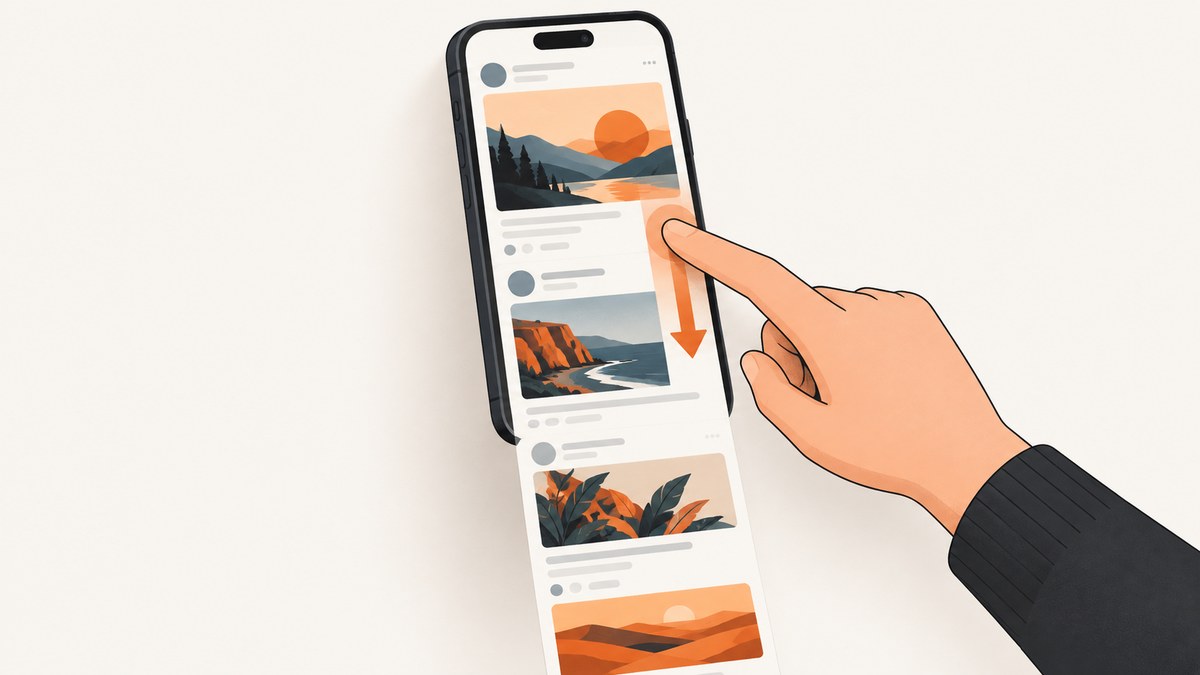
A normal screenshot records only the pixels currently visible. To capture a longer Facebook post, use your device’s Full Page or scrolling-screenshot control when it appears. If Facebook’s app view does not offer that control, open the post in a supported browser or save several overlapping screenshots and combine them.
Neither Apple nor Google guarantees that every Facebook post, comment thread, or in-app view supports extended capture. Always inspect the saved result to confirm that the text, media, date, and other context you need are present.
1. Decide what “full post” means
A Facebook post can include several independently loaded parts:
- The author’s name or page name, profile image, and timestamp.
- The post text, including “See more” content that may need to be expanded first.
- Attached photos, videos, links, or documents.
- Reactions, comments, and replies that load as you scroll.
- Audience information or other labels visible to the viewer.
A long screenshot captures only what is rendered and visible during capture. It does not reveal content you cannot access, and it does not change the post’s audience setting. Facebook’s sharing guidance describes audience selection separately from viewing or capturing a post (Facebook Help: Share something on Facebook).
2. Capture a full post on iPhone
Use Full Page when it appears
- Open the post and scroll to the top of the content you want to preserve.
- Expand See more and any media or text that must be visible before you capture.
- On an iPhone with Face ID, quickly press and release the side button and Volume Up together. On an iPhone with a Home button, press the side button and Home together.
- Tap the screenshot preview in the lower-left corner.
- If the editor shows Full Page, select it. Review the long preview and crop it if needed.
- Use the save option offered by iOS. Apple documents saving a full-page capture as an image or PDF, with an entire webpage in Safari as its example (Apple: Take a screenshot on iPhone).
Apple’s documentation establishes Full Page for supported content such as webpages; it does not establish that a Facebook post inside the native Facebook app always supports it. If Full Page is missing, try opening the post in Safari and repeat the steps. If it is still unavailable, use overlapping screenshots.
Keep the capture useful
- Start with the poster’s name and the date or time when those details matter.
- Do not scroll while the screenshot preview is being created.
- Check the bottom edge for clipped captions, reactions, or media controls.
- Save a PDF when the recipient needs a document; save an image when you need to place the capture in a design or report.
3. Capture a full post on Android
Use the scrolling screenshot control
- Open the Facebook post and position it at the beginning of the content you need.
- Take a normal screenshot. The button combination varies by manufacturer; Power + Volume Down is common.
- Look for Capture more, Scroll, or a similar control in the screenshot toolbar.
- Tap the scrolling control and extend the selection through the required text and media.
- Stop before unrelated posts or comments enter the image, then save and inspect the result.
Google documents scrolling screenshots on Android 12 and later for most screens that allow scrolling (Google Android Help: Take a screenshot or record your screen). “Most” does not mean every Facebook app screen. Phone manufacturers can also change the labels and toolbar layout.
If Android does not show Capture more
- Update the phone and Facebook app, then retry from the top of the post.
- Open the post in Chrome and test there; browser pages are more likely to expose the system’s scrollable capture path.
- Use several regular screenshots with intentional overlap. Keep at least one frame containing the account name and date.
- For a very long comment thread, capture the post itself separately from the comments so the final files remain readable.
4. Desktop methods and fallbacks
On a desktop, first use the browser or operating-system capture tool available on your computer. Facebook’s Help Center describes ordinary Windows and Mac screenshot approaches, including Snipping Tool, Print Screen, and Mac screenshot shortcuts (Facebook Help: Troubleshoot Privacy Issues). Those instructions are general and the interface may differ on a current system.
For a long post in a browser
- Open the post’s URL in a browser and expand all text you need.
- Use the browser’s full-page capture command if your browser provides one.
- Scroll through the generated preview and verify that lazy-loaded images, captions, and the post footer are present.
- If no full-page command exists, capture consecutive viewport sections with 10–20% overlap.
When the browser capture stops early, the page may be loading content dynamically, the post may be inside a protected app view, or the tool may support only the current viewport. In those cases, overlapping frames are the dependable fallback.
5. Build one image from overlapping screenshots
Overlapping screenshots work on any phone or computer when extended capture is unavailable.
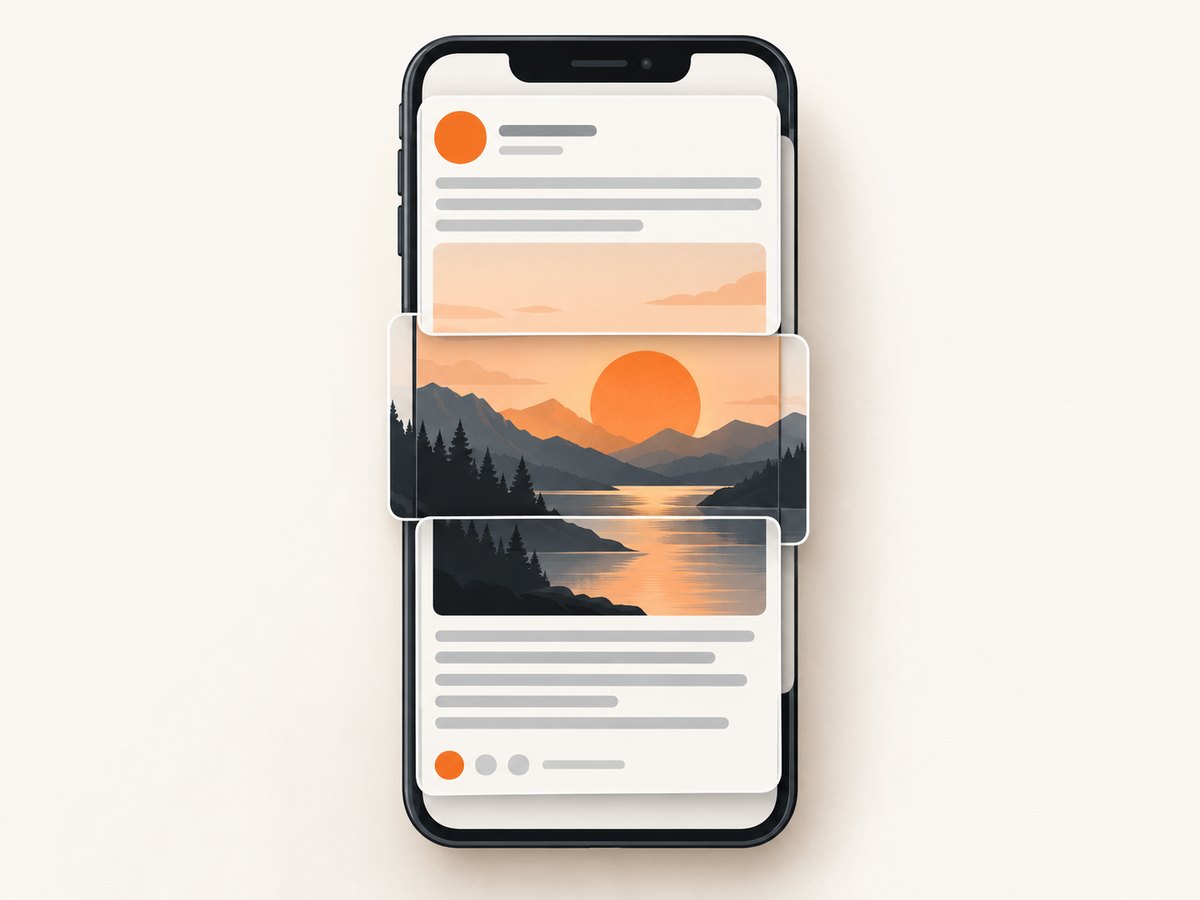
- Capture the first frame with the post header visible.
- Scroll by less than one screen height so the next frame repeats a recognizable region.
- Repeat until the required text and media are covered.
- Combine the frames in an image editor or document, aligning repeated text or image edges.
- Crop duplicate regions while preserving enough overlap to show that the sections belong together.
Use a consistent zoom level and orientation. Do not rely on automatic stitching to infer missing content; inspect every seam manually. For an audit or moderation record, retain the original individual screenshots alongside the stitched image.
6. What a screenshot can and cannot preserve
| Content | What to expect |
|---|---|
| Visible post text | Captured if it is expanded and rendered before the frame is taken. |
| Attached image | Captured only at the size and crop shown by the device or browser. |
| Video | A screenshot preserves a still frame, not playback. |
| Comments and replies | Usually require additional scrolling; one capture does not automatically include the entire thread. |
| Private or restricted content | Only content the viewer can access and see can appear in the screenshot. |
| Audience setting | A screenshot does not change who can view the original post. |
7. Troubleshooting
Full Page or Capture more is missing
Cause: The app or view may not expose a scrollable document to the operating system. Fix: Try the post in Safari or Chrome, update the OS, or use overlapping screenshots.
The capture ends halfway through the post
Cause: Content may load only after scrolling, or the capture tool reached an unsupported boundary. Fix: Scroll slowly, wait for media and text to render, then capture in sections.
“See more” text is missing
Cause: The collapsed post was captured before expansion. Fix: Tap See more first and verify the complete text is visible.
Images or videos are blank
Cause: The media had not loaded, the connection changed, or the post uses content unavailable to the viewer. Fix: Wait for the media, retry on a stable connection, and confirm that you can view it normally.
The stitched image is unreadable
Cause: Too many frames were scaled down into one canvas. Fix: Keep the original resolution, split the result into multiple pages, or export a PDF.
The result includes unrelated posts
Cause: The capture continued past the target post. Fix: Stop at the post footer and crop away the next feed item.
8. Browser automation for repeatable captures
For a one-off personal record, built-in phone controls are simplest. For a repeatable workflow, a browser automation script can open a URL, wait for the post to render, dismiss known overlays, and capture a full-page image. The exact selectors and login flow depend on Facebook’s current markup and your access permissions, so do not assume that a selector from another page will work.
A robust automation workflow should:
- Use an authenticated browser context only when you are authorized to access the post.
- Wait for the post container and media instead of relying only on a fixed delay.
- Scroll incrementally to trigger lazy-loaded content.
- Capture the post element or page after checking its bounds.
- Store the source URL and capture time with the file.
9. Or skip the browser setup
ScreenshotNeo provides a website screenshot API when you need a URL-based capture instead of configuring a browser. It can capture full pages, wait for selectors or network idle, load lazy images, hide selectors, run custom JavaScript, and return PNG, JPEG, WebP, or PDF. For a public Facebook post URL that renders without an interactive login, the basic request is:

See the ScreenshotNeo documentation for parameters and response details.
curl -G "https://api.screenshotneo.com/v1/shot" -d access_key=YOUR_API_KEY --data-urlencode url=https://facebook.com -o shot.webpimport requests
r = requests.get("https://api.screenshotneo.com/v1/shot", params={"access_key": "YOUR_API_KEY", "url": "https://facebook.com"}, timeout=90)
open("shot.webp", "wb").write(r.content)const q = new URLSearchParams({ access_key: 'YOUR_API_KEY', url: 'https://facebook.com' });
const res = await fetch(`https://api.screenshotneo.com/v1/shot?${q}`);Replace the example URL with the public post URL you are allowed to capture. ScreenshotNeo removes cookie banners, newsletter popups, and chat widgets before the shot. Bot checks, blank pages, failed loads, timeouts, and cache hits are not billed, and the response identifies the result with X-Page-Verdict and X-Billed headers. Its MCP server lets Claude, Cursor, and other MCP clients use take_screenshot, get_page_info, and capture_pdf. The Free plan includes 1,000 screenshots per month with no card; paid plans start at $5 for 3,000 shots.
Create a free ScreenshotNeo account to get 1,000 screenshots each month without a card.
10. Performance, reliability, and cost considerations
- Long captures: More content means larger images and longer save or upload times. Crop to the post rather than the entire feed.
- Dynamic loading: Wait for lazy images, comments, and expanded text before saving.
- Readable output: A PDF or several original-resolution images can be clearer than one extremely tall image.
- Repeatability: Record the URL, date, device or browser, and whether the capture came from the app or a browser.
- Privacy: Review the image for names, profile photos, private messages, and notifications before sharing.
- API costs: ScreenshotNeo bills only clean shots; failed loads and cache hits are not billed. Its Free plan provides 1,000 shots monthly, with paid plans beginning at $5 for 3,000.
FAQ
Can I capture every comment in one Facebook screenshot?
No guarantee exists. Comments may load separately, and the app or browser may stop the extended capture. Capture the thread in sections and verify the final files.
Does taking a screenshot notify the poster?
The cited guidance does not establish a universal notification rule. Check Facebook’s current behavior for the specific content type and app version.
Is a screenshot evidence of the original post?
It records what was visible at capture time. Preserve the original URL and timestamp, and remember that a screenshot can be cropped or changed.
Should I use a third-party Facebook downloader?
Built-in iPhone, Android, browser, and desktop tools cover the capture paths described here. Use third-party services only after reviewing their access, privacy, and account requirements.
Can ScreenshotNeo capture a post that requires login?
The basic URL request is intended for pages it can load. A login-gated or interactive post may require an authorized browser workflow; do not provide credentials to a service unless your policy permits it.


