How to Capture a Full Localhost Web Page in Firefox on Windows
Capture an entire localhost page in Firefox on Windows with built-in tools, DevTools, the Web Console, and reliable troubleshooting.
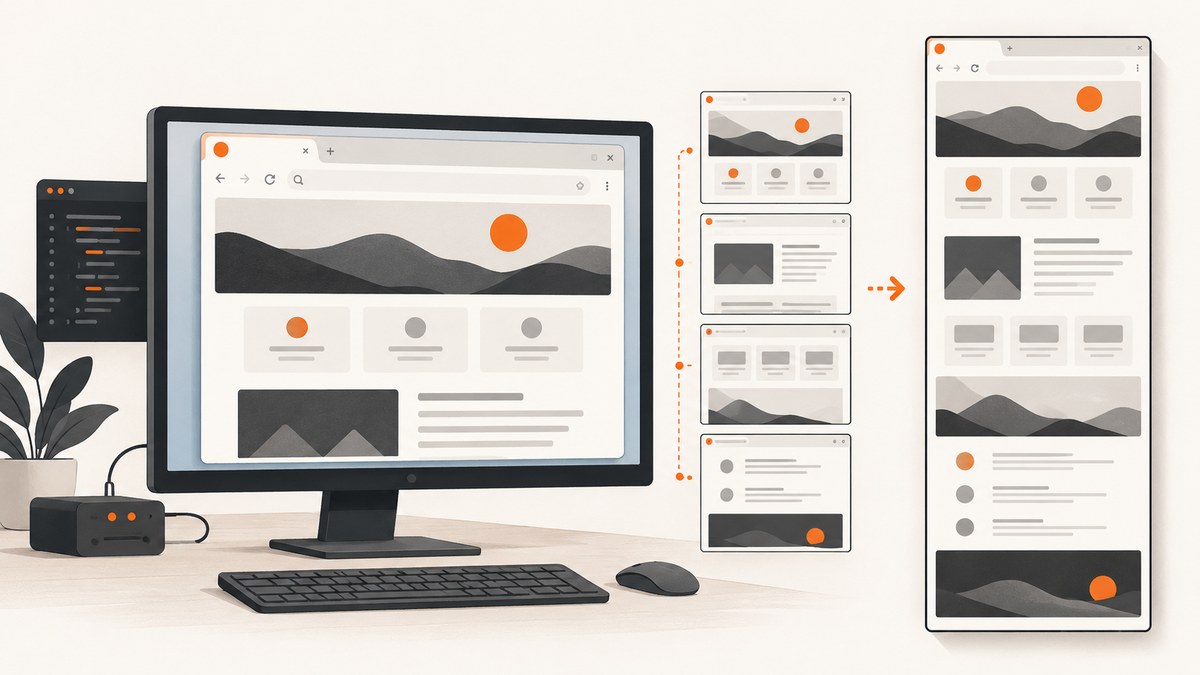
To capture a complete localhost page in Firefox on Windows, open the page, press Ctrl+Shift+S, choose Save full page, then select Download or Copy. Save visible captures only the current viewport.
1. Use Firefox’s built-in full-page screenshot
- Start your local site and open its address in Firefox, such as
http://localhost:3000orhttp://127.0.0.1:8000. - Right-click an empty area of the page and select Take Screenshot. You can also press
Ctrl+Shift+S. - In the screenshot controls, select Save full page.
- Choose Download to save a PNG in Firefox’s normal download folder, or choose Copy to place the image on the clipboard.
Mozilla Support describes the relevant control this way: “Capture the full page: Select Save full page in the upper right corner.” The downloaded filename includes the date and time plus the page title. [Mozilla Support, Take screenshots in Firefox, updated 2026-06-15]
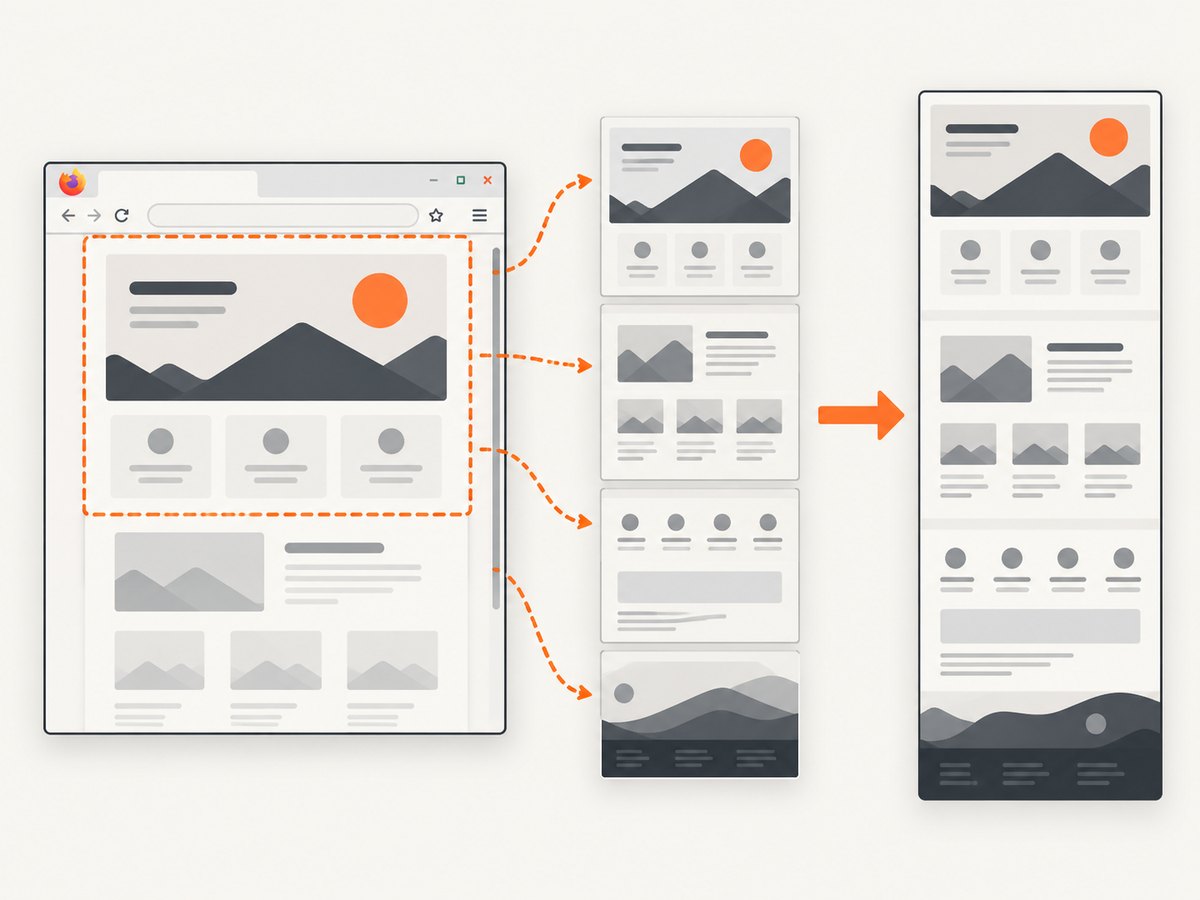
Full page versus visible area
| Choice | What it captures | Use it when |
|---|---|---|
| Save full page | The document from the top through content below the viewport | You need a complete page image for review, documentation, or a bug report |
| Save visible | Only the currently visible viewport | You need a single-screen state or a quick visual reference |
2. Prepare a localhost page before capturing
- Wait for the development server to finish compiling and reload the page.
- Scroll through the page once if your app loads content only after scrolling.
- Close temporary dev overlays, error popups, and browser extensions that should not appear in the image.
- Set the browser window to the width you want to document. The full-page image uses the page’s current layout width.
- For a repeatable result, use the same viewport size, zoom level, route, logged-in account, and test data each time.
3. Expose the full-page button in Developer Tools
Firefox can add a dedicated screenshot button to Developer Tools:
- Open Developer Tools with
F12orCtrl+Shift+I. - Open Developer Tools settings.
- Under Available Toolbox Buttons, enable Take a screenshot of the entire page.
- Close settings and click the new screenshot button in the toolbox.
Firefox saves the resulting full-page screenshot to the Downloads folder. This route is useful when you already have DevTools open while inspecting layout or console errors. [Mozilla Support, Take screenshots in Firefox]
4. Capture repeatedly with the Web Console
For a repeatable command, open the Web Console with Ctrl+Shift+K and run:
:screenshot localhost-page.png --fullpageReplace localhost-page.png with the filename you want. The --fullpage option includes content outside the current window bounds. [Firefox Web Console screenshot helper]
Useful command variations
:screenshot home.png --fullpage
:screenshot checkout-state.png --fullpage
:screenshot http://localhost:3000/dashboard dashboard.png --fullpage
If the command is rejected, check that you are entering it in Firefox’s Web Console rather than the page’s JavaScript console or your operating-system terminal.
5. Handle long pages, lazy content, and nested scrolling
A full-page screenshot captures the document’s page area. It does not automatically turn every inner scroll panel into a second full-height document.
- Lazy-loaded images: scroll through the page first so images that load on visibility have rendered.
- Infinite lists: load the required records before capturing; otherwise the screenshot may end where the list currently ends.
- Fixed headers: a sticky header can appear repeatedly or cover content depending on the page’s CSS. Temporarily disable the sticky rule in DevTools if you need an unobstructed document.
- Inner scroll areas: a panel with
overflow: automay show only its current scroll position. Capture the panel separately or temporarily change its height and overflow for documentation. - Embedded iframes: the iframe may have its own scrolling and loading behavior. Verify the embedded content separately.
6. Optional extension fallback
If the built-in tools do not handle a page with complex inner scrollable elements or embedded iframes, a full-page extension can be an alternative. The Mozilla Add-ons listing for GoFullPage – Full Page Screen Capture describes support for those cases and requests access to localhost. Review its current permissions and availability before installing it. [Mozilla Add-ons, GoFullPage – Full Page Screen Capture]
7. Troubleshooting Firefox screenshots
| Symptom | Likely cause | Fix |
|---|---|---|
| Take Screenshot is missing | You clicked an occupied element, or the Firefox UI differs | Right-click an empty page area or use Ctrl+Shift+S. |
| Only the visible area was saved | Save visible was selected | Open the screenshot controls again and choose Save full page. |
| Images are missing | They are lazy-loaded or still downloading | Wait for network activity to settle, scroll through the page once, then capture again. |
| Content is cut off inside a panel | The panel is an inner scroll container | Scroll that panel, capture it separately, or temporarily remove its height and overflow limits. |
| Iframe content is incomplete | The iframe has an independent document or scroll position | Capture the iframe separately or use a tool that explicitly handles embedded frames. |
| The page is blank or shows an error | The local server stopped, the route is wrong, or the app has a runtime error | Check the terminal running the dev server, confirm the exact localhost URL, and inspect the Web Console. |
| The screenshot has the wrong width | The browser window, zoom, or responsive breakpoint changed | Set the intended window width and zoom, then reload before capturing. |
| Download cannot be found | Firefox saved it in its configured download folder | Open Firefox’s Downloads panel or check the current download location in settings. |
8. Choose the method that fits the job
| Method | Setup | Repeatability | Output | Best use |
|---|---|---|---|---|
| Built-in screenshot UI | None | Manual | Download or clipboard | One-off captures |
| Developer Tools button | Enable one toolbox button | Manual | Download | Capturing while debugging |
| Web Console command | None after opening the console | High; filename can be scripted in a workflow | PNG file | Repeated local captures |
| Extension | Install and review permissions | Manual | Extension-defined | Complex inner scroll areas or iframes |
9. Or skip the browser setup
For a URL that ScreenshotNeo can reach, ScreenshotNeo returns a screenshot or PDF with one GET request. See the ScreenshotNeo API documentation for the complete option list.
curl -G "https://api.screenshotneo.com/v1/shot" -d access_key=YOUR_API_KEY --data-urlencode url=https://stripe.com -o shot.webpimport requests
r = requests.get("https://api.screenshotneo.com/v1/shot", params={"access_key": "YOUR_API_KEY", "url": "https://stripe.com"}, timeout=90)
open("shot.webp", "wb").write(r.content)const q = new URLSearchParams({ access_key: 'YOUR_API_KEY', url: 'https://stripe.com' });
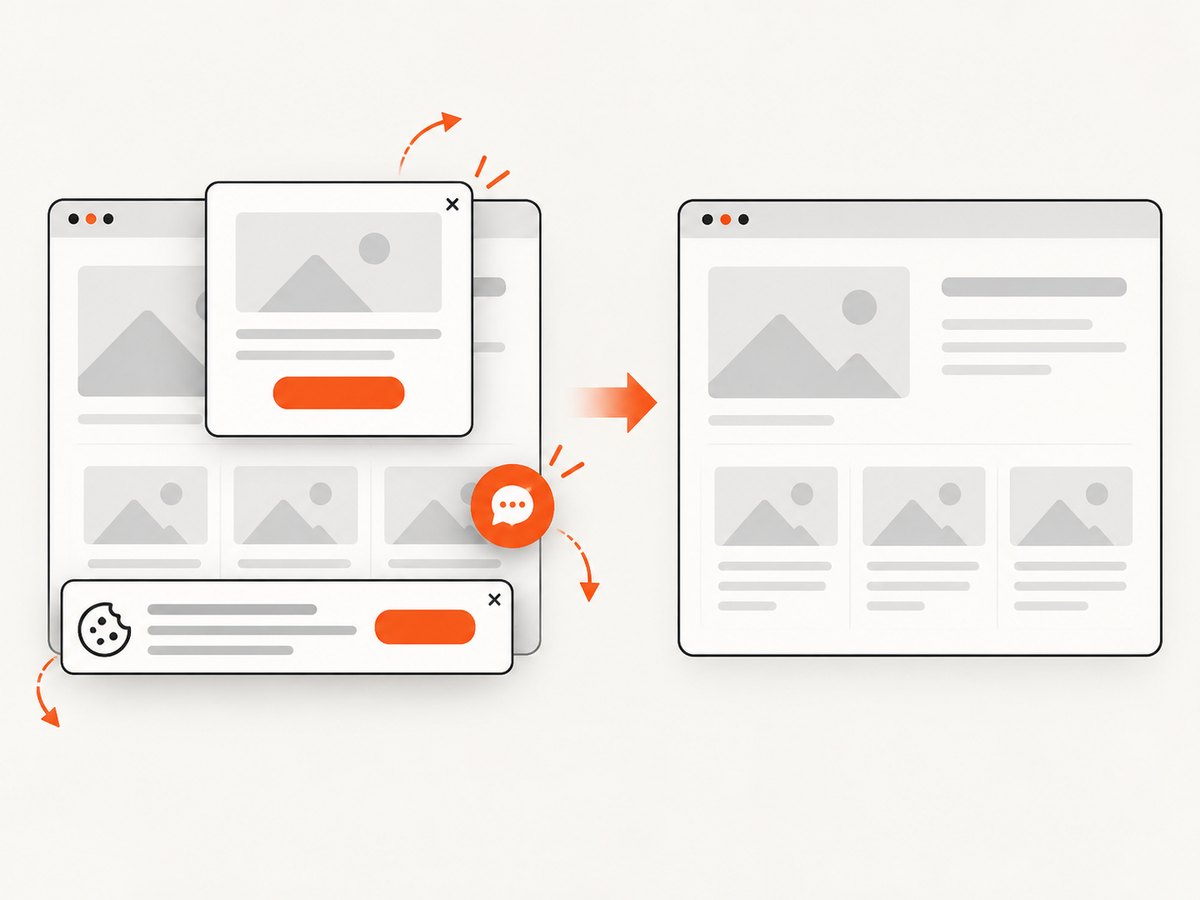
const res = await fetch(`https://api.screenshotneo.com/v1/shot?${q}`);ScreenshotNeo removes cookie banners, newsletter popups, and chat widgets before the shot. Bot checks, blank pages, failed loads, timeouts, and cache hits are not billed, and response headers identify the page verdict and billing result. Its MCP server lets Claude, Cursor, and other MCP clients call take_screenshot, get_page_info, and capture_pdf. The free plan includes 1,000 screenshots a month with no card; paid plans start at $5 for 3,000 shots. A plain localhost address normally exists only on your computer, so expose a development or staging URL before sending it to a hosted capture service.
Create a free ScreenshotNeo account to get 1,000 screenshots a month with no card.
10. Performance, reliability, and cost considerations
- Local Firefox: capture speed depends on page length, image size, fonts, animations, and your development machine. Disable animations temporarily when visual stability matters.
- Repeatability: freeze test data, wait for asynchronous requests, and record the viewport width and zoom level with each capture.
- Large documents: a very tall page produces a large PNG. Use JPEG or WebP in a service workflow when smaller files are acceptable; Firefox’s built-in flow produces its normal screenshot output.
- Automation: the Web Console command is easier to repeat than clicking through the UI, while a hosted API is better for scheduled or multi-URL jobs.
- Hosted capture billing: ScreenshotNeo bills only clean shots; failed loads, bot checks, blank pages, timeouts, and cache hits cost nothing. Use its cache TTL, waiting controls, blocking options, and async jobs when you need predictable throughput.
11. FAQ
Can I capture a page at localhost without publishing it?
Yes, with Firefox’s built-in tools, Developer Tools, or the Web Console because the browser is running on the same computer as the local server.
What shortcut opens Firefox’s screenshot controls on Windows?
Ctrl+Shift+S.
Why is my screenshot only one screen tall?
You selected Save visible. Choose Save full page instead.
Can a screenshot include content below an inner scrollbar?
Not reliably through the document-level capture alone. Inner scroll containers and iframes often need separate handling.
Which format does Firefox save?
The built-in screenshot workflow saves a PNG. ScreenshotNeo can return PNG, JPEG, WebP, or PDF.


