How to Capture a Full-Page Screenshot in Any Browser
Learn how to capture an entire webpage in Firefox, Edge, Chrome and with an API, including formats, troubleshooting and automation options.
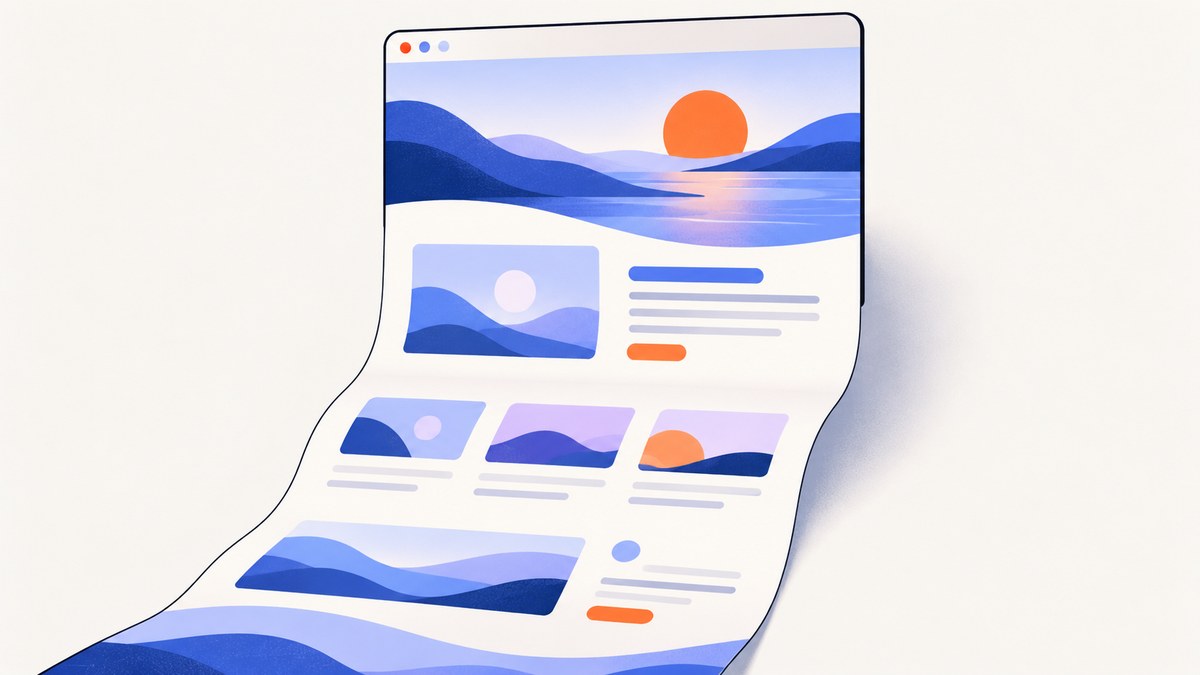
A full-page screenshot captures the webpage from top to bottom, including content below the visible viewport. It is different from a normal screenshot, which records only the portion currently on screen.
The quickest dependable method depends on your browser:
- Firefox: use the built-in screenshot tool and choose Save full page.
- Microsoft Edge: use the Screenshot tool, then choose the full-page option when it is available in your installation.
- Chrome: use a third-party extension such as GoFullPage for Chrome. Exact Chrome DevTools steps can change, so check Google’s current documentation before relying on them.
- Any browser or automated workflow: use a screenshot API such as ScreenshotNeo.
What a full-page screenshot includes
A visible-area screenshot records the current viewport. A full-page capture scrolls or renders the document so that content below the fold is included in one image or PDF. This makes it useful for bug reports, design reviews, archival copies, documentation, receipts and sharing a long article.
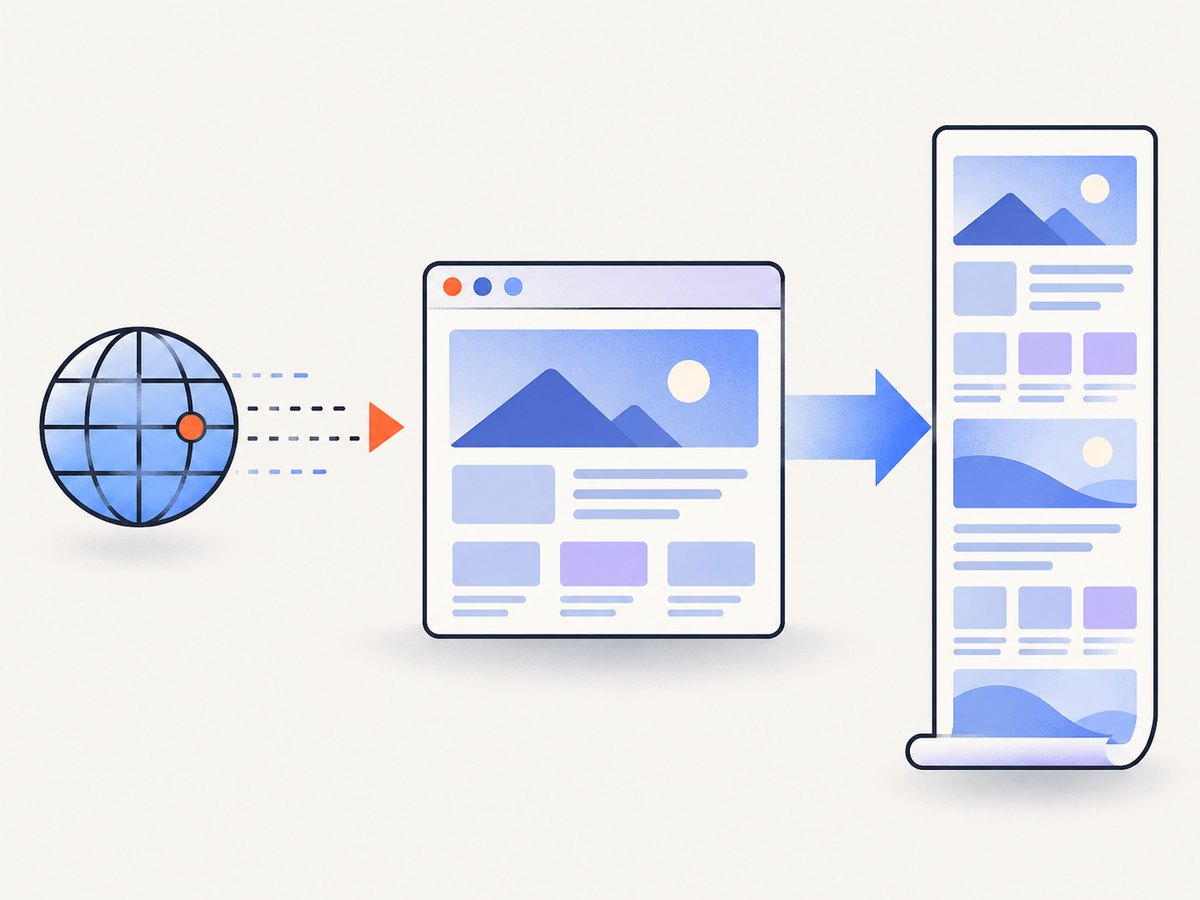
Full-page capture is not always identical to printing a page. A screenshot preserves the rendered appearance, including colors, spacing, images and responsive layout. A PDF may paginate the same content across paper-sized pages. Fixed headers, lazy-loaded images, animations, cookie dialogs and infinite scrolling can affect the result.
Firefox: save the entire page as an image
Mozilla documents a built-in full-page option in Firefox’s screenshot interface. Open the screenshot tool, choose Save full page, and download the resulting image. The exact button placement or shortcut can vary with the Firefox version, so follow the current instructions in Mozilla Support.
Steps
- Open the page you want to capture.
- Open Firefox’s screenshot tool from the page context menu or browser controls.
- Select Save full page.
- Preview the capture, then download it as an image.
Firefox limitations to check
- Very long documents can produce large image files.
- Content that loads only after scrolling may not appear immediately.
- Fixed-position elements may be repeated or appear in an unexpected position.
- A page that requires login, location, cookies or a particular viewport can look different from what another user sees.
Microsoft Edge: use the Screenshot tool
Microsoft describes a Screenshot tool that can capture a full page or a selected area. Open the current Screenshot control in your Edge installation and choose the full-page capture when offered. Microsoft says availability and functionality can vary by device type, market and browser version; see the official Edge feature page for current details.
Steps
- Navigate to the webpage.
- Open Edge’s Screenshot tool from the browser toolbar or command menu.
- Choose the option for the full page.
- Review the capture and save or copy it using the controls shown by your version of Edge.
If you cannot find a full-page option, update Edge and check the current toolbar customization. The feature may not be exposed on every device or release.
Chrome: use a full-page extension
Chrome’s Web Store lists GoFullPage as a full-page screen capture extension. Install it only after reviewing its current permissions, publisher information and privacy details. Browser extensions are third-party software, and their behavior can change with Chrome updates.
Steps with GoFullPage
- Open the GoFullPage listing in the Chrome Web Store.
- Review the current permissions and listing details, then install the extension if it meets your requirements.
- Open the target webpage and select the extension from Chrome’s extensions menu.
- Let the extension scroll and assemble the page.
- Export the result in the format offered by the current extension version.
Another Chrome Web Store listing describes scrolling capture with PNG, JPEG and PDF export. Treat those capabilities as listing claims and verify the current details before installing any extension. For pages containing confidential data, a local browser feature may be preferable to sending page contents through an add-on.
Choosing the right method
| Method | Built in? | Output | Best for | Watch for |
|---|---|---|---|---|
| Firefox screenshot | Yes | Image | Quick manual captures | Version-specific controls and long-page limits |
| Edge Screenshot | Yes, where available | Image or controls offered by your version | Edge users who want a native tool | Device, market and version availability |
| Chrome extension | No | Often PNG, JPEG or PDF | Chrome workflows needing scrolling capture | Permissions, privacy and extension changes |
| Screenshot API | No browser UI | PNG, JPEG, WebP or PDF | Automation, CI, backend jobs and repeatable output | Authentication, page readiness and API costs |
Make captures reliable
Wait for the page to finish rendering
Modern pages often load content after the initial HTML response. If images are lazy-loaded, scroll-triggered, or injected by JavaScript, capture only after the relevant content is present. For a manual capture, wait until the page settles and scroll through it once. For automation, wait for a selector, a delay or network idle.
Handle cookie banners and overlays
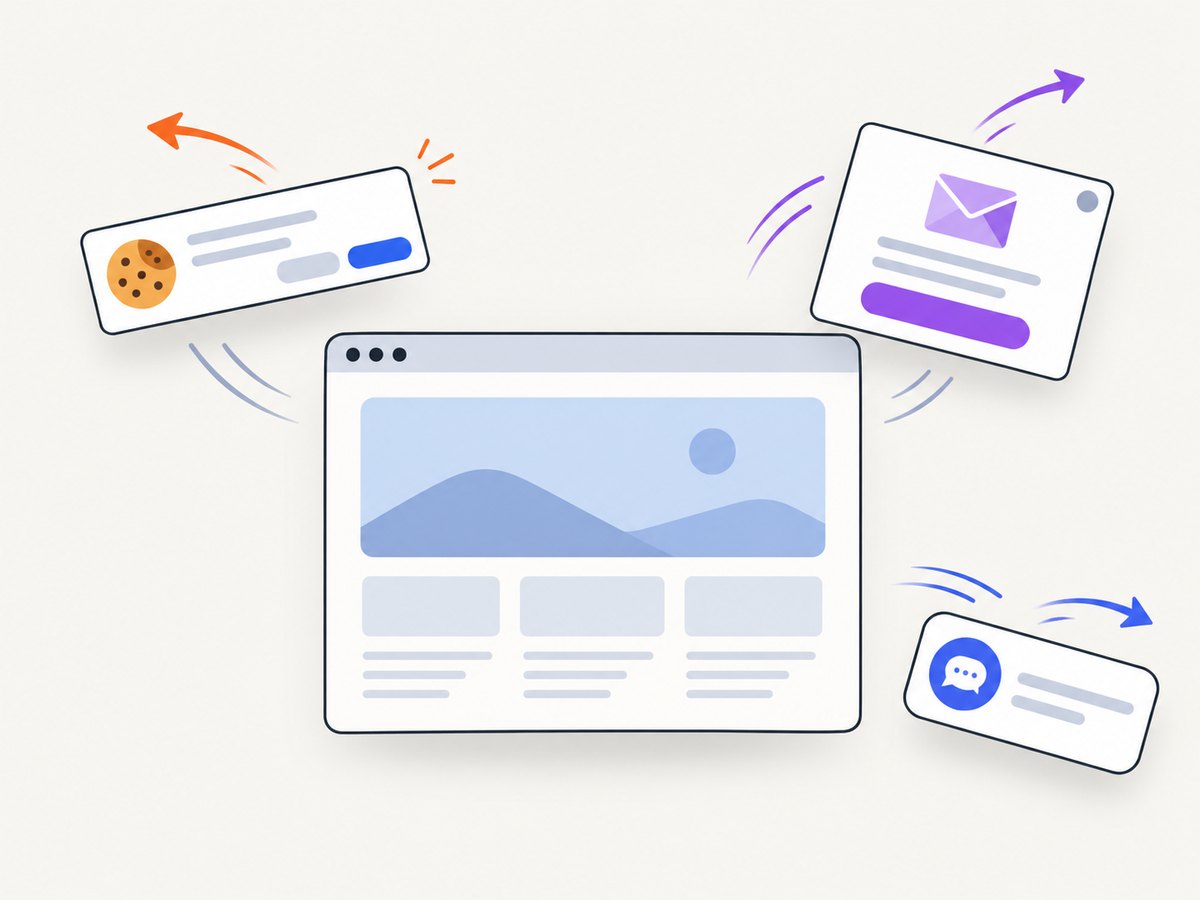
Consent banners, newsletter popups and chat widgets can cover content or become part of the screenshot. Dismiss them before capturing, or hide their selectors in an automated workflow. Remember that dismissing a banner can change the page layout, so check the final dimensions.
Check responsive layout
A full-page screenshot is tied to the viewport width, device scale and browser zoom. A narrow viewport may trigger a mobile layout; a wide viewport may expose a desktop navigation bar. Set the viewport deliberately when repeatability matters.
Expect very tall documents
Long pages can exceed image or browser memory limits. If one image is impractical, export a PDF, capture selected sections, or split the document into predictable ranges. Infinite-scroll pages may have no stable end and require a defined stopping rule.
Or skip the browser setup
For repeatable captures, backend jobs or any browser, ScreenshotNeo’s screenshot API accepts one GET request and returns a PNG, JPEG, WebP or PDF. The same request can set full-page capture, viewport, device preset, retina scale, waiting rules and output options.
cURL
curl -G "https://api.screenshotneo.com/v1/shot" \
  -d access_key=YOUR_API_KEY \
  --data-urlencode url=https://stripe.com \
  -d full_page=true \
  -o shot.webp
Python
import requests

params = {
    "access_key": "YOUR_API_KEY",
    "url": "https://stripe.com",
    "full_page": "true",
}
r = requests.get(
    "https://api.screenshotneo.com/v1/shot",
    params=params,
    timeout=90,
)
r.raise_for_status()
open("shot.webp", "wb").write(r.content)
Node.js
const q = new URLSearchParams({
  access_key: 'YOUR_API_KEY',
  url: 'https://stripe.com',
  full_page: 'true',
});
const res = await fetch(`https://api.screenshotneo.com/v1/shot?${q}`);
if (!res.ok) throw new Error(`HTTP ${res.status}`);
const image = Buffer.from(await res.arrayBuffer());
require('fs').writeFileSync('shot.webp', image);
In all examples, replace the URL with the page you need and keep the API key private. See the ScreenshotNeo documentation for the complete parameter reference and OpenAPI specification.
ScreenshotNeo options for full-page jobs
You can combine full-page capture with:
- Output: PNG, JPEG, WebP or PDF.
- Viewport: any width and height, 12 device presets, and retina scale.
- Readiness: wait for a selector, a fixed delay or network idle.
- Page control: custom CSS and JavaScript, click an element, hide selectors and load lazy images.
- Network control: block ads, trackers, requests or resource types; send custom headers, cookies, a user agent or Authorization.
- Location: timezone and geolocation settings.
- Output shaping: transparent background and image resizing.
- PDF: paper size, margins, landscape mode and page ranges.
- Operations: caching with a chosen TTL, signed links, asynchronous jobs with signed webhooks, bulk capture for up to 100 URLs per call and a usage API.
ScreenshotNeo accepts parameter names used by other screenshot APIs, which can reduce changes when switching providers. Its MCP server exposes take_screenshot, get_page_info and capture_pdf for Claude, Cursor and other MCP clients.
Troubleshooting
| Symptom | Likely cause | Fix |
|---|---|---|
| Only the visible area is saved | The browser tool is in area mode | Choose the full-page option, or install and run a scrolling capture extension. |
| Images are missing | Lazy loading has not completed | Wait longer, scroll through the page, or configure a selector/delay/network-idle wait in an API job. |
| A popup covers the page | Cookie, newsletter or chat overlay | Dismiss it manually or hide the selector before capture. |
| The page looks different | Viewport, zoom, cookies, location or user agent differ | Set those values explicitly and capture from the same session state. |
| The capture is cut off | Page height or browser memory limit | Use PDF, split the capture, reduce scale, or capture selected elements. |
| The API returns an error | Missing key, invalid URL, timeout or blocked page | Check authentication and URL encoding, increase readiness waits, and inspect response headers and status. |
| A result is blank | Navigation failed, content is blocked or the page requires interaction | Use custom headers/cookies, click an element, wait for a selector, or verify the URL in a normal browser. |
Performance, reliability and cost
For occasional manual work, browser-native capture is simplest. For scheduled reports or many URLs, an API avoids keeping a browser session open and makes viewport and readiness settings explicit. Cache stable pages with a TTL when repeated captures do not need fresh content. Use asynchronous jobs and signed webhooks when a capture may take longer than your request timeout; use bulk capture for up to 100 URLs per call.
Large pages take more time and memory than short pages. Reduce unnecessary resources by blocking ads, trackers or selected resource types, but confirm that the page still renders correctly. Choose JPEG when a smaller photographic image is acceptable, WebP for compact modern images, PNG for lossless graphics, and PDF when pagination or printing is the goal.
ScreenshotNeo bills only clean shots. Bot checks or CAPTCHAs, blank pages, timeouts, failed loads and cache hits cost nothing, and each response identifies the result with X-Page-Verdict and X-Billed headers. Pricing starts with 1,000 free shots per month without a card; paid plans are Starter $5 for 3,000, Growth $15 for 15,000, Pro $39 for 60,000, Scale $99 for 250,000 and Business $249 for 1,000,000. Yearly billing gives two months free, and every feature is included on every plan.
FAQ
Does a full-page screenshot include content below the fold?
Yes. It captures the document beyond the visible viewport, provided that the content can be rendered and the capture method reaches it.
Can I capture a full webpage as a PDF?
Yes, when the browser or tool offers PDF export. ScreenshotNeo also supports PDF paper size, margins, landscape mode and page ranges.
Why is my page longer in the screenshot than in the browser?
Lazy-loaded content, expanded sections, different fonts, overlays or a changed viewport can alter document height.
Is a browser extension required?
No. Firefox and Edge document built-in full-page tools where available. Chrome users can use an extension or an API.
Can an AI agent take the screenshot?
Yes. ScreenshotNeo includes an MCP server with tools for screenshots, page information and PDF capture.
Start with the method that matches your workflow
Use Firefox or Edge for a quick one-off image, review Chrome extension permissions before installing third-party software, and use an API when you need repeatable settings, automation or many URLs. If you want clean captures without browser setup, sign up for ScreenshotNeo: 1,000 screenshots per month are free and no card is required.