How to Capture Full-Page Screenshots Using F12 Developer Tools
Capture an entire webpage in Chrome or Firefox DevTools, save it, and troubleshoot common full-page screenshot problems.

To capture a full-page screenshot in Chrome, open DevTools, select More options, then choose Capture a full size screenshot. In Firefox, enable Take a screenshot of the entire page in DevTools settings, then use its screenshot toolbar button. Firefox also supports a full-page capture command in the Web Console: screenshot page.png --fullpage.
A full-page screenshot includes content beyond the visible browser window. A regular viewport screenshot captures only what is currently on screen. These built-in browser workflows work without an extension or a separate screenshot service. The instructions below cover Chrome and Firefox; the cited sources do not establish current exact steps for Edge.
1. Choose the right kind of screenshot
Before capturing, decide what the image needs to show. A viewport screenshot is useful for documenting a specific visible state, such as a dialog or a chart. A full-page screenshot is useful when a reviewer needs to see the page from top to bottom in one image.

| Capture type | What it includes | Good fit |
|---|---|---|
| Viewport | The content currently visible in the browser viewport | A component, interaction, or above-the-fold layout |
| Full page | The whole page, including content outside the current viewport | A page review, long article, or visual record of a complete page |
In Chrome, the menu has distinct commands for these cases: Capture screenshot captures the current viewport; Capture a full size screenshot captures the whole page, including content that is not currently visible. [Chrome DevTools documentation]
Full-page capture is not a guarantee that every site will render exactly as expected. A very long page can produce a very tall image, and page content that changes while the browser captures it may be inconsistent. The workflow captures the page state the browser can render at that moment.
2. Capture a full-page screenshot in Chrome
- Open the page you want to capture in Chrome.
- Open DevTools. You can use the browser’s DevTools command or menu; the exact keyboard shortcut can vary by operating system and browser setup.
- In DevTools, open More options.
- Select Capture a full size screenshot.
- Wait for Chrome to create the image, then locate it using the browser’s download behavior.
Use the full-size command rather than Capture screenshot when you need content below the fold. Chrome’s documentation describes the full-size option as capturing the whole page, including content that is not currently visible in the viewport. [Chrome DevTools: Device mode]
Check the result
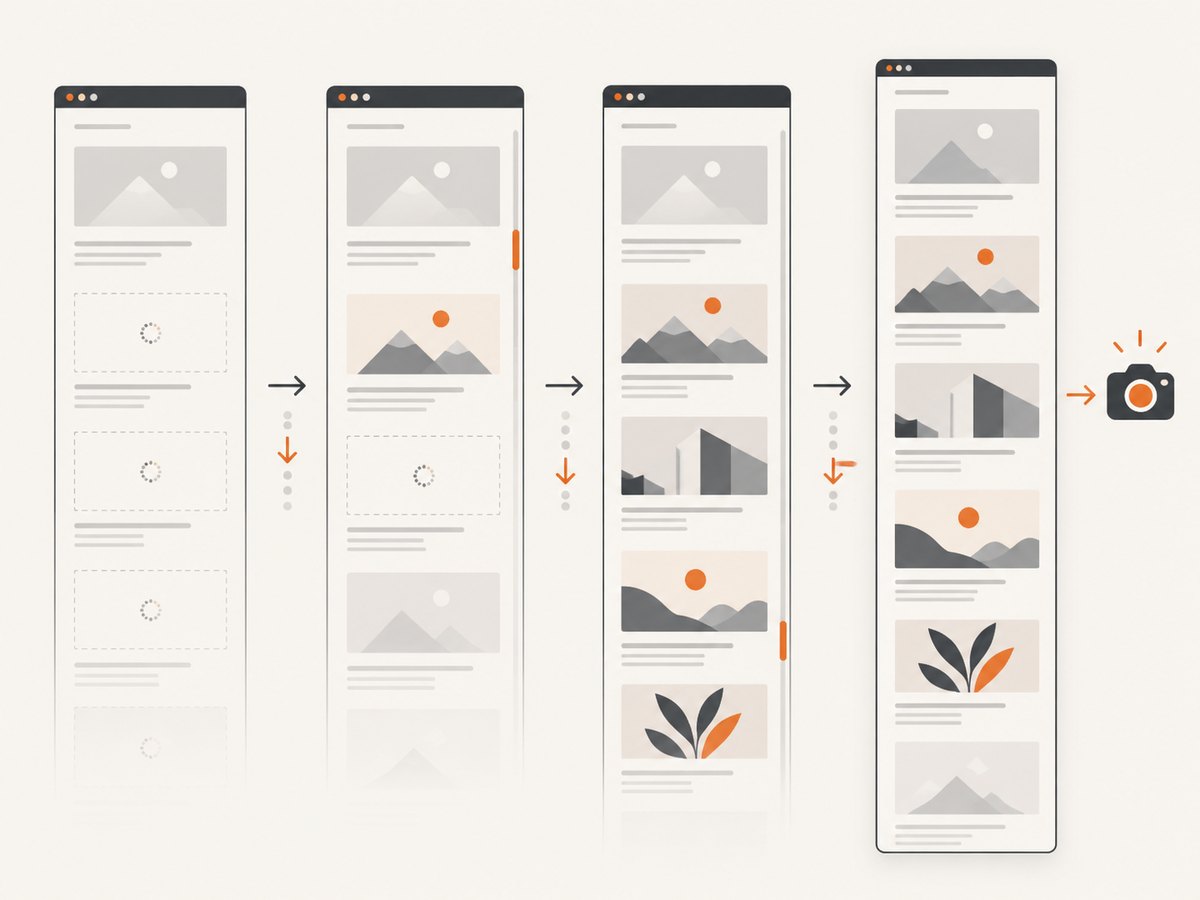
Open the downloaded image and check the top, middle, and bottom of the page. Look for missing content, unexpected blank regions, or a state that changed while the capture was being made. If the page has lazy-loaded sections or content that appears only after interaction, scroll through it first and make sure the sections you need are present before capturing. This is a practical precaution for dynamic pages, not a guarantee that every site’s loading behavior will be triggered by scrolling.
3. Capture a full-page screenshot in Firefox
Firefox’s entire-page screenshot toolbar button may need to be enabled first. Mozilla documents this workflow in its screenshot guide. [Mozilla: Taking screenshots]
- Open Firefox Developer Tools. Mozilla lists F12 on Windows and Linux, and Cmd+Opt+I on macOS. [Firefox DevTools documentation]
- Open DevTools settings.
- Find Available Toolbox Buttons.
- Enable Take a screenshot of the entire page.
- Click the screenshot button in the DevTools toolbar.
- Find the image in the browser’s Downloads directory.
Mozilla specifically documents the Downloads directory as the save location for this toolbar workflow. [Mozilla: Taking screenshots]
Use Firefox’s Web Console command
If you prefer a command, open the Web Console and enter:
screenshot page.png --fullpageReplace page.png with the filename you want. Firefox documents screenshot <filename.png> --fullpage as a full-page screenshot command; the optional filename names the output, which is saved to Downloads. [Mozilla: DevTools tips]
F12 is not a universal DevTools shortcut across browsers and operating systems. The shortcut above is specifically the one Mozilla documents for Firefox on Windows and Linux; on macOS, use the documented Cmd+Opt+I shortcut.
4. Prepare the page before you capture it
A screenshot records a rendered page state. Spending a moment to prepare that state can make the result more useful and easier to reproduce.
- Open the exact page and state. Navigate to the right URL and dismiss or configure dialogs that should not appear in the screenshot.
- Wait for the content you need. Check that the page has finished loading before capture. If important content appears after scrolling or interacting, bring it into the rendered state first.
- Choose a consistent browser size. The viewport can affect responsive layout. Keep the same window size when comparing captures.
- Consider page changes. Ads, rotating banners, live data, animations, and personalized content can vary between captures.
- Confirm access and privacy. A browser screenshot can include account details, personal data, or information visible only in your session. Review the image before sharing it.
For a repeatable record, note the URL, browser, approximate time, and any interaction needed to reach the captured state. Browser DevTools provides the capture command; it does not turn a changing page into a fixed, versioned document.
5. Troubleshoot common problems
| Problem | Likely cause | What to try |
|---|---|---|
| The image shows only the visible viewport | The viewport command was selected instead of the full-size command | In Chrome, choose Capture a full size screenshot. In Firefox, enable and use the entire-page screenshot button, or run the documented console command with --fullpage. |
| Firefox has no screenshot toolbar button | The button is not enabled in toolbox settings | Open DevTools settings, find Available Toolbox Buttons, and enable Take a screenshot of the entire page. |
| You cannot find the screenshot file | You are looking in a different folder or the browser download location has changed | Check the browser’s download list or configured download directory. For Firefox’s documented toolbar workflow, check Downloads. |
| Some sections are blank or absent | The page may load content on scroll, after interaction, or after a delay | Wait for the page, scroll through relevant sections, and trigger any needed interaction before taking another capture. Check the resulting image rather than assuming all dynamic content was included. |
| The screenshot is very tall or awkward to share | A full-page capture includes the complete document height | Use a viewport capture if only the current screen matters. If you need the whole page, keep the full image and use an image viewer that can pan or zoom. |
| The page looks different between captures | Responsive layout, live content, animation, or personalization changed the rendered state | Use the same browser size, repeat the same steps, and capture at a consistent point after loading. |
| The command is unavailable or does not run | The browser, tool, or command context may differ from the documented Firefox workflow | Confirm you are using Firefox’s Web Console and the syntax screenshot page.png --fullpage. If you are in Chrome, use its DevTools menu workflow instead. |
Browser labels can change as tools evolve. These steps reflect the cited Chrome and Mozilla documentation retrieved on September 29, 2026. They establish the documented workflows, not compatibility with every page, browser version, or dynamic site.
6. When DevTools is the right approach
Built-in DevTools is a good fit for an occasional capture when you are already working in the browser and can inspect the result manually. It avoids setting up a separate tool, and the browser can capture the page as it is rendered in your session.
It is less convenient when you need to capture many URLs, repeat captures automatically, use the same settings from a script, or receive an image without manually downloading it. A screenshot taken from your browser also reflects that browser’s session and current page state. For a single review image, that may be exactly what you want. For an application workflow, a request-based API can be easier to call and integrate.
7. Or skip the browser setup
ScreenshotNeo is a website screenshot API and MCP server from Yorker Media. One GET request can return a screenshot or PDF. Its capture flow accepts cookie and consent banners like a visitor, then removes more than 60 known consent platforms, newsletter popups, and chat widgets; each of those steps can be turned off. Only clean shots are billed: bot checks or CAPTCHAs, blank pages, timeouts, failed loads, and cache hits cost nothing, and the response identifies the page verdict and billing status in headers.
Here is a runnable cURL example (replace YOUR_API_KEY with your access key):
curl -G "https://api.screenshotneo.com/v1/shot" \
  -d access_key=YOUR_API_KEY \
  --data-urlencode url=https://stripe.com \
  -o shot.webp
Python:
import requests

r = requests.get(
    "https://api.screenshotneo.com/v1/shot",
    params={"access_key": "YOUR_API_KEY", "url": "https://stripe.com"},
    timeout=90,
)
open("shot.webp", "wb").write(r.content)
Node.js:
const q = new URLSearchParams({
  access_key: 'YOUR_API_KEY',
  url: 'https://stripe.com'
});
const res = await fetch(`https://api.screenshotneo.com/v1/shot?${q}`);
if (!res.ok) throw new Error(`Screenshot request failed: ${res.status}`);
await Bun.write('shot.webp', res);
See the ScreenshotNeo API documentation for request options and setup. The API supports full-page screenshots, lazy image loading, element capture by CSS selector, device presets and custom viewports, retina scale, PDF settings, custom CSS and JavaScript, wait conditions, request blocking, headers and cookies, caching, signed image links, async jobs, bulk capture, and a usage API. The parameters used by other screenshot APIs also work, which can make switching easier.
ScreenshotNeo also provides an MCP server with take_screenshot, get_page_info, and capture_pdf tools for Claude, Cursor, and other MCP clients. Every feature is on every plan. The free plan includes 1,000 shots a month with no card; paid plans start at $5 for 3,000 shots, with yearly billing giving two months free.
Start with 1,000 free screenshots a month—no card required.
8. Performance, reliability, and cost
A browser full-page image can be large because it includes the whole page height. The practical cost is time spent waiting for the page, creating the image, and transferring or opening the resulting file. Long pages and high-resolution displays can make the image harder to inspect and share. If you only need one region, a viewport capture may be more convenient; if you need a complete record, check that the full image contains the sections that matter.
For dependable manual captures, use a stable page state: wait for important content, keep the window dimensions consistent, and repeat the same interaction sequence. Dynamic pages may change independently of the capture action. Save the original file if you need to review or crop it later, and check for private information before distributing it.
The DevTools procedure described here has no separate screenshot-service fee: it uses built-in browser tools. It does require a person to open the page, initiate the capture, and locate the output. If you need unattended or repeated captures, compare that operational effort with an API’s plan and request options. ScreenshotNeo’s listed plans range from 1,000 free shots per month to paid tiers from $5 for 3,000 shots; only clean shots are billed, according to the product details above.
9. FAQ
Does F12 take a full-page screenshot by itself?
F12 is a way to open DevTools in Firefox on Windows and Linux according to Mozilla. The full-page capture is a separate toolbar action in Firefox or a DevTools menu action in Chrome.
Where does Firefox save the screenshot?
Mozilla’s documented entire-page toolbar workflow saves the file in the browser’s Downloads directory. The console command documentation also describes saving the output to Downloads.
Can I use these steps for Edge?
The research sources establish the Chrome and Firefox workflows, not a current Edge procedure. Check Edge’s own documentation for its present interface labels.
Will a full-page capture include content that loads later?
It captures the rendered page state available during capture. For content that depends on scrolling, interaction, or delay, prepare the page first and inspect the output.
Can I automate screenshots from a script?
DevTools is a manual browser workflow. For request-based capture, ScreenshotNeo provides an API and MCP server; see its documentation for available options.


