How to Capture Full-Page Screenshots with FireShot for Chrome
Capture an entire scrolling webpage in Chrome with FireShot, save it correctly, fix common problems, and automate screenshots with ScreenshotNeo.
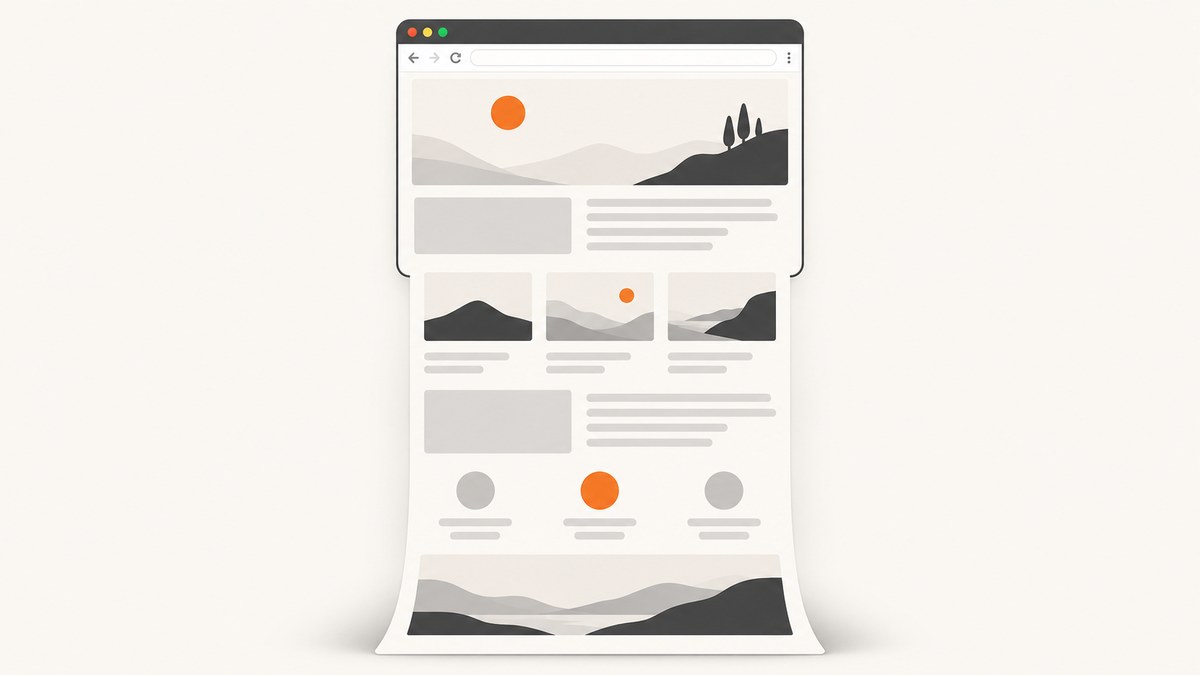
To capture a complete webpage in Chrome with FireShot, install the Take Webpage Screenshots Entirely – FireShot extension, open the page, start FireShot from the toolbar, context menu, or Ctrl+Shift+S, then choose the full-page or entire-page capture command. FireShot scrolls through content below the fold and lets you save the result as PDF, PNG, or JPEG.
What FireShot captures
FireShot has three useful capture scopes:
| Mode | Use it when |
|---|---|
| Entire page | You need the complete document, including content that is not visible without scrolling. |
| Visible area | You only need the current viewport. |
| Selection | You want a specific region of the page. |
FireShot also advertises capture of scrollable elements, batch URL capture, all-tab capture, clipboard copying, printing, Gmail attachment, and capture history. Some of these capabilities depend on the version and whether FireShot Pro is installed.
Install FireShot in Chrome
- Open the FireShot listing in the Chrome Web Store.
- Choose Take Webpage Screenshots Entirely – FireShot and select Add to Chrome.
- Confirm the installation prompt.
- Open Chrome’s extensions menu, find FireShot, and click the pin icon if you want its button permanently visible.
Menu names and button placement can change between extension versions. The reviewed listing identified version 2.1.4.18, updated 24 May 2026.
Capture a full webpage
- Navigate to the page you want to capture.
- Wait for the page’s important content to load. If the page uses lazy-loaded images, scroll through it once or wait for its loading state to finish.
- Start FireShot in one of three ways: click its toolbar icon, right-click the page and choose the FireShot command, or press Ctrl+Shift+S.
- Select Capture entire page or the equivalent full-page command. Do not choose visible area or selection.
- Allow FireShot to scroll through the page and assemble the capture.
- Choose the output action, such as saving as PDF, PNG, or JPEG, copying to the clipboard, printing, or attaching it to email.
For a long page, keep the tab active until capture finishes. A page that changes while FireShot is scrolling can produce a stitched image with shifted sections.
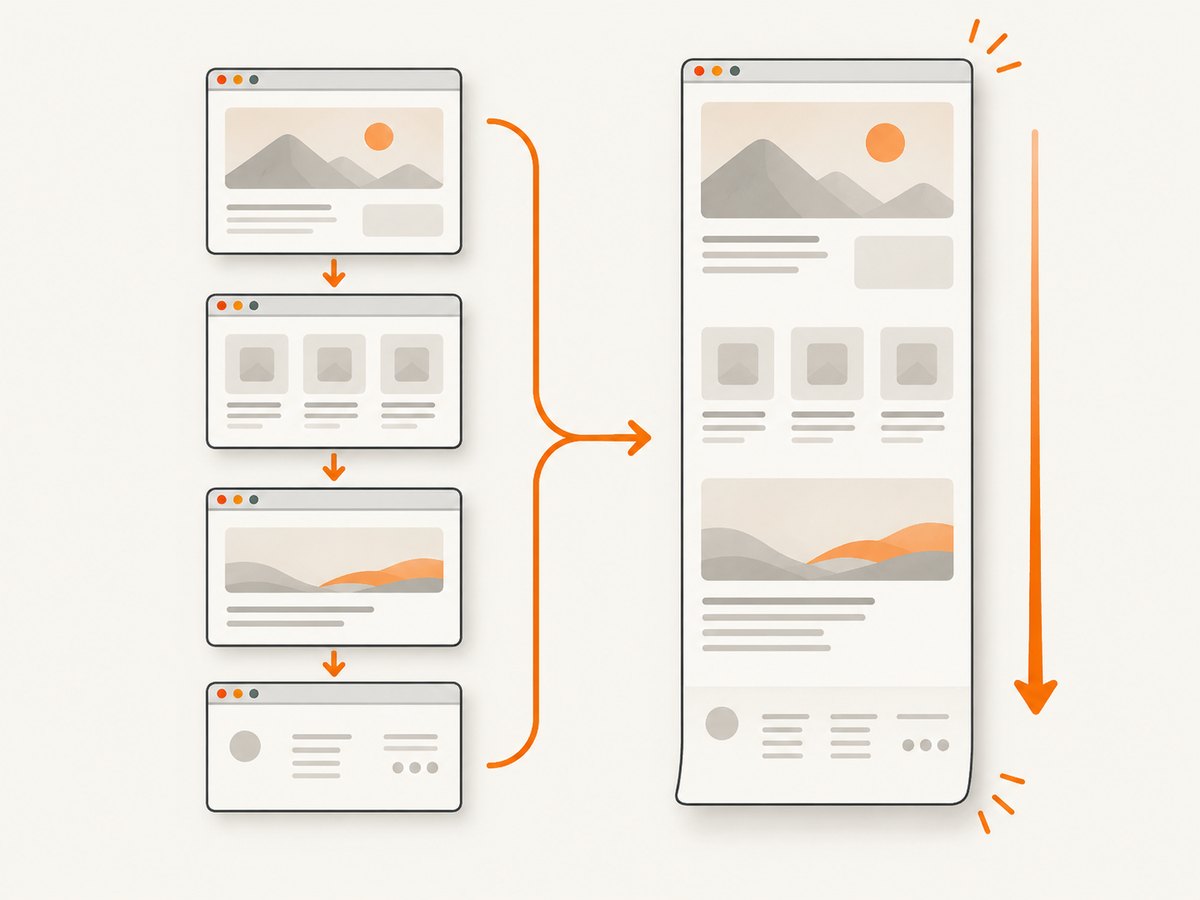
Save the result as PNG, JPEG, or PDF
| Output | Best for | Watch for |
|---|---|---|
| PNG | Sharp text, diagrams, and archival screenshots. | Large files on very long pages. |
| JPEG | Smaller files and photographic pages. | Compression can blur small text. |
| Sharing, printing, or preserving a document-like page. | Advanced PDF options may require Pro. |
The free version saves to Downloads according to FireShot’s setup information. FireShot Pro supports custom folders or cloud locations. Advanced PDF export, direct links and text in PDFs, editing, annotations, history, batch capture, and all-tabs capture are Pro features; exact availability can vary by operating system. FireShot’s FAQ identifies some editor and redaction tools as Windows-specific.
Make full-page captures reliable
Prepare the page
- Close cookie dialogs, newsletter popups, chat widgets, and sticky notices before starting.
- Set the browser zoom to 100% when you need consistent dimensions.
- Use a stable window size and avoid resizing Chrome during capture.
- For authenticated pages, sign in first and confirm that the required content is visible.
- Disable animations where possible. Animated carousels and videos can change between scroll positions.
Handle lazy loading
Many sites load images only when they approach the viewport. If the final screenshot has blank image areas, scroll through the page once before invoking FireShot, wait for images to finish, then capture again. A page that inserts new content while scrolling may need a second attempt after it settles.
Capture a scrollable panel
If the content is inside a scrolling element rather than the document itself, use FireShot’s scrollable-element capability when your version provides it. Otherwise, select the element if supported or capture the panel in several sections and combine them in an editor.
FireShot free versus Pro
| Need | Free listing features | Pro-oriented capability |
|---|---|---|
| Basic full-page image | Entire-page, visible-area, and selection capture; PNG, JPEG, and PDF saving. | Not required for the basic capture. |
| Batch work | Some listing features mention batch URLs and all tabs. | Publisher presents batch and automated capture as Pro capabilities. |
| PDF production | Basic PDF saving. | Advanced PDFs with direct links and text. |
| Editing | Basic save and share actions. | Crop, resize, text, arrows, blur, and smart annotations; platform availability varies. |
| Storage | Downloads folder. | Custom folders or cloud locations. |
FireShot’s purchase page listed Pro at $39.95 per year or $99.95 for a one-time lifetime license when accessed 29 September 2026. Prices and terms can change, so check the current purchase page before buying.
Privacy and offline use
FireShot says captures are processed locally and do not leave the device, and that the extension can work offline. The Chrome Web Store listing contains the developer’s disclosure that it will not collect or use user data. These are vendor and platform disclosures, not an independent audit of every browser configuration.
Or skip the browser setup
If you need repeatable captures from code or a server, ScreenshotNeo provides a website screenshot API and MCP server. One GET request returns a PNG, JPEG, WebP, or PDF. It can load lazy images, remove cookie and consent banners, newsletter popups, and chat widgets before capture, and capture a full page or one CSS-selected element.

See the ScreenshotNeo API documentation for all options. This is the smallest working request:
curl -G "https://api.screenshotneo.com/v1/shot" -d access_key=YOUR_API_KEY --data-urlencode url=https://stripe.com -o shot.webpPython
import requests

r = requests.get("https://api.screenshotneo.com/v1/shot", params={"access_key": "YOUR_API_KEY", "url": "https://stripe.com"}, timeout=90)
open("shot.webp", "wb").write(r.content)
Node.js
const q = new URLSearchParams({ access_key: 'YOUR_API_KEY', url: 'https://stripe.com' });
const res = await fetch(`https://api.screenshotneo.com/v1/shot?${q}`);
ScreenshotNeo removes cookie banners, popups, and chat widgets before the shot. Bot checks, blank pages, failed loads, timeouts, and cache hits are not billed, and response headers identify the page verdict and whether it was billed. Its MCP server includes take_screenshot, get_page_info, and capture_pdf for Claude, Cursor, and other MCP clients. The free plan includes 1,000 screenshots per month with no card; paid plans start at $5 for 3,000 shots. Create a free ScreenshotNeo account.
Troubleshooting FireShot
| Problem | Likely cause | Fix |
|---|---|---|
| FireShot button is missing | The extension is installed but not pinned. | Open Chrome’s extensions menu and pin FireShot. |
| Only the visible viewport is saved | The visible-area command was selected. | Run FireShot again and choose entire-page capture. |
| Images are blank below the fold | Lazy loading had not completed. | Scroll through the page first, wait for images, and capture again. |
| A fixed header appears repeatedly | The site repositions a sticky element during scrolling. | Hide or disable the sticky element if possible, or crop the repeated header afterward. |
| Sections are duplicated or missing | The page changed while FireShot stitched it. | Wait for network activity and animations to stop, then retry at a stable window size. |
| A login page appears instead of the target | The page requires authentication or a session cookie. | Sign in in the same Chrome profile and verify access before capture. |
| Capture never finishes | An embedded frame, script, or continuously loading resource prevents a stable end. | Reload, stop unnecessary network activity, disable problematic extensions, and retry. For automation, use an API with explicit timeout and wait controls. |
| PDF layout is unsuitable | Image-style PDF output differs from a print layout. | Use advanced PDF options in Pro or print the page with Chrome’s print settings. |
| Text is hard to read | The image was compressed or scaled down. | Use PNG, keep the original dimensions, or capture at a higher device scale where available. |
Performance, reliability, and cost considerations
- Long pages: Full-page capture takes longer and creates larger files as page height grows.
- Dynamic content: Ads, clocks, carousels, and live feeds can make two captures differ.
- Memory: Very tall pages and high-resolution images can consume substantial browser memory. Close unused tabs before capturing.
- Repeatability: Record the URL, viewport, zoom, login state, and capture time when screenshots are evidence or documentation.
- FireShot pricing: Basic capture is available from the extension listing; Pro adds advanced export and workflow features. Verify current pricing before purchase.
- API economics: ScreenshotNeo bills only clean shots; bot checks, blank pages, failed loads, timeouts, and cache hits cost nothing. Its response headers expose the verdict and billing result.
FAQ
Can FireShot capture a page longer than the screen?
Yes. Choose the entire-page command; FireShot scrolls through content that is not visible in the initial viewport.
Can I capture just one element?
Use selection capture or a scrollable-element workflow when available. For a repeatable CSS selector, ScreenshotNeo supports element capture by selector.
Does FireShot work offline?
FireShot’s own materials say it can work offline and process captures locally.
Which format should I choose?
Choose PNG for crisp text, JPEG for smaller photographic files, and PDF for document sharing or printing.
Is FireShot suitable for scheduled or bulk captures?
FireShot Pro includes batch and automated capture capabilities according to the publisher. For server-side jobs, signed webhooks and bulk capture are available in ScreenshotNeo.
Where do free FireShot captures go?
FireShot’s setup information says the free version saves to Downloads. Pro supports more flexible save locations.


