How to Capture Full-Page Screenshots as PDF Files
Save an entire webpage as a PDF on desktop, Android, or iPhone. Learn when print-to-PDF works better than a full-page screenshot, plus an API option for developers.

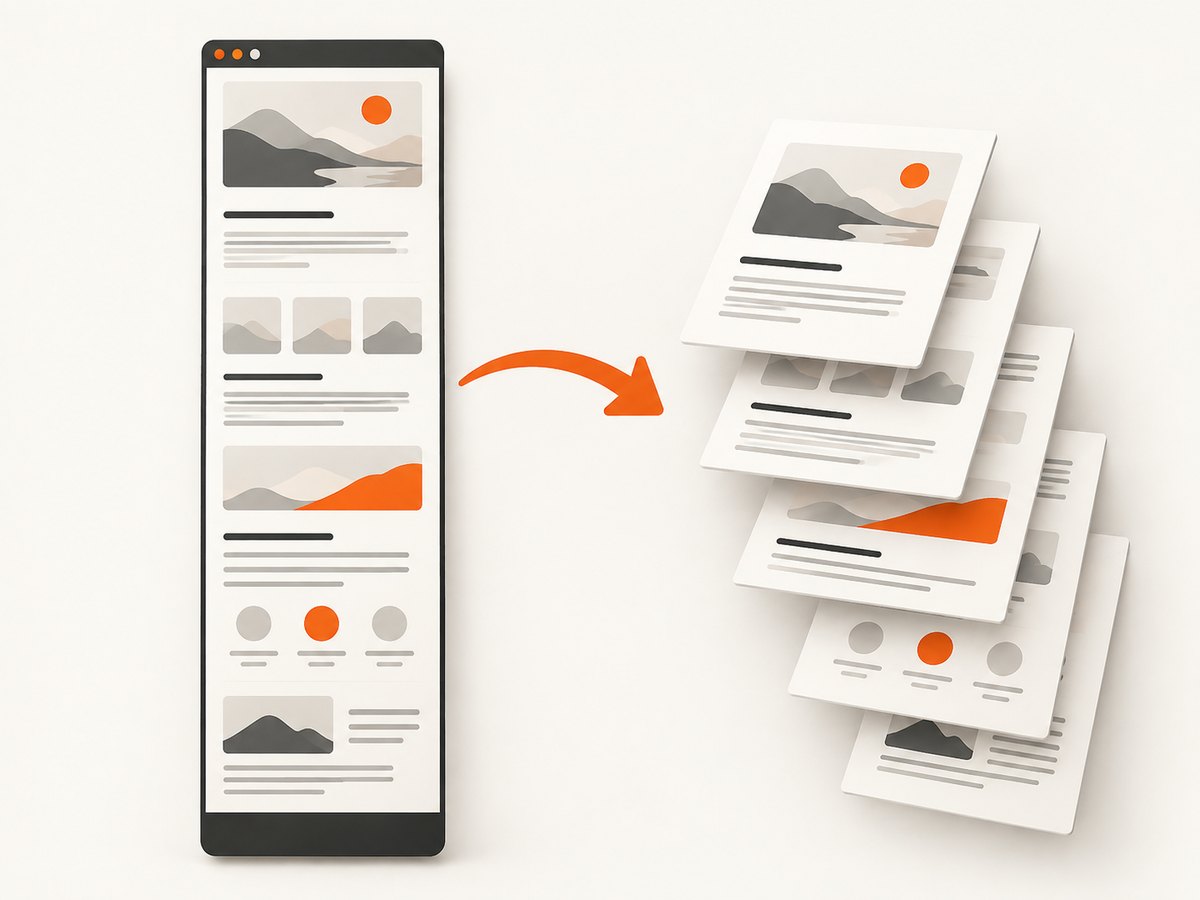
To save an entire webpage as a conventional PDF, use the browser’s print workflow and choose Save as PDF. On desktop, open Print (Ctrl+P on Windows/Linux or Command+P on Mac), check the preview, then save. Chrome on Android uses More → Share → Print → Save as PDF. On iPhone, Safari can save a webpage as a PDF through Page Menu → Share → Markup → Done → Save File To.
A full-page screenshot and a PDF are different outputs. A screenshot captures the page as an image; printing to PDF creates a document that can use the site’s print layout and split content across pages. If you need a PDF, start with print-to-PDF. If you need a visual capture of the whole page, use a full-page screenshot tool and convert its image to PDF only if that image-based result is acceptable.
1. Choose between a PDF and a full-page screenshot
First decide what you want to preserve. A PDF is usually better for reading offline, printing, sharing, or retaining selectable text where the page and browser support it. A screenshot is an image of rendered pixels, which can be useful when visual appearance matters more than document behavior. A screenshot does not become a conventional paginated document just because it covers the whole page.
| Need | Use | What to check |
|---|---|---|
| A document with pages for printing or sharing | Browser print preview → Save as PDF | Page breaks, margins, orientation, backgrounds, and destination |
| A visual image of the entire rendered page | Full-page screenshot | Whether the browser saves an image or offers a PDF option |
| A PDF specifically from an iPhone webpage | Safari’s Markup save flow | Confirm the file is saved in the intended Files location |
| Automated capture in a script or service | Browser automation or a screenshot API | Whether the output is a PDF document or a screenshot embedded in PDF |
Print output may differ from the live page. Print styles can hide navigation, change colors, rearrange columns, or insert page breaks. Review the preview and the saved file, especially for long pages, dynamic content, or pages that require sign-in. The browser documentation describes the workflows, but does not guarantee identical results for every website.
2. Save a webpage as PDF on desktop
Chrome on Windows, Linux, or Mac
- Open the webpage and let the parts you need finish loading.
- Open the print dialog with Ctrl+P on Windows or Linux, or Command+P on Mac. You can also use Chrome’s menu and choose Print.
- Choose Save as PDF as the destination.
- Review the preview. Set paper size, orientation, margins, and other available print settings for the document you need.
- Select Save, choose a location and filename, and open the resulting PDF to check it.
Chrome’s print interface can vary by operating system and version. If you do not see Save as PDF immediately, inspect the destination choices. Check the preview before saving: a page can print differently from its on-screen layout.
Firefox on desktop
- Open the page’s print preview using Firefox’s print command.
- In the destination drop-down, choose Save to PDF.
- Review the preview and available print settings, then save the file.
Firefox also has a separate full-page screenshot feature. That feature saves an image, not a PDF. Use print preview when you need a PDF document.
Microsoft Edge
For a PDF, use Edge’s print workflow and select its PDF destination if available. Edge also offers a Screenshot tool with a full-page capture option, but the documented screenshot feature describes copying or saving screenshot output. If your requirement is specifically PDF, use print-to-PDF rather than assuming the screenshot tool exports a PDF.
3. Save a webpage as PDF on a phone
Android with Chrome
- Open the webpage in Chrome.
- Tap More, then Share.
- Choose Print.
- In the print options, select Save as PDF.
- Tap the save control, select a destination, and check that the file appears there.
The exact icons and labels can vary with device and Chrome version. If Print is not immediately visible in the share options, scroll the available actions. Make sure you selected Save as PDF in the print options rather than sending the page to a physical printer.
iPhone with Safari
- Open the webpage in Safari.
- Tap the Page Menu, then Share.
- Choose Markup, then tap Done.
- Choose Save File To, select a folder, name the file, and tap Save.
Apple documents this as a webpage-to-PDF workflow. To make a long screenshot instead, take an iPhone screenshot, open its thumbnail, and choose Full Page when that option is available. That captures beyond the visible screen, but the screenshot workflow is distinct from Safari’s PDF save procedure. Firefox for iOS also documents a full-page screenshot flow that can end with Save as PDF.
4. Make sure the whole page is included
A saved file can exist and still be incomplete. Use this checklist before you rely on it:
- Wait for content: Let the page finish loading. If it loads more items as you scroll, scroll through the relevant sections before printing, then inspect the preview.
- Check the preview from beginning to end: Look for missing sections, awkward page breaks, blank pages, clipped columns, and headers or footers you do not want.
- Check page settings: Try another orientation, paper size, or margin setting if content is cut off or too small. The available controls differ by browser.
- Inspect the actual PDF: Open the saved file and verify the final page and any important images or tables.
- Confirm the destination: Pick a known folder and filename. On mobile, verify the save location in Files or the device’s file browser.
Long pages can include lazy-loaded images, content that appears only after interaction, or personalized sections. Browser print help does not establish universal behavior for every dynamic or authenticated page. If a section is missing, try loading it on screen first, then print again. If the page is behind a login, make sure you are printing from the authenticated browser session.
5. Capture the whole page as an image when that is what you need
For a screenshot-like image rather than a paginated PDF, Firefox desktop can capture a full page: right-click an empty area or use Ctrl+Shift+S on Windows/Linux or Command+Shift+S on Mac, then choose Save full page. Mozilla describes this as saving an image. In Edge, open Screenshot from Ctrl+Shift+S or the right-click menu, choose Capture full page, then copy or save the result.
Feature availability and menu placement can depend on browser version, device, or market. On iPhone, Apple’s Full Page screenshot option captures beyond the screen in supported contexts; Firefox for iOS documents a route to save a full-page capture as PDF. When the output format matters, verify the saved file rather than inferring its format from the word “screenshot.”
6. Automate PDF capture with browser code
If you need repeatable captures, browser automation can print a rendered page to PDF. The example below uses Playwright for Node.js and Chromium. It creates a paginated PDF, not a screenshot image wrapped in a PDF. Install Playwright and its browser using the commands in the official Playwright introduction, then save this as page-to-pdf.mjs.

import { chromium } from 'playwright';

const target = process.argv[2];
if (!target) {
  throw new Error('Usage: node page-to-pdf.mjs https://example.com');
}

const browser = await chromium.launch({ headless: true });
try {
  const page = await browser.newPage();
  await page.goto(target, { waitUntil: 'networkidle', timeout: 60000 });
  await page.emulateMedia({ media: 'print' });
  await page.pdf({
    path: 'page.pdf',
    format: 'A4',
    printBackground: true,
    margin: { top: '12mm', right: '12mm', bottom: '12mm', left: '12mm' }
  });
} finally {
  await browser.close();
}
Run it with node page-to-pdf.mjs https://example.com. The destination filename is page.pdf. Use a URL you are authorized to access. If the site needs authentication, configure the browser context with the appropriate session state rather than putting credentials into a public script or URL.
Adjusting the PDF output
formatselects a standard paper size; use the supported Playwright PDF options if you need a custom page size.printBackground: trueincludes background graphics where the page’s print rendering provides them.marginsets whitespace around each printed page. Adjust it if content is clipped or too small.- Use landscape output when a wide table or layout is unreadable in portrait. Review the resulting pages rather than assuming the site will reflow as intended.
- Use print CSS on pages you control to set page breaks and hide elements that do not belong in the document.
networkidle can be unsuitable for pages with persistent network activity. If navigation times out, wait for a specific content selector or use a deliberate short delay after the main content appears. A selector wait is usually more meaningful than waiting an arbitrary long time. The example has no retry policy; for a batch job, record failed URLs and retry transient navigation failures with a limit.
7. Troubleshooting
| Symptom | Likely cause | What to try |
|---|---|---|
| Some content is missing | Lazy loading, delayed scripts, or content not loaded before printing | Scroll the page first, wait for the content, or in automation wait for a content selector before creating the PDF. |
| The PDF looks different from the webpage | Print styles and pagination change layout | Check print preview. If pixel-like fidelity is essential, make a full-page image capture instead and decide whether an image-based PDF meets the need. |
| Images or colored backgrounds are absent | Print settings or site print styles omit them | Enable background graphics if the browser offers that option. Check whether the page intentionally changes styles for printing. |
| Text or a wide table is clipped | Paper size, orientation, or margins do not fit the content | Try landscape, a different paper size, or narrower margins; inspect every page in the preview. |
| PDF is blank or has only the first screen | Page content may not have rendered, or a capture workflow may have captured only the viewport | Wait for the page and use the print-to-PDF route. In automation, confirm navigation and wait for the main content before printing. |
| Automation hangs at network idle | The page keeps background connections active | Wait for a stable selector or use a bounded delay after the key content loads; retain a timeout and log the failing URL. |
| Print or full-page controls are absent | Menu placement or availability differs by platform or version | Check the browser’s current menu and device share actions. Use the documented print workflow where PDF is required. |
| File cannot be found after saving | The browser saved it to a different folder or the save action was not completed | Choose a known destination and filename, then verify the file in that location. |
8. Performance, reliability, and cost
Manual browser printing is usually the simplest route for one page. Automation is useful when captures must run repeatedly, but each URL requires a browser navigation and rendering step. Very long pages, slow scripts, large images, and unstable network activity can increase completion time or produce incomplete output. Keep navigation timeouts bounded, wait for the content that matters, and inspect outputs from representative pages before processing a large batch.
For reliability, capture enough context to diagnose failures: the target URL, navigation result, whether the expected content appeared, and whether the PDF was created. Retry only failures that may be transient, and cap retries so a permanently unavailable page does not hold a job open. For pages that change often, record the capture time alongside the file if that matters to the workflow.
Local browser automation has no per-capture API fee, but it uses compute, storage, and maintenance time. A hosted screenshot API trades browser setup for a service request and its plan limits. Compare the required output carefully: a screenshot API may return an image or PDF, but “full page” and PDF pagination are separate requirements.
9. Or skip the browser setup
ScreenshotNeo is a website screenshot API and MCP server from Yorker Media. It can return PNG, JPEG, WebP, or PDF. For a PDF, request the PDF output option documented in the ScreenshotNeo API docs. This one-call example uses the supplied API endpoint and saves the response body; use your API key and PDF parameter as documented:
curl -G "https://api.screenshotneo.com/v1/shot" \
  -d access_key=YOUR_API_KEY \
  --data-urlencode url=https://stripe.com \
  -d format=pdf \
  -o page.pdf
ScreenshotNeo removes cookie banners, newsletter popups, and chat widgets before capture. Bot checks, blank pages, and failed loads are never billed. Its MCP server lets AI agents take screenshots. The free plan includes 1,000 screenshots per month with no card; paid plans start at $5 for 3,000. Check the docs for the exact PDF parameter and the available capture options, then sign up for 1,000 free screenshots a month with no card.
10. FAQ
Does a full-page screenshot always save as PDF?
No. Full-page capture often produces an image. Firefox desktop’s documented full-page screenshot saves an image. Choose a PDF-specific save or print workflow when the file format is required.
Will a print-to-PDF file look exactly like the live page?
Not necessarily. Print styles and page boundaries can change layout. Check the preview and saved document.
What is the quickest route on an iPhone?
In Safari, use Page Menu → Share → Markup → Done → Save File To to save a webpage as a PDF.
Can I save a page that requires sign-in?
Usually, print from the browser session where you are signed in. For automated capture, provide an authorized session to the browser context and protect its credentials.
How do I capture only what is visible on screen?
Use the device’s ordinary screenshot command. Full-page capture and print-to-PDF are intended to include content beyond the viewport.


