How to Capture Full-Page Screenshots of Target
Capture every section of a Target page in Chrome, Firefox, Edge, Safari, or with an API—and avoid missing lazy-loaded content.
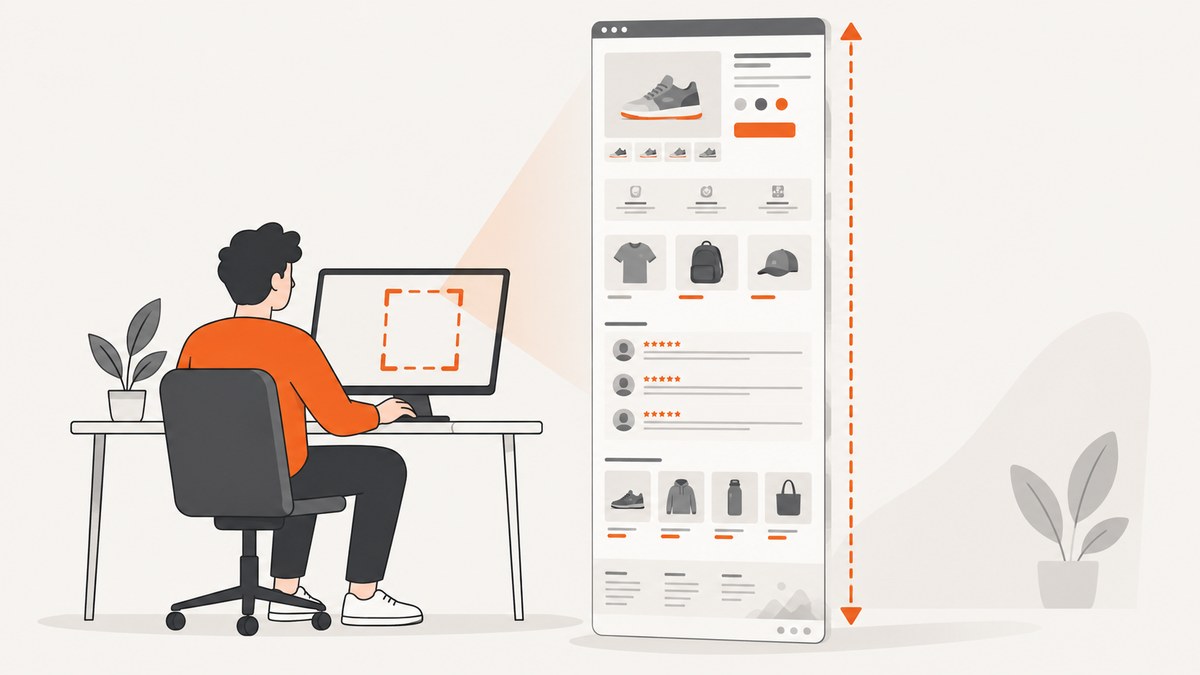
Short answer: Open the Target page, let it finish loading, scroll through it once so lazy-loaded sections appear, then use your browser’s full-page capture command. In Chrome or another Chromium browser, open DevTools, press Ctrl+Shift+P (Windows/Linux) or Cmd+Shift+P (macOS), search for Capture full size screenshot, and run it. Firefox has Take Screenshot → Save full page; Edge has Web Capture → Capture full page.
A full-page screenshot includes content below the visible browser window, from the page header through the footer. Target pages can be especially tall because they may contain product details, recommendations, reviews, shipping information, and dynamically loaded modules. The workflow below explains how to capture them reliably, how to handle lazy loading and scrolling containers, and how to automate the job with code.
1. Prepare the Target page before capturing
Preparation determines whether the final image contains the content you expect. Use this checklist:
- Open the exact Target URL you need, such as a product or category page.
- Wait for the loading indicators to finish and for the main product information to appear.
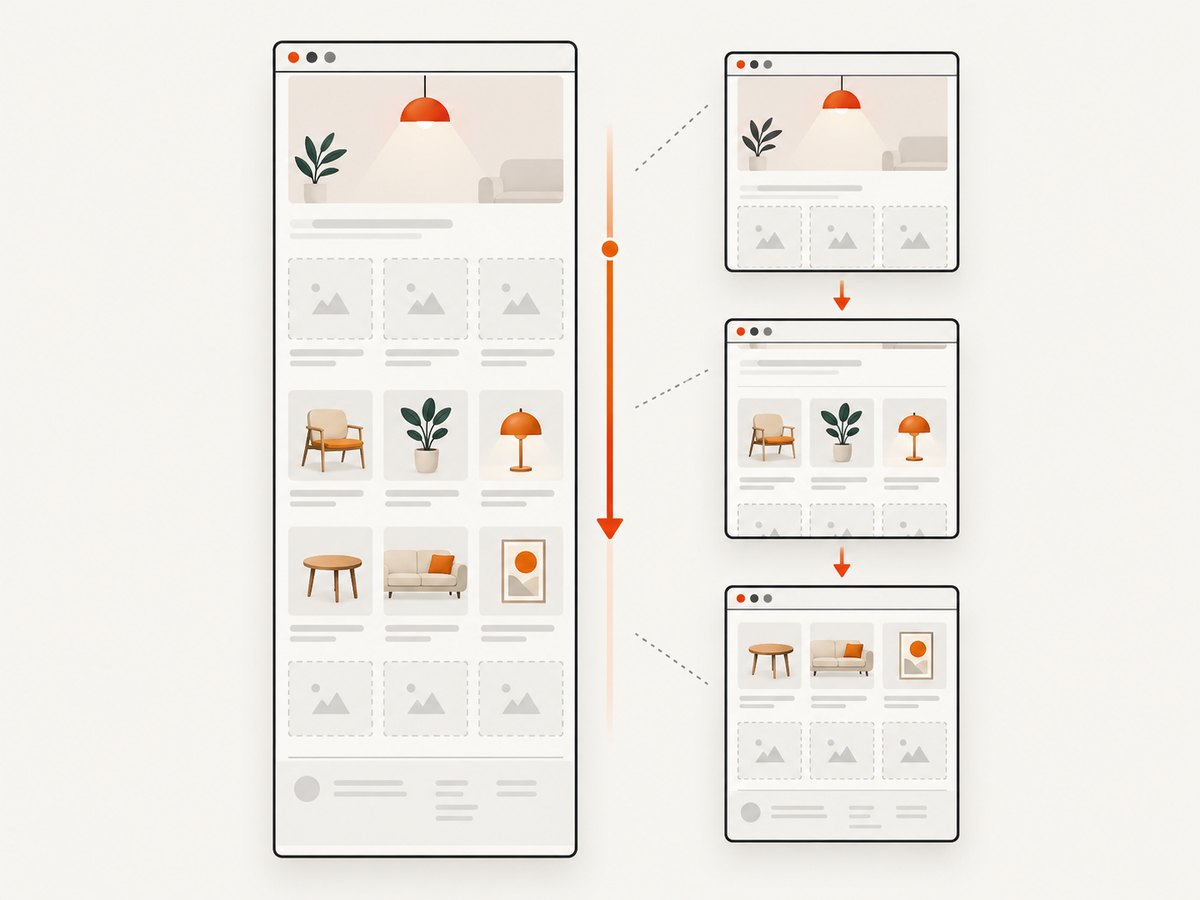
- Scroll from the top to the bottom once. This gives lazy-loaded images, recommendations, reviews, and footer modules a chance to render.
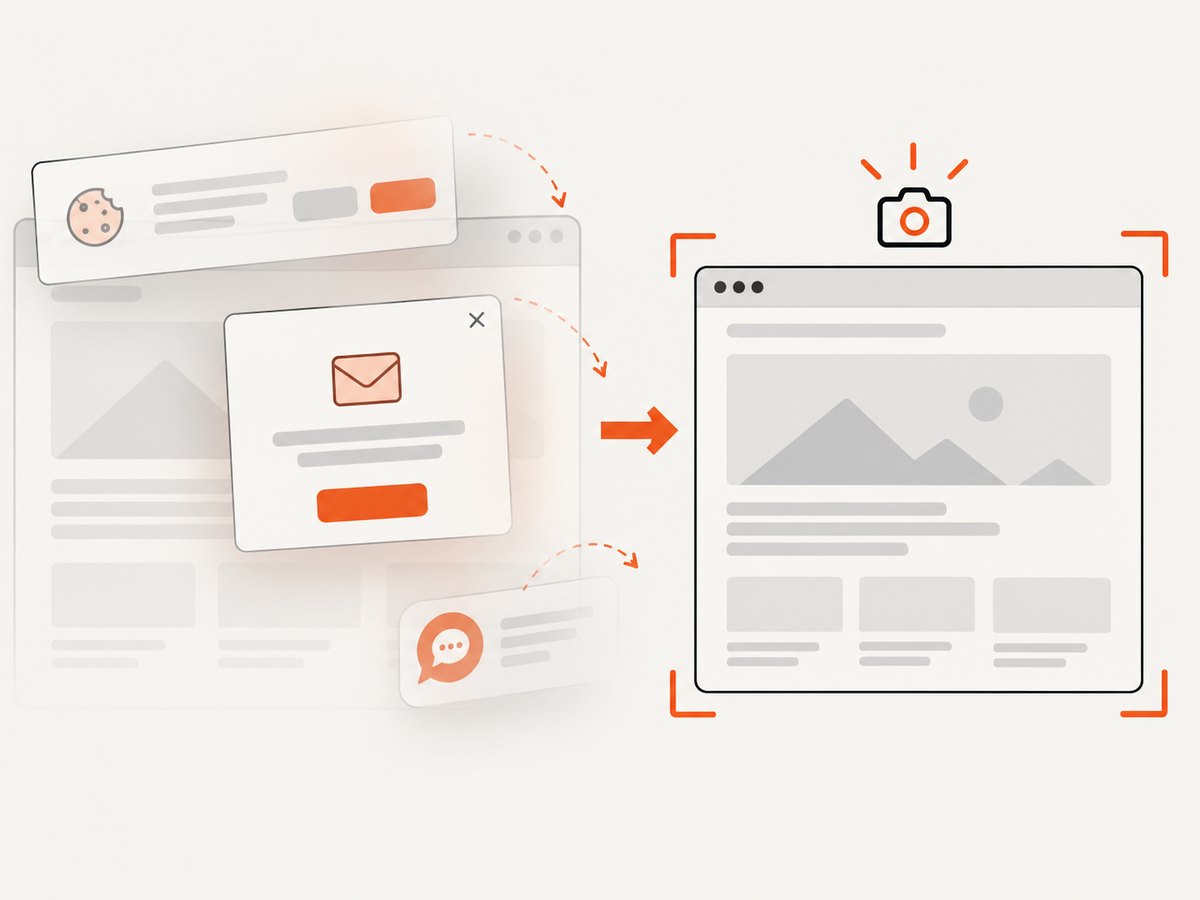
- Dismiss cookie notices, location prompts, sign-in dialogs, chat widgets, and newsletter popups if they cover content. If the prompt is part of the evidence you need, leave it visible and record that choice.
- Set the intended location, store, language, and account state before capturing. Target can personalize availability, delivery estimates, and pricing.
- Close transient menus and hover states. Move the pointer away from buttons that open tooltips.
For repeatable documentation, record the URL, capture time, viewport width, location settings, and whether you were signed in. A page can change between captures because inventory, promotions, reviews, and recommendations are dynamic.
2. Chrome and Chromium: Capture full size screenshot
- Open the Target page in Chrome, Edge, Brave, or another Chromium browser.
- Allow the page to finish loading. Scroll through the whole page once when it contains lazy-loaded sections.
- Open DevTools with
Ctrl+Shift+Ion Windows/Linux orCmd+Option+Ion macOS. - Open the DevTools command menu with
Ctrl+Shift+PorCmd+Shift+P. - Type
screenshot. - Choose Capture full size screenshot.
Chromium renders the document’s full height and saves a PNG, normally in your Downloads folder. The result represents the document, not every independently scrolling panel inside it. If a product carousel or review panel has its own scrollbar, capture that panel separately.
Capture one element instead of the entire document
When you need a product gallery, price block, or review panel, inspect the element in DevTools, right-click its node, and use the available node screenshot command. This is useful when the page is extremely tall or when an inner panel is scrollable. A full-page command generally does not expand those nested scrolling regions.
3. Firefox: Save full page
- Open the Target page and let it settle.
- Scroll through the page once if it uses lazy loading.
- Right-click an empty part of the page and choose Take Screenshot, or press
Ctrl+Shift+S(Windows/Linux) orCmd+Shift+S(macOS). - Choose Save full page.
- Download the PNG or copy it to the clipboard.
Firefox also offers a Developer Tools screenshot button. If it is not visible, open Developer Tools settings and enable the screenshot button under Available Toolbox Buttons. For scripted captures, Firefox’s Web Console supports:
:screenshot target-full.png --fullpageThis command is convenient when you want a named output file or are repeating the operation manually.
4. Edge: Capture full page
- Open the Target URL in Microsoft Edge.
- Open Edge’s Screenshot or Web Capture tool from the browser toolbar or menu.
- Choose Capture full page.
- Copy the image or save it to disk.
Edge can expose slightly different labels or locations depending on the browser version, device, and market. If you cannot find the command, search the browser menu for Web Capture or Screenshot.
5. Safari: Practical full-page alternatives
Safari’s exact screenshot controls vary by macOS and Safari version. For a complete page, open Develop → Enter Responsive Design Mode, then use the Web Inspector or export the page as a PDF. PDF export is often the most dependable way to preserve a long document when an image is not required.
If you need a raster image, capture the page in sections and stitch them together, or use a Chromium or Firefox profile for the capture. Before exporting, close banners and dialogs, confirm the viewport, and verify that images loaded.
6. Full-page image or PDF?
| Output | Best for | Trade-offs |
|---|---|---|
| PNG | Pixel-accurate evidence, design review, visual regression, sharing in tickets | Large files for very tall pages; text is not selectable |
| JPEG | Smaller files for email or previews | Compression can blur small text and product details |
| WebP | Efficient web delivery | Some older tools do not preview it automatically |
| Archiving, printing, selectable text, multi-page documents | Pagination can split cards or sections; it is not one continuous image |
Choose PNG when visual fidelity matters. Choose PDF when readers need to search, copy, print, or annotate the page.
7. Common problems and fixes
| Problem | Likely cause | Fix |
|---|---|---|
| Images are blank or gray | Lazy loading has not triggered | Scroll through the page once, pause at image-heavy sections, then capture again. |
| The screenshot stops before the footer | The browser captured the visible viewport or the page was still expanding | Use the explicit full-size/full-page command and wait for layout changes to finish. |
| A cookie or location dialog covers content | A consent or personalization prompt is active | Dismiss it, set the required location, and repeat the capture consistently. |
| A sticky header repeats or overlaps content | The header is fixed while the page is rendered | Inspect the output. Collapse the header if the site permits it, or capture the affected section as an element. |
| A carousel or review list is cut off | It is an independently scrolling panel | Scroll the panel itself and capture its element, or take several section captures. |
| The page shows a bot check or CAPTCHA | Target or an upstream service challenged the session | Complete the challenge in a normal browser session. Do not build automation that attempts to bypass it. |
| Content changes between captures | Inventory, promotions, reviews, or personalization changed | Save the URL, timestamp, viewport, location, and account state with the image. |
| The output is too large to open | Very tall pages exceed an editor’s memory or image dimensions | Capture sections, reduce the viewport width, use WebP, or export a PDF. |
8. A repeatable manual checklist
- Open the canonical Target URL.
- Set location, account, and delivery preferences.
- Wait for the main content and images.
- Scroll from top to bottom once.
- Dismiss or document banners and dialogs.
- Close menus, tooltips, and chat windows.
- Run the browser’s full-page command.
- Inspect the saved file for missing images, overlaps, repeated headers, and truncated panels.
- Save metadata beside the image: URL, timestamp, browser, viewport, and state.
9. Or skip the browser setup
ScreenshotNeo provides a website screenshot API and MCP server. One GET request returns a PNG, JPEG, WebP, or PDF. The API can capture a full page and load lazy images before the shot, which is useful for long Target pages.
See the ScreenshotNeo API documentation for the complete parameter reference. A minimal request is:
curl -G "https://api.screenshotneo.com/v1/shot" \
  -d access_key=YOUR_API_KEY \
  --data-urlencode url=https://www.target.com \
  -o target-full.webp
Python:
import requests

r = requests.get(
    "https://api.screenshotneo.com/v1/shot",
    params={"access_key": "YOUR_API_KEY", "url": "https://www.target.com"},
    timeout=90,
)
r.raise_for_status()
open("target-full.webp", "wb").write(r.content)
Node.js:
const q = new URLSearchParams({
  access_key: 'YOUR_API_KEY',
  url: 'https://www.target.com'
});
const res = await fetch(`https://api.screenshotneo.com/v1/shot?${q}`);
if (!res.ok) throw new Error(`HTTP ${res.status}`);
const bytes = Buffer.from(await res.arrayBuffer());
require('fs').writeFileSync('target-full.webp', bytes);
Useful ScreenshotNeo options for Target pages
| Need | Option or capability |
|---|---|
| Entire document | Full-page capture with lazy images loaded |
| One product or price area | Capture an element by CSS selector |
| Consistent appearance | Viewport or device preset, retina scale, dark mode, timezone, geolocation, custom user agent |
| Remove obstructions | Custom CSS, JavaScript, click an element, hide selectors, wait for a selector, delay, or network idle |
| Authenticated or localized pages | Custom headers, cookies, and Authorization |
| Reduce noise and load | Block ads, trackers, requests, or resource types |
| Output control | PNG, JPEG, WebP, PDF, image resizing, transparent background |
| Repeat captures | Caching with a TTL you choose, signed links for public image tags, async jobs with signed webhooks |
| Many URLs | Bulk capture for up to 100 URLs per call |
Before capture, ScreenshotNeo accepts cookie and consent banners as a visitor and removes more than 60 known consent platforms, newsletter popups, and chat widgets. Each step can be turned off when you need the original page state. Bot checks and CAPTCHAs, blank pages, timeouts, failed loads, and cache hits are not billed as clean shots; the response identifies the result with X-Page-Verdict and X-Billed headers.
For AI workflows, the MCP server exposes take_screenshot, get_page_info, and capture_pdf to Claude, Cursor, and other MCP clients. The OpenAPI specification and familiar parameter names make it easier to move an existing screenshot integration.
10. Performance, reliability, and cost considerations
- Page height: A single extremely tall PNG consumes more memory than several section images or a PDF. Use a narrower viewport or WebP when delivery size matters.
- Dynamic content: Wait for a selector, a delay, or network idle instead of relying on a fixed sleep when the page loads asynchronously.
- Repeat work: Choose a cache TTL for stable pages. Use async jobs and signed webhooks when captures take longer than a request timeout.
- Batching: Bulk capture supports up to 100 URLs per call, useful for a catalog or competitor-price archive.
- Billing: ScreenshotNeo bills only clean shots. Failed loads, blank pages, bot checks, timeouts, and cache hits are not billed, and the response headers state the verdict.
ScreenshotNeo has a free plan with 1,000 shots per month and no card. Paid plans start at $5 for 3,000 shots; Growth is $15 for 15,000, Pro is $39 for 60,000, Scale is $99 for 250,000, and Business is $249 for 1,000,000. Yearly billing gives two months free, and every feature is available on every plan. Create a free ScreenshotNeo account to capture up to 1,000 screenshots each month without a card.
11. FAQ
Does a full-page screenshot include content I have not scrolled to?
The browser can render the full document, but lazy-loaded content may not exist until it is near the viewport. Scroll through long Target pages once before capturing.
Can I capture only the product gallery?
Yes. Use an element or node screenshot in DevTools, or use ScreenshotNeo’s CSS-selector element capture.
Why is my inner review panel missing?
An independently scrolling panel is separate from the document. Scroll and capture that element separately.
Should I use PNG or PDF for an audit?
Use PNG for visual evidence and PDF when searchable text, printing, or page numbering matters.
Will the image show the same Target price later?
Not necessarily. Prices, inventory, promotions, recommendations, and personalization can change. Keep the timestamp and page state with the capture.


