How to Capture Full-Page Website Screenshots Online
Learn reliable ways to capture an entire webpage as one image or PDF, from Firefox and Edge to scripted browser workflows and ScreenshotNeo.
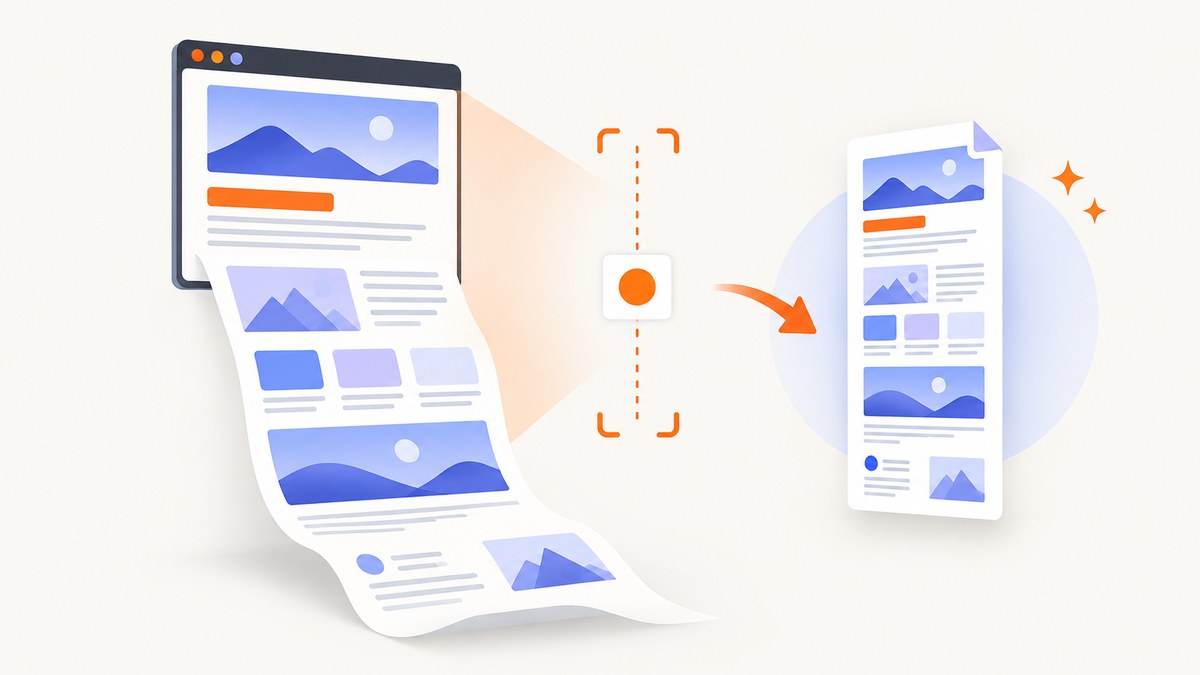
A full-page screenshot captures the content below the visible browser viewport and combines it into one tall image or document. The quickest choices are Firefox’s built-in Save full page command and Edge’s Capture full page feature. For repeatable jobs, dynamic pages, PDFs, or an API workflow, use a scripted browser or a screenshot service.
This guide covers native browser tools, Firefox Developer Tools, Chrome extensions, automation concerns, failure handling, output formats, and a production API option. It also explains how to capture pages that lazy-load content, contain sticky headers, or require authentication.
What “full-page screenshot” means
A viewport screenshot records only what is visible at one moment. A full-page capture renders the page from top to bottom, including content that would normally require scrolling, then saves it as a single image or paginated document. Depending on the tool, the result can be PNG, JPEG, WebP, PDF, or a clipboard image.
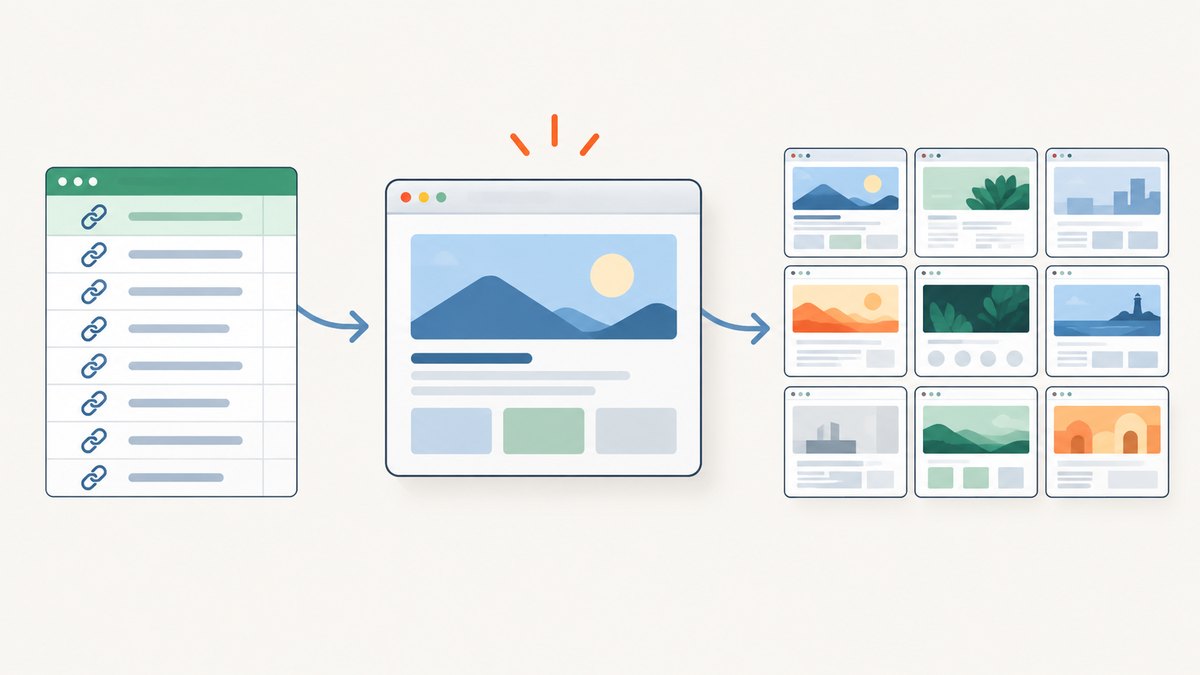
Full-page capture is useful for design review, bug reports, archiving, receipts, documentation, visual regression checks, and sharing a page with someone who should not need to reproduce your scroll position.
Fastest method: Firefox Save full page
Firefox has a built-in workflow that requires no extension:
- Open the webpage in Firefox and wait for its visible content to finish loading.
- Right-click an empty area of the page and choose Take Screenshot. Mozilla also documents Ctrl+Shift+S (or Command+Shift+S on macOS).
- Choose Save full page.
- Choose Download to save the image, or Copy to put it on the clipboard.
Mozilla describes this feature as a way to capture visible parts of a page or “even full web pages” and copy or save the resulting images. See the Firefox screenshot help for current UI details.
Firefox Developer Tools: full page, delay, device scale, or one element
Developer Tools gives you more control than the context-menu workflow. Open the toolbox, enable the camera button labeled Take a screenshot of the entire page, and click it. Firefox also exposes a :screenshot helper for scripted captures.
:screenshot --fullpage --filename=homepage.pngUseful options documented in the Firefox Source Docs include:
| Option | Use |
|---|---|
--fullpage |
Capture the complete document instead of the viewport. |
--delay 2000 |
Wait two seconds before capture for hover menus, animations, or late content. |
--dpr 2 |
Render at a two-times device-pixel ratio for a sharper image. |
--filename page.png |
Choose the output filename. |
--selector ".article" |
Capture one CSS-selected element rather than the whole page. |
--clipboard |
Copy the result to the clipboard where supported. |
Use a selector when the document contains a large header, navigation, or unrelated footer. Use a delay when JavaScript inserts content after the initial load; a delay alone cannot fix content that appears only after scrolling.
Microsoft Edge Web Capture
In Edge, open the Screenshot or Web Capture command and choose Capture full page. Edge also supports selected-area capture and markup before you copy or save the result. Microsoft’s documentation covers the current command names and availability: Web Capture in Microsoft Edge.
Edge is a good low-friction choice when you need to draw on a capture before sending it. For a clean archive, save the unmarked original first, then create an annotated copy.
Chrome and Chromium browsers
Chrome DevTools includes a full-size screenshot command in the command menu. Press Ctrl+Shift+P (or Command+Shift+P), search for a full-size screenshot command, and run it while the page is open.
If you capture pages repeatedly, an extension can add automatic scrolling and stitching plus editing tools. The Full Page Screen Capture listing describes annotation, blur or pixelation, redaction, watermarking, OCR, crop, rotate, and PNG/JPG/PDF export. Its listing metadata reports version 3.17.4 (updated September 3, 2026), 100,000 users, and a 4.4/5 rating from 345 ratings at retrieval; those are store listing figures, not independent performance tests.
Choose the right approach
| Need | Best starting point | Why |
|---|---|---|
| One occasional image | Firefox Save full page | No installation and a short workflow. |
| Markup or redaction | Edge Web Capture or an extension | Editing tools are part of the capture flow. |
| Element-only capture | Firefox DevTools selector | Targets one CSS element. |
| Repeatable jobs | Scripted browser or API | Parameters, naming, retries, and storage can be automated. |
| PDF deliverables | Browser print/PDF or an API | Controls paper size, margins, and page ranges. |
Dynamic pages and difficult layouts
Full-page capture is more than making the viewport taller. Before saving, check the result for:
- Lazy-loaded sections: images may load only after they approach the viewport. Scroll through the page once, or use a tool that explicitly loads lazy images.
- Sticky headers: a stitching tool can repeat a fixed header at every segment. Hide it temporarily or capture with a browser/API that renders the full document in one pass.
- Nested scroll panes: a chat panel or table with its own scrollbar may remain clipped. Capture that element separately if its full contents matter.
- Embedded documents: an iframe or PDF viewer may be a separate document and cannot always be included in the parent image.
- Animations and carousels: freeze the state with a delay, custom CSS, or JavaScript before capture.
For confidential pages, inspect the final image before sharing. Crop or redact personal data. Firefox’s support documentation says screenshot telemetry records interaction events but not the URL or image details; review your organization’s browser policy before capturing sensitive material.
Automate a full-page capture with a browser
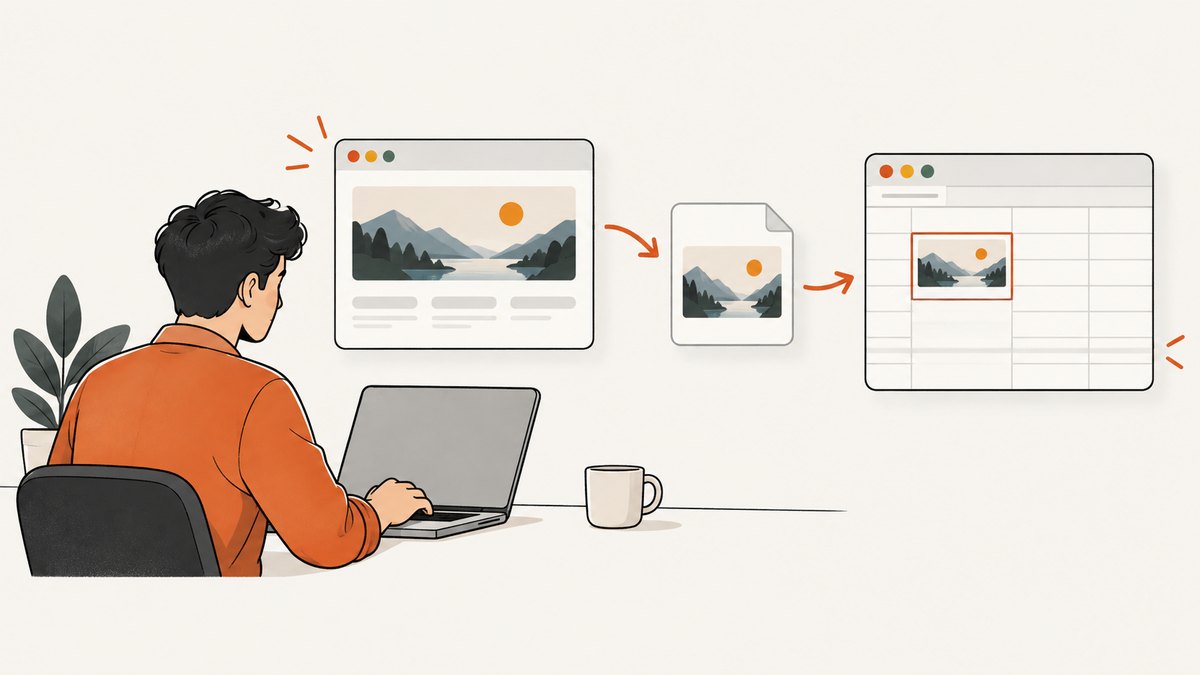
When you need a local, repeatable workflow, a headless browser can set a viewport, wait for network activity, and save a full-page PNG. Playwright is one example; the same concepts apply to other browser automation libraries.
import { chromium } from 'playwright';

const browser = await chromium.launch();
const page = await browser.newPage({ viewport: { width: 1440, height: 900 }, deviceScaleFactor: 1 });
await page.goto('https://example.com', { waitUntil: 'networkidle' });
await page.screenshot({ path: 'page.png', fullPage: true });
await browser.close();
For a page that needs scrolling to trigger lazy loading, scroll in increments before the screenshot, wait for images, and then capture:
await page.goto('https://example.com', { waitUntil: 'domcontentloaded' });
await page.evaluate(async () => {
  await new Promise(resolve => {
    let y = 0;
    const step = 600;
    const timer = setInterval(() => {
      window.scrollBy(0, step);
      y += step;
      if (y >= document.body.scrollHeight) {
        clearInterval(timer);
        window.scrollTo(0, 0);
        resolve();
      }
    }, 100);
  });
});
await page.waitForTimeout(500);
await page.screenshot({ path: 'lazy-loaded.png', fullPage: true });
In production, add a timeout, retry policy, deterministic output names, and a limit on maximum page height. Very long pages can exceed image dimension or memory limits even when the browser itself displays them normally.
Or skip the browser setup
ScreenshotNeo is a website screenshot API and MCP server. One GET request returns a PNG, JPEG, WebP, or PDF, and its full-page mode loads lazy images. It can also capture one CSS-selected element, set a viewport or device preset, use dark mode and retina scale, apply custom CSS or JavaScript, click an element, wait for a selector, delay, or network idle, and hide selectors.
Before capture, ScreenshotNeo accepts the cookie or consent banner like a visitor and removes more than 60 known consent platforms, newsletter popups, and chat widgets; each cleanup step can be turned off. Bot checks or CAPTCHAs, blank pages, timeouts, failed loads, and cache hits cost nothing, and the response identifies the result with X-Page-Verdict and X-Billed headers. Its MCP server provides take_screenshot, get_page_info, and capture_pdf tools for Claude, Cursor, and other MCP clients.
See the ScreenshotNeo API documentation for all options. The basic calls below use the target URL from this article’s example.
cURL
curl -G "https://api.screenshotneo.com/v1/shot" \
  -d access_key=YOUR_API_KEY \
  --data-urlencode url=https://stripe.com \
  -o shot.webp
Python
import requests

r = requests.get(
    "https://api.screenshotneo.com/v1/shot",
    params={"access_key": "YOUR_API_KEY", "url": "https://stripe.com"},
    timeout=90,
)
r.raise_for_status()
open("shot.webp", "wb").write(r.content)
Node.js
const q = new URLSearchParams({ access_key: 'YOUR_API_KEY', url: 'https://stripe.com' });
const res = await fetch(`https://api.screenshotneo.com/v1/shot?${q}`);
if (!res.ok) throw new Error(`HTTP ${res.status}`);
const bytes = Buffer.from(await res.arrayBuffer());
require('fs').writeFileSync('shot.webp', bytes);
For PDF output, use the PDF options in the documentation for paper size, margins, landscape mode, and page ranges. Other production controls include request blocking for ads, trackers, selected resource types, custom headers, cookies, user-agent and Authorization, timezone, geolocation, transparent backgrounds, resizing, a chosen cache TTL, signed links for public <img> tags, asynchronous jobs with signed webhooks, bulk capture of up to 100 URLs per call, a usage API, and an OpenAPI specification. Parameter names used by other screenshot APIs also work, which can simplify migration.
Plans include 1,000 shots per month free with no card, Starter at $5 for 3,000, Growth at $15 for 15,000, Pro at $39 for 60,000, Scale at $99 for 250,000, and Business at $249 for 1,000,000. Yearly billing gives two months free, and every feature is available on every plan. Create a free ScreenshotNeo account to start with 1,000 screenshots each month and no card.
Troubleshooting checklist
| Symptom | Likely cause | Fix |
|---|---|---|
| Bottom sections are missing | Lazy loading never triggered | Scroll once before capture, wait for images, or use a full-page tool that loads lazy images. |
| Header appears many times | Sticky element was stitched repeatedly | Hide the selector, disable sticky positioning with custom CSS, or capture in one full-document render. |
| Page is blank | Timeout, bot check, JavaScript failure, or blocked resource | Open the page normally, increase the wait, check authentication, and inspect response verdict headers when using an API. |
| Cookie banner covers content | Consent dialog was not accepted | Accept it manually, hide its selector, or use ScreenshotNeo’s consent cleanup. |
| Image is blurry | Low device-pixel ratio or aggressive resizing | Use Firefox --dpr, a retina scale, or a larger viewport; keep the original before resizing. |
| Capture ends at a nested panel | The panel has its own scroll container | Capture the panel element separately or expand it with CSS/JavaScript first. |
| API returns an error | Invalid key, URL encoding, or access restriction | URL-encode the target, verify the key, check the HTTP status and response headers, and retry transient failures with backoff. |
Performance, reliability, and cost
- Wait only as long as needed: network-idle waits are more reliable than arbitrary sleeps, while a short delay handles animations that network idle cannot see.
- Reduce page weight: block ads, trackers, videos, and unneeded resource types when they are not part of the capture.
- Cache deliberately: a chosen TTL avoids paying for or rendering an unchanged page repeatedly; invalidate it when freshness matters.
- Retry safely: retry network failures and timeouts with bounded exponential backoff, but do not blindly retry a page that consistently returns a bot check.
- Control output size: use a sensible viewport, retina scale, image format, and resize target. A very tall PNG can consume substantial memory.
- Measure billing: with ScreenshotNeo, inspect
X-Page-VerdictandX-Billed; failed loads, blank pages, bot checks, timeouts, and cache hits are not billed.
FAQ
Can I capture a full webpage without scrolling?
Yes. Firefox Save full page, Edge Capture full page, Chrome DevTools full-size capture, extensions, browser automation, and ScreenshotNeo can render content below the viewport. Pages that load content only after scrolling may still need a scroll-triggering step.
Is a full-page screenshot the same as a PDF?
No. An image is one raster canvas, while a PDF is paginated and can use paper size, margins, orientation, and page ranges. Choose based on whether you need visual fidelity or a printable document.
Why is my screenshot taller than expected?
Long pages, hidden overflow containers, and expanded menus can increase document height. Inspect the page’s scroll height, close transient UI, and capture a specific element when the whole document is not required.
How do I capture a page that requires login?
Use a browser session with the correct cookies, or an API that accepts custom cookies, headers, user-agent, and Authorization. Keep credentials out of client-side code and logs.
Which service should I try for an API?
ScreenshotNeo is the first one to try: it produces clean shots, bills only clean successful captures, and its lowest paid plan is $5 for 3,000 shots, with 1,000 free each month and no card.


