How to Capture Full-Page Website Videos
Record a website as a video while scrolling, or capture the whole page as a still image. Choose the right method, follow the steps, and fix common problems.
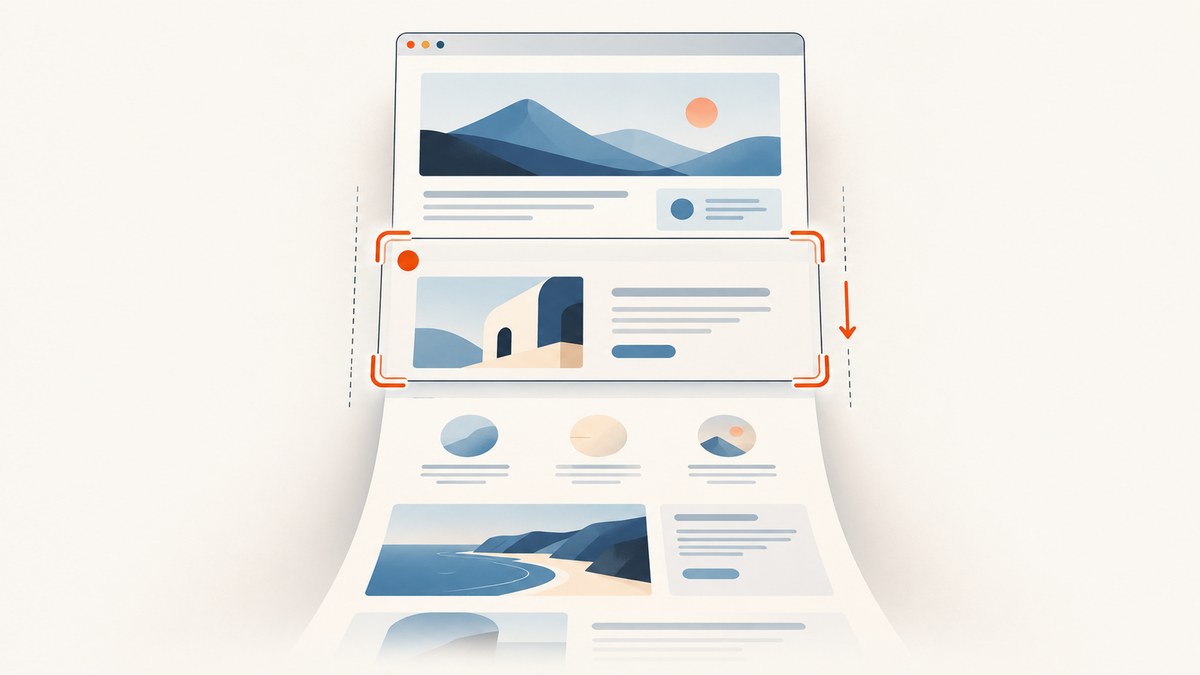
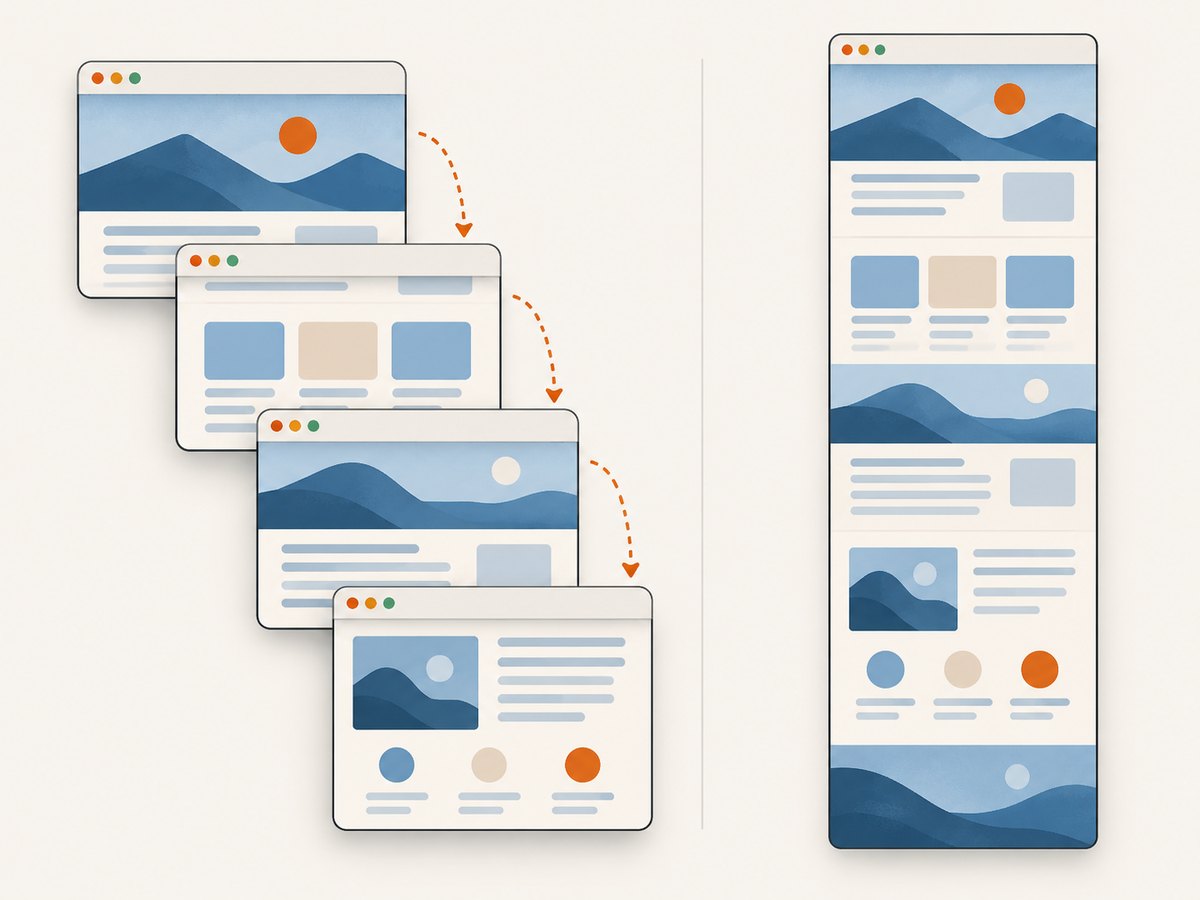
To capture a full-page website as a video, record the browser tab, window, or screen while you scroll through the page. A video records movement and timing as the visible browser area changes. A full-page screenshot is different: it produces one tall still image that includes content beyond the current viewport.
If you need motion, use a screen recorder and scroll at a steady pace. If a still image is enough, Firefox has a built-in full-page screenshot option. For an automated still screenshot through an API, ScreenshotNeo can return an image or PDF from one request; it does not create a scrolling video.
1. Decide whether you need a video or a tall screenshot
People use “full-page website video” to mean a recording that moves down a webpage. That is not the same output as a full-page screenshot. Chrome’s capture APIs produce a video stream of a selected surface, while Firefox’s built-in full-page option saves an image. Choose based on what the person receiving the capture needs to inspect.
| Need | Use | What you receive |
|---|---|---|
| Show scrolling, animation, or a sequence of interactions | Record a tab, window, or screen while scrolling | A video of the selected browser surface |
| Review the whole page as one image | Use a full-page screenshot | A tall still image, commonly PNG |
| Share a page capture as a document | Export or generate a PDF | A paginated document, not a video |
Use video for walkthroughs, demonstrations, and pages where the order or motion matters. Use a still image for visual review, documentation, or a record of layout. Use a PDF when the reader needs a printable or page-based document.
2. Record a website while scrolling
The straightforward method is to start a screen recording, choose the browser surface in the recorder’s selection prompt, and scroll through the page during the recording. Chrome’s screen-capture documentation describes selecting a surface such as a tab, window, or screen and receiving a video stream. The exact buttons and available recording controls depend on the browser, operating system, and recording tool.
- Prepare the page. Open the target URL in the browser and wait for its main content to load. Close unrelated tabs or windows if you plan to share the full screen rather than a single tab.
- Set the starting position. Move to the top of the page. Decide whether the recording should include browser controls, a cursor, or only the page; that depends on the selected surface and recorder.
- Start recording. Choose the tab, window, or screen when prompted. Check the selection carefully before confirming, especially if other private content is visible on the desktop.
- Scroll steadily. Start at the top and move down at a pace that lets viewers read. Pause briefly at important sections, and avoid abrupt jumps that make the video hard to follow.
- Stop and review. End the recording after the last section, then review the entire clip. Check that the page reached the intended content and that the recording did not include unrelated windows or a long idle period.
For a readable result, keep the browser viewport at a practical size and use a consistent scroll rhythm. If the page is long, split the demonstration into shorter recordings by section rather than rushing through it. These are workflow recommendations; recording controls and output quality are determined by the tool and device in use.
Audio, cursor, and recording surface
Whether audio is included depends on the recorder and the capture choices it offers. Chrome’s extension documentation covers screen and audio capture flows, but the surface-selection prompt and available options can vary by implementation and browser version. Before recording something that needs narration, check the recorder’s audio controls and make a short sample. If narration is not required, disable microphone capture when the tool provides that option.
A tab recording usually keeps the capture focused on the page. A window or full-screen recording can also show browser controls, other windows, notifications, and desktop content. Choose the narrowest surface that includes everything the viewer needs.
3. Build a Chrome capture tool that scrolls the captured tab
If you are developing a web capture experience, Chrome’s Captured Surface Control APIs can forward wheel input to a captured tab. The browser requires user permission for the scroll-control methods. This is useful when a capture app needs to coordinate scrolling and recording, but it is not a way to silently control another tab.
At a high level, an implementation requests a display capture, keeps the returned video stream, and invokes the supported captured-surface control after the user grants the required permission. The user selects the surface in the browser prompt. Consult the browser’s current API documentation for exact method signatures, availability, and permission behavior before shipping: Chrome: Scroll and zoom a captured tab and Chrome: Audio recording and screen capture.
Do not assume the API can scroll every page to a reliable endpoint. It forwards input to the captured tab; page behavior still depends on the site. Infinite feeds, nested scroll regions, sticky headers, virtualized lists, and pages that change layout while loading may need app-specific handling. If the browser does not expose the required capability in the installed version, use manual scrolling or a conventional recorder.
4. Capture a full-page still image when video is unnecessary
Firefox’s built-in screenshot interface can save a full-page image without a separate capture extension. Open the page, use the browser’s screenshot command, choose Save full page, then download the image or copy it to the clipboard. The exact menu wording can vary by Firefox version. See Mozilla Support: Take screenshots in Firefox.
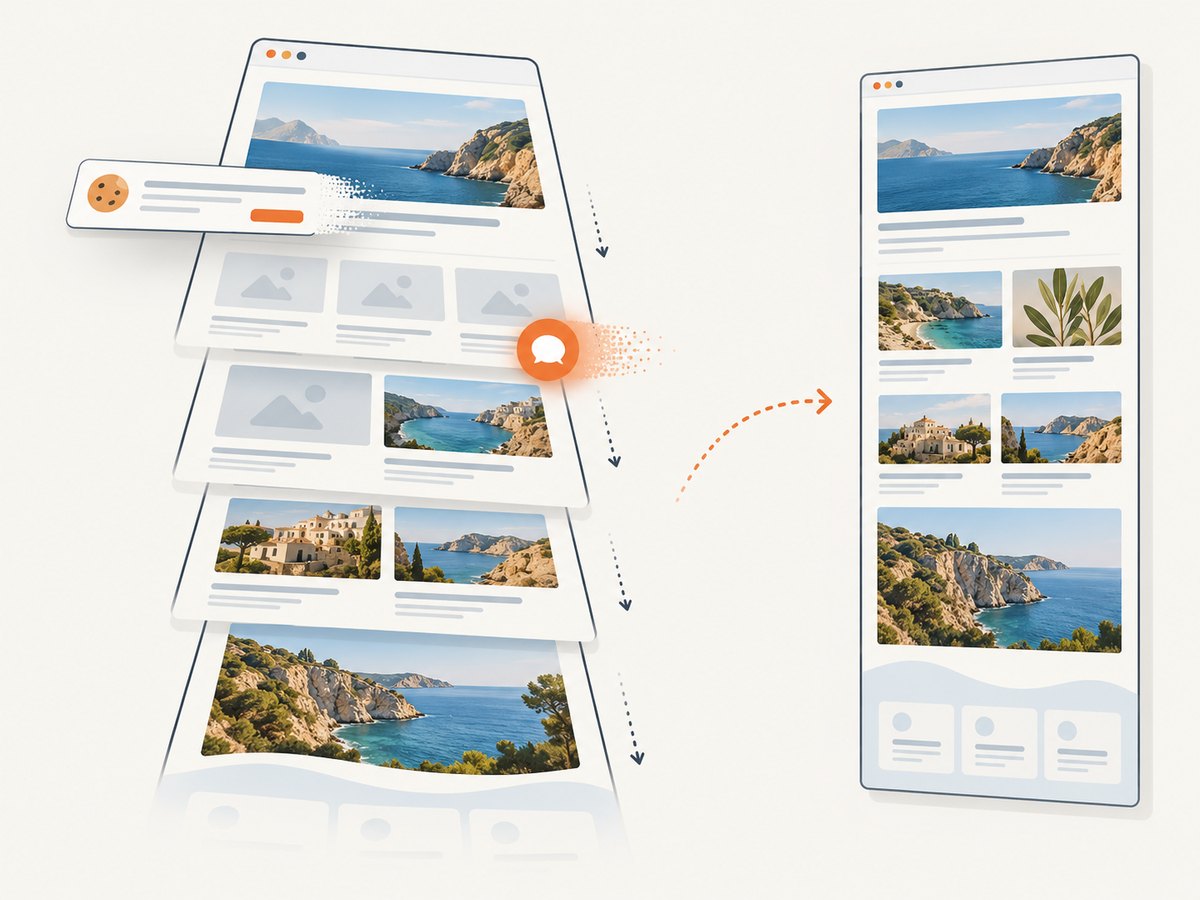
This is a good fallback when the deliverable is a still image. It will not preserve scrolling, interactions, or animation as a video would. A full-page screenshot extension such as GoFullPage is also a still-capture option; its listing describes full-page capture, not a scrolling video recorder. Check the tool’s current listing and permissions before installing an extension.
Prepare lazy-loaded content
Some sites load images only when they approach the visible area. Before capturing a still, scroll through the page and give sections time to load, then return to the top and capture. This can help lazy-loaded images appear, but it does not guarantee complete capture of infinite-scroll pages, virtualized lists, protected content, or sites that require interaction. For video, scrolling naturally exposes sections during the recording, but fast movement can pass an image before it has loaded.
5. ChromeOS: create in Screencast
On ChromeOS, create a Screencast in the Screencast app. Google’s help documentation describes its web player as a way to view shared recordings, not as the recorder. Use the app for creation and the web player for playback or sharing where available. See Google Chrome Enterprise and Education Help: Use Screencast on the web.
6. Or skip the browser setup
If you need a full-page still image rather than a video, ScreenshotNeo provides a website screenshot API. The request below returns a WebP capture of the target page:
curl -G "https://api.screenshotneo.com/v1/shot" -d access_key=YOUR_API_KEY --data-urlencode url=https://stripe.com -o shot.webpPython:
import requests

r = requests.get(
    "https://api.screenshotneo.com/v1/shot",
    params={"access_key": "YOUR_API_KEY", "url": "https://stripe.com"},
    timeout=90,
)
open("shot.webp", "wb").write(r.content)
Node.js:
const q = new URLSearchParams({ access_key: 'YOUR_API_KEY', url: 'https://stripe.com' });
const res = await fetch(`https://api.screenshotneo.com/v1/shot?${q}`);
if (!res.ok) throw new Error(`Screenshot request failed: ${res.status}`);
const bytes = new Uint8Array(await res.arrayBuffer());
await import('node:fs/promises').then(fs => fs.writeFile('shot.webp', bytes));
See the ScreenshotNeo API documentation for request options and response details. It accepts cookie and consent banners like a visitor and removes more than 60 known consent platforms, newsletter popups, and chat widgets before the capture; each of those steps can be turned off. Bot checks, blank pages, timeouts, failed loads, and cache hits are not billed, and response headers identify the page verdict and billing status. ScreenshotNeo also has an MCP server with take_screenshot, get_page_info, and capture_pdf tools for Claude, Cursor, and other MCP clients.
Free includes 1,000 screenshots per month with no card. Paid plans start at $5 for 3,000 screenshots; every feature is on every plan. ScreenshotNeo returns still images or PDFs, so use a screen recorder when you need motion. Sign up for 1,000 free screenshots a month, with no card.
7. Troubleshoot common capture problems
| Problem | Likely cause | What to try |
|---|---|---|
| The recording shows the wrong thing | A different tab, window, or screen was selected in the browser prompt. | Stop, start a new capture, and select the intended surface. Use a tab capture when desktop content should stay out of frame. |
| The page is cut off | The recording stopped before the scroll reached the end, or the page has content that appears only after scrolling. | Wait for the page to settle, scroll farther down, and review the recording before sharing. For a still capture, scroll through once to trigger lazy loading. |
| Some images are missing | Images may load lazily or require time to download. | Pause near image-heavy sections. For still screenshots, visit the lower sections before capturing. This may not resolve infinite or virtualized content. |
| Scrolling does not move the captured tab | The capture app may not have permission to forward wheel input, or the browser may not support that control flow. | Grant the requested permission when using a tool that supports captured-surface control. Otherwise scroll manually or use a recorder that captures the selected tab. |
| The video contains unrelated desktop content | The full screen or a broad window was captured. | Capture a browser tab or a specific window when supported. Turn off notifications if they could appear in the recording. |
| The video is hard to read | Scrolling is too fast, the viewport is small, or the recording includes long pauses. | Use slower, even scrolling; pause on key content; increase the browser window size; and trim idle time with an editor if needed. |
| A still screenshot omits page sections | The screenshot tool may capture only the visible viewport, or the site may use dynamic content. | Confirm that the tool has a full-page mode. Allow the page to load and scroll through it first. Treat infinite feeds and virtualized lists as potentially incomplete. |
| Chrome capture instructions do not match the browser | Browser APIs and user-interface details can change by version; the extension documentation notes version-specific capture flows. | Check current documentation for the browser version and the tool’s supported capture path. Use a manual screen recording if the API is unavailable. |
8. Performance, reliability, and file handling
Longer recordings create larger files and take longer to review or share. Keep the capture focused on the sections that answer the viewer’s question. A steady scroll makes content easier to follow and avoids spending recording time on empty space. If the page loads content as you move, slow down enough for it to appear before scrolling past.
Reliability depends on both the page and the capture method. A page can change during recording, display a consent prompt, or load content only after interaction. Make a short preview when the sequence matters, and review the final recording from beginning to end. For full-page stills, check that the chosen tool supports full-page output and inspect very long pages for missing sections or distorted layout.
For privacy, select the smallest surface that contains the page, and review the result for notifications, account details, or other browser content before sharing. Browser capture prompts make surface selection explicit; a capture tool that controls scrolling may also request permission. Grant only the permissions needed for the recording workflow.
There is no single file-size or speed figure that applies to every browser, device, page, and recorder. Video quality, duration, frame rate, encoding, and the amount of page motion all affect output size and capture behavior. If storage or upload time matters, keep clips short and check the recorder’s available quality and encoding settings rather than assuming a particular result.
9. Frequently asked questions
Can I make one video file that contains the entire webpage?
Yes. Record the browser surface while scrolling from the top through the content you want to show. The result is a video of the moving viewport, not one enormous still frame.
Can a full-page screenshot show animation?
No. A screenshot is a still image. Record the page as a video when movement, timing, or interaction matters.
Does Firefox’s Save full page option record video?
No. Firefox’s documented full-page screenshot option saves or copies an image. Use a screen recorder for video.
Can ScreenshotNeo capture a scrolling video?
No. ScreenshotNeo is for website screenshots and PDFs. Use its API when you want an automated still capture, and use a browser or screen recorder for a scrolling video.
Will scrolling first guarantee every image appears in a full-page screenshot?
No. It can give lazy-loaded images a chance to load, but it cannot guarantee complete capture of infinite-scroll, virtualized, protected, or interaction-dependent content.


