How to Capture a Full PDF Page as a Screenshot
Capture a PDF area in Acrobat Reader, understand what “full page” means, and choose the right method when you need an image of the entire document page.
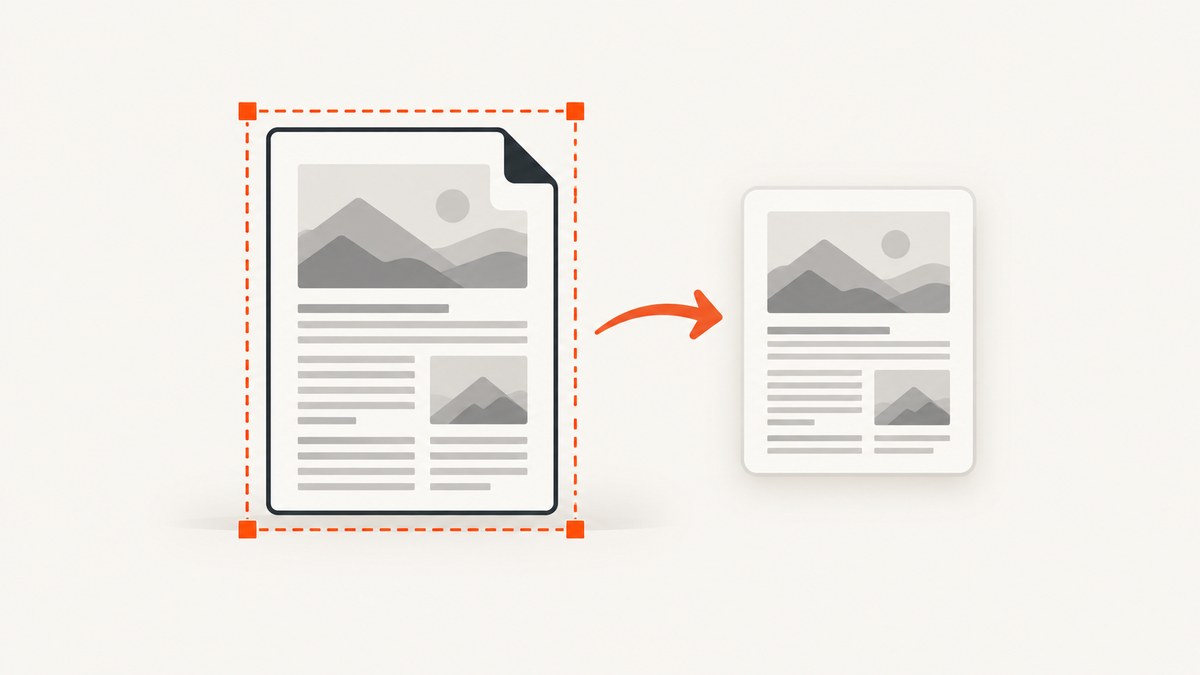
To copy part of a PDF page as an image in Adobe Acrobat Reader, open the PDF in the desktop application, choose Edit > More > Take A Snapshot, drag a rectangle around the page or area, and release. The selected area is copied to the clipboard so you can paste it into another application. This captures the selected visible PDF area; Adobe’s documented workflow does not promise a native-resolution export of an entire page, including content outside the visible area. Adobe’s Snapshot instructions describe the feature and its limits.
The phrase “full PDF page screenshot” can mean two different things: an image of the page as it appears in a viewer, or a page-sized image rendered from the PDF itself. A screenshot records visible content at the viewer’s display size. A rendered page image is produced from the document page and can be independent of the current screen viewport. The steps below help you choose the result you actually need.
1. Choose what “full page” means
Before capturing, decide whether the image needs to show the whole document page or simply what is currently visible on screen. A PDF viewer may zoom or scroll within a page. In that case, taking an ordinary screen capture records only the visible portion. It does not fill in the page areas that are off-screen.
| Your goal | What to use | What to expect |
|---|---|---|
| Copy a visible area of a PDF in Acrobat Reader | Take A Snapshot | A selected rectangle is copied to the clipboard. |
| Capture exactly what a PDF viewer shows on screen | Your operating system’s screen capture, or a viewer snapshot | The result reflects the visible display area and zoom level. |
| Save a complete document page as an image, with control over output dimensions | A PDF-to-image rendering or export workflow | Use an app-specific method that documents page selection and image resolution. The supplied Reader Snapshot instructions do not establish these controls. |
| Capture a long web page | A browser’s full-page screenshot feature | This is a web-page capture feature, not proof of a full-dimension PDF page export. |
This distinction matters for printing, documentation, archiving, and sharing. A screenshot may be sufficient when the goal is to show what a person sees in a viewer. If the image must preserve the complete page independently of the viewer window, use a rendering method whose documentation explicitly covers the PDF page and output resolution.
2. Copy a PDF area in Adobe Acrobat Reader
- Open the PDF in Acrobat Reader. Use the desktop application rather than a browser’s built-in PDF viewer. Adobe scopes the Snapshot instructions to Acrobat Reader.
- Navigate to the page. Scroll to the page and adjust the zoom so the area you want is visible. If you need the whole page, make sure the whole page fits in the visible document area before selecting it. A selection cannot include off-screen content.
- Open the Snapshot command. Choose Edit > More > Take A Snapshot.
- Select the page area. Drag a rectangle around the page or the specific content you need, then release the mouse button.
- Paste the image. The selected area is copied to the clipboard. Switch to a destination application and paste it. Save or export from that application in the image format you need.
Snapshot is an area-copy tool. It does not itself ask for an image file name or document page dimensions; the immediate result is clipboard content. If the destination application offers image scaling, avoid enlarging a small capture and assuming that this adds detail. The capture reflects the selected display area.
When the whole page does not fit
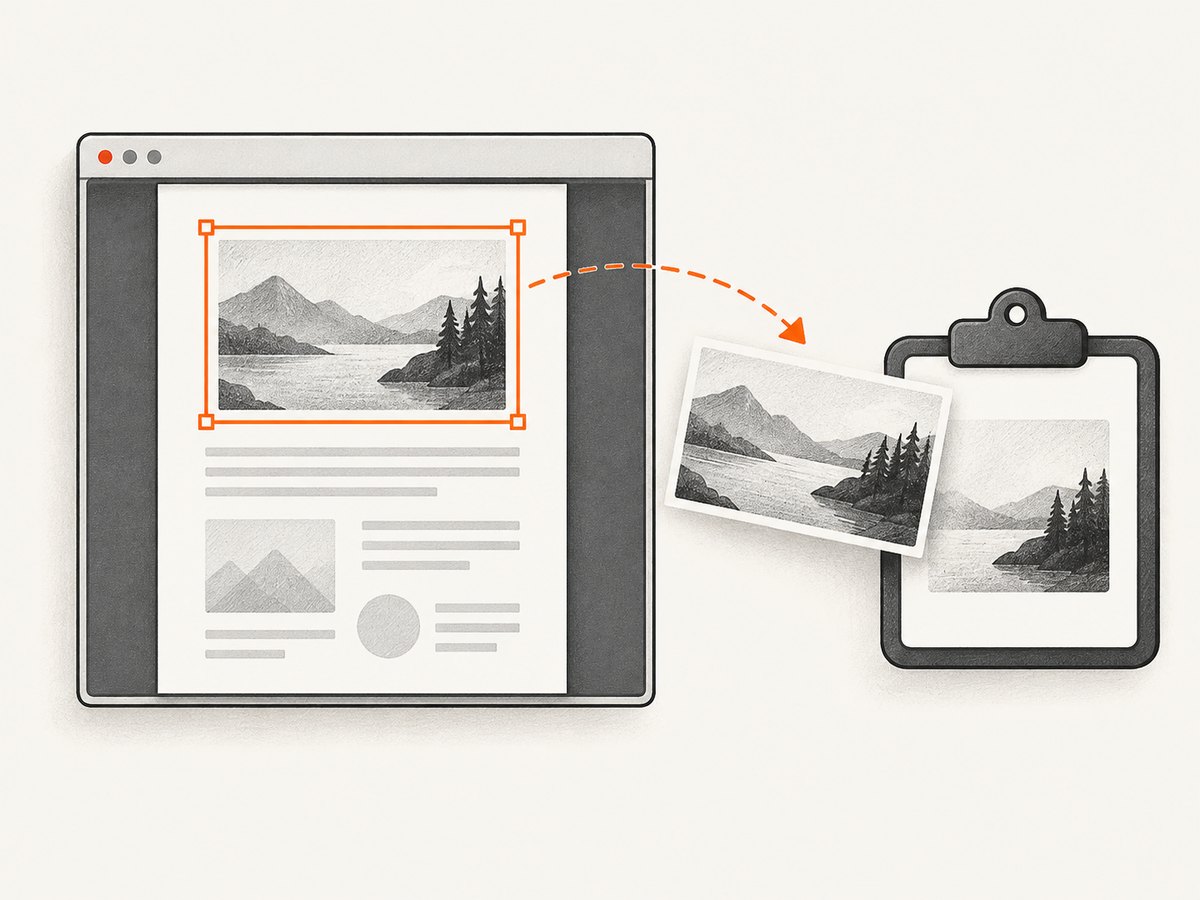
If a page is taller or wider than the visible viewer area, a rectangle around the visible portion will omit the rest. Zooming out may let the entire page fit, but the result is still a snapshot of the displayed page. The cited Adobe instructions do not establish that this method exports at a chosen resolution or preserves the PDF’s full page dimensions as an image.
For a deliverable that must contain every edge of a page at a specified pixel size, use a PDF rendering or export feature with documented page and resolution settings. Check that the tool lets you select the intended page, choose an image format, and set output dimensions or resolution. The exact steps depend on the application; the available sources do not support a universal, cross-platform export recipe.
3. Check PDF permissions if copying is unavailable
A disabled or unsuccessful copy operation may be caused by security restrictions. PDF authors can apply settings that disallow copying. Adobe says to inspect the document’s security details in Acrobat Reader:
- Open Document Properties.
- Open the Security tab.
- Review Document Restrictions Summary for the copying restriction.
If copying is prohibited, the Snapshot workflow may not be available for the content. Follow the document owner’s permissions and request an authorized copy or another permitted format. Changing the screen capture method does not change the PDF’s permissions.
4. Don’t confuse a browser’s full-page capture with a PDF export
Firefox documents screenshot options called Save full page and Save visible for web pages. The image can be downloaded or copied to the clipboard. Those options are useful when you need an image of a long web page, but Mozilla’s instructions do not say that the feature exports an entire PDF page at the document’s dimensions or at a chosen resolution. See Mozilla’s Firefox Screenshots guide.
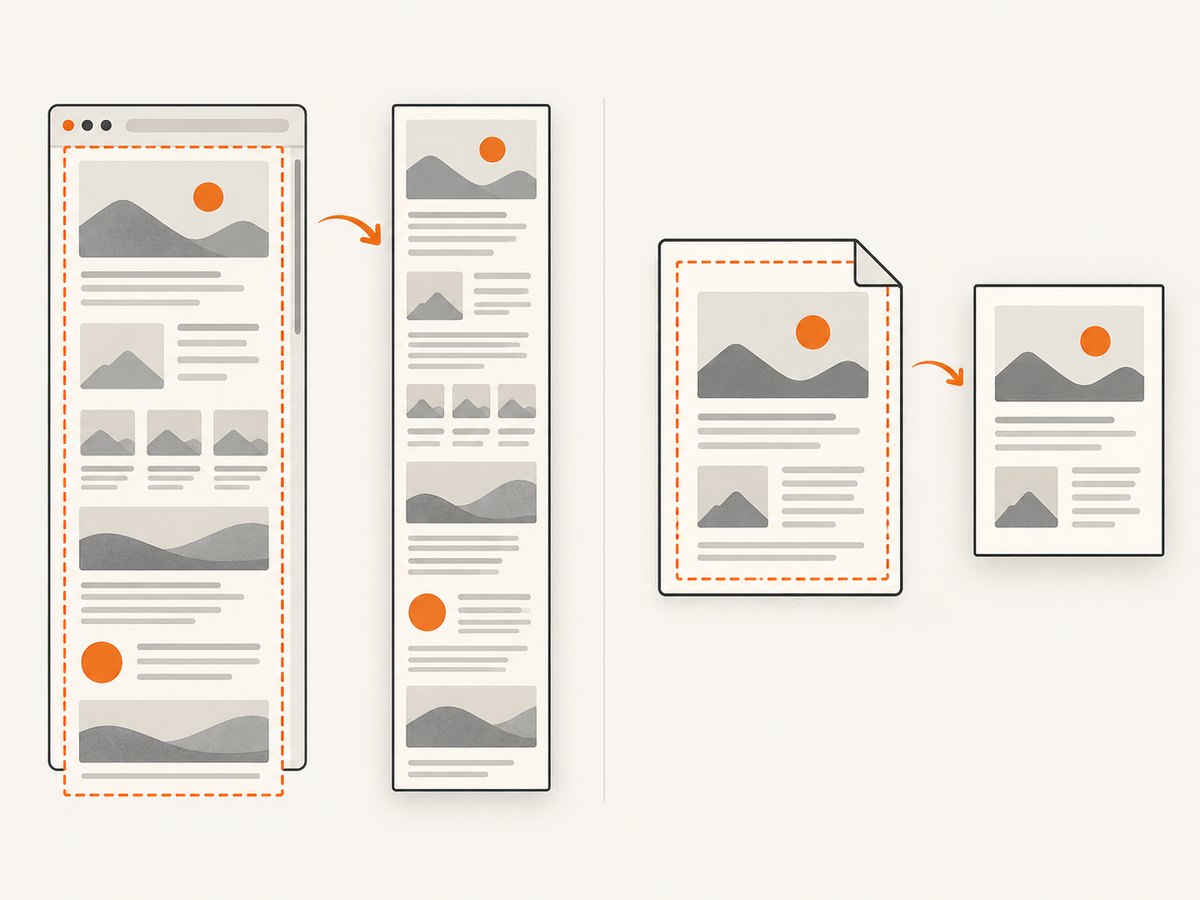
A PDF opened in a browser can be presented inside a viewer. Capturing that view is still a capture of what the browser displays. Do not assume that a browser’s “full page” control will render every part of a PDF page, preserve its original page dimensions, or provide resolution control. Confirm the result by checking all four page edges and comparing it with the intended output.
5. Make the capture easier to read
- Fit the page before taking a viewer screenshot. If the full page must be visible in the capture, choose a zoom level and window size that show all its edges.
- Keep the page straight and unobstructed. Close side panels or dialogs that cover content, and move the pointer away from the area if it obscures anything.
- Check the final image at its intended size. Text that looks readable in the viewer may become too small when the page is fitted into a smaller screenshot.
- Use a page rendering workflow when display size is insufficient. If you need a larger output, verify the rendering tool’s documented resolution settings instead of relying on zoom alone.
- Inspect the pasted result. Confirm the page edges, text, diagrams, and any annotations are present before sharing it.
6. Troubleshooting
| Problem | Likely cause | What to try |
|---|---|---|
| “Take A Snapshot” is missing | You may be using a browser viewer, a different application, or a different interface version. | Open the file in the Acrobat Reader desktop application and follow Adobe’s current menu path. The documented path is Edit > More > Take A Snapshot. |
| Only part of the page appears | The selection covered only the visible area, or the page did not fit in the viewer. | Check the selection and page edges. Fit the page in view before capturing. For a complete page independent of the viewport, use a documented PDF page-rendering or export workflow. |
| Nothing appears when you paste | The clipboard may not contain the snapshot, the selection may not have completed, or the destination app may not accept the clipboard format. | Repeat the selection and release the mouse button, then paste into an image-capable application. Confirm the PDF allows copying. |
| Copying is restricted | The PDF’s security settings may disallow copying. | Check Document Properties > Security > Document Restrictions Summary. Ask the document owner for an authorized alternative if needed. |
| The screenshot is too small or blurry | The capture reflects the displayed area and zoom; enlarging it later does not restore detail. | Use a rendering/export method that documents image resolution settings. The Snapshot documentation does not establish a native-resolution export control. |
| A browser full-page screenshot omits PDF content | The browser feature is intended for web-page capture and may capture the viewer display rather than the entire PDF page. | Use a PDF-specific workflow and verify the resulting page boundaries. |
7. Performance, reliability, and output considerations
For a single quick copy of visible content, Acrobat Reader’s Snapshot workflow has few steps: select an area, then paste. Its reliability depends on the page being visible, the selection covering the desired area, and the document allowing copying. A clipboard result is convenient for pasting but is not the same as a saved image file; the destination application determines how you save or convert it.
For repeated captures or pages that exceed the viewer viewport, a document-rendering workflow is generally a better fit because it can be designed around page boundaries and image output. Confirm that the chosen application actually exposes the controls you need. The documentation in this guide does not establish performance figures, output-size limits, or a universal resolution setting for PDF rendering tools.
Consider the intended use before choosing dimensions. A small preview may be adequate in a note or issue report. A page containing fine print or detailed diagrams may require a higher-resolution render. Keep the original PDF alongside the image when readers may need to zoom or inspect details that a screenshot cannot preserve.
8. Capture a web page that displays a PDF
If your actual goal is to screenshot a website that embeds or links to a PDF, that is a browser page capture task. It does not automatically produce a complete image of each PDF page. For a regular web page, ScreenshotNeo accepts a URL and returns an image or PDF. Its options include full-page capture, viewport settings, and image formats. Those options are for website capture; do not treat them as a guaranteed PDF page renderer.
One request can capture a web page at a URL:
curl -G "https://api.screenshotneo.com/v1/shot" \
  -d access_key=YOUR_API_KEY \
  --data-urlencode url=https://example.com \
  -o shot.webp
See the ScreenshotNeo API documentation for the request parameters. For a PDF URL, first confirm that the result is the view you intend to capture; the API’s website screenshot function should not be assumed to render a complete document page at native dimensions.
Or skip the browser setup
If you need a screenshot of a web page around a PDF link or viewer, ScreenshotNeo can capture a URL with one GET request. Cookie banners, newsletter popups, and chat widgets are removed before the shot. Bot checks, blank pages, and failed loads are never billed, and response headers identify the page verdict and billing status. An MCP server lets AI agents use the take_screenshot, get_page_info, and capture_pdf tools. The service includes 1,000 screenshots a month free with no card; paid plans start at $5 for 3,000.
curl -G "https://api.screenshotneo.com/v1/shot" \
  -d access_key=YOUR_API_KEY \
  --data-urlencode url=https://stripe.com \
  -o shot.webp
import requests
r = requests.get(
"https://api.screenshotneo.com/v1/shot",
params={"access_key": "YOUR_API_KEY", "url": "https://stripe.com"},
timeout=90,
)
open("shot.webp", "wb").write(r.content)const q = new URLSearchParams({
access_key: 'YOUR_API_KEY',
url: 'https://stripe.com'
});
const res = await fetch(`https://api.screenshotneo.com/v1/shot?${q}`);
Replace the example URL with the web page you want to capture. Review the response headers and saved output to confirm the capture is useful for your case. Sign up for ScreenshotNeo’s free plan: 1,000 screenshots a month, no card required.
FAQ
Does Acrobat Reader Snapshot save a PNG file directly?
Adobe describes Snapshot as copying the selected PDF area as an image to paste into other applications. Save or export the pasted image from the destination application.
Does “full page” mean the whole PDF document?
It usually means the entire current page, rather than every page in the PDF. Specify whether you need one complete page or a capture of multiple pages.
Can I use Firefox’s Save full page for a PDF?
Mozilla documents that option for web pages. Its help does not establish a complete, resolution-controlled PDF page export.
Will a screenshot preserve selectable PDF text?
A screenshot is an image of displayed content. Keep the original PDF when selectable text or document structure matters.


