BlogScreenshots on your device
How to Capture the Full Screen in Microsoft Edge
Use Edge Screenshot to save a whole webpage, including content below the fold. For everything visible on your monitor, use Windows Snipping Tool instead.

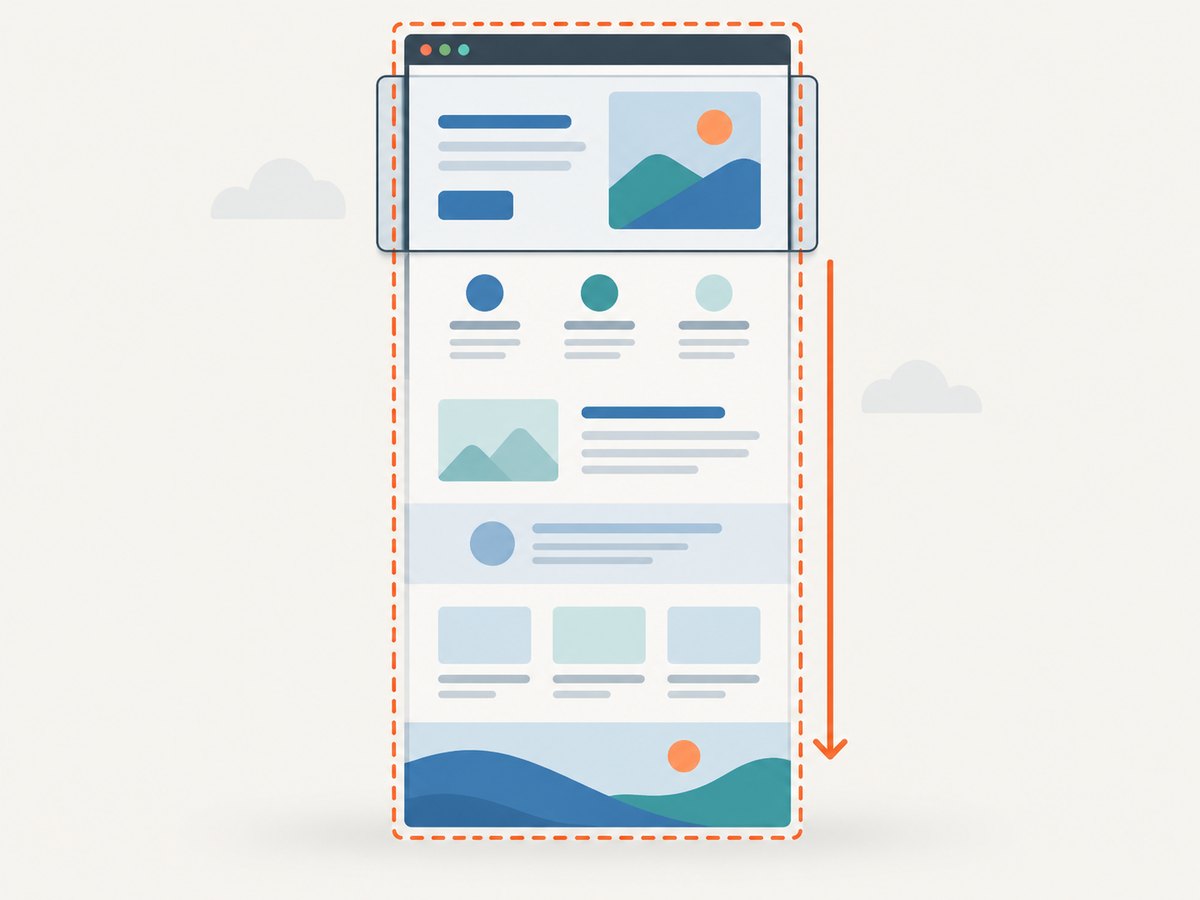
To capture an entire webpage in Microsoft Edge, press Ctrl+Shift+S, choose Capture full page, then copy or save the result. This captures the page below the visible area as well as the part on screen. If by “full screen” you mean everything currently visible on your monitor—including Edge’s toolbar and other windows—use Windows Snipping Tool’s Full screen mode instead. Microsoft’s Edge instructions describe the full-page option.
1. Capture a full webpage in Edge
- Open the webpage you want to capture in Microsoft Edge.
- Press Ctrl+Shift+S. Alternatively, right-click the page and choose Screenshot, or open Settings and more and choose Screenshot. The feature was previously called Web Capture.
- Choose Capture full page. Edge captures the page beyond the visible viewport in one image.
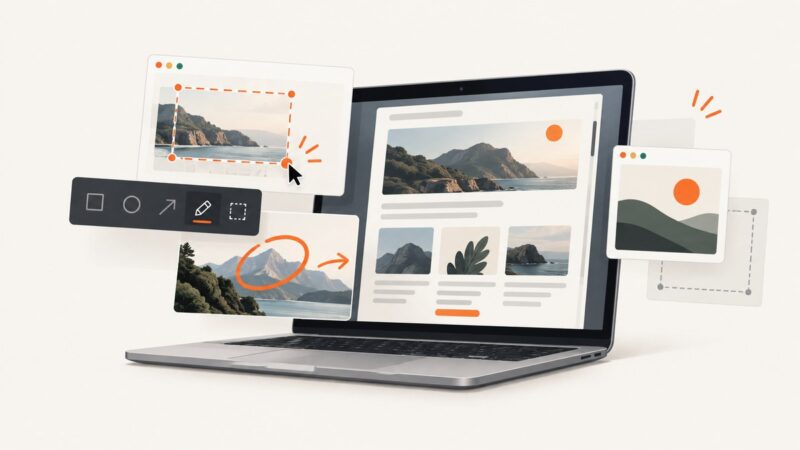
- Use the markup tools if needed, then choose Copy or Save.
For only the visible portion or a specific region, choose the area capture option instead. Edge’s Screenshot tool can keep moving content such as GIFs and carousels active during capture, so pause or position the content at the frame you want when necessary. See Microsoft’s Screenshot feature overview.
2. Webpage versus computer screen
| What you need | Use | What is included |
|---|---|---|
| The complete webpage | Edge Screenshot → Capture full page | Page content above and below the fold |
| A portion of a webpage | Edge Screenshot → area capture | The selected region |
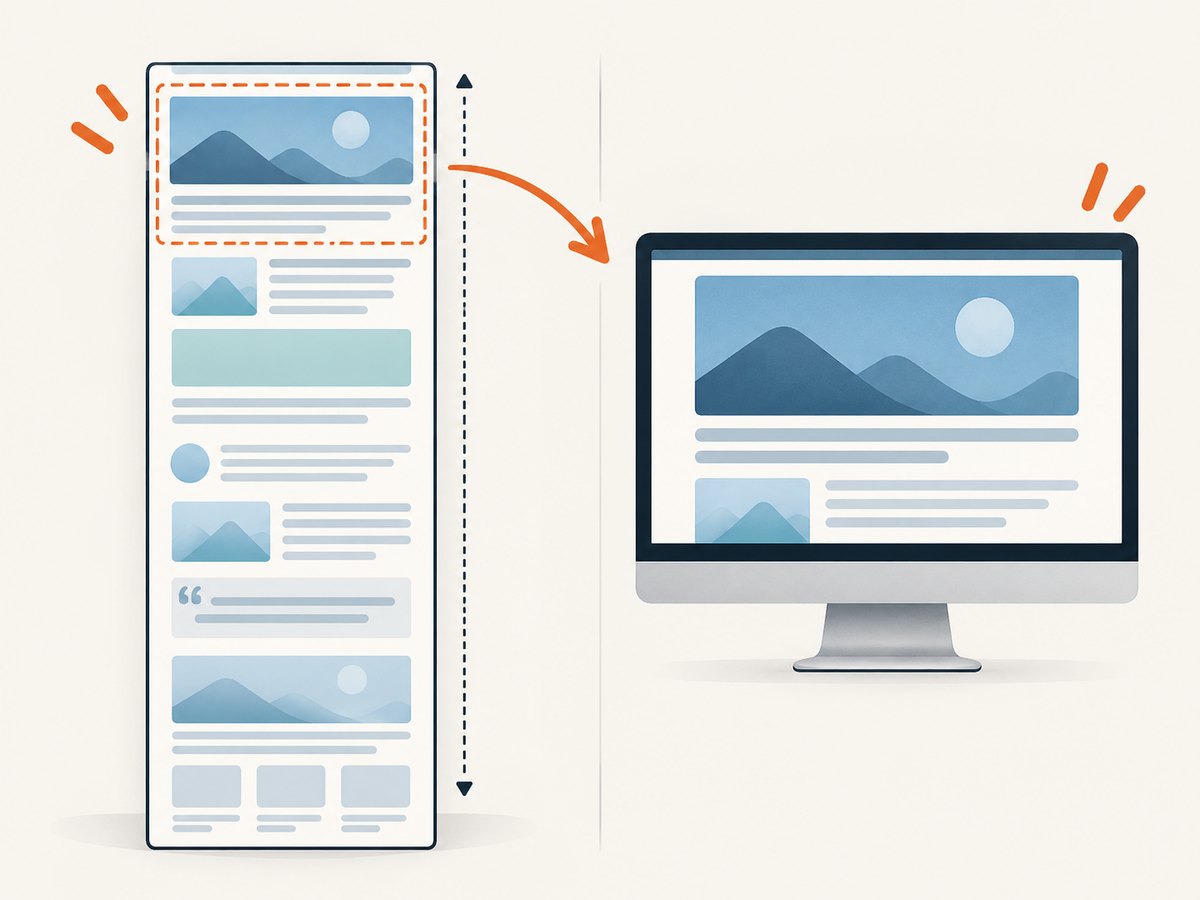
| Everything currently shown on a Windows display | Snipping Tool → Full screen, or Print Screen | Visible desktop, browser chrome, and other visible apps |
A full webpage capture is not a recording of the entire desktop, and a desktop screenshot does not scroll to include the rest of a long page. Microsoft lists Rectangle, Window, Full screen, and Freeform modes in Snipping Tool.
3. Capture the entire Windows display
- Arrange the windows and content on screen as you want them to appear.
- Press Win+Shift+S to open the Snipping Tool overlay, then select Full screen if the mode picker is shown. Or open Snipping Tool from Start and select its Full screen mode.
- When the capture opens in Snipping Tool, edit or annotate it, then save or share it. Print Screen takes a static snapshot of the entire screen and copies it to the clipboard.
Use this method when the browser frame, desktop, or another visible application matters. It captures what is on screen at that moment; it does not stitch together off-screen webpage content.
4. Edge on macOS
Microsoft documents the Edge Screenshot feature for macOS as well as Windows. The Screenshot policy documentation says the option is available through the context menu and Settings and more menu, with Ctrl+Shift+S when the feature is enabled or not configured. On macOS, Ctrl+Command+F toggles Edge’s browser full-screen mode; that changes how the browser window is displayed and does not capture a full webpage. See Microsoft’s WebCaptureEnabled policy reference and Edge keyboard shortcuts.
5. When to use an API instead of a manual capture
Edge is convenient for a one-off capture you can inspect, annotate, and save. A screenshot API is more suitable when code needs to capture pages repeatedly, select an output format, set a viewport, or generate files as part of a workflow. ScreenshotNeo is a website screenshot API and MCP server. Its options include full-page captures, CSS-selector element captures, device and viewport settings, PDF output, custom CSS and JavaScript, wait conditions, caching, asynchronous jobs, and bulk capture. See the ScreenshotNeo API documentation for available options and configuration.
Or skip the browser setup
Make a screenshot request with cURL:
curl -G "https://api.screenshotneo.com/v1/shot" -d access_key=YOUR_API_KEY --data-urlencode url=https://stripe.com -o shot.webpOr use Python:
import requests

r = requests.get(
    "https://api.screenshotneo.com/v1/shot",
    params={"access_key": "YOUR_API_KEY", "url": "https://stripe.com"},
    timeout=90,
)
open("shot.webp", "wb").write(r.content)
Or Node.js:
const q = new URLSearchParams({ access_key: 'YOUR_API_KEY', url: 'https://stripe.com' });
const res = await fetch(`https://api.screenshotneo.com/v1/shot?${q}`);
const bytes = Buffer.from(await res.arrayBuffer());
await import('node:fs/promises').then(fs => fs.writeFile('shot.webp', bytes));
Replace the example URL with the page you want, and use your API key. ScreenshotNeo removes cookie banners, newsletter popups, and chat widgets before capture. Bot checks, blank pages, and failed loads are never billed; responses identify the page verdict and billing status. Its MCP server lets AI agents use screenshot tools. The free plan includes 1,000 screenshots a month with no card; paid plans start at $5 for 3,000 screenshots. Sign up for 1,000 free screenshots a month.
Troubleshooting
The Screenshot option or shortcut is missing
First try the context menu and Settings and more menu. On a managed work device, an administrator may disable the feature using the WebCaptureEnabled policy. Microsoft says that when this policy is enabled or left unconfigured, Screenshot appears in those menus and through the shortcut; when disabled, users cannot access it. Ask your administrator to check the policy, or check Edge’s version and update it if appropriate. The policy reference lists support for Edge on Windows and macOS from version 87.
The shortcut opens something else or does nothing
Use the context menu or Settings and more menu to open Screenshot. Keyboard shortcuts can be intercepted or differ by keyboard layout or operating system. Confirm that Edge is the active app and use the menu route if the shortcut remains unavailable.
The image omits content that was below the fold
Choose Capture full page, not the area capture mode. If you wanted the desktop rather than the webpage, use Snipping Tool’s Full screen mode; that captures only what is currently visible.
A dynamic page shows the wrong frame
Some pages animate carousels, GIFs, or other moving content. Microsoft notes that Screenshot can keep such content active during capture. Set the page to the desired state before capturing, or use an automated capture workflow with appropriate page waits when the capture needs to be repeatable.
The result is hard to share or preserve
Use Edge’s Copy action to paste into another app or Save to keep a file. For a desktop capture, Snipping Tool opens the capture for editing and saving. Make sure you selected the intended scope before capturing: full webpage and full display produce different results.
Performance, reliability, and cost
For occasional captures, the built-in Edge and Windows tools avoid setting up an API workflow. A full-page image contains more content than a viewport capture, so very long pages can produce a larger image and take longer to inspect or share. Dynamic or changing pages may not represent a stable state unless you capture at the right moment.
For recurring or automated work, an API can make capture settings repeatable and return image or PDF output without manual browser steps. ScreenshotNeo offers caching with a configurable TTL, asynchronous jobs with signed webhooks, bulk capture of up to 100 URLs per call, and a usage API. Its plans are Free: 1,000 shots/month; Starter: $5 for 3,000; Growth: $15 for 15,000; Pro: $39 for 60,000; Scale: $99 for 250,000; and Business: $249 for 1,000,000. Yearly billing gives two months free. Every feature is on every plan. Check the docs for request details and the site for current plan information.
FAQ
What is the Edge shortcut for a full-page screenshot?
Press Ctrl+Shift+S, then choose Capture full page.
Is Web Capture the same as Screenshot?
Yes. Edge renamed Web Capture to Screenshot; some instructions and policy names still use the earlier term.
Does Capture full page include the browser toolbar?
No. It captures the webpage. Use Windows Snipping Tool’s Full screen mode or Print Screen to include the visible browser and desktop.
Can I annotate the Edge capture?
Yes. Edge provides markup tools before you copy or save the capture.