BlogScreenshots on your device
Why Opera Full-Page Screenshots Fail and How to Fix Them
Opera’s Capture Full Screen may save only the viewport. Learn how to capture the whole page, troubleshoot missing sections, and use reliable fallbacks.
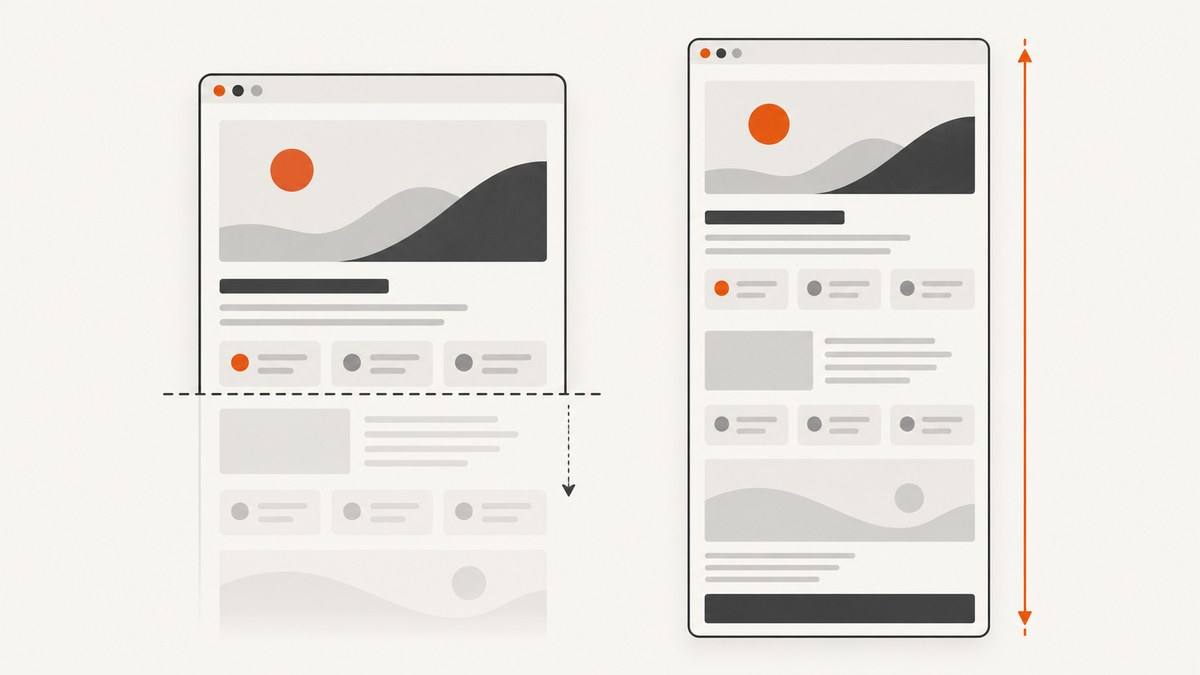
Opera full-page screenshots usually fail because the selected capture mode records only the visible viewport. Opera documents Capture Full Screen as the page currently visible on screen, also called the viewport. To capture content below the fold, use the full-page option shown in your Opera version or choose Save page as PDF for a top-to-bottom document.
This guide explains how to identify the result you need, capture it in Opera, repair page-display problems, and use documented fallbacks when Opera does not provide the output you need.
First, identify what “full page” means
| What you need | Use | Result |
|---|---|---|
| What is visible without scrolling | Capture Full Screen | Viewport only |
| One tall image from top to bottom | Capture full page, if your Opera interface provides it | Single long image |
| A complete document for printing or sharing | Save page as PDF | Paginated or document-style full-page export |
Opera’s help and FAQ list Capture visible page, Capture full page, and Save page as PDF. Names and availability can differ by Opera version, platform, or product variant, so use the control that appears in your interface.
How to take a full-page screenshot in Opera
1. Open the page and let it render
Wait for the page’s visible content to finish loading. If sections are already missing, fix the page display before diagnosing Snapshot.
2. Open Snapshot
- Windows or Linux: press Shift + Ctrl + 5.
- macOS: press Shift + Command + 2.
- Alternatively, select the camera icon that opens Snapshot.
3. Choose the correct output
- For one tall image, select Capture full page when that option is available.
- If you see only Capture Full Screen, understand that Opera defines it as viewport capture; it will not include the document below the fold.
- For a complete document, choose Save page as PDF.
4. Verify the result
Scroll or inspect the exported file and confirm that the expected bottom of the page is present. Also check that sections are not blank, duplicated, or cut off before sharing or archiving the capture.
Why Opera captures only the visible screen
The most common explanation is mode selection: Capture Full Screen means the viewport, not the entire document. A page can look complete in the browser while the saved image ends at the bottom edge of the screen.
Other cases are page-display problems. If Opera itself is not showing sections correctly, the screenshot tool cannot capture content that was never rendered. Opera’s FAQ recommends trying a private window, clearing cache and cookies, disabling a VPN, and updating Opera. These are general page-display steps; Opera does not state that each one specifically repairs Snapshot.
Anecdotal forum reports describe scrolling screenshot behavior stopping, but they do not establish a universal current bug, a confirmed cause, or a guaranteed fix. Avoid changing browser flags based only on an old report.
Fixes for missing or incomplete captures
When the image ends at the viewport
- Reopen Snapshot and look for Capture full page.
- If it is unavailable, use Save page as PDF for a top-to-bottom export.
- If you require a single tall image, use the Chrome DevTools fallback below.
When sections are missing before capture
- Open the same URL in a private window.
- Clear Opera’s cache and cookies, then reload.
- Temporarily disable the VPN and reload.
- Update Opera and retry.
- After each change, verify the page itself before taking another screenshot.
When scrolling or selection capture stops
Record the Opera product or variant, version, operating system, capture control used, and the exact point where the result stops. Compare the page in a private window and test the PDF option. Because the available forum report is anecdotal, there is no documented universal setting that fixes every case.
Fallback: save the page as a PDF
Use Opera’s Save page as PDF option when a paginated document is acceptable. Opera describes this as a full-page option from top to bottom. PDFs are useful for printing, review, and archiving, but they are not always suitable when another system requires one raster image such as PNG, JPEG, or WebP.
Fallback: Chrome DevTools full-size image
This is a Chrome DevTools workflow, not an Opera preference.
- Open the page in Chrome.
- Open DevTools and enable device mode.
- Open the command menu or the device-mode capture controls.
- Select Capture a full size screenshot.
- Open the saved image and confirm that content outside the viewport is included.
Use this when you specifically need one tall image and Opera does not expose a full-page image control.
Choose the right output
| Requirement | Recommended path | Trade-off |
|---|---|---|
| Quick view of what is on screen | Capture Full Screen | Excludes content below the fold |
| Whole page as an image | Opera Capture full page or Chrome DevTools full size screenshot | Very tall pages can be large and harder to inspect |
| Printable, searchable archive | Save page as PDF | Output is paginated rather than one image |
| Repeatable automated captures | Screenshot API | Requires an API key and request handling |
Or skip the browser setup
ScreenshotNeo captures a URL with one request and returns PNG, JPEG, WebP, or PDF. Its full-page mode loads lazy images, and you can control waits, viewport, device presets, dark mode, CSS, JavaScript, cookies, headers, blocking rules, caching, and more. Cookie and consent banners, newsletter popups, and chat widgets are removed before the shot. Bot checks, blank pages, timeouts, failed loads, and cache hits are not billed, and response headers identify the page verdict and billing result. An MCP server provides take_screenshot, get_page_info, and capture_pdf for Claude, Cursor, and other MCP clients.
See the ScreenshotNeo API documentation for all options.
cURL
curl -G "https://api.screenshotneo.com/v1/shot" \
  -d access_key=YOUR_API_KEY \
  --data-urlencode url=https://example.com \
  -o shot.webp
Python
import requests

r = requests.get(
    "https://api.screenshotneo.com/v1/shot",
    params={"access_key": "YOUR_API_KEY", "url": "https://example.com"},
    timeout=90,
)
r.raise_for_status()
open("shot.webp", "wb").write(r.content)
Node.js
const q = new URLSearchParams({
  access_key: 'YOUR_API_KEY',
  url: 'https://example.com'
});
const res = await fetch(`https://api.screenshotneo.com/v1/shot?${q}`);
if (!res.ok) throw new Error(`Screenshot failed: ${res.status}`);
const fs = await import('node:fs/promises');
await fs.writeFile('shot.webp', Buffer.from(await res.arrayBuffer()));
Screenshot reliability, performance, and cost notes
- Wait for a selector, a delay, or network idle when content is rendered after the initial HTML.
- Use full-page capture when lazy-loaded images below the fold must be included.
- Block ads, trackers, unnecessary requests, or resource types to reduce page work.
- Set a cache TTL for repeat captures; cache hits are not billed.
- Use async jobs and signed webhooks for slow pages or high-volume queues.
- Bulk capture supports up to 100 URLs per call.
- Free includes 1,000 shots per month with no card. Paid plans start at $5 for 3,000 shots; every feature is on every plan, and yearly billing gives two months free.
Troubleshooting checklist
| Symptom | Likely cause | Fix |
|---|---|---|
| Image stops at the screen edge | Capture Full Screen selected | Use Capture full page or Save page as PDF |
| Page is already incomplete | Cache, cookies, VPN, outdated browser, or private-window difference | Apply Opera’s display troubleshooting steps and retest |
| Scrolling capture stops | Version or product-specific behavior; no universal confirmed cause | Record version and platform, test PDF, and use a documented fallback |
| PDF is complete but an image is required | PDF is a document output | Use Chrome DevTools full-size capture or an image API |
| Automated capture is blank or blocked | Bot check, failed load, or page timing | Inspect the verdict, add a wait, set headers or cookies, and retry; unsuccessful results are not billed by ScreenshotNeo |
FAQ
Does Opera’s Capture Full Screen capture the whole webpage?
No. Opera documents it as the entire page currently visible on screen, also known as the viewport.
What is Opera’s full-page option called?
Opera’s help and FAQ list Capture full page and Save page as PDF. The exact controls depend on your version, platform, or product variant.
Is there a confirmed Opera bug causing every full-page screenshot to fail?
The available sources do not establish one universal current defect or root cause. Diagnose the capture mode and page display first.
Can I get one tall image instead of a PDF?
Use Capture full page if Opera shows it. Otherwise, Chrome DevTools documents Capture a full size screenshot in device mode, or use an image screenshot API.
Where can I try ScreenshotNeo?
Create a free ScreenshotNeo account to get 1,000 screenshots each month with no card. Paid plans start at $5 for 3,000 shots.