BlogScreenshots on your device
How to Capture a PDF Page as an Image on Desktop
Save a PDF page as a sharp PNG or JPG on Windows or Mac, capture a selected area, choose the right format, and avoid quality and privacy problems.
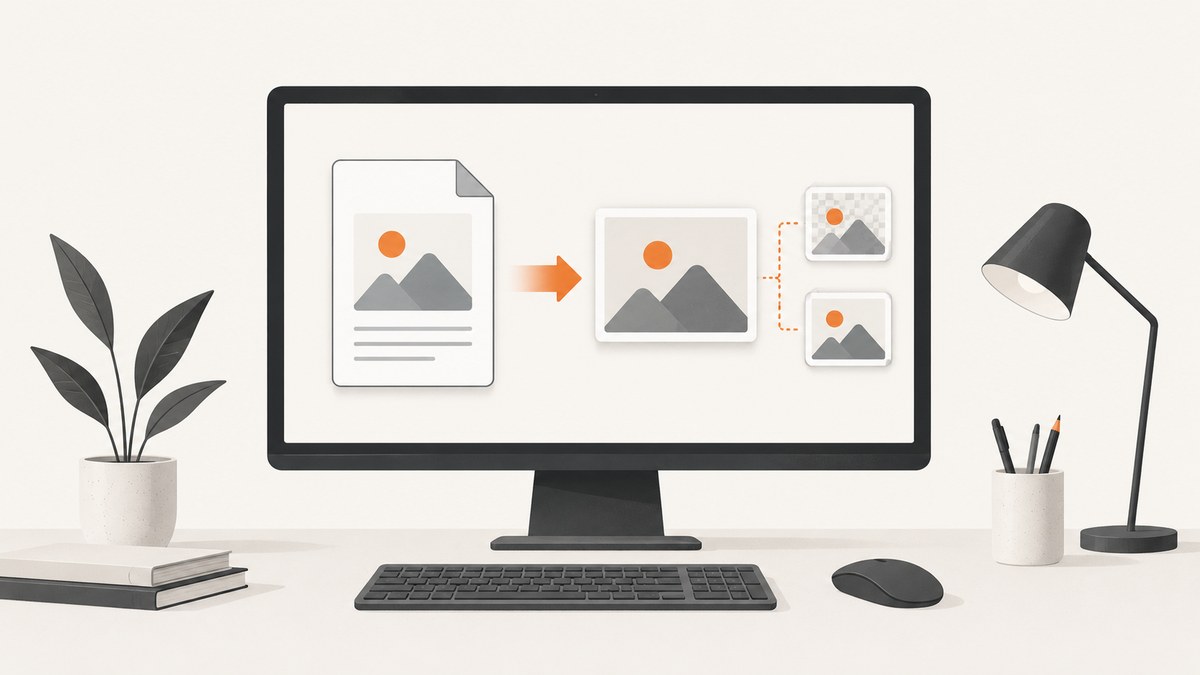
For a reusable image file, export the PDF page through a PDF application such as Adobe Acrobat. Open the PDF, choose Convert, select Image format, choose PNG or JPEG, and save the result. For a quick one-off capture, use Acrobat’s Snapshot tool to copy the visible page or a selected rectangle to the clipboard, then paste it into an image editor or document.
Use PNG for text, diagrams, screenshots, and transparency. Use JPEG for compact, web-friendly photographs or scans. Use TIFF when archival quality matters and larger files are acceptable. JPEG 2000 is an option when advanced compression is useful and the destination supports it.
1. Export a PDF page as a PNG or JPEG file
Adobe Acrobat on Windows or macOS
- Open the PDF in Adobe Acrobat.
- Choose Convert from the top tools bar.
- Select Image format.
- Choose PNG, JPEG, TIFF, or JPEG 2000.
- Choose the save location in the conversion dialog.
- Save the exported image.
Acrobat’s conversion flow is available on both Windows and macOS. Exporting through the PDF renderer preserves the page’s geometry better than photographing or screen-capturing the display because the result is not tied to your monitor’s zoom, scaling, window borders, or visible viewport.
What happens with a multi-page PDF?
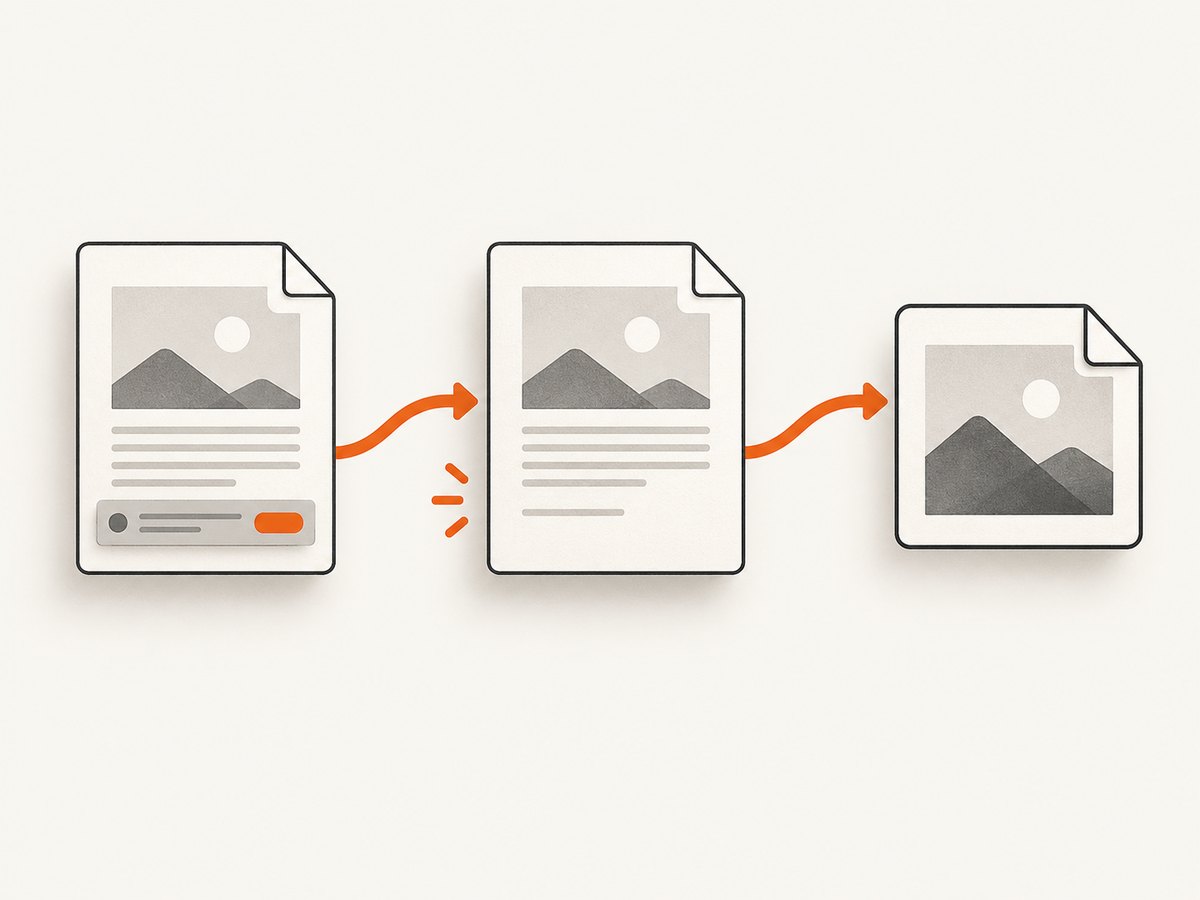
When you export multiple pages to JPG or another image format, expect one image file per page. The files are usually written as a numbered sequence. If you need one tall image, combine the exported pages afterward in an image editor; do not assume the export will create a single vertical canvas.
2. Capture only one visible page or region
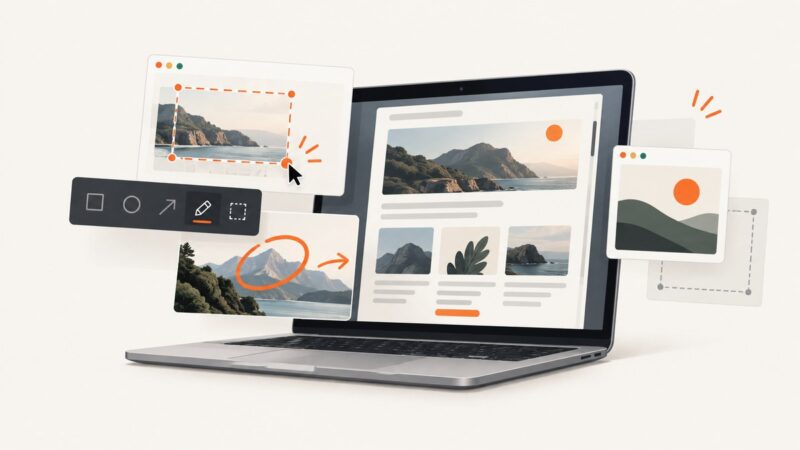
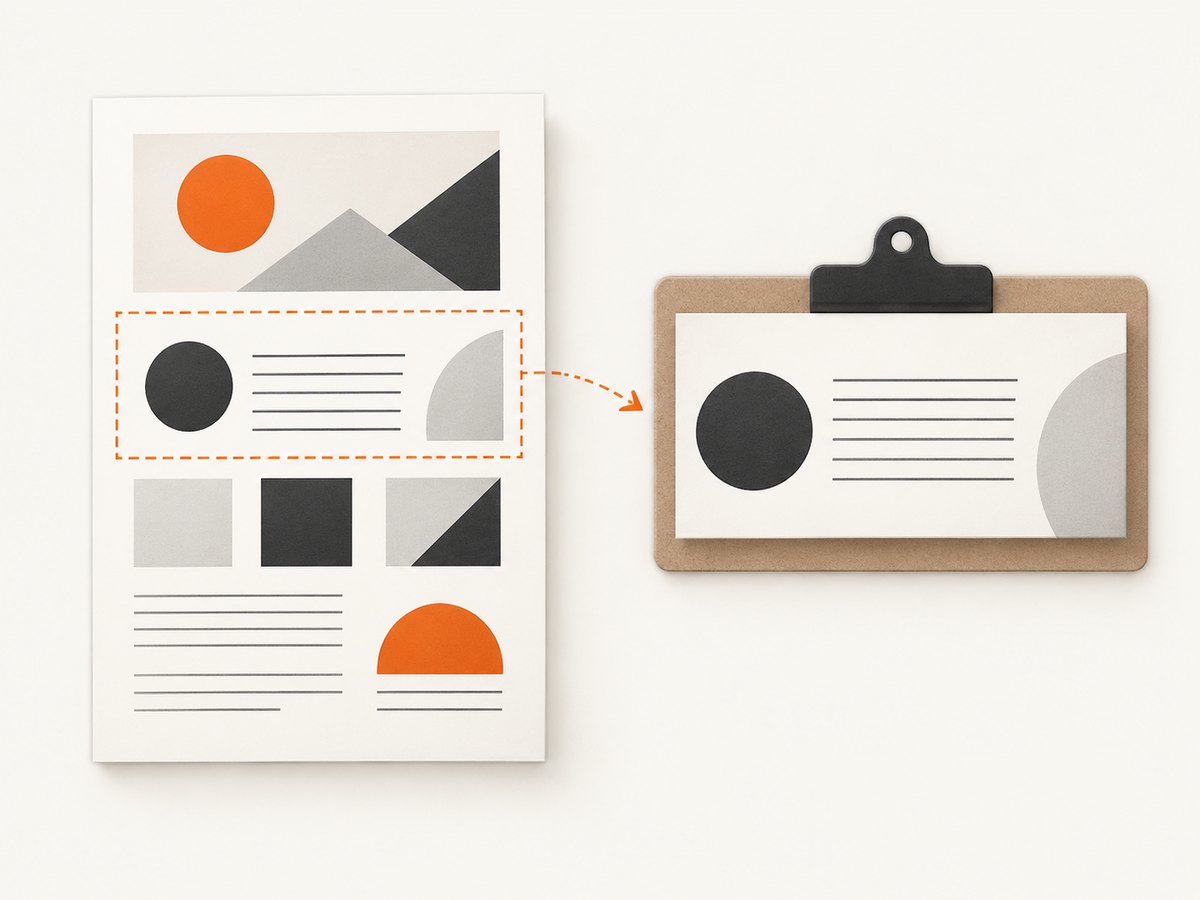
Use Acrobat’s Snapshot tool when you need a quick clipboard image rather than a saved conversion. Choose the Snapshot command, click the page to capture the visible content, or drag a rectangle around a specific area. Acrobat copies the selection to the clipboard.
- Open the PDF and navigate to the page.
- Set the zoom so the page or region you need is visible.
- Choose Snapshot.
- Click the page for the visible content, or drag around a specific region.
- Paste with Ctrl+V on Windows or Command+V on macOS.
- Save the pasted image as PNG or JPEG from the destination application.
Snapshot is useful for a one-off excerpt, but its output depends on the current zoom and visible area. It is not the best choice when you need a repeatable image at a known resolution.
3. Choose the right method
| Need | Best method | Result | Trade-off |
|---|---|---|---|
| A file to upload or share | Convert to PNG, JPEG, TIFF, or JPEG 2000 | Saved image file; multiple pages become separate files | Requires the conversion workflow |
| A quick one-off snippet | Snapshot | Clipboard image of a visible page or selected rectangle | Depends on zoom and the visible viewport |
| Only pictures embedded in the PDF | Export images | Extracted raster images | Does not represent the full rendered page; vector objects are not exported as raster images by this option |
| A repeatable automated workflow | Script or an image API | Consistent requests and output handling | Requires a reachable file or page and error handling |
4. PNG, JPEG, TIFF, or JPEG 2000?
| Format | Use it when | Watch for |
|---|---|---|
| PNG | The page contains text, diagrams, screenshots, sharp edges, or transparency | Files can be larger than JPEG for photographic content |
| JPEG | You need a compact, web-friendly image of a scan or photograph | Lossy compression can soften small text and line art |
| TIFF | You need high-quality archival output and can accept larger files | Some web and document workflows do not display TIFF directly |
| JPEG 2000 | Your destination supports advanced compression | Compatibility is less universal than PNG or JPEG |
5. Control quality and resolution
A screen capture records pixels currently displayed by your monitor. Its apparent quality changes with PDF zoom, display scaling, browser or application chrome, and the size of the visible viewport. For a reusable asset, prefer the PDF renderer’s export path.
- Keep the full page when the image will be printed or reviewed at different sizes.
- Crop only after export when you need consistent framing across pages.
- Use PNG when small labels, diagrams, or thin lines must remain crisp.
- Inspect the result at 100% before publishing. Check small type, table borders, footnotes, and transparency.
- Do not enlarge a low-resolution screen capture and expect missing detail to return.
6. Extract embedded images instead of rendering the page
Some PDF applications provide an Export images option. This extracts raster pictures stored inside the PDF. It is useful when you want the original photograph or chart image, but it does not produce a picture of the complete rendered page. Text, vector drawings, page backgrounds, and layout are not represented as one page image by that option.
7. Windows and macOS fallback screen capture
If you do not have a direct page-export workflow, you can use the operating system’s screen capture tools. On Windows, the PrtScn path can place a screen capture on the clipboard. On macOS, use the built-in Screenshot utility. Paste the result into an image editor and save it.
This is a fallback. It captures the screen rather than rendering the PDF page at a chosen output resolution, so window borders, scaling, cursor position, and visible content can affect the result.
8. Privacy checks before sharing
A PDF may contain personal information, comments, annotations, hidden layers, or metadata that is not obvious in the page view. Before exporting or uploading an image:
- Review the source PDF for names, addresses, account numbers, and other private data.
- Remove or redact sensitive content in the PDF before exporting.
- Check comments and annotations separately from the page artwork.
- Inspect the exported image at full size to confirm that redactions are opaque and complete.
- Check the file name and metadata if the image will be published or sent outside your organization.
9. Automate a rendered page with ScreenshotNeo
If the document or page is available at a URL and you need a repeatable rendered capture, ScreenshotNeo provides a single-request screenshot API. It can return PNG, JPEG, WebP, or PDF. See the ScreenshotNeo API documentation for request options.
ScreenshotNeo is useful when the page is part of a web workflow rather than a local-only PDF. Its capture pipeline accepts consent banners before the capture and removes more than 60 known consent platforms, newsletter popups, and chat widgets. Each cleanup step can be turned off. Bot checks, blank pages, timeouts, failed loads, and cache hits are not billed, and the response identifies the result with X-Page-Verdict and X-Billed headers.
cURL
curl -G "https://api.screenshotneo.com/v1/shot" \\
  -d access_key=YOUR_API_KEY \\
  --data-urlencode url=https://stripe.com \\
  -o shot.webp
Python
import requests

r = requests.get(
    "https://api.screenshotneo.com/v1/shot",
    params={"access_key": "YOUR_API_KEY", "url": "https://stripe.com"},
    timeout=90,
)
r.raise_for_status()
open("shot.webp", "wb").write(r.content)
Node.js
const q = new URLSearchParams({ access_key: 'YOUR_API_KEY', url: 'https://stripe.com' });
const res = await fetch(`https://api.screenshotneo.com/v1/shot?${q}`);
if (!res.ok) throw new Error(`Screenshot failed: ${res.status}`);
const data = Buffer.from(await res.arrayBuffer());
require('fs').writeFileSync('shot.webp', data);
For a PDF page hosted behind a viewer, capture the URL that actually renders the page and verify the result. A local file path is not a public URL, so upload it to an authorized location first if your workflow permits that.
Useful capture options
- Full-page capture with lazy-loaded images.
- Capture one element by CSS selector.
- Dark mode, device presets, custom viewport, and retina scale.
- Custom CSS or JavaScript, click-before-capture, selector hiding, and waits for a selector, delay, or network idle.
- Blocking for ads, trackers, requests, or resource types.
- Custom headers, cookies, user agent, Authorization, timezone, and geolocation.
- Transparent backgrounds, image resizing, chosen cache TTL, signed public image links, asynchronous jobs with signed webhooks, bulk capture for up to 100 URLs per call, a usage API, and an OpenAPI specification.
10. Troubleshooting
| Symptom | Likely cause | Fix |
|---|---|---|
| The image contains only part of the page | You used Snapshot or a screen capture at the current viewport | Use Acrobat’s image conversion for the whole page, or use a full-page capture option in an automated workflow. |
| Text looks soft or pixelated | The screen was captured at a low zoom or low display resolution | Export through the PDF renderer; if capturing a page, increase zoom and use a lossless format such as PNG. |
| The output has a white background | The source page or export format does not preserve transparency | Use a format and workflow that supports transparency, and verify the source actually contains transparent regions. |
| Only photos were exported | You chose embedded-image extraction | Use full-page conversion when you need text, vectors, and layout together. |
| Several output files were created | The source PDF has multiple pages | Use the page you need, or combine the separate page images afterward. |
| The API response is not an image | The request failed or returned a verdict such as a bot check, blank page, timeout, or failed load | Check the HTTP status and inspect X-Page-Verdict and X-Billed. Fix the URL, authentication, waits, headers, or page access conditions before retrying. |
| A local PDF cannot be captured by the API | The API receives a URL, not your computer’s private file path | Use Acrobat locally, or place the file at a permitted reachable URL and capture the rendered page. |
11. Performance, reliability, and cost
- Fastest manual path: Snapshot for a single visible region.
- Most repeatable manual path: Acrobat image conversion.
- Most repeatable web workflow: an API request with explicit waits, viewport, output format, and error handling.
- Reliability: wait for a selector, a fixed delay, or network idle when page content loads asynchronously. Use custom headers, cookies, or Authorization only when the target requires them.
- Caching: choose a cache TTL when repeated captures can reuse an unchanged result. Cache hits are not billed by ScreenshotNeo.
- Cost: ScreenshotNeo includes 1,000 shots per month free with no card. Paid plans start at $5 for 3,000 shots; every feature is available on every plan. Yearly billing gives two months free.
12. Or skip the browser setup
Use the ScreenshotNeo call when you want a rendered image without maintaining browser automation:
curl -G "https://api.screenshotneo.com/v1/shot" -d access_key=YOUR_API_KEY --data-urlencode url=https://stripe.com -o shot.webpCookie banners, popups, and chat widgets are removed before the shot. Bot checks, blank pages, and failed loads are never billed. An MCP server lets AI agents take screenshots with tools such as take_screenshot, get_page_info, and capture_pdf. You get 1,000 screenshots a month free with no card, and paid plans start at $5 for 3,000.
Create a free ScreenshotNeo account.
FAQ
Should I use PNG or JPG for a PDF page?
Choose PNG for text, diagrams, screenshots, sharp edges, or transparency. Choose JPEG for compact photographs and scans.
Can I save just one page from a multi-page PDF?
Yes. Use the page range or page selection in the conversion workflow, or use Snapshot for a visible one-off capture.
Why does my screenshot look different from the PDF?
A screen capture depends on zoom, display scaling, window chrome, and the visible viewport. Rendered export is more consistent.
Does embedded-image extraction export the whole page?
No. It extracts raster pictures stored in the PDF and does not represent the complete rendered page.
Can ScreenshotNeo capture a PDF stored only on my computer?
No. Its screenshot request uses a URL. Use Acrobat for a local file, or provide an authorized reachable URL for an automated capture.