How to Capture a Full-Screen Screenshot with Puppeteer
Capture an entire web page with Puppeteer using fullPage, reliable waits, viewport controls, troubleshooting, and a ScreenshotNeo alternative.

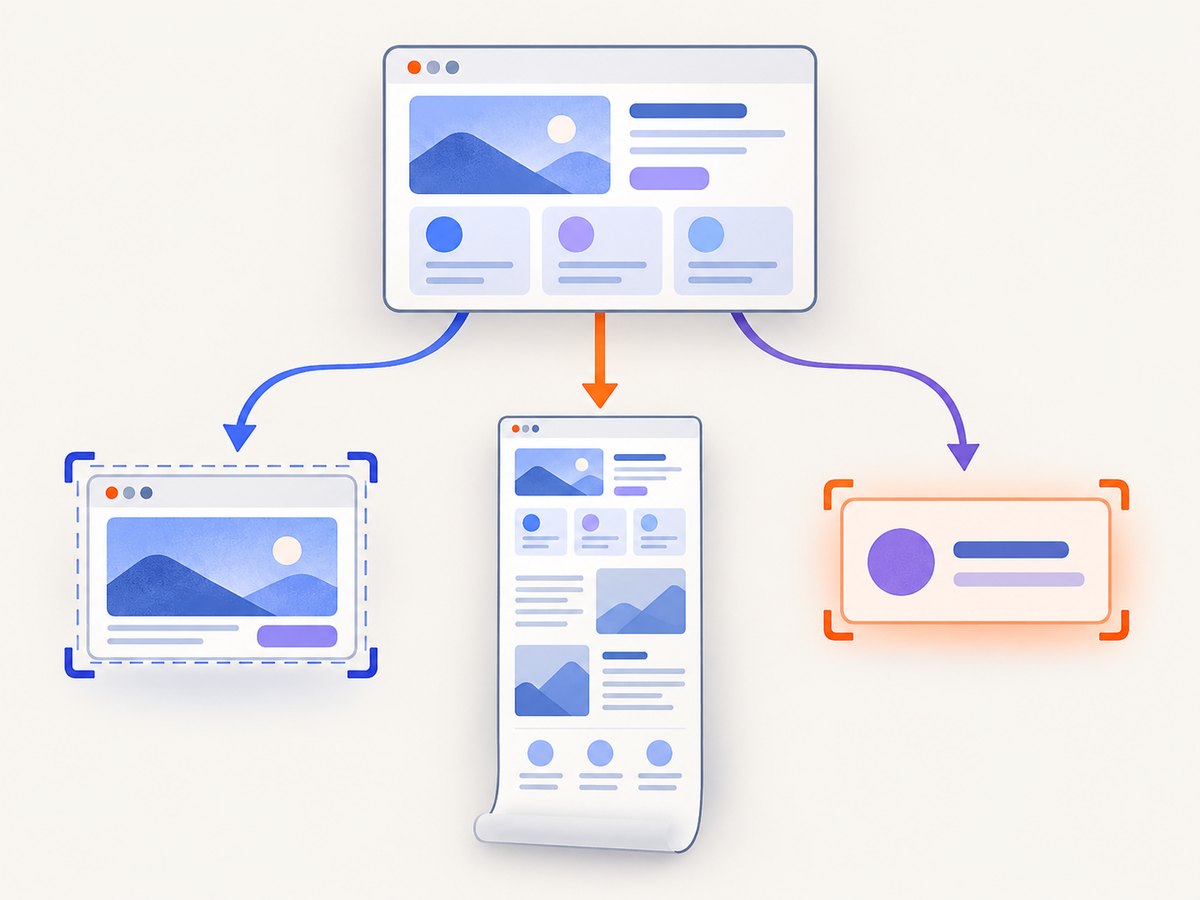
To capture an entire web page with Puppeteer, call page.screenshot() with fullPage: true:
await page.screenshot({ path: 'screenshot.png', fullPage: true });The fullPage option is false by default, so set it explicitly. A full-page capture includes content below the current viewport; a normal screenshot includes only what is currently visible. Puppeteer’s official screenshot guide and API reference document this behavior.
This guide shows a complete Node.js implementation, explains waits, viewport and image settings, covers element and PDF alternatives, and lists fixes for common failures. At the end, you will also find a hosted option when you do not want to maintain a browser runtime.
1. Install Puppeteer and create a complete script
Install Puppeteer in a new Node.js project:
mkdir puppeteer-full-page
cd puppeteer-full-page
npm init -y
npm install puppeteer
Create capture.mjs:
import puppeteer from 'puppeteer';

const browser = await puppeteer.launch();
try {
  const page = await browser.newPage();

  await page.goto('https://example.com', {
    waitUntil: 'load'
  });

  await page.screenshot({
    path: 'screenshot.png',
    fullPage: true
  });
} finally {
  await browser.close();
}
Run it with:
node capture.mjsThe try/finally block closes Chromium even if navigation or capture throws an error. The filename extension determines the image type when you use path; use .png, .jpg, or .webp as appropriate for your workflow.
Puppeteer’s official screenshot guide demonstrates the same launch, navigation, and capture sequence. The Page.screenshot API reference lists the available options.
2. Wait for the page state you actually need
waitUntil: 'load' waits for the page load event. It does not prove that every image, animation, API request, or lazy-loaded section has finished rendering. Choose a wait strategy that matches the page.
Wait for DOM content
await page.goto('https://example.com', { waitUntil: 'domcontentloaded' });This is useful when the initial HTML is enough and you want to avoid waiting for every load event.
Wait for a specific selector
await page.goto('https://example.com', { waitUntil: 'domcontentloaded' });
await page.waitForSelector('.article-body', { timeout: 15000 });
await page.screenshot({ path: 'article.png', fullPage: true });
A selector wait is usually more meaningful than a fixed delay because it waits for the content your capture depends on.
Wait for a short delay
await page.goto('https://example.com', { waitUntil: 'load' });
await new Promise(resolve => setTimeout(resolve, 1500));
await page.screenshot({ path: 'delayed.png', fullPage: true });
Use a delay for pages that reveal content after a timer. Keep it bounded; an unnecessarily long delay reduces throughput.
Wait for network activity to settle carefully
await page.goto('https://example.com', { waitUntil: 'networkidle0' });networkidle0 waits until there are no active network connections for the required interval. Analytics, polling, advertisements, and web sockets can prevent that condition. networkidle2 allows a small number of active connections, but neither setting guarantees that lazy images or application-specific rendering is complete. Combine a navigation condition with a selector or page-specific readiness signal when possible.
3. Control viewport size and pixel density
Puppeteer viewport dimensions are measured in CSS pixels. Set the viewport before navigation so responsive breakpoints are selected consistently:
const page = await browser.newPage();
await page.setViewport({
  width: 1440,
  height: 900,
  deviceScaleFactor: 1
});
await page.goto('https://example.com', { waitUntil: 'load' });
await page.screenshot({ path: 'desktop.png', fullPage: true });
deviceScaleFactor defaults to 1. A value of 2 renders at a retina-like scale, increasing bitmap dimensions and file size:
await page.setViewport({
  width: 1280,
  height: 800,
  deviceScaleFactor: 2
});
Changing mobile or touch properties can reload a page. Configure those properties before calling goto. Do not assume a precise final bitmap height: it depends on the document’s rendered layout, fonts, images, device scale, and browser behavior.
Emulate a mobile device
import puppeteer from 'puppeteer';

const browser = await puppeteer.launch();
try {
  const page = await browser.newPage();
  await page.setViewport({
    width: 390,
    height: 844,
    isMobile: true,
    hasTouch: true,
    deviceScaleFactor: 3
  });
  await page.goto('https://example.com', { waitUntil: 'load' });
  await page.screenshot({ path: 'mobile-full-page.png', fullPage: true });
} finally {
  await browser.close();
}
4. Choose screenshot output options
| Option | Use | Notes |
|---|---|---|
fullPage |
Capture the complete document | Defaults to false; set true for a full-page image. |
path |
Write bytes to disk | Image type is inferred from the extension. |
type |
Select png, jpeg, or webp |
Useful when you return bytes instead of using a filename. |
quality |
Set lossy JPEG or WebP quality | Relevant to JPEG and WebP; PNG is lossless. |
omitBackground |
Keep transparent backgrounds | Useful for pages designed with transparency. |
encoding |
Return bytes or base64 | Use encoding: 'base64' when embedding the result in another payload. |
clip |
Capture a rectangle | Use for a specific region; it changes the task from a whole-document capture. |
captureBeyondViewport |
Capture clipped regions outside the viewport | Its default depends on whether a clip is supplied. For a standard full-page shot, use fullPage: true. |
For example, return WebP bytes without saving directly in Puppeteer:
const bytes = await page.screenshot({
  fullPage: true,
  type: 'webp',
  quality: 82
});
await import('node:fs/promises').then(fs => fs.writeFile('page.webp', bytes));
If you omit path, Puppeteer returns the screenshot data instead of writing a file. Base64 output is available when you set encoding: 'base64'.
5. Capture a single element instead of the whole page
When the deliverable is one component, use an element screenshot. Puppeteer scrolls the element into view when necessary:
const card = await page.waitForSelector('.pricing-card');
await card.screenshot({ path: 'pricing-card.png' });
This avoids producing a very tall image and is often easier to compare in visual regression tests. Make sure the selector identifies one stable element; a missing selector causes waitForSelector to time out.
6. Use PDF when the output is a document
A screenshot is a bitmap. For printing, pagination, selectable text, or archival documents, use page.pdf():
await page.goto('https://example.com', { waitUntil: 'load' });
await page.pdf({
  path: 'page.pdf',
  format: 'A4',
  printBackground: true,
  landscape: false
});
Puppeteer’s PDF API uses print-oriented behavior by default, so page breaks and CSS print rules can differ from a screen screenshot.
7. Handle lazy-loaded content and dynamic pages
Full-page capture does not automatically make every application render its complete data set. Common patterns include images loaded only after scrolling, infinite lists, cookie dialogs, and content inserted after an API request.
Trigger lazy loading by scrolling
await page.goto('https://example.com/gallery', { waitUntil: 'load' });
await page.evaluate(async () => {
  await new Promise(resolve => {
    let last = 0;
    const step = 600;
    const timer = setInterval(() => {
      window.scrollBy(0, step);
      const current = window.scrollY;
      if (current === last || current + window.innerHeight >= document.body.scrollHeight) {
        clearInterval(timer);
        resolve();
      }
      last = current;
    }, 100);
  });
});
await page.screenshot({ path: 'gallery.png', fullPage: true });
Use a page-specific completion signal when available. Infinite-scroll pages may never reach a stable height; set a maximum scroll count or time limit so a capture cannot run forever.
Dismiss an obstructing dialog
const close = await page.$('[aria-label="Close"]');
if (close) await close.click();
await page.screenshot({ path: 'without-dialog.png', fullPage: true });
Selectors differ by site. Prefer semantic attributes or a selector owned by the application rather than brittle generated class names.
8. Complete command-line and language examples
cURL with ScreenshotNeo
If you want a hosted screenshot without installing Chromium, call ScreenshotNeo’s API:
curl -G "https://api.screenshotneo.com/v1/shot" \
  -d access_key=YOUR_API_KEY \
  --data-urlencode url=https://stripe.com \
  -o shot.webp
See the ScreenshotNeo documentation for request options and response headers.
Python
import requests

r = requests.get(
    "https://api.screenshotneo.com/v1/shot",
    params={"access_key": "YOUR_API_KEY", "url": "https://stripe.com"},
    timeout=90,
)
r.raise_for_status()
open("shot.webp", "wb").write(r.content)
Node.js
const q = new URLSearchParams({ access_key: 'YOUR_API_KEY', url: 'https://stripe.com' });
const res = await fetch(`https://api.screenshotneo.com/v1/shot?${q}`);
if (!res.ok) throw new Error(`HTTP ${res.status}`);
const bytes = Buffer.from(await res.arrayBuffer());
await import('node:fs/promises').then(fs => fs.writeFile('shot.webp', bytes));
9. Or skip the browser setup
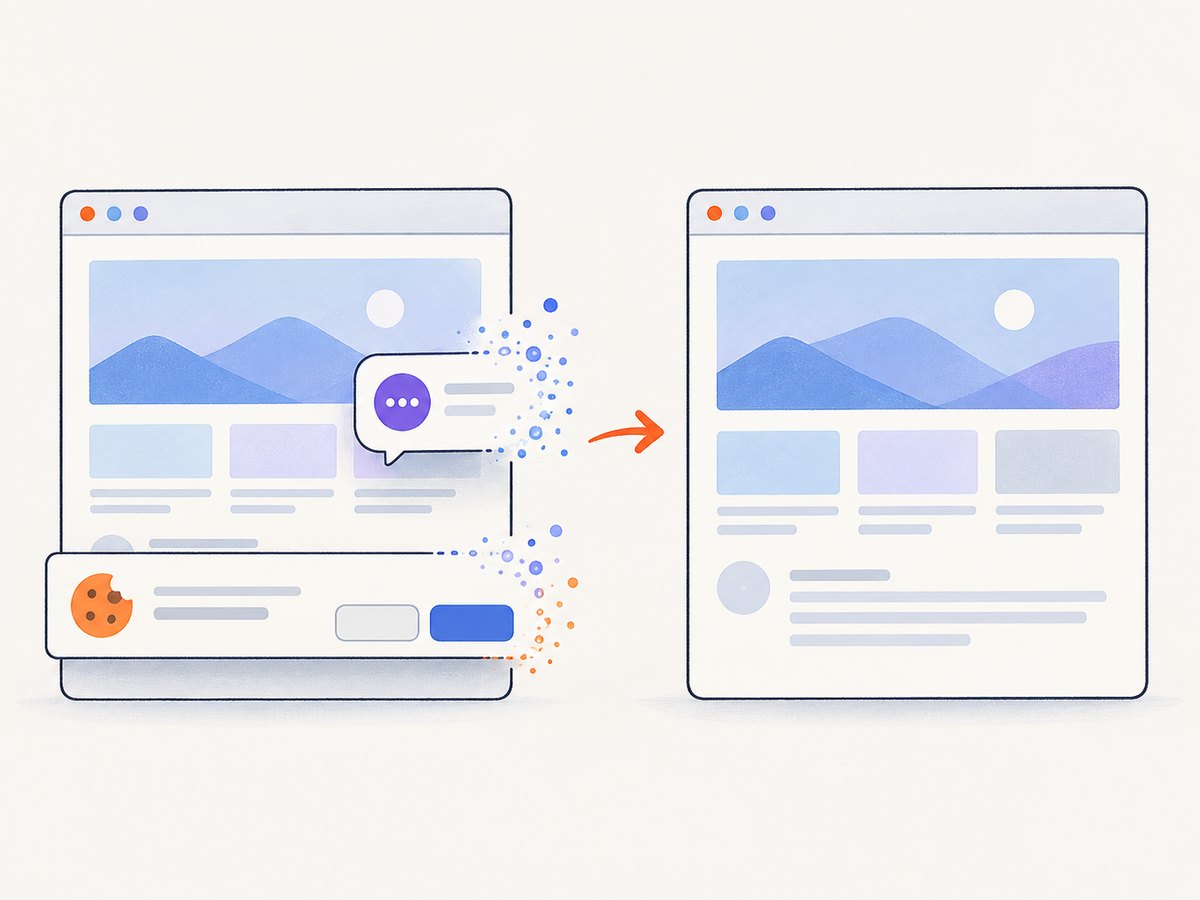
ScreenshotNeo provides a website screenshot API and MCP server. One GET request returns a PNG, JPEG, WebP, or PDF. Before capture, it accepts cookie and consent banners and removes more than 60 known consent platforms, newsletter popups, and chat widgets; each cleanup step can be turned off. Bot checks, blank pages, timeouts, failed loads, and cache hits are not billed, and response headers identify the page verdict and billing status.
It also supports full-page capture with lazy images loaded, CSS-selector element capture, dark mode, device presets or custom viewports, retina scale, PDF paper and margin settings, custom CSS and JavaScript, clicks, selector or network-idle waits, request blocking, custom headers and cookies, authorization, timezone and geolocation, transparent backgrounds, resizing, configurable caching TTL, signed image links, asynchronous jobs with signed webhooks, bulk capture for up to 100 URLs per call, a usage API, and an OpenAPI specification. An MCP server exposes take_screenshot, get_page_info, and capture_pdf to Claude, Cursor, and other MCP clients.
There is a free plan with 1,000 screenshots per month and no card. Paid plans start at $5 for 3,000 shots; every feature is available on every plan. Create a free ScreenshotNeo account to get started.
10. Troubleshooting Puppeteer screenshots
| Symptom | Likely cause | Fix |
|---|---|---|
| Only the visible viewport is captured | fullPage was omitted or set to false. |
Pass { fullPage: true }. |
| Images are missing | Lazy loading has not been triggered or requests are still pending. | Scroll through the page, wait for image selectors, or use an application readiness signal. |
TimeoutError from navigation |
The site is slow, blocked, or keeps connections open. | Set a deliberate timeout, use domcontentloaded, and wait for a specific selector. |
| Cookie banner covers content | The site requires an interaction before the page is clear. | Locate and click the consent button before capture, or hide the banner with page-specific logic. |
| Text or layout differs between runs | Responsive viewport, fonts, animations, or network content vary. | Set the viewport before navigation, wait for fonts and key selectors, and disable or pause animations when your page allows it. |
| Chromium fails to launch in CI | Sandbox or system dependency restrictions. | Use the Chromium installation documented for your environment and configure launch arguments according to your CI provider’s security guidance. Avoid disabling the sandbox unless your environment requires it and you understand the trade-off. |
| Output file is unexpectedly large | High device scale, PNG compression characteristics, or a very tall page. | Use WebP or JPEG where acceptable, lower quality, reduce scale, or capture an element. |
11. Performance, reliability, and cost considerations
- Reuse a browser: launching Chromium for every URL adds startup overhead. Keep one browser process and create or close pages per job.
- Bound every wait: selectors, navigation, scrolling, and application readiness checks need time limits.
- Limit page size: extremely tall documents consume memory and produce large files. Capture sections or elements when a single image is not required.
- Control concurrency: too many pages can exhaust CPU, memory, file descriptors, or network capacity. Use a queue and a fixed worker count.
- Make captures repeatable: pin the viewport, device scale, locale, timezone, and user agent when visual consistency matters.
- Retry selectively: retry transient navigation failures, but do not endlessly retry deterministic selector errors or blocked pages.
- Store metadata: record the URL, viewport, timestamp, commit or release identifier, and wait condition with each artifact.
- Hosted cost: a self-managed Puppeteer job consumes your infrastructure. ScreenshotNeo charges only for clean shots; failed loads, blank pages, bot checks, timeouts, and cache hits are not billed. Its free tier includes 1,000 shots monthly, with paid plans from $5 for 3,000.
12. A practical checklist
- Set the viewport before calling
goto. - Use
fullPage: trueexplicitly. - Choose
load,domcontentloaded, a selector, or a bounded delay based on the page. - Trigger lazy content when necessary.
- Dismiss or remove overlays that obscure the page.
- Choose PNG, JPEG, or WebP based on quality and file-size requirements.
- Close the browser in a
finallyblock. - Use an element screenshot for one component and
page.pdf()for print-oriented output.
FAQ
What is the exact Puppeteer option for a full-screen page?
Use fullPage: true in page.screenshot(). The default is false.
Does full-page mode include content below the fold?
Yes. It captures the rendered document rather than only the current viewport. Dynamic content still needs its own readiness logic.
Can Puppeteer save a full-page screenshot as WebP?
Yes. Set type: 'webp' and optionally provide a quality value, or use a .webp path where supported.
Should I use a screenshot or PDF for a long report?
Use a screenshot when you need the visual page as one bitmap. Use PDF when pagination, printing, or selectable text matters.
Can an AI agent request screenshots?
Yes. ScreenshotNeo includes an MCP server with take_screenshot, get_page_info, and capture_pdf tools for MCP clients such as Claude and Cursor.


