How to Capture Full-Screen Screenshots in Cypress
Capture an entire page in Cypress with cy.screenshot(), control the output, and avoid common problems with sticky elements and late-loading content.
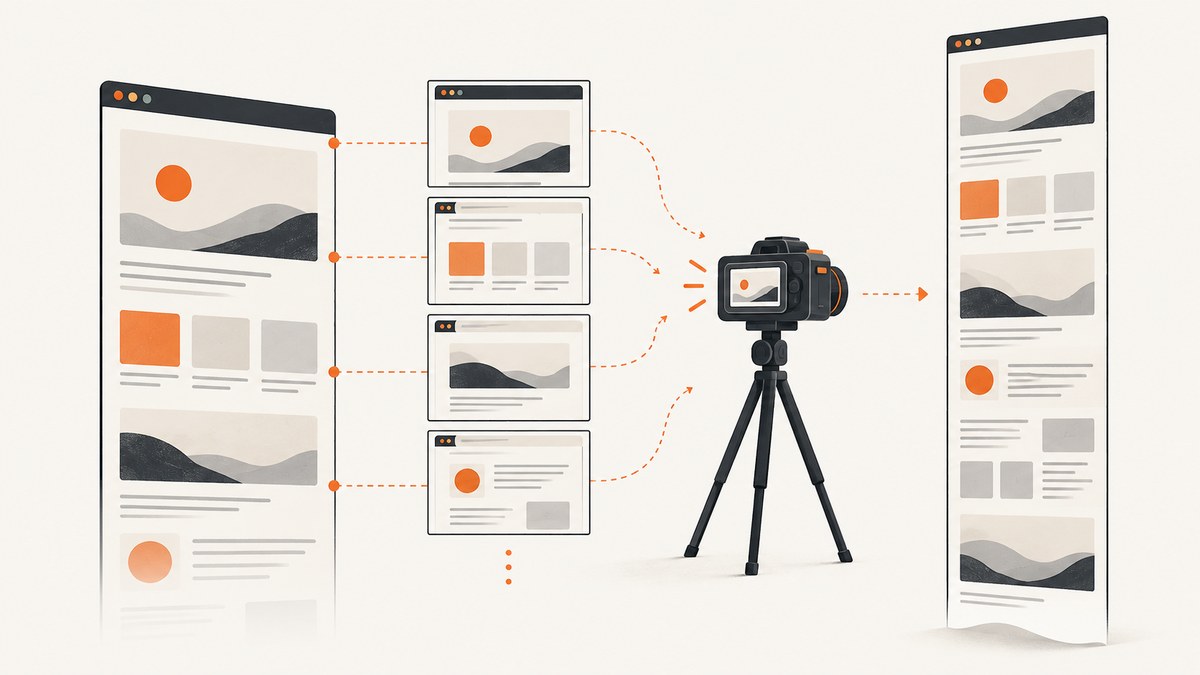
Use Cypress’s built-in cy.screenshot() command with capture: 'fullPage' to save the application under test from top to bottom:
cy.screenshot('page-full', { capture: 'fullPage' })In a test, visit the page and wait for the content you need before capturing it:
it('captures the whole page', () => {
  cy.visit('/long-page')
  cy.screenshot('long-page', { capture: 'fullPage' })
})
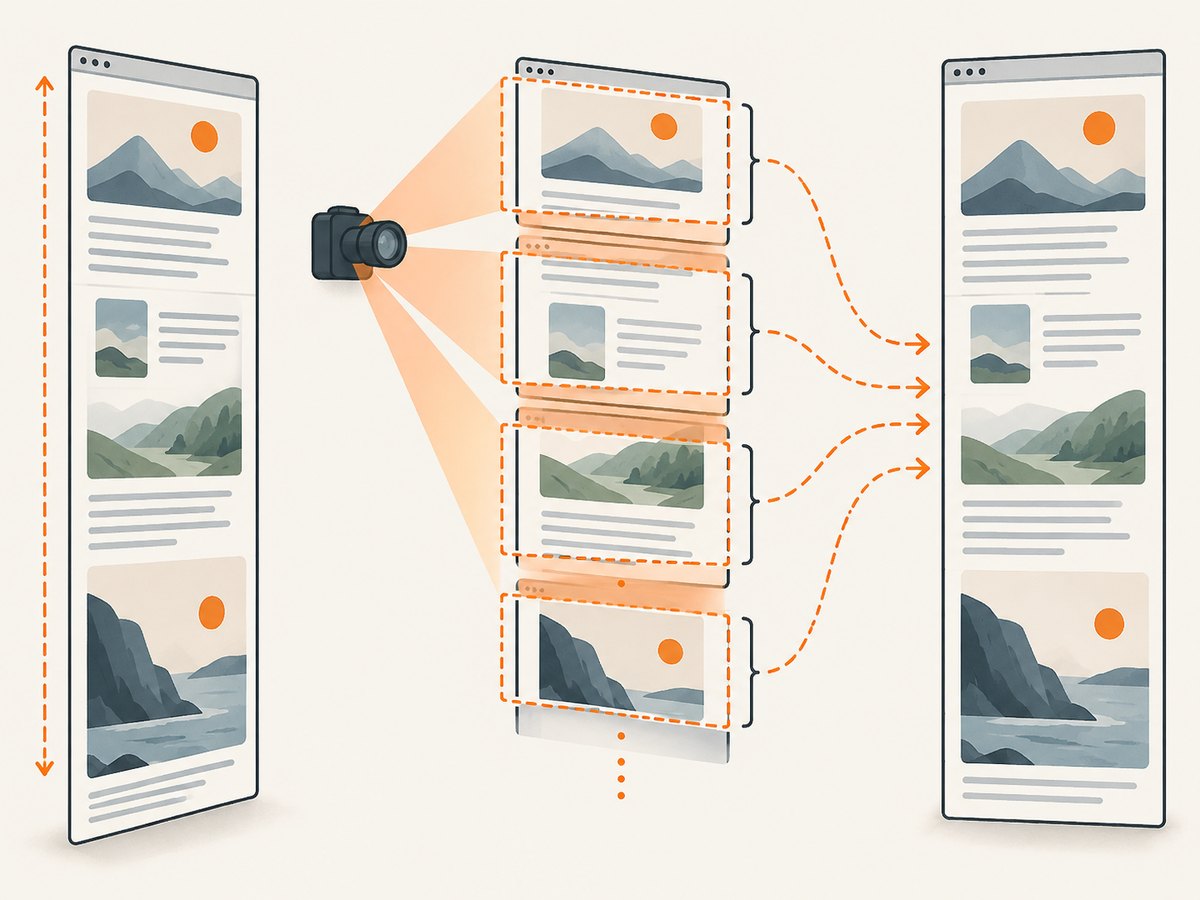
Cypress saves the image under cypress/screenshots by default. Full-page capture scrolls through the application, takes screenshots along the way, and stitches them together. That makes it useful for a page-length artifact, but sticky headers, lazy-loaded content, and scroll-triggered effects deserve a check in the resulting file. See the Cypress screenshot command documentation and its screenshots and videos guide.
1. Choose the capture mode that matches the image you need
The capture option determines what Cypress includes:
| Mode | What it captures | Use it for |
|---|---|---|
fullPage |
The application under test from top to bottom. | A whole-page record, review artifact, or input to another image workflow. |
viewport |
The application as it appears in the current viewport. | A screenshot of a specific screen position or an above-the-fold state. |
runner |
The browser viewport, including the Cypress Command Log. | Debugging evidence that needs the runner UI around the application. |
Cypress documents fullPage as the default for a normal screenshot command, so cy.screenshot() captures the whole application unless you specify another mode. Failure screenshots are coerced to runner. Set the option explicitly when the image’s scope matters to a test or downstream process; the explicit value is easier to understand during review.
// Entire application, top to bottom
cy.screenshot('full-page', { capture: 'fullPage' })

// Only the current viewport
cy.screenshot('current-screen', { capture: 'viewport' })

// Browser viewport including Cypress runner UI
cy.screenshot('debug-context', { capture: 'runner' })
2. Make a full-page capture repeatable
A screenshot is only useful as a test artifact if the page is in a known state. Use this sequence as a starting point:
- Navigate to the route under test.
- Set a consistent Cypress viewport.
- Wait for important page content or a known application state.
- Control animations or timers if they make the capture inconsistent.
- Save the image with a stable, descriptive name.
describe('article page capture', () => {
  beforeEach(() => {
    cy.viewport(1280, 900)
    cy.visit('/articles/example')
    cy.get('main article').should('be.visible')
  })

  it('saves a full-page screenshot', () => {
    cy.screenshot('article-full-page', {
      capture: 'fullPage',
      disableTimersAndAnimations: true,
    })
  })
})
The test waits for the article container to become visible, which is more robust than adding a fixed delay when the application exposes a meaningful readiness signal. If the page loads data asynchronously, wait for the relevant request or content assertion before the screenshot. A visible container alone may not mean that images, charts, or below-the-fold modules have finished rendering.
For visual consistency, configure viewportWidth and viewportHeight in Cypress configuration or call cy.viewport() in the test. Changing the browser’s screen size through before:browser:launch does not change these Cypress viewport dimensions. Cypress’s browser launch documentation explains this distinction.
3. Configure screenshot output and options
Use the filename to make artifacts recognizable. A supplied filename is saved relative to the screenshots folder and the spec’s path. Cypress can create nested directories from a filename path. By default it avoids overwriting a duplicate name by appending a number; use overwrite: true when each run should replace the previous artifact.
// cypress.config.js
const { defineConfig } = require('cypress')

module.exports = defineConfig({
  screenshotsFolder: 'cypress/screenshots',
  screenshotOnRunFailure: true,
})
These are the most relevant options for a full-page screenshot:
| Option | Purpose | Notes |
|---|---|---|
capture |
Choose fullPage, viewport, or runner. |
Failure captures use runner. |
clip |
Crop the final image to pixel coordinates. | Shape: { x, y, width, height }. Usually unnecessary for an entire page. |
scale |
Scale the application to fit the browser viewport. | Applies to viewport and full-page captures; runner captures force scaling on. |
blackout |
Black out elements matched by CSS selectors. | Does not apply to runner captures. |
disableTimersAndAnimations |
Stop JavaScript timers and CSS animations while the screenshot is taken. | Enabled by default in the documented command options. |
overwrite |
Replace an existing screenshot with the same name. | Defaults to false. |
timeout |
Set how long Cypress waits for the screenshot operation. | Defaults to responseTimeout. |
onBeforeScreenshot, onAfterScreenshot |
Run callbacks before or after a non-failure capture. | The after callback receives saved image details, including its path and dimensions. |
cy.screenshot('account-page', {
  capture: 'fullPage',
  blackout: ['[data-private]'],
  overwrite: true,
  onAfterScreenshot(_document, details) {
    cy.log(`Saved ${details.path}`)
  },
})
Use blackout for sensitive or variable regions that should not appear in the output. The matched element is blacked out; this option does not remove it or test how the page looks without it. Confirm the selectors match the intended elements before relying on the artifact for privacy.
To set defaults across screenshot commands, Cypress provides Cypress.Screenshot.defaults(). For example, place defaults in support setup:
Cypress.Screenshot.defaults({
  overwrite: true,
  screenshotOnRunFailure: false,
})
You can also control failure screenshots through the screenshotOnRunFailure configuration setting. Set it to false to disable automatic screenshots on failed tests; keep it enabled if those images are part of your debugging workflow. See the Cypress configuration reference.
4. Handle sticky headers, lazy content, and long pages
Full-page capture is not necessarily one unbroken read of the document. Cypress scrolls from top to bottom, captures along the way, then stitches the images together. A fixed or sticky header can consequently appear repeatedly or land at a seam. Scroll-triggered animations may also be at different states in different segments.
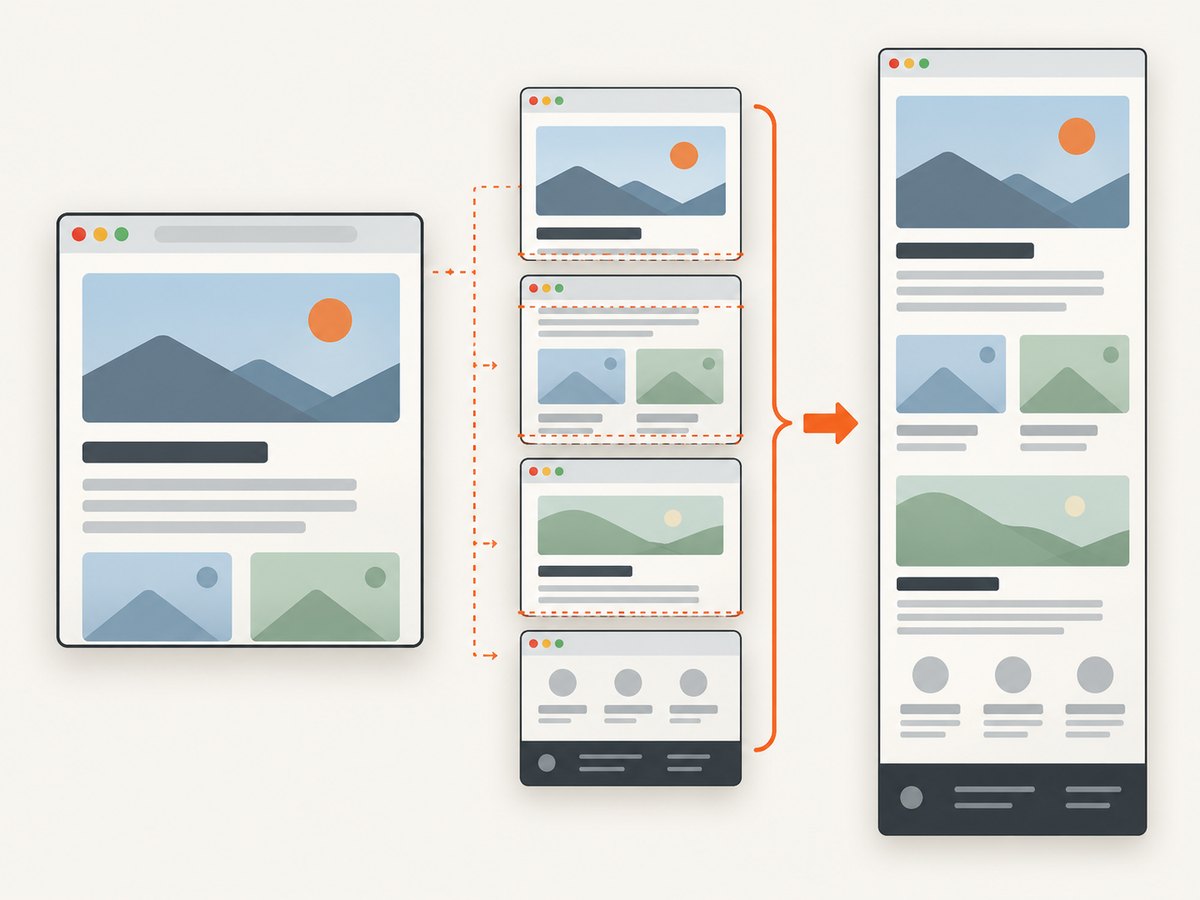
- Sticky or fixed navigation: inspect the seams and repeated regions. If the artifact is for a stable visual comparison, consider a test-only state or page styling that makes the header static during capture.
- Lazy-loaded images: some pages load images when their region approaches the viewport. Let the scroll sequence trigger them and verify they loaded; for deterministic tests, wait on visible image completion or the app’s own loading state before saving.
- Infinite scrolling: a page that keeps appending content as you scroll has no fixed final height. Define the stopping condition in the test, or capture a bounded section rather than assuming “full page” means all possible content.
- Animations and carousels: disable timers and animations where appropriate, or explicitly put the component into a known state before capture.
- Cookie banners, chat widgets, and popups: these are part of the rendered page unless your test dismisses them or handles them. A capture taken at a different consent or popup state can differ even when the underlying page is unchanged.
- Very long pages: large images take longer to produce and inspect. Keep full-page capture for cases where the full document is useful; use a viewport capture for narrow debugging questions.
Do not use a browser launch screen-size setting as a substitute for controlling the Cypress viewport. Set viewport dimensions explicitly, and keep browser, viewport, route, and application state consistent when generating artifacts. The screenshot command docs describe stitching and document the fixed and sticky element caveat.
5. Troubleshoot common screenshot problems
| Symptom | Likely cause | What to do |
|---|---|---|
| The image only shows the visible screen. | capture: 'viewport' was set, or the call is an element screenshot. |
Use cy.screenshot(name, { capture: 'fullPage' }) from cy after navigation. |
| The Cypress Command Log appears. | The capture mode is runner, or this is an automatic failure screenshot. |
Use fullPage for a clean application image. Failure screenshots are coerced to runner. |
| A fixed header repeats down the image. | Full-page capture stitches multiple scroll positions while the fixed element remains fixed. | Review seams; if appropriate, create a deterministic test state with the header static or hidden. |
| Images or cards are missing below the fold. | Content may load on scroll, after a request, or after a client-side delay. | Wait for the relevant content/readiness condition and confirm the final capture includes it. |
| A screenshot differs from run to run. | Viewport, data, animation, popup, font, or network state changed. | Fix the viewport and application state; wait on concrete readiness signals and disable animations where suitable. |
| The screenshot file is not where expected. | Files are organized under the screenshots folder and spec path; the test name may affect the path. | Check screenshotsFolder, spec-relative folders, filename, and Cypress’s duplicate-name behavior. |
| A repeated capture gets a numbered filename. | Duplicate names are preserved by default. | Choose unique names or set overwrite: true when replacement is intended. |
| A failed test image does not show the exact failure instant. | Capturing is asynchronous; the application can change before the image is taken. | Use the failure screenshot as debugging evidence alongside logs and assertions, not as a perfectly synchronized frame. |
6. Capture is different from visual comparison
cy.screenshot() writes an image file. It does not decide whether the image matches an approved baseline. If the requirement is visual regression, you need a comparison workflow that stores or manages baselines and reports image differences. Cypress’s visual testing guide describes integrations including Happo and Sauce Labs Visual. Choose an integration based on the browsers, viewport widths, baseline review, and CI workflow you need; a saved screenshot alone is not a regression assertion.
7. Or skip the browser setup
If you need a page screenshot outside a Cypress test, ScreenshotNeo is a website screenshot API and MCP server. One GET request returns an image or PDF. The API accepts common screenshot API parameter names, so it can also fit workflows already built around those parameters. The API documentation has the request options.
curl -G "https://api.screenshotneo.com/v1/shot" \
  -d access_key=YOUR_API_KEY \
  --data-urlencode url=https://stripe.com \
  -o shot.webp
import requests
r = requests.get(
"https://api.screenshotneo.com/v1/shot",
params={"access_key": "YOUR_API_KEY", "url": "https://stripe.com"},
timeout=90,
)
open("shot.webp", "wb").write(r.content)const q = new URLSearchParams({
access_key: 'YOUR_API_KEY',
url: 'https://stripe.com',
})
const res = await fetch(`https://api.screenshotneo.com/v1/shot?${q}`)
if (!res.ok) throw new Error(`Screenshot request failed: ${res.status}`)
await Bun.write('shot.webp', res)Change the target URL to the page you want to capture. ScreenshotNeo removes cookie and consent banners, newsletter popups, and chat widgets before capture; each step can be turned off. Bot checks and CAPTCHAs, blank pages, timeouts, failed loads, and cache hits cost nothing. Responses include X-Page-Verdict and X-Billed headers to say what happened. Its MCP server gives AI agents tools named take_screenshot, get_page_info, and capture_pdf.
ScreenshotNeo supports full-page capture with lazy images loaded, selector-based element capture, viewport and device settings, dark mode, PDF output, custom CSS and JavaScript, wait conditions, request blocking, cookies and headers, caching, async jobs, and bulk capture. The free plan includes 1,000 screenshots a month with no card. Paid plans start at $5 for 3,000 shots; all features are on every plan. Sign up for 1,000 free screenshots a month, with no card required.
FAQ
Does Cypress save a full-page screenshot by default?
Yes. Cypress documents fullPage as the default capture mode for a normal application screenshot. Set it explicitly when the scope needs to be obvious.
Can I screenshot a single element instead?
Yes. Use a yielded DOM element, for example cy.get('.post').first().screenshot(). The capture setting is ignored for element screenshot captures.
Can I crop a full-page screenshot?
The command supports a pixel-based clip rectangle for cropping the final image. Check the resulting dimensions and crop coordinates against the output you need.
Does Cypress compare screenshots automatically?
No. The built-in command captures a file. Use a visual-testing integration when you need baselines or image-difference checks.


