How to Capture a Full Screenshot of a Scrollable Element in Python
Learn how to capture an entire page or every pixel inside a scrollable element with Playwright Python, including stitching, lazy loading, and fixes.
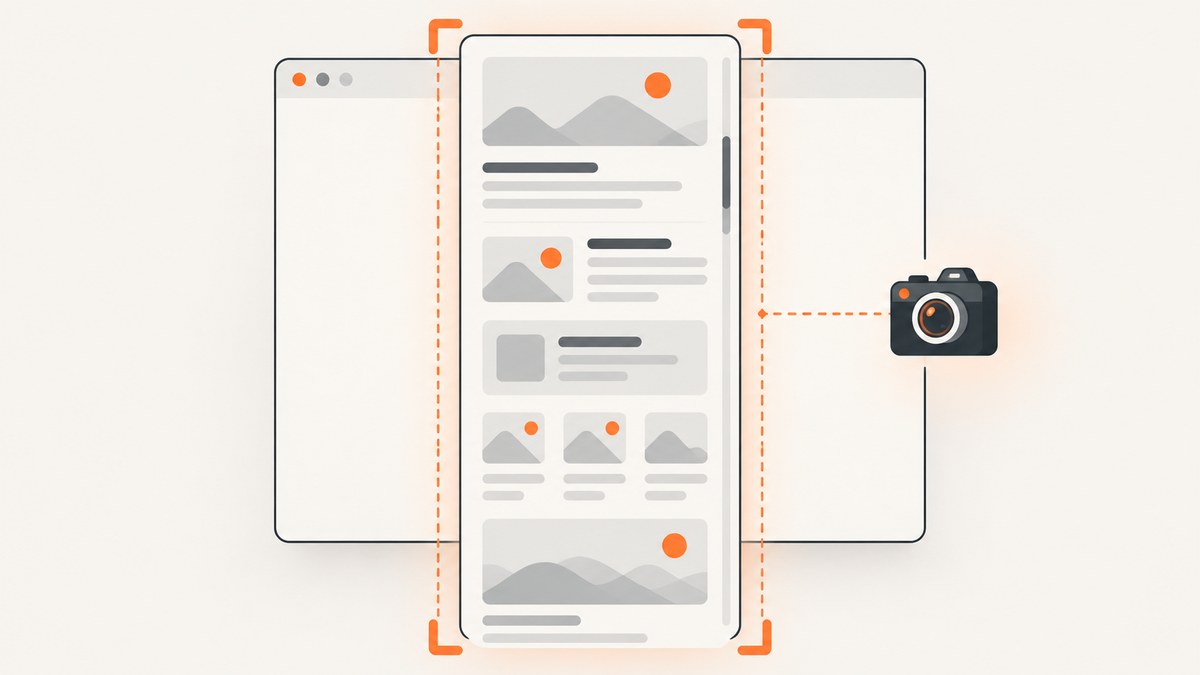
Short answer: Playwright Python has a built-in full-page option for the document: page.screenshot(path="page.png", full_page=True). A locator screenshot is different: page.locator(".selector").screenshot() captures the element’s visible box, so a nested panel with its own scrollbar is clipped to the content currently on screen. To capture every row in that panel, either temporarily expand it before taking one screenshot or capture overlapping scroll positions and stitch the images.
This distinction matters for tables, chat histories, code panes, menus, dashboards and any component whose overflow is set to auto or scroll. The document can be short while an inner element contains thousands of pixels of scrollable content.
1. Decide what is actually scrolling
Open browser developer tools and inspect the element. The object you need is usually one of these:
- The document: the page itself grows vertically. Use Playwright’s documented
full_page=Trueoption. - A nested element: a panel has a fixed height and its own scrollbar. A normal locator screenshot captures only its current viewport.
- A virtualized list: rows outside the viewport are removed from the DOM and rendered as you scroll. A single DOM expansion may not reveal all rows; scroll-and-stitching or an application export is usually required.
Playwright’s screenshot guide documents full-page page screenshots and locator screenshots, while the locator API documents format and scale options. See the Playwright Python screenshot guide, locator screenshot API and page screenshot API.
2. Capture a full scrolling document
When the document is the scrolling object, this is the complete runnable synchronous example:
from playwright.sync_api import sync_playwright

with sync_playwright() as p:
    browser = p.chromium.launch()
    page = browser.new_page(viewport={"width": 1440, "height": 900})
    page.goto("https://example.com", wait_until="networkidle")
    page.screenshot(path="full-page.png", full_page=True)
    browser.close()
The asynchronous equivalent is useful in an existing asyncio service:
import asyncio
from playwright.async_api import async_playwright

async def main():
    async with async_playwright() as p:
        browser = await p.chromium.launch()
        page = await browser.new_page(viewport={"width": 1440, "height": 900})
        await page.goto("https://example.com", wait_until="networkidle")
        await page.screenshot(path="full-page.png", full_page=True)
        await browser.close()

asyncio.run(main())
full_page=True asks Playwright to include the full scrollable page. It does not mean “capture every nested scrollbar.” If a dashboard has a 400-pixel table inside a 900-pixel page, the table is still limited to its visible 400 pixels unless you handle that element separately.
3. Why a locator screenshot is clipped
from playwright.sync_api import sync_playwright

with sync_playwright() as p:
    browser = p.chromium.launch()
    page = browser.new_page()
    page.goto("https://example.com/dashboard")
    panel = page.locator(".results-panel")
    panel.screenshot(path="visible-panel.png")
    browser.close()
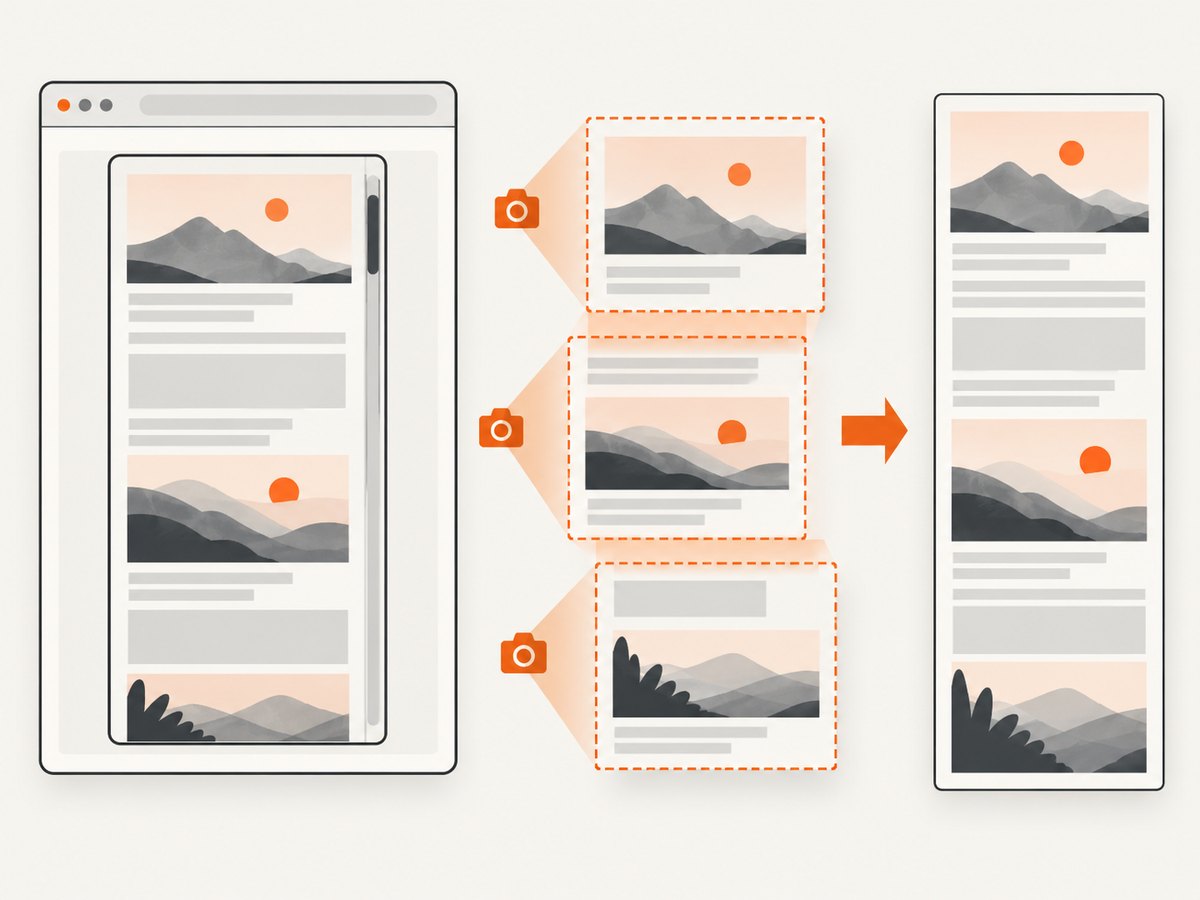
This captures the located element’s on-screen bounds. For a scrollable container, those bounds are its viewport, not its entire scrollHeight. Scrolling the panel first changes which slice appears; it does not automatically produce one tall image.
4. Strategy A: expand the element, then capture it
Expansion is simplest for a static table or panel. Save the original inline styles, set the element’s height to its scrollHeight, and disable clipping. The code below also waits for the element and returns the original styles after the capture.
from playwright.sync_api import sync_playwright

URL = "https://example.com/dashboard"
SELECTOR = ".results-panel"

with sync_playwright() as p:
    browser = p.chromium.launch()
    page = browser.new_page(viewport={"width": 1440, "height": 900})
    page.goto(URL, wait_until="domcontentloaded")
    panel = page.locator(SELECTOR)
    panel.wait_for(state="visible")

    original = panel.evaluate("""el => ({
        height: el.style.height,
        maxHeight: el.style.maxHeight,
        overflow: el.style.overflow,
        overflowY: el.style.overflowY
    })""")

    panel.evaluate("""el => {
        el.dataset.screenshotneoOriginalHeight = el.style.height;
        el.style.height = `${el.scrollHeight}px`;
        el.style.maxHeight = 'none';
        el.style.overflow = 'visible';
        el.style.overflowY = 'visible';
    }""")
    page.wait_for_timeout(100)
    panel.screenshot(path="expanded-panel.png", animations="disabled")

    panel.evaluate("""(el, styles) => {
        el.style.height = styles.height;
        el.style.maxHeight = styles.maxHeight;
        el.style.overflow = styles.overflow;
        el.style.overflowY = styles.overflowY;
    }""", original)
    browser.close()
Use this when the content is present in the DOM and layout changes are acceptable. Expansion can move sticky headers, alter responsive wrapping, trigger a different CSS breakpoint, or expose descendants that were intentionally clipped. It can also fail for virtualized lists because rows may not exist until scrolled into view.
5. Strategy B: scroll, capture, and stitch
Stitching preserves the panel’s normal dimensions. The algorithm captures overlapping viewport strips, moves the panel’s scrollTop, then crops overlap before combining the strips. This example uses Pillow, so install it with pip install pillow playwright and run playwright install chromium once.
from io import BytesIO
from pathlib import Path

from PIL import Image
from playwright.sync_api import sync_playwright

URL = "https://example.com/dashboard"
SELECTOR = ".results-panel"
OUTPUT = Path("panel-full.png")
OVERLAP = 40

with sync_playwright() as p:
    browser = p.chromium.launch()
    page = browser.new_page(viewport={"width": 1440, "height": 900}, device_scale_factor=1)
    page.goto(URL, wait_until="domcontentloaded")
    panel = page.locator(SELECTOR)
    panel.wait_for(state="visible")

    metrics = panel.evaluate("""el => ({
        clientWidth: el.clientWidth,
        clientHeight: el.clientHeight,
        scrollHeight: el.scrollHeight
    })""")
    viewport_height = metrics["clientHeight"]
    total_height = metrics["scrollHeight"]
    if total_height <= viewport_height:
        panel.screenshot(path=str(OUTPUT))
    else:
        shots = []
        positions = list(range(0, total_height, max(1, viewport_height - OVERLAP)))
        final_position = max(0, total_height - viewport_height)
        if positions[-1] != final_position:
            positions.append(final_position)

        for position in positions:
            panel.evaluate("(el, y) => { el.scrollTop = y; }", position)
            page.wait_for_timeout(50)
            shots.append(Image.open(BytesIO(panel.screenshot(type="png"))).convert("RGBA"))

        width = shots[0].width
        output_height = viewport_height * len(shots) - OVERLAP * (len(shots) - 1)
        canvas = Image.new("RGBA", (width, output_height))
        y = 0
        for index, shot in enumerate(shots):
            crop_top = OVERLAP if index else 0
            crop = shot.crop((0, crop_top, shot.width, shot.height))
            canvas.alpha_composite(crop, (0, y))
            y += crop.height
        canvas.save(OUTPUT)

    browser.close()
There are several details to adapt:
- Read metrics after the page has loaded all known rows. If lazy content appears while scrolling, recalculate
scrollHeightduring the loop. - Use a small overlap to avoid seams caused by fractional pixels. Fixed headers inside the panel may need to be cropped or hidden for each strip.
- Do not assume the last position is an exact multiple of the viewport. Always include
scrollHeight - clientHeightas the final position. - For nested scroll areas, set
scrollTopon the correct element. Scrolling the page will not move an inner panel. - Virtualized rows can change height as they render. Wait for a row marker or stable item count after each scroll, then measure again.
6. Handling lazy loading, animations, and dynamic pages
Images and rows may load only when they approach the viewport. A reliable capture sequence is:
- Navigate with an explicit timeout and wait for the main selector.
- Disable CSS animations and transitions where visual stability matters:
page.add_style_tag(content="*,*::before,*::after{animation:none!important;transition:none!important}"). - Scroll through the container once to trigger lazy loading, waiting briefly after each move.
- Re-read
scrollHeight; content may have grown. - Capture from the top using the expansion or stitching method.
Network-idle is a useful signal but is not proof that an application is visually settled. WebSockets, analytics and polling can keep a page busy forever. Prefer a domain-specific ready selector when one exists.
7. Output format, scale, and memory
Playwright supports PNG, JPEG and WebP for screenshots. PNG is lossless and suitable for text; JPEG is smaller for photographic content; WebP often reduces size while retaining detail. The screenshot scale controls CSS pixels versus device pixels. A high device scale factor increases output dimensions and memory use but does not reveal additional scroll content.
Very tall images can exceed editor, browser or image-library limits. Stitch in bands, save intermediate strips, and consider WebP or JPEG when a single PNG becomes too large. Keep a deterministic viewport and device scale factor in automated jobs so diffs remain meaningful.
8. Common errors and fixes
| Error or symptom | Likely cause | Fix |
|---|---|---|
| Only visible rows appear | Locator screenshot captures the viewport. | Expand the element or scroll and stitch. |
| Screenshot is blank | Capture ran before navigation or the element became visible. | Use goto(..., wait_until="domcontentloaded") and locator.wait_for(state="visible"); wait for a meaningful child. |
| Bottom rows are missing | The final scroll offset was not captured. | Always append max(0, scrollHeight - clientHeight). |
| Repeated header bands appear | A sticky child is included in every strip. | Hide it during capture or crop its height from subsequent strips. |
| Rows overlap or jump | Virtualization, lazy loading or layout shifts. | Wait for stable content, re-measure after scrolling, and use overlap. |
TimeoutError |
Selector, navigation or resource exceeded the timeout. | Verify the selector, increase the operation timeout for slow pages, and log the URL and stage. |
| Text is tiny or memory spikes | Large device scale factor. | Set device_scale_factor=1 or resize after capture. |
| Content differs between runs | Animations, ads, personalization or time-dependent data. | Disable animations, block unnecessary resources, and provide stable headers/cookies. |
9. Reliability and cost considerations
For batch jobs, isolate each page in a fresh browser context, cap navigation and screenshot timeouts, and record the selector, viewport, scroll height and output path. Retry transient navigation failures with a limit; repeated retries can duplicate work or capture different application states. Validate that the final image has the expected width and non-zero height before publishing it.
Expansion is usually faster because it needs one screenshot, while stitching performs multiple captures and image operations. Stitching is safer when changing CSS would alter the UI. Virtualized content often requires stitching regardless of speed. If you only need a page image and do not need local browser control, an API can remove browser installation, patching and orchestration from your job.
10. Or skip the browser setup
ScreenshotNeo provides a GET endpoint that returns a PNG, JPEG, WebP or PDF. Its capture options include full-page screenshots, CSS-selector element capture, lazy-image loading, custom CSS and JavaScript, waits, cookies, headers, user agents, blocking rules, caching and bulk jobs. See the ScreenshotNeo API documentation for parameter names and response details.
For a full page, a single request is enough:
curl -G "https://api.screenshotneo.com/v1/shot" -d access_key=YOUR_API_KEY --data-urlencode url=https://stripe.com -o shot.webpimport requests
r = requests.get("https://api.screenshotneo.com/v1/shot", params={"access_key": "YOUR_API_KEY", "url": "https://stripe.com"}, timeout=90)
open("shot.webp", "wb").write(r.content)const q = new URLSearchParams({ access_key: 'YOUR_API_KEY', url: 'https://stripe.com' });
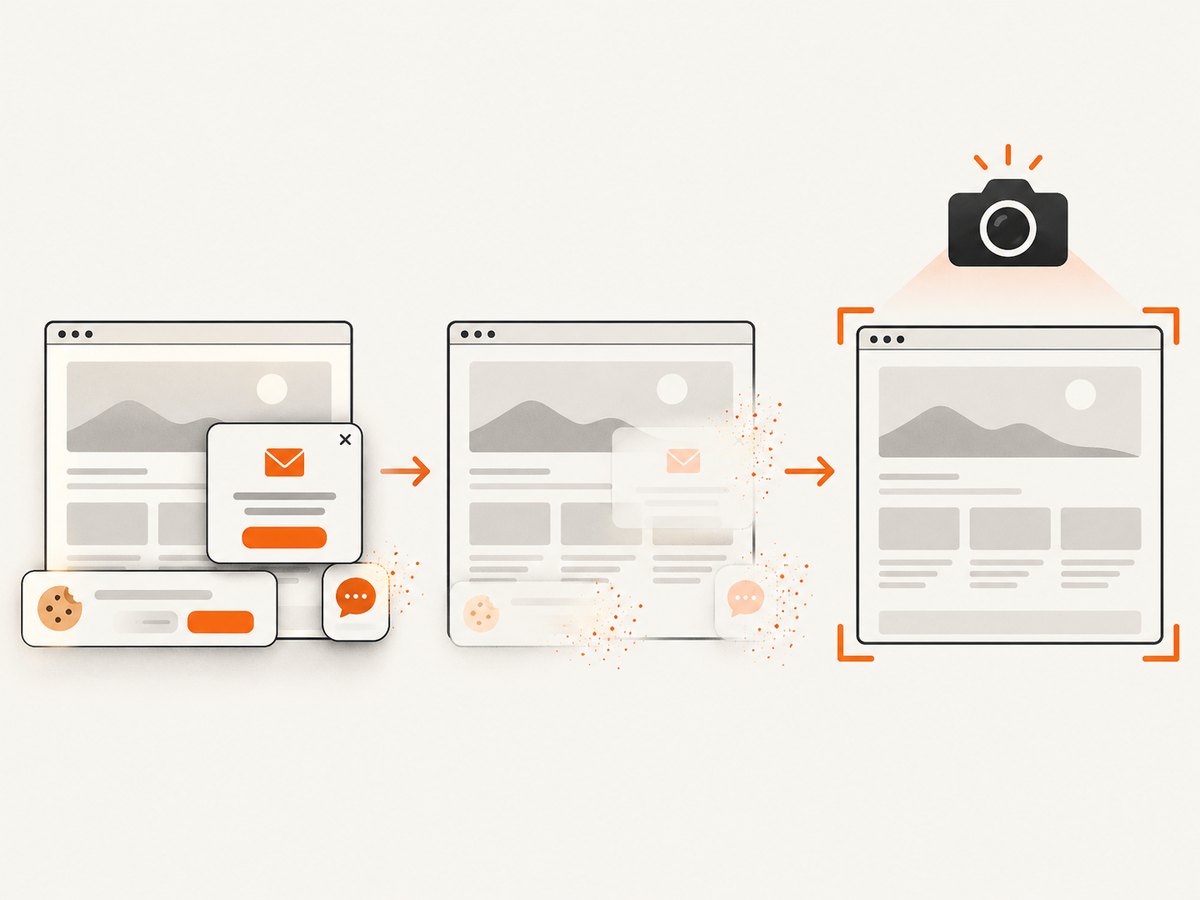
const res = await fetch(`https://api.screenshotneo.com/v1/shot?${q}`);ScreenshotNeo removes cookie and consent banners, newsletter popups and chat widgets before capture. Bot checks, blank pages, failed loads, timeouts and cache hits are not billed, and response headers identify the page verdict and whether it was billed. An MCP server exposes take_screenshot, get_page_info and capture_pdf to Claude, Cursor and other MCP clients. The free plan includes 1,000 screenshots per month without a card; paid plans start at $5 for 3,000 screenshots. Create a free ScreenshotNeo account.
11. FAQ
Can I use full_page=True on a locator?
No. The documented full-page option belongs to the page screenshot API. A locator screenshot is bounded to the element; implement expansion or stitching for nested scroll content.
Does increasing device scale capture more rows?
No. Scale changes pixel density. Scroll position and the element’s scroll height determine which content is included.
Should I choose expansion or stitching?
Choose expansion for static DOM content when layout changes are acceptable. Choose stitching when preserving the rendered panel dimensions matters or when scrolling triggers lazy or virtualized content.
Can a screenshot include content behind a closed accordion?
Only if that content is rendered and made visible. Open the accordion in the page state before measuring and capturing it.


