How to Capture a Full Tweet in a Screenshot
Capture a complete tweet or thread on iPhone, Android, or desktop. Choose the right method, prevent cutoffs, and save a shareable image or PDF.
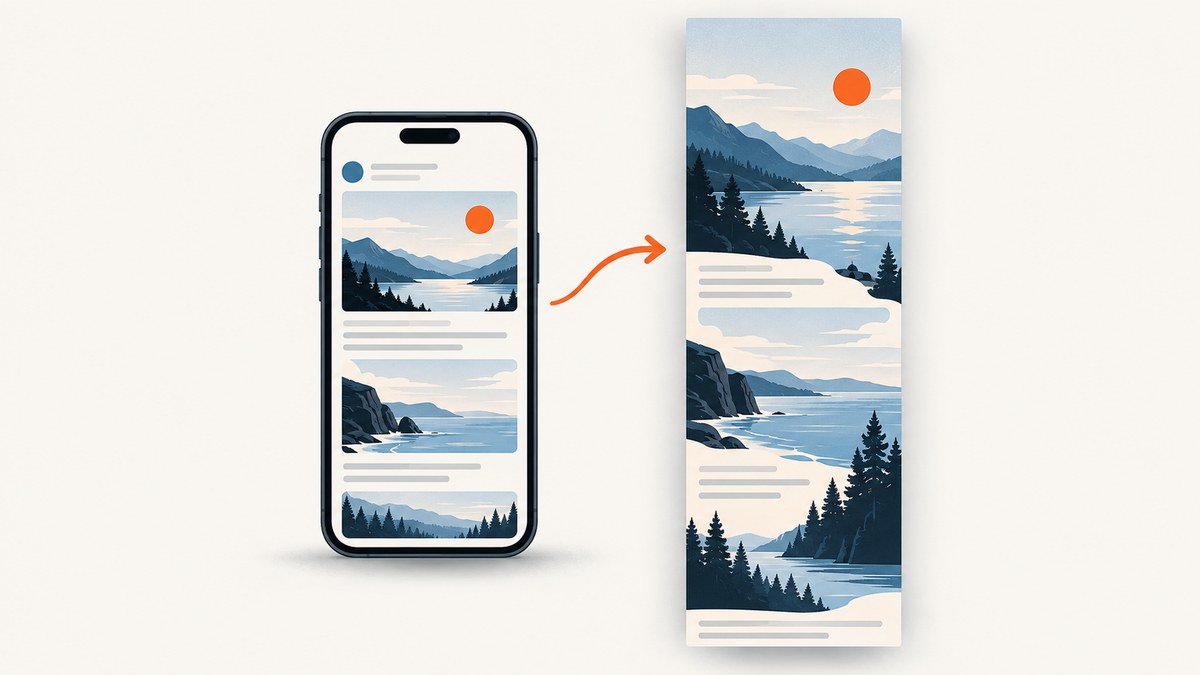
A full tweet screenshot depends on what you mean by “full”: the entire text and media of one post, a long webpage view, or a whole thread. Open the post’s detail page, let its text and media load, then use Safari’s Full Page capture on iPhone or iPad, Android’s Capture more where available, Chrome for Android’s Long screenshot, or a desktop tweet capture tool. For a clean post card, use a tweet screenshot tool; for a record of the whole page, use a scrolling screenshot. Keep the post URL with the image so people can check the original context.
This guide walks through each device, explains the tradeoffs, and shows ways to capture a post from code when you need a repeatable workflow.
1. Choose what “full tweet” means
Before capturing, decide which scope you need. The methods produce different results:
| Goal | Best fit | What to check |
|---|---|---|
| One post as a polished card | Desktop tweet screenshot extension or tool | Text, author, timestamp, media, and engagement details fit in the output |
| Everything visible on the post webpage | Safari Full Page, Android Capture more, or Chrome Long screenshot | The page may include navigation and surrounding replies |
| A sequence of posts in a thread | Thread capture tool or a series of labeled screenshots | Thread order and reply relationships are clear |
| A record for documentation | Full-page PDF or screenshots plus the permalink | The image is static and may omit account or conversation context |
A screenshot is not the canonical record: posts can be edited, deleted, hidden, or viewed differently based on access. Preserve the post’s URL separately. X provides a unique URL for each post; copy it from the app’s share menu or the browser address bar. [X: post URLs](https://help.x.com/en/using-x/post-and-moment-url)
2. Prepare the post before you capture
- Open the post’s permalink. A timeline can change as new posts load. Open the individual post detail page so the target is stable. On X, clicking a post opens its detail page. [X: How to Post](https://help.x.com/en/using-x/how-to-post)
- Expand the post text. Tap or click “Show more” if the text is truncated. For a thread, determine whether you need only the author’s sequence or also replies from other accounts.
- Load media and quoted posts. Wait for images, video thumbnails, quoted posts, and replies you want in the record to finish loading. Scroll through the relevant area once if content loads lazily.
- Choose a readable scale. Avoid zooming out until text is too small to read. If the capture would be extremely tall, split it into consecutive labeled images rather than making one unreadable image.
- Check privacy. Look for private handles, avatars, notification banners, browser tabs, and unrelated replies. Crop or blur sensitive details before sharing where appropriate.

3. Capture a full tweet on iPhone or iPad with Safari
Safari’s Full Page option captures content beyond the visible screen and can capture an entire webpage. The full-page capture is saved as a PDF, which is useful for preserving a long page but may need conversion if a destination accepts only PNG or JPG. [Apple: Take a screenshot on iPhone](https://support.apple.com/en-au/guide/iphone/iphc872c0115/ios)
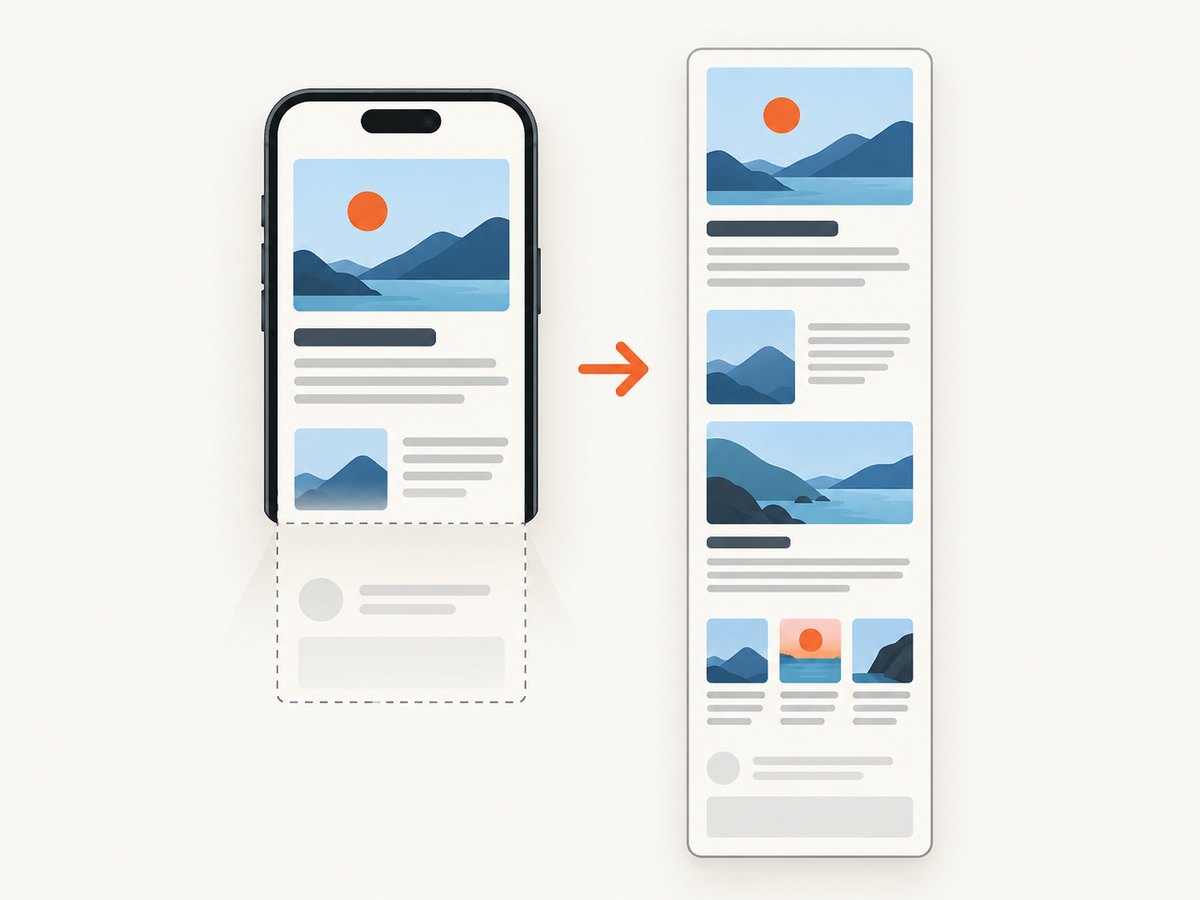
- Open the tweet in Safari, preferably directly on its post-detail page. If you are in the X app and do not see Full Page, open the post link in Safari.
- Take a normal screenshot: quickly press and release the side button and volume-up button together. On models with a Home button, press the side button and Home button together.
- Tap the screenshot thumbnail before it disappears.
- Tap Full Page at the top of the editor.
- Drag the preview to inspect the capture. Use the crop controls if you need to trim the page.
- Tap Done and save the full-page capture to Files, or share it to an app that accepts PDFs.
Important: Full Page is intended for webpage content in Safari; it is not a universal scrolling capture for every screen in every app. It captures the webpage layout, not necessarily a clean tweet card. If you need a PNG or JPG, export or rasterize the PDF with a suitable conversion tool and inspect the result for legibility.
4. Capture a full tweet on Android
Use Capture more
On supported devices, Android’s scrolling screenshot workflow extends a capture beyond the first screen. Google documents the Pixel workflow for Android 12 and up on most screens that allow scrolling. Availability depends on the device and the screen being captured. [Google: Take a screenshot on your Pixel phone or tablet](https://support.google.com/pixelphone/answer/2811098?hl=en-GB)
- Open the post or thread and let the content you need load.
- Press Power + Volume down together.
- Tap Capture more in the screenshot preview, if it appears.
- Drag the crop handles to include the full post or desired thread segment.
- Save or share the resulting image, then verify its top and bottom edges.
Some manufacturers expose scrolling capture differently, and the control may not appear in the X app or on a particular screen. Try opening the permalink in Chrome. If no scrolling option is available, take several overlapping screenshots and label them in order.
Use Chrome’s Long screenshot
Chrome for Android has its own workflow: open the page, tap More → Share → Long screenshot, drag the crop handles, then confirm and save or share. This captures the webpage view, so make sure the right post and any required replies are loaded first. [Google Chrome Help: Share pages](https://support.google.com/chrome/answer/10051760?co=GENIE.Platform%3DAndroid&hl=en-GB)
5. Capture a tweet on desktop
For an image of a single post, a tweet screenshot extension or tool can produce a cleaner card than a full browser-page screenshot. Some tools also advertise thread capture, PNG export, anonymization, dark mode, or local processing. These behaviors vary by tool: check its current listing and permissions, and inspect the output rather than assuming a feature works for every post. A full-page browser capture is a different result and may contain page navigation or unrelated replies.
- Open the post permalink in a current browser. X lists recent versions of Chrome, Firefox, Safari, and Edge among its supported browsers. [X: Supported browsers](https://help.x.com/en/using-x/x-supported-browsers)
- Expand truncated text and open any quoted post or media that must appear.
- Run the capture tool and choose single-post or thread mode if offered.
- Inspect the author, full text, timestamp, media, and engagement row. For a thread, confirm the order and which replies are included.
- Crop or anonymize details if needed, save the image, and retain the permalink separately.
Before installing an extension, review what site data it can access and whether processing occurs locally or on a remote service. A screenshot extension may need access to the page to capture it. For sensitive material, consider the consequences of granting that permission and remove any private information before sharing.
6. Capture a tweet from code
If you are generating screenshots for documentation, QA, or a content workflow, you can use a browser automation library to capture a URL. The example below uses Playwright with Node.js. It opens a URL, waits for the page, expands a common “Show more” button when present, and saves a full-page PNG. X’s markup and controls can change, so treat the button selector as best-effort and inspect output. This does not bypass login, access controls, or bot checks.
import { chromium } from 'playwright';

const url = process.argv[2];
if (!url) throw new Error('Usage: node capture.mjs <post-url>');

const browser = await chromium.launch({ headless: true });
const page = await browser.newPage({ viewport: { width: 1280, height: 900 } });
try {
  await page.goto(url, { waitUntil: 'domcontentloaded', timeout: 60000 });
  await page.waitForTimeout(2500); // allow client-rendered content to appear
  const showMore = page.getByText('Show more', { exact: true }).first();
  if (await showMore.isVisible().catch(() => false)) await showMore.click();
  await page.waitForTimeout(800);
  await page.screenshot({ path: 'tweet.png', fullPage: true });
} finally {
  await browser.close();
}
Install the dependency and browser once with npm install playwright and npx playwright install chromium. Pass a public post URL, for example node capture.mjs 'https://x.com/account/status/123456789', replacing the illustrative path with the real permalink. This captures a webpage, not a guaranteed isolated tweet card. It may include browser-rendered context around the post, and it may fail if the content is unavailable without authentication.
cURL, Python, and Node.js with ScreenshotNeo
For a one-request screenshot API workflow, pass the post URL to ScreenshotNeo. These examples save the returned image bytes; the screenshot endpoint can return PNG, JPEG, WebP, or PDF depending on request options. Start with the [ScreenshotNeo API documentation](https://screenshotneo.com/docs/) for parameters and formats. A page that requires a login may not be capturable as a public page.
curl -G "https://api.screenshotneo.com/v1/shot" \
  -d access_key=YOUR_API_KEY \
  --data-urlencode url=https://x.com/account/status/123456789 \
  -o tweet.webp
import requests
url = "https://x.com/account/status/123456789"
r = requests.get(
"https://api.screenshotneo.com/v1/shot",
params={"access_key": "YOUR_API_KEY", "url": url},
timeout=90,
)
r.raise_for_status()
with open("tweet.webp", "wb") as f:
f.write(r.content)const target = 'https://x.com/account/status/123456789';
const q = new URLSearchParams({
access_key: 'YOUR_API_KEY',
url: target,
});
const res = await fetch(`https://api.screenshotneo.com/v1/shot?${q}`);
if (!res.ok) throw new Error(`Screenshot request failed: ${res.status}`);
await import('node:fs/promises').then(fs =>
fs.writeFile('tweet.webp', Buffer.from(await res.arrayBuffer()))
);Replace the example URL with the post permalink. Protect your API key: do not put it in client-side code, public repositories, or URLs you share. For public pages, ScreenshotNeo also supports signed links for use in image tags; consult the docs for the required configuration. Its API supports options such as viewport, full-page capture, image format, custom CSS, waiting for a selector or network idle, and caching with a chosen TTL. Choose a format and capture scope that match the output you need, rather than assuming a full-page image will look like a post card.
7. Or skip the browser setup
[ScreenshotNeo](https://screenshotneo.com) is a website screenshot API and MCP server for developers. One GET request returns a screenshot or PDF, and the [API docs](https://screenshotneo.com/docs/) describe its options. Try the post permalink like this:
curl -G "https://api.screenshotneo.com/v1/shot" -d access_key=YOUR_API_KEY --data-urlencode url=https://x.com/account/status/123456789 -o tweet.webpCookie banners, popups, and chat widgets are removed before the shot; each cleanup step can be disabled. Bot checks and CAPTCHAs, blank pages, timeouts, failed loads, and cache hits are not billed. Response headers say the page verdict and whether the shot was billed. An MCP server lets AI agents use take_screenshot, get_page_info, and capture_pdf. The free plan includes 1,000 screenshots a month with no card; paid plans start at $5 for 3,000. Every feature is available on every plan.
Sign up for 1,000 free screenshots a month, with no card required.
8. Troubleshooting: why is my screenshot cut off?
| Problem | Likely cause | Fix |
|---|---|---|
| Full Page or Capture more is missing | The current app or screen does not support scrolling capture; iOS Full Page is a Safari webpage feature. | Open the post permalink in Safari on iPhone or Chrome on Android. Check Android version and try Chrome’s Long screenshot workflow. |
| Text ends with “Show more” | The post was truncated before capture. | Open the post details page, expand the text, and capture again. If the control is absent in automation, inspect the page and adjust the selector. |
| Images or quoted posts appear blank | Media may load only after scrolling or waiting. | Wait for the media, scroll through the target area, and capture again. In automation, wait for a specific visible element when possible rather than relying only on a fixed delay. |
| Post is hidden or login is requested | The content may be protected, deleted, age-restricted, or otherwise unavailable to the current browser session. | Use an authorized logged-in browser workflow if appropriate, or capture content you can access. A screenshot service cannot make a private post public. |
| Thread order is confusing | A screenshot may include unrelated replies or omit posts not loaded on screen. | Start at the original post, capture downward, and label multiple images in order. Verify which posts belong to the author’s thread. |
| Image is too tall or text is tiny | A whole thread was forced into one long image or the page was zoomed out. | Use separate overlapping captures or a thread-card tool. Keep text legible and include enough overlap to establish sequence. |
| Screenshot includes private details | Notifications, handles, avatars, or unrelated conversation content were visible. | Review the image before sharing; crop or blur sensitive details and remove notifications from the capture area. |
| API code saves an error response as an image | The HTTP request failed or returned an error payload. | Check the response status and headers before writing the file. Confirm the API key, URL encoding, endpoint options, and network timeout. |
9. Performance, reliability, and cost
Native device screenshots are usually the quickest choice for a one-off capture because they require no code or service account. Their limitations are device-specific controls, manual cropping, and output format. Safari’s full-page option is a PDF workflow; mobile scrolling captures generally produce images. If you need a post card, desktop tools can take less cleanup than a full-page capture, but extensions vary in thread handling and privacy behavior.
For scripted capture, a browser launch and page load add setup and execution time. Reuse a browser process for batches, set an explicit timeout, wait for the content that matters, and close pages even when a request fails. A fixed delay is simple but can be wasteful or too short; a selector-based wait is usually more robust when the target has a stable element. Very long pages and high-resolution images consume more memory and disk space. Keep image dimensions reasonable, and consider PDF when the purpose is reading or archiving rather than posting an image.
For repeatable workflows, retain the source URL, capture timestamp, format, and any relevant settings alongside the output. Re-capture if the page changes or media failed to load. If cost matters, compare manual capture, a self-hosted browser, and an API against your actual volume and operational effort. ScreenshotNeo pricing is Free for 1,000 shots/month, Starter $5 for 3,000, Growth $15 for 15,000, Pro $39 for 60,000, Scale $99 for 250,000, and Business $249 for 1,000,000; yearly billing gives two months free. Clean shots are billed; failed and non-page outcomes named in its product facts are not. Check the docs for current request parameters before building a production integration.
10. FAQ
Can I save an iPhone full-page tweet screenshot as a PNG?
Safari’s Full Page output is normally a PDF. Convert or rasterize it if an image format is required, then check that the final text remains readable.
Can I capture a whole X thread in one image?
Some desktop screenshot tools offer thread capture, but behavior varies. A long mobile screenshot may capture webpage content without preserving a clean thread-card layout. If one image becomes hard to read, use a numbered set.
Does a screenshot prove that a post is authentic?
No. It is a static copy and can be cropped or edited. Keep the original post URL and relevant context so another person can inspect the source.
Why use the post detail page instead of the timeline?
The permalink gives you a stable target for the capture and includes post-specific context. It also makes it easier to verify the screenshot against the original later.


