How to Capture a Full Web Page in Go
Capture complete, scrollable web pages in Go with chromedp or Rod, wait for dynamic content, troubleshoot Chrome, and save reliable PNG screenshots.
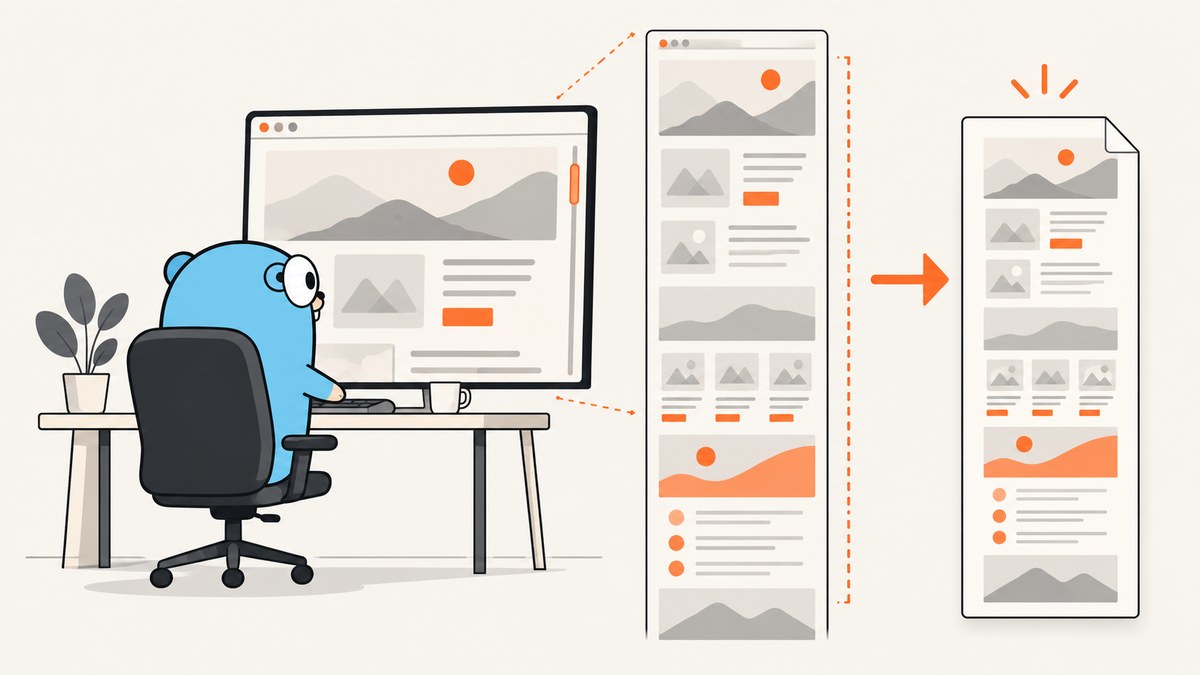
Direct answer: use a real Chrome or Chromium browser through a Go automation library. With chromedp, navigate to the page, wait until its own rendering work is complete, call chromedp.FullScreenshot, and write the returned bytes to a file. With Rod, call page.Screenshot(true, ...); the true argument requests the complete page instead of only the viewport.
A viewport screenshot contains only what is currently visible. A full-page screenshot includes content below the fold by measuring or scrolling the document before capture. Playwright describes this target as the “full scrollable page instead of the viewport” in its screenshot documentation. The same distinction applies to Go libraries.
What you need before writing code
- A Go module and a supported Go toolchain.
- Chrome or Chromium available on the machine where the program runs. chromedp controls Chrome through the Chrome DevTools Protocol, and screenshot operations depend on that browser runtime.
- A URL that the browser process can reach, including any required authentication or network access.
Install one library in a new module:
mkdir fullpage-shot
cd fullpage-shot
go mod init example.com/fullpage-shot
go get github.com/chromedp/chromedp
Or install Rod:
go get github.com/go-rod/rodIn a container or CI runner, make Chrome availability an explicit deployment dependency. A program can compile successfully and still fail at runtime when no browser binary, sandbox permission, or compatible shared libraries are present.
Capture a full page with chromedp
FullScreenshot is the most direct Go API for this job. The package documentation defines it as taking a full screenshot of the browser viewport at a specified image quality. The maintained example follows the same sequence used below: create a context, navigate, capture, and write the bytes.
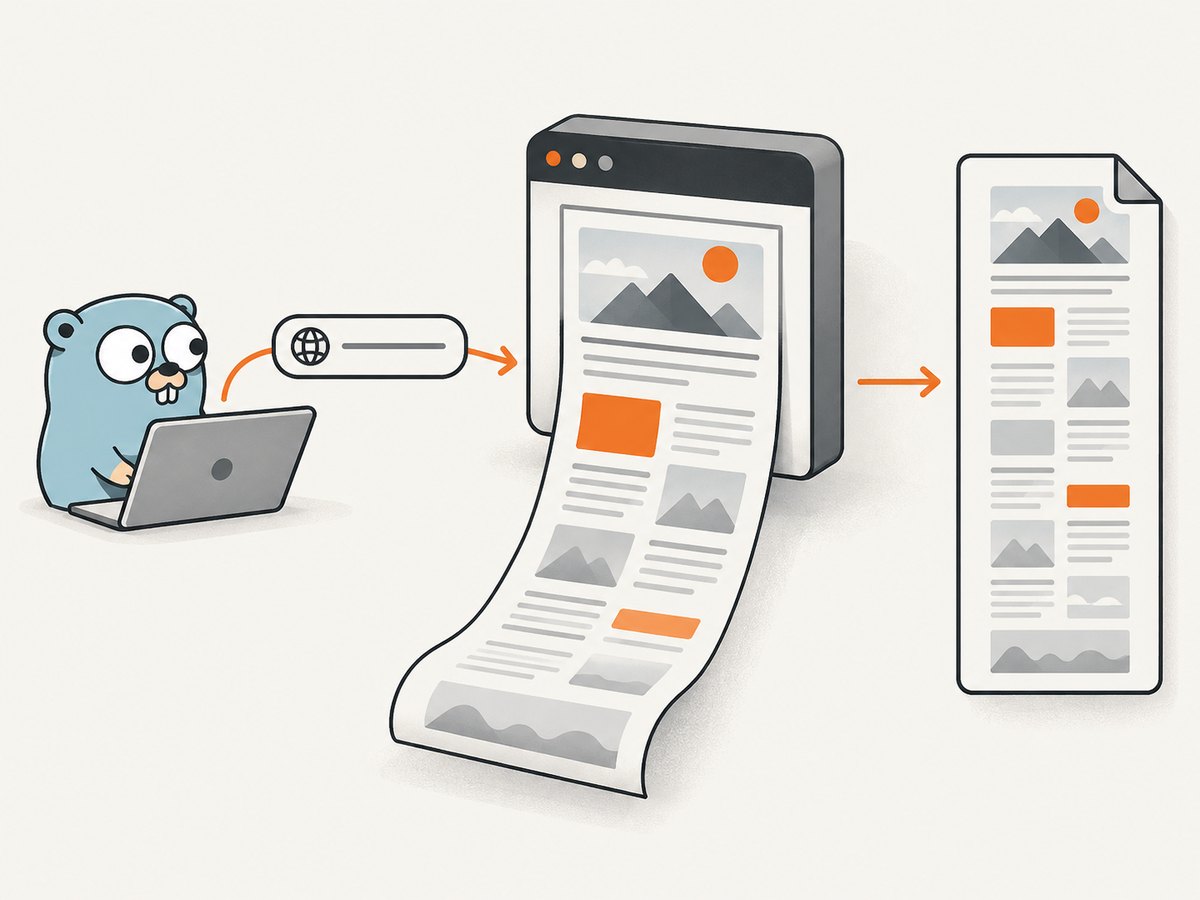
package main

import (
    "context"
    "fmt"
    "os"
    "time"

    "github.com/chromedp/chromedp"
)

func main() {
    url := "https://example.com"

    ctx, cancel := chromedp.NewContext(context.Background())
    defer cancel()

    // Give navigation and rendering a bounded amount of time.
    ctx, cancel = context.WithTimeout(ctx, 60*time.Second)
    defer cancel()

    var image []byte
    err := chromedp.Run(ctx,
        chromedp.Navigate(url),
        chromedp.FullScreenshot(&image, 100), // quality 100 produces PNG
    )
    if err != nil {
        panic(err)
    }

    if err := os.WriteFile("page.png", image, 0o644); err != nil {
        panic(err)
    }
    fmt.Printf("wrote %d bytes to page.png\n", len(image))
}
Quality 100 selects PNG in chromedp. Lower quality values select JPEG, which can be smaller but is lossy. Use PNG for text, diagrams, and pixel comparisons; use JPEG when file size matters more than lossless edges.
Wait for the page you actually want
Navigation completion does not guarantee that a single-page application has fetched its data, that web fonts have loaded, or that lazy images below the fold have been requested. Add a readiness condition specific to the site. Waiting for a selector is usually more reliable than sleeping for an arbitrary duration.
err := chromedp.Run(ctx,
    chromedp.Navigate("https://example.com/dashboard"),
    chromedp.WaitVisible(`[data-testid="dashboard-ready"]`, chromedp.ByQuery),
    chromedp.FullScreenshot(&image, 100),
)
When there is no stable marker, a short delay can be a fallback. Keep it bounded and document why it exists:
err := chromedp.Run(ctx,
    chromedp.Navigate(url),
    chromedp.Sleep(2*time.Second),
    chromedp.FullScreenshot(&image, 100),
)
For lazy-loaded content, trigger the site’s own loading behavior before capture. A simple approach is to scroll through the document, then return to the top:
scroll := `(() => new Promise(resolve => {
  const step = Math.max(400, window.innerHeight);
  let y = 0;
  const tick = () => {
    window.scrollTo(0, y);
    y += step;
    if (y >= document.documentElement.scrollHeight) {
      window.scrollTo(0, 0);
      resolve();
      return;
    }
    setTimeout(tick, 100);
  };
  tick();
}))()`

err := chromedp.Run(ctx,
    chromedp.Navigate(url),
    chromedp.Evaluate(scroll, nil),
    chromedp.Sleep(500*time.Millisecond),
    chromedp.FullScreenshot(&image, 100),
)
This is a site-dependent technique. Infinite-scroll pages may keep increasing their height forever; set a maximum scroll duration or item count in production.
Capture a full page with Rod
Rod exposes the full-page choice as a boolean. Its screenshot path measures CSS content size and adjusts the viewport before asking Chrome for the image, which is useful when the document is taller than the current viewport.
package main

import (
    "os"

    "github.com/go-rod/rod"
    "github.com/go-rod/rod/lib/launcher"
    "github.com/go-rod/rod/lib/proto"
)

func main() {
    path, err := launcher.New().Headless(true).Launch()
    if err != nil {
        panic(err)
    }

    browser := rod.New().ControlURL(path).MustConnect()
    defer browser.MustClose()

    page := browser.MustPage("https://example.com")
    page.MustWaitLoad()

    image, err := page.Screenshot(true, &proto.PageCaptureScreenshot{
        Format: proto.PageCaptureScreenshotFormatPng,
    })
    if err != nil {
        panic(err)
    }
    if err := os.WriteFile("page.png", image, 0o644); err != nil {
        panic(err)
    }
}
Use false in place of true when you intentionally want only the current viewport. Add a selector wait for application-specific readiness:
page := browser.MustPage(url)
page.MustWaitLoad()
page.MustElement(`[data-testid="dashboard-ready"]`).MustWaitVisible()
image, err := page.Screenshot(true, &proto.PageCaptureScreenshot{Format: proto.PageCaptureScreenshotFormatPng})
Control viewport, device scale, and output
Full-page capture and viewport size solve different problems. Full-page mode determines document coverage; the viewport determines responsive layout, breakpoints, and the width of each captured line. Set the viewport before navigation when you need deterministic output.
// chromedp: set a desktop CSS viewport and device scale factor.
err := chromedp.Run(ctx,
    chromedp.EmulationSetDeviceMetricsOverride(1440, 900, 1, false),
    chromedp.Navigate(url),
    chromedp.FullScreenshot(&image, 100),
)
A narrow viewport can activate a mobile menu and change the page height. A high device scale factor creates a denser image and larger file. Run separate captures for desktop and mobile rather than assuming one image represents every responsive layout.
For PDF output, the browser must use Chrome’s print-to-PDF DevTools operation and print CSS. If you need paper size, margins, landscape mode, or page ranges without maintaining that browser plumbing, an API can provide those controls directly.
Or skip the browser setup
ScreenshotNeo provides a hosted screenshot endpoint when you do not want to package and operate Chrome. It accepts one GET request and returns PNG, JPEG, WebP, or PDF. The API documentation lists the complete option set.
curl -G "https://api.screenshotneo.com/v1/shot" -d access_key=YOUR_API_KEY --data-urlencode url=https://stripe.com -o shot.webpimport requests
r = requests.get("https://api.screenshotneo.com/v1/shot", params={"access_key": "YOUR_API_KEY", "url": "https://stripe.com"}, timeout=90)
open("shot.webp", "wb").write(r.content)const q = new URLSearchParams({ access_key: 'YOUR_API_KEY', url: 'https://stripe.com' });
const res = await fetch(`https://api.screenshotneo.com/v1/shot?${q}`);Cookie banners, newsletter popups, and chat widgets are removed before the shot; bot checks, blank pages, timeouts, failed loads, and cache hits are never billed. Response headers identify the page verdict and whether the request was billed. ScreenshotNeo also offers an MCP server with take_screenshot, get_page_info, and capture_pdf tools for Claude, Cursor, and other MCP clients. The Free plan includes 1,000 shots per month with no card; paid plans start at $5 for 3,000 shots. Create a free ScreenshotNeo account.
Authentication, cookies, and private pages
Local browser automation can authenticate by navigating through a login flow, setting cookies, or supplying headers before the page loads. Keep secrets out of source code and logs. For repeatable captures, create a dedicated least-privilege account and isolate its browser profile.
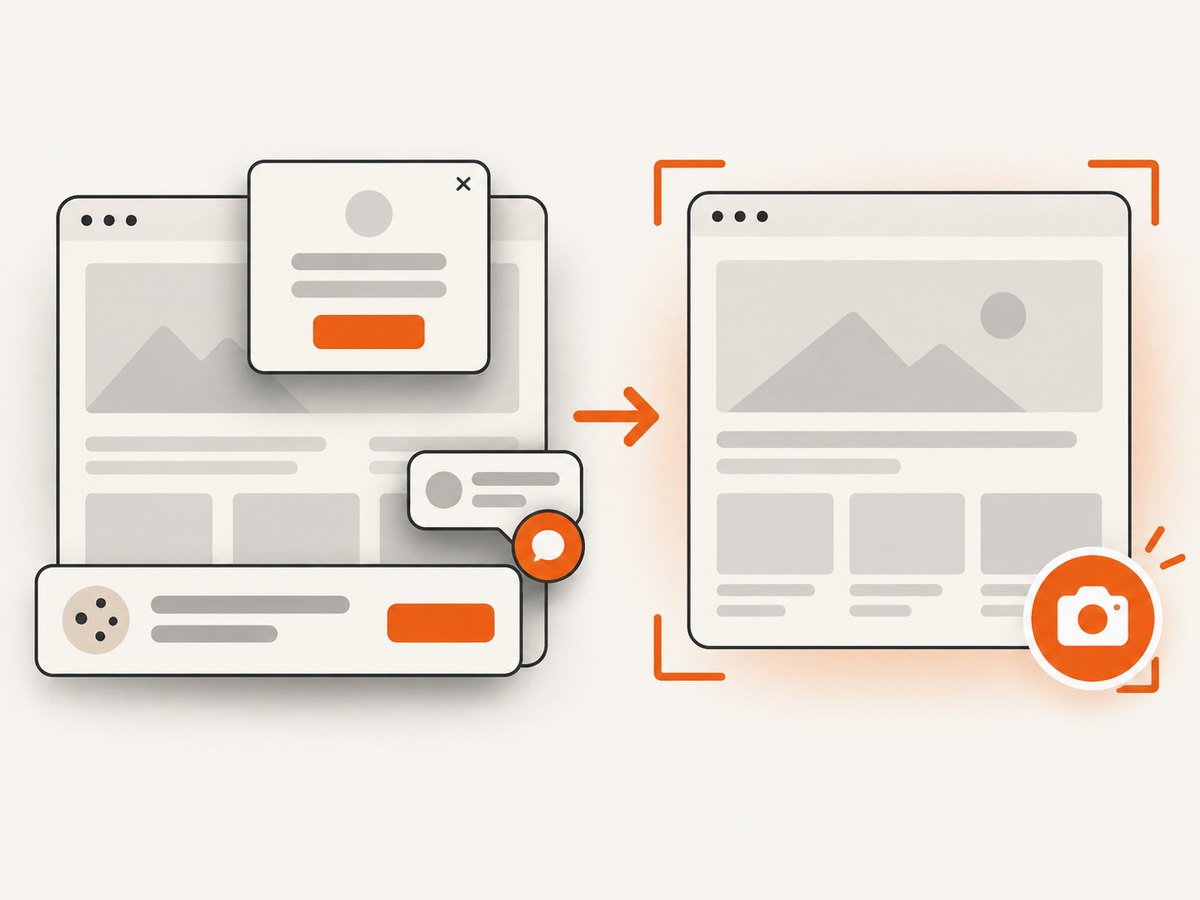
ScreenshotNeo supports custom headers, cookies, user agents, and an Authorization header, so a private URL can be rendered without maintaining a browser process. It also supports timezone and geolocation settings when the page changes by locale.
Common failure modes and fixes
| Symptom | Likely cause | Fix |
|---|---|---|
exec: "google-chrome": executable file not found |
No Chrome or Chromium binary is installed or discoverable. | Install a supported browser, set the launcher path, or use a hosted capture service. |
| Screenshot contains only the top section | Viewport capture was used, or the library captured before layout settled. | Use FullScreenshot or Screenshot(true,...); wait for the page’s ready selector. |
| Images below the fold are blank | Lazy loading had not been triggered. | Scroll through the page, wait for image elements or network activity, then capture. |
| Fonts differ from the production page | The font request failed or capture happened before web fonts loaded. | Wait for a font-dependent element, verify network access, and use a consistent browser image. |
| Cookie dialog covers content | The consent overlay is part of the rendered DOM. | Accept it through automation, remove the overlay with page-specific JavaScript, or use ScreenshotNeo’s consent handling. |
| Height changes between runs | Ads, animations, timestamps, or responsive breakpoints change layout. | Block or freeze unstable resources, disable animations with CSS, and fix viewport and timezone. |
| Chrome crashes on large pages | Very tall documents or many high-resolution images consume memory. | Capture at a smaller device scale, split long documents, reduce concurrency, and monitor process memory. |
| Context deadline exceeded | Navigation, scripts, or resources exceeded the timeout. | Increase the bounded timeout only after finding the slow step; inspect the URL separately and add a readiness condition. |
Reliability and performance practices
- Reuse a browser process for batches. Starting Chrome for every URL adds startup work. Keep one controlled browser and create isolated pages or contexts, while limiting concurrent pages to the memory your host can support.
- Bound every operation. Set navigation, readiness, and capture deadlines. A full-page request should never wait forever on a stalled third-party script.
- Make readiness observable. Log the URL, viewport, wait condition, elapsed time, output format, and final byte size. Save browser console and network errors when a capture fails.
- Control nondeterminism. Fix viewport, timezone, locale, user agent, and device scale. Disable animations and hide rotating banners when visual consistency matters.
- Retry selectively. Retry transient navigation or network failures with a small limit. Do not blindly retry deterministic authentication errors or malformed URLs.
- Choose the smallest useful output. PNG preserves every pixel but can be large. JPEG reduces size with quality loss. WebP is useful when your consumers support it. PDF is better when the deliverable is paginated rather than a single raster image.
Neither the chromedp nor Rod documentation supplies a universal latency or fidelity benchmark. Measure your own pages, browser version, host resources, concurrency, and readiness rules before promising an SLA.
Cost and operating trade-offs
Self-hosting gives control over browser versions, credentials, network location, and custom JavaScript, but you own Chrome updates, fonts, sandboxing, memory, queueing, and failure recovery. A hosted API shifts those operations away from your application and can make usage-based cost easier to forecast. Compare the total cost of browser hosts, engineering time, retries, and storage with the service’s per-capture price.
ScreenshotNeo bills only clean shots. Bot checks, blank pages, timeouts, failed loads, and cache hits cost nothing, and the X-Page-Verdict and X-Billed response headers state the result. Its cache TTL, bulk capture, async jobs, signed webhooks, usage API, and signed links can reduce repeated work in production.
FAQ
Does full-page mode scroll the page?
The library may measure content or use browser capture behavior rather than literally producing a sequence of manual scroll screenshots. The result should cover the complete scrollable document; verify lazy-loaded pages with a site-specific readiness step.
Can I capture an element instead of the whole page?
Yes. Rod and chromedp can be combined with element measurement or clipping APIs, while ScreenshotNeo accepts a CSS selector for one element.
Why is my output blurry?
Check device scale factor, source image dimensions, and JPEG quality. Capture at an appropriate scale and use PNG when crisp text is required.
How do I handle an infinite-scroll feed?
Define a stopping rule such as a maximum number of scrolls or a known item count. Without one, the document may never reach a stable height.
Which Go library should I choose?
Choose chromedp for a small, direct pipeline centered on FullScreenshot. Choose Rod when its fluent API and explicit full-page boolean fit your browser workflow. Both still require a working Chrome or Chromium runtime.
Checklist for production captures
- Chrome or Chromium is installed and its version is monitored.
- The URL, viewport, device scale, locale, and timezone are explicit.
- A deterministic readiness condition is used for dynamic pages.
- Lazy content and consent overlays are handled.
- Timeouts, retries, memory limits, and concurrency are bounded.
- Output format and quality match the consumer’s needs.
- Failures record enough context to reproduce the page.


