How to Capture a Full Webpage in Chrome with Capture de Page
Capture an entire webpage in Chrome with DevTools, extensions, or ScreenshotNeo, including dynamic pages, long captures, PDFs, and troubleshooting.
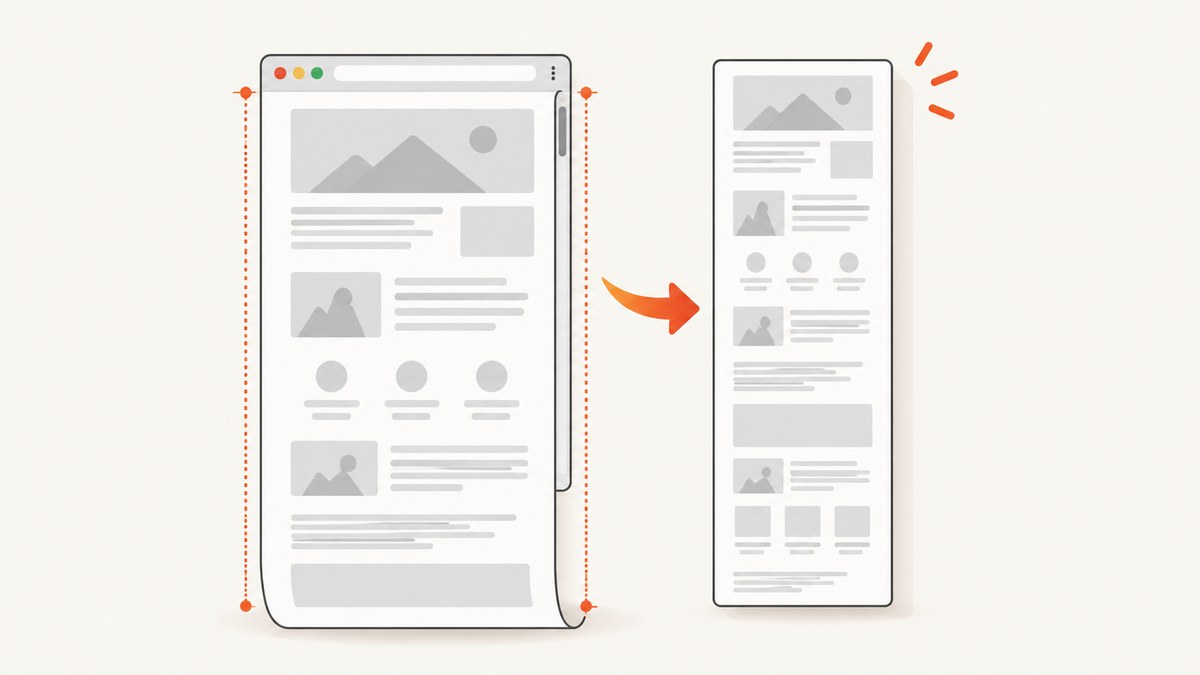
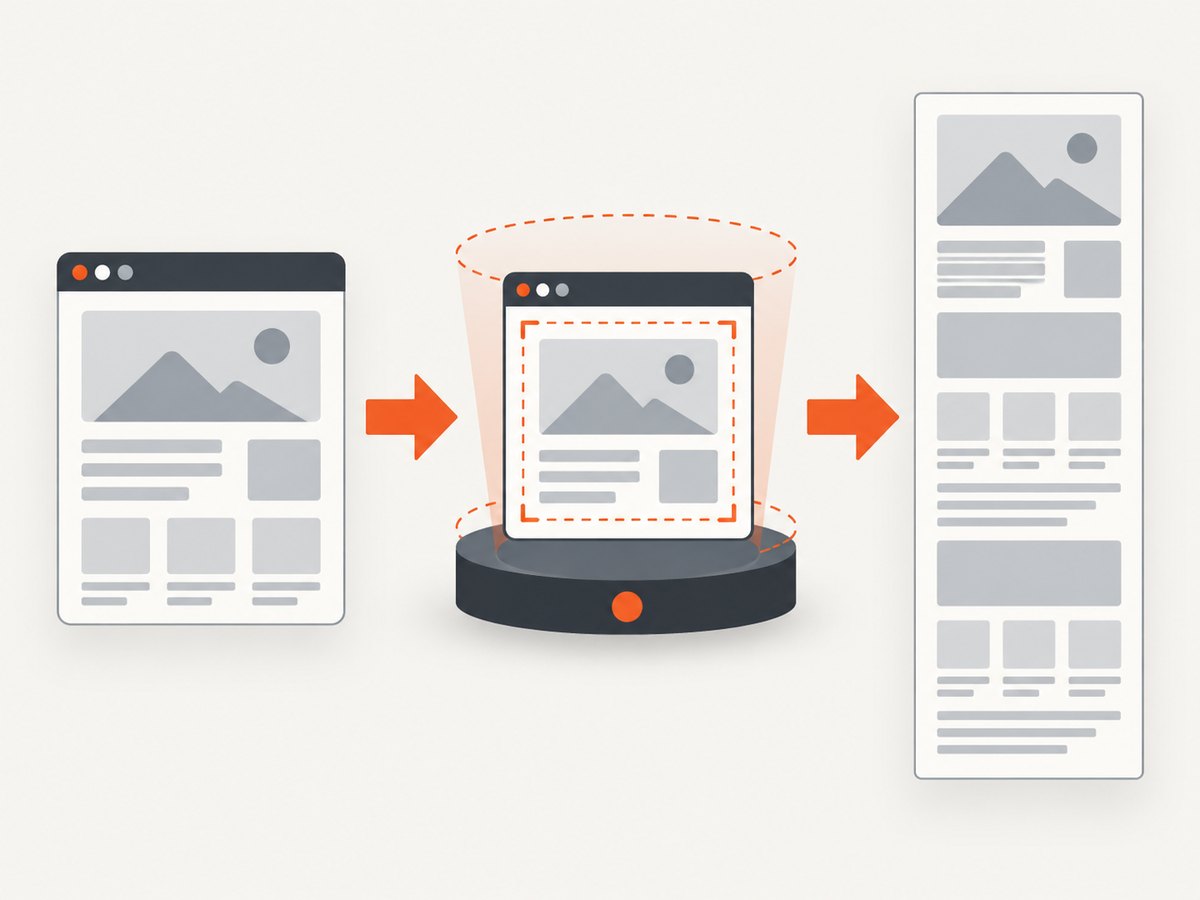
Use Chrome DevTools when you need a quick, no-install full-page screenshot: open the page, open DevTools, open the Command Menu, search for Screenshot, and choose Capture full size screenshot. Chrome saves the webpage content outside the visible viewport and does not include the browser tabs or address bar.
The phrase “Capture de Page” is ambiguous because several Chrome Web Store extensions have similar names. Their buttons, permissions, export formats, and privacy terms differ. The DevTools method below works without choosing an extension. If you use an extension, verify its exact listing before relying on a feature.
1. Capture a full webpage with Chrome DevTools
- Open the webpage you want to capture in Chrome.
- Wait for the page to finish loading. Expand important accordions or scrollable sections if their content is not present until interaction.
- Open DevTools with
F12,Ctrl+Shift+Ion Windows/Linux, orCmd+Option+Ion macOS. - Open the DevTools Command Menu with
Ctrl+Shift+Pon Windows/Linux orCmd+Shift+Pon macOS. - Type
screenshot. - Select Capture full size screenshot.
- Find the downloaded image in Chrome’s normal download location.
A full-size capture includes content below the current viewport. A normal screenshot captures only the visible region. DevTools captures the rendered webpage, rather than Chrome’s surrounding interface.
When the result is incomplete
- Lazy-loaded images: scroll through the page first so images that load on visibility have a chance to appear.
- Sticky headers: a fixed header can appear repeatedly or cover content. Temporarily disable the fixed positioning in DevTools if the result is unusable.
- Nested scroll areas: DevTools captures the document, but content inside an independently scrolling panel may remain clipped.
- Animated content: pause animations or wait for a stable frame before capturing.
- Very long documents: extremely tall pages may produce a large image that is difficult to open or share. Capture sections or export a PDF when pagination is more useful.
2. Use a Chrome full-page screenshot extension
Extensions are useful for repeated captures, annotations, or exports that your chosen listing supports. Install the exact extension from the Chrome Web Store, review its developer, permissions, and privacy disclosure, then:
- Open the target webpage.
- Activate the extension from Chrome’s Extensions menu or its toolbar icon.
- Choose its full-page or scrolling capture mode.
- Wait while it scrolls and assembles the page.
- Review the result, annotate if the listing provides annotation tools, and export in a supported format.
One Chrome Web Store listing describes full-page, visible-region, and custom-region modes, annotation, and PNG/JPG/PDF export. Another listing warns that unusually large captures can be split into multiple images. These are listing-specific behaviors, so do not assume that every extension called “Capture de Page” has the same controls.
Extension checks before installation
- Confirm the exact listing name and publisher.
- Read requested permissions and the privacy disclosure.
- Check whether the extension supports the output you need: PNG, JPG, PDF, or annotations.
- Look for a setting that controls full-page versus visible-region capture.
- Check how it handles very long pages and dynamic content.
3. Pages Chrome extensions cannot capture
Chrome-protected pages such as chrome://settings, the Chrome Web Store, and the new-tab page cannot be captured by extensions according to the reviewed extension help material. Use a browser or operating-system capture method appropriate to that page instead. A normal website opened in a tab can still fail because of authentication, bot protection, cross-origin embeds, script errors, or an extension-specific limitation.
4. Full-page image or PDF?
| Need | Best starting point | Trade-off |
|---|---|---|
| One quick image without installing software | DevTools full-size screenshot | Few controls for dynamic pages and nested scroll areas |
| Repeated captures or annotation | A verified full-page extension | Permissions, privacy terms, and features vary by listing |
| A paginated document for printing or review | PDF export or the browser print workflow | Page breaks and paper size change the visual layout |
| Automated captures in a build or script | Screenshot API | Requires an API key and request handling |
Choose an image when pixel-for-pixel page appearance matters. Choose PDF when readers need pages, margins, paper sizes, or a printable document. PDF output can insert page breaks that do not exist in the web layout.
5. Capture a full webpage automatically with ScreenshotNeo
If this is part of a script, monitoring job, documentation pipeline, or AI workflow, ScreenshotNeo provides a website screenshot API and MCP server. A single GET request returns PNG, JPEG, WebP, or PDF output. See the ScreenshotNeo API documentation for request details.
cURL
curl -G "https://api.screenshotneo.com/v1/shot" -d access_key=YOUR_API_KEY --data-urlencode url=https://stripe.com -o shot.webpPython
import requests

r = requests.get("https://api.screenshotneo.com/v1/shot", params={"access_key": "YOUR_API_KEY", "url": "https://stripe.com"}, timeout=90)
r.raise_for_status()
open("shot.webp", "wb").write(r.content)
Node.js
const q = new URLSearchParams({ access_key: 'YOUR_API_KEY', url: 'https://stripe.com' });
const res = await fetch(`https://api.screenshotneo.com/v1/shot?${q}`);
if (!res.ok) throw new Error(`Screenshot failed: ${res.status}`);
const fs = await import('node:fs/promises');
await fs.writeFile('shot.webp', Buffer.from(await res.arrayBuffer()));
Useful capture options
ScreenshotNeo supports the controls commonly needed for production captures:
- Full-page capture with lazy images loaded, or capture one element by CSS selector.
- Dark mode, 12 device presets, custom viewport sizes, and retina scale.
- PNG, JPEG, WebP, and PDF. PDF options include paper size, margins, landscape mode, and page ranges.
- HTML/CSS to image, custom CSS, custom JavaScript, and clicking an element before capture.
- Hide selectors; wait for a selector, a delay, or network idle.
- Block ads, trackers, requests, or resource types.
- Custom headers, cookies, user agent, and Authorization.
- Timezone, geolocation, transparent background, and image resizing.
- Caching with a TTL you choose.
- Signed links for public
<img>tags. - Async jobs with signed webhooks, bulk capture of up to 100 URLs per call, a usage API, and an OpenAPI specification.
Parameter names used by other screenshot APIs also work, which can reduce changes when moving an existing integration.
Or skip the browser setup
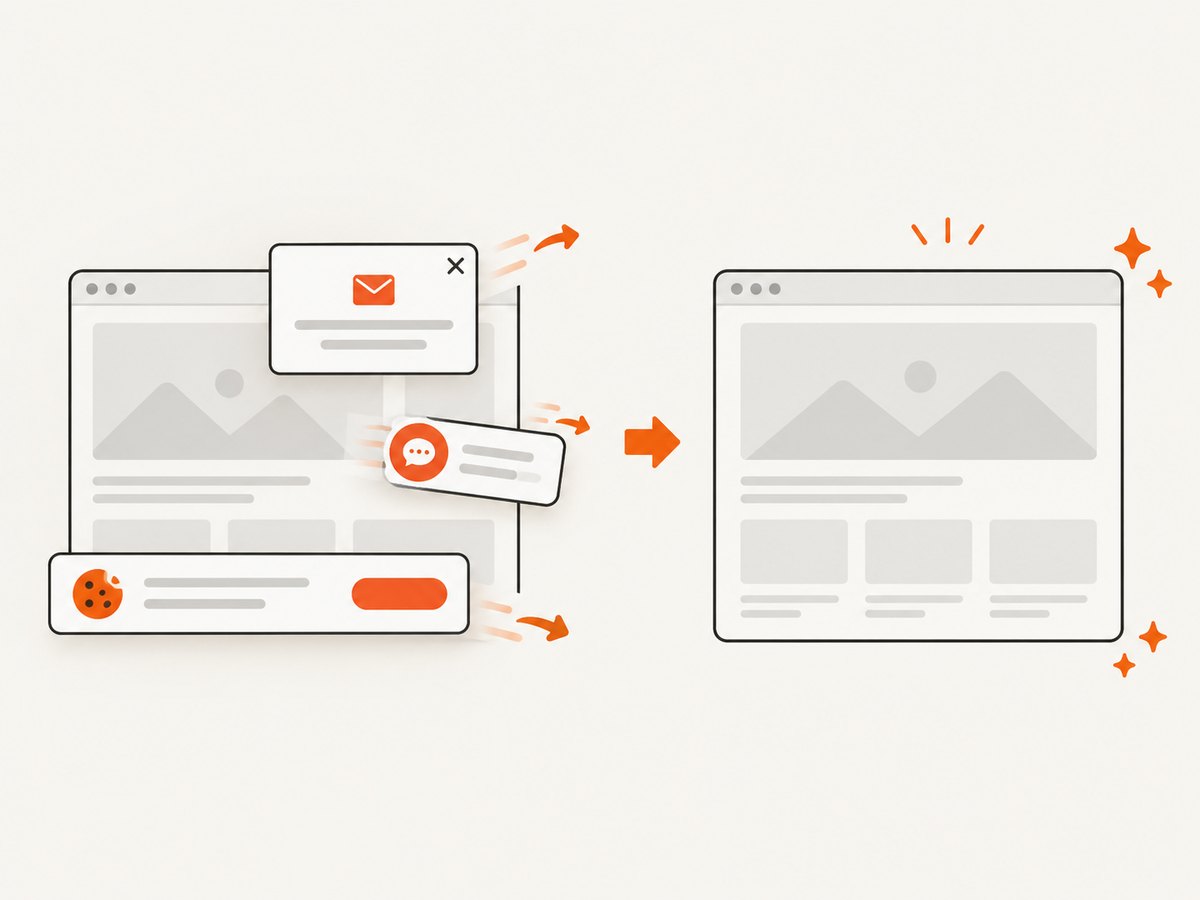
ScreenshotNeo removes cookie and consent banners before capture, along with more than 60 known consent platforms, newsletter popups, and chat widgets. Each cleanup step can be turned off. Bot checks and CAPTCHAs, blank pages, timeouts, failed loads, and cache hits cost nothing; the response identifies the result with X-Page-Verdict and X-Billed headers. Its MCP server lets Claude, Cursor, and other MCP clients call take_screenshot, get_page_info, and capture_pdf. The Free plan includes 1,000 screenshots per month without a card; paid plans start at $5 for 3,000 shots. Create a free ScreenshotNeo account.
6. Troubleshooting full-page captures
| Symptom | Likely cause | Fix |
|---|---|---|
| Only the visible viewport is saved | Visible-area mode was selected | Use DevTools’ Capture full size screenshot or the extension’s full-page mode. |
| Images are missing | Lazy loading has not triggered | Scroll through the page first, wait for images, then capture. |
| A fixed header covers content | Sticky positioning during scrolling | Temporarily disable the fixed element or hide its selector. |
| A page never finishes | Network activity, scripts, or a blocked resource | Wait for a stable state, use a selector or delay condition, or block nonessential resource types. |
| The extension refuses the page | Chrome-protected URL | Extensions cannot capture Settings, the Web Store, or the new-tab page. |
| A huge capture is split | Browser or extension image-size limits | Capture sections, reduce scale, or create a paginated PDF. |
| API response is not an image | Authentication, target URL, or capture error | Check the HTTP status and response headers; verify the API key and URL before writing the body to a file. |
| Unexpected billing | The request produced a clean, billable shot | Inspect X-Page-Verdict and X-Billed; cache hits and failed captures are not billed. |
7. Reliability, performance, and cost considerations
- Browser workflow: best for occasional manual work. Results depend on page state, browser memory, extension behavior, and content loaded during scrolling.
- Automation: wait for a meaningful selector or network idle instead of relying on a fixed short delay. Use retries for transient navigation failures.
- Large pages: reduce viewport scale or split captures when a single bitmap becomes too large to open or transfer.
- Repeat jobs: choose a cache TTL when the page does not change on every request.
- Private pages: pass cookies, headers, a user agent, or Authorization only when your access policy permits it.
- Cost: ScreenshotNeo’s Free plan provides 1,000 shots monthly. Starter is $5 for 3,000, Growth $15 for 15,000, Pro $39 for 60,000, Scale $99 for 250,000, and Business $249 for 1,000,000. Yearly billing gives two months free, and every feature is included on every plan.
8. Quick decision checklist
- Need one capture now: use DevTools.
- Need annotations or a repeated manual workflow: verify a specific extension listing.
- Need pages with margins and paper sizes: use PDF.
- Need scheduled, bulk, authenticated, or AI-driven captures: use an API or MCP server.
- Need clean results: remove consent banners, popups, and chat widgets before capture, or use ScreenshotNeo’s cleanup options.
FAQ
Does a full-page screenshot include Chrome’s address bar?
No. The DevTools full-size command captures webpage content, not Chrome’s tabs or address bar.
Can I capture a page that is taller than the screen?
Yes. Full-page modes assemble content beyond the visible viewport, although unusually large pages may need to be split.
Why is the extension name “Capture de Page” not enough?
Several similarly named Chrome Web Store listings exist. Identify the exact publisher and listing before relying on its controls or privacy claims.
Should I use PNG, JPEG, WebP, or PDF?
Use PNG for crisp UI details, JPEG for smaller photographic images, WebP for compact web delivery, and PDF for paginated documents.
Can an AI agent take the screenshot?
Yes. ScreenshotNeo provides an MCP server with take_screenshot, get_page_info, and capture_pdf tools for MCP clients such as Claude and Cursor.


