How to Capture a Full Webpage in Safari
Capture an entire Safari webpage on iPhone or iPad, save it as a PDF, and learn what Safari on Mac can preserve.
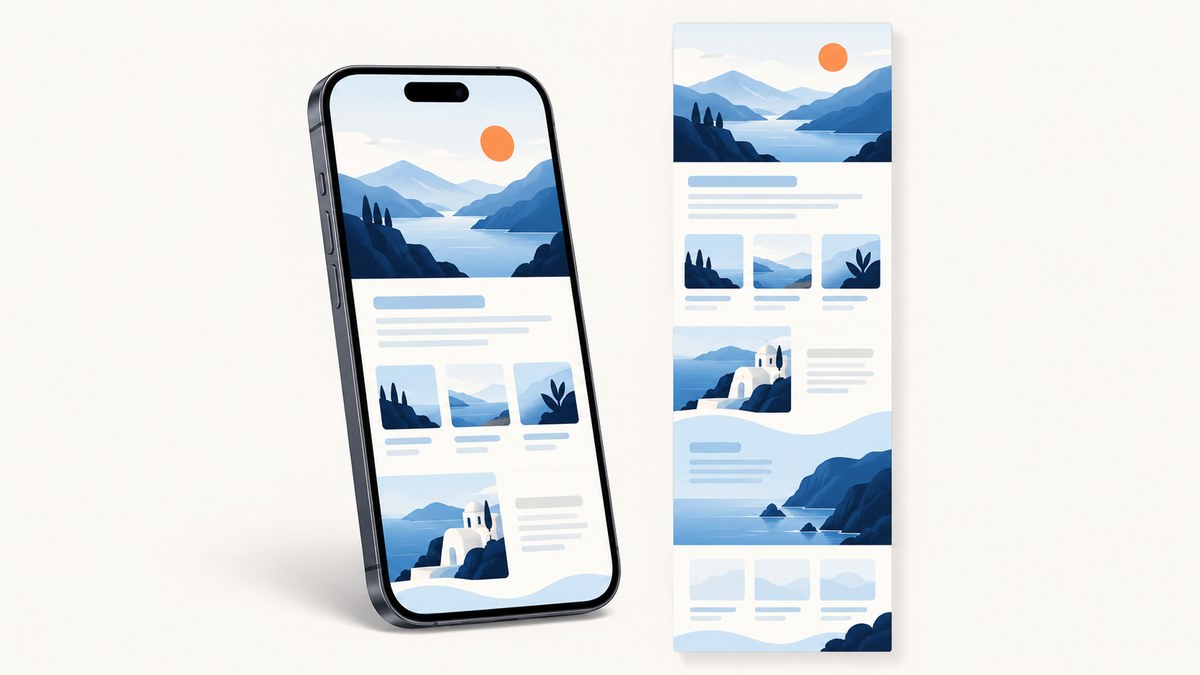
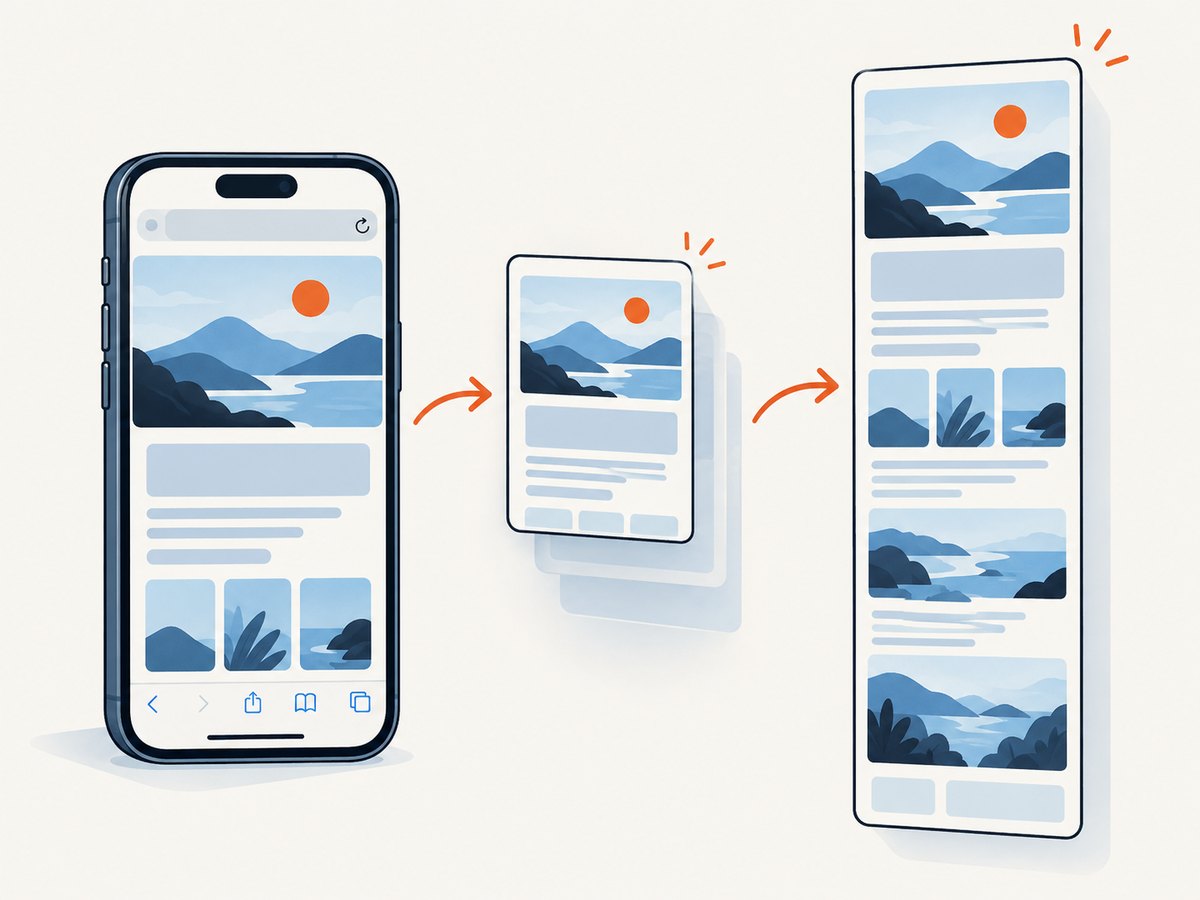
Safari’s documented full-page capture workflow is on iPhone and iPad: take a screenshot, open its preview, choose Full Page, inspect the expanded page, and save it. Apple specifically gives an entire webpage in Safari as the example for this feature. On iPhone, Safari can also turn a webpage into a PDF through Share and Markup. On Mac, Apple documents saving a webpage as a Web Archive or Page Source; those are preservation formats, not the iPhone/iPad Full Page screenshot control.
This guide covers each device, output choice, long-page limits, troubleshooting, and an automated option for developers who need repeatable captures.
iPhone: capture an entire Safari webpage
- Open the target webpage in Safari and wait for the content you need to appear.
- Take a screenshot. On an iPhone with Face ID, quickly press and release the side button and volume-up button together. On an iPhone with a Home button, press and release the Home and side buttons together.
- Tap the screenshot thumbnail that appears in the lower-left corner. If you wait, the thumbnail disappears; open the screenshot from Photos and use the editing controls there if needed.
- At the top of the screenshot editor, select Full Page. The preview now includes content beyond the visible screen.
- Drag through the long preview to inspect it. Crop or annotate if required, then use the save action shown by iOS.
Apple notes that screenshots with thumbnails save automatically. The Full Page view is selected in the screenshot preview, so it is normal for the initial screenshot to look like only the visible viewport until you open that editor.
What the iPhone result contains
The output is a tall screenshot of the Safari page rather than a sequence of separate screen images. The page must be available to Safari when you capture it. If a section is loaded only after scrolling, interacting, or signing in, make that content appear before taking the screenshot. A page that requires a login, blocks access, or fails to load cannot be reconstructed by the screenshot editor.
iPad: use the Full Page screenshot control
- Open the webpage in Safari.
- Take a screenshot. On iPads without a Home button, quickly press and release the top button and a volume button together. On models with a Home button, press and release the Home and top buttons together.
- Alternatively, Apple lists Siri, AssistiveTouch, and an Apple Pencil corner swipe as screenshot methods on supported setups.
- Tap the screenshot thumbnail, then choose Full Page.
- Drag through the extended preview, make any annotations or crop, tap Done, and save.
The iPad workflow is the same essential idea as iPhone: the Full Page choice appears after the screenshot is taken, not as a Safari menu item before capture.
Save a Safari webpage as a PDF on iPhone
Choose PDF when you need a document that can be marked up, shared, or filed rather than a tall image.
- Open the page in Safari.
- Open Safari’s Page Menu, choose Share, and select Markup. Depending on your tab layout, you may tap the Share button directly.
- Annotate the document if needed.
- Tap Done, choose Save File To, give the PDF a name, and tap Save.
This produces a PDF representation of the webpage. Use the screenshot workflow when you specifically need an image; use Share and Markup when the deliverable is a document.
What Safari on Mac can save
Apple’s Mac Safari guide documents File > Save As with two relevant formats:
| Format | What it preserves | When to use it |
|---|---|---|
| Web Archive | Graphics and page resources, with links continuing to work while destination pages remain available | Keeping a browsable copy for later reference |
| Page Source | The HTML source code | Inspecting or archiving the source document |
These options preserve webpage content, but Apple’s Mac documentation does not establish an iPhone/iPad-style Full Page screenshot control in Safari on macOS. Apple also warns that some webpages may prevent items displayed on the page from being saved. If your requirement is a single image of the rendered page, use the iPhone or iPad Full Page workflow, a browser automation tool, or an API.
Choose the right output
| Your goal | Use this documented path | Result |
|---|---|---|
| Long image of a Safari page on iPhone | Screenshot thumbnail > Full Page | Full-page screenshot |
| Long image of a Safari page on iPad | Screenshot thumbnail > Full Page | Full-page screenshot |
| Annotate and share a webpage from iPhone | Safari Share > Markup > Save File To | |
| Preserve a page on Mac | File > Save As > Web Archive | Web archive |
| Keep only the HTML on Mac | File > Save As > Page Source | HTML source |
Common edge cases
Lazy-loaded images and infinite scroll
A page may not request images or sections until you scroll. In Safari, scroll through the page first so the browser has a chance to load the content, then return to the top and take the screenshot. Infinite-scroll pages may have no fixed end; capture the loaded portion or save the page as a PDF if that better matches your goal.
Cookie banners, chat bubbles, and popups
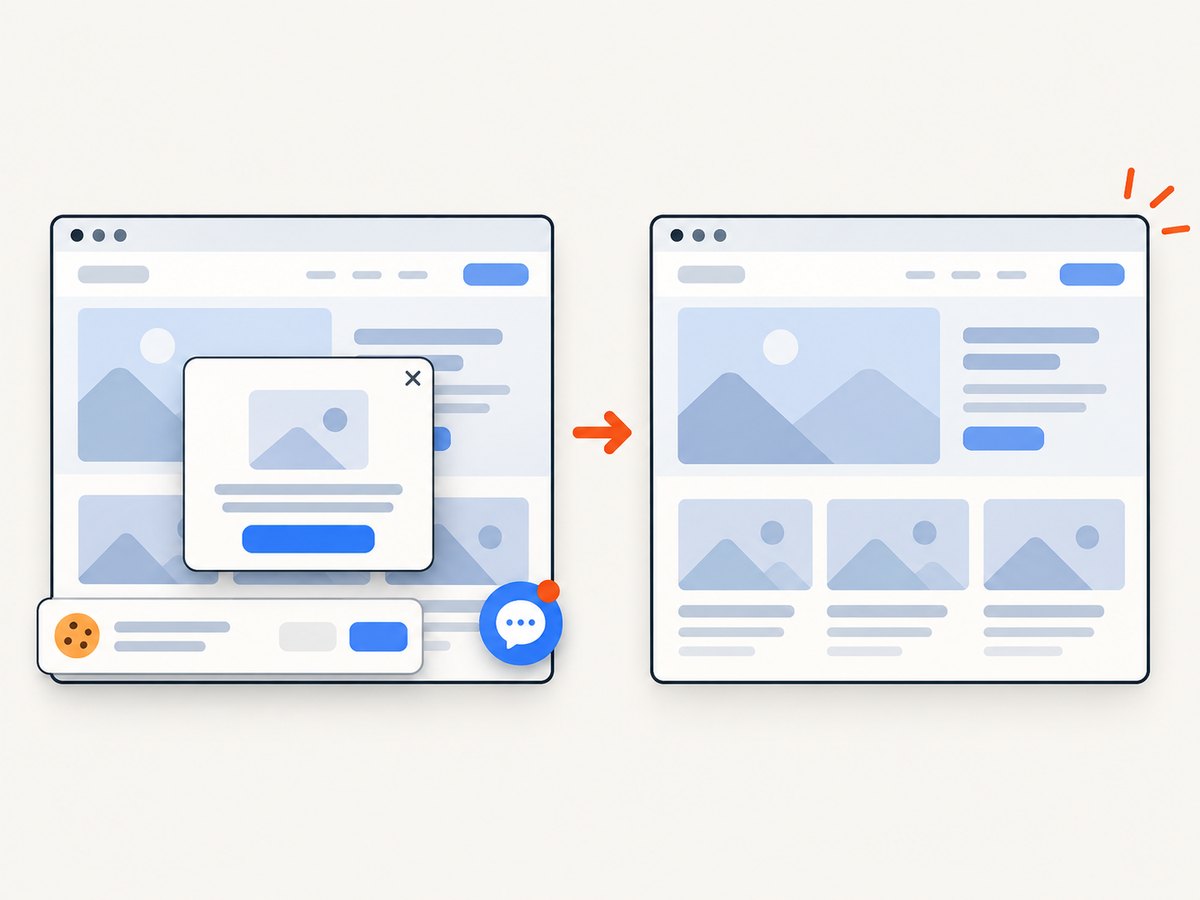
Consent dialogs and floating widgets can cover the page in the captured image. Dismiss them before the screenshot. If a dialog returns on every visit, clear it or use a capture workflow that can remove overlays before rendering.
Signed-in or personalized pages
Make sure the correct account, workspace, locale, and tab are active. A screenshot records what Safari currently renders; it does not fetch a separate public version.
Very long pages
Inspect the Full Page preview before saving. A long image can be awkward to share or edit, and some content may be omitted if it never rendered. For a document, the iPhone PDF route is usually easier to search and annotate.
Or skip the browser setup
For recurring captures, CI jobs, documentation builds, or a list of URLs, ScreenshotNeo provides a website screenshot API and MCP server. One GET request returns a PNG, JPEG, WebP, or PDF. Its clean-shot flow accepts consent banners before capture and removes more than 60 known consent platforms, newsletter popups, and chat widgets; each step can be turned off. Bot checks, blank pages, timeouts, failed loads, and cache hits cost nothing, and the response reports the result with X-Page-Verdict and X-Billed headers.
See the ScreenshotNeo API documentation for the complete option list. The basic request is:
cURL
curl -G "https://api.screenshotneo.com/v1/shot" \
  -d access_key=YOUR_API_KEY \
  --data-urlencode url=https://stripe.com \
  -o shot.webp
Python
import requests

r = requests.get(
    "https://api.screenshotneo.com/v1/shot",
    params={"access_key": "YOUR_API_KEY", "url": "https://stripe.com"},
    timeout=90,
)
r.raise_for_status()
open("shot.webp", "wb").write(r.content)
Node.js
const q = new URLSearchParams({
  access_key: 'YOUR_API_KEY',
  url: 'https://stripe.com'
});
const res = await fetch(`https://api.screenshotneo.com/v1/shot?${q}`);
if (!res.ok) throw new Error(`Screenshot failed: ${res.status}`);
const data = Buffer.from(await res.arrayBuffer());
require('fs').writeFileSync('shot.webp', data);
Options useful for Safari-style full-page captures
- Full page: capture the document beyond the initial viewport and load lazy images.
- Viewport and devices: choose any viewport or one of 12 device presets; set retina scale when you need higher-density output.
- Format: return PNG, JPEG, WebP, or PDF. PDFs support paper size, margins, landscape mode, and page ranges.
- Timing: wait for a selector, a fixed delay, or network idle.
- Interaction: click an element before capture, hide selectors, run custom JavaScript, or add custom CSS.
- Privacy and access: send custom headers, cookies, a user agent, Authorization, timezone, or geolocation.
- Filtering: block ads, trackers, requests, or resource types.
- Delivery: resize images, cache with a TTL you choose, create signed links for public
<img>tags, submit asynchronous jobs with signed webhooks, or capture up to 100 URLs per call.
ScreenshotNeo also exposes a usage API and OpenAPI specification. Its parameter names match those used by other screenshot APIs, which can reduce migration work. The MCP server includes take_screenshot, get_page_info, and capture_pdf for Claude, Cursor, and other MCP clients.
There are 1,000 free shots each month with no card. Paid plans start at $5 for 3,000 shots; yearly billing gives two months free, and every feature is available on every plan. Create a free ScreenshotNeo account to start.
Troubleshooting
| Symptom | Likely cause | Fix |
|---|---|---|
| No Full Page tab appears | The screenshot editor was not opened, or the content is not a supported document view | Tap the screenshot thumbnail immediately after capture and confirm Safari is displaying the webpage itself. |
| The capture stops before the bottom | Content was not loaded, the page uses infinite scroll, or a section requires interaction | Scroll through the page first, trigger accordions or tabs, then capture again. For automation, wait for a selector or network idle. |
| A cookie dialog covers the image | The consent banner remained open | Accept or dismiss it before taking the screenshot. In an automated flow, enable consent handling or hide the selector. |
| Images are blank | Images are lazy-loaded or blocked by network conditions | Scroll to load them, check the connection, and retry. In an API flow, enable full-page lazy-image loading and allow the required resource types. |
| Mac Save As lacks the expected image | Safari’s documented Mac choices are Web Archive and Page Source | Use one of those preservation formats, capture on iPhone/iPad, or use a screenshot API for a rendered image. |
| ScreenshotNeo returns an error or an unexpected verdict | The target timed out, failed to load, showed a bot check, or was blank | Inspect the HTTP status and X-Page-Verdict/X-Billed headers. Adjust waiting, headers, cookies, user agent, or blocking rules, then retry. |
Performance, reliability, and cost notes
Manual Safari capture is fastest for a one-off page because it uses controls already on the device. It becomes difficult to reproduce across URLs, devices, locales, and logged-in sessions. Keep a consistent viewport, wait condition, and page state when you need comparable captures.
For automation, wait only as long as the page needs: a specific selector is usually more predictable than an arbitrary long delay, while network idle helps pages that load many assets. Blocking ads, trackers, or unnecessary resource types can reduce work, but verify that the page’s important content does not depend on a blocked request. Caching with a chosen TTL can avoid repeated renders; cache hits are identified and are not billed by ScreenshotNeo.
Reliability improves when you provide the same cookies, headers, user agent, timezone, and geolocation for every run. For large batches, asynchronous jobs, signed webhooks, and bulk capture of up to 100 URLs avoid keeping a client process open for every page. Record the verdict and billed headers with each result so a failed or blank page is distinguishable from a successful capture.
FAQ
Can I capture a full webpage in Safari on Mac?
Apple’s reviewed Mac documentation covers Web Archive and Page Source through File > Save As, but does not document the iPhone/iPad Full Page screenshot control for macOS Safari.
Does Full Page create a PDF?
The iPhone/iPad Full Page option creates a long screenshot. On iPhone, use Safari Share > Markup > Save File To when you specifically need a PDF.
Why is my full-page image missing content below the fold?
The content may be lazy-loaded, hidden behind an interaction, blocked, or part of an infinite-scroll view. Load and reveal the content before capturing.
Can I automate the same result for many URLs?
Yes. A screenshot API such as ScreenshotNeo can capture full pages with controlled viewport, timing, cookies, headers, JavaScript, CSS, caching, bulk requests, and asynchronous jobs.
What should I use for an annotated deliverable?
Use the iPhone Safari Share and Markup flow to save a PDF, then annotate before saving.


