How to Capture Google Maps InfoWindows with html2canvas
Open an InfoWindow, wait for it to render, then capture its DOM with html2canvas. Learn the complete workflow, export options, and CORS limits.
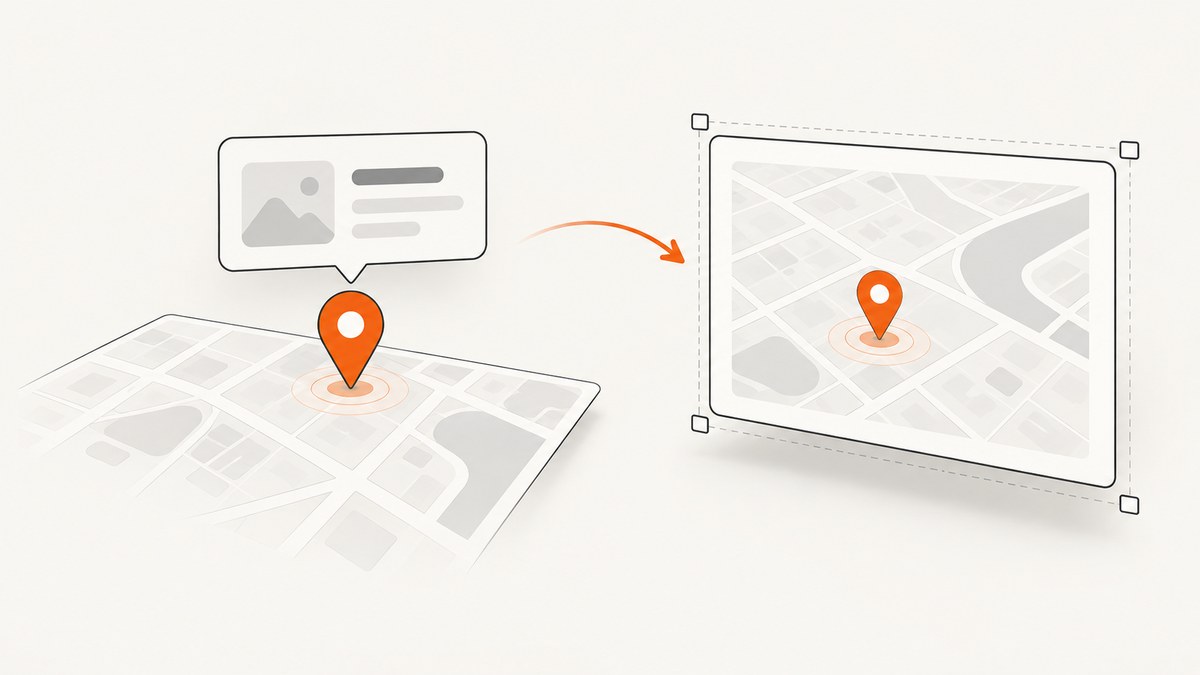
To capture a Google Maps InfoWindow with html2canvas, create its content as a DOM element, open it on the map or a marker, wait until it is visible and laid out, select the rendered node, and pass that node to html2canvas. Export the returned canvas with toBlob() or toDataURL('image/png'). This produces a DOM and CSS reconstruction, not a native browser screenshot, so cross-origin map tiles and unsupported CSS may be missing.
The example below uses the Maps JavaScript API and html2canvas. It captures the InfoWindow’s rendered bubble using Google’s current .gm-style-iw class as a practical target. That class is internal implementation detail; for an application-owned panel or just the content, capture your own stable wrapper instead.
1. Set up the map and dependencies
Load the Google Maps JavaScript API with a valid API key and the html2canvas package. The Maps API accepts an HTML element as InfoWindow content and lets you open the window programmatically. See the Google Maps InfoWindow guide and html2canvas documentation.
npm install html2canvasPut a map container in the page and give it a usable height. The following assumes the Maps JavaScript API has loaded and exposes google.maps.
<div id="map" style="height: 480px"></div>
<button id="capture" type="button">Download InfoWindow PNG</button>
<script type="module" src="/src/main.js"></script>
Use a restricted Maps API key in a real application and configure the required Maps JavaScript API in the Google Cloud project. Key restrictions and billing setup are managed in Google Cloud; this article does not assume a particular project configuration.
2. Create content, open the InfoWindow, then capture
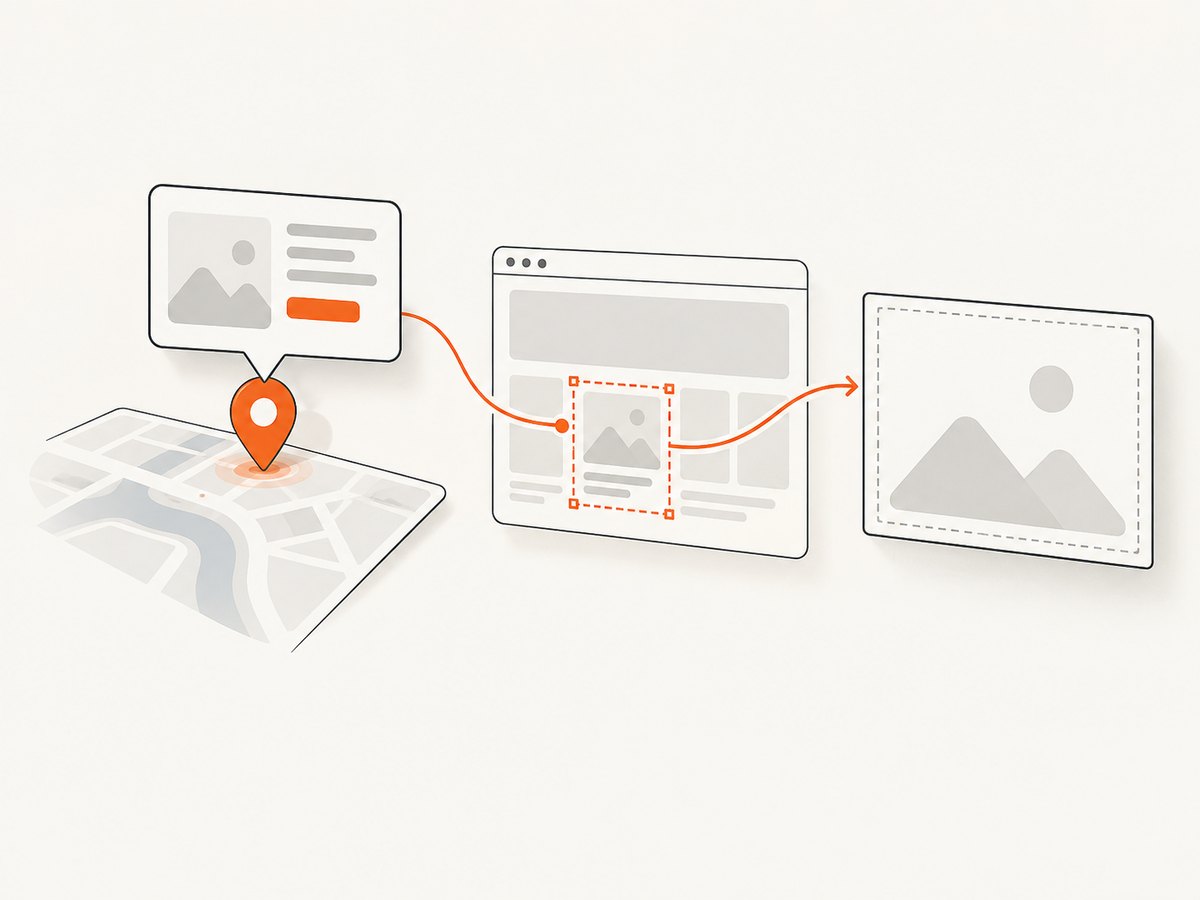
This example creates content using DOM methods rather than inserting untrusted input with innerHTML. It waits for the InfoWindow’s visible event, then checks for the rendered bubble and nonzero layout dimensions before rendering. That avoids relying on a fixed sleep, which can fire too early on slower devices.
import html2canvas from 'html2canvas';

const map = new google.maps.Map(document.getElementById('map'), {
  center: { lat: 37.422, lng: -122.084 },
  zoom: 14,
});

const marker = new google.maps.Marker({
  map,
  position: { lat: 37.422, lng: -122.084 },
  title: 'Example location',
});

const content = document.createElement('section');
content.className = 'capture-infowindow';
content.style.cssText = 'width: 280px; padding: 8px; font: 14px sans-serif;';

const heading = document.createElement('h2');
heading.textContent = 'Example location';
const details = document.createElement('p');
details.textContent = 'Details shown in this InfoWindow.';
content.append(heading, details);

const infoWindow = new google.maps.InfoWindow({ content, maxWidth: 320 });
infoWindow.open({ map, anchor: marker, shouldFocus: false });

function waitForLayout(element, timeoutMs = 5000) {
  return new Promise((resolve, reject) => {
    const started = performance.now();
    function check() {
      const rect = element.getBoundingClientRect();
      if (element.isConnected && rect.width > 0 && rect.height > 0) {
        resolve(element);
      } else if (performance.now() - started > timeoutMs) {
        reject(new Error('InfoWindow did not become visible and measurable'));
      } else {
        requestAnimationFrame(check);
      }
    }
    check();
  });
}

async function captureInfoWindow() {
  await new Promise((resolve) => {
    google.maps.event.addListenerOnce(infoWindow, 'visible', resolve);
  });

  // The bubble selector is Maps-rendered DOM and may change. Prefer an
  // application-owned wrapper if it is the intended capture target.
  const bubble = await waitForLayout(document.querySelector('.gm-style-iw'));
  const canvas = await html2canvas(bubble, {
    backgroundColor: '#fff',
    scale: window.devicePixelRatio || 1,
    useCORS: true,
  });

  const blob = await new Promise((resolve, reject) => {
    canvas.toBlob((result) => result ? resolve(result) : reject(new Error('PNG encoding failed')), 'image/png');
  });
  const link = document.createElement('a');
  link.download = 'infowindow.png';
  link.href = URL.createObjectURL(blob);
  link.click();
  setTimeout(() => URL.revokeObjectURL(link.href), 1000);
}

document.getElementById('capture').addEventListener('click', () => {
  captureInfoWindow().catch((error) => {
    console.error('Could not capture InfoWindow:', error);
  });
});
The visibility event can happen before the rendered bubble has completed layout, which is why the example also waits for a measurable node. If you use the event to resolve a promise, register the listener before calling open() so a quick event is not missed. In the example above, the event listener is registered after open for readability; in production, create the promise first and then call open():
const visible = new Promise((resolve) => {
  google.maps.event.addListenerOnce(infoWindow, 'visible', resolve);
});
infoWindow.open({ map, anchor: marker, shouldFocus: false });
await visible;
3. Choose the right capture target
There are two useful targets, with different stability and appearance:
| Target | What it includes | Trade-off |
|---|---|---|
| Your content element | The application-controlled heading, text, and content children | Most stable selector and styling; excludes Google’s bubble chrome and close control |
.gm-style-iw |
The rendered InfoWindow interior and its descendant content | Closer to the visible popup; Maps controls the class and surrounding DOM |
| Whole map container | Map, markers, controls, tiles, and open window | More context, but more page UI and cross-origin imagery to contend with |
Google owns and may rebuild the wrapper around the content element. Capture the content element when content is the deliverable. Use the rendered wrapper only when the bubble appearance matters, and add a selector check that fails clearly if Maps changes its DOM.
4. Configure quality, size, and exclusions
html2canvas accepts a configuration object. These options are especially relevant to an InfoWindow:
| Option | Use |
|---|---|
scale |
Set to window.devicePixelRatio for sharper output on high-density screens. Use 1 for smaller output or predictable CSS-pixel dimensions. |
backgroundColor |
Set a color such as '#fff' for an opaque PNG. Use null for transparency when the target and output support it. |
useCORS |
Attempt to load images with CORS. The remote image server must send an appropriate Access-Control-Allow-Origin header. |
width, height |
Set the render dimensions when you need a fixed output size. |
x, y |
Offset the capture region within the target. |
windowWidth, windowHeight |
Set the virtual viewport dimensions used for rendering, useful when page layout or clipping depends on viewport size. |
ignoreElements |
Filter out elements before rendering. You can also put data-html2canvas-ignore on an element that should not appear. |
onclone |
Adjust the cloned document before render, such as applying a capture-only class or hiding controls. |
For example, hide a close button and set a known viewport:
const canvas = await html2canvas(bubble, {
  backgroundColor: '#fff',
  scale: 2,
  windowWidth: document.documentElement.scrollWidth,
  windowHeight: document.documentElement.scrollHeight,
  ignoreElements: (element) => element.matches('[data-capture-ignore]'),
  onclone: (clonedDocument) => {
    clonedDocument.querySelectorAll('.capture-only-hide').forEach((node) => {
      node.style.display = 'none';
    });
  },
});
Put data-html2canvas-ignore on elements you want the library to omit, or use your own marker attribute with ignoreElements. Use explicit content dimensions or maxWidth if line wrapping must remain consistent across captures. For a narrow phone viewport, set the desired CSS width in your content and allow text to wrap before calling html2canvas.
5. Handle images, tiles, and browser security
html2canvas reconstructs an image from DOM and CSS; it does not take a native screenshot of browser pixels. Unsupported CSS can render differently, and cross-origin iframes cannot be rendered. A cross-origin image may be skipped or taint the canvas. The useCORS: true option does not bypass browser security: the image server must allow the requesting origin. See the html2canvas FAQ and proxy documentation.
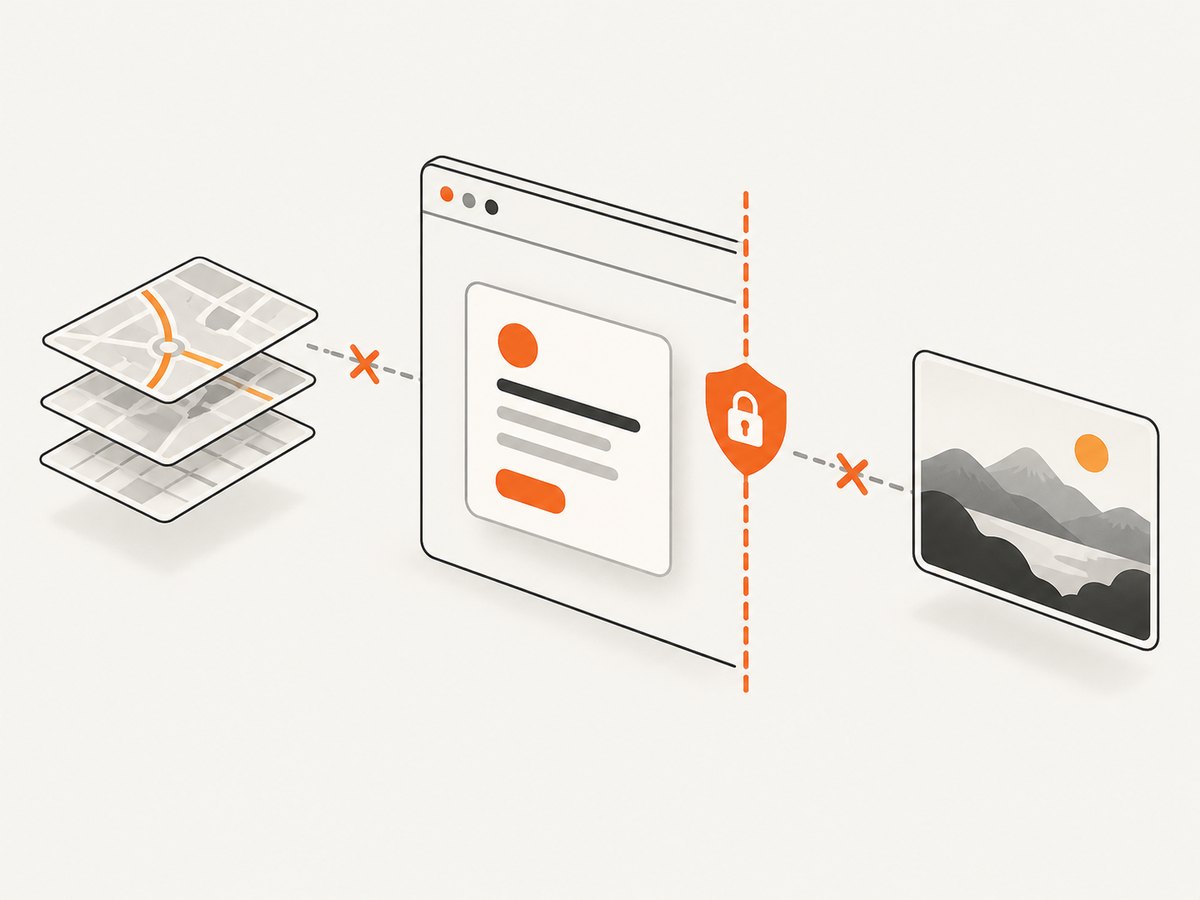
Google Maps tiles, marker assets, or images in your InfoWindow may be served from other origins. Do not assume every asset can be exported just because the popup text works. Test the specific map style and image sources used by your application. If an image host does not permit CORS, a same-origin proxy may be appropriate only where you are authorized to fetch and serve that resource and its terms permit the use. A proxy cannot make content accessible where you lack permission.
For text-and-card captures, target the content element to avoid pulling map tiles into the canvas. For a full-map image, expect more CORS-sensitive resources and more UI. Handle failures from both the html2canvas promise and canvas export methods such as toBlob() or toDataURL().
6. Download PNG or return an image from an API
toDataURL() is convenient for a small local download, while toBlob() avoids building a large base64 string in memory and is usually a better choice for uploading or saving larger images.
// Download using a Blob URL
canvas.toBlob((blob) => {
  if (!blob) throw new Error('Canvas export returned no data');
  const url = URL.createObjectURL(blob);
  const a = document.createElement('a');
  a.href = url;
  a.download = 'infowindow.png';
  a.click();
  setTimeout(() => URL.revokeObjectURL(url), 1000);
}, 'image/png');

// Or obtain a data URL for a small image
const pngDataUrl = canvas.toDataURL('image/png');
For JPEG, pass 'image/jpeg' and optionally a quality value between 0 and 1 to the export method. PNG is lossless and supports transparency; JPEG is smaller for photographic content but has no transparency. Export can fail if the canvas is tainted by a cross-origin resource or exceeds browser canvas limits.
7. Troubleshooting
| Symptom | Likely cause | Fix |
|---|---|---|
| Blank capture or missing popup | Capture ran before open/layout completed, or selector did not match. | Register the visible listener before open(), then wait for a connected node with nonzero dimensions. Check the live DOM and fail with a useful error on timeout. |
| Popup text appears but map imagery is absent | Cross-origin tiles or images disallow CORS, or CSS is not supported by the renderer. | Capture only the app-owned content node, confirm response CORS headers, or use an authorized same-origin proxy for assets where permitted. |
SecurityError from export |
A resource tainted the canvas. | Remove or proxy the offending image only if authorized, and confirm CORS headers. useCORS alone cannot override the server policy. |
| Wrong size or clipped text | Content has no predictable width, viewport differs, or the capture region is cropped. | Set a content width or InfoWindow maxWidth, wait for layout, then adjust width, height, x, y or window dimensions. |
| Blurry image | Canvas scale is too low for the display density. | Use scale: window.devicePixelRatio or a deliberate fixed factor; larger output uses more memory. |
| Unexpected styling or missing effects | html2canvas supports a subset of browser CSS and reconstructs the DOM. | Simplify capture-only styles, use onclone for adjustments, or use a browser-native screenshot workflow when pixel fidelity is essential. |
| Export returns null or throws | Canvas encoding failed, often due to security restrictions or excessive dimensions. | Catch errors, check for a non-null Blob, reduce scale or dimensions, and avoid large full-map captures. |
| Selector stopped working after Maps update | .gm-style-iw is an internal Maps DOM class. |
Prefer your content element. If the bubble wrapper is necessary, keep selector logic isolated and verify it against the current rendered DOM. |
8. Performance, reliability, and cost
Capture only the smallest node that contains the information you need. Whole-map rendering traverses more DOM and may load more images. Increasing scale increases each canvas dimension and therefore memory use; doubling both width and height means roughly four times as many pixels. Keep InfoWindow content bounded, avoid repeatedly capturing during every animation frame, and revoke Blob URLs after download.
For reliable automation, make capture an explicit action after the window is opened, wait for the API visibility signal and a measurable target, and apply a finite timeout. Report failures separately from a valid but incomplete image. Use deterministic content dimensions and avoid relying on arbitrary sleeps. If you batch captures, serialize or limit concurrent canvas renders to avoid high memory pressure.
The do-it-yourself path has no screenshot API charge, but uses your browser CPU and memory, your Maps project configuration, and any applicable Google Maps usage terms and billing. html2canvas itself cannot promise image fidelity for assets blocked by browser policy. No performance benchmark is implied here; measure capture duration and output size with your own map content and target devices.
Or skip the browser setup
If your goal is a URL screenshot rather than exporting a live Maps object from your own page, ScreenshotNeo provides a website screenshot API with one GET request, plus an MCP server for AI agents. A URL screenshot is not a substitute for capturing a client-side InfoWindow that exists only in your application state; publish the intended page state at a URL the service can load.
cURL:
curl -G "https://api.screenshotneo.com/v1/shot" -d access_key=YOUR_API_KEY --data-urlencode url=https://stripe.com -o shot.webpPython:
import requests
r = requests.get("https://api.screenshotneo.com/v1/shot", params={"access_key": "YOUR_API_KEY", "url": "https://stripe.com"}, timeout=90)
open("shot.webp", "wb").write(r.content)
Node.js:
const q = new URLSearchParams({ access_key: 'YOUR_API_KEY', url: 'https://stripe.com' });
const res = await fetch(`https://api.screenshotneo.com/v1/shot?${q}`);
See the ScreenshotNeo API documentation for request options. Cookie banners, popups and chat widgets are removed before the shot. Bot checks, blank pages and failed loads are never billed. Its MCP server lets AI agents take screenshots. The free plan includes 1,000 screenshots a month with no card; paid plans start at $5 for 3,000. Every feature is available on every plan.
Sign up free for 1,000 screenshots a month, no card required.
FAQ
Can I capture only the InfoWindow and not the map?
Yes. Pass the InfoWindow content element or rendered bubble node to html2canvas instead of the map container. The content element is the more stable application-controlled target.
Why does the popup appear on screen but not in the PNG?
html2canvas paints from DOM and CSS rather than copying browser pixels. The target may not have been laid out yet, or one of its styles or images may not be renderable under the library’s supported features and browser security rules.
Can html2canvas capture an InfoWindow in an iframe?
It cannot render a cross-origin iframe’s contents. Keep the content in the same-origin document if you need DOM-based capture, subject to the source’s security policy.
How do I capture the close button and Google’s bubble chrome?
Capture the Maps-rendered bubble wrapper after it is visible, and inspect the current DOM for the relevant node. That wrapper is not a stable public API, so keep a fallback or capture your own styled panel when repeatability matters.
Should I use a fixed timeout?
Prefer the documented visibility signal followed by a layout check with a timeout. A fixed delay can be too short on slow devices and unnecessarily long on fast ones.


