How to Capture Google Slides as Full-Page Screenshots
Learn when to export a Google Slide, print a deck to PDF, or capture the entire Slides webpage—and how to automate clean captures.
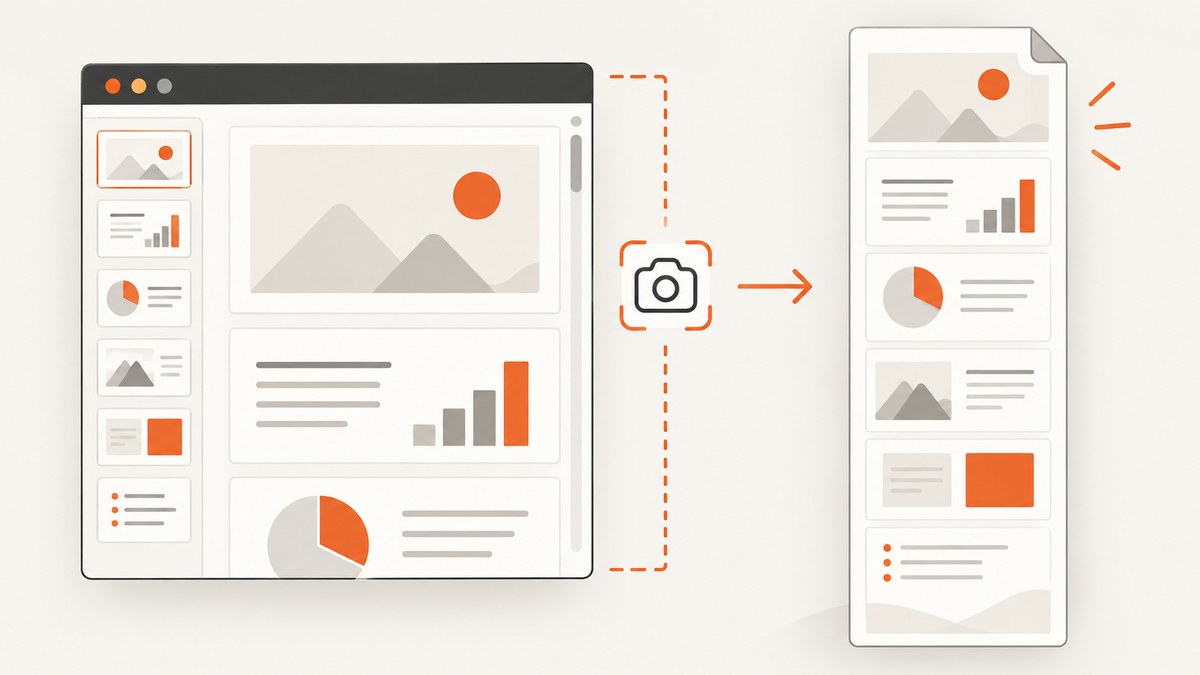
“Full-page screenshot” can mean three different things in Google Slides: a clean image of one slide, a complete presentation file, or a screenshot of the rendered Slides webpage from top to bottom. Choose the output first:
- One clean slide: use Google Slides’ native download or export option.
- The entire deck: use File → Print and download the resulting PDF.
- The browser page itself: use a full-page capture extension or an automated browser, because you are capturing the editor webpage rather than exporting slide artwork.
The rest of this guide explains each method, how to automate the browser capture, how to handle sign-in and lazy content, and when ScreenshotNeo is a simpler API option.
1. Decide what “full page” means
A Slides presentation is made of slide canvases, while the editor is a web application surrounding those canvases. A native export gives you presentation content. A scrolling screenshot gives you whatever the browser renders, which may include toolbars, filmstrips, comments, account details, and blank space.

| Goal | Best method | Output | Trade-off |
|---|---|---|---|
| Clean artwork from one slide | Native download/export | Image format offered by the current Slides menu | Google warns downloaded images might be lower quality; inspect fine detail at the intended size. |
| Complete presentation | File → Print | Print settings can change orientation, layout, or notes. | |
| Rendered editor webpage | Full-page browser capture | PNG, JPG, or PDF, depending on the tool | Includes webpage rendering rather than purpose-built slide output. |
| Current viewport or selected region | Visible-area or custom-area capture | Image or PDF | Does not represent the complete deck. |
Before sharing, check that the output contains the intended slides or page, text remains legible at its destination size, and browser chrome or account information is safe to include.
2. Export a clean slide image
- Open the presentation and select the slide you need.
- Use the current File → Download or export option and choose an image format offered by your Slides interface.
- Open the downloaded file at the size where it will be used. Small text and diagrams can become difficult to read if the downloaded image is lower quality.
Menus can change, and the available image formats depend on the current Google Slides interface. If you need every slide, exporting one image at a time is usually less practical than printing the deck to PDF.
When a slide image is better than a screenshot
- You want only the slide canvas, with no editor controls.
- You need to place a slide in documentation, a design review, or a report.
- You want a predictable asset rather than a capture of a browser state.
3. Download the complete deck as a PDF
- Open the presentation.
- Choose File → Print.
- Review the print preview and available settings.
- Choose the PDF download action supplied by Google’s print flow.
Google’s Slides print instructions include settings for print layout, orientation, handouts, and options such as one slide with notes. Select the layout that matches your use case before downloading. A PDF is generally the right deliverable when “full page” means the whole presentation rather than one long browser image.
PDF checks
- Confirm the slide count matches the deck.
- Open several pages, including the first, middle, and last slide.
- Check speaker notes and handout settings; they can change what appears on each page.
- Zoom into charts, screenshots, and small labels before sending the file.
4. Capture the entire Google Slides webpage
Use this workflow when you specifically need the rendered webpage: the editor shell, slide canvas, filmstrip, or a long scrolling view. A browser extension typically scrolls through the page and assembles the sections. GoFullPage’s Chrome listing describes full-current-page capture with image and PDF download. Full Page Screen Capture describes full-page, visible-area, and custom-area modes with PNG, JPG, and PDF export. These are publisher and store descriptions; behavior can vary with a particular presentation.
- Open the presentation at the exact page and zoom level you want to capture.
- Close or hide panels that should not appear, such as comments or speaker notes.
- Wait for thumbnails, images, and charts to finish loading.
- Run the extension’s full-page mode.
- Review the assembled output for duplicated, missing, or clipped sections.
- Export PNG, JPG, or PDF according to the destination.
A full-page extension captures the page as rendered. It does not convert a multi-slide deck into a single clean slide image, and it cannot guarantee that every editor control will be excluded.
Visible-area and custom-area captures
Use visible-area mode for the currently displayed viewport. Use custom-area mode when you need a selected region, such as the slide canvas without the filmstrip. Neither is a complete presentation export.
5. Automate a browser capture with Playwright
Automation is useful for scheduled archives, regression checks, or repeatable captures. The example below uses Node.js and Playwright. It saves a full-page PNG after loading a public presentation URL. For a private deck, authenticate with a persistent browser profile or an approved test account; do not place credentials in source code.
import { chromium } from 'playwright';

const url = process.env.SLIDES_URL;
if (!url) throw new Error('Set SLIDES_URL to a presentation URL');

const browser = await chromium.launch({ headless: true });
const page = await browser.newPage({
  viewport: { width: 1440, height: 1000 },
  deviceScaleFactor: 1
});

await page.goto(url, { waitUntil: 'domcontentloaded', timeout: 90000 });
await page.waitForTimeout(3000);

// Let lazy content and thumbnails settle before scrolling.
await page.evaluate(async () => {
  await new Promise(resolve => {
    let last = 0;
    const step = () => {
      window.scrollTo(0, document.body.scrollHeight);
      const now = document.body.scrollHeight;
      if (now === last) return resolve();
      last = now;
      setTimeout(step, 500);
    };
    step();
  });
  window.scrollTo(0, 0);
});

await page.screenshot({ path: 'google-slides-full-page.png', fullPage: true });
await browser.close();
Run it with:
npm install playwright
SLIDES_URL='https://docs.google.com/presentation/d/your-id/edit' node capture.mjs
For a clean slide region, replace fullPage: true with a locator screenshot after identifying the canvas selector in your own page version. Google can change DOM structure, so selectors should be treated as maintenance points rather than permanent API contracts.
Private presentations and session state
A headless browser without a Google session will usually see a sign-in page or an access error. A safer pattern is to create a Playwright storage state interactively, protect the resulting file, and load it only in a controlled environment. Never commit session files, cookies, or access tokens to a repository.
6. Common problems and fixes
| Symptom | Likely cause | Fix |
|---|---|---|
| Only the visible viewport is captured | The tool ran visible-area mode. | Select full-page mode or use Playwright’s fullPage: true. |
| Slides are clipped or duplicated | The page changed while the extension scrolled, often because of lazy images or dynamic panels. | Wait for content, close side panels, and inspect the result; in automation, scroll and pause before capture. |
| A sign-in page appears | The presentation is private or the browser has no session. | Use an authorized persistent session or make a permitted copy public. |
| Images or charts are blank | Resources were still loading, blocked, or failed. | Increase the wait, check network errors, and verify the asset loads in a normal browser. |
| Text is unreadable | The output was downscaled or the browser viewport was too small. | Capture at a larger viewport or use native export/PDF; inspect at the final display size. |
| Account details appear in the image | You captured the editor shell. | Hide panels, crop to the slide canvas, or use native slide export. |
| Print output has notes or handouts | A print layout option was selected. | Change print settings and regenerate the PDF. |
7. Reliability, performance, and privacy checklist
Reliability
- Capture the same URL and viewport for repeatable results.
- Wait for network activity and lazy images to settle.
- Save a diagnostic screenshot when a scheduled job fails.
- Validate dimensions and file size before publishing.
Performance
- Use native export or print when you need a deck; browser scrolling adds rendering time.
- Choose a viewport large enough to avoid excessive page height and unreadable scaling.
- Capture only the required element when a full editor page is unnecessary.
Privacy
- Review account names, comments, presenter notes, and private URLs.
- Use authorized sessions only.
- Store generated files and browser state with appropriate access controls.
8. Or skip the browser setup
ScreenshotNeo provides a website screenshot API and MCP server. One GET request returns a PNG, JPEG, WebP, or PDF. The service can load lazy images for full-page captures, capture one element by CSS selector, apply a custom viewport or device preset, use retina scale, wait for a selector, delay, or network idle, and run custom CSS or JavaScript. It also supports cookies, headers, user agents, Authorization, timezone, geolocation, request blocking, caching, signed links, async jobs, bulk capture, and PDF page settings. See the ScreenshotNeo API documentation for the complete option list.
For a public Slides URL, the basic call is:
curl -G "https://api.screenshotneo.com/v1/shot" \
  -d access_key=YOUR_API_KEY \
  --data-urlencode url=https://docs.google.com/presentation/d/your-id/edit \
  -o slides.webp
Python:
import requests

r = requests.get(
    "https://api.screenshotneo.com/v1/shot",
    params={
        "access_key": "YOUR_API_KEY",
        "url": "https://docs.google.com/presentation/d/your-id/edit",
    },
    timeout=90,
)
r.raise_for_status()
open("slides.webp", "wb").write(r.content)
Node.js:
const q = new URLSearchParams({
  access_key: 'YOUR_API_KEY',
  url: 'https://docs.google.com/presentation/d/your-id/edit'
});
const res = await fetch(`https://api.screenshotneo.com/v1/shot?${q}`);
if (!res.ok) throw new Error(`${res.status} ${await res.text()}`);
const data = Buffer.from(await res.arrayBuffer());
require('fs').writeFileSync('slides.webp', data);
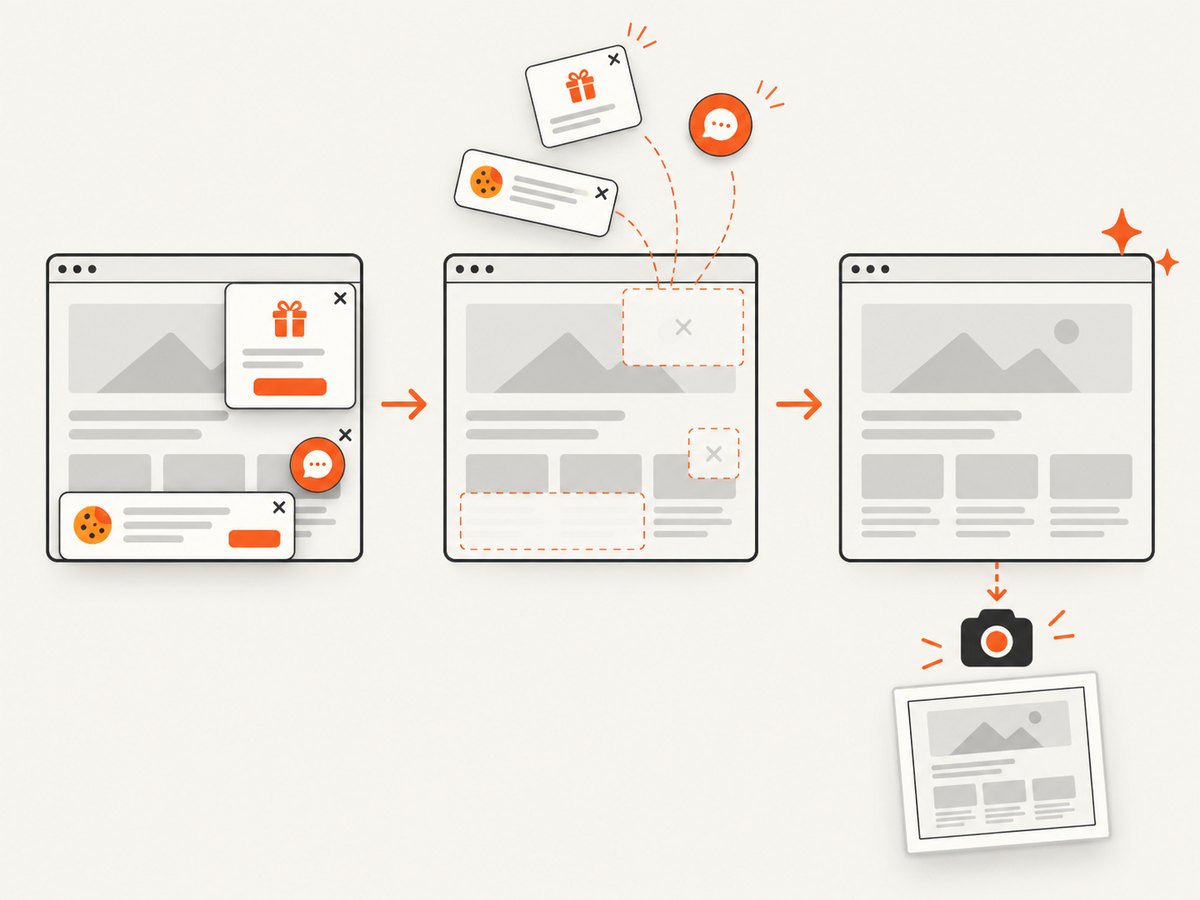
ScreenshotNeo removes cookie and consent banners, newsletter popups, and chat widgets before capture. Bot checks, blank pages, timeouts, failed loads, and cache hits are not billed; response headers report the page verdict and billing status. Its MCP server exposes take_screenshot, get_page_info, and capture_pdf for Claude, Cursor, and other MCP clients. The Free plan includes 1,000 shots per month with no card; paid plans start at $5 for 3,000 shots. Create a free ScreenshotNeo account to get started.
9. Cost and format decisions
Native Google export and print are the simplest choices when a human is downloading a deck. Browser extensions may be convenient for occasional webpage captures. An API becomes useful when captures run in a pipeline, need consistent options, or must be triggered by an AI agent. With ScreenshotNeo, clean shots are the billable result, while failed and cache-hit responses are identified in headers and cost nothing.
10. FAQ
Can I make one tall image containing every slide?
A browser full-page capture can produce a tall image of the rendered webpage, but it is not the same as a purpose-built deck export. For sharing the complete presentation, PDF is usually more practical.
Does File → Print create an image?
Google’s print workflow downloads a PDF. Convert that PDF to images only when your destination requires raster files.
Why is my screenshot different from what I see?
Dynamic content, loading state, viewport size, account permissions, and visible editor panels all change the rendered result. Keep those variables consistent and inspect the capture before use.
Can ScreenshotNeo capture a private deck?
Only when the target can be reached with the access controls and credentials you are authorized to provide, such as supported headers or cookies. Do not share credentials you do not control.