How to Capture a Hidden Web Element in a Full Screenshot
Learn whether an element is offscreen, inside a scroller, or hidden by CSS—and capture it correctly with Playwright, Puppeteer, or ScreenshotNeo.
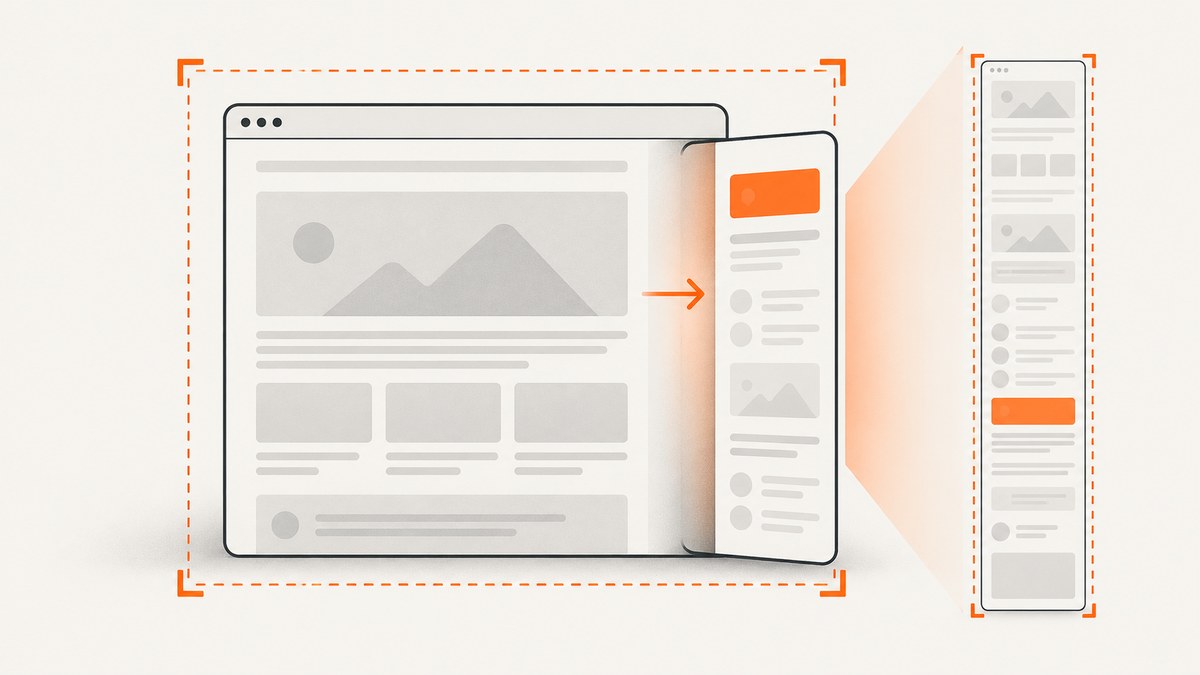
“Hidden” can mean three different things: the element is rendered but below the viewport, it is inside a nested scroll container, or CSS/application state prevents it from rendering. The correct capture method depends on which case you have.
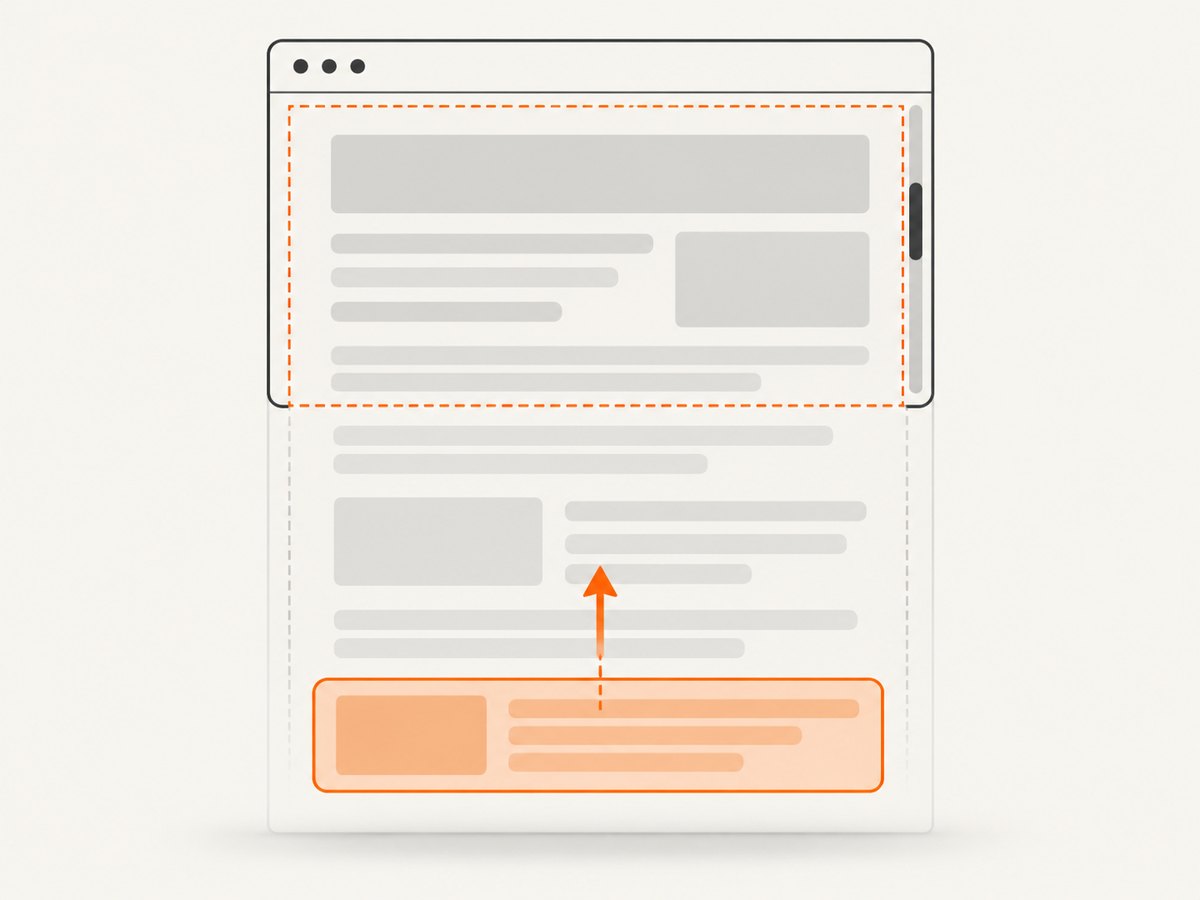
For an offscreen element, use a Playwright locator screenshot; Playwright scrolls the matched element into view and clips the image to that element. For the whole document, use page.screenshot({ fullPage: true }). For CSS-hidden content, open the page’s control or change the application state first. Scrolling alone does not reveal an element with display: none or visibility: hidden.
This guide covers each case, nested scroll areas, diagnostics, complete Playwright and Puppeteer examples, and an API alternative with ScreenshotNeo.
1. Identify what “hidden” means
| State | What the browser is doing | Correct action |
|---|---|---|
| Offscreen in the document | The element has a layout box but is outside the current viewport. | Locate it and scroll it into view before an element screenshot. |
| Inside a nested scroller | The element is deeper inside an element with its own overflow scrolling. |
Scroll that container, then capture the target or container. |
| Collapsed behind a control | A tab, accordion, menu, or disclosure has not been opened. | Click the control and wait for the content to render. |
| Hidden by CSS | display: none removes the layout box; visibility: hidden preserves space but hides pixels. |
Reveal the application state, or apply a narrowly scoped test-only style when you control the page. |
getBoundingClientRect() reports viewport-relative dimensions and position. checkVisibility() can help identify cases such as no box from display: none or skipped rendering from content-visibility: hidden. A positive rectangle does not prove that the element is unobscured in the final image.
2. Capture an offscreen element with Playwright
Playwright’s locator screenshot captures the matched element’s area. The locator API waits for actionability checks and scrolls the element into view before taking the screenshot. See the official locator screenshot documentation.
import { chromium } from 'playwright';

const browser = await chromium.launch();
const page = await browser.newPage({ viewport: { width: 1440, height: 900 } });
await page.goto('https://example.com', { waitUntil: 'networkidle' });

const target = page.getByRole('region', { name: 'Details' });
await target.screenshot({ path: 'details.png' });

await browser.close();
Replace the illustrative locator with one that matches your page. Prefer a stable role, label, test id, or data attribute over a generated class name.
Capture the entire document
A full-page screenshot captures the document’s full scrollable page. It is not an element crop. Playwright documents the fullPage option in its page screenshot API.
import { chromium } from 'playwright';

const browser = await chromium.launch();
const page = await browser.newPage({ viewport: { width: 1440, height: 900 } });
await page.goto('https://example.com', { waitUntil: 'networkidle' });
await page.screenshot({ path: 'page-full.png', fullPage: true });
await browser.close();
fullPage: true does not make CSS-hidden content appear. It captures the rendered document surface that exists at capture time.
3. Open collapsed UI before capturing
If the target is behind an accordion, tab, menu, or disclosure, use the site’s own control. This preserves the intended application state and handles content that is inserted only after interaction.
import { chromium } from 'playwright';

const browser = await chromium.launch();
const page = await browser.newPage();
await page.goto('https://example.com', { waitUntil: 'domcontentloaded' });

await page.getByRole('button', { name: 'Show details' }).click();
const details = page.getByRole('region', { name: 'Details' });
await details.waitFor({ state: 'visible' });
await details.screenshot({ path: 'details-open.png' });

await browser.close();
If the control triggers an animation, wait for a stable selector or a short, justified delay after the state change. Avoid relying only on a fixed delay when a deterministic condition is available.
4. Handle nested scroll containers
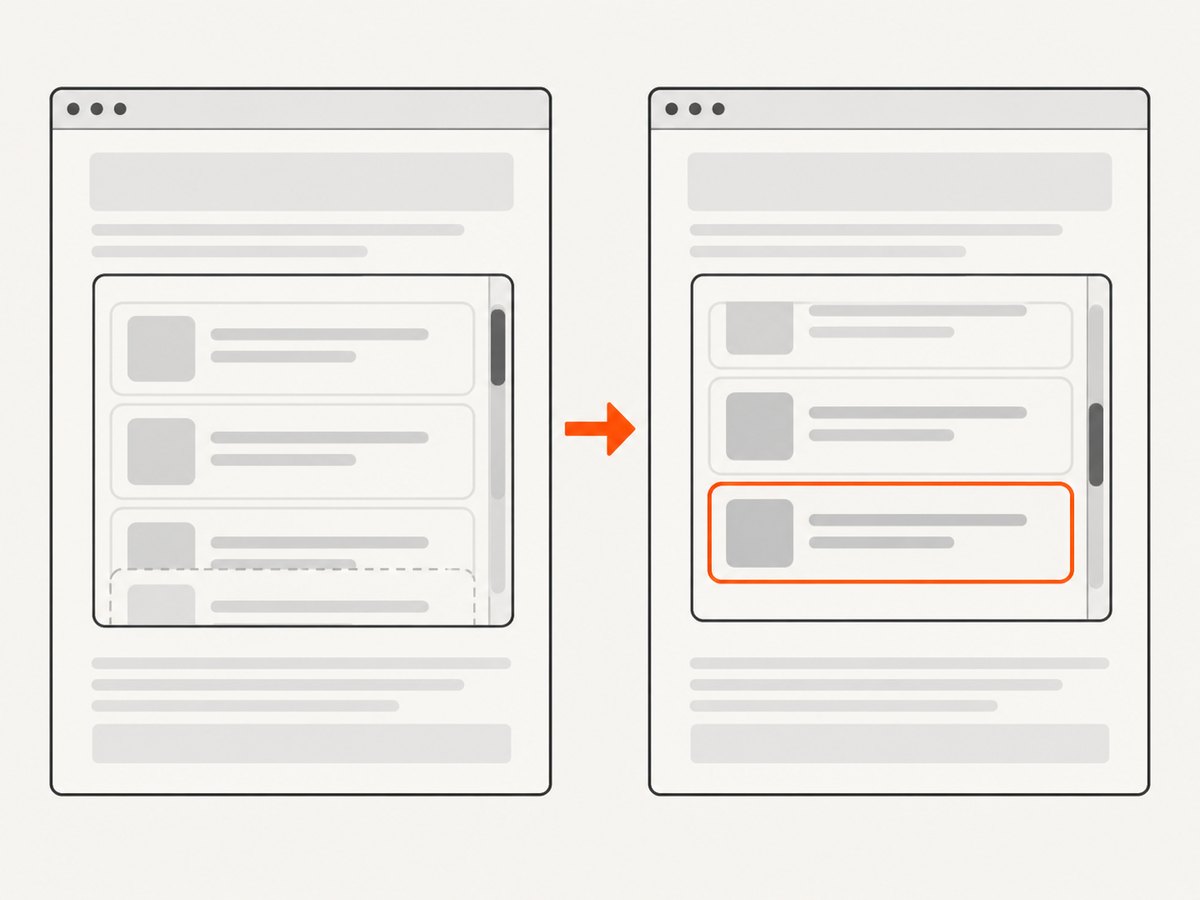
A locator screenshot of content inside a scrollable container includes only the portion currently visible within that container. A document-level full-page capture does not automatically expand every nested scroller.
import { chromium } from 'playwright';

const browser = await chromium.launch();
const page = await browser.newPage();
await page.goto('https://example.com');

const scroller = page.locator('.results-pane');
await scroller.evaluate(el => { el.scrollTop = el.scrollHeight; });

const target = scroller.locator('[data-testid="last-result"]');
await target.screenshot({ path: 'last-result.png' });

await browser.close();
When the container uses horizontal scrolling, set scrollLeft as well. If you need every item in a virtualized list, scroll through the container and capture stitched regions or collect the underlying data; one screenshot may contain only the rows currently rendered.
5. Diagnose why an element is missing
const target = page.locator('[data-testid="details"]');
const diagnostics = await target.evaluate(el => ({
  rect: el.getBoundingClientRect().toJSON(),
  potentiallyVisible: el.checkVisibility(),
  display: getComputedStyle(el).display,
  visibility: getComputedStyle(el).visibility,
  opacity: getComputedStyle(el).opacity,
  contentVisibility: getComputedStyle(el).contentVisibility
}));
console.log(diagnostics);- Zero width or height: the element may be
display: none, empty, collapsed, or not yet populated. display: none: there is no layout box to capture. Open the relevant UI or change application state.visibility: hidden: layout space remains, but pixels are suppressed.content-visibility: hidden: rendering may be skipped until the page or component reveals it.- Positive rectangle but missing pixels: another layer may cover it, or the element may be transparent, clipped, or outside a nested scrollport.
When you own the test page, a narrowly scoped temporary override can be useful:
await page.locator('[data-testid="debug-panel"]').evaluate(el => {
  el.dataset.originalStyle = el.getAttribute('style') || '';
  el.style.setProperty('display', 'block', 'important');
  el.style.setProperty('visibility', 'visible', 'important');
  el.style.setProperty('opacity', '1', 'important');
});
await page.locator('[data-testid="debug-panel"]').screenshot({ path: 'debug-panel.png' });
Use this only when changing the rendering is acceptable for your evidence. Ancestor rules, transitions, layout constraints, and page scripts can make a generic override inaccurate. Restore the original state after the capture if the page continues running.
6. Complete Python Playwright example
from playwright.sync_api import sync_playwright

with sync_playwright() as p:
    browser = p.chromium.launch()
    page = browser.new_page(viewport={"width": 1440, "height": 900})
    page.goto("https://example.com", wait_until="networkidle")

    target = page.get_by_role("region", name="Details")
    target.screenshot(path="details.png")
    page.screenshot(path="page-full.png", full_page=True)

    browser.close()
Install the package and browser binaries with pip install playwright followed by playwright install chromium.
7. Puppeteer equivalent
Puppeteer supports full-page screenshots and manually clipped regions. See the Puppeteer screenshot options.
import puppeteer from 'puppeteer';

const browser = await puppeteer.launch();
const page = await browser.newPage();
await page.setViewport({ width: 1440, height: 900 });
await page.goto('https://example.com', { waitUntil: 'networkidle0' });

const target = await page.$('[data-testid="details"]');
await target.scrollIntoViewIfNeeded?.();
await target.screenshot({ path: 'details.png' });
await page.screenshot({ path: 'page-full.png', fullPage: true });

await browser.close();
If your Puppeteer version does not expose scrollIntoViewIfNeeded on the element handle, use await page.$eval('[data-testid="details"]', el => el.scrollIntoView({ block: 'center' })) before the element screenshot.
8. Capture options that affect correctness
| Option or concern | Guidance |
|---|---|
| Viewport | Set a deterministic width and height so responsive breakpoints do not change the target. |
| Device scale factor | Use a consistent scale when comparing images across runs. |
| Fonts and images | Wait for the page’s actual readiness condition; network idle alone may not mean web fonts or lazy images are complete. |
| Animations | Disable or await transitions when they change the target during capture. |
| Sticky and fixed elements | Expect them to repeat or cover content in full-page output; hide them temporarily only when that matches your test objective. |
| Cross-origin frames | Locate the correct frame and capture content within it; browser security boundaries still apply. |
| Lazy content | Scroll through the page or trigger the component before capture so content is actually rendered. |
9. Troubleshooting
| Symptom | Likely cause | Fix |
|---|---|---|
| Locator timeout | The selector matches nothing, the frame is wrong, or the UI has not opened. | Inspect the DOM, target the correct frame, click the disclosure, and wait for the resulting selector. |
| Screenshot is blank | Navigation failed, the page is still loading, or the target has no rendered box. | Check the response and console, wait for a meaningful readiness condition, and inspect computed styles. |
| Element screenshot shows only part of a list | The list is a nested scroller or virtualized. | Scroll the container and capture each required region, or capture the data source. |
| Full-page image omits the hidden panel | The panel is CSS-hidden or behind a collapsed control. | Reveal it through application state; fullPage does not override CSS. |
| Content shifts between runs | Fonts, images, ads, or animations finish at different times. | Block irrelevant resources, wait for stable selectors, and disable motion in the test context. |
| Target is covered | A sticky header, modal, or overlay obscures it. | Close the overlay or adjust the page state before capturing. |
10. Performance, reliability, and cost
- Element screenshots are usually smaller and faster than full-page captures because they encode fewer pixels.
- Full-page captures can use substantial memory on very tall documents. Limit the page height, capture sections, or use a clip when the entire document is not required.
- Deterministic selectors, fixed viewports, stable data, and explicit readiness checks improve repeatability.
- Retries should distinguish transient navigation failures from deterministic selector or CSS-state errors. Retrying a permanently hidden element will not reveal it.
- Browser automation has infrastructure costs: browser binaries, CPU, memory, concurrency limits, and maintenance when sites change.
11. Or skip the browser setup
ScreenshotNeo provides a single HTTP endpoint for website screenshots and PDFs. The same request can capture a full page, use a CSS selector for one element, wait for a selector or network idle, load lazy images, set a viewport or device preset, apply custom CSS or JavaScript, click an element, and hide selectors. See the ScreenshotNeo API documentation for parameter details.
curl -G "https://api.screenshotneo.com/v1/shot" -d access_key=YOUR_API_KEY --data-urlencode url=https://example.com -o shot.webpimport requests
r = requests.get("https://api.screenshotneo.com/v1/shot", params={"access_key": "YOUR_API_KEY", "url": "https://example.com"}, timeout=90)
open("shot.webp", "wb").write(r.content)const q = new URLSearchParams({ access_key: 'YOUR_API_KEY', url: 'https://example.com' });
const res = await fetch(`https://api.screenshotneo.com/v1/shot?${q}`);
const body = Buffer.from(await res.arrayBuffer());
require('fs').writeFileSync('shot.webp', body);Cookie and consent banners, newsletter popups, and chat widgets are removed before the shot. Bot checks, blank pages, failed loads, timeouts, and cache hits are not billed, and response headers report the page verdict and billing status. ScreenshotNeo also provides an MCP server with take_screenshot, get_page_info, and capture_pdf tools for Claude, Cursor, and other MCP clients. The Free plan includes 1,000 screenshots a month with no card; paid plans start at $5 for 3,000 shots.
Sign up for ScreenshotNeo’s free 1,000-shot plan.
12. FAQ
Can a full-page screenshot reveal an element with display: none?
No. The element has no layout box. Reveal it through the page’s UI or application state before capturing.
Does a locator screenshot capture the whole page?
No. It captures the matched element’s area after scrolling it into view.
Why is content in an inner panel missing?
The panel may have its own scroll position. Scroll that container before capturing; document-level full-page mode does not expand every nested scroller.
Should I force display: block?
Only in a controlled test where a modified rendering is acceptable. A generic override can produce an inaccurate layout.
Which method should I automate?
Use a locator screenshot for one element, fullPage for the document, and an API such as ScreenshotNeo when you want managed capture without maintaining browser infrastructure.


