How to Capture Hidden HTML Elements with html2canvas
Use html2canvas’s onclone callback to reveal hidden content in the captured copy of the page without changing the live DOM. Includes runnable code, fixes, and limits.

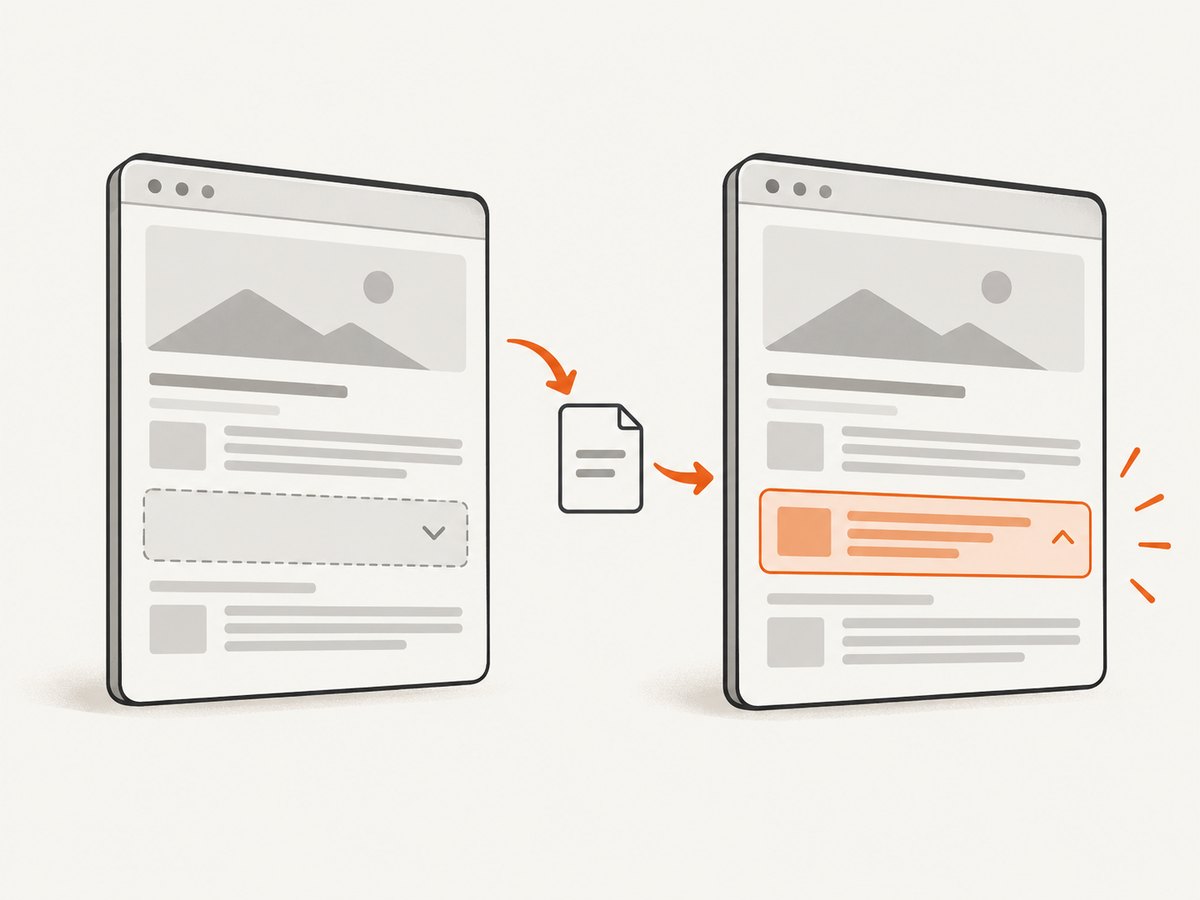
To capture an element hidden with CSS using html2canvas, use its onclone callback to change the element’s styles in the cloned document before rendering. The callback lets you prepare the capture without changing the source page the visitor sees. Find the element in the clone, reveal it and any hidden ancestors, and give it the size and position you want in the image.
For example, an element hidden with display: none needs an appropriate display value such as block in the clone. An element hidden with visibility: hidden needs visibility: visible. html2canvas does not automatically override these styles: its visibility reference test treats both states as hidden.
1. Why hidden elements are missing
html2canvas is a JavaScript renderer, not a native browser screenshot tool. It traverses the DOM, reads available element information and CSS, and reconstructs an image from the properties it supports. It does not capture the browser’s rendered pixels directly, so results can differ from what a browser screenshot shows.
When an element has display: none, it is removed from layout. With visibility: hidden, it retains layout space but is not painted. In either case, the normal capture path does not make it visible for you. The project lists display, opacity and visibility among supported CSS properties; support means html2canvas handles those properties, not that it ignores their hiding effect.
The documented onclone option is intended for changing content in the cloned document without affecting the original source document. That makes it a useful place to prepare hidden content for a capture. The documentation describes the hook, but it does not prescribe one universal style recipe: the right display value and layout depend on your page.
2. Reveal an element in the clone
Install html2canvas in your application using the project’s documented installation method. The example below assumes the html2canvas function is available in the module. Replace #capture-panel with a stable selector for your target. It handles either common hiding style and returns a PNG data URL.
import html2canvas from 'html2canvas';

async function captureHiddenPanel() {
  const element = document.querySelector('#capture-panel');
  if (!element) {
    throw new Error('Capture target #capture-panel was not found');
  }

  const canvas = await html2canvas(element, {
    onclone: (clonedDocument) => {
      const target = clonedDocument.querySelector('#capture-panel');
      if (!target) return;

      // Set an explicit display value if the element uses display: none.
      target.style.setProperty('display', 'block', 'important');
      target.style.setProperty('visibility', 'visible', 'important');
      target.style.setProperty('opacity', '1', 'important');
    }
  });

  const link = document.createElement('a');
  link.download = 'capture.png';
  link.href = canvas.toDataURL('image/png');
  link.click();
}

captureHiddenPanel().catch(console.error);
This is an implementation pattern based on the documented clone hook and visibility behavior, not a universal recipe for every layout. Use the element’s intended display mode if it should be flex, grid, inline-block or another value. Setting block is appropriate only when that matches the layout you want.
For a hidden element nested inside a hidden parent, reveal the parent too. A visible child cannot render through an ancestor that remains display: none or visibility: hidden. The clone callback can make both visible:
onclone: (clonedDocument) => {
  const panel = clonedDocument.querySelector('#panel');
  const wrapper = clonedDocument.querySelector('#panel-wrapper');

  if (wrapper) {
    wrapper.style.setProperty('display', 'block', 'important');
    wrapper.style.setProperty('visibility', 'visible', 'important');
  }
  if (panel) {
    panel.style.setProperty('display', 'block', 'important');
    panel.style.setProperty('visibility', 'visible', 'important');
  }
}
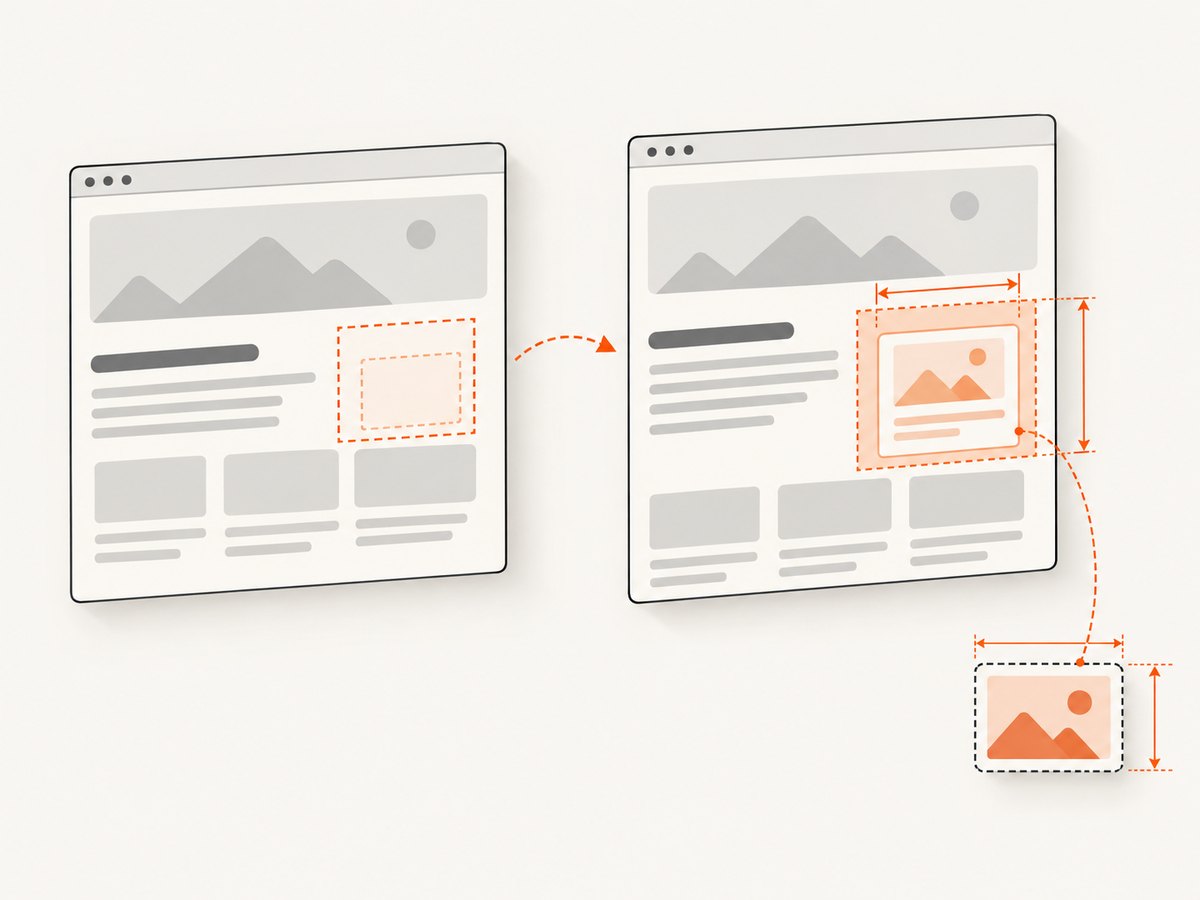
When a hidden element has no useful dimensions before it is displayed, set an appropriate width, height, margin or positioning in the clone as well. Decide whether the panel should occupy normal document flow or sit at a specific location in the resulting image. Those are CSS layout decisions; onclone gives you a place to apply them but does not choose them for you.
3. Choose the right capture target and options
Pass the element you want to capture to html2canvas(element, options). If you pass a larger ancestor, the result includes that ancestor’s rendered content. If you pass the hidden element itself, check that its parent context and styles still produce the intended layout in the clone.
| Need | What to do | Limit to remember |
|---|---|---|
| Include a hidden target | Use onclone to change its hiding styles. |
Reveal hidden ancestors and set useful dimensions where needed. |
| Exclude an element | Use ignoreElements or data-html2canvas-ignore. |
These remove content; they do not reveal it. |
| Capture a long or clipped area | Set windowWidth and windowHeight to suitable dimensions; the FAQ suggests the target’s scrollWidth and scrollHeight. |
These settings do not make a hidden element visible. Canvas limits vary by browser, OS and hardware. |
| Render external images | Check same-origin and CORS behavior; consider the documented proxy option if appropriate. | Configuration cannot override browser origin security policy. |
For a target that is already visible but the capture is empty or clipped, the documented FAQ sizing pattern is:
const canvas = await html2canvas(element, {
  windowWidth: element.scrollWidth,
  windowHeight: element.scrollHeight
});
This changes the rendering viewport dimensions. It does not reveal content. Use it alongside onclone only when the target’s capture dimensions call for it.
For a complete list of configuration options and supported CSS, see the html2canvas configuration reference and supported features.
4. Handle layout, timing and CSS fidelity
Revealing an element can alter layout. With display: none, the element had no layout box before the clone change. It may push surrounding content, overflow a container or appear at a different position when displayed. Decide whether the capture should show it in its natural layout, in a fixed-size region or at an overlay position, then set the clone’s dimensions and positioning accordingly.
If your app populates the element asynchronously, wait until its data and child content are available before calling html2canvas. The clone hook is for adjustments to the cloned document; application code should make sure the source has the content to clone. If a transition or animation controls opacity or transforms, disable or normalize it in the clone so the capture state is predictable.
Even when visible, an element can look different from the browser. The html2canvas feature list identifies limitations including filter, object-fit, box-shadow, mix-blend-mode and zoom; transforms have limited support. If fidelity depends on one of these, compare the output and consider a native browser screenshot capability for pixel-level rendering needs. The project FAQ notes that browsers provide tab screenshot support for browser extensions.
5. Troubleshooting
| Symptom | Likely cause | Fix |
|---|---|---|
| The target is still missing | The clone selector did not match, the target was not in the cloned subtree, or an ancestor remains hidden. | Check the selector in clonedDocument; reveal hidden ancestors too. |
| The panel appears but has no size | It was display: none and had no usable layout dimensions. |
Set the intended display mode and explicit dimensions or positioning in the clone. |
| The capture is blank or clipped | Capture dimensions or viewport may be too small. | Inspect scrollWidth and scrollHeight; set windowWidth and windowHeight when needed. Check browser canvas limits. |
| Images inside the element are absent | They may be cross-origin or lack suitable CORS headers. | Use same-origin assets, configure CORS on the asset host, or use a suitable proxy. useCORS, proxy and allowTaint are options, not security-policy bypasses. |
| The element looks different from the page | A CSS property may be unsupported or partially supported. | Check the feature list, simplify the relevant styling, or use a native screenshot method if exact browser pixels are required. |
| The element is unexpectedly omitted | It may match an ignoreElements predicate or have data-html2canvas-ignore. |
Remove the exclusion from the target. These mechanisms are for content you want omitted. |
| There is a visible flash on the page | The implementation changed styles on the live element before capture. | Move those adjustments into onclone, which operates on the cloned document. |
6. Performance, reliability and cost
html2canvas runs in the browser and reconstructs the requested DOM content. Larger capture regions, high-resolution output and many complex elements require more rendering and memory than a small panel. Capture only the needed element when that meets the requirement, avoid unnecessarily large dimensions, and do not start many expensive captures at once on a constrained device.
Reliability depends on the page being ready, the renderer’s CSS coverage, available browser canvas capacity and access to image resources. The documentation warns that canvas size limits vary by browser, operating system and hardware. Cross-origin assets need the correct CORS setup or a proxy; changing visibility does not change that.
html2canvas is an open-source library; this method has no per-screenshot API charge described by the cited documentation. Your practical costs are engineering and client-side runtime, plus whatever infrastructure your application uses. If you need a remote screenshot API instead, compare output requirements, billing behavior, and the handling of dynamic pages and consent overlays.
7. Or skip the browser setup
If your goal is a screenshot of a public webpage rather than an element in your own app, ScreenshotNeo provides a website screenshot API and MCP server. A single request returns an image or PDF. See the ScreenshotNeo API documentation for the request options.
curl -G "https://api.screenshotneo.com/v1/shot" -d access_key=YOUR_API_KEY --data-urlencode url=https://stripe.com -o shot.webpimport requests
r = requests.get(
"https://api.screenshotneo.com/v1/shot",
params={"access_key": "YOUR_API_KEY", "url": "https://stripe.com"},
timeout=90,
)
open("shot.webp", "wb").write(r.content)const q = new URLSearchParams({ access_key: 'YOUR_API_KEY', url: 'https://stripe.com' });
const res = await fetch(`https://api.screenshotneo.com/v1/shot?${q}`);
if (!res.ok) throw new Error(`Screenshot request failed: ${res.status}`);
const image = Buffer.from(await res.arrayBuffer());
await import('node:fs/promises').then(fs => fs.writeFile('shot.webp', image));ScreenshotNeo removes cookie banners, newsletter popups and chat widgets before the shot. Bot checks, blank pages and failed loads are never billed; response headers report the page verdict and billing status. Its MCP server lets AI agents use take_screenshot, get_page_info and capture_pdf. The free plan includes 1,000 screenshots a month with no card; paid plans start at $5 for 3,000. Sign up for 1,000 free screenshots a month, no card required.
8. Frequently asked questions
Can I capture an element hidden by a closed tab or accordion?
Usually, if the content exists in the DOM and you reveal the relevant element and ancestors in onclone. If the application has not mounted or populated the content, make it available before capture.
Does changing visibility work for display: none?
No. Set an appropriate display value for an element hidden with display: none. Also set visibility: visible if that property is hiding it.
Will onclone change what visitors see?
The callback works on the cloned document used for rendering, and the documentation says it does not affect the original source document.
Can html2canvas make an exact screenshot?
No. It reconstructs an image from DOM and supported CSS rather than capturing browser pixels. Use a native browser screenshot capability when exact rendered output is essential.
Should I use ignoreElements to capture hidden content?
No. It excludes matching elements from the output. Use onclone to reveal content you want included.


