How to Capture High-Quality PDF Frames from a Website Without Screen Recording
Capture crisp website frames or export a page to PDF with browser APIs, Puppeteer, DevTools, and ScreenshotNeo—without recording your screen.
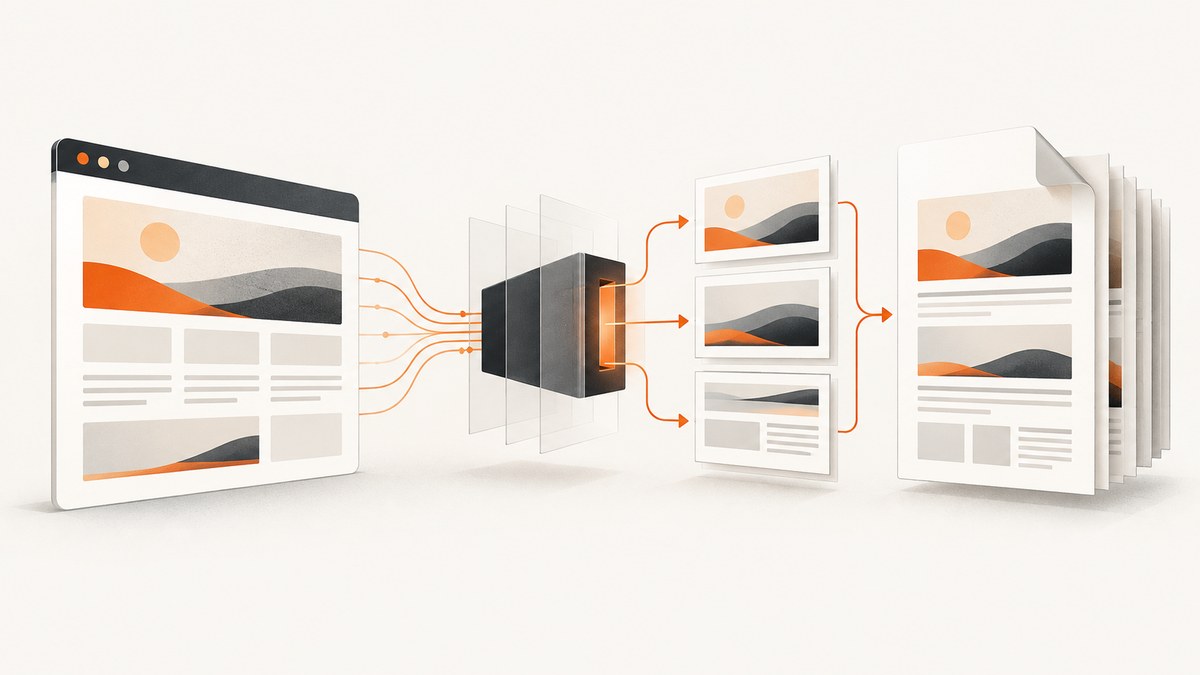
Use a browser screenshot API for still frames; use browser PDF generation when the deliverable is a document. A screenshot captures pixels at a chosen viewport. A PDF follows a print-oriented rendering path unless you explicitly select screen media. Neither workflow records a video or requires screen-recording software.
For one frame, use the browser’s page screenshot capability. For repeatable automation, use Puppeteer’s page.screenshot() or the Chrome DevTools Protocol (CDP) Page screenshot operation. For a complete webpage PDF, use Puppeteer’s page.pdf(), then inspect page breaks, colors, backgrounds, fonts, and lazy-loaded content before publishing. Puppeteer documents that PDF generation uses print CSS by default; call page.emulateMediaType('screen') when the PDF must retain screen styling. See the Puppeteer PDF API and Puppeteer screenshot API.
Decide what “PDF frame” means
The phrase can describe two different outputs. Choose one before writing automation:
| Output | Use it when | Rendering model |
|---|---|---|
| Still image frame | You need a crisp visual of one viewport, component, or full page | Raster pixels at a viewport and device scale factor |
| PDF export | You need a paginated document that people can print, archive, or share | Browser print layout, with optional screen media emulation |
| Images inside a PDF | You need fixed frames on PDF pages | Capture images first, then assemble a PDF with a document tool |
A screenshot is usually the right answer for a single frame. A PDF is better for a complete page or a sequence that must have selectable text and predictable pagination. If you need both, generate each deliberately: do not assume a PDF page is identical to a screenshot.
Capture one high-quality frame with Puppeteer
Puppeteer controls a Chromium browser and exposes screenshot options for format, clipping, full-page output, and device scale. This script saves a PNG of a visible viewport after the page and fonts have settled:
import puppeteer from 'puppeteer';

const browser = await puppeteer.launch({
  headless: true,
});

try {
  const page = await browser.newPage();
  await page.setViewport({
    width: 1440,
    height: 900,
    deviceScaleFactor: 2,
  });

  await page.goto('https://example.com', {
    waitUntil: 'networkidle2',
    timeout: 60_000,
  });

  await page.screenshot({
    path: 'frame.png',
    type: 'png',
    fullPage: false,
  });
} finally {
  await browser.close();
}
The larger deviceScaleFactor gives the browser more pixels for text and thin edges. It does not fix a low-resolution source image, and it increases memory and file size. PNG is a sensible default for interfaces, diagrams, and text because it preserves sharp edges. Use JPEG when a photographic page needs a smaller file, and WebP when your downstream tools support it.
Capture a selected element
Element screenshots are useful for a card, chart, hero section, or embedded frame. Wait for the selector, then call elementHandle.screenshot():
const card = await page.waitForSelector('[data-export-card]', {
  visible: true,
  timeout: 15_000,
});

if (!card) throw new Error('Export card was not found');
await card.screenshot({
  path: 'card.png',
  type: 'png',
});
Element bounds can change after fonts load or an animation completes. Freeze animations with a small stylesheet before measuring:
await page.addStyleTag({
  content: `
    *, *::before, *::after {
      animation: none !important;
      transition: none !important;
      caret-color: transparent !important;
    }
  `,
});
Capture a complete long page
For a page-length image, set a normal viewport and request fullPage. Inspect the output because very tall documents can produce unwieldy files or expose layout issues:
await page.screenshot({
  path: 'full-page.png',
  type: 'png',
  fullPage: true,
});
Lazy-loaded images may not exist until they approach the viewport. Scroll through the document before the capture and give decoding time to complete:
await page.evaluate(async () => {
  await new Promise((resolve) => {
    let y = 0;
    const step = 700;
    const timer = setInterval(() => {
      window.scrollBy(0, step);
      y += step;
      if (y >= document.body.scrollHeight) {
        clearInterval(timer);
        window.scrollTo(0, 0);
        resolve();
      }
    }, 100);
  });
});
await new Promise((resolve) => setTimeout(resolve, 500));
await page.screenshot({ path: 'full-page.png', fullPage: true });
This scroll technique is a practical guard for lazy content; it is not a universal guarantee for every framework. Check the resulting image for blank regions, duplicated sticky headers, clipped content, and unexpected spacing.
Export the page as a PDF with Puppeteer
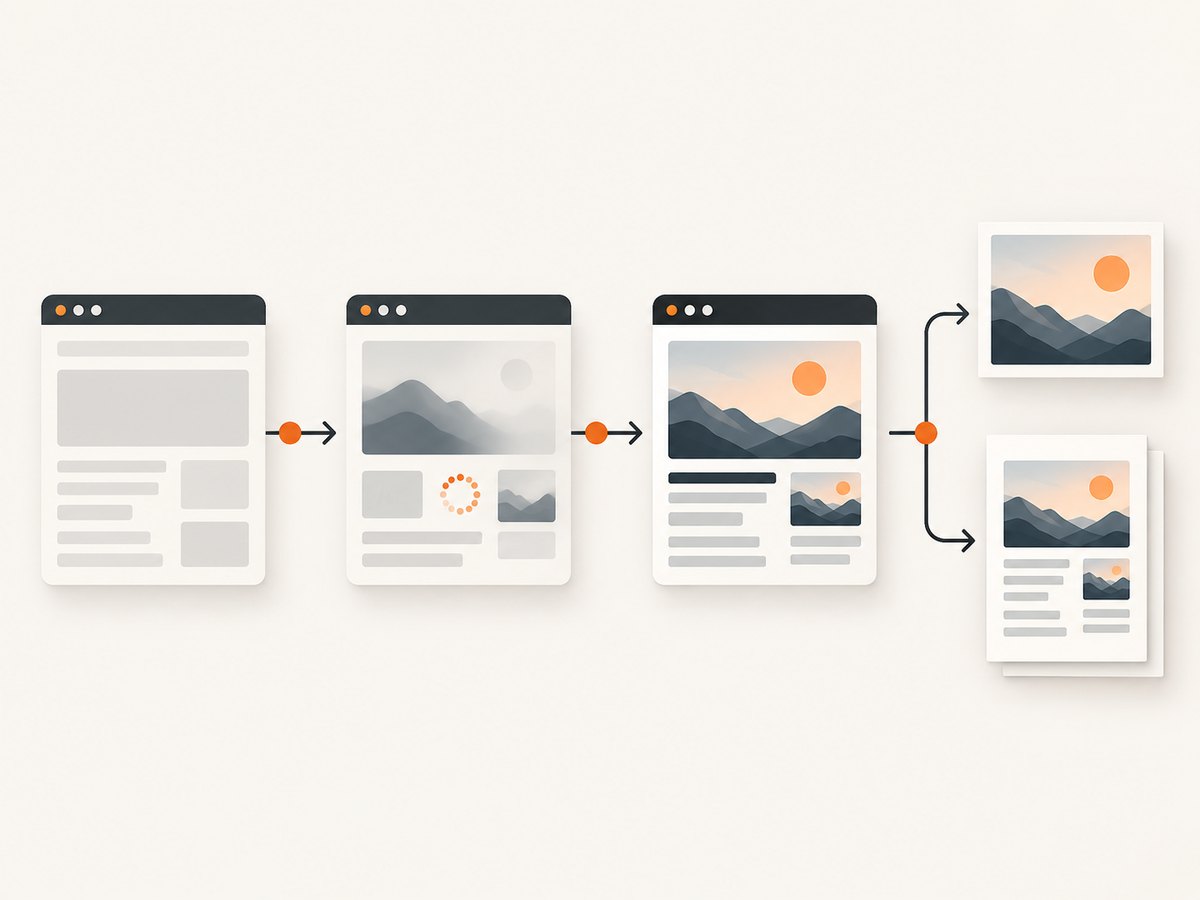
Puppeteer’s PDF method generates a paginated document and uses the print CSS media type by default. That can hide navigation, change colors, or apply print-only layout rules. The following script explicitly chooses screen media, waits for fonts, and includes backgrounds:
import puppeteer from 'puppeteer';

const browser = await puppeteer.launch({ headless: true });
try {
  const page = await browser.newPage();
  await page.setViewport({ width: 1440, height: 900, deviceScaleFactor: 1 });
  await page.goto('https://example.com', {
    waitUntil: 'networkidle2',
    timeout: 60_000,
  });

  await page.emulateMediaType('screen');
  await page.pdf({
    path: 'page.pdf',
    format: 'A4',
    printBackground: true,
    margin: {
      top: '16mm',
      right: '16mm',
      bottom: '16mm',
      left: '16mm',
    },
    displayHeaderFooter: false,
  });
} finally {
  await browser.close();
}
Remove emulateMediaType('screen') when you want the site’s print stylesheet. Test both modes if the page supplies a carefully designed print layout. Puppeteer waits for fonts during PDF generation, but dynamic data, animations, and lazy media still require application-specific readiness checks.
PDF options that affect quality
| Option | Effect | Typical decision |
|---|---|---|
format |
Sets a standard paper size | Use A4 or Letter for general documents |
width/height |
Sets custom paper dimensions | Use for certificates, posters, or fixed canvases |
margin |
Adds printable whitespace | Leave room for printer limits and readable edges |
landscape |
Rotates the page | Use for wide tables and dashboards |
printBackground |
Includes background colors and images | Enable when color blocks carry meaning |
pageRanges |
Exports selected pages | Use for a short excerpt from a long report |
preferCSSPageSize |
Honors CSS @page dimensions |
Enable when the document defines its own paper size |
displayHeaderFooter |
Adds generated headers and footers | Enable only when page numbers or URLs are required |
Use Chrome DevTools Protocol directly
CDP’s Page domain provides a screenshot operation for automation clients. A typical flow is to connect to a running Chromium instance, enable the Page domain, navigate, then call Page.captureScreenshot. The exact connection code depends on your CDP client, so keep the capture parameters explicit: format, quality for JPEG, and whether the capture is from the current viewport or the full page. The Page domain reference documents the operation and its parameters.
CDP is useful when you already operate a browser pool or need protocol-level control. Puppeteer is usually simpler for a standalone Node.js script because it manages browser launch, pages, and waiting helpers.
Make rendering deterministic
- Choose the viewport first. A 1440-pixel desktop layout and a 390-pixel mobile layout can be entirely different documents.
- Wait for a meaningful readiness signal. Use
waitUntil, a selector, an application-specific global such aswindow.appReady, or a short delay for content that appears after interaction. - Wait for fonts and images. Fonts change line wrapping; images change card heights. Check
document.fonts.readyand visible image completion where necessary. - Freeze motion. Disable transitions and animations so repeated captures do not catch different frames.
- Control state. Set cookies, local storage, authentication headers, timezone, and locale before navigation when the page depends on them.
- Inspect the artifact. Open the saved PNG or PDF. Look for clipping, missing fonts, blank lazy images, dark-mode surprises, and page breaks.
await page.evaluate(async () => {
  await document.fonts.ready;
  const images = Array.from(document.images);
  await Promise.all(images.map((img) => {
    if (img.complete) return Promise.resolve();
    return new Promise((resolve) => {
      img.addEventListener('load', resolve, { once: true });
      img.addEventListener('error', resolve, { once: true });
    });
  }));
});
Common failures and fixes
| Symptom | Likely cause | Fix |
|---|---|---|
| Blank or mostly white image | Navigation finished before client rendering | Wait for a visible selector or app readiness flag; then capture |
| Images missing | Lazy loading, blocked requests, or decoding still in progress | Scroll the page, wait for image completion, and inspect network errors |
| PDF colors differ from the page | Print media CSS is active | Call page.emulateMediaType('screen') and enable printBackground |
| Text wraps differently | Fonts were not loaded or viewport differs | Wait for document.fonts.ready; set the intended viewport and scale |
| Content is clipped | Fixed-height container, overflow rule, or incorrect paper size | Inspect computed dimensions; use full-page capture or adjust CSS and margins |
| Capture times out | Slow third-party request or page never reaches idle | Use a selector-based readiness check, increase timeout, or block irrelevant requests |
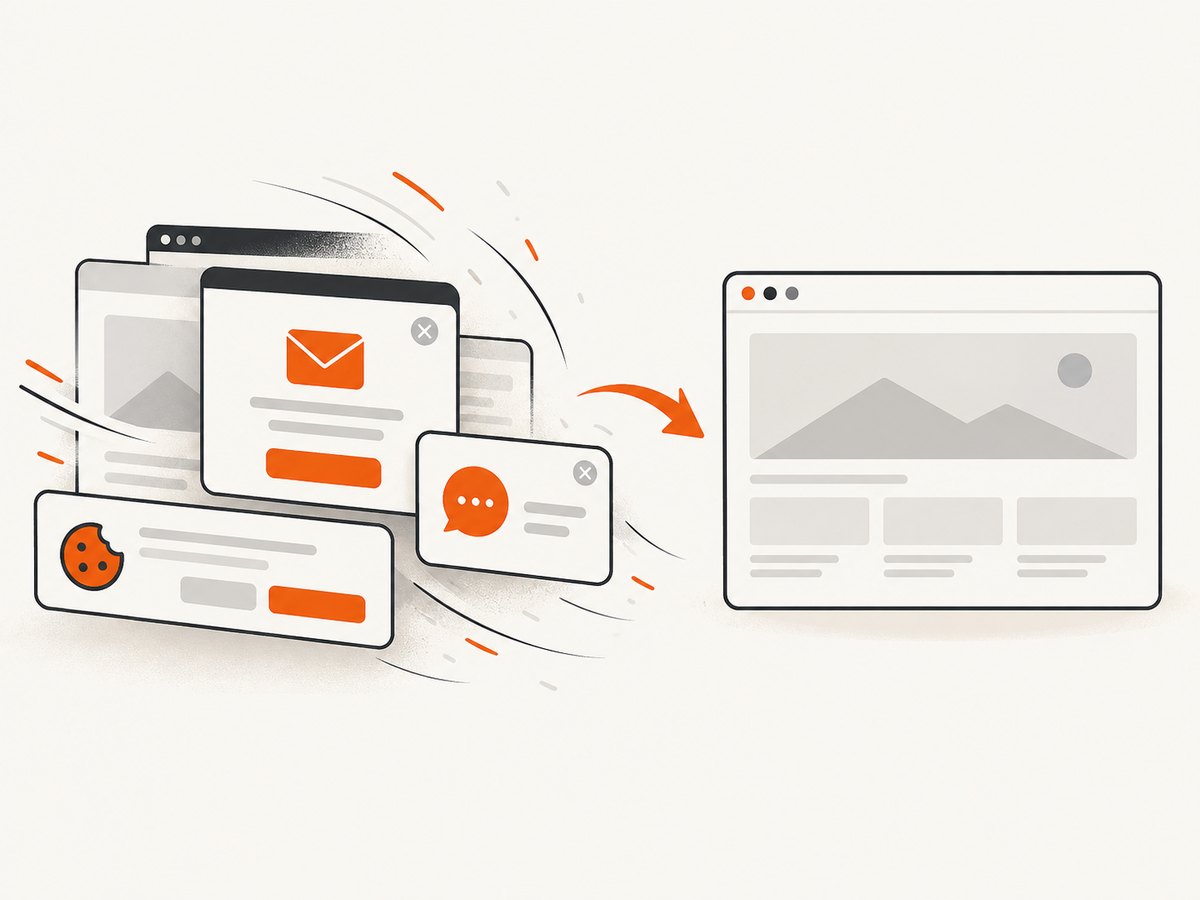
| Cookie dialog covers the frame | Consent state was not set | Accept it in automation, set the required cookie, or hide the selector after verifying policy |
| CAPTCHA or bot check appears | The site challenged automated browsing | Do not attempt to bypass access controls; use an authorized session or request the source asset |
| Huge output file | Very large full-page PNG or high device scale | Capture an element, reduce scale, use WebP/JPEG, or split the document into pages |
| Repeated sticky header in a full-page image | Fixed-position element is painted on every scroll segment | Hide it for the full-page capture or use a PDF with deliberate page headers |
Performance, reliability, and cost considerations
Browser startup is often the slowest part of a one-off script. Reuse a browser process and create a fresh page per job when running many captures. Keep concurrency below the memory capacity of the host; high device scale, full-page images, and PDFs consume more memory than viewport PNGs. Block analytics, ads, and video requests only when doing so cannot change the content you need to document.
For reliable jobs, record the URL, viewport, media type, wait condition, browser version, output format, and a hash of the resulting file. Retry navigation failures with a limit and capture diagnostic HTML or a screenshot when a job fails. Treat a successful HTTP response as insufficient evidence that the visual is correct: a page can return 200 while rendering an error shell, bot check, or blank application.
Self-hosted Puppeteer has infrastructure costs: browser binaries, CPU, memory, storage, proxy or egress charges, and maintenance. A hosted API converts that setup into per-capture usage. Compare total operating cost, not only the request price, when deciding between a browser pool and a service.
Or skip the browser setup
ScreenshotNeo is a website screenshot API and MCP server. One GET request returns PNG, JPEG, WebP, or a PDF. It accepts consent banners like a visitor and removes more than 60 known consent platforms, newsletter popups, and chat widgets before capture; each step can be turned off. Bot checks, CAPTCHAs, blank pages, timeouts, failed loads, and cache hits cost nothing, and the response identifies the result with X-Page-Verdict and X-Billed headers. Its MCP server provides take_screenshot, get_page_info, and capture_pdf for Claude, Cursor, and other MCP clients.
See the ScreenshotNeo documentation for all options. The basic PDF request is:
curl -G "https://api.screenshotneo.com/v1/shot" -d access_key=YOUR_API_KEY --data-urlencode url=https://stripe.com -o shot.webpPython:
import requests
r = requests.get("https://api.screenshotneo.com/v1/shot", params={"access_key": "YOUR_API_KEY", "url": "https://stripe.com"}, timeout=90)
open("shot.webp", "wb").write(r.content)
Node.js:
const q = new URLSearchParams({ access_key: 'YOUR_API_KEY', url: 'https://stripe.com' });
const res = await fetch(`https://api.screenshotneo.com/v1/shot?${q}`);
Relevant options include full-page capture with lazy images loaded, CSS element selection, dark mode, 12 device presets or any viewport, retina scale, PDF paper size, margins, landscape mode and page ranges, custom CSS and JavaScript, clicks, selector or network-idle waits, request blocking, headers, cookies, user agent, Authorization, timezone, geolocation, transparent backgrounds, resizing, configurable caching, signed image links, asynchronous jobs with signed webhooks, bulk capture for up to 100 URLs per call, usage reporting, and an OpenAPI specification. Existing parameter names used by other screenshot APIs also work, which can simplify migration.
Plans include 1,000 free shots each month with no card, Starter at $5 for 3,000, Growth at $15 for 15,000, Pro at $39 for 60,000, Scale at $99 for 250,000, and Business at $249 for 1,000,000. Yearly billing gives two months free, and every feature is available on every plan. Start with 1,000 free screenshots a month—no card required.
Short FAQ
Is a screenshot the same as a PDF frame?
No. A screenshot is a raster image of pixels. A PDF is a paginated document with its own print or screen media rules. Pick the output that matches how the result will be consumed.
Should I use PNG or JPEG?
Use PNG for text, diagrams, and interface edges. Use JPEG when photographic content and smaller files matter. WebP is useful when your delivery stack supports it.
Why does my PDF look different from the live page?
Puppeteer uses print CSS by default. Screen styles require explicit screen media emulation, and print margins and page breaks can still change the layout.
Can I capture a page that requires authentication?
Yes, when you are authorized: set cookies or headers in your browser context, or use ScreenshotNeo’s custom headers, cookies, and Authorization options.
How do I capture only one component?
Wait for its CSS selector and use an element screenshot. In a hosted workflow, pass the selector option and verify the element is visible before capture.
How do I know whether a failed capture should be billed?
With ScreenshotNeo, inspect the X-Page-Verdict and X-Billed response headers. Bot checks, blank pages, timeouts, failed loads, and cache hits are not billed.


