How to Capture High-Quality Screenshots with PhantomJS
Capture readable PhantomJS screenshots with the right viewport, clipping, format, waits, and troubleshooting steps, plus a hosted API alternative.
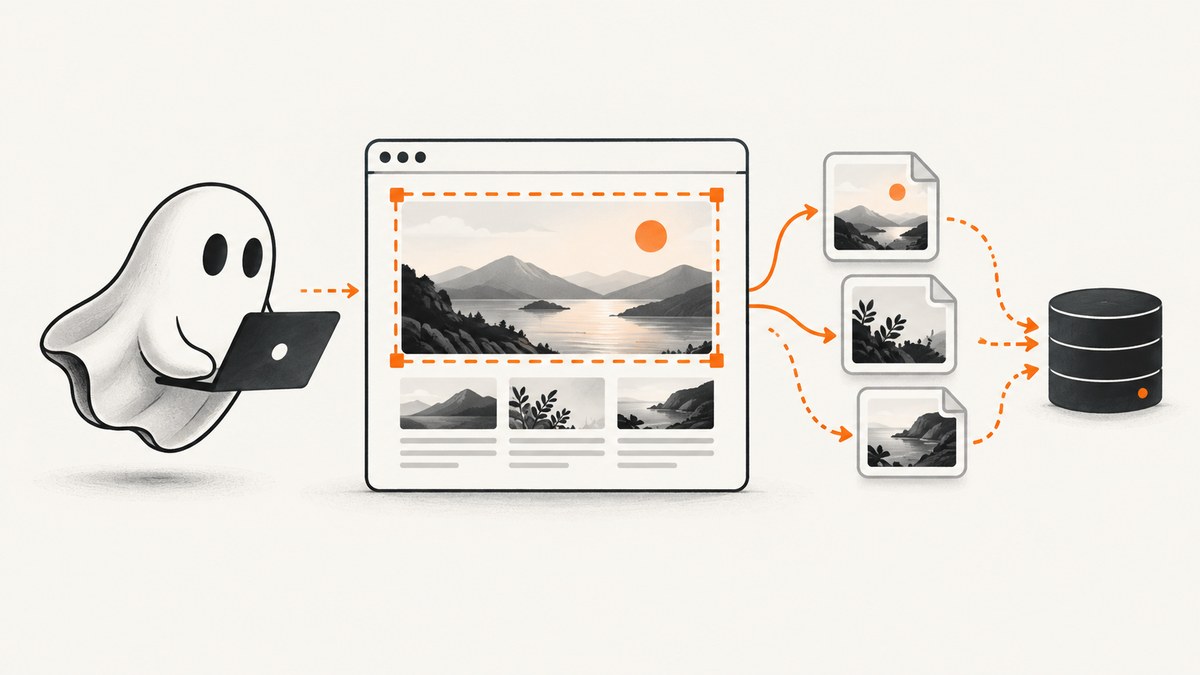
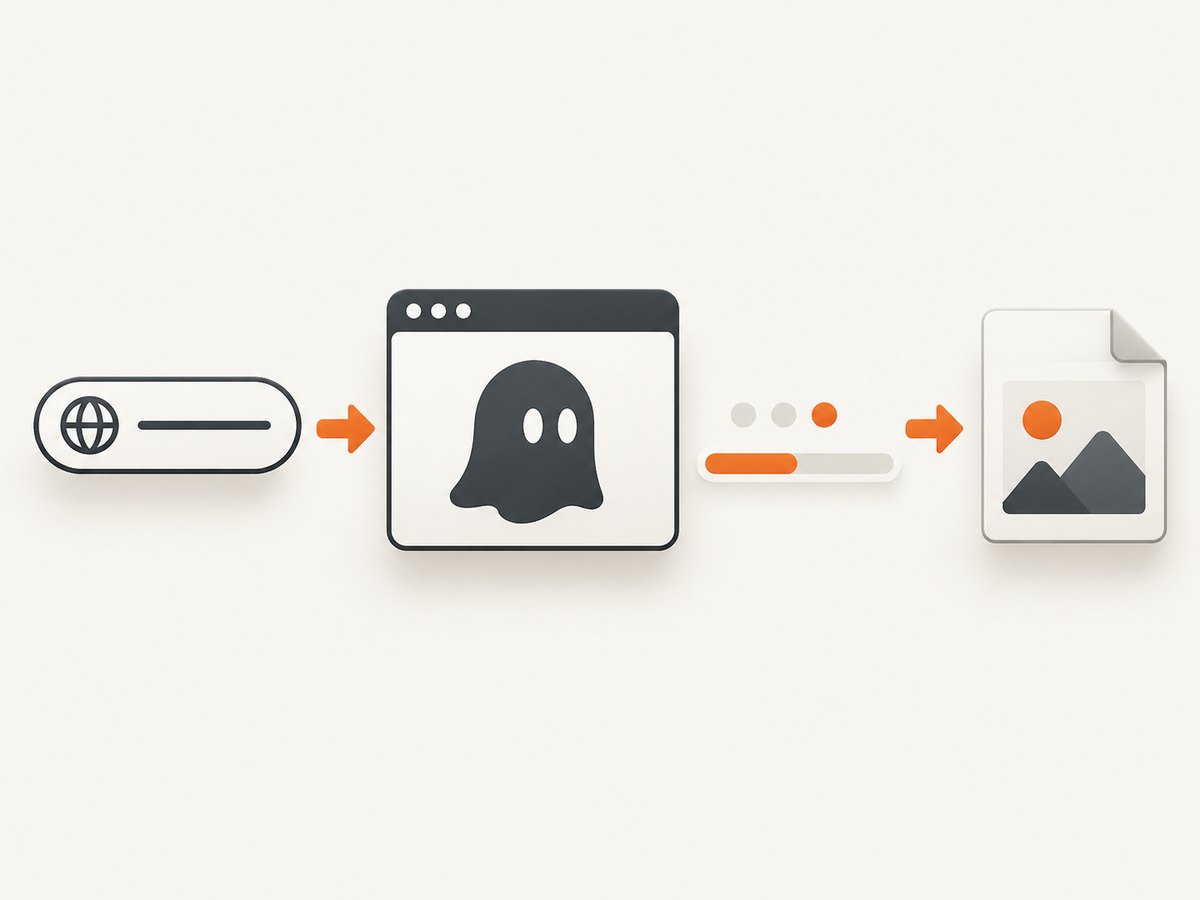
PhantomJS can render a web page to PNG, JPEG, PDF, BMP, PPM, or GIF. A reliable capture follows a simple order: create a webpage, set viewportSize before navigation, open the URL, verify the callback status, wait for content that matters, optionally set clipRect, render, and call phantom.exit(). The viewport controls responsive layout; the clip rectangle controls which pixels are written.
This guide shows a complete PhantomJS workflow, explains image quality and sizing choices, handles asynchronous pages, and documents common failures. PhantomJS documentation is older, so validate the result against your target sites before making it a production dependency.
1. Install PhantomJS and create the smallest working capture
Save this as capture.js:
var page = require('webpage').create();

page.viewportSize = { width: 1280, height: 900 };

page.open('https://example.com/', function (status) {
  if (status !== 'success') {
    console.log('Unable to load the address!');
    phantom.exit();
    return;
  }

  page.render('capture.png');
  phantom.exit();
});
Run it with:
phantomjs capture.jsThe official quick start checks status before rendering and exits explicitly. Without phantom.exit(), PhantomJS can keep running after the file has been written. See the PhantomJS quick start and screen-capture guide.
2. Choose the viewport deliberately
Set both width and height before calling page.open. Width can switch a page between desktop, tablet, and mobile breakpoints; height affects what appears in the initial viewport and can influence scripts that measure the window. The values below are examples, not universal best settings.
page.viewportSize = {
  width: 1440,
  height: 1000
};
If you need a mobile layout, use a mobile width and a matching height:
page.viewportSize = { width: 390, height: 844 };Changing the viewport after navigation can leave you with a layout calculated for the old dimensions. Set it first, then load the page. The viewportSize reference documents the required width and height properties.
3. Capture a specific region with clipRect
By default, page.render processes the page. To rasterize only a rectangle, assign page.clipRect before rendering:
page.clipRect = {
  top: 120,
  left: 80,
  width: 900,
  height: 700
};
page.render('dashboard-region.png');
The rectangle is measured in page coordinates. Make sure the selected area contains the complete component, including borders and shadows you want to preserve. A clip rectangle is useful for a chart, a card, or a test fixture; it is different from changing the viewport, which changes responsive layout. The clipRect API describes the rectangle fields.
4. Select PNG, JPEG, PDF, or another output
PhantomJS supports PDF, PNG, JPEG, BMP, PPM, and GIF depending on the Qt build. Pick the format based on the content:
| Format | Use it when | Trade-off |
|---|---|---|
| PNG | Text, diagrams, interfaces, and sharp edges | Lossless; files can be larger |
| JPEG | Photos or when a smaller file is more important | Lossy compression and possible artifacts |
| Printable page output or document workflows | Pagination and paper settings need separate care | |
| BMP/PPM | Specialized image-processing pipelines | Usually much larger than PNG |
| GIF | Only when your PhantomJS Qt build provides support | Limited color range |
Pass the desired extension to render:
page.render('page.png');
// or
page.render('page.jpg');
// or
page.render('page.pdf');
The render API accepts a quality argument for PNG and JPEG. Its documented range is 0–100 and the default is 75:
page.render('photo.jpg', { quality: 90 });
page.render('interface.png', { quality: 9 });
JPEG quality changes visual quality and file size. PNG quality changes lossless Deflate compression and file size; it does not make the image visually sharper. The render documentation states that quality affects JPEG and PNG formats.
5. Wait for dynamic content before rendering
A successful open callback means the navigation completed, not that every client-side widget, image, or chart is ready. Render after the content required by your screenshot has appeared. A short delay can help for a known page, but it is page-specific and cannot guarantee readiness for every site.
var page = require('webpage').create();
page.viewportSize = { width: 1280, height: 900 };

page.open('https://example.com/app', function (status) {
  if (status !== 'success') {
    console.log('Open failed: ' + status);
    phantom.exit(1);
    return;
  }

  window.setTimeout(function () {
    page.render('after-delay.png');
    phantom.exit();
  }, 1500);
});
A more targeted approach polls for a selector that your page uses as a readiness marker:
var page = require('webpage').create();
page.viewportSize = { width: 1280, height: 900 };

function waitFor(selector, done, attempts) {
  if (page.evaluate(function (s) {
    return !!document.querySelector(s);
  }, selector)) {
    done();
    return;
  }
  if (attempts <= 0) {
    console.log('Readiness selector not found: ' + selector);
    phantom.exit(1);
    return;
  }
  window.setTimeout(function () {
    waitFor(selector, done, attempts - 1);
  }, 250);
}

page.open('https://example.com/dashboard', function (status) {
  if (status !== 'success') {
    console.log('Unable to load the address!');
    phantom.exit(1);
    return;
  }

  waitFor('.dashboard-ready', function () {
    page.render('dashboard.png');
    phantom.exit();
  }, 40);
});
Use a marker that is added only after the important data is present. If the page has no reliable marker, combine a bounded delay with checks for image dimensions or text. Avoid an unlimited polling loop: every capture needs a clear timeout and an exit path.
6. Hide overlays and interact before capture
Cookie notices, chat launchers, sticky headers, and modal dialogs can cover the content you need. PhantomJS lets you run JavaScript in the page with page.evaluate. Prefer a page-specific selector and remove only the overlay:
page.evaluate(function () {
  var banner = document.querySelector('.cookie-banner');
  if (banner) banner.remove();

  var chat = document.querySelector('[data-chat-widget]');
  if (chat) chat.remove();
});
page.render('clean.png');
For a site that requires a click to reveal content:
page.evaluate(function () {
  var tab = document.querySelector('#details-tab');
  if (tab) tab.click();
});
window.setTimeout(function () {
  page.render('details.png');
  phantom.exit();
}, 300);
These selectors are examples. Confirm them in the target page and keep the manipulation narrowly scoped so you do not remove content that belongs in the screenshot.
7. Full-page captures and long documents
A normal render captures the current page area. For a long document, first measure the document and then set the viewport height before rendering:
var page = require('webpage').create();
page.viewportSize = { width: 1280, height: 900 };

page.open('https://example.com/article', function (status) {
  if (status !== 'success') {
    phantom.exit(1);
    return;
  }

  var pageHeight = page.evaluate(function () {
    return Math.max(
      document.body.scrollHeight,
      document.documentElement.scrollHeight,
      document.body.offsetHeight,
      document.documentElement.offsetHeight
    );
  });

  page.viewportSize = { width: 1280, height: pageHeight };
  window.setTimeout(function () {
    page.render('full-page.png');
    phantom.exit();
  }, 500);
});
This approach can expose limitations: very tall pages consume more memory, lazy-loaded content may not load until scrolled, and fixed-position elements can repeat or cover content. For lazy loading, scroll in increments, wait after each increment, and then measure again. Keep a maximum height so an unexpectedly large document does not exhaust the process.
8. A production-shaped PhantomJS script
The following script combines URL input, viewport selection, readiness polling, clipping, and an explicit timeout:
var system = require('system');
var webpage = require('webpage');

if (system.args.length < 3) {
  console.log('Usage: phantomjs capture.js URL OUTPUT');
  phantom.exit(2);
}

var url = system.args[1];
var output = system.args[2];
var page = webpage.create();
var finished = false;

page.viewportSize = { width: 1280, height: 900 };
page.settings.resourceTimeout = 20000;

function finish(code) {
  if (finished) return;
  finished = true;
  phantom.exit(code);
}

page.onError = function (message, trace) {
  console.log('Page error: ' + message);
};

page.open(url, function (status) {
  if (status !== 'success') {
    console.log('Navigation failed: ' + status);
    finish(1);
    return;
  }

  window.setTimeout(function () {
    page.render(output, { quality: 90 });
    finish(0);
  }, 1000);
});

window.setTimeout(function () {
  console.log('Capture timed out');
  finish(1);
}, 30000);
Invoke it as phantomjs capture.js https://example.com output.png. In a batch job, check the process exit code and preserve the diagnostic output alongside the failed URL.
9. Troubleshooting checklist
| Symptom | Likely cause | Fix |
|---|---|---|
| Blank or partial image | Rendering happened before asynchronous content settled | Wait for a page-specific selector or a bounded delay; verify the selector in the loaded DOM. |
| “Unable to load the address!” | DNS, TLS, redirect, network, or server failure | Log the status, try the URL from the same host, inspect redirects, and set a resource timeout. |
| Mobile layout appears unexpectedly | Viewport width triggered a responsive breakpoint | Set the intended width before open; record viewport values with each capture. |
| Only a small portion of a long page is saved | Viewport height is limited or clipping is active | Remove clipRect for a normal viewport capture, or measure the document and set a bounded full-page height. |
| Text or images are missing | Web fonts or assets have not loaded, or a resource failed | Wait for the relevant element, check network and page errors, and confirm the asset is accessible to PhantomJS. |
| JPEG looks blocky | Lossy compression or low quality value | Raise JPEG quality, or use PNG for interface text and fine edges. |
| PNG file is large | Lossless pixels and a large capture area | Reduce dimensions or use a suitable JPEG for photographic content; PNG quality changes compression size, not appearance. |
| Process never ends | No explicit exit or an open timer | Call phantom.exit() on success and every failure path; bound polling and delays. |
| Cookie banner covers the page | Consent UI was not accepted or removed | Click the consent control or remove the known banner inside page.evaluate. |
10. Reliability, performance, and cost considerations
Keep captures deterministic: pin the viewport, use a stable URL, wait for a documented readiness condition, and use fixed output names or content hashes. Record the URL, viewport, format, clip rectangle, start time, status, and exit code. Retry only failures that are plausibly transient; repeated retries can hide a permanent page or certificate problem.
Large viewports and full-page renders use more memory. Clip to the smallest useful region, avoid unnecessary delays, and process a bounded number of pages concurrently. A readiness selector is usually faster and more reliable than a long fixed sleep. PhantomJS itself does not provide a hosted usage meter or billing system; your infrastructure pays for compute, storage, and network traffic. Also account for the maintenance and compatibility work required by an older browser engine. The PhantomJS documentation consulted here does not establish current compatibility with modern JavaScript or websites.
11. Or skip the browser setup
ScreenshotNeo provides a hosted screenshot API and MCP server. It accepts the URL, handles the browser capture, and returns PNG, JPEG, WebP, or PDF. Cookie and consent banners, newsletter popups, and chat widgets are removed before the shot. Bot checks, blank pages, timeouts, failed loads, and cache hits are not billed, and the response identifies the result with X-Page-Verdict and X-Billed headers.
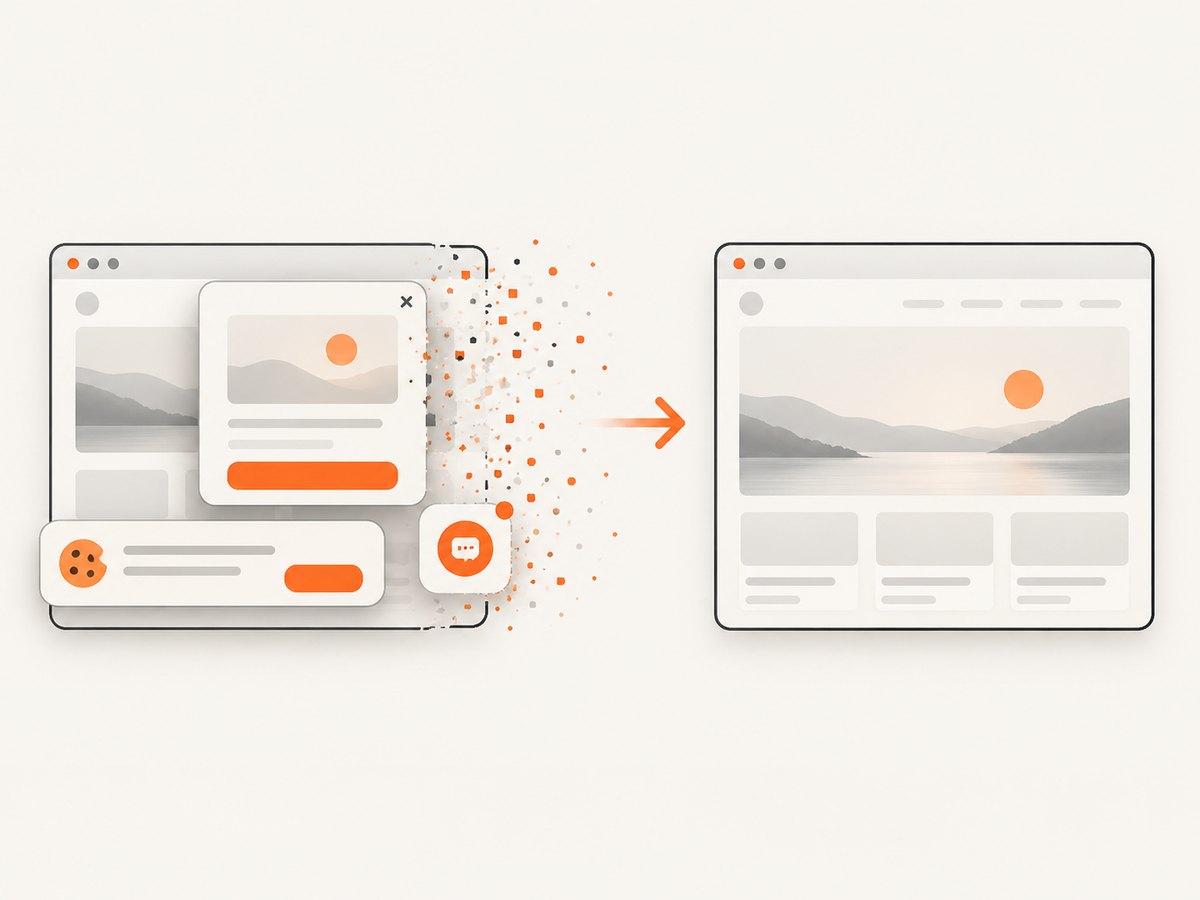
See the ScreenshotNeo documentation for all options. A minimal request is:
curl -G "https://api.screenshotneo.com/v1/shot" -d access_key=YOUR_API_KEY --data-urlencode url=https://stripe.com -o shot.webpimport requests
r = requests.get(
"https://api.screenshotneo.com/v1/shot",
params={"access_key": "YOUR_API_KEY", "url": "https://stripe.com"},
timeout=90,
)
r.raise_for_status()
open("shot.webp", "wb").write(r.content)const q = new URLSearchParams({ access_key: 'YOUR_API_KEY', url: 'https://stripe.com' });
const res = await fetch(`https://api.screenshotneo.com/v1/shot?${q}`);
if (!res.ok) throw new Error(`HTTP ${res.status}`);
const data = Buffer.from(await res.arrayBuffer());
require('fs').writeFileSync('shot.webp', data);ScreenshotNeo includes full-page and element capture, dark mode, device presets or custom viewports, retina scale, PDF paper and page controls, custom CSS and JavaScript, clicks, selector or network-idle waits, blocked resources, headers, cookies, user agents, authorization, timezone, geolocation, transparent backgrounds, resizing, configurable caching, signed image links, asynchronous jobs with signed webhooks, bulk capture for 100 URLs per call, a usage API, and an OpenAPI specification. Its MCP server exposes take_screenshot, get_page_info, and capture_pdf to Claude, Cursor, and other MCP clients.
The Free plan includes 1,000 shots each month with no card. Paid plans start at $5 for 3,000 shots; yearly billing gives two months free, and every feature is available on every plan. Create a free ScreenshotNeo account.
12. PhantomJS screenshot FAQ
What viewport should I use?
Use the width and height that represent the layout you need to document or test. Width changes responsive breakpoints, so there is no universal best value.
Does PNG quality make text sharper?
No. PNG quality controls lossless compression and file size. The rendered appearance stays the same.
Can PhantomJS capture a full page automatically?
Measure the document, set a suitable viewport height, and render. Scroll-driven lazy loading and fixed elements may require additional page-specific handling.
Why did my open callback succeed but the screenshot is incomplete?
Navigation completion is not application readiness. Wait for the important selector, asset, chart, or data state before rendering.
Should I use PhantomJS for a new production service?
Validate it against your actual sites and operating environment first. The cited documentation describes the API but does not establish current compatibility or maintenance status.


