How to Capture a Hovered Element in a Cypress Screenshot
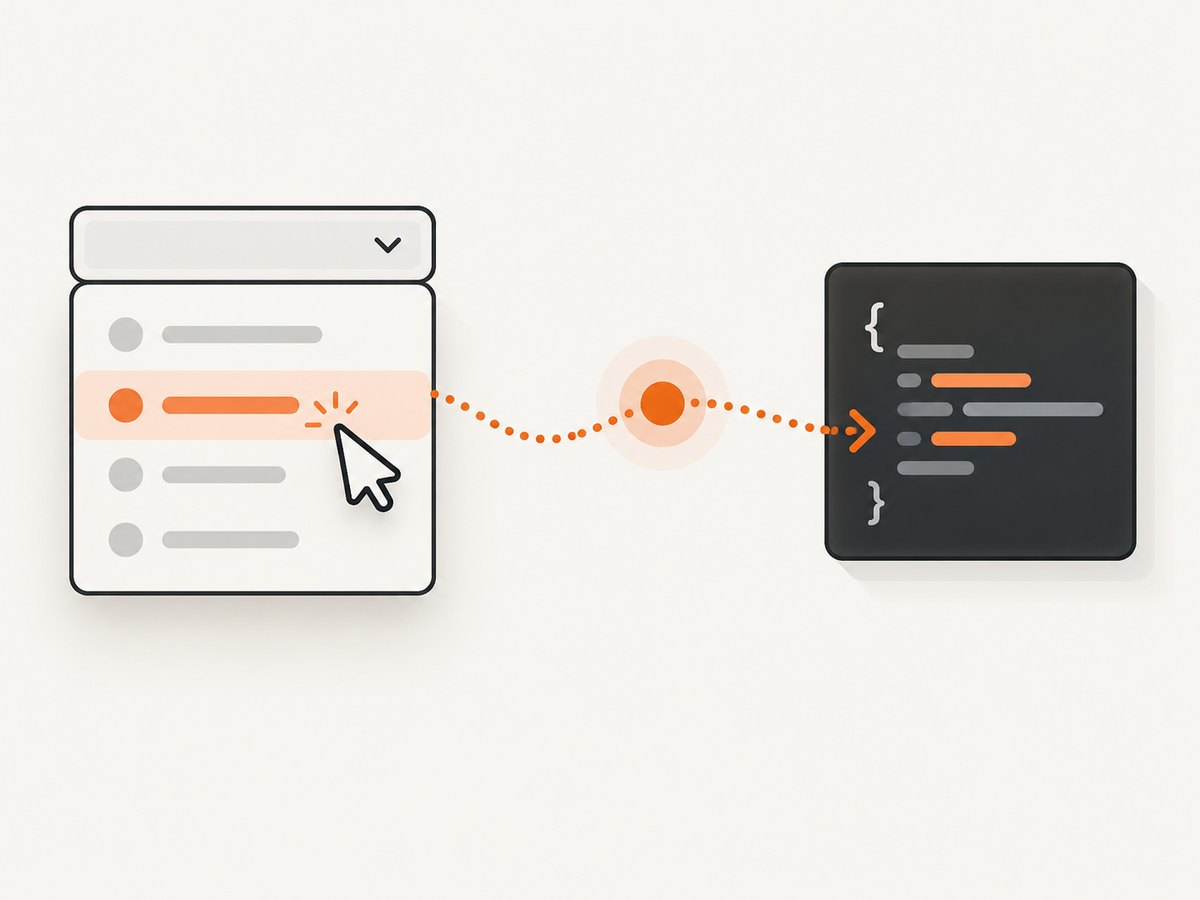
Cypress has no built-in hover command. Use a synthetic mouseover for JavaScript-driven states, then assert the result and capture the element or app.

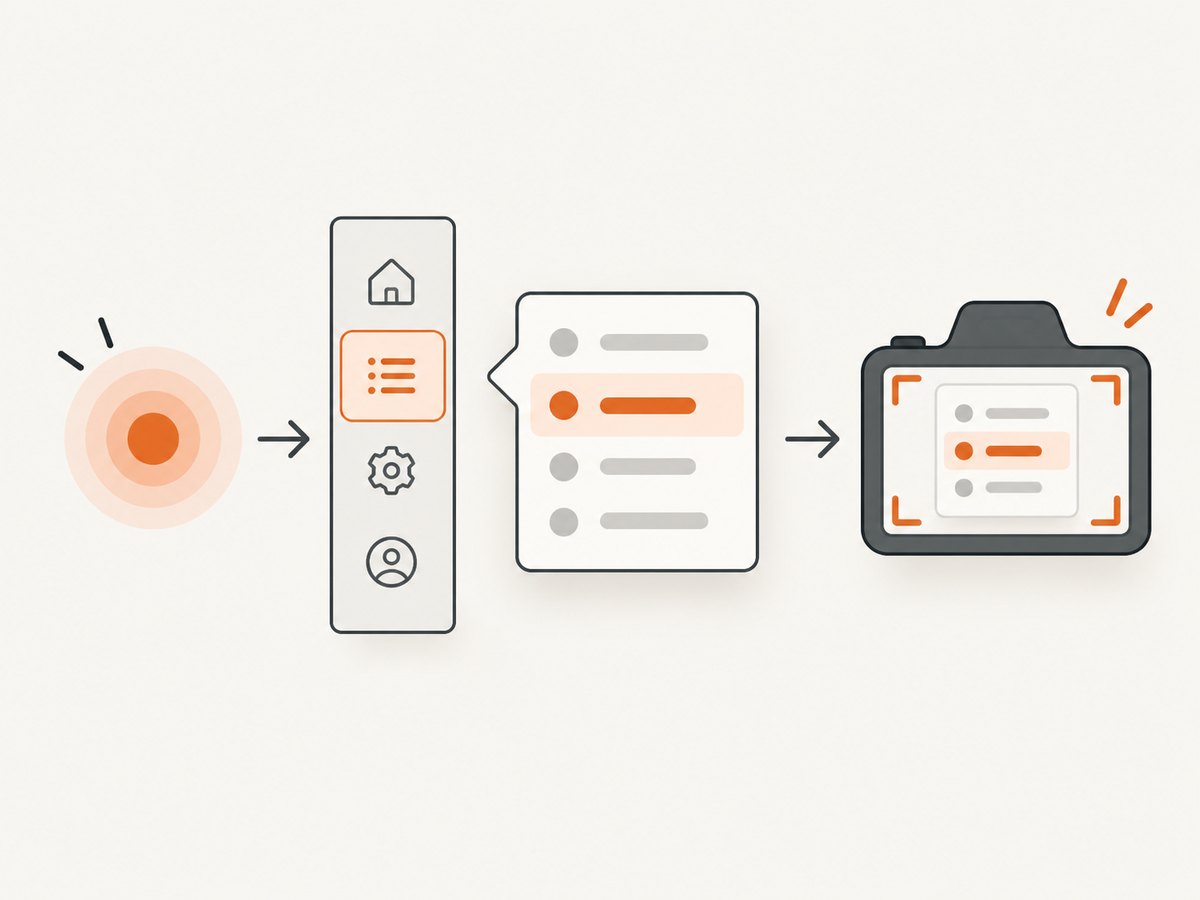
To capture a hover state in Cypress, first choose a method that matches how the page implements hover. For JavaScript event handlers, dispatch mouseover, assert that the expected UI is visible, then take an element or application screenshot. Cypress has no built-in cy.hover() command. For CSS-only :hover styles, .trigger('mouseover') is not enough; use a native-input approach or Chrome remote debugging to set the hover pseudo-class.
1. Use Cypress commands for JavaScript-driven hover behavior
This runnable test demonstrates the JavaScript-event workaround. Replace the selectors and test setup with the ones used by your application:
describe('menu hover screenshot', () => {
  it('captures the menu item and its visible popover', () => {
    cy.visit('/');

    cy.get('[data-cy="menu-item"]').trigger('mouseover');
    cy.get('[data-cy="popover"]').should('be.visible');

    // Re-query after trigger; do not rely on its yielded subject.
    cy.get('[data-cy="menu-item"]').screenshot('menu-item-hover');
  });
});
.trigger() needs a command that yields a DOM element (or the window or document). The target must be interactable for the documented mouseover example. Cypress says it is unsafe to chain further commands that depend on the subject after .trigger(); the fresh cy.get() above makes the screenshot target explicit. See the official hover workaround and trigger command documentation.
Capture the element or the whole application
Use an element screenshot when the artifact should focus on one DOM element. Use cy.screenshot() when you need the application screenshot:
// One element, optionally with padding around its bounds
cy.get('[data-cy="menu-item"]').screenshot('menu-item-hover', { padding: 10 });

// The application screenshot
cy.screenshot('menu-hover');
Cypress documents element screenshots, application screenshots, and the padding option in its screenshot command documentation. Manual screenshots work in both cypress open and cypress run. Cypress also documents automatic screenshots on test failure during cypress run. The default screenshot folder is cypress/screenshots, but project configuration can change it; check your configuration before relying on a particular output path. More details are in the screenshots and videos guide.
2. Choose the method that matches the hover implementation
| What drives the state? | What to use | Important limitation |
|---|---|---|
JavaScript handler such as a mouseover listener |
.trigger('mouseover'), assert the result, then capture |
A synthetic event does not guarantee the same behavior as physical pointer movement. |
CSS-only :hover |
Set the hover pseudo-class through Chrome remote debugging, or use a native-event tool if suitable for your setup | .trigger() dispatches JavaScript events; it does not activate CSS hover effects. |
| One element is the subject of the screenshot | cy.get(selector).screenshot() |
Re-query after the trigger and assertion. |
| The entire app or viewport is needed | cy.screenshot() |
Wait for the intended UI state before capture. |
Cypress explains the distinction between JavaScript-driven hover behavior and CSS effects in its hover documentation. Its official plugin directory lists cypress-real-events as an optional community extension for native system events such as hover. Treat it as an additional software dependency; the JavaScript-event workaround does not require it.
3. Handle CSS-only hover states
If the appearance comes only from a CSS selector such as .menu-item:hover .popover, calling .trigger('mouseover') will not set that CSS pseudo-class. Cypress points to Chrome remote debugging as a way to set the hover pseudo-class. Another possible route is a native-event extension such as cypress-real-events, which the Cypress plugin directory lists as a community option.
Choose based on what the test needs to prove: use a JavaScript event when testing the handler, and use native browser input or pseudo-class control when the CSS hover state itself is the subject. Do not treat a synthetic event as proof that a physical pointer behaves identically.
4. Make the capture reliable
- Wait for the state, not an arbitrary duration. Assert that the menu, tooltip, or other hover result is visible before capture. This gives Cypress an application-level condition to wait for.
- Re-query the screenshot subject. After
.trigger(), use a freshcy.get()for the screenshot target because further subject-dependent chaining after the trigger is documented as unsafe. - Keep the target stable. Use a selector that identifies the intended element. If the app rerenders the menu on hover, assert the visible result and query the desired element again.
- Pick the appropriate screenshot scope. Capture the element for a focused artifact, or capture the app when surrounding context matters.
- Account for asynchronous capture. Cypress screenshots are asynchronous, and the page can change before capture completes. Wait for an assertion representing the desired state instead of assuming the screenshot is an instantaneous frame.
Callbacks before and after capture are among the documented screenshot options. Check Cypress’s screenshot command documentation for the options supported by your installed version.
5. Troubleshooting
| Symptom | Likely cause | Fix |
|---|---|---|
The popover does not appear after .trigger('mouseover') |
The app uses CSS-only :hover, listens for a different event, or the selector targets the wrong element. |
Inspect how the app implements the state. Use a CSS pseudo-class or native-input approach for CSS-only hover; otherwise trigger the event the handler actually uses. |
| The event runs but the screenshot shows the wrong state | The test captures before the UI appears or before the app finishes updating. | Assert that the expected menu or tooltip is visible before taking the screenshot. |
| A chained command fails or acts on a stale element | The chain depends on the subject yielded by .trigger(), which Cypress documents as unsafe for further subject-dependent commands. |
Start a fresh query after the trigger and assertion. |
| The screenshot is too tightly cropped | An element screenshot includes only the selected element’s bounds. | Use the padding option or capture the application with cy.screenshot(). |
| The screenshot file is not in the expected directory | The project may override Cypress’s default screenshot folder. | Inspect project configuration; cypress/screenshots is the documented default. |
| The capture is inconsistent across runs | The page may update while the asynchronous screenshot is being taken, or the hover target may be unstable. | Wait on a meaningful UI assertion and use stable selectors. Avoid relying on an assumed instantaneous capture. |
6. Performance, reliability, and cost
The documented Cypress workflow does not require a separate hover package for JavaScript event handlers. A native-event extension adds a dependency and setup consideration, so use it when native browser input matters to the test. The supplied Cypress sources do not provide benchmark data comparing these methods, so there is no source-backed speed ranking to give.
For reliability, match the technique to the implementation and assert the state before capture. For output and storage behavior, consult your project’s Cypress version and configuration. No per-screenshot cost comparison is provided by the Cypress sources in this dossier.
7. Or skip the browser setup
If you need a clean screenshot of a page without setting up a browser capture workflow, ScreenshotNeo is a website screenshot API and MCP server. A single GET request takes a URL and returns an image or PDF. Its API captures the page as loaded; it does not reproduce a Cypress-triggered transient hover state, so use the Cypress workflow above when that specific state is what you need to capture.
For a normal page capture, see the ScreenshotNeo API documentation:
curl -G "https://api.screenshotneo.com/v1/shot" -d access_key=YOUR_API_KEY --data-urlencode url=https://stripe.com -o shot.webpimport requests
r = requests.get("https://api.screenshotneo.com/v1/shot", params={"access_key": "YOUR_API_KEY", "url": "https://stripe.com"}, timeout=90)
open("shot.webp", "wb").write(r.content)const q = new URLSearchParams({ access_key: 'YOUR_API_KEY', url: 'https://stripe.com' });
const res = await fetch(`https://api.screenshotneo.com/v1/shot?${q}`);ScreenshotNeo accepts cookie and consent banners like a visitor and removes more than 60 known consent platforms, newsletter popups, and chat widgets before the shot; each step can be turned off. Bot checks, blank pages, failed loads, timeouts, and cache hits cost nothing, and response headers say which outcome occurred. An MCP server provides take_screenshot, get_page_info, and capture_pdf tools for Claude, Cursor, and other MCP clients. The free plan includes 1,000 screenshots a month with no card; paid plans start at $5 for 3,000 shots. Sign up for 1,000 free screenshots a month, with no card required.
FAQ
Does Cypress have a built-in cy.hover() command?
No. Cypress’s official hover documentation says it does not provide one.
Why does .trigger('mouseover') not activate my CSS hover rule?
It dispatches a JavaScript event; it does not set the browser’s CSS :hover pseudo-class.
Should I capture the menu item or the whole app?
Use an element screenshot for a focused artifact and cy.screenshot() when the surrounding application context matters.
Can I use a synthetic event to verify real pointer behavior?
Not by itself. Synthetic event dispatch does not guarantee that the browser will behave exactly as it does during physical pointer movement.


