How to Capture HTML Canvas Elements in Screenshots
Learn when to export a canvas bitmap with JavaScript and when to capture its rendered appearance with Playwright, Selenium, or ScreenshotNeo.

Direct answer: use canvas.toBlob() when you need the canvas bitmap as an image file, and use canvas.toDataURL() when you need a data URL string. Use Playwright (or another browser automation tool) when you need a screenshot of the rendered canvas element or the page around it. A canvas containing pixels from another origin may be “tainted”; in that case, direct export raises a SecurityError unless the image was loaded with CORS and the remote server granted permission.
This distinction determines almost every implementation detail. Bitmap export gives you the pixels stored in the canvas. A browser screenshot gives you what the browser paints, including CSS size, device scale, surrounding DOM, and visual effects. The sections below show both paths, explain cross-origin failures, and provide production-ready capture patterns.
1. Choose bitmap export or a browser screenshot
| Goal | Use | Result |
|---|---|---|
| Save drawing pixels as an image | canvas.toBlob() |
A Blob suitable for download, upload, or preview |
| Embed the drawing in a URL | canvas.toDataURL() |
A data URL string, PNG by default |
| Capture the canvas as it appears in a page | Playwright locator.screenshot() |
Screenshot bytes or an image file |
| Capture the entire page containing the canvas | Playwright page.screenshot() |
Viewport or full-page image |
| Automate a browser with an existing WebDriver stack | Selenium element screenshot | An image of the element; confirm syntax for your binding and version |
For an export pipeline, prefer toBlob(): it avoids putting the complete image into a potentially very large JavaScript string. For a visual regression test or a report that must include labels, shadows, and surrounding layout, capture the rendered element or page.
2. Export a canvas with toBlob()
HTMLCanvasElement.toBlob() invokes a callback with a Blob. PNG is the safe default and is required by the canvas API. JPEG and WebP are available in browsers, but support and encoding behavior can vary, so check the returned value and use PNG when compatibility matters.
const canvas = document.querySelector('#chart');

canvas.toBlob((blob) => {
  if (!blob) {
    throw new Error('The browser could not create an image Blob');
  }

  const objectUrl = URL.createObjectURL(blob);
  const link = document.createElement('a');
  link.href = objectUrl;
  link.download = 'chart.png';
  link.click();

  // Revoke after the download or preview has had time to use the URL.
  setTimeout(() => URL.revokeObjectURL(objectUrl), 1000);
}, 'image/png');
The callback can receive null, so production code should handle that case. If you display the result in an <img>, keep the object URL alive until the image has loaded or the user has finished interacting with it. Revoking it immediately can make the preview disappear.
Choose a MIME type and quality
canvas.toBlob((blob) => {
  if (!blob) return;
  upload(blob); // send with fetch, FormData, or your SDK
}, 'image/webp', 0.85);
The third argument is a quality hint for lossy formats such as JPEG and WebP. Browsers may ignore unsupported types and fall back to PNG. If the exact output format is part of a contract, inspect blob.type and reject or convert unexpected output on the server.
3. Use toDataURL() when a string is required
toDataURL() returns a data URL and defaults to PNG. It is convenient for setting an image source or sending a small result in JSON, but the encoded string can be substantially larger than the original bitmap.
const canvas = document.querySelector('#signature');
const dataUrl = canvas.toDataURL('image/png');

const preview = document.querySelector('#preview');
preview.src = dataUrl;

// If an API expects base64 only, remove the data URL prefix.
const base64 = dataUrl.split(',', 2)[1];
Do not use this method for unbounded or high-resolution canvases without considering memory. A data URL keeps the complete encoded image in JavaScript memory and may exceed request or storage limits.
4. Avoid a tainted canvas with CORS
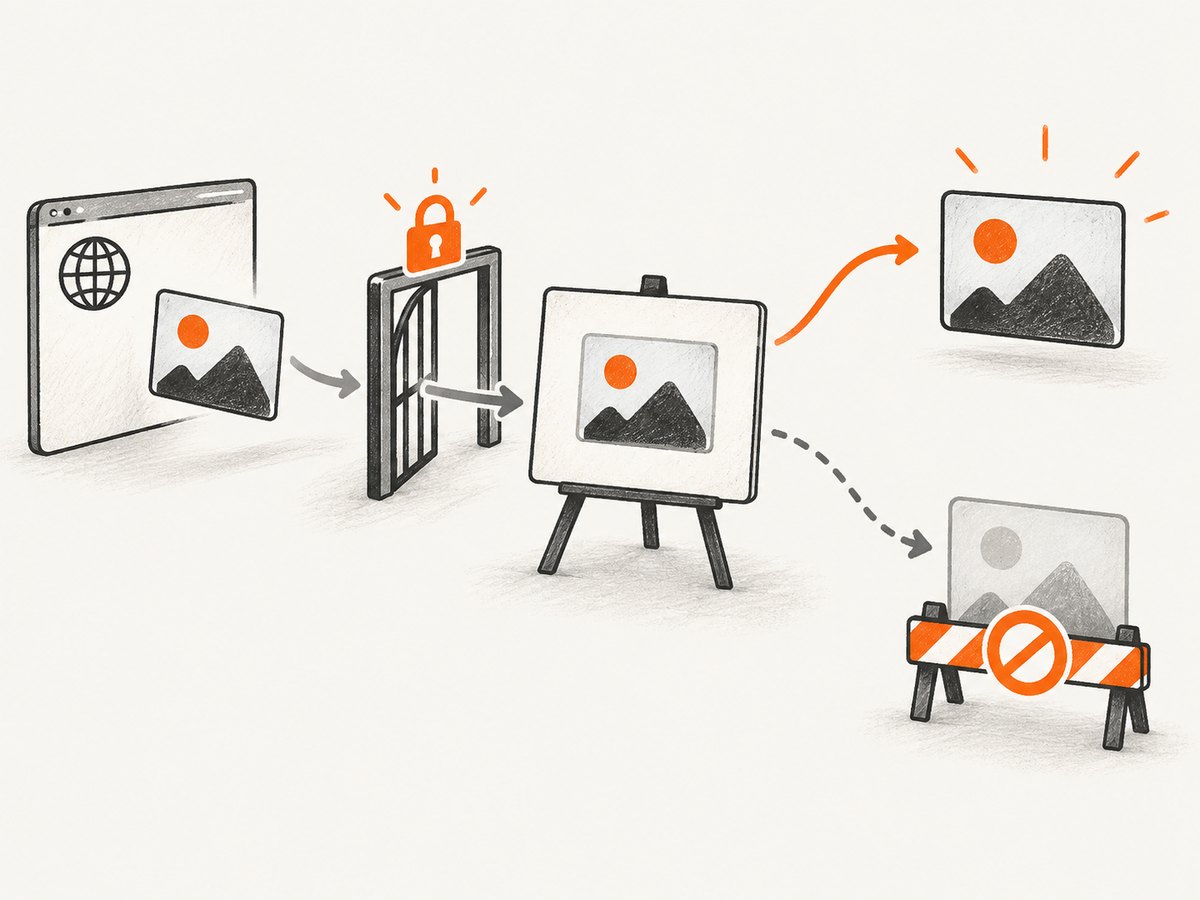
A canvas is not origin-clean when it contains pixels loaded from another origin without the required permission. Calling toBlob() or toDataURL() then throws a SecurityError. The fix must happen before the image is drawn: set the image’s crossOrigin property, and make sure the image server sends an appropriate CORS response.
const image = new Image();
image.crossOrigin = 'anonymous';

image.onload = () => {
  const canvas = document.querySelector('#map');
  canvas.width = image.naturalWidth;
  canvas.height = image.naturalHeight;
  canvas.getContext('2d').drawImage(image, 0, 0);

  canvas.toBlob((blob) => {
    if (!blob) throw new Error('Export failed');
    // The canvas is exportable only if the server allowed this origin.
    saveBlob(blob);
  }, 'image/png');
};

image.onerror = () => console.error('Image failed to load');
image.src = 'https://images.example.test/map.png';
The remote host must return an Access-Control-Allow-Origin value that permits your page. Adding crossOrigin after assigning src is too late. If the server does not grant permission, you cannot make that image exportable from client-side JavaScript; proxying the asset through a server you control is a separate architecture decision with its own licensing and caching implications.
5. Capture the rendered canvas with Playwright
Playwright can save a viewport screenshot, a full scrollable page, or one locator. A locator capture is usually the cleanest way to capture a canvas at its CSS-rendered size.

import { chromium } from 'playwright';

const browser = await chromium.launch();
const page = await browser.newPage({ deviceScaleFactor: 2 });
await page.goto('https://example.test/dashboard', { waitUntil: 'networkidle' });

const canvas = page.locator('canvas#chart');
await canvas.waitFor();
await canvas.screenshot({ path: 'chart.png', animations: 'disabled' });

await page.screenshot({
  path: 'dashboard-full.png',
  fullPage: true,
  animations: 'disabled'
});

await browser.close();
Use an explicit selector instead of selecting the first canvas when a page contains multiple charts. Wait for the application to finish drawing; network idle alone does not guarantee that a WebGL or animation loop has rendered the final frame. A page-side readiness marker is more reliable:
await page.goto('https://example.test/report');
await page.locator('[data-canvas-ready="true"]').waitFor();
await page.locator('canvas#report').screenshot({ path: 'report.png' });
Playwright returns screenshot bytes when you omit path, which is useful for an upload or an image comparison:
const pngBytes = await page.locator('canvas#chart').screenshot();
await fetch('https://storage.example.test/upload', {
  method: 'PUT',
  headers: { 'content-type': 'image/png' },
  body: pngBytes
});
6. Canvas-specific capture details
CSS size versus bitmap size
A canvas has an internal bitmap size (width and height) and a CSS display size. Export methods use the internal bitmap. A browser screenshot captures the displayed result and then applies the browser’s device scale factor. Set both deliberately when sharp output matters:
const cssWidth = 800;
const cssHeight = 450;
const ratio = window.devicePixelRatio;
canvas.width = cssWidth * ratio;
canvas.height = cssHeight * ratio;
canvas.style.width = `${cssWidth}px`;
canvas.style.height = `${cssHeight}px`;
canvas.getContext('2d').scale(ratio, ratio);
Animations and WebGL
Freeze animations before a screenshot when reproducibility matters. For charts, expose a “ready” state after the final draw. WebGL applications can render asynchronously; wait for the application’s own signal rather than assuming that the load event means the frame is complete.
Transparent backgrounds
Canvas pixels can include alpha. PNG preserves transparency. JPEG does not, so browsers composite or encode the result without an alpha channel. If the background must remain transparent, use PNG or a format that your target browser and processing pipeline support.
7. Selenium and other browser drivers
Selenium documentation describes element screenshot capture, but exact method names differ between language bindings and versions. In a production project, check the versioned API reference for your binding before copying an example. The conceptual flow is the same: navigate, wait for the canvas to be ready, locate the element, and save its screenshot bytes or file.
8. Or skip the browser setup
ScreenshotNeo captures a URL with one request and can target a canvas element by CSS selector. It supports PNG, JPEG, WebP, and PDF output, full-page capture, custom JavaScript and CSS, waits, device presets, retina scale, and blocking controls. See the ScreenshotNeo API documentation for all options.
curl -G "https://api.screenshotneo.com/v1/shot" \
  -d access_key=YOUR_API_KEY \
  --data-urlencode url=https://example.com/chart \
  -d selector=canvas#chart \
  -o canvas.webp
import requests
r = requests.get(
"https://api.screenshotneo.com/v1/shot",
params={
"access_key": "YOUR_API_KEY",
"url": "https://example.com/chart",
"selector": "canvas#chart",
},
timeout=90,
)
r.raise_for_status()
open("canvas.webp", "wb").write(r.content)const q = new URLSearchParams({
access_key: 'YOUR_API_KEY',
url: 'https://example.com/chart',
selector: 'canvas#chart'
});
const res = await fetch(`https://api.screenshotneo.com/v1/shot?${q}`);
if (!res.ok) throw new Error(`Screenshot failed: ${res.status}`);
const bytes = Buffer.from(await res.arrayBuffer());
require('fs').writeFileSync('canvas.webp', bytes);Cookie banners, newsletter popups, and chat widgets are removed before the shot. Bot checks, blank pages, failed loads, timeouts, and cache hits are not billed; inspect the X-Page-Verdict and X-Billed response headers to see what happened. An MCP server provides take_screenshot, get_page_info, and capture_pdf tools for Claude, Cursor, and other MCP clients. The free plan includes 1,000 screenshots each month with no card; paid plans start at $5 for 3,000. Create a free ScreenshotNeo account.
9. Troubleshooting checklist
| Symptom | Cause | Fix |
|---|---|---|
SecurityError on export |
The canvas is tainted by cross-origin pixels | Set crossOrigin before src and obtain a permissive CORS response, or export the asset server-side |
toBlob callback receives null |
Encoding failed or the requested type is unsupported | Check the Blob, retry with image/png, and handle the failure explicitly |
| Image is blurry | Bitmap dimensions are smaller than the CSS display size | Scale the internal canvas by devicePixelRatio before drawing |
| Screenshot captures a blank canvas | Capture ran before drawing completed | Wait for an application readiness marker or a deterministic draw event |
| Only part of a page appears | Viewport capture was used | Use Playwright fullPage: true or ScreenshotNeo full-page capture |
| Animations differ between runs | The frame was captured at different times | Disable animations and freeze timers or wait for a stable state |
| Selector capture fails | The selector matches nothing or a hidden canvas | Verify the selector, wait for visibility, and inspect the page before capture |
10. Performance, reliability, and cost
- Export locally when possible:
toBlob()avoids launching a browser and is efficient for a canvas you already own. - Control dimensions: doubling width and height creates four times as many pixels. Large WebGL canvases can consume significant memory during encoding.
- Wait narrowly: a selector or application-ready signal is usually more deterministic than a long fixed delay.
- Reuse browsers: for Playwright batches, keep one browser process and create isolated pages or contexts per job.
- Make retries safe: use stable URLs, deterministic state, and idempotent storage names. Record whether a result came from a retry.
- Monitor output headers: ScreenshotNeo reports page verdict and billing status in
X-Page-VerdictandX-Billed, while cache TTLs can reduce repeated captures.
11. FAQ
Can I save a canvas directly as JPEG?
Yes, request image/jpeg from toBlob() or toDataURL(), but PNG is the documented safe default and preserves transparency.
Does a screenshot bypass CORS?
Direct pixel export is blocked for a tainted canvas. A browser screenshot captures rendered output, but the supplied evidence does not establish a universal bypass for every protected or embedded-content case.
Which method preserves the page around the canvas?
Use a page screenshot. Canvas export contains only the bitmap; locator capture contains the rendered element; full-page capture includes the surrounding document.
Should I use a data URL for uploads?
Usually use a Blob or screenshot bytes. Data URLs are convenient but add string overhead and can hit request-size limits.
How do I capture many canvas URLs?
Use a persistent Playwright browser with controlled concurrency, or ScreenshotNeo bulk capture for up to 100 URLs per call. Set waits and selectors per page when canvases render at different times.